Kaizen #205 - Answering Your Questions | Managing Picklists and Enabling History Tracking via Zoho CRM APIs
Hello everyone!
Welcome back to another post in our Kaizen series.
In this post, we will look at how you can manage picklist fields in Zoho CRM using APIs. This topic was raised as feedback to Kaizen #200, so we are taking it up here with more details.

In this post, we will cover the following:
- What is a picklist field in Zoho CRM?
- Picklist vs Multi-select Picklist
- Working with picklist fields via APIs
- Creating a picklist field using the Create Custom Field Metadata API
- Updating a picklist field using the Update Custom Field Metadata API
- Assigning picklist values when creating records using the Insert Records API
- Updating picklist values in existing records using the Update Records API
- History tracking for picklists
- What is history tracking for picklists in Zoho CRM?
- Use case
- Enabling history tracking for a picklist using the Create Custom Fields API
What is a picklist field in Zoho CRM?
A Picklist field is a drop-down field in Zoho CRM that contains a predefined list of values. While creating or updating a record, you can select one value from this list instead of entering it manually. This helps you avoid typing errors.
Example :
A Region field with values East, West, North, and South.
If a lead is from the East, the user simply selects East from the picklist instead of typing it manually.
Picklist vs Multi-select Picklist
Picklist | Multi-select Picklist |
Users can select only one value from the list. | Users can select multiple values at once. |
A standard Region picklist works when a record belongs to only one region. Example : East | A Multi-select Region picklist works when a record spans multiple regions. Example : East, North |
Global picklist / Global set : User can create a picklist in common and associate the created picklist across the modules to maintain accuracy. Refer to Kaizen #161: Global Sets using Zoho CRM APIs for more details.
Working with picklist fields via APIs
Creating a picklist field using the Create Custom Field API
You can create a new Picklist field in a module by calling the Create Custom Field Metadata API. For example, you can create a picklist field named Region with the values: East, West, North, South.
Request URL : {{api-domain}}/crm/v8/settings/fields?module=Leads
Request Method : POST
Sample Input
When creating a picklist field, set its data type as picklist and provide the list of options, each with a mandatory display_value. You can also configure additional properties such as actual_value, lexical sorting, and color coding.
{ "fields": [ { "field_label": "Select Region", "data_type": "picklist", // Specify the data type as picklist "tooltip": { "name": "info_icon", "value": "Select your region here" }, "profiles": [ { "id": "5725767000000026011", "permission_type": "read_write" } ], "pick_list_values": [ { "display_value": "East", //The unique display value for the picklist, which will be displayed in the CRM UI. Use the display_value in API requests during create, update, and upsert operations. "actual_value": "IN_East" //The unique reference value associated with the particular option. }, { "display_value": "West", "actual_value": "IN_West" }, { "display_value": "North", "actual_value": "IN_North" }, { "display_value": "South", "actual_value": "IN_South" } ], "pick_list_values_sorted_lexically": true, //Sorts options alphabetically. Default value is false. "enable_colour_code": true //Allows color coding for picklist options. Default value is false. } ] } |
Note : To create a multi-select picklist field, set the data_type key to multiselectpicklist in the request body ("data_type": "multiselectpicklist").
Sample Response
{ "fields": [ { "code": "SUCCESS", "details": { "id": "5725767000007613005" }, "message": "field created", "status": "success" } ] } |
Updating a picklist field using the Update Custom Field API
The PATCH - Field Metadata API lets you modify an existing Picklist field. Use the Get Fields Metadata API to get your picklist field ID.
You can:
- Add new options
- Update the picklist
- Remove existing options using Update Custom Layout API
Here is a sample request that updates the Select Region dropdown field in the Leads module.
Request URL : {{api-domain}}/crm/v8/settings/fields/5725767000007613005?module=Leads
Request Method : PATCH
Adding a new option to the existing picklist field
Sample Input
{ "fields": [ { "pick_list_values": [ { "display_value": "Central", //adding a new option to the existing picklist field "actual_value": "IN_Central" } ], } ] } |
Updating picklist
{ "fields": [ { "profiles": [ { "id": "5725767000000026011", "permission_type": "read_only" //updating the permission_type } ], "pick_list_values": [ { "display_value": "South Region", //updating the display field's value "id": "5725767000007613010" //unique ID of the option } ], "enable_colour_code": false //disabling color code for the options } ] } |
Note : Use the actual_value or unique ID of a picklist option to update its display value. Use the Get Fields Metadata API or Get Layouts Metadata API to get the details.
Removing existing options using Update Custom Layout API
To remove picklist values, keep only the required options in your input. Any options not included in the request will automatically move to the unused section.
First, fetch the required layout, section, field, and option IDs using the Get Layouts Metadata API. Then, in your request body, specify only the picklist values you want to retain.
Request URL : {{api-domain}}/crm/v8/settings/layouts/5725767000000091055?module=Leads
Request Method : PATCH
Sample Input
{ "layouts": [ { "id": "5725767000000091055", //layout id "sections": [ { "id": "5725767000000209001", //section id "fields": [ { "id": "5725767000007613005", //field id "pick_list_values": [ { "display_value": "Central", "id": "5725767000007626001" }, { "display_value": "East", "id": "5725767000007613004" } ] } ] } ] } ] } |
Here, Central and East regions remain as active picklist options, and West, North, and South regions are moved to the unused section.
Updated response
Use the Get Fields Metadata API to check the updated response. The Central and East are still active options (type: used), and North, South, and West are inactive options (type: unused)
{ "fields": [ . . . { "field_label": "Select Region", "id": "5725767000007613005", "api_name": "Select_Region", "pick_list_values": [ { "display_value": "-None-", "sequence_number": 1, "reference_value": "-None-", "colour_code": null, "actual_value": "-None-", "id": "5725767000007613013", "type": "used" //default option }, { "display_value": "Central", "sequence_number": 6, "reference_value": "Central", "colour_code": null, "actual_value": "IN_Central", "id": "5725767000007626001", "type": "used" }, { "display_value": "East", "sequence_number": 2, "reference_value": "East", "colour_code": null, "actual_value": "IN_East", "id": "5725767000007613004", "type": "used" }, { "display_value": "North", "sequence_number": 4, "reference_value": "North", "colour_code": null, "actual_value": "IN_North", "id": "5725767000007613008", "type": "unused" }, { "display_value": "South", "sequence_number": 5, "reference_value": "South", "colour_code": null, "actual_value": "IN_South", "id": "5725767000007613010", "type": "unused" }, { "display_value": "West", "sequence_number": 3, "reference_value": "West", "colour_code": null, "actual_value": "IN_West", "id": "5725767000007613006", "type": "unused" } ], "data_type": "picklist" } ] } |
Assigning picklist values using the Insert Records API
When you insert a record, you can directly pass the picklist option’s display value (not the ID) in the request body.
Request URL : {api-domain}/crm/v8/{module_api_name}
Request Method : POST
Sample Input
{ "data": [ { "Company": "Zylker", "Last_Name": "David", "Select_Region": "Central" // Picklist value to assign } ] } |
Note:
- When creating, updating, or upserting records,
- You can either pass an existing picklist value or add a new one, through the API. Please note that the new value will only be stored in that record, and will not be added to the picklist field’s metadata.
- In the UI, you can only select from the available dropdown options.
- Always use the display_value of the picklist option, not the picklist option’s ID.
- You can also assign the default option (-None-). In this case, the picklist field’s value will be stored as null ("Select_Region": null)
Sample Response
{ "data": [ { "code": "SUCCESS", "details": { "Modified_Time": "2025-08-23T04:51:39-07:00", "Modified_By": { "name": "Patricia Boyle", "id": "5725767000000411001" }, "Created_Time": "2025-08-23T04:51:39-07:00", "id": "5725767000007623017", "Created_By": { "name": "Patricia Boyle", "id": "5725767000000411001" } }, "message": "record added", "status": "success" } ] } |
Updating picklist values in existing records using the Update Records API
When updating, you also use the picklist display value in the field.
Request URL : {api-domain}/crm/v8/Leads/5725767000007628002
Request Method : PUT
Sample Input
{ "data": [ { "Select_Region": "West" // New picklist value } ] } |
This will replace the existing picklist value with West.
History tracking for picklists
What is history tracking for picklists in Zoho CRM?
You can enable history tracking for a picklist field using the Create Custom Field API. Once enabled, Zoho CRM automatically creates a related list for the tracked picklist and a separate module.
Every time the picklist value changes, Zoho CRM creates a new entry in this related list. Each entry shows the old value, the new value, who made the change, and when it was made, and how long the record stayed in the previous value before moving to the next one.
Use case
Zylker's sales team tracks lead progress through the statuses such as New, Contacted, Qualified, and Converted. The team wants to know how long a lead remains in each status and identify if follow-ups are delayed or leads are not progressing.
You can achieve this by enabling history tracking on the Status picklist. You can also monitor every status change, who made it, and how long the lead stayed in the previous status. This helps the team monitor, identify delays, and improve the follow-up process.
The log stores:
- New Value - updated region in the Moved_To__s key.
- Changed By - user who made the update in the Modified_By key.
- Changed On - date and time when the region was changed in the Last_Activity_Time key.
- Duration - how long the record stayed in the previous value before the change in the Duration_Time and Duration_Days keys.
Enabling history tracking for a picklist using the Create Custom Fields API
Request URL : {{api-domain}}/crm/v8/settings/fields?module=Leads
Request Method : POST
Sample Input
{ "fields": [ { "field_label": "Status", "data_type": "picklist", "pick_list_values": [ { "display_value": "New", "actual_value": "New" }, { "display_value": "Contacted", "actual_value": "Contacted" }, { "display_value": "Qualified", "actual_value": "Qualified" }, { "display_value": "Converted", "actual_value": "Converted" } ], "history_tracking_enabled": true, //(mandatory) Enables history tracking for the picklist "history_tracking": { "related_list_name": "Status History", //Lets you give a custom name to the history related list that CRM creates. "duration_configuration": "time", //Decides how to track the timing of changes: days - History is tracked by days and time - History is tracked by time. Note : Before specifying the time value, enable the duration customization feature in your organization by contacting support@zohocrm.com. "followed_fields": [ // The followed_fields lets you retrieve additional field values whenever the picklist value changes. { "api_name": "Owner" } ] } } ] } |
Sample Response in UI
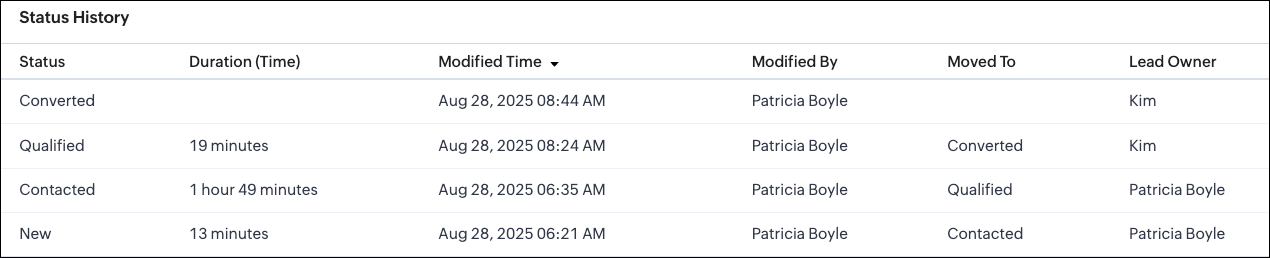
Sample Response via API
Whenever a picklist option changes, the system creates a new record in the related list module. In this example, Status History is the related list module. The sample response below shows how a particular change looks when retrieved using the Get Records API.
Request URL : {{api-domain}}/crm/v8/Status_History/5725767000007739323
Request Method : GET
Sample Response
{ "data": [ { "Status": "Contacted", "$approval": { "delegate": false, "takeover": false, "approve": false, "reject": false, "resubmit": false }, "Modified_Time": "2025-08-28T06:35:15-07:00", "$currency_symbol": "$", "$field_states": null, "$review_process": null, "$editable": true, "Duration_Time": "6568847", //The system stores the duration in milliseconds. "$sharing_permission": "full_access", "Lead_Owner": { "name": "Patricia Boyle", "id": "5725767000000411001" }, "Moved_To__s": "Qualified", "$orchestration": false, "Last_Activity_Time": "2025-08-28T08:24:44-07:00", "Full_Name": { "name": "Zylker", "id": "5725767000007735001" }, "Modified_By": { "name": "Patricia Boyle", "id": "5725767000000411001", }, "$review": null, "$process_flow": false, "$in_merge": false, "id": "5725767000007739350", "$approval_state": "approved", "$pathfinder": false, "$zia_visions": null } ] } |
Note :
- You can select up to 10 fields in total, with a maximum of 5 user fields for all modules except Deals.
- Encrypted fields cannot be specified.
- In the Deals module,
- History tracking is enabled by default for the Stage picklist field.
- You cannot enable history tracking for any other picklist field in the Deals module.
- You can only update the existing Stage picklist field using the Update Custom Field API.
- You can add up to 6 followed fields, with a maximum of 5 user fields.
We hope this post helps you confidently manage picklists and track their history in Zoho CRM. Try it out, and let us know your experience in the comment section or reach out to us at support@zohocrm.com
Stay tuned for more insights in our upcoming Kaizen posts!
Cheers!

Previous Kaizen : Kaizen# 204 - Answering Your Questions - Perform Field Updates before Blueprint transition via Client Script | Kaizen Directory : Home
Related Links :
Topic Participants
Subramanian K
Sticky Posts
Kaizen #198: Using Client Script for Custom Validation in Blueprint
Nearing 200th Kaizen Post – 1 More to the Big Two-Oh-Oh! Do you have any questions, suggestions, or topics you would like us to cover in future posts? Your insights and suggestions help us shape future content and make this series better for everyone.Kaizen #226: Using ZRC in Client Script
Hello everyone! Welcome to another week of Kaizen. In today's post, lets see what is ZRC (Zoho Request Client) and how we can use ZRC methods in Client Script to get inputs from a Salesperson and update the Lead status with a single button click. In thisKaizen #222 - Client Script Support for Notes Related List
Hello everyone! Welcome to another week of Kaizen. The final Kaizen post of the year 2025 is here! With the new Client Script support for the Notes Related List, you can validate, enrich, and manage notes across modules. In this post, we’ll explore howKaizen #217 - Actions APIs : Tasks
Welcome to another week of Kaizen! In last week's post we discussed Email Notifications APIs which act as the link between your Workflow automations and you. We have discussed how Zylker Cloud Services uses Email Notifications API in their custom dashboard.Kaizen #216 - Actions APIs : Email Notifications
Welcome to another week of Kaizen! For the last three weeks, we have been discussing Zylker's workflows. We successfully updated a dormant workflow, built a new one from the ground up and more. But our work is not finished—these automated processes are
Recent Topics
Payment Vouchers
Is there any Payment Vouchers in Zoho? How can we create payment for non-trade vendors, i.e. professional fees, rent, and payment to commissioner income tax?When I click on PDF/PRINT it makes the invoice half size
When I click PDF / Print for my invoice in Zoho Books, the generated PDF appears at half size — everything is scaled down, including the logo, text, and layout. The content does not fill the page as it should. Could someone advise what causes Zoho BooksSearch by contain letter in a column
Hello, everyone I need a filter function that searches by letter in a cell, and it should be a macro. To clarify further, if I have a column with several names and I chose a search cell and what I want is search by a single letter, for example, "a" thenCan add a colum to the left of the item in Zoho Books?
I would need to add a column to the left of the item column in Books. When i create custom fields, i can only display them to the right of the item.AI Bot and Advanced Automation for WhatsApp
Most small businesses "live" on WhatsApp, and while Bigin’s current integration is helpful, users need more automation to keep up with volume. We are requesting features based on our customer Feedbacks AI Bot: For auto-replying to FAQs. Keyword Triggers:2025 Ask the Experts sessions wrap-up : Key highlights from the experts
Here is a rewind journey of our Ask the Experts (ATE) Sessions, where we brought you expert insights and practical best practices together in one place. This recap highlights the key takeaways, learnings, and best practices from all these sessions soHow to disable the edit option in subform
How to disable the edit option in subformMove record from one custom module to another custom module
Is it possible to create a button or custom field that will transfer a record from one custom module to another? I already have the 'Leads' module used for the Sr. Sales department, once the deal is closed they convert it to the 'Accounts' module. I would like to create a 'Convert' button for a custom module ('Locations') for the department that finds locations for each account. Once the location is secured, I want to move the record to another custom module called 'Secured Locations'. It's basicallyNotes Not Saving
Hello, My notes are continuously not saving. I make sure to save them, I know the process to save them. It is not operator error. I go back into a Leads profile a while later and do not see the previous notes that I have made. I then have to go back and do unnecessary research that would have been in the notes in the first place. Not a good experience and it is frustrating. Slows me down and makes me do unnecessary work. Please resolve. As a quick heads up, deleting cookies is not a fixPrefill form with CRM/Campaigns
I created a form in zForms and created prefill fields. I added this to the CRM and selected the fields so when sending from the CRM, the form works great. However, I want to use the same form in Campaigns and I want it to pull the data from CRM (whichTriggering a campaign automation from a Form
I used Forms to create a lead form that is accessed by a button on my website. The field information flows into the CRM. However, I am trying to figure out how to use Campaign automations to start a workflow (series of campaign emails) that is triggeredEmployee Appraisal Applicability - Why is Date of Joining Hard-Coded?
In the new (to me, at least) Performance Appraisal Cycle wizard, it's possible to set criteria to determine for whom the appraisal process should apply. This makes sense on its face. However, one MUST use the Date of Joining criterion as a filter. WhyFormula fields
Zoho People now supports formula fields. This post illustrates it. Formula fields are fields whose value is calculated instead of being entered by the user. Using this, number, decimal and date manipulations can be done. The value of this field could be numeric or date depending on the output of the formula. In date manipulations, the result will be given in milliseconds, which you can format as per you need. The operators we support are +, - , *, /. Formula fields get recalculated automaticallyZobot operator information
I am working on a zobot that calls a plug to send data to our API. I want the response data from that API to be shown only to the operator and not the customer. I have tried writing this data out to the visitorCity field but nothing gets updated on theCopy paste from word document deletes random spaces
Hello Dear Zoho Team, When copying from a word document into Notebook, often I face a problem of the program deleting random spaces between words, the document become terribly faulty, eventhough it is perfect in its original source document (and withoutIs it possible to use module field filters via URL parameters?
It would be really convenient if I could quickly link to a filter. For reference, this is the filter functionality I'm referring to: https://help.zoho.com/portal/en/kb/crm/customize-crm-account/advanced-filters/articles/advanced-filters For example: MyTransitioning FESCO Bill Project to Zoho Sheets and Integration Options
Hello Zoho Support, I'm considering transitioning my FESCO bill project from Google Sheets to Zoho Sheets and wanted to know if there are integration options to seamlessly migrate our existing work. You can view our platform here, any guidance would beCredit card
Coming from another software, is it possible here to typically have credit card payment off, but independently per customer, click a box (possibly on the invoice when I go to to send) allowing that 1 allowed customer credit card payment, NOT ALL of myLightbox Pop-up form
I would like to embed my form using the lightbox pop up. I don't want it to load automatically. I want it to load when some clicks the button. I can see this option, however when I use the "show pop-up launch button" on the website, the button automaticallyLightbox Pop-up form
I would like to embed my form using the lightbox pop up. I don't want it to load automatically. I want it to load when some clicks the button. I can see this option, however when I use the "show pop-up launch button" on the website, the button automaticallyConnecting Portals from different Zoho apps
Hi, I note that Zoho has functionality for customer portals for several of the Zoho apps, like CRM, Projects, Desk etc. Is there any way to connect these portals? It would be great if we could give our customers access to a portal in which they couldCustomer Management: #5 Never Let the Customer Slip
When Rahul started Knight's Watch Consulting, his focus was simple: deliver good work and keep clients happy. He offered one-time consulting projects, monthly advisory retainers and usage-based support for growing clients. Business was steady, and customersDeluge date time issue
The deluge function info zoho.currentdate.toString("MMM/YYYY") returns Dec 2026 instead of 2025Zoho Projects Android and iOS app update: Mobile device permission based on user profiles
Hello everyone! We have brought in support for mobile device permissions based on the user profiles which are configured in organization level. Administrators can now configure the permissions on the web app(projects.zoho.com) by following the steps mentionedtreatment for rehires
Hello, we are aware of the fact that Zoho People at the moment does not has a provision for rejoining exited employees. But is there any quick fix or hack to this? It will be appreciated a lot.Zoho Projects Android and iOS app update: Timesheet module is now renamed as 'Time Logs', delete option has been renamed to 'Trash'.
Hello everyone! We have now renamed the Timesheet module as Time Logs and the delete option as 'Trash' on the Zoho Projects Android and iOS app. Time Logs Android: Time Logs iOS: Trash option Android: Trash option iOS: Please update the app to the latestZoho Mail app update: Manage profile picture, Chinese (Traditional) language support
Hello everyone! In the latest version (v3.1.9) of the Zoho Mail app update, we have brought in support to manage profile picture. You can now set/ modify the profile picture within the app. To add a new profile picture, please follow the below steps:Reminders for Article Approval
Is there a way to send reminders for approvers to review articles and approve/deny them? I'm not seeing that option anywhere.Add Full-Screen Viewing for Quartz Recordings in the Client Interface
Hi Zoho Team, We would like to request an enhancement to the Zoho Quartz client interface when viewing submitted recordings. Current Limitation: When viewing a Quartz recording from the client (user) interface, there is currently no option to switch the2025 Recap: A Year to Remember | Zoho Inventory
Important Update : Pipedrive deprecated fields no longer supported in Zoho Analytics
Dear Pipedrive users, We would like to inform you about a recent update related to your Pipedrive integration with Zoho Analytics. The Pipedrive team has deprecated certain fields from their application. You can find more details in the official PipedriveProduct Updates in Zoho Workplace applications | November 2025
Hello Workplace Community, Let’s take a look at the new features and enhancements that went live across all Workplace applications this November. Zoho Mail Format comments easily using Slash Commands With Slash commands, you can easily format text, insertRight-Click Pipeline to Open in New Tab
Please add the ability to right-click on a pipeline to open it in a new tabAdjusting Physical Inventory
Not getting very far with support on this one, they say they are going to fix it but nothings happened since November. Please give this a thumbs up if you would like to see this feature or comment if you have some insight. Use Case: Inventory set to beI need to Record Vatable amount and non vatable amount separately in zoho books in a single line
I need to Record Vatable amount and non vatable amount separately in zoho books in a single line give me the customisation option and in invoice copy to customer the total amount should be inclusive 5%vat and no need to show the vatable and non vatablesync views to sheet
Im looking to sync my views aka reports in analytics to zoho sheets, when data is updated in analytics it also should be updated in sheets, till now zoho sheets only offer raw data connection and it is not enough as these reports are difficult to re-doHow to update the Status in a custom module?
Hi, I have a custom module "cm_payment_registry" in Billing, I am trying to change the status which is "Draft" with: array = {"custom_status":"Approved"}; zoho.billing.update("cm_payment_registry",organization.get("organization_id"), XXXXXXXXXXXXXX, array,"connectionname");Opening balances - Accounts Receivable and Payable
Our accounting year starts on 1st August 2013 and I have a Trial Balance as at that date, including Accounts Receivableand Accounts Payable balances, broken down by each customer and supplier. Q1 - do I show my opening balance date as 31st July 2013 orReplace Zoho Invoice with QuickBooks
We are implementing Zoho FSM for a cleaning business in the US with 50+ field workers. This business has been using Quickbooks for accounting for decades and will not migrate to Zoho Books. A major issue in the integration is the US sales tax calculation.2025 Highlights: A Year of Steady Progress and Significant Developments
As we come to the end of 2025, let's take a moment to reflect on the significant progress and developments we've made to improve your travel and expense management. In the Spotlight Introducing Online Booking (US edition only - Early access) Enable onlineNext Page