Kaizen #205 - Answering Your Questions | Managing Picklists and Enabling History Tracking via Zoho CRM APIs
Hello everyone!
Welcome back to another post in our Kaizen series.
In this post, we will look at how you can manage picklist fields in Zoho CRM using APIs. This topic was raised as feedback to Kaizen #200, so we are taking it up here with more details.

In this post, we will cover the following:
- What is a picklist field in Zoho CRM?
- Picklist vs Multi-select Picklist
- Working with picklist fields via APIs
- Creating a picklist field using the Create Custom Field Metadata API
- Updating a picklist field using the Update Custom Field Metadata API
- Assigning picklist values when creating records using the Insert Records API
- Updating picklist values in existing records using the Update Records API
- History tracking for picklists
- What is history tracking for picklists in Zoho CRM?
- Use case
- Enabling history tracking for a picklist using the Create Custom Fields API
What is a picklist field in Zoho CRM?
A Picklist field is a drop-down field in Zoho CRM that contains a predefined list of values. While creating or updating a record, you can select one value from this list instead of entering it manually. This helps you avoid typing errors.
Example :
A Region field with values East, West, North, and South.
If a lead is from the East, the user simply selects East from the picklist instead of typing it manually.
Picklist vs Multi-select Picklist
Picklist | Multi-select Picklist |
Users can select only one value from the list. | Users can select multiple values at once. |
A standard Region picklist works when a record belongs to only one region. Example : East | A Multi-select Region picklist works when a record spans multiple regions. Example : East, North |
Global picklist / Global set : User can create a picklist in common and associate the created picklist across the modules to maintain accuracy. Refer to Kaizen #161: Global Sets using Zoho CRM APIs for more details.
Working with picklist fields via APIs
Creating a picklist field using the Create Custom Field API
You can create a new Picklist field in a module by calling the Create Custom Field Metadata API. For example, you can create a picklist field named Region with the values: East, West, North, South.
Request URL : {{api-domain}}/crm/v8/settings/fields?module=Leads
Request Method : POST
Sample Input
When creating a picklist field, set its data type as picklist and provide the list of options, each with a mandatory display_value. You can also configure additional properties such as actual_value, lexical sorting, and color coding.
{ "fields": [ { "field_label": "Select Region", "data_type": "picklist", // Specify the data type as picklist "tooltip": { "name": "info_icon", "value": "Select your region here" }, "profiles": [ { "id": "5725767000000026011", "permission_type": "read_write" } ], "pick_list_values": [ { "display_value": "East", //The unique display value for the picklist, which will be displayed in the CRM UI. Use the display_value in API requests during create, update, and upsert operations. "actual_value": "IN_East" //The unique reference value associated with the particular option. }, { "display_value": "West", "actual_value": "IN_West" }, { "display_value": "North", "actual_value": "IN_North" }, { "display_value": "South", "actual_value": "IN_South" } ], "pick_list_values_sorted_lexically": true, //Sorts options alphabetically. Default value is false. "enable_colour_code": true //Allows color coding for picklist options. Default value is false. } ] } |
Note : To create a multi-select picklist field, set the data_type key to multiselectpicklist in the request body ("data_type": "multiselectpicklist").
Sample Response
{ "fields": [ { "code": "SUCCESS", "details": { "id": "5725767000007613005" }, "message": "field created", "status": "success" } ] } |
Updating a picklist field using the Update Custom Field API
The PATCH - Field Metadata API lets you modify an existing Picklist field. Use the Get Fields Metadata API to get your picklist field ID.
You can:
- Add new options
- Update the picklist
- Remove existing options using Update Custom Layout API
Here is a sample request that updates the Select Region dropdown field in the Leads module.
Request URL : {{api-domain}}/crm/v8/settings/fields/5725767000007613005?module=Leads
Request Method : PATCH
Adding a new option to the existing picklist field
Sample Input
{ "fields": [ { "pick_list_values": [ { "display_value": "Central", //adding a new option to the existing picklist field "actual_value": "IN_Central" } ], } ] } |
Updating picklist
{ "fields": [ { "profiles": [ { "id": "5725767000000026011", "permission_type": "read_only" //updating the permission_type } ], "pick_list_values": [ { "display_value": "South Region", //updating the display field's value "id": "5725767000007613010" //unique ID of the option } ], "enable_colour_code": false //disabling color code for the options } ] } |
Note : Use the actual_value or unique ID of a picklist option to update its display value. Use the Get Fields Metadata API or Get Layouts Metadata API to get the details.
Removing existing options using Update Custom Layout API
To remove picklist values, keep only the required options in your input. Any options not included in the request will automatically move to the unused section.
First, fetch the required layout, section, field, and option IDs using the Get Layouts Metadata API. Then, in your request body, specify only the picklist values you want to retain.
Request URL : {{api-domain}}/crm/v8/settings/layouts/5725767000000091055?module=Leads
Request Method : PATCH
Sample Input
{ "layouts": [ { "id": "5725767000000091055", //layout id "sections": [ { "id": "5725767000000209001", //section id "fields": [ { "id": "5725767000007613005", //field id "pick_list_values": [ { "display_value": "Central", "id": "5725767000007626001" }, { "display_value": "East", "id": "5725767000007613004" } ] } ] } ] } ] } |
Here, Central and East regions remain as active picklist options, and West, North, and South regions are moved to the unused section.
Updated response
Use the Get Fields Metadata API to check the updated response. The Central and East are still active options (type: used), and North, South, and West are inactive options (type: unused)
{ "fields": [ . . . { "field_label": "Select Region", "id": "5725767000007613005", "api_name": "Select_Region", "pick_list_values": [ { "display_value": "-None-", "sequence_number": 1, "reference_value": "-None-", "colour_code": null, "actual_value": "-None-", "id": "5725767000007613013", "type": "used" //default option }, { "display_value": "Central", "sequence_number": 6, "reference_value": "Central", "colour_code": null, "actual_value": "IN_Central", "id": "5725767000007626001", "type": "used" }, { "display_value": "East", "sequence_number": 2, "reference_value": "East", "colour_code": null, "actual_value": "IN_East", "id": "5725767000007613004", "type": "used" }, { "display_value": "North", "sequence_number": 4, "reference_value": "North", "colour_code": null, "actual_value": "IN_North", "id": "5725767000007613008", "type": "unused" }, { "display_value": "South", "sequence_number": 5, "reference_value": "South", "colour_code": null, "actual_value": "IN_South", "id": "5725767000007613010", "type": "unused" }, { "display_value": "West", "sequence_number": 3, "reference_value": "West", "colour_code": null, "actual_value": "IN_West", "id": "5725767000007613006", "type": "unused" } ], "data_type": "picklist" } ] } |
Assigning picklist values using the Insert Records API
When you insert a record, you can directly pass the picklist option’s display value (not the ID) in the request body.
Request URL : {api-domain}/crm/v8/{module_api_name}
Request Method : POST
Sample Input
{ "data": [ { "Company": "Zylker", "Last_Name": "David", "Select_Region": "Central" // Picklist value to assign } ] } |
Note:
- When creating, updating, or upserting records,
- You can either pass an existing picklist value or add a new one, through the API. Please note that the new value will only be stored in that record, and will not be added to the picklist field’s metadata.
- In the UI, you can only select from the available dropdown options.
- Always use the display_value of the picklist option, not the picklist option’s ID.
- You can also assign the default option (-None-). In this case, the picklist field’s value will be stored as null ("Select_Region": null)
Sample Response
{ "data": [ { "code": "SUCCESS", "details": { "Modified_Time": "2025-08-23T04:51:39-07:00", "Modified_By": { "name": "Patricia Boyle", "id": "5725767000000411001" }, "Created_Time": "2025-08-23T04:51:39-07:00", "id": "5725767000007623017", "Created_By": { "name": "Patricia Boyle", "id": "5725767000000411001" } }, "message": "record added", "status": "success" } ] } |
Updating picklist values in existing records using the Update Records API
When updating, you also use the picklist display value in the field.
Request URL : {api-domain}/crm/v8/Leads/5725767000007628002
Request Method : PUT
Sample Input
{ "data": [ { "Select_Region": "West" // New picklist value } ] } |
This will replace the existing picklist value with West.
History tracking for picklists
What is history tracking for picklists in Zoho CRM?
You can enable history tracking for a picklist field using the Create Custom Field API. Once enabled, Zoho CRM automatically creates a related list for the tracked picklist and a separate module.
Every time the picklist value changes, Zoho CRM creates a new entry in this related list. Each entry shows the old value, the new value, who made the change, and when it was made, and how long the record stayed in the previous value before moving to the next one.
Use case
Zylker's sales team tracks lead progress through the statuses such as New, Contacted, Qualified, and Converted. The team wants to know how long a lead remains in each status and identify if follow-ups are delayed or leads are not progressing.
You can achieve this by enabling history tracking on the Status picklist. You can also monitor every status change, who made it, and how long the lead stayed in the previous status. This helps the team monitor, identify delays, and improve the follow-up process.
The log stores:
- New Value - updated region in the Moved_To__s key.
- Changed By - user who made the update in the Modified_By key.
- Changed On - date and time when the region was changed in the Last_Activity_Time key.
- Duration - how long the record stayed in the previous value before the change in the Duration_Time and Duration_Days keys.
Enabling history tracking for a picklist using the Create Custom Fields API
Request URL : {{api-domain}}/crm/v8/settings/fields?module=Leads
Request Method : POST
Sample Input
{ "fields": [ { "field_label": "Status", "data_type": "picklist", "pick_list_values": [ { "display_value": "New", "actual_value": "New" }, { "display_value": "Contacted", "actual_value": "Contacted" }, { "display_value": "Qualified", "actual_value": "Qualified" }, { "display_value": "Converted", "actual_value": "Converted" } ], "history_tracking_enabled": true, //(mandatory) Enables history tracking for the picklist "history_tracking": { "related_list_name": "Status History", //Lets you give a custom name to the history related list that CRM creates. "duration_configuration": "time", //Decides how to track the timing of changes: days - History is tracked by days and time - History is tracked by time. Note : Before specifying the time value, enable the duration customization feature in your organization by contacting support@zohocrm.com. "followed_fields": [ // The followed_fields lets you retrieve additional field values whenever the picklist value changes. { "api_name": "Owner" } ] } } ] } |
Sample Response in UI
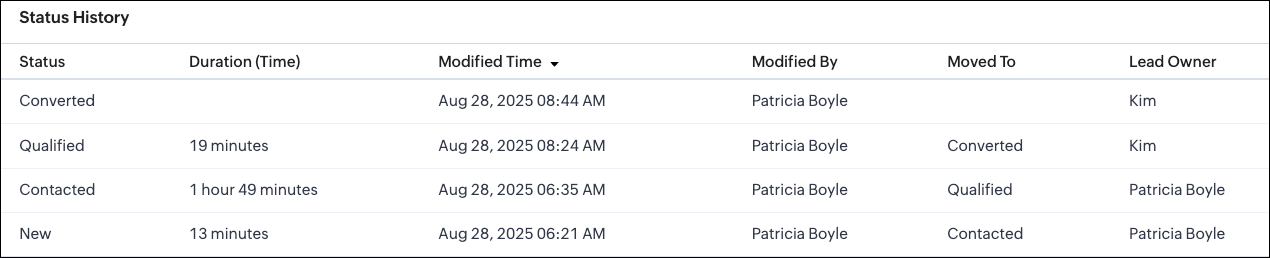
Sample Response via API
Whenever a picklist option changes, the system creates a new record in the related list module. In this example, Status History is the related list module. The sample response below shows how a particular change looks when retrieved using the Get Records API.
Request URL : {{api-domain}}/crm/v8/Status_History/5725767000007739323
Request Method : GET
Sample Response
{ "data": [ { "Status": "Contacted", "$approval": { "delegate": false, "takeover": false, "approve": false, "reject": false, "resubmit": false }, "Modified_Time": "2025-08-28T06:35:15-07:00", "$currency_symbol": "$", "$field_states": null, "$review_process": null, "$editable": true, "Duration_Time": "6568847", //The system stores the duration in milliseconds. "$sharing_permission": "full_access", "Lead_Owner": { "name": "Patricia Boyle", "id": "5725767000000411001" }, "Moved_To__s": "Qualified", "$orchestration": false, "Last_Activity_Time": "2025-08-28T08:24:44-07:00", "Full_Name": { "name": "Zylker", "id": "5725767000007735001" }, "Modified_By": { "name": "Patricia Boyle", "id": "5725767000000411001", }, "$review": null, "$process_flow": false, "$in_merge": false, "id": "5725767000007739350", "$approval_state": "approved", "$pathfinder": false, "$zia_visions": null } ] } |
Note :
- You can select up to 10 fields in total, with a maximum of 5 user fields for all modules except Deals.
- Encrypted fields cannot be specified.
- In the Deals module,
- History tracking is enabled by default for the Stage picklist field.
- You cannot enable history tracking for any other picklist field in the Deals module.
- You can only update the existing Stage picklist field using the Update Custom Field API.
- You can add up to 6 followed fields, with a maximum of 5 user fields.
We hope this post helps you confidently manage picklists and track their history in Zoho CRM. Try it out, and let us know your experience in the comment section or reach out to us at support@zohocrm.com
Stay tuned for more insights in our upcoming Kaizen posts!
Cheers!

Previous Kaizen : Kaizen# 204 - Answering Your Questions - Perform Field Updates before Blueprint transition via Client Script | Kaizen Directory : Home
Related Links :
Topic Participants
Subramanian K
Sticky Posts
Kaizen #198: Using Client Script for Custom Validation in Blueprint
Nearing 200th Kaizen Post – 1 More to the Big Two-Oh-Oh! Do you have any questions, suggestions, or topics you would like us to cover in future posts? Your insights and suggestions help us shape future content and make this series better for everyone.Kaizen #226: Using ZRC in Client Script
Hello everyone! Welcome to another week of Kaizen. In today's post, lets see what is ZRC (Zoho Request Client) and how we can use ZRC methods in Client Script to get inputs from a Salesperson and update the Lead status with a single button click. In thisKaizen #222 - Client Script Support for Notes Related List
Hello everyone! Welcome to another week of Kaizen. The final Kaizen post of the year 2025 is here! With the new Client Script support for the Notes Related List, you can validate, enrich, and manage notes across modules. In this post, we’ll explore howKaizen #217 - Actions APIs : Tasks
Welcome to another week of Kaizen! In last week's post we discussed Email Notifications APIs which act as the link between your Workflow automations and you. We have discussed how Zylker Cloud Services uses Email Notifications API in their custom dashboard.Kaizen #216 - Actions APIs : Email Notifications
Welcome to another week of Kaizen! For the last three weeks, we have been discussing Zylker's workflows. We successfully updated a dormant workflow, built a new one from the ground up and more. But our work is not finished—these automated processes are
Recent Topics
Auto check out after shift complete
i'm just stuck here right now, i wanna know how to do this thing, now tell me, how can i configure a custom function that runs after complete shift time if employee forget to check-out ?How to create a flow that creates tickets automaticaly everyday based on specific times
Hi guys Does anyone know how to create a flow that will create tickets automaticaly in ZOHO Desk when a certain time is reached. Im havin a hard time configuring a flow that will create tickets automaticaly everyday during specific hours of the day ForZOHO FLOW - ZOHO CREATOR - ZOHO WRITER : Get Related records
Bonjour, J'ai besoin que vous m'ajoutiez la solution "Get related Records" dans la liste de choix de zoho creator (sous Zoho flow). En effet, j'ai besoin de récupérer les champs d'un sous formulaire pour l'ajouter à l'impression de mon document. MerWill zoho thrive be integrated with Zoho Books?
titleConnecting email for each department in ZohoDesk
Hi! Could someone help me to go through connecting emails for each department?How do I trigger a Flow based on a campaign response?
Is there a way to trgiider a Zoho Flow based upon a lead opening an email sent via Zoho Campaigns? I see that the data is recorded in the 'Campaigns' section of Zoho CRM under 'Member Status' and I want to trgigger a flow based upon that record changing.All Zoho Flows are filtered
My two flows operate perfectly when I run them as a test, but when they're activated each run ends with a status of neither success, nor fail, but filtered. I haven't set up any filters. I don't see where to turn off filters. When I test run on a sequenceCreating Multiple Items on Sales Order
Hi, I’m trying to automate some processes using Zoho Flow, specifically the creation of sales orders in my Zoho Inventory. However, Zoho Flow's Create Sales Order function can only add one item. I would like to include multiple items in a single salesProblem Connection from Zoho Flow and Gravity Form
I obtained my API key from Gravity Forms via WordPress. However, when I enter my Zoho Flow, it states: Gravity Forms says, 'You are not authorised to access the API." I tried recreating a new API key, but it is still not working.Eventbrite Email Field in Zoho Flow Returns "Info Requested" Instead of Actual Email
Hi Zoho team, I'm using Zoho Flow to connect Eventbrite with Zoho CRM. My goal is to automatically add event attendees as leads in Zoho CRM. I’ve set up the flow and mapped the ${trigger.profile_email}} field to the Email field in CRM. However, I'm running"Invalid value passed for Product ID" Error in Zoho Flow "Create Sales Order" Node
Hello Zoho Community, I’m facing an issue with Zoho Flow while trying to create a sales order in Zoho Inventory using the "Create Sales Order" node. Here’s a detailed explanation of my setup and the problem: What I’m Trying to Achieve I’m building anAssociating Project with an Account via Flow
I'm using flow to create a Project based on a Deal status update using flow. The fields exist to pass the Account Name through properly, but when you view the Projects module in a CRM Account Record it doesn't automatically associate the new Project RecordHow to follow up a member in a meeting?
Hello, I make weekly meeting online with a lot of people. I want(I've been using calendly to do it). I want to do a follow-up to it. I want to send messages via Zoho-flow to all the member that participated in the meeting. How can I do it?Setting Delays in Invoice Reminder Flow
I am currently working on a flow that sends reminders for unpaid invoices. The flow is designed to delay actions until specific intervals before the due date: A reminder should be sent 7 days before the due date. A second reminder should be sent 3 daysGet Sales Orders Related to Inventory Item
Dear Team, I'm just wondering if there is a way to get a list of all Sales Orders related to a specific Inventory Item. I did search all articles but couldn't find any article that could help.Endpoint Central Cloud Asset Update from Fresh Service
All, Does anyone use the asset management feature in Fresh Service? I'd like some help on building a flow to update asset attributes in Endpoint Central Cloud based off of an update to that same asset in Fresh Service. The trigger is "asset is updated"Zoho Flow Export to Deluge
It would be great to take a user built zoho flow and export the entire flow as a deluge script including having multiple connected applications (showing the API connections and webhooks) and different functionality in the other applications interactingAction Iteration/Loop using Zoho Flow
Trying to use Zoho Flow for automating following Context - A zoho form entry which has image upload field with upto 5 images setting and files are saved into Workdrive. After form is submitted need to create folder based on some fields and move filesZoho Flow - Unable to evaluate formatDate with Zoho Invoice Date Field for Calendar Integration
Hello Community, I'm trying to automate the creation of all-day events in Zoho Calendar whenever a new invoice is created in Zoho Invoice. I'm using Zoho Flow for this automation. My Goal: When an invoice is created with a specific "Event Date," I wantZoho Inventory Sales Order Items
I'm trying to build automation using Zoho Flow to add items to a Sales Order. In the automation options for both "create sales order" and "update sales order", The item ID is required. However, when I update the Sales Order, it's just replacing the itemPermissions for Azure Devops connection
I am trying to set up a connection with our Azure DevOps org but it keeps giving me this error. On Azure I should be able to have admin-level access to everything. Can you please point me to which permission this is checking for so I can enable it?Best way to start zoho inventory with bulk openning stock
We are already using zoho book since long time for cars trading company. Now to streamline more, would like to import the excel data of closing stock of inventory to zoho inventory and to start on. Since we need to track each VIN (unique vehicle id number)My IMAP mail suddenly stopped working
On my iPhone and iPad, IMAP stopped working for my Zoho account with the error "User name or password incorrect" and "Invalid credentials failure" however I was able to access via web with the same credentials. Also stopped working on Apple Mail client.Confused by the distiction between matched and categorized when reconciling a bank statement an how to
I used to use quickbooks. In quickbooks, it was possible to use the check writing feature to add an expense that was on the bank statement that did not go through the AP and check writing process. I would write a check, assign it a number like etf (forNot Receiving OTP • https://voters.eci.gov.in/home/family
Hello Customer, Greetings from Zoho Mail. Upon a detailed review of our delivery logs, we can confirm that other Zoho Mail users are successfully receiving OTP emails from eci.gov.in. However, in your specific case, it appears that the OTP emails areWorkDrive for Excel Add on
Dear Sir/Madam Have installed Workdrive for Microsoft add on But unable to view the same added in ExcelSplitting Transactions in Zoho Books
I have read in past forum posts that the ability to split bank transactions would likely be implemented - it's definitely a typical accounting program feature. I'm new to Zoho and thought I'd found nirvana until I realized this feature doesn't seem toZoho Calendar s’enrichit avec une intégration à Zoho People et Zoho Cliq
Les journées de travail ne se déroulent jamais exactement comme prévu. Une conversation informelle devient une séance d’échange d'idées, une absence modifie un planning, et votre agenda se retrouve vite décalé par rapport à la réalité. Chez Zoho Calendar,Holidays
Hi; For defining Holidays, you need to add logic to handle the year as well as the month & day. We need to be able to enter Holidays for the next year. I need to add a holiday for January 2, 2017, but I can't until January 1st, which is a Sunday and weZoho public comments are confusing and unnecessary
Hi, we use zoho desk and have issues with public comments. We started using them because the "Reply" option just seemed very clumsy because of the following reasons: - the top "Reply" button starts what seems to be a regular email, showing the entireZoho API - ticket creation - Validation failed for the condition : Ticket Status Info should not be empty
Hi ! I'm trying to create ticket through Zoho API, and I'm getting a 422 response : "Validation failed for the condition : Ticket Status Info should not be empty" My request looks like this : curl --location 'https://desk.zoho.eu/api/v1/tickets' \ --headerDeleting unwanted ticket replies
Hello, In a Zoho Desk Ticket thread, sometimes one of the recipients has auto-reply activated. This creates a new message in the Ticket thread that not only pollutes the thread, but most importantly cannot be replied properly because usually auto-reply e-mails don't do "reply all", so the other recipients are not included. I want to delete such a message in the Ticket thread. I searched the help of Zoho Desk, but only found a way to mark as Spam (https://help.zoho.com/portal/kb/articles/marking-support-tickets-as-spam)System-generated support email added in CC on “Reply All”
Hi, I recently set up Zoho Desk for a client and we are trying to prevent the Zoho Desk system-generated support email address (not the mailbox used as the department’s "From address") from being automatically added in CC when agents use “Reply All” onApplying Excess Payments & Conflict Invoices Due to Cancelled Items
I’m running into several issues that appear to stem from deeper-than-expected overlap between Zoho Finance (Books/Inventory) and Zoho POS. The level of coupling between these systems seems greater than what was originally communicated, and it’s leadingConvenience Fees
I use Zoho Invoice for invoicing my billboard customers. I have a few customers that want to pay using credit cards and ACH. As a result, I have integrated an Online Payment Gateway (Stripe) for these customers. I currently charge these customers a "Convenience Fee" of 3% for using this service as I typically only take checks as payment (and the gateway charges 2.9% + $0.30 per transaction). I do this by creating a separate line item on the invoice and adding 3% to it. I would like to offerHTML Tags added to Reports with Notes
Recently Zoho added the ability to markup text within notes. That way, users can change font size, colors, etc. It's a great change. However, since the change, reports that include a column for "Note Content" are printing HTML tags within the report.New Feature: Audit Log in Zoho Bookings
Greetings from the Zoho Bookings team! We’re excited to introduce Audit Log, a new feature designed to help you track all key actions related to your appointments. With Audit Log, you can maintain transparency, strengthen security, and ensure accountability.Restrict Payment Methods
Allow us to restrict certain payment methods specific for each customer.Emails Getting Delay Error Messages - Status: 451
Hi. Hoping someone can help. I've been using Zoho for over a year now with no problems at all. Today, the majority of my emails I send out or reply to are getting this error: This message was created automatically by mail delivery system. THIS IS A WARNING MESSAGE ONLY. YOU DO NOT NEED TO RESEND YOUR MESSAGE. The original message was received at Sun, 22 Dec 2019 18:20:19 -0800 from wazza@amninjas.com [wazza@amninjas.com] ----- The following addresses had fatal errors ----- [Status: ERROR, Address:Add Domain
Hello Zoho Support, My Zoho Sites project accidentally auto-added domains with http:// prefix and duplicated domain entries. Current domains list shows: http://www.kinhtethethao.com.vn (Primary – cannot be removed) http://www.kinhtethethao.com.vn (verificationNext Page