Bidirectional sync between Zoho Bookings and Zoho CRM - Part 1
Hey, community members!
The default integration between Zoho CRM and Zoho Bookings is unidirectional, which means that any appointments booked, rescheduled, or deleted in Zoho Bookings will be reflected in Zoho CRM. However, any modifications made to events in Zoho CRM that originated from Zoho Bookings will not be reflected back in Zoho Bookings. Hence, as we're announcing in this community post, we've made the sync bidirectional.
This community post will cover the process of configuring appointment bookings from Zoho CRM in Zoho Bookings, as well as managing appointment statuses such as Canceled, No Show and Completed. We have addressed the rescheduling action in a separate post. To view it, please click on the following link: Reschedule Action
This community post will be beneficial for active Zoho CRM users who handle all their meetings within Zoho CRM. Additionally, you can use this community post as a reference to explore various automation possibilities tailored to your business requirements. For instance, with this post's guidance, when you update a booking's status field to "Completed" in Zoho CRM, it will automatically sync with Zoho Bookings and trigger an automated "Mark as completed" email to customers. This enhancement will improve your Zoho Bookings and Zoho CRM synchronization experience, making appointment management easier.
Prerequisites of bidirectional sync:
- Zoho Bookings Premium subscription
- Zoho CRM paid subscription
- Enable Zoho CRM integration within Zoho Bookings
The purpose of enabling the Zoho CRM integration within Zoho Bookings is to transfer booking details from Zoho Bookings to Zoho CRM. In this configuration, the mandatory field is the Booking ID, which is passed from Zoho Bookings to Zoho CRM through the integration. Whenever an appointment is booked, customer details will be sent to the designated CRM module, and a corresponding record will be created in the Meetings module within Zoho CRM, which will help in automating the workflow.
Here's the complete demo video that covers all the configurations discussed in the community post below:
Timestamps for your reference:
0:35 - Purpose of this community post
Here's the complete demo video that covers all the configurations discussed in the community post below:
Timestamps for your reference:
0:35 - Purpose of this community post
1:26 - Zoho CRM plugin installation
4:43 - Custom field creation
7:20 - Function creation
9:22 - Connection creation
10:24 - Configuring arguments
11:06 - Workflow creation
13:33 - Argument mapping
14:41 - Output verification
17:41 - Conclusion
How we're approaching this bidirectional sync
1. Booking an appointment from Zoho CRM
Install the Zoho Bookings for Zoho CRM plugin within your Zoho CRM application. This plugin enables the creation of a "New Appointment" button within the Zoho CRM Leads and Contacts module, which enables you to select the desired booking page you wish to open. You can choose from various workspace, service, or staff booking pages. After configuration, you can initiate the process of scheduling bookings directly from within your Zoho CRM account.
- Guide on Zoho Bookings and Zoho CRM plugin installation: Booking page selection for Zoho CRM plugin
2. Booking status: Completed or No Show
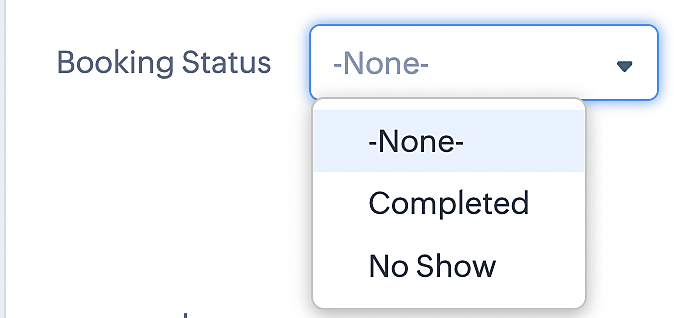
To update a booking's status (Completed or No Show), we've added a new picklist properties field named "Booking Status" in the Meetings module and configured it with two options: "completed" and "no show". Depending on the booking status chosen, the corresponding booking in Zoho Bookings will be updated.
- Details on how to add a custom field to the Meetings module : Customizing modules
- Here's a video that demonstrates how to add a field to a module in Zoho CRM: Adding fields
Reference:
3. Booking status: Canceled
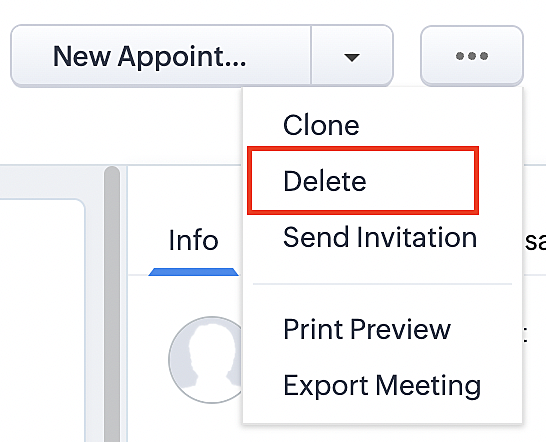
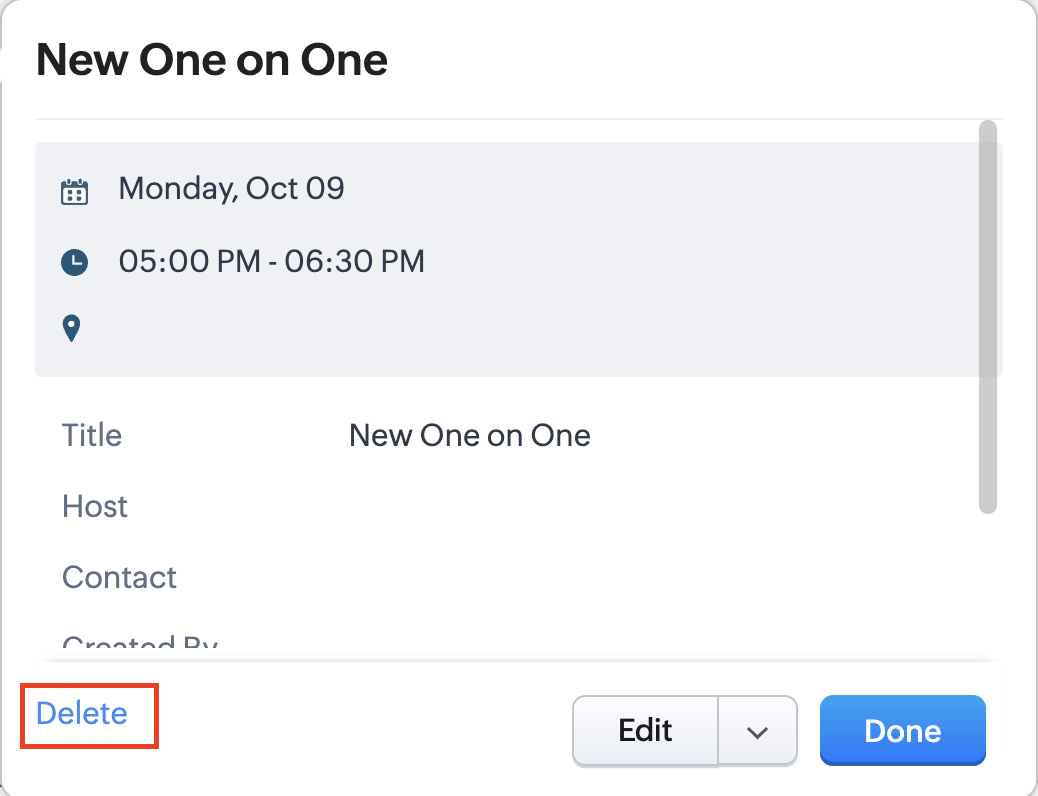
Whenever a meeting is deleted from the Meetings module, the corresponding booking in the Zoho Bookings app will also be canceled automatically. The meeting can be deleted either from the Meetings module or directly from the calendar.
To enable bidirectional sync between Zoho CRM and Zoho Bookings
Complete these steps in Zoho CRM.
Step 1: Creating connections
You first need to establish a connection between Zoho CRM and Zoho Bookings. Zoho Bookings is listed as one of the default connections in Zoho CRM, making it simple to set up. Select the Zoho Bookings connection, define the connection name and scope, and you'll be all set. This connection will enable you to link both applications and facilitate the seamless transfer of data.
Read here for more details on how to create connection in Zoho CRM: Connections
Step 2: Creating functions
In this context, we'll be creating three functions: one for marking appointments as completed, another for canceling appointments, a third for marking appointments as no shows, and a fourth for rescheduling appointments. For each function, we must also configure arguments, which pass values or data into a function when making a call. Here, we'll pass the booking ID to the function as an argument to update the necessary booking status.
i. To create a function for marking appointments as completed:
1. Go to Setup > Developer Space > Functions.
2. In the Functions page, click + Create New Function.

3. Configure the function name, display name, and description.
4. Set the category as automation.
This opens the Deluge script page.
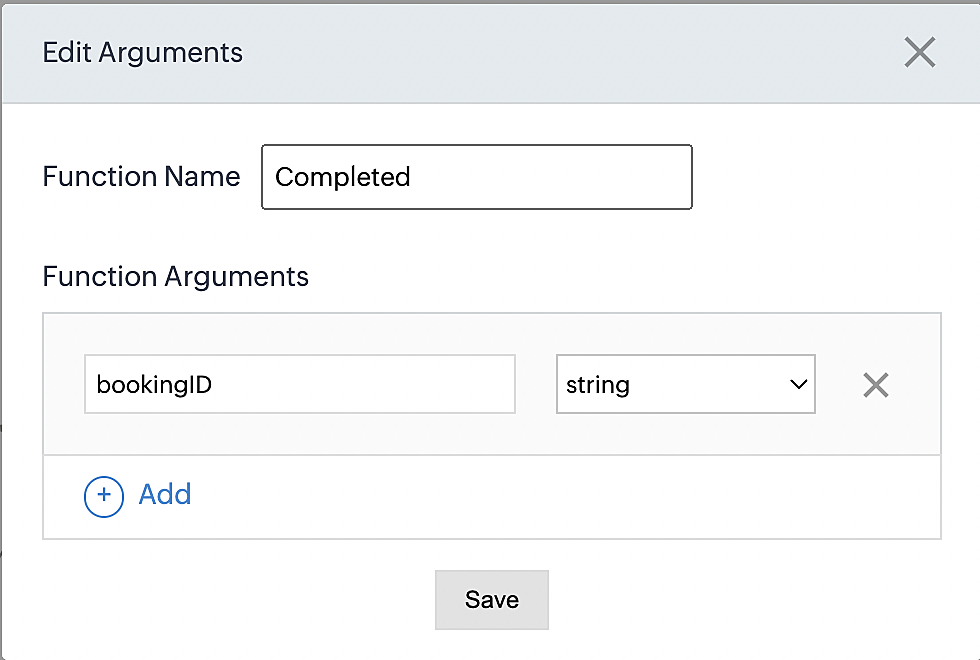
5. Next, configure the function's arguments:
A. Click on Edit Arguments on the Deluge script page.

B. Set the Parameter Name as bookingID. (Please note that the "bookingID" value is case sensitive and must match
the term used in the code).
C. Set the type as string.
Reference:
Please configure the below code in the Deluge script page.
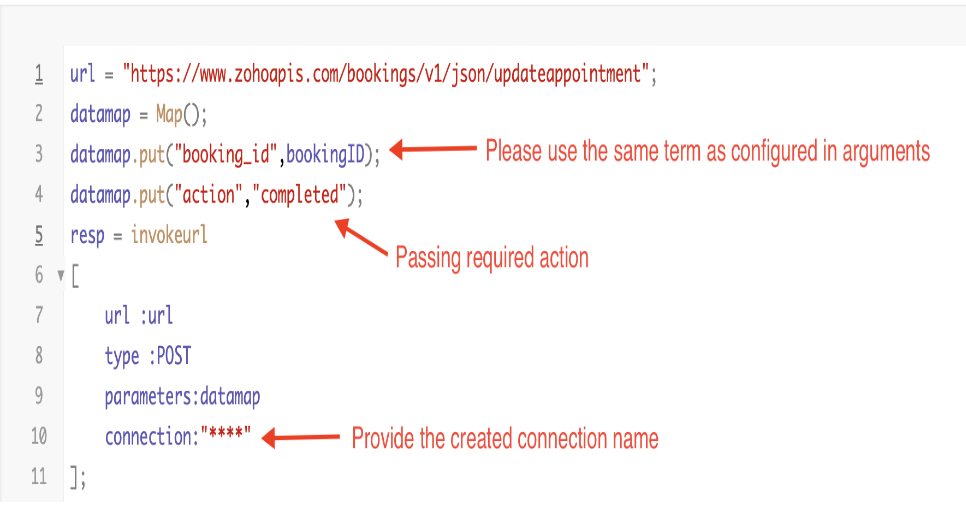
By completing these steps, we've configured a function that will mark appointments as completed.
ii. To create a function for marking appointments as no shows
1. Go to Setup > Developer Space > Functions.
2. In the Functions page, click + Create New Function.

3. Configure the function name, display name, and description.
4. Set the category as automation.
This opens the Deluge script page.
5. Next, configure the function's arguments:
A. Click on Edit Arguments on the Deluge script page.

B. Set the Parameter Name as bookingID. (Please note that the "bookingID" value is case sensitive and must match
the term used in the code).
C. Set the type as string.
Reference:
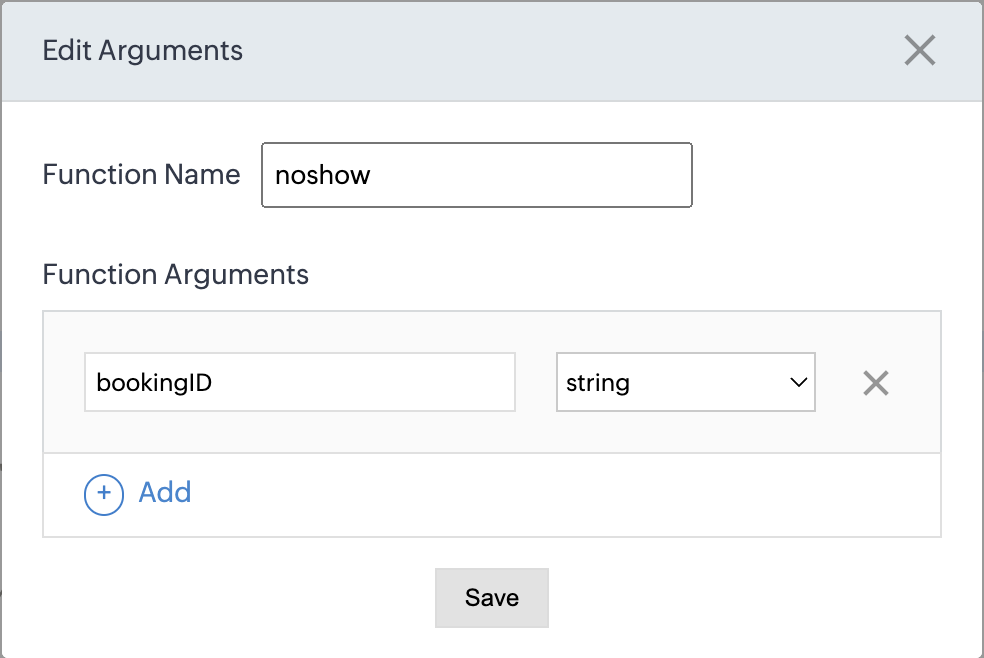
Please configure the below code on the Deluge script page.
Code link: No show
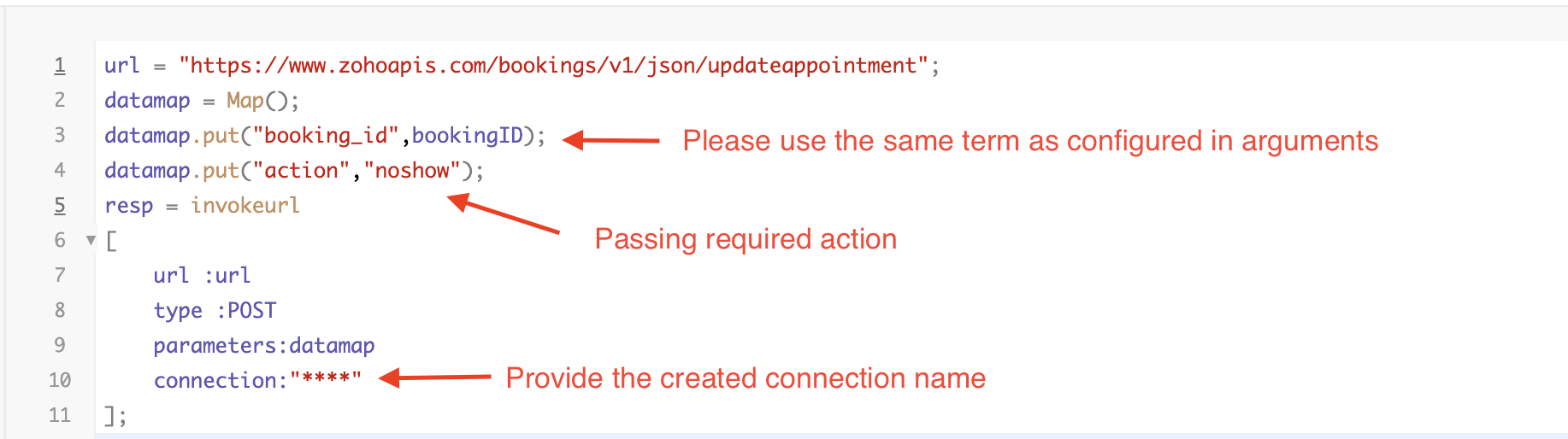
By completing these steps, we've configured a function that marks appointments as no shows.
iii. To create a function for marking appointments as canceled
1. Go to Setup > Developer Space > Functions.
2. In the Functions page, click + Create New Function.

3. Configure the function name, display name, and description.
4. Set the category as automation.
This opens the Deluge script page.
5. Next, configure the function's arguments:
A. Click on Edit Arguments on the Deluge script page.

B. Set the Parameter Name as bookingID. (Please note that the "bookingID" value is case sensitive and must match
the term used in the code).
C. Set the type as string.
Reference
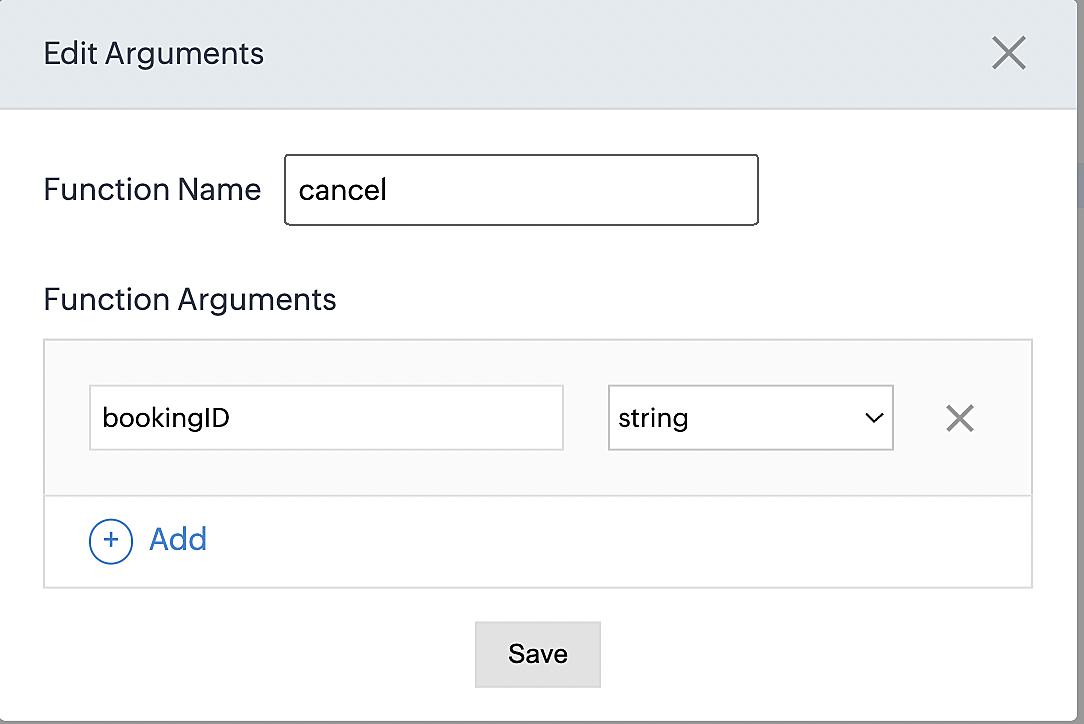
Please configure the below code on the Deluge script page.
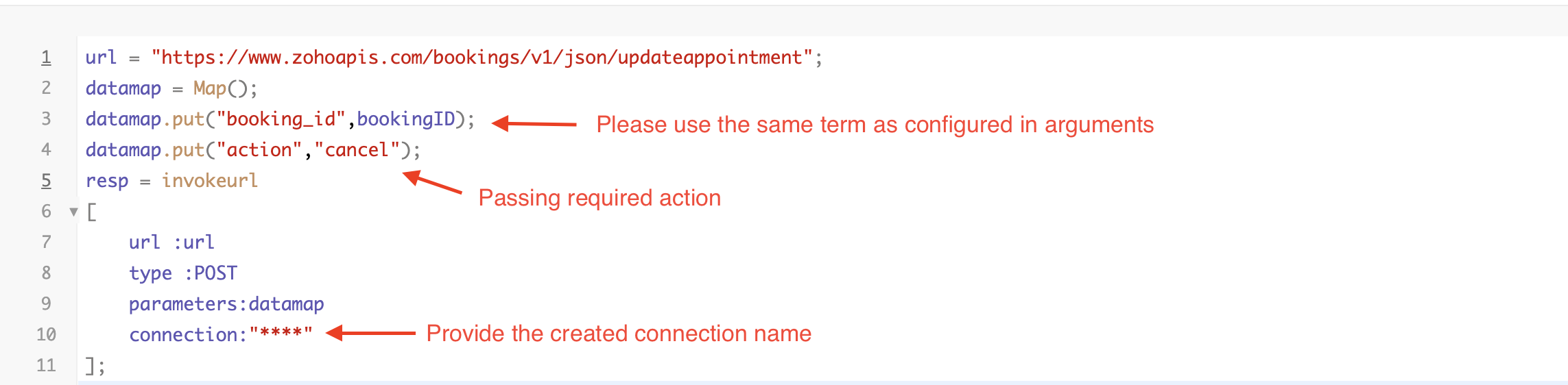
By completing these steps, we've configured a function that marks appointments as canceled.
Code explanation
Below is an explanation of the code that covers all the configurations present in the three functions mentioned above (cancel, mark as completed, and mark as no show).
Line 1: Based on the Zoho Bookings account's data center, we're setting up the API endpoint URL configuration.
Lines 2 - 4: To update appointments, we utilize the Zoho Bookings API. Within the update appointment API, there are two mandatory fields that need to be included: BookingID and action (completed/cancel/noshow).
Lines 5 - 10: We use the invokeURL task for API calls. To learn more about the invokeURL task, please refer to the following document: InvokeURL task for API calls
Now, let's proceed and learn about the process of creating a workflow and linking the established functions to it. This will enable us to automate the entire appointment status updating process.
Step 3: Creating a workflow
Workflow rules are sets of actions (email notifications, tasks and field updates) that are executed when specified conditions are met. Here, we'll generate workflow rules for each action to activate the respective function, thereby automating the appointment status updating process.
i. Creating a workflow for "canceling" appointments in Zoho Bookings when a meeting is deleted in Zoho CRM
Part 1: Creating the rule
1. Go to Setup > Automation > Workflow Rules.
2. In the Workflow Rules page, click Create Rule.

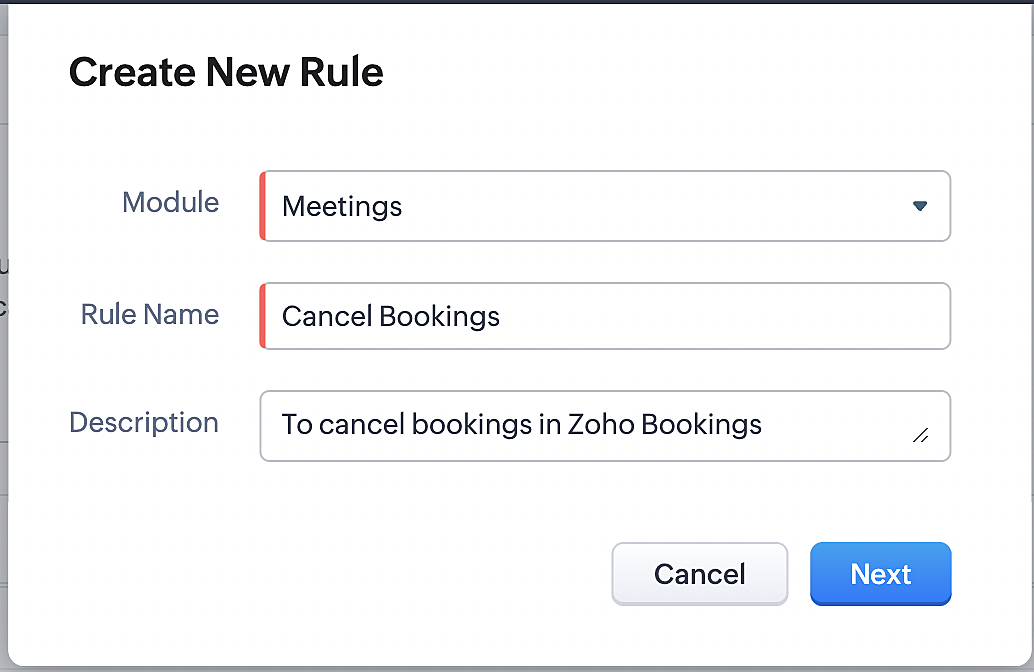
3. Select "Meetings" under Module and configure rule name and description as required.
More details: Create Rule
Reference:
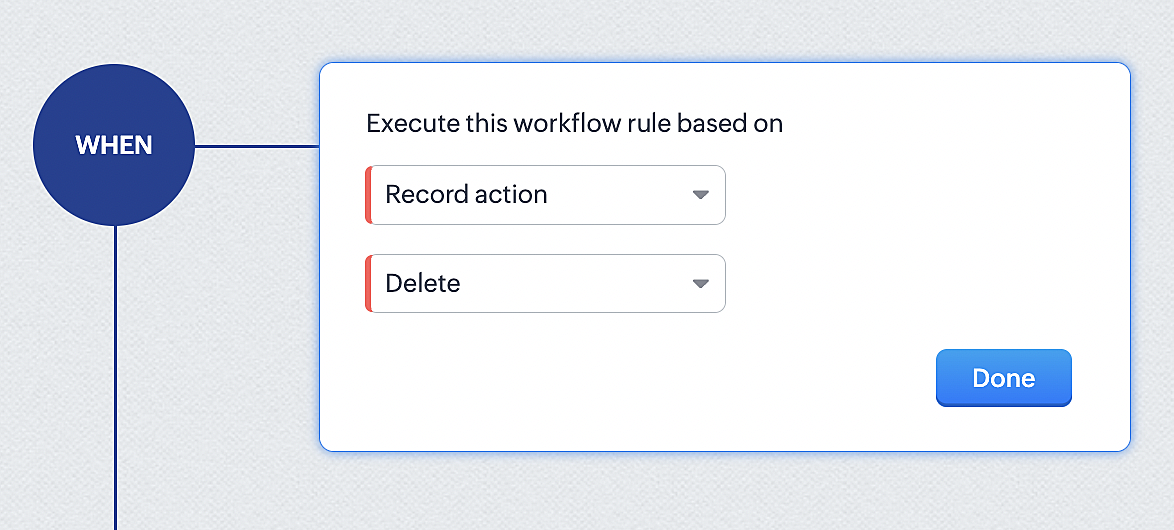
1. Select Record Action > Delete > Done to execute the rule when meetings are deleted.
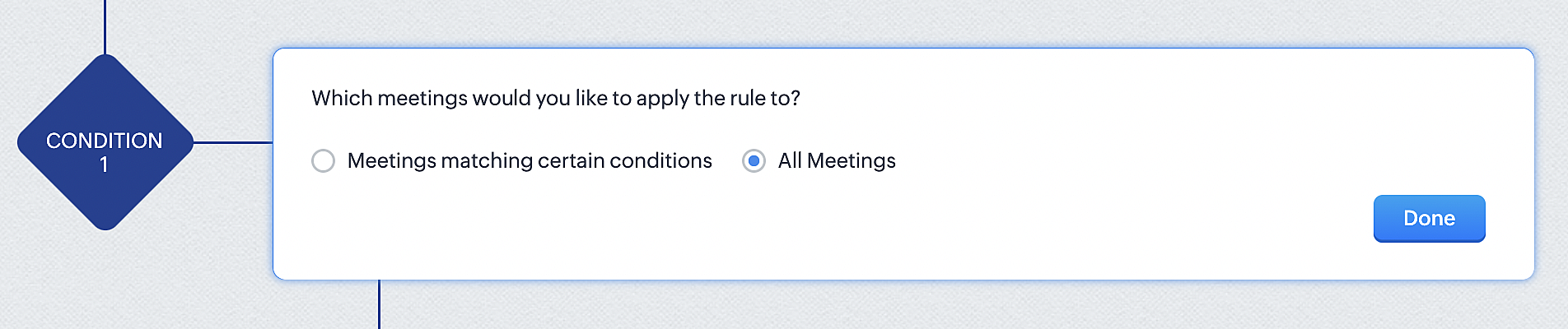
2. Configure condition > All Meetings.
3. Instant Actions > Function.
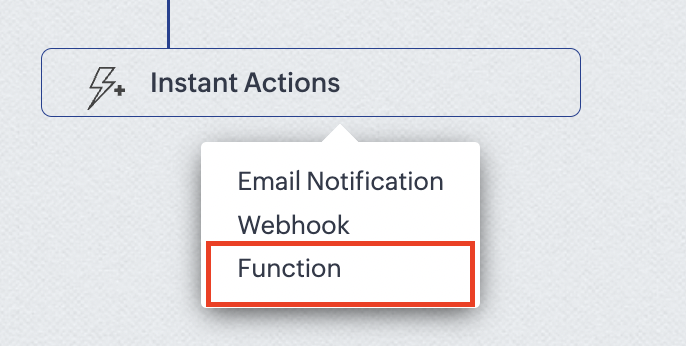
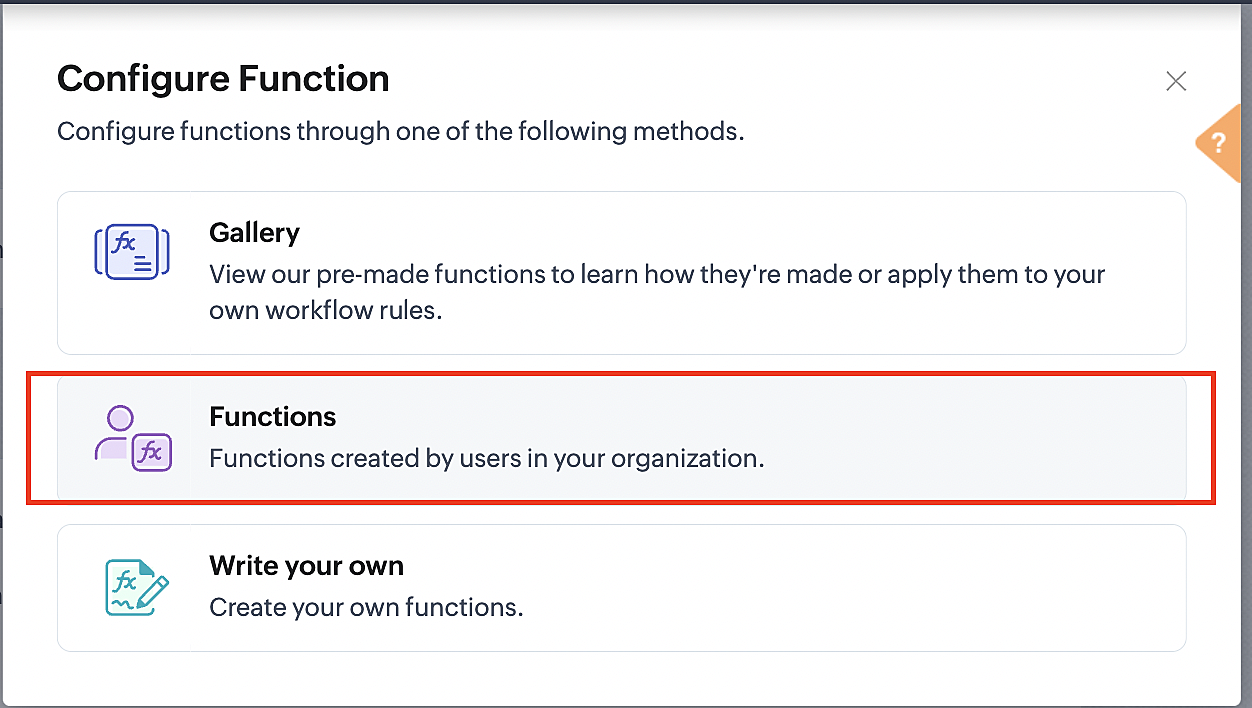
4. Click the New Function button.

5. In the Configure custom function page, select the "cancel" function you created from among the functions users in your organization have created.
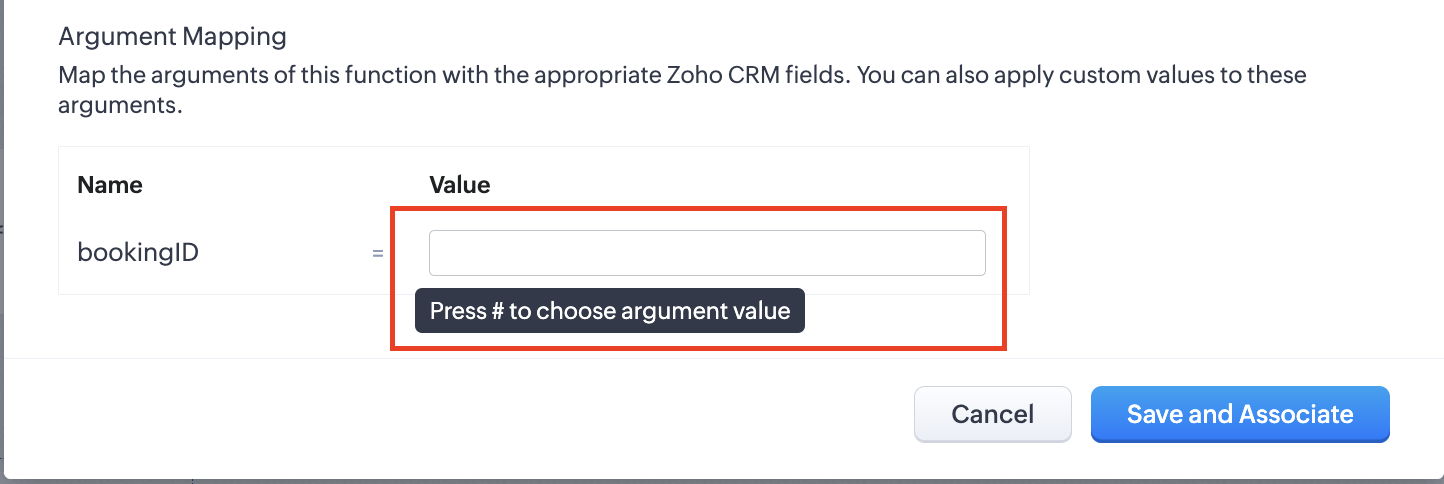
Part 3: Argument mapping
1. Press # to choose an argument value.
2. Select Meetings under Module and BookingId in the field.
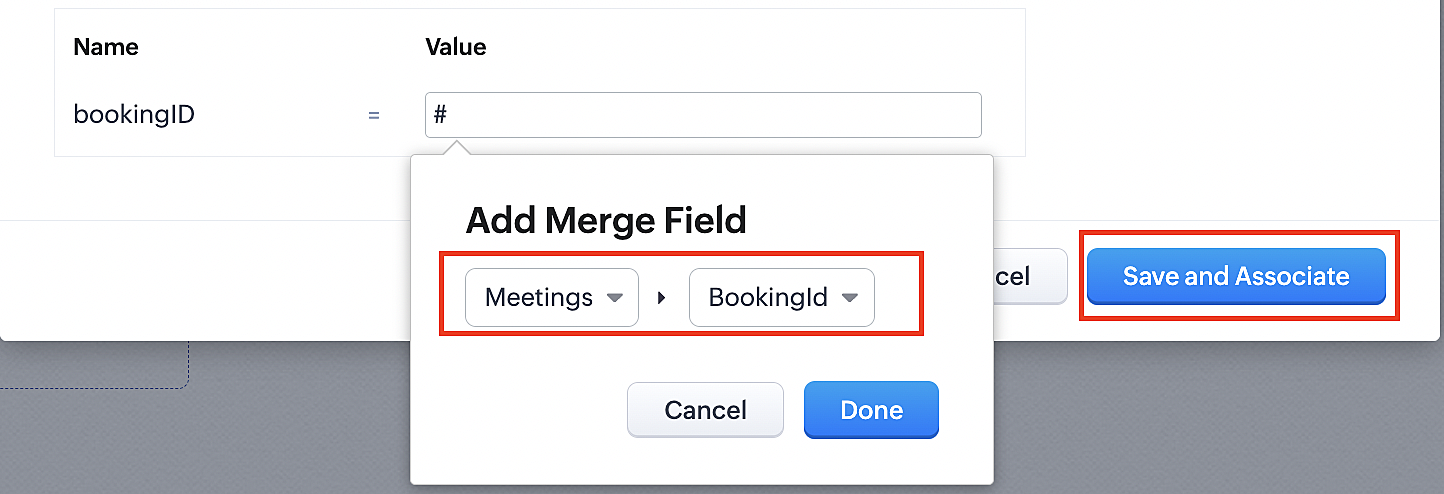
3. Click the Save and Associate button.
Reference:
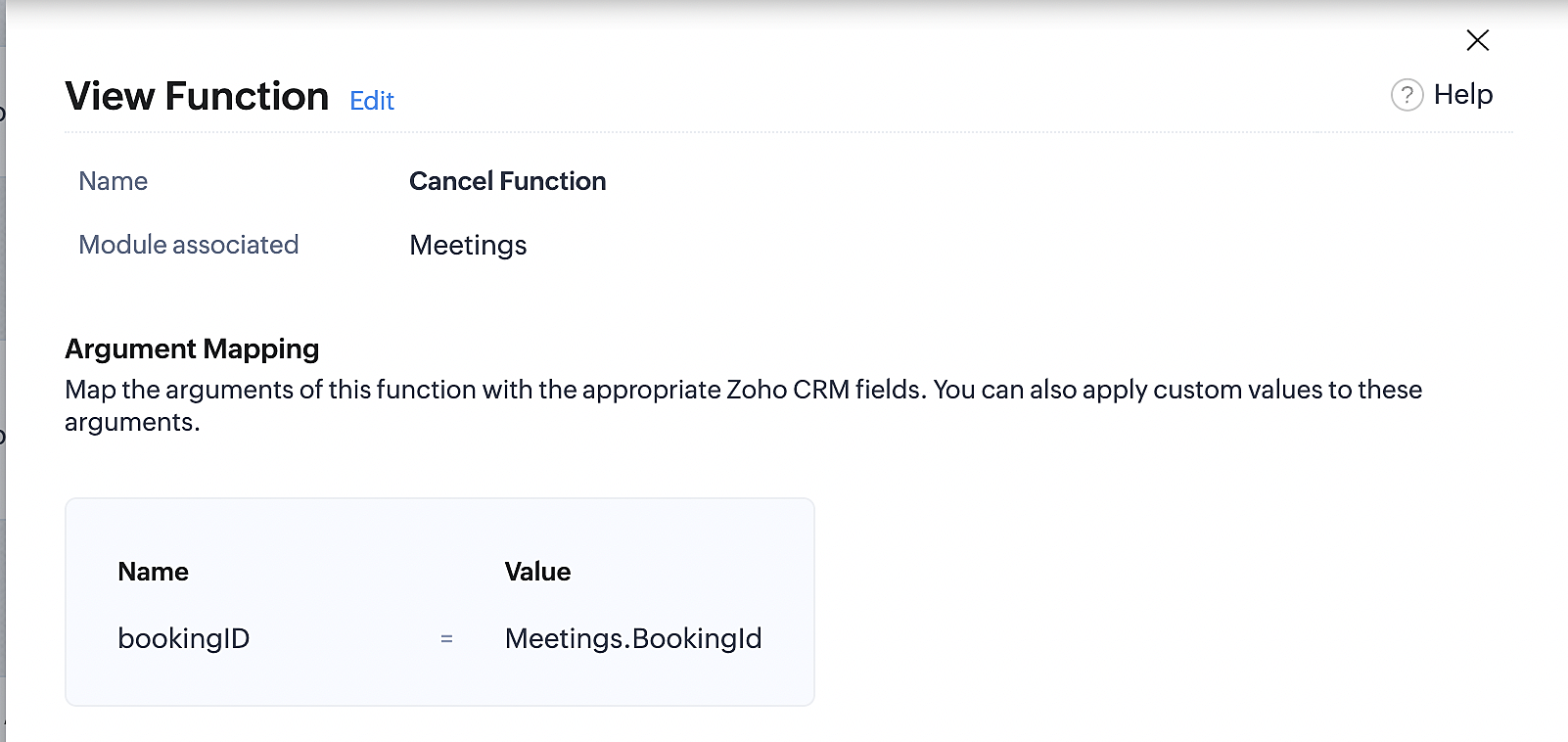
Below is the final flow of the cancel booking workflow:
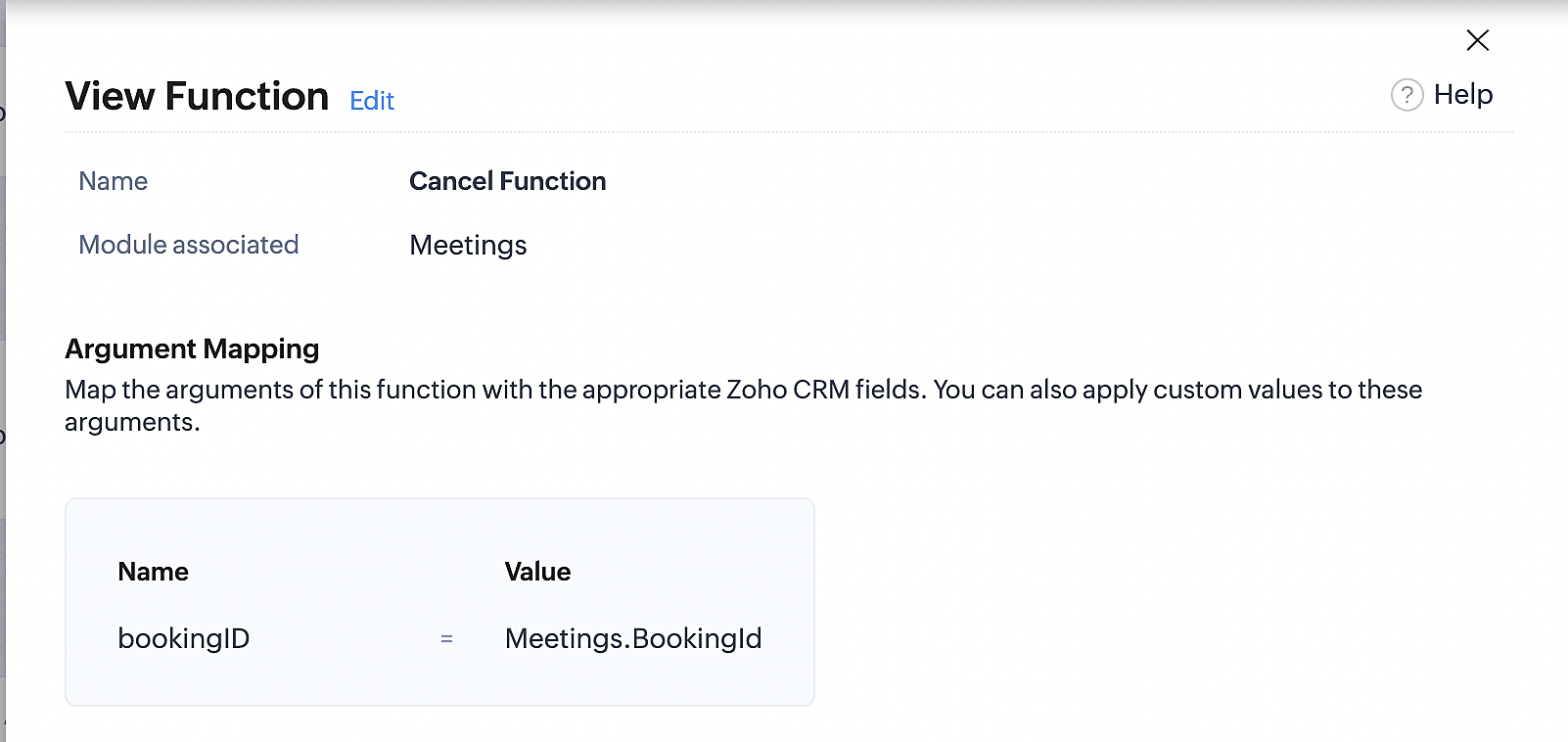
At the end of Part 3, we will have created a workflow that will be executed automatically when meetings are deleted in Zoho CRM. Simultaneously, the bookings associated with the meeting will also be canceled in Zoho Booking.
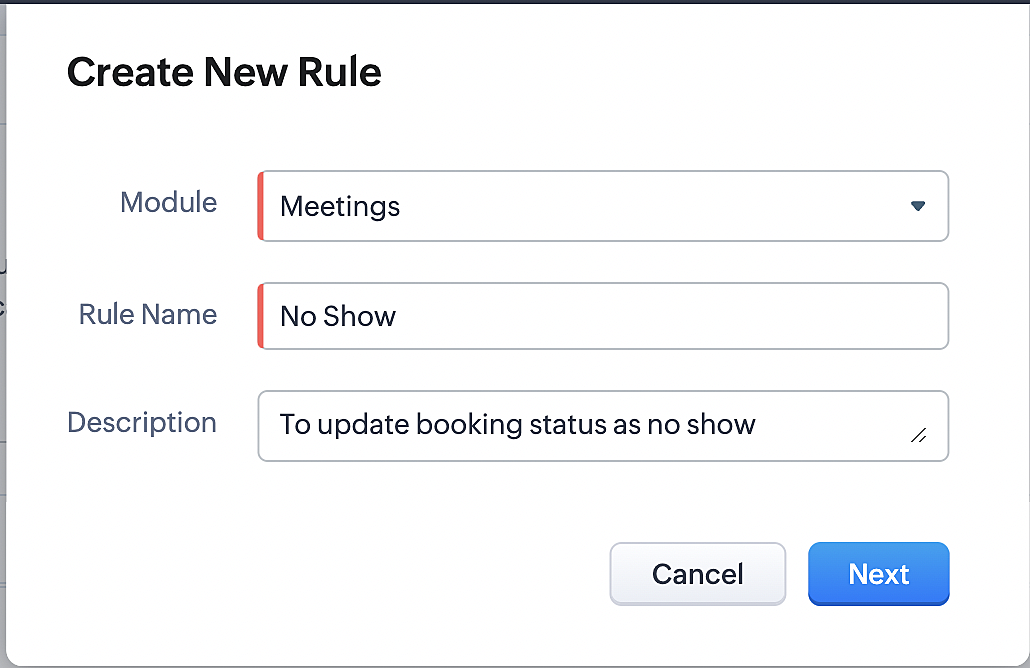
ii. Creating workflow for updating an appointment's status as "no show" in Zoho Bookings when the meeting's booking status is marked as no show in Zoho CRM
Part 4: Creating the rule
1. Go to Setup > Automation > Workflow Rules.
2. In the Workflow Rules page, click Create Rule.

3. Select Meetings under Module and configure the rule name and description as required.
Reference:
Part 5: Specifying the rule trigger
If you encounter difficulties while navigating through the steps mentioned below, please refer to Part 2 above, where we have provided step-by-step screenshots for clarification.
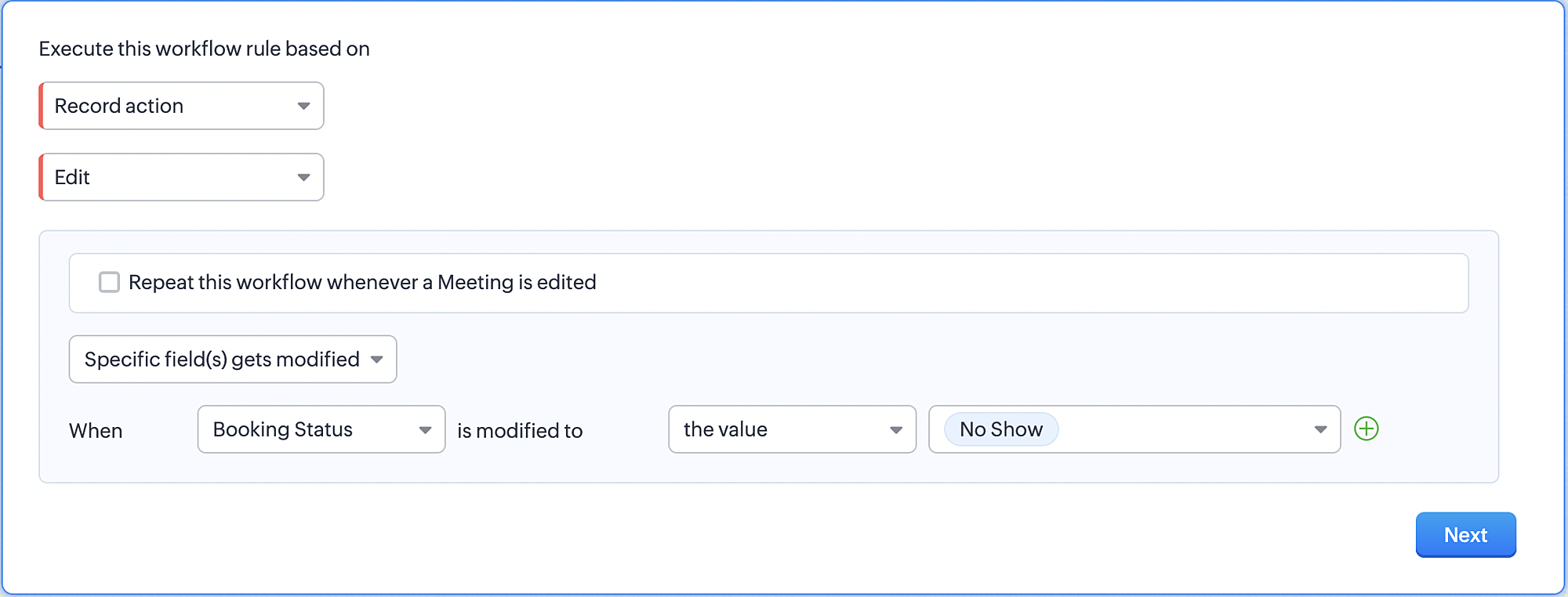
1. Record Action > Edit.

2. Enable the Specific field(s) gets modified and configure it per the screenshot below.
a. This is to ensure that the workflow is executed only when the booking status under the meeting module is
updated to "No Show".
updated to "No Show".
3. Configure condition > All Meetings.
4. Instant Actions > Function > New Function.
5. In the Configure custom function page, select the "no show" function you created from among the functions
users in your organization have created.
users in your organization have created.
Part 6: Argument mapping:
If you encounter difficulties while navigating through the steps mentioned below, please refer to Part 3 above, where we have provided step-by-step screenshots for clarification.
1. Press # to choose an argument value.
2. Select Meetings under Module and configure the field as "BookingId".
3. Click Save and Associate button.
Reference:
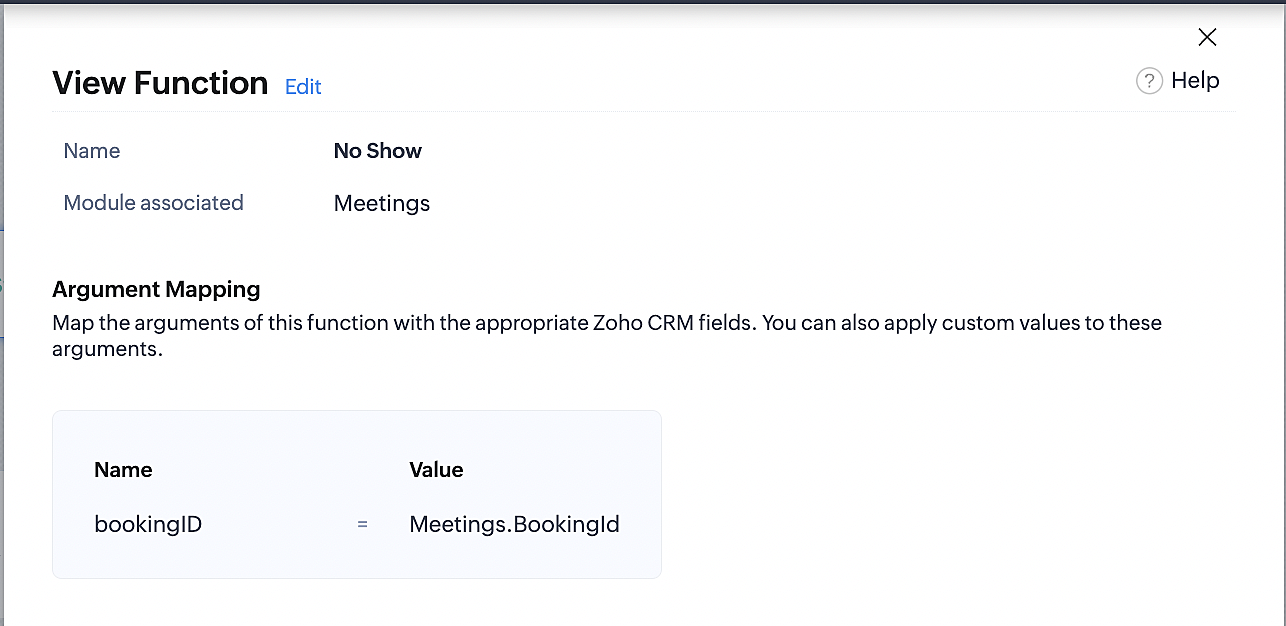
Below is the final flow of the "No Show" booking status workflow:
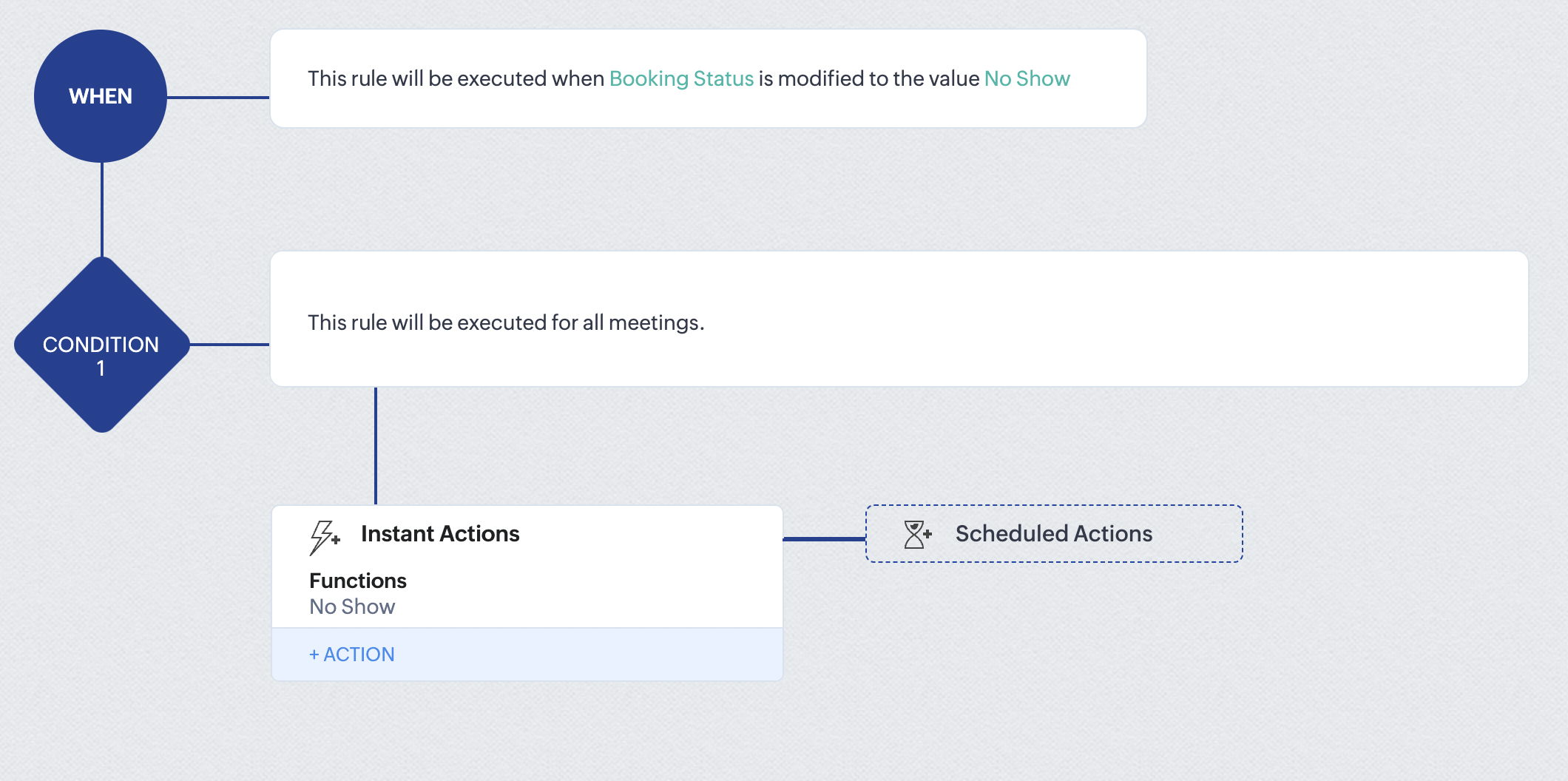
At the end of part 6, we will have created a workflow that automatically executes when the booking status field within the Zoho CRM Meetings module is updated to "No Show." This action will result in the associated bookings for that meeting also being marked as "No Show" in Zoho Bookings.
iii. Creating workflow for updating appointment status as "Completed" in Zoho Bookings when the booking status field of the meeting is marked as completed in Zoho CRM.
Part 7: Creating the rule
1. Go to Setup > Automation > Workflow Rules.
2. In the Workflow Rules page, click Create Rule.

3. Select Meetings under Module and configure rule name and description as required.
Reference:
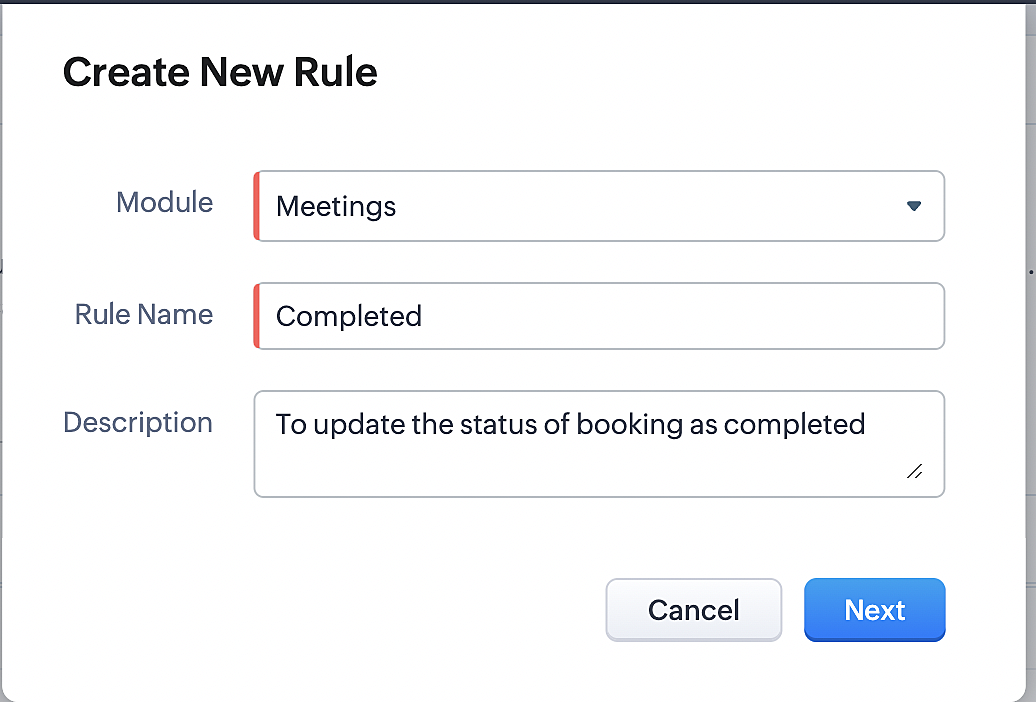
Part 8: Specifying the rule trigger
If you encounter difficulties while navigating through the steps mentioned below, please refer to Part 2 above, where we have provided step-by-step screenshots for clarification.
1. Record Action > Edit.

2. Enable the Specific field(s) gets modified setting and configure it per the screenshot below.
a. This serves to ensure that the workflow is executed only when the booking status under the Meetings module is
updated to "Completed".
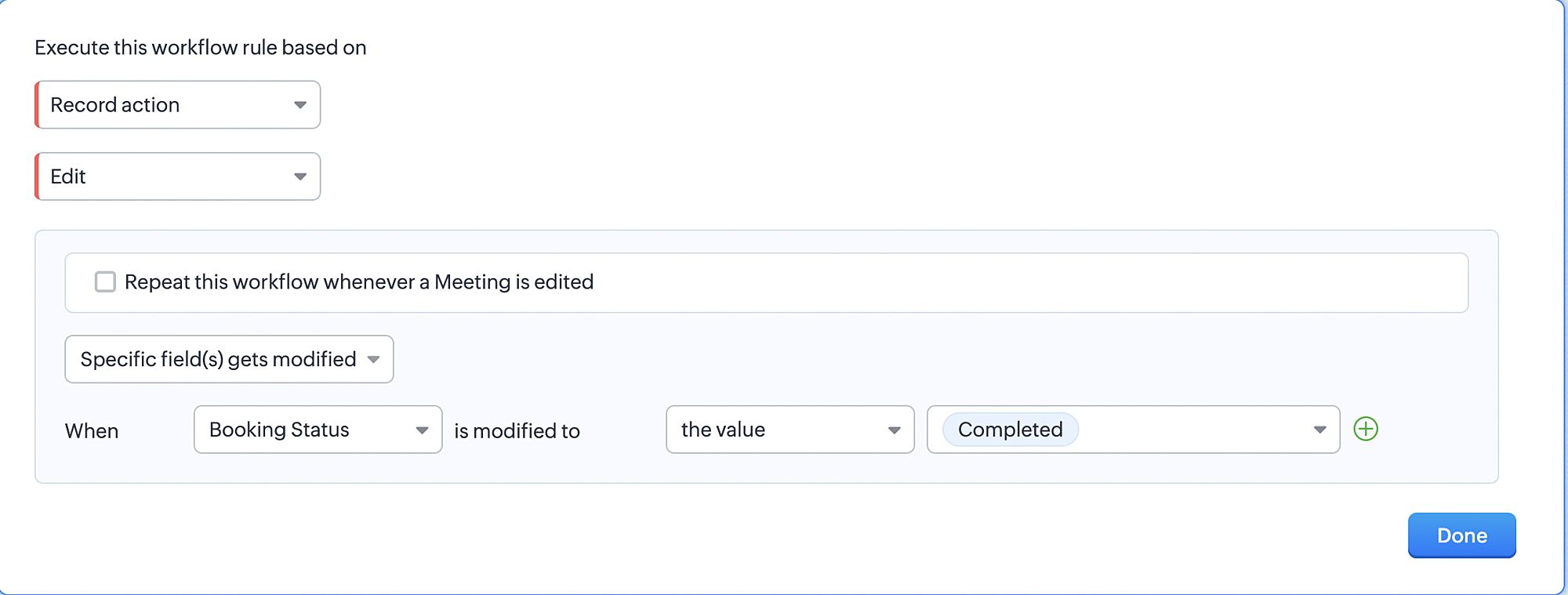
3. Configure condition > All Meetings.
4. Instant Actions > Function > New Function.
5. In the Configure custom function page, select the "completed" function you created from among the functions users
in your organization have created.
Part 9: Argument mapping:
If you encounter difficulties while navigating through the steps mentioned below, please refer to Part 3 above, where we have provided step-by-step screenshots for clarification.
1. Press # to choose an argument value.
2. Select Meetings under Module and configure the field as "BookingId".
3. Click Save and Associate button.
Reference:
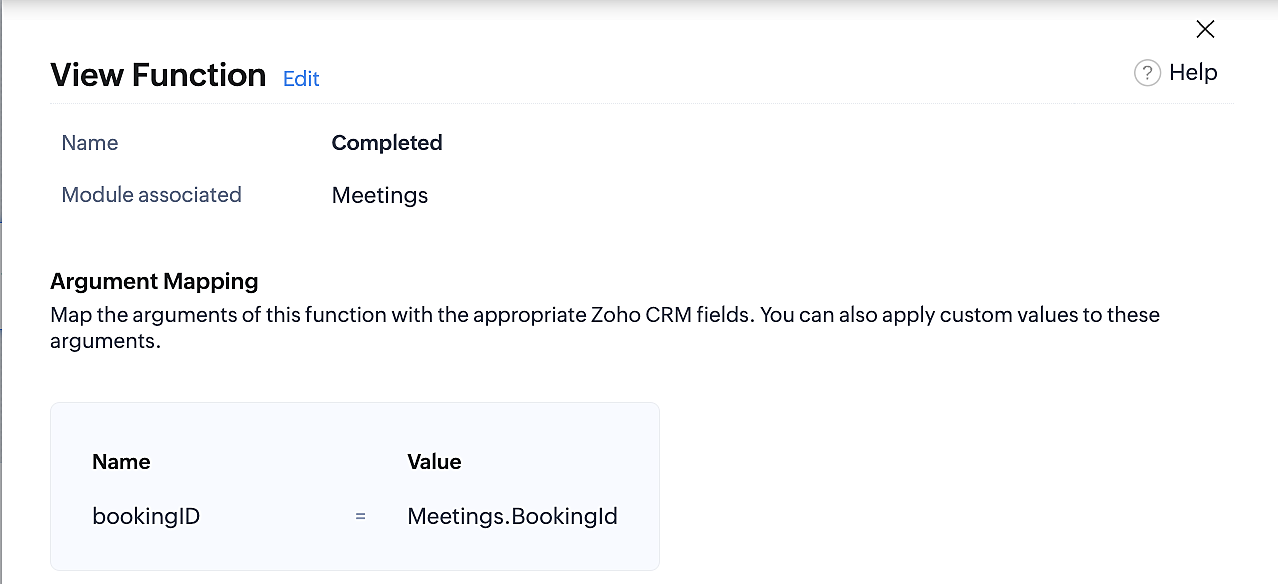
Below is the final flow of the "Completed" booking status workflow:
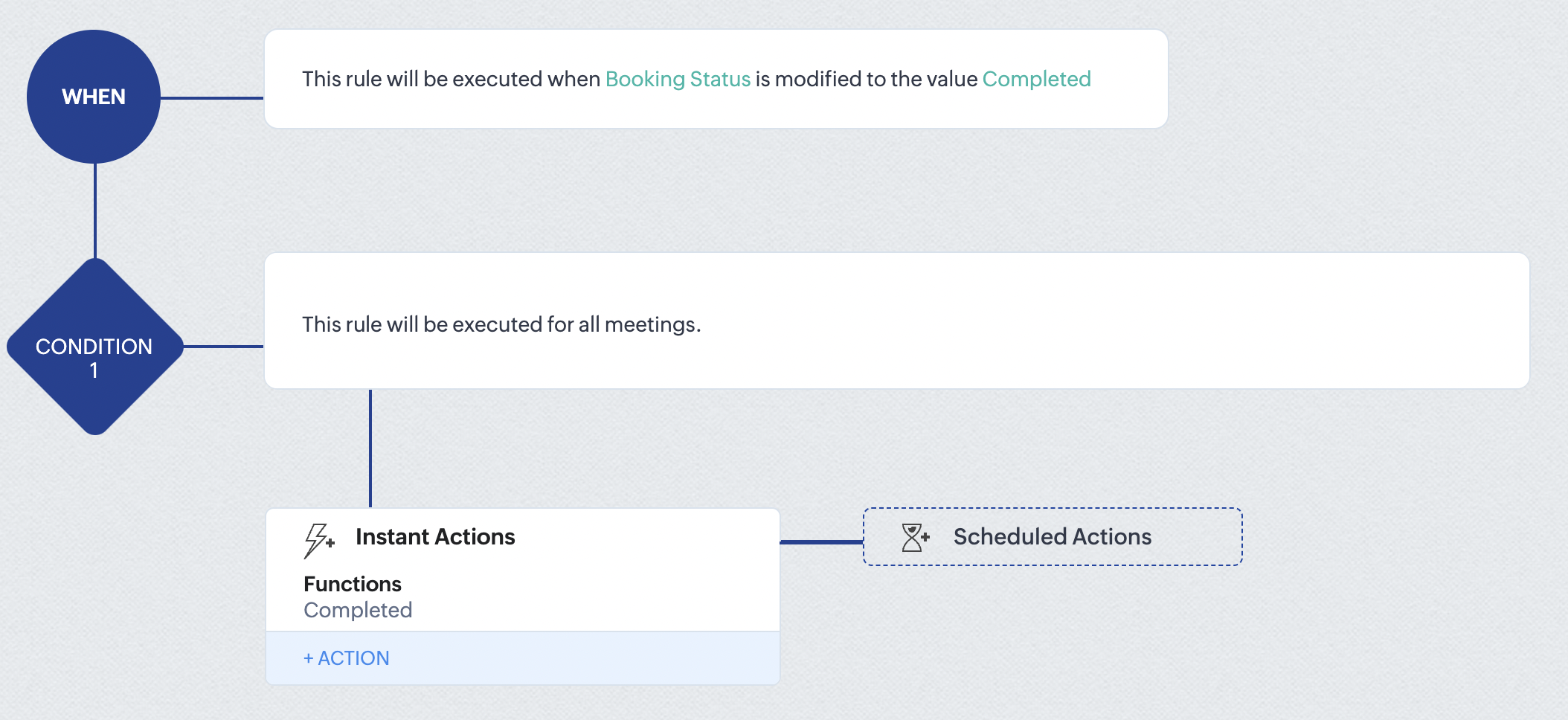
At the end of part 9, we will have created a workflow that is automatically executed when the booking status field within the Zoho CRM Meetings module is updated to "Completed." As a result, the associated bookings for that meeting will also be marked as "Completed" in Zoho Bookings.
Conclusion
We've reached the end of this community post. With the integration mentioned above in place, you'll be able to book, cancel, and update the status of appointments in Zoho Bookings directly from your Zoho CRM application. This will help you effectively manage your appointments in one place. As mentioned above, we've covered the rescheduling action in a separate post, which you can access by clicking on the following link: Reschedule Action
Furthermore, we've outlined a method for automating appointment statuses in detail. You can use this document as a reference to explore the various possibilities that suit your needs.
If you have any questions or need assistance with your configuration, please email us at hello@zohobookings.com or support@zohobookings.com.
Topic Participants
Kaushik S
bruce
Ishwarya SG
PrismaNote Support
Sticky Posts
Enhancement to ICR’s field prompting: Preferred data extraction using advanced field prompting
Dear Customers, We hope you’re well A quick background Intelligent Character Recognition (ICR) comes as part of Zia’s optical recognition capability called Zia Vision. When we introduced it last April, the data extraction was training-based and was applicableGood news! Calendar in Zoho CRM gets a face lift
Dear Customers, We are delighted to unveil the revamped calendar UI in Zoho CRM. With a complete visual overhaul aligned with CRM for Everyone, the calendar now offers a more intuitive and flexible scheduling experience. What’s new? Distinguish activitiesAccessibility in Zoho CRM: Not just a feature—a way to empower
For instructions on setting up these controls, please check this help document: Configuring accessibility controls. Hello everyone, Today (December 3, 2024), on the International Day of Persons with Disabilities, we begin our journey towards a CRM thatScaling the customer journey: What's new in CommandCenter
Dear Customers, The last time we connected about CommandCenter, it was about the tool's new controls and revamped UI. Personally, the overhaul of the UI from the last update, still excites me. Today, we're here with news about its scalability and addedZoho CRM's sales trend and sales follow-up trend dashboards are now customizable
Dear Customers, We're here with good news! Sales trend and sales follow-up trend are two system-defined dashboards that help you understand trends and anomalies in your sales outreach and conversion efforts. They use Zia's intelligence to identify patterns
Recent Topics
Allow Global Admin to access/edit all forms without changing owners
Hi there, Please consider adding a feature where the Global Admin of the account an automatically access/edit any form in the Company Account. I'm the Global Admin on our Zoho One plan, and we have multiple users that use/create forms. But for me to accessERROR: "Please enter a valid Phone"
WHAT IS THE PHONE FORMAT? There is nothing ANYWHERE to define the format. At least the error should either show the correct format or provide a link to the help file I enter a valid phone number in as many formats as I can think of and none of them allow me to save the number to CRM Nothing works! No matter what format I enter I keep getting a red error "Please enter a valid Phone" The international format for MY mobile is +61414652366 (or +61 414 652 366) Local format is 0414652366 I call all overIntroducing Zoho Sprints 3.0
Zoho Sprints is consistently evolving in steady increments. The introduction of the latest version, with its enterprise level solutions, brings to you advanced capabilities that propel your agile efforts in the right direction. Here's a quick glimpseTransaction Rules & Customer Payments
So I have a situation as follows. We have many clients who are all invoiced on the 1st of each month on a recurring invoice for 1 of 10 plans. This means that almost all payment dates are the same (some people pay late) and that a lot of the amounts areCustomize Sign-out Button
Are there some url parameters I can use to make a form button sign-out the user from the app? The sign-out link on the top right is small. Here's and example of the url for the top right sign-out: https://creator.zoho.com/logoutpage.jsp?sharedBy=niskypto&appID=212085000006568003&appLinkName=MYAPP&signOutUrl=niskypto/MYAPP/view-login/SOMEPAGE Note: In my account, the sign-out is set to redirect users to my website. Can I also override this with some url parameters? John M. WhitneyPlease can the open tasks be shown in each customer account at the top.
Hi there This has happened before, where the open tasks are no longer visible at the top of the page for each customer in the CRM. They have gone missing previously and were reinstated when I asked so I think it's just after an update that this featureTip #65 - Exploring Technician Console: Short Keys - 'Insider Insights'
Hello Zoho Assist Community! Have you ever been in the middle of a remote support session, trying to pass a key combination onto the remote machine, only to find it's reflecting on the technician's computer. The Short Keys feature in Zoho Assist is hereReading from and writing to Zoho Projects Custom Module with Deluge
Does anyone know if there is a way to read from and write to the Custom Modules that Zoho now supports. I would love to be able to loop through a set of data and create the entities I need to for this new custom module I'm looking to put together.Disappointment with Zoho Payments
Dear Gowdhaman, I am writing to inform you that I am removing Zoho Payments from my website. I cannot continue to disappoint my customers due to the lack of UPI support, as has been the case with my experience so far. Please note that the 0.5% transactionEvolução do modelo de ambientes: Dev, Homologação e Produção com pacotes versionados
Hoje o Zoho CRM já oferece Sandbox, o que é um avanço importante para organizações que trabalham com customizações mais complexas. No entanto, na prática, o modelo atual ainda apresenta limitações significativas quando múltiplas equipes ou consultoriasPermissões granulares por usuário além do modelo baseado exclusivamente em perfis
Atualmente, o modelo de segurança do Zoho CRM é fortemente baseado em perfis. Embora funcional, esse modelo apresenta limitações quando equipes possuem variações individuais de acesso dentro do mesmo grupo operacional. Em cenários reais, é comum que usuáriosAdd or update lookup field values during Blueprint transition
Hello everyone, During blueprint transition users can add or modify the value of a lookup field. For instance, if the Tickets module includes a lookup field that connects it to records in the Assets module, agents can link the ticket to the correct assetCan you limit SEO penalties by delaying the appearance of a pop-up?
Google is not keen on pop-ups and has got even less keen on them with the new Core Web Vitals updates. But I like using pop-ups. If you delay the pop-up so it only appears 10 seconds after the page loads, do you avoid Google’s penalties?Adding bank details to the contact through API
How to add bank-related information to the contact while creating it using API? The account number needs to be encrypted before sending it through API but not sure how to encrypt and get those values. Please guide me in this.Restrict Payment Methods
Allow us to restrict certain payment methods specific for each customer.Clone Banking Transaction
Why is there no option to CLONE a Transaction in the Banking module?? I often clone Expenses (for similar expense transactions each month) so I would also like to clone Income transactions. But there is no option in Banking to clone an existing IncomePDF limit
Hello everyone, We have received an e-mail that we have reached our PDF limit. (see screenshot) However, I cannot find any reference to a PDF limit in our tariff plan (Premium). (see screenshot). What is the maximum number of PDFs that can be generatedHow can I see content of system generated mails from zBooks?
System generated mails for offers or invices appear in the mail tab of the designated customer. How can I view the content? It also doesn't appear in zMail sent folder.Credit Card Pre-Authorization with later Capture/Settlement
We really enjoy the convenience of being able to pay off a customer's invoice using our Auth.Net integration with Zoho Books. Unfortunately, we can only take advantage of this feature with a small percentage of our customers as it leaves a gaping holeZoho Projects and CRM Integration in Analytics
Hi Team, In Zoho CRM, I’ve integrated CRM with Zoho Projects and associated a project within the CRM. The integration is visible under the Deals module. However, I’m unable to find this data in Zoho Analytics. Does anyone know where this information isAccessibility in Zoho CRM: Not just a feature—a way to empower
For instructions on setting up these controls, please check this help document: Configuring accessibility controls. Hello everyone, Today (December 3, 2024), on the International Day of Persons with Disabilities, we begin our journey towards a CRM thatAutomation Series #1: Round Robin vs Direct Assignment in Zoho Desk
Direct Assignment vs Round Robin: Choosing the right routing method in Zoho Desk This post is part of the "Desk Automation Series," Chapter 1. Through this series, we will help you choose the right automation type in Zoho Desk by comparing commonly confusedInvalid tax authority ID.
How do I correct this ?Pay Pal Paylater button
I am testing the paypal setup to have my customers pay invoices with paypal and credit cards. But it seems to have two options. Paypal and Pay later. I don't want my customers access to pay later feature. How can I turn that part off.. My other integrationZoho Workshops are coming to the Netherlands - Join us on 14-16 April in Amsterdam!
Dear Zoho Community Members, After succesful recent editions in the UK and Scandinavia, we’re pleased to invite you to the upcoming Zoho Benelux Workshop 2026, taking place 14–16 April 2026 in Amsterdam. This three-day, in-person event at the Park PlazaHow to install Widget in inventory module
Hi, I am trying to install a app into Sales Order Module related list, however there is no button allow me to do that. May I ask how to install widget to inventory module related list?Sub form auto field population based on parent form
I have a parent form called "Sites" with a text field called "Site". I have a subform called "Design Comments" (actual form name "Review Comments") with a lookup field name "Sites1" that looks up from the Sites form. I want the Sites1 lookup field toBuilding Toppings #7 - Using schedules and workflow functions
Hello Biginners, In our previous forum post, we explored install and uninstall actions and learned how to trigger custom logic the moment a topping is added or removed from an organization. In this post, we'll look at how to automate actions during regular,Simplify scripting with Zia assistant bot
Hello everyone, Building automation using Deluge custom functions gives users flexibility and control. Traditionally, creating these functions required writing scripts, testing the logic, and validating the configuration before using it. With Zia assistantZoho Sprints iOS app update: Global view, screen capture control, file encryption, tags enhancement
Hello everyone! We are excited to introduce new features in the latest version(v2.1) of the Zoho Sprints iOS app update. Let’s take a quick look at what’s new. 1. Global view Global view brings all your project items into one centralised space. You canResource Management System built using Zoho CRM, Creator, Projects, and People:
In a Resource Management System built using Zoho CRM, Creator, Projects, and People: CRM Deal Closed → Creator Allocation Engine → Zoho Projects Task Assignment What is the recommended architecture to handle dynamic reassignment when: an employee goesRequest to Remove LinkedIn Verification from My Emai
I would like to submit a complaint regarding my Zoho Mail account. I previously used this email address to verify a LinkedIn account, but that LinkedIn account has now been closed. I need to remove or cancel the verification associated with the closedPin multiple columns and adjust column widths in CRM subforms
Hello all, Subforms act as secondary forms or tables in which you can associate multiple line items to a primary record and thereby ensure more structured and comprehensive data organization. We've made some recent enhancements to subforms. Here's what'sRemoving To or CC Addresses from Desk Ticket
I was hoping i could find a way to remove unnecessary email addresses from tickets submitted via email. For example, a customer may email the support address AND others who are in the helpdesk notification group, in either the TO or CC address. This resultsFrom Zoho CRM to Paper : Design & Print Data Directly using Canvas Print View
Hello Everyone, We are excited to announce a new addition to your Canvas in Zoho CRM - Print View. Canvas print view helps you transform your custom CRM layouts into print-ready documents, so you can bring your digital data to the physical world withAnnouncing Kiosk 1.1 - Customize screen titles, configure new fields & actions, use values from your Kiosk to update fields, and more.
Hello all We are back again with more enhancements to Kiosk. So what's new? Enhancements made to the Components Add titles for your Kiosk screens and adjust its width to suit your viewing preferences. Three new fields can be added to your screen: Percentage,CRM Percent custom fields: When will it show the % symbol and behave like %?
1. Actually Percent custom fields fail to show the % symbol. 2. When in formulas Percent fields work like number: 100 x 5% = 5 ideal world 100 x 5% = 500 what happens actually 3. When importing Percent fields the % symbol has to be removed and the dataIntroducing Color Coding of Picklist Values
Dear Everyone, Greetings!! Zoho CRM is uplifting the user experience. Recently, we had some notable aesthetic improvements in CRM like Kanban View UI enhancement, New List view UI enhancement, color coding of tags, and color coding of picklists in meetings.Where can I find the best mail backup tool for Windows?
Later this evening I found Mail Backup Tool in google. Actually I was looking for a solution to download/save emails to my local drive. As I had plenty of important data stored in my email account. So i was not in a mood to take this thing lightly. This made me curious to found any software which can help me to backup my data to hard drive. Then I found the above application which was like a gem. A complete email backup solution for Zoho Mail, Gmail, Yahoo Mail, Office 365 and more than 40+ emailMailbox storage showing incorrect usage
My mailbox shows 4.99 GB used out of 5 GB. However, actual mailbox usage is only around 394 MB. Trash and Spam are already empty. IMAP/POP is not enabled. WorkDrive is not in use. This appears to be a storage calculation issue. Please help to recalculateNext Page