Kaizen 215 - Workflow APIs - Part 3

Welcome back to another week of Kaizen!
Over the last couple of weeks, we’ve joined Zylker Cloud Services as they review and improve their workflows. In Part 1, we discovered and audited their sprawling workflow landscape. In Part 2, we learned how to use the Configuration API to understand valid triggers and actions, preventing errors before they happen.
Now, it is time to take action. Zylker has identified the "VP Alert - High Value Deal" workflow as a prime candidate for an update. It is old, has never run, and its logic might be too narrow. We will also explore how to create a new workflow from scratch to handle a new business requirement.
STEP 5: Update an Existing Workflow
From our audit in Step 2, we know that the existing ‘VP Alert - High Value Deal’ workflow (id: 4876876000016390024) hadn’t triggered even once. The original $50,000 threshold missed many valuable deals. Most winning opportunities actually land above $30,000. It has never executed, suggesting the criteria are too strict.
Let us use the Update Workflow Rule API to fix it. We'll change the criteria to trigger for deals greater than or equal to $30,000 and add an additional email notification.
What you can and cannot update
When working with the Update Workflow Rule API, not every field in a workflow is open for modification. Think of it like editing an existing automation blueprint. Some foundations are fixed, while others are flexible.
You can update:
Name and Description
Trigger : You can update triggers, but only within the same trigger type. For example, you can change a Record Action trigger from create to edit, but not from a Record Action trigger to a Score-based trigger. For more details on this, please refer to our detailed help documentation here.
Conditions and Criteria : add, remove, or refine them.
Actions : add new ones, remove existing ones, or update their configuration.
Status : activate or deactivate a workflow rule.
What cannot be updated
There are a few key restrictions to remember:
You cannot change the module associated with the workflow.
You cannot switch trigger categories (e.g., from Record Action to Email Trigger).
You cannot retain unsupported actions when changing to a trigger that doesn’t support them. For instance, if you change a trigger from Edit to Delete, but keep an Assign Owner action, the update will fail, because “Assign Owner” isn’t valid for Delete triggers.
Updating an existing workflow is not about replacing everything. it is about editing precisely what needs to change.
Here is how to do it:
Fetch the workflow details using the Get Workflow Rule API. This gives the full structure, including condition IDs, action IDs, and trigger details.
Identify what needs to change.
In this case, to fix the “VP Alert - High Value Deal” workflow, we can update the Workflow rule to:
lower the threshold to $300,000
change the comparator to greater_than.
To make the workflow more useful, Zylker has also decided to add a few new actions.
But before doing that, the developers needed to confirm which actions are supported for this workflow’s trigger type. That is where last week’s Configuration API comes in handy. Since we already know this is a Record Action trigger (create_or_edit), we can refer to the configuration response we explored in Part 2 to see which actions are valid.
{ "api_name": "create_or_edit", "deprecated": false, "name": "CreateorEdit", "scheduled_actions_supported": true, "actions": [ "field_updates", "assign_owner", "add_tags", "remove_tags", "email_notifications", "tasks", "create_record", "create_connected_record", "add_meeting", "webhooks", "functions", "circuits", "flow" ] }, |
The response clearly shows that email notifications, field updates, and tags are all supported for this trigger type. With that confidence, in addition to updating the condition, we can also add a 'Priority' tag to those records that trigger the Workflow. This makes the workflow more visible and actionable across the sales hierarchy.
Sample Request:
PUT {{api-domain}}/crm/v8/settings/automation/workflow_rules/4876876000016390024
{ "workflow_rules": [ { "description": "Notify sales leadership and track strategic opportunities", "name": "VP Alert - High Value Deal.", "conditions": [ { "sequence_number": 1, "criteria_details": { "criteria": { "group_operator": "AND", "group": [ { "comparator": "greater_than", // change in comparator operator "field": { "api_name": "Amount" }, "value": "300000" // Lowered threshold }, { "comparator": "equal", "field": { "api_name": "Stage" }, "value": "Negotiation/Review" } ] } }, "instant_actions": { "actions": [ { "type": "add_tags", "module": "Deals", "details": { "tags": [ { "name": "Priority" } ], "overwrite": true } } ] }, "id": "4876876000016390025" // id of the condition to be updated } ] } ] } |
After this update, the workflow now triggers for any deal worth more than $300,000 in the Negotiation/Review stage. Apart from sending the email notifications and adding the follow up task, it also tags these deals as Priority.
Edit vs Add:
To edit an existing condition or action, include its existing id in your update payload. Zoho CRM will recognize it as an update to that object.
To add a new condition or action, simply omit the id. CRM treats any object without an ID as a new addition.
STEP 6: Create a new Workflow Rule
With the “VP Alert - High Value Deal” workflow now fixed and performing as expected, Zylker’s sales team quickly began to see results.
But their sales team noticed that deals often stall after proposals are sent, with no systematic follow-up. Zylker has hence refined the requirements for a new Workflow.
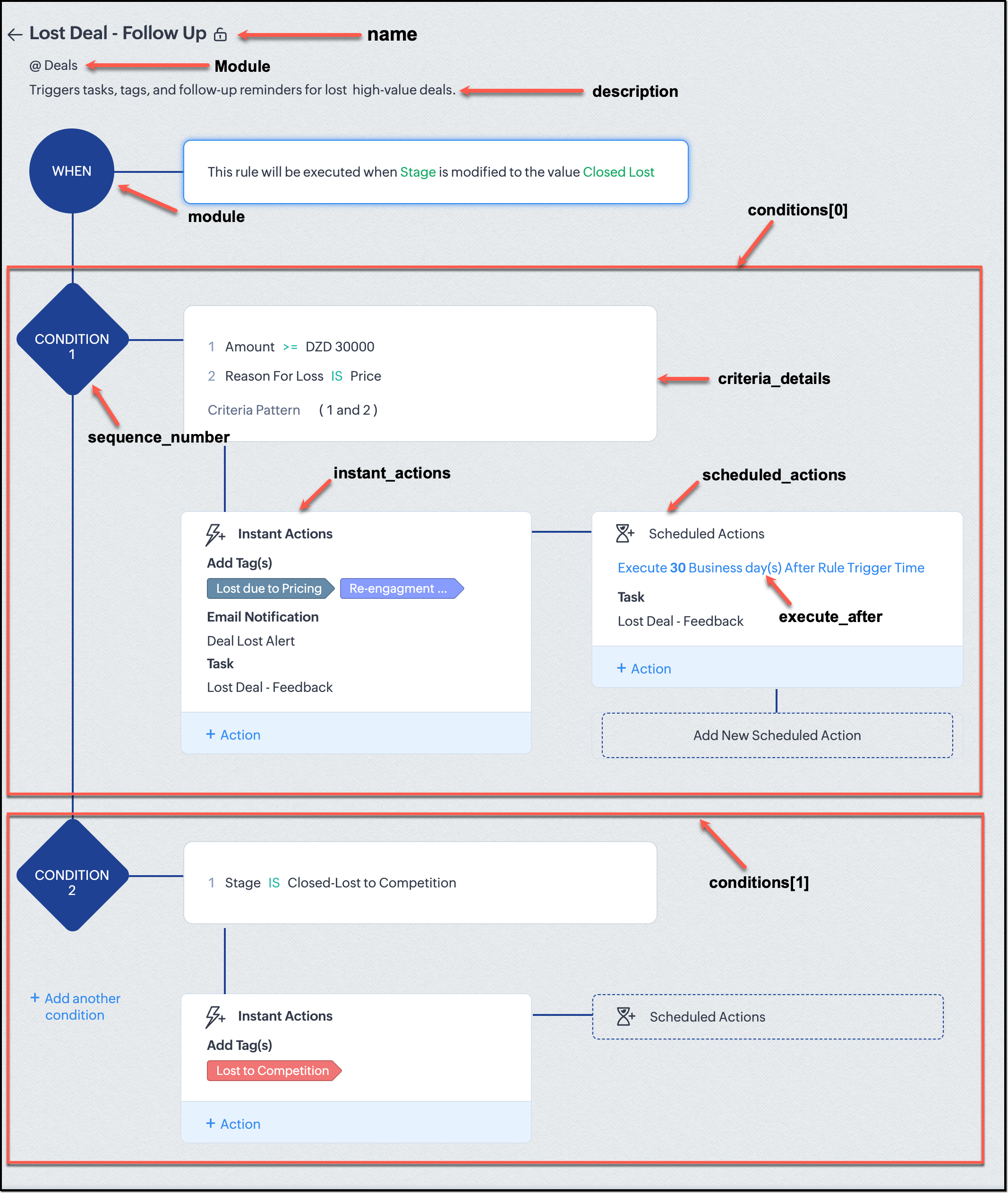
They want to automatically trigger follow-up actions when a high-value deal (above ₹30,000) is marked “Closed Lost” due to pricing reasons. This workflow must ensure that every lost opportunity is reviewed, tagged, and re-engaged after a cooling-off period. To achieve this, they want to create a workflow to be triggered whenever a deal’s Stage is updated to Closed Lost. It must perform the following actions:
Add tags Lost due to Pricing and Re-engagement Pending.
Send an email alert to the Sales team, with the details of the failed Deal, so they can look into the reasons.
After 30 business days, automatically create another “Lost Deal - Feedback” task to remind the owner to re-contact the customer for feedback, and for future opportunities.
Before proceeding, Zylker makes an API call to the Workflow Configuration endpoint. This ensures that their chosen trigger type and actions are supported. From the response snippet below, it is clear that a field_update trigger supports scheduled actions and the required action types.
{ "api_name": "field_update", "deprecated": false, "name": "FieldUpdate", "scheduled_actions_supported": true, "actions": [ "field_updates", "assign_owner", "add_tags", "remove_tags", "email_notifications", "tasks", "create_record", "create_connected_record", "add_meeting", "webhooks", "functions", "circuits", "flow" ] } |
With these details validated, we can now move on to adding a new workflow for Zylker using the Create Workflow Rule API request.
Understanding the input JSON structure
Every workflow definition follows the same hierarchy - defining when the rule runs, what conditions it checks, and which actions it performs.
The top-level input object contains a workflow_rules array. You must include just one workflow rule object per request. Each workflow rule defines its name, trigger type, and one or more condition blocks, each with its own criteria and actions.
Here is a breakdown of what is inside a single workflow rule:
{ "workflow_rules": [ { "name": "VP Alert - High Value Deal.", //name of the workflow rule "description": "Notify leadership when high-value deals are lost due to pricing.", "module": { "api_name": "Deals" }, //module to which the workflow applies "execute_when": { ... }, //trigger configuration (e.g., on record edit, field update, etc.) "conditions": [ { "sequence_number": 1, // order of execution. this is the first condition "criteria_details": { ... }, // condition logic (criteria group) "instant_actions": { "actions": [ ... ] }, //instant actions executed instantly cheduled_actions": [ // schedules actions executed after a delay { "execute_after": { ... }, // delay period for the scheduled action "actions": [ ... ] } ] }, { "sequence_number": 2, // second condition "criteria_details": { ... }, "instant_actions": { "actions": [ ... ] } } ] } ] } |
Associative vs. Non-Associative Actions
Every workflow rule performs one or more actions like sending an email, creating a task, or updating a field, etc. These actions fall into two broad categories: associative and non-associative.
Type | Description | Example Actions |
Non- Associative Actions | These are defined inside the workflow rule itself. They do not need to exist beforehand. You can configure their details directly within the workflow payload. | Create record, schedule a call, add a meeting, convert records, social actions, create record on email received, assign owner, |
Associative Actions | These are reusable actions created separately in CRM and referenced by their IDs. They can be used across multiple workflows and other automation tools. | Field updates, Email notifications, tasks, Webhooks, Add/Remove tags |
When you create or update a workflow via API, the associative actions require you to pass their existing action IDs. These IDs can be fetched using the corresponding Actions APIs : Field Updates, Email Notifications, Webhooks, and Tasks. In the coming weeks of Kaizen, we will take a closer look at each of these Actions APIs. We will see how to create, manage, and delete them within your workflow automation strategy.
Sample Request:
POST {{api-domain}}/crm/v8/settings/automation/workflow_rules
{ "workflow_rules": [ { "execute_when": { "details": { "trigger_module": { "api_name": "Deals", "id": "4876876000000002181" }, "criteria": { "comparator": "equal", "field": { "api_name": "Stage", "id": "4876876000000002565" }, "type": "value", "value": "Closed Lost" }, "repeat": false, "match_all": false }, "type": "field_update" }, "module": { "api_name": "Deals", "id": "4876876000000002181" }, "description": "Triggers tasks, tags, and follow-up reminders for high-value deals lost due to pricing", "name": "Lost Deal due to Pricing - Follow Up", "conditions": [ { "sequence_number": 1, "instant_actions": { "actions": [ { "name": "Lost Deal - Feedback", "id": "4876876000016794047", "type": "tasks" }, { "details": { "module": { "api_name": "Deals", "id": "4876876000000002181" }, "over_write": false, "tags": [ { "name": "Lost due to Pricing", "id": "4876876000016794071", "color_code": "#658BA8" }, { "name": "Re-engagement pending", "id": "4876876000016794075", "color_code": "#879BFC" } ] }, "type": "add_tags" }, { "name": "Deal Lost Alert", "id": "4876876000016794062", "type": "email_notifications" } ] }, "scheduled_actions": [ { "execute_after": { "period": "business_days", "unit": 30 }, "actions": [ { "name": "Lost Deal - Feedback", "id": "4876876000016794047", "type": "tasks" } ] } ], "criteria_details": { "criteria": { "group_operator": "AND", "group": [ { "comparator": "greater_equal", "field": { "api_name": "Amount", "id": "4876876000000002557" }, "type": "value", "value": "30000" }, { "comparator": "equal", "field": { "api_name": "Reason_For_Loss__s", "id": "4876876000002440001" }, "type": "value", "value": "Price" } ] } } } ] } ] } |
The execute_when defines when the workflow should fire.
type = field_update means this rule runs when a field’s value changes.
criteria : Stage = Closed Lost so the rule triggers whenever the Stage field is updated to Closed Lost.
repeat = false ensures it will not trigger multiple times for the same record.
In simple terms: “Whenever a deal is marked as Closed Lost, run this workflow.” The criteria_details section refines the trigger. The workflow only runs when the Amount ≥ ₹30,000 AND Reason for Loss = Price.
The instant_actions section inside the conditions array has the actions to be executed immediately when the criteria are met.
Add Tags : labels the record for easy filtering and reporting.
Send Email Alert : notifies the sales team instantly about the lost deal.
The scheduled_actions defines what happens after some time has passed. In this case, after 30 business days. Here, the workflow automatically creates a “Lost Deal - Feedback” task, reminding the deal owner to follow up with the customer to get feedback, and for future opportunities.
- The Amount is greater than or equal to ₹30,000, and
The Reason for Loss is “Price.”
By combining these elements, this workflow achieves a full closed-loop follow-up system.
Conclusion:
Zylker’s updated and new workflows make their automation smarter and more responsive. They are now able to spot key deals and ensure lost opportunities are revisited.
We hope you are now well on your way to mastering Workflow APIs. Share your thoughts in the comments or write to us at support@zohocrm.com.

Additional Reading:
- Workflow APIs - Part 1 - Auditing Workflows
- Workflow APIs - Part 2 - Find out what actions and triggers are supported for each module
Topic Participants
Anu Abraham
Sticky Posts
Kaizen #226: Using ZRC in Client Script
Hello everyone! Welcome to another week of Kaizen. In today's post, lets see what is ZRC (Zoho Request Client) and how we can use ZRC methods in Client Script to get inputs from a Salesperson and update the Lead status with a single button click. In thisKaizen #222 - Client Script Support for Notes Related List
Hello everyone! Welcome to another week of Kaizen. The final Kaizen post of the year 2025 is here! With the new Client Script support for the Notes Related List, you can validate, enrich, and manage notes across modules. In this post, we’ll explore howKaizen #217 - Actions APIs : Tasks
Welcome to another week of Kaizen! In last week's post we discussed Email Notifications APIs which act as the link between your Workflow automations and you. We have discussed how Zylker Cloud Services uses Email Notifications API in their custom dashboard.Kaizen #216 - Actions APIs : Email Notifications
Welcome to another week of Kaizen! For the last three weeks, we have been discussing Zylker's workflows. We successfully updated a dormant workflow, built a new one from the ground up and more. But our work is not finished—these automated processes areKaizen #152 - Client Script Support for the new Canvas Record Forms
Hello everyone! Have you ever wanted to trigger actions on click of a canvas button, icon, or text mandatory forms in Create/Edit and Clone Pages? Have you ever wanted to control how elements behave on the new Canvas Record Forms? This can be achieved
Recent Topics
Rebranding Options for Zoho One
We need the addition of rebranding and white-labeling settings directly within the Zoho One Admin Panel. This feature should allow organizations to customize the unified portal with their own logo, brand colors, and custom domain mapping (e.g., portal.company.com).Tip #57- Accessibility Controls in Zoho Assist: Mobility- 'Insider Insights'
Remote support should be easy to navigate for everyone. For users with mobility-related accessibility needs, long sessions and complex navigation can be challenging. Zoho Assist’s Mobility Accessibility Controls simplify interaction through keyboard-basedTo print Multiple delivery notes in batches
In Zoho Books, we can print a Delivery Note from an Invoice using the Print Delivery Note option, but it is non-editable and always prints all line items from the invoice. Our requirement is to deliver invoiced items in batches and print delivery notesUPLOAD A CREATED PDF AUTOMATICALLY
Using the html header pdf+print button, I have managed to find a way to have a user create a pdf using entered form data. Using the schedule button, I can have a "file uploaded" pdf mailed to someone as an attachment. The missing piece is to be able to add the pdf, created in that html page to a file upload field automatically? Right now one has to save it to computer and then upload it in a FILE UPLOAD FIELD. Any help would appreciated !Consolidated Department-wise Payroll Cost Summary Report
Hello Zoho Payroll Team and Community, I am writing to discuss a reporting requirement regarding department-level expense tracking within Zoho Payroll. As we scale and manage salary distribution for employees across multiple departments, such as Accounts,Write-Off multiple invoices and tax calculation
Good evening, I have many invoices which are long overdue and I do not expect them to be paid. I believe I should write them off. I did some tests and I have some questions: - I cannot find a way to write off several invoices together. How can I do that,How to remove chat icon from knowledge base?
I have set up a knowledge base to hold FAQs and documentation. It is currently standalone, and not integrated into our website. On every page there is a chat button in the bottom left corner that says "We're offline, please leave a message." How can IMissed chats on WhatsApp closing after one minute
Hi, we have added WhatsApp as a channel. However, if a chat is not picked up within 2mins, the chat is marked as missed and is closed within a minute. Why are they not staying in our "missed" queue for 24 hours as per our WhatsApp preference settings?[ZohoDesk] Improve Status View with a new editeble kanban view
A kanban view with more information about the ticket and the contact who created the ticket would be valueble. I would like to edit the fields with the ones i like to see at one glance. Like in CRM where you can edit the canvas view, i would like to editAutomated Dismissal of Specific Notifications and Centralized Control of Toast Notification Settings
Dear Zoho Team, I hope this message finds you well. We would like to request two enhancements related to notification handling within Zoho Desk: Automatic Dismissal of Specific Notifications: Currently, when certain actions are taken in the ticket listShow field in spreadsheet view depending on other field value
Hello. Not sure if this is possible but let's say i have spreadsheet view in Creator with four different fields Field A, B, C and D Then i have a field named Response which for one record could contain only one of the pre-definde choices below A, B, CIntergrating multi location Square account with Zoho Books
Hi, I have one Square account but has multiple locations. I would like to integrate that account and show aggregated sales in zoho books. How can I do that? thanks.Zoho Learn Zapier Integration
Hello all, Is there any plan to integrate Zoho Learn with Zapier? It seems almost all Zoho products are in Zapier, with the exception of Learn and Marketing Automation.Notice: SalesIQ integration paused on Zoho Sites
I have this notice on my Zoho Sites in the SalesIQ integration setup. Can someone assist? "This integration has been temporarily paused for users. Reconnecting SalesIQ after disconnection will not be possible until we provide further updates." thankDifferences between Zoho Books and Zoho Billing
Without a long drawn out process to compare these. If you were looking at these Books and Billing, what made you opt for one and not the other. ThanksNew Feature : Copying tickets with all the contents such as conversations/history/attachments etc
Sometimes our customers and distributors do create tickets (or send emails) which contain more than one incident in them and then also some of the further conversations which are either created by incorrect new tickets or replies to old tickets are being created as combined tickets. In such cases we require to "COPY" the contents of the tickets into separate tickets and merge them into their corresponding original tickets. The "CLONE" feature doesn't copy the contents (especially the conversationsComo se agregan los empleados
Necesito saber si para agregar empleados los mismos necesitan tener licenciasDeluge Error Code 1002 - "Resource does not exist."
I am using the following script in a Custom Button on a Sales Return. Basically, the function takes the information in the sales return (plus the arguments that are entered by the user when the button is pushed) and creates a return shipping label viaAdding multiple Attendee email addresses when adding a Zoho Calendar event in Zoho Flow
I am trying to integrate Notion and Zoho Calendar via Zoho Flow. However, the Attendee email address supported by Zoho Calendar - Create event only supports one email address, so I am having difficulty implementing automation to automatically registerGraceful Handling of Exceeded Option Limits
Hi Zoho SalesIQ team. I would like to submit a feature request to deal with a bug in salesIQ Current Behavior (Bug): When a dynamic list passed to the Single Select Option Card contains more than 20 options, the Zobot stops responding (freezes/hangs)System default SLA descriptions can't be modified
The system default SLAs have identical descriptions for all SLA levels, but their settings differ. However, I am facing an issue where I cannot modify these descriptions and save the changes. The content of the description box can be edited but the changesAdding non-Indian billing address for my Zoho subscription
Hey Need help with adding a non-Indian billing address for my Zoho subscription, trying to edit the address to my Singapore registered company. Won't let me change the country. Would appreciate the help. Regards, RishabhHow to create one ZohoCRM organisation out of a multi-organization?
Hi, we have a multi-org including two different Zoho CRM organizations for two companies using respectively EUR and USD as default currency. I was wondering if there is any easy way to merge the two organizations into just one, so that users may accessGray screen while signing documents
We are all getting a "gray" screen when trying to sign documents in Zoho sign. Anyone else having issues?Designing a practical Zoho setup for a small business: lessons from a real implementation
I recently finished setting up a Zoho-based operating system for a small but growing consumer beauty business (GlowAtHomeBeauty), and I wanted to share a practical takeaway for other founders and implementers. The business wasn’t failing because of lackProjects custom colors replaced by default orange
Since yesterday, projects uploaded to Zoho, to which I had assigned a custom color, have lost the customization and reverted to the default color (orange). Has anyone else had the same problem? If so, how did you resolve it?Interview booked through Invite but no Notifications
We have a workflow that was developed through a developer/partner that was tested and worked. Today, we pushed a candidate through the process and invited them to an in-office interview. They were sent the booking link (as usual and as tested before successfully)WebDAV support
I need WebDAV support so that I can upload/download (and modify) documents from my local file system. Is anything planned in his direction?Automatiser la gestion des SLA dans Zoho Desk avec Zoho Contracts
Les équipes du service client s’efforcent d’assurer un support rapide, régulier et fiable pour garantir la satisfaction de chaque client. Les accords de niveau de service (SLA) permettent de clarifier les engagements en définissant les termes et conditionsiOS App doesn't refresh for Document Creation
Hello Zoho team, I have created a workflow to be used on a mobile iOS device which starts in Zoho Creater and ends with a murge and store function that then opens the newly created document within the Zoho Writer app. This process is working great howeverUploading a signed template from Sign to Creator
Good day, Please help me on how to load a signed document back into Creator after the process has been completed in Sign. Below is the code that I am trying, pdfFile = response.toFile("SignedDocument_4901354000000372029.pdf"); info pdfFile; // AttachZoho DataPrep and File Pattern configuration
I'm using Zoho data prep to ingest data from One Drive into Zoho Analytics... The pipeline is super simple but I can't any way to get all the files that I need. Basically I need to bring all the files with a certain pattern and for that I'm using a regexAssistance needed: Activation of a domain
Hello Zoho Support, I purchased the .com domain "primesolva.com" via Zoho 6 days ago. The domain is still pending, and I cannot access the DNS panel to add the TXT verification for domain ownership. Please confirm the registration status and help me activateOperation not permitted
I am trying to add an email address to the list of user but I am getting error Operation not permittedRequest to Permanently Delete Email User (info@mehbobgulf.com ) from Old Organization
Please permanently delete the user email info@mehbobgulf.com It is still associated with my old Zoho organization. I cannot delete it because it shows ‘You cannot delete email. Zoho host’. I need to use this email in a new Zoho account.”Client host [89.36.170.5] blocked using Spamhaus
Hello please make make actions for delist ..... "Client host [89.36.170.5] blocked using Spamhaus"Suggestion: Option to Re-run a migration
As I'm going through a migration process, I like the IMAP migration tool, but it would be better if there were an option to re-run the same migration as configured. There's not even an option to copy/edit one that's already there. Just run if it hasn'tIssue with "Add Your Mobile Number"
Hello, I am trying to sign up for email service for a domain name, and I cannot finish the authentication. When I enter my mobile number, I receive the message "We’re unable to send OTP to this mobile number. Please contact support-as@zohocorp.com". Izoho mail non vérifié
Bonjour, Il y'a un jour que j'ai acheté un domaine et toute les tentatives pour l'associé a mon compte shopify son vaine. j'ai essayé TXT sans suite après, j'ai essayer avec CNAME sans suite. j'aurais besoin de votre assistance pour associé mon mail.Unable to send message;Reason:553 Relaying disallowed. Invalid Domain
i have facing the issue "Unable to send message;Reason:553 Relaying disallowed. Invalid Domain" if i verify domain evertthing i did but still face the same error.Next Page