Kaizen 215 - Workflow APIs - Part 3

Welcome back to another week of Kaizen!
Over the last couple of weeks, we’ve joined Zylker Cloud Services as they review and improve their workflows. In Part 1, we discovered and audited their sprawling workflow landscape. In Part 2, we learned how to use the Configuration API to understand valid triggers and actions, preventing errors before they happen.
Now, it is time to take action. Zylker has identified the "VP Alert - High Value Deal" workflow as a prime candidate for an update. It is old, has never run, and its logic might be too narrow. We will also explore how to create a new workflow from scratch to handle a new business requirement.
STEP 5: Update an Existing Workflow
From our audit in Step 2, we know that the existing ‘VP Alert - High Value Deal’ workflow (id: 4876876000016390024) hadn’t triggered even once. The original $50,000 threshold missed many valuable deals. Most winning opportunities actually land above $30,000. It has never executed, suggesting the criteria are too strict.
Let us use the Update Workflow Rule API to fix it. We'll change the criteria to trigger for deals greater than or equal to $30,000 and add an additional email notification.
What you can and cannot update
When working with the Update Workflow Rule API, not every field in a workflow is open for modification. Think of it like editing an existing automation blueprint. Some foundations are fixed, while others are flexible.
You can update:
Name and Description
Trigger : You can update triggers, but only within the same trigger type. For example, you can change a Record Action trigger from create to edit, but not from a Record Action trigger to a Score-based trigger. For more details on this, please refer to our detailed help documentation here.
Conditions and Criteria : add, remove, or refine them.
Actions : add new ones, remove existing ones, or update their configuration.
Status : activate or deactivate a workflow rule.
What cannot be updated
There are a few key restrictions to remember:
You cannot change the module associated with the workflow.
You cannot switch trigger categories (e.g., from Record Action to Email Trigger).
You cannot retain unsupported actions when changing to a trigger that doesn’t support them. For instance, if you change a trigger from Edit to Delete, but keep an Assign Owner action, the update will fail, because “Assign Owner” isn’t valid for Delete triggers.
Updating an existing workflow is not about replacing everything. it is about editing precisely what needs to change.
Here is how to do it:
Fetch the workflow details using the Get Workflow Rule API. This gives the full structure, including condition IDs, action IDs, and trigger details.
Identify what needs to change.
In this case, to fix the “VP Alert - High Value Deal” workflow, we can update the Workflow rule to:
lower the threshold to $300,000
change the comparator to greater_than.
To make the workflow more useful, Zylker has also decided to add a few new actions.
But before doing that, the developers needed to confirm which actions are supported for this workflow’s trigger type. That is where last week’s Configuration API comes in handy. Since we already know this is a Record Action trigger (create_or_edit), we can refer to the configuration response we explored in Part 2 to see which actions are valid.
{ "api_name": "create_or_edit", "deprecated": false, "name": "CreateorEdit", "scheduled_actions_supported": true, "actions": [ "field_updates", "assign_owner", "add_tags", "remove_tags", "email_notifications", "tasks", "create_record", "create_connected_record", "add_meeting", "webhooks", "functions", "circuits", "flow" ] }, |
The response clearly shows that email notifications, field updates, and tags are all supported for this trigger type. With that confidence, in addition to updating the condition, we can also add a 'Priority' tag to those records that trigger the Workflow. This makes the workflow more visible and actionable across the sales hierarchy.
Sample Request:
PUT {{api-domain}}/crm/v8/settings/automation/workflow_rules/4876876000016390024
{ "workflow_rules": [ { "description": "Notify sales leadership and track strategic opportunities", "name": "VP Alert - High Value Deal.", "conditions": [ { "sequence_number": 1, "criteria_details": { "criteria": { "group_operator": "AND", "group": [ { "comparator": "greater_than", // change in comparator operator "field": { "api_name": "Amount" }, "value": "300000" // Lowered threshold }, { "comparator": "equal", "field": { "api_name": "Stage" }, "value": "Negotiation/Review" } ] } }, "instant_actions": { "actions": [ { "type": "add_tags", "module": "Deals", "details": { "tags": [ { "name": "Priority" } ], "overwrite": true } } ] }, "id": "4876876000016390025" // id of the condition to be updated } ] } ] } |
After this update, the workflow now triggers for any deal worth more than $300,000 in the Negotiation/Review stage. Apart from sending the email notifications and adding the follow up task, it also tags these deals as Priority.
Edit vs Add:
To edit an existing condition or action, include its existing id in your update payload. Zoho CRM will recognize it as an update to that object.
To add a new condition or action, simply omit the id. CRM treats any object without an ID as a new addition.
STEP 6: Create a new Workflow Rule
With the “VP Alert - High Value Deal” workflow now fixed and performing as expected, Zylker’s sales team quickly began to see results.
But their sales team noticed that deals often stall after proposals are sent, with no systematic follow-up. Zylker has hence refined the requirements for a new Workflow.
They want to automatically trigger follow-up actions when a high-value deal (above ₹30,000) is marked “Closed Lost” due to pricing reasons. This workflow must ensure that every lost opportunity is reviewed, tagged, and re-engaged after a cooling-off period. To achieve this, they want to create a workflow to be triggered whenever a deal’s Stage is updated to Closed Lost. It must perform the following actions:
Add tags Lost due to Pricing and Re-engagement Pending.
Send an email alert to the Sales team, with the details of the failed Deal, so they can look into the reasons.
After 30 business days, automatically create another “Lost Deal - Feedback” task to remind the owner to re-contact the customer for feedback, and for future opportunities.
Before proceeding, Zylker makes an API call to the Workflow Configuration endpoint. This ensures that their chosen trigger type and actions are supported. From the response snippet below, it is clear that a field_update trigger supports scheduled actions and the required action types.
{ "api_name": "field_update", "deprecated": false, "name": "FieldUpdate", "scheduled_actions_supported": true, "actions": [ "field_updates", "assign_owner", "add_tags", "remove_tags", "email_notifications", "tasks", "create_record", "create_connected_record", "add_meeting", "webhooks", "functions", "circuits", "flow" ] } |
With these details validated, we can now move on to adding a new workflow for Zylker using the Create Workflow Rule API request.
Understanding the input JSON structure
Every workflow definition follows the same hierarchy - defining when the rule runs, what conditions it checks, and which actions it performs.
The top-level input object contains a workflow_rules array. You must include just one workflow rule object per request. Each workflow rule defines its name, trigger type, and one or more condition blocks, each with its own criteria and actions.
Here is a breakdown of what is inside a single workflow rule:
{ "workflow_rules": [ { "name": "VP Alert - High Value Deal.", //name of the workflow rule "description": "Notify leadership when high-value deals are lost due to pricing.", "module": { "api_name": "Deals" }, //module to which the workflow applies "execute_when": { ... }, //trigger configuration (e.g., on record edit, field update, etc.) "conditions": [ { "sequence_number": 1, // order of execution. this is the first condition "criteria_details": { ... }, // condition logic (criteria group) "instant_actions": { "actions": [ ... ] }, //instant actions executed instantly cheduled_actions": [ // schedules actions executed after a delay { "execute_after": { ... }, // delay period for the scheduled action "actions": [ ... ] } ] }, { "sequence_number": 2, // second condition "criteria_details": { ... }, "instant_actions": { "actions": [ ... ] } } ] } ] } |
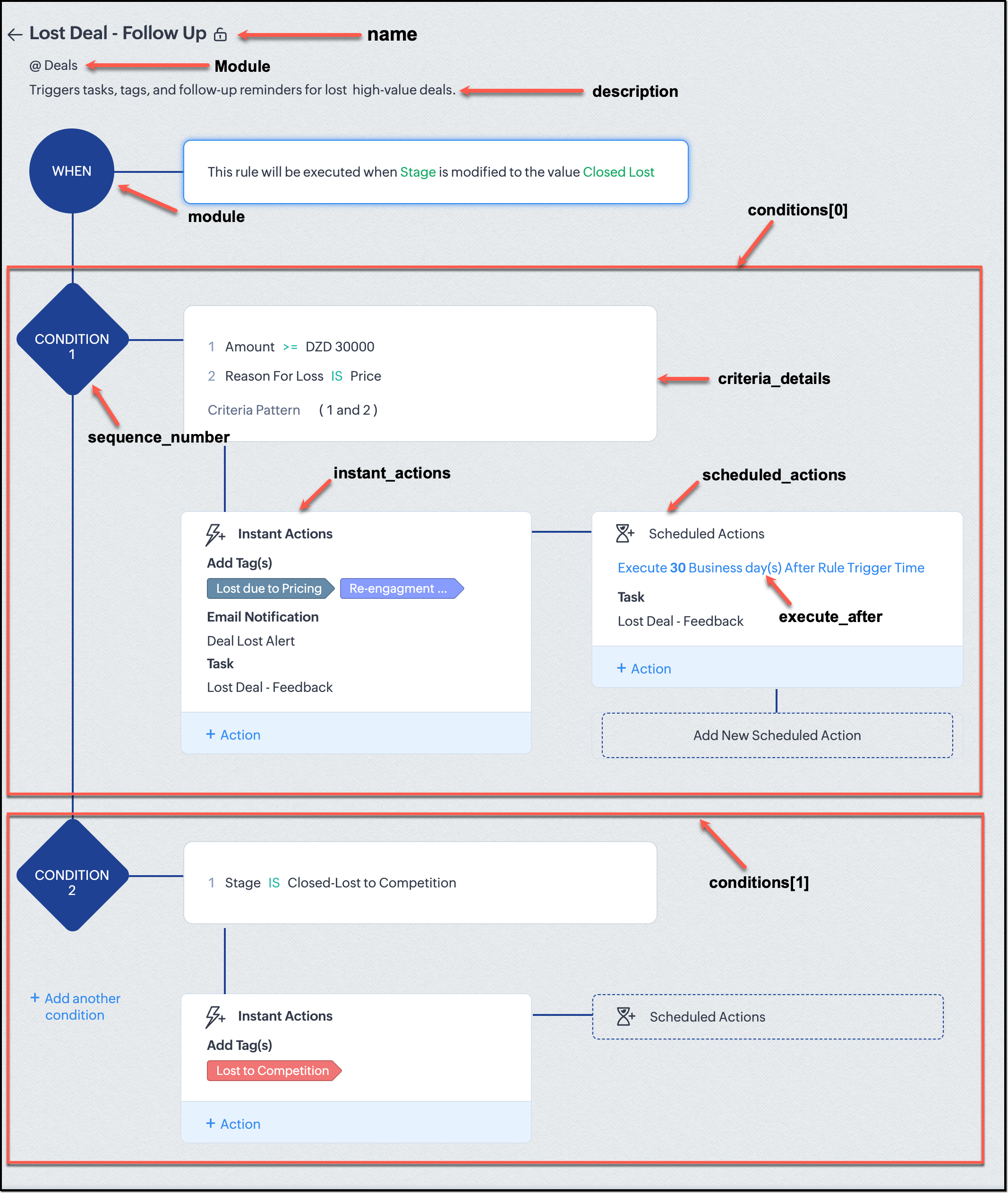
Associative vs. Non-Associative Actions
Every workflow rule performs one or more actions like sending an email, creating a task, or updating a field, etc. These actions fall into two broad categories: associative and non-associative.
Type | Description | Example Actions |
Non- Associative Actions | These are defined inside the workflow rule itself. They do not need to exist beforehand. You can configure their details directly within the workflow payload. | Create record, schedule a call, add a meeting, convert records, social actions, create record on email received, assign owner, |
Associative Actions | These are reusable actions created separately in CRM and referenced by their IDs. They can be used across multiple workflows and other automation tools. | Field updates, Email notifications, tasks, Webhooks, Add/Remove tags |
When you create or update a workflow via API, the associative actions require you to pass their existing action IDs. These IDs can be fetched using the corresponding Actions APIs : Field Updates, Email Notifications, Webhooks, and Tasks. In the coming weeks of Kaizen, we will take a closer look at each of these Actions APIs. We will see how to create, manage, and delete them within your workflow automation strategy.
Sample Request:
POST {{api-domain}}/crm/v8/settings/automation/workflow_rules
{ "workflow_rules": [ { "execute_when": { "details": { "trigger_module": { "api_name": "Deals", "id": "4876876000000002181" }, "criteria": { "comparator": "equal", "field": { "api_name": "Stage", "id": "4876876000000002565" }, "type": "value", "value": "Closed Lost" }, "repeat": false, "match_all": false }, "type": "field_update" }, "module": { "api_name": "Deals", "id": "4876876000000002181" }, "description": "Triggers tasks, tags, and follow-up reminders for high-value deals lost due to pricing", "name": "Lost Deal due to Pricing - Follow Up", "conditions": [ { "sequence_number": 1, "instant_actions": { "actions": [ { "name": "Lost Deal - Feedback", "id": "4876876000016794047", "type": "tasks" }, { "details": { "module": { "api_name": "Deals", "id": "4876876000000002181" }, "over_write": false, "tags": [ { "name": "Lost due to Pricing", "id": "4876876000016794071", "color_code": "#658BA8" }, { "name": "Re-engagement pending", "id": "4876876000016794075", "color_code": "#879BFC" } ] }, "type": "add_tags" }, { "name": "Deal Lost Alert", "id": "4876876000016794062", "type": "email_notifications" } ] }, "scheduled_actions": [ { "execute_after": { "period": "business_days", "unit": 30 }, "actions": [ { "name": "Lost Deal - Feedback", "id": "4876876000016794047", "type": "tasks" } ] } ], "criteria_details": { "criteria": { "group_operator": "AND", "group": [ { "comparator": "greater_equal", "field": { "api_name": "Amount", "id": "4876876000000002557" }, "type": "value", "value": "30000" }, { "comparator": "equal", "field": { "api_name": "Reason_For_Loss__s", "id": "4876876000002440001" }, "type": "value", "value": "Price" } ] } } } ] } ] } |
The execute_when defines when the workflow should fire.
type = field_update means this rule runs when a field’s value changes.
criteria : Stage = Closed Lost so the rule triggers whenever the Stage field is updated to Closed Lost.
repeat = false ensures it will not trigger multiple times for the same record.
In simple terms: “Whenever a deal is marked as Closed Lost, run this workflow.” The criteria_details section refines the trigger. The workflow only runs when the Amount ≥ ₹30,000 AND Reason for Loss = Price.
The instant_actions section inside the conditions array has the actions to be executed immediately when the criteria are met.
Add Tags : labels the record for easy filtering and reporting.
Send Email Alert : notifies the sales team instantly about the lost deal.
The scheduled_actions defines what happens after some time has passed. In this case, after 30 business days. Here, the workflow automatically creates a “Lost Deal - Feedback” task, reminding the deal owner to follow up with the customer to get feedback, and for future opportunities.
- The Amount is greater than or equal to ₹30,000, and
The Reason for Loss is “Price.”
By combining these elements, this workflow achieves a full closed-loop follow-up system.
Conclusion:
Zylker’s updated and new workflows make their automation smarter and more responsive. They are now able to spot key deals and ensure lost opportunities are revisited.
We hope you are now well on your way to mastering Workflow APIs. Share your thoughts in the comments or write to us at support@zohocrm.com.

Additional Reading:
- Workflow APIs - Part 1 - Auditing Workflows
- Workflow APIs - Part 2 - Find out what actions and triggers are supported for each module
Topic Participants
Anu Abraham
Sticky Posts
Kaizen #226: Using ZRC in Client Script
Hello everyone! Welcome to another week of Kaizen. In today's post, lets see what is ZRC (Zoho Request Client) and how we can use ZRC methods in Client Script to get inputs from a Salesperson and update the Lead status with a single button click. In thisKaizen #222 - Client Script Support for Notes Related List
Hello everyone! Welcome to another week of Kaizen. The final Kaizen post of the year 2025 is here! With the new Client Script support for the Notes Related List, you can validate, enrich, and manage notes across modules. In this post, we’ll explore howKaizen #217 - Actions APIs : Tasks
Welcome to another week of Kaizen! In last week's post we discussed Email Notifications APIs which act as the link between your Workflow automations and you. We have discussed how Zylker Cloud Services uses Email Notifications API in their custom dashboard.Kaizen #216 - Actions APIs : Email Notifications
Welcome to another week of Kaizen! For the last three weeks, we have been discussing Zylker's workflows. We successfully updated a dormant workflow, built a new one from the ground up and more. But our work is not finished—these automated processes areKaizen #152 - Client Script Support for the new Canvas Record Forms
Hello everyone! Have you ever wanted to trigger actions on click of a canvas button, icon, or text mandatory forms in Create/Edit and Clone Pages? Have you ever wanted to control how elements behave on the new Canvas Record Forms? This can be achieved
Recent Topics
Prefill form with CRM/Campaigns
I created a form in zForms and created prefill fields. I added this to the CRM and selected the fields so when sending from the CRM, the form works great. However, I want to use the same form in Campaigns and I want it to pull the data from CRM (whichTriggering a campaign automation from a Form
I used Forms to create a lead form that is accessed by a button on my website. The field information flows into the CRM. However, I am trying to figure out how to use Campaign automations to start a workflow (series of campaign emails) that is triggeredEmployee Appraisal Applicability - Why is Date of Joining Hard-Coded?
In the new (to me, at least) Performance Appraisal Cycle wizard, it's possible to set criteria to determine for whom the appraisal process should apply. This makes sense on its face. However, one MUST use the Date of Joining criterion as a filter. WhyFormula fields
Zoho People now supports formula fields. This post illustrates it. Formula fields are fields whose value is calculated instead of being entered by the user. Using this, number, decimal and date manipulations can be done. The value of this field could be numeric or date depending on the output of the formula. In date manipulations, the result will be given in milliseconds, which you can format as per you need. The operators we support are +, - , *, /. Formula fields get recalculated automaticallyZobot operator information
I am working on a zobot that calls a plug to send data to our API. I want the response data from that API to be shown only to the operator and not the customer. I have tried writing this data out to the visitorCity field but nothing gets updated on theCopy paste from word document deletes random spaces
Hello Dear Zoho Team, When copying from a word document into Notebook, often I face a problem of the program deleting random spaces between words, the document become terribly faulty, eventhough it is perfect in its original source document (and withoutIs it possible to use module field filters via URL parameters?
It would be really convenient if I could quickly link to a filter. For reference, this is the filter functionality I'm referring to: https://help.zoho.com/portal/en/kb/crm/customize-crm-account/advanced-filters/articles/advanced-filters For example: MyTransitioning FESCO Bill Project to Zoho Sheets and Integration Options
Hello Zoho Support, I'm considering transitioning my FESCO bill project from Google Sheets to Zoho Sheets and wanted to know if there are integration options to seamlessly migrate our existing work. You can view our platform here, any guidance would beCredit card
Coming from another software, is it possible here to typically have credit card payment off, but independently per customer, click a box (possibly on the invoice when I go to to send) allowing that 1 allowed customer credit card payment, NOT ALL of myLightbox Pop-up form
I would like to embed my form using the lightbox pop up. I don't want it to load automatically. I want it to load when some clicks the button. I can see this option, however when I use the "show pop-up launch button" on the website, the button automaticallyLightbox Pop-up form
I would like to embed my form using the lightbox pop up. I don't want it to load automatically. I want it to load when some clicks the button. I can see this option, however when I use the "show pop-up launch button" on the website, the button automaticallyConnecting Portals from different Zoho apps
Hi, I note that Zoho has functionality for customer portals for several of the Zoho apps, like CRM, Projects, Desk etc. Is there any way to connect these portals? It would be great if we could give our customers access to a portal in which they couldCustomer Management: #5 Never Let the Customer Slip
When Rahul started Knight's Watch Consulting, his focus was simple: deliver good work and keep clients happy. He offered one-time consulting projects, monthly advisory retainers and usage-based support for growing clients. Business was steady, and customersDeluge date time issue
The deluge function info zoho.currentdate.toString("MMM/YYYY") returns Dec 2026 instead of 2025Zoho Projects Android and iOS app update: Mobile device permission based on user profiles
Hello everyone! We have brought in support for mobile device permissions based on the user profiles which are configured in organization level. Administrators can now configure the permissions on the web app(projects.zoho.com) by following the steps mentionedtreatment for rehires
Hello, we are aware of the fact that Zoho People at the moment does not has a provision for rejoining exited employees. But is there any quick fix or hack to this? It will be appreciated a lot.Zoho Projects Android and iOS app update: Timesheet module is now renamed as 'Time Logs', delete option has been renamed to 'Trash'.
Hello everyone! We have now renamed the Timesheet module as Time Logs and the delete option as 'Trash' on the Zoho Projects Android and iOS app. Time Logs Android: Time Logs iOS: Trash option Android: Trash option iOS: Please update the app to the latestZoho Mail app update: Manage profile picture, Chinese (Traditional) language support
Hello everyone! In the latest version (v3.1.9) of the Zoho Mail app update, we have brought in support to manage profile picture. You can now set/ modify the profile picture within the app. To add a new profile picture, please follow the below steps:Reminders for Article Approval
Is there a way to send reminders for approvers to review articles and approve/deny them? I'm not seeing that option anywhere.Add Full-Screen Viewing for Quartz Recordings in the Client Interface
Hi Zoho Team, We would like to request an enhancement to the Zoho Quartz client interface when viewing submitted recordings. Current Limitation: When viewing a Quartz recording from the client (user) interface, there is currently no option to switch the2025 Recap: A Year to Remember | Zoho Inventory
Important Update : Pipedrive deprecated fields no longer supported in Zoho Analytics
Dear Pipedrive users, We would like to inform you about a recent update related to your Pipedrive integration with Zoho Analytics. The Pipedrive team has deprecated certain fields from their application. You can find more details in the official PipedriveProduct Updates in Zoho Workplace applications | November 2025
Hello Workplace Community, Let’s take a look at the new features and enhancements that went live across all Workplace applications this November. Zoho Mail Format comments easily using Slash Commands With Slash commands, you can easily format text, insertRight-Click Pipeline to Open in New Tab
Please add the ability to right-click on a pipeline to open it in a new tabAdjusting Physical Inventory
Not getting very far with support on this one, they say they are going to fix it but nothings happened since November. Please give this a thumbs up if you would like to see this feature or comment if you have some insight. Use Case: Inventory set to beI need to Record Vatable amount and non vatable amount separately in zoho books in a single line
I need to Record Vatable amount and non vatable amount separately in zoho books in a single line give me the customisation option and in invoice copy to customer the total amount should be inclusive 5%vat and no need to show the vatable and non vatablesync views to sheet
Im looking to sync my views aka reports in analytics to zoho sheets, when data is updated in analytics it also should be updated in sheets, till now zoho sheets only offer raw data connection and it is not enough as these reports are difficult to re-doHow to update the Status in a custom module?
Hi, I have a custom module "cm_payment_registry" in Billing, I am trying to change the status which is "Draft" with: array = {"custom_status":"Approved"}; zoho.billing.update("cm_payment_registry",organization.get("organization_id"), XXXXXXXXXXXXXX, array,"connectionname");Opening balances - Accounts Receivable and Payable
Our accounting year starts on 1st August 2013 and I have a Trial Balance as at that date, including Accounts Receivableand Accounts Payable balances, broken down by each customer and supplier. Q1 - do I show my opening balance date as 31st July 2013 orReplace Zoho Invoice with QuickBooks
We are implementing Zoho FSM for a cleaning business in the US with 50+ field workers. This business has been using Quickbooks for accounting for decades and will not migrate to Zoho Books. A major issue in the integration is the US sales tax calculation.2025 Highlights: A Year of Steady Progress and Significant Developments
As we come to the end of 2025, let's take a moment to reflect on the significant progress and developments we've made to improve your travel and expense management. In the Spotlight Introducing Online Booking (US edition only - Early access) Enable onlineFunction #42: Show the actual rate of items on invoices
Hello everyone, and welcome back to our series! In Zoho Books, you have the ability to create Price Lists, wherein you can mark up and mark down the item rates by a specific percentage or set custom rates. Generally, when you apply a price list to anAbility to Set Text Direction for Individual Cells in Zoho Sheet
Dear Zoho Sheet Team, We hope you are doing well. We would like to request an enhancement in Zoho Sheet that allows users to set the text direction (right-to-left or left-to-right) for individual cells, similar to what is available in Google Sheets. UseWarehouse fast processing
Hey guys, would anyone be interested in something like the attached image ? If there's any interest I'd be willing to develop it further for others to use, it's much faster than using Zohos native solutions, it can part pack, pack in full, part ship,Can I create a CODE 128 custom field for my items in Zoho Inventory and then use it for generating Sales Orders?
Can anyone helps me, I don't want to use the SKU code for scanning my products. Because all my products have a CODE-128 label attached.Start/Stop Timmer in Chrome Extension
The chrome extension is great and allows you to do allot however one of the most common things employees working on projects need to do is track their time. Having an easy start/stop timer to track time would be great.Invalid collection string
I haven't changed anything in one of my functions. I'm trying to run it manually and suddenly "Invalid collection string" appears. My code has 6 lines and the error says that the error is on 7th line. Why? What does this error mean? Nothing has been changedZoho Directory 2025: New Features | Security Enhancements | Enriched UI
Hello everyone, Greetings from the Zoho Directory team! 2025 has been a highly successful year for Zoho Directory. We are delighted to introduce a fresh set of features, an enriched UI, and major product enhancements. These updates aim to deliver a smootherzoho people 5 report
How do I customize my report in Zoho People Report? I understand that I can get the results of multi-table queries through SQL join statements, but I don't know the relationship between each table. I tried to create a report using Attendance User ReportLeave Report Emailed Weekly
I am wondering if someone knows how to have a report generated either weekly or monthly or both for department heads and ownership of upcoming employee leave. For instance, it would be nice to get an emailed report on Friday for the upcoming week of whoNext Page