Automation Series: Auto-assign Resources as Task Owners
In Zoho Projects, task ownership can be set automatically during task creation, allowing resources to be assigned based on the task name. Resources are work equipment or tools added to the portal to monitor their usage across projects. They can be assigned to tasks directly or along with other task owners.
For instance, an event management team arranging a tech summit has sound systems and staging equipment logged as resources in Zoho Projects. As the team creates tasks, any task containing the keyword in it triggers the Workflow Rule based on criteria. The associated Custom Function then assigns the resource as the task owner.
To configure this flow,
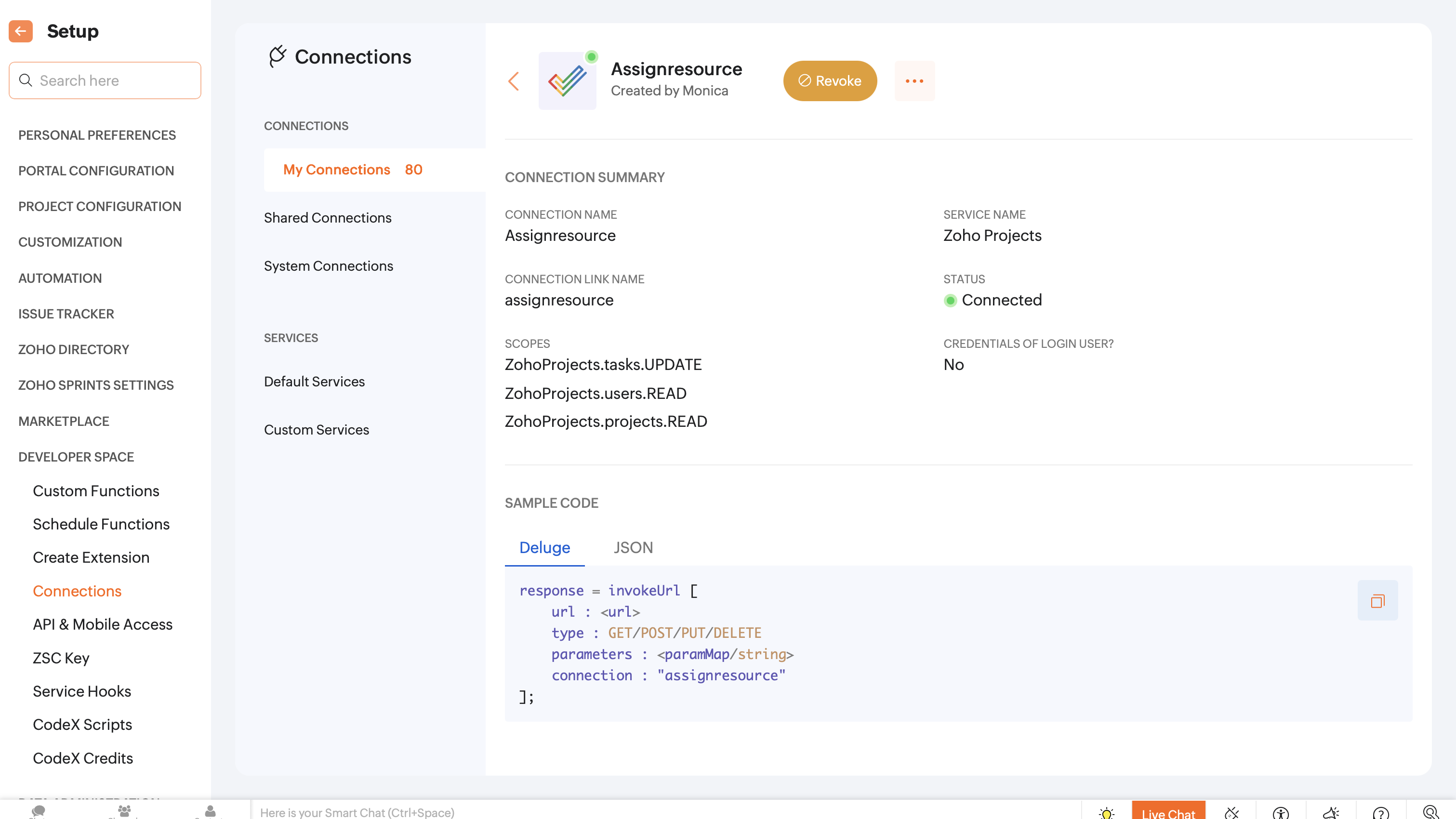
1. Navigate to the upper-right corner of the page and click  → Developer Space → Connections and Create a new connection with the following scope:
- ZohoProjects.tasks.UPDATE
- ZohoProjects.users.READ
- ZohoProjects.projects.READ
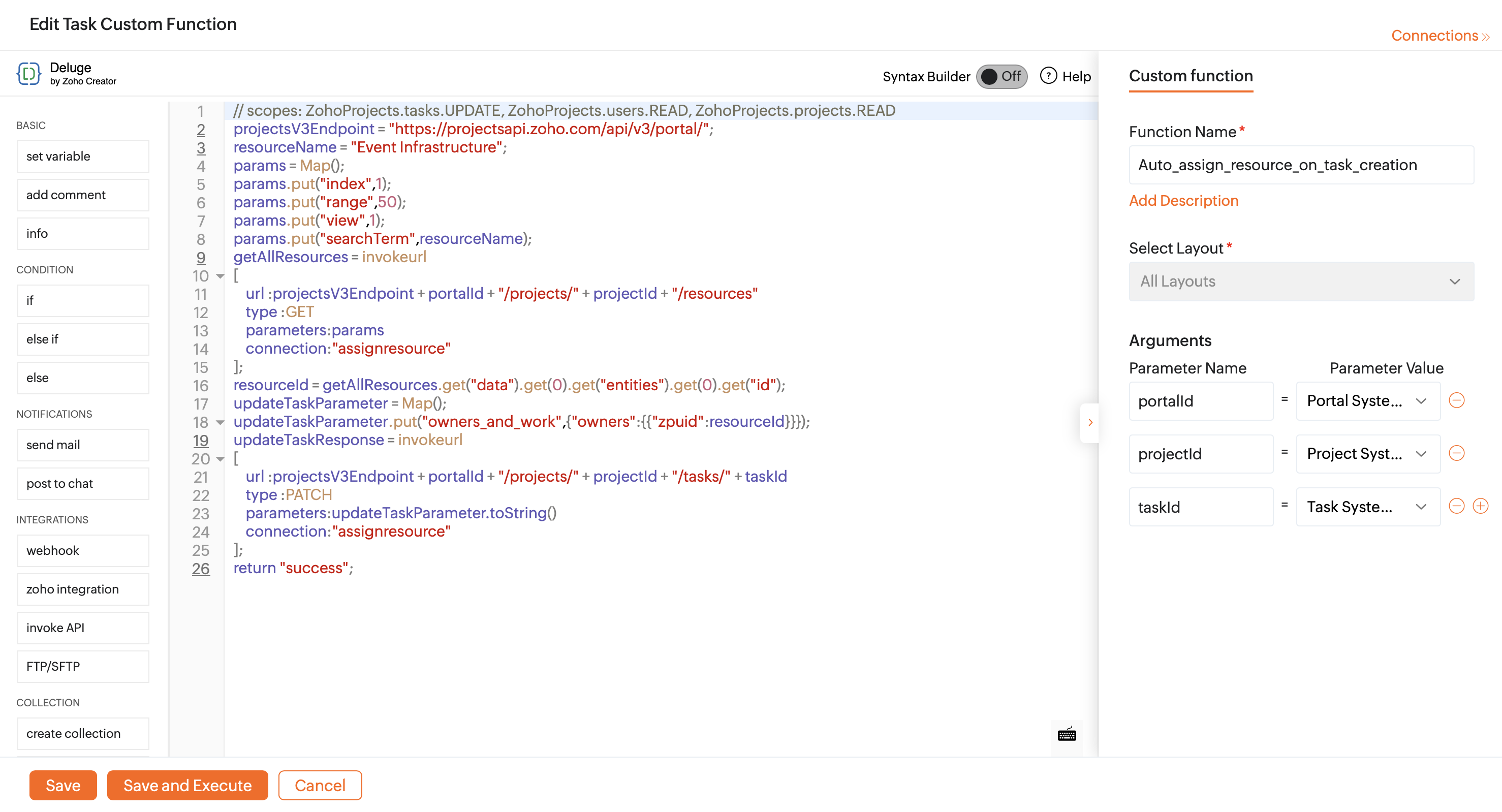
2. Navigate to Developer Space → Custom Functions. Under the Tasks tab, create a new custom function and add the following Deluge script.

Ensure that the portal URL aligns with your data centre. If not, the function may not execute as expected.
- // scopes: ZohoProjects.tasks.UPDATE, ZohoProjects.users.READ, ZohoProjects.projects.READ
- projectsV3Endpoint = "https://projectsapi.zoho.in/api/v3/portal/";
- resourceName = "Event Infrastructure";
- params = Map();
- params.put("index",1);
- params.put("range",50);
- params.put("view",1);
- params.put("searchTerm",resourceName);
- getAllResources = invokeurl
- [
- url :projectsV3Endpoint + portalId + "/projects/" + projectId + "/resources"
- type :GET
- parameters:params
- connection:"assignresource"
- ];
- resourceId = getAllResources.get("data").get(0).get("entities").get(0).get("id");
- updateTaskParameter = Map();
- updateTaskParameter.put("owners_and_work",{"owners":[{"zpuid":resourceId}]});
- updateTaskResponse = invokeurl
- [
- url :projectsV3Endpoint + portalId + "/projects/" + projectId + "/tasks/" + taskId
- type :PATCH
- parameters:updateTaskParameter.toString()
- connection:"assignresource"
- ];
- return "success";
Line 2: Ensure the portal URL aligns with your data centre.
Line 3: Replace "Event Infrastructure" with the name of the resource you want to assign as the task owner.
Lines 14 and 24: Replace "assignresource" with your Zoho Projects connection name.
3. Add the arguments mentioned below.
4. Click Save.
Once the custom function is saved, associate it with a workflow rule.
6. Configure the workflow to trigger Based on User Action when a task is Created.
7. Click +Add Action set criteria and select Associate Custom Function.


Users can also set task status as the trigger, so that the resource is assigned automatically when the status is updated.
8. Click Save Rule.

When the task name criteria matches the rule, the specified resource will be assigned as the task owner.
If you have any questions, feel free to drop a comment below or reach out to us at support@zohoprojects.com.