DYK 7 - Set dependency from Gantt and List view
Did you know task dependencies in Zoho Projects can be managed across different task views?
In a project, multiple teams work together towards the same goal but team members prefer accessing data with different perspectives depending on their responsibilities. The List view gives a granular view for users who work across multiple tasks, whereas the Gantt view helps users to plan visually and track progress across timelines. With Zoho Projects, task dependencies can be set from both the views, helping teams link tasks efficiently.
Let's assume a law firm that manages property purchases. The manager of the firm would prefer to use the timeline in the gantt view to create and plan tasks. While planning tasks, a Finish to Start dependency between tasks such as site inspection and document verification can be linked directly from the Gantt view by clicking and dragging a connection between the ends of two task bars. This ensures that any delay in site inspection automatically reschedules document verification, eliminating manual adjustments.
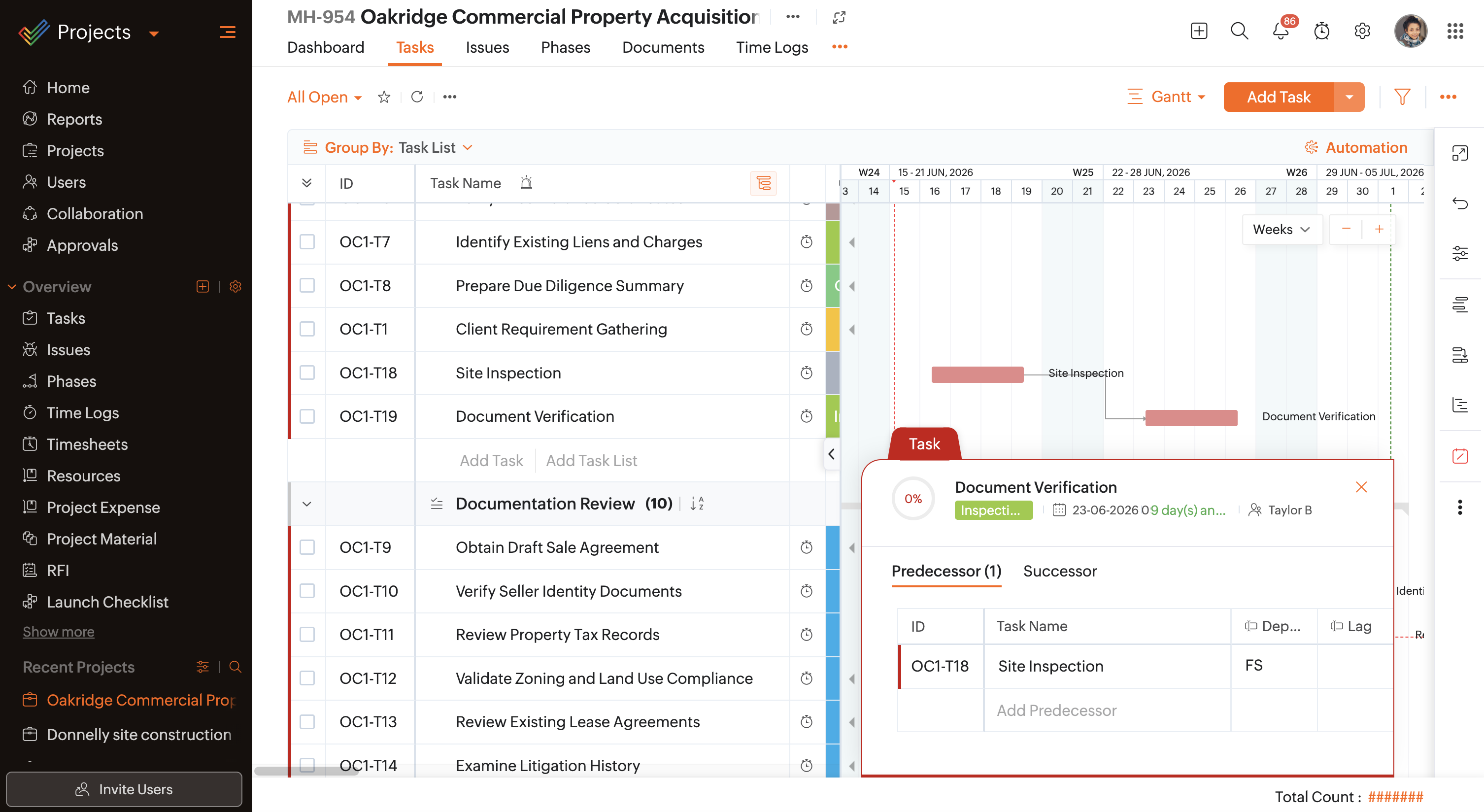
In the same case, as associates work through tasks in the List view, they can link tasks on the go by hovering over the task and entering the dependent task's ID or name in the Predecessor or Successor column. For tasks like seller background verification and property tax clearance that must be completed in parallel, a Finish to Finish dependency type directly from the List view can achieve this outcome enabling a structured process.

The dependency type is automatically assigned based on the Default Dependency Type configured in the portal or project settings. If set to Automatic, the dependency type can be selected from the dropdown directly from the List view while linking tasks.

If the Predecessor or Successor column is not available by default in the list view, click on  and add the required columns.
and add the required columns.As much as dependencies control task execution flow, task views influence how users view, set up, and modify them based on their needs.
Click this link to learn more about the different types of dependencies and when to use them. Have questions? Reach out to us support@zohoprojects.com.