Kaizen 228 - Process Large-Scale Migrated Data Using Catalyst Solutions

Howdy, tech wizards!
This week’s Kaizen explores how Catalyst Solutions in the Zoho CRM Developer Hub help import large volumes of data into Zoho CRM while improving data quality and simplifying the migration process.
Why Catalyst Solutions?
Catalyst Solutions provide a library of independent, ready-to-use backend solutions called CodeLibs. The CRM Bulk Data Processor CodeLib helps handle complex data operations on large datasets. Following are the key benefits:
- Highly Scalable: Processes large datasets efficiently, supporting up to 200,000 records per API call.
- Automation Made Simple: Automate complex tasks like segmentation, data cleansing and lead scoring with minimal effort.
- Effortless Integration: Comes with pre-configured Catalyst resources such as serverless functions and data stores that integrate directly with Zoho CRM.
Business Scenario
Zylker, a manufacturing company, migrated over 3 lakh Lead records into Zoho CRM from spreadsheets.
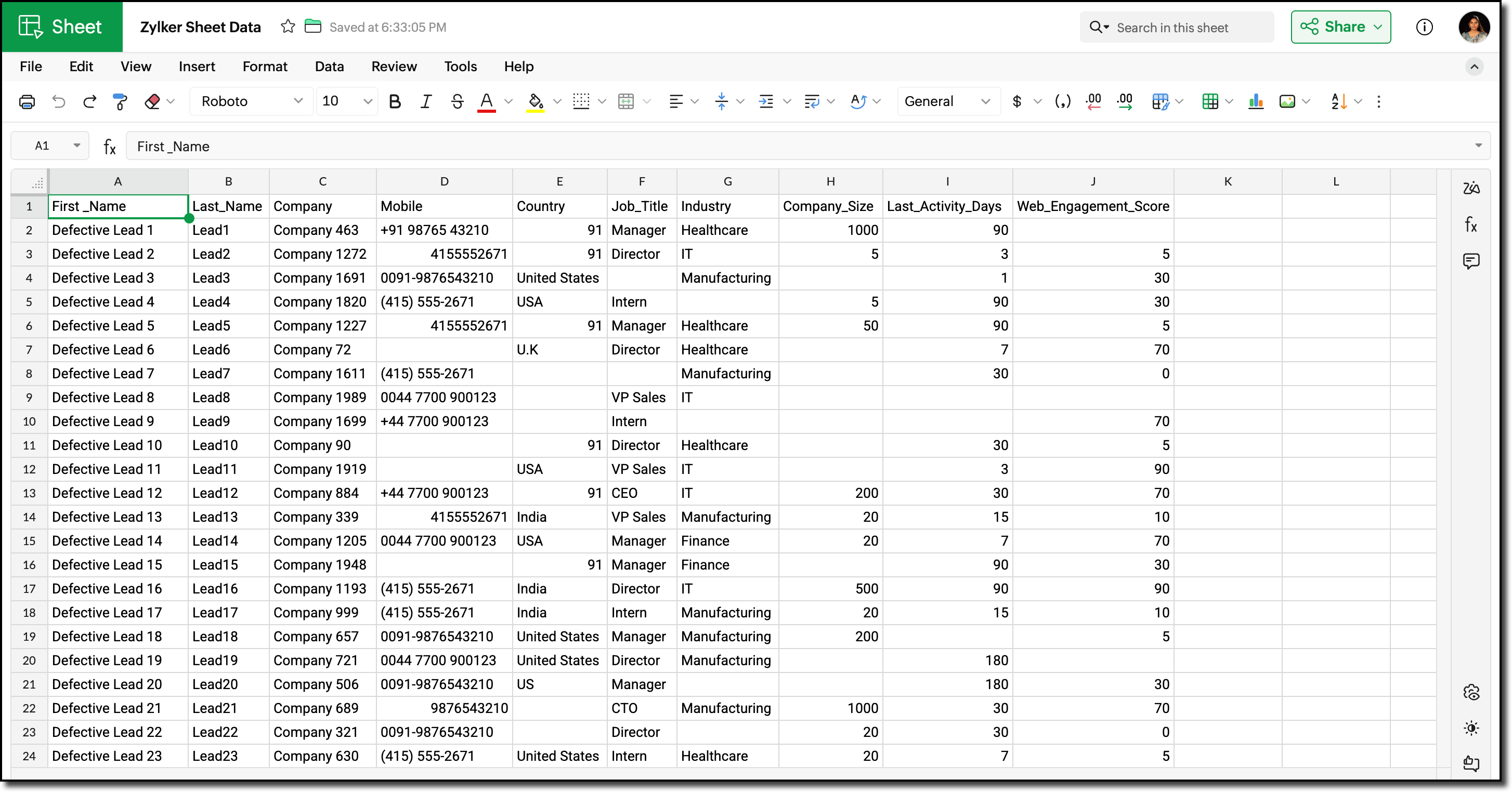
Post-migration, the Lead data showed the following inconsistencies and challenges:
- Phone number field did not include country codes, or contained incorrect country codes. This inconsistency made it difficult for sales teams to contact Leads reliably.
- Identifying potential Leads for follow-up required manual effort and marketing team has to run generic campaigns without lead segmentation.
Using workflows before record creation to fix phone numbers for this volume would result in 3 lakh individual workflow executions, which can slow imports and cause partial failures.
Solution Overview
Zylker can use the CRM Bulk Data Processor available in Catalyst Solutions to address these challenges at scale.
The solution works as follows:
- Lead records are fetched in bulk from Zoho CRM using the Bulk Read API.
- The fetched data is temporarily stored to evaluate the priority and quality of each record. Based on this evaluation, the records are also segmented accordingly.
- The Country field value is used to identify and append the correct country code to the phone number.
- The processed records are updated back into Zoho CRM using Bulk Write API.
All operations are executed using pre-configured Catalyst resources provided by the CodeLib. You can explore the Bulk Data Flow in Catalyst help page to understand how each resource participates in the processing pipeline.
Prerequisites
Before you begin, ensure the following:
1. Log into your Zoho CRM and navigate to Setup > Customization > Modules and Fields > Leads.
Create the following custom Single Line fields to map existing record data in Zoho CRM.
- Last Activity Days
- Web Engagement Score
Refer to the Working with Custom Fields help page for detailed guide.
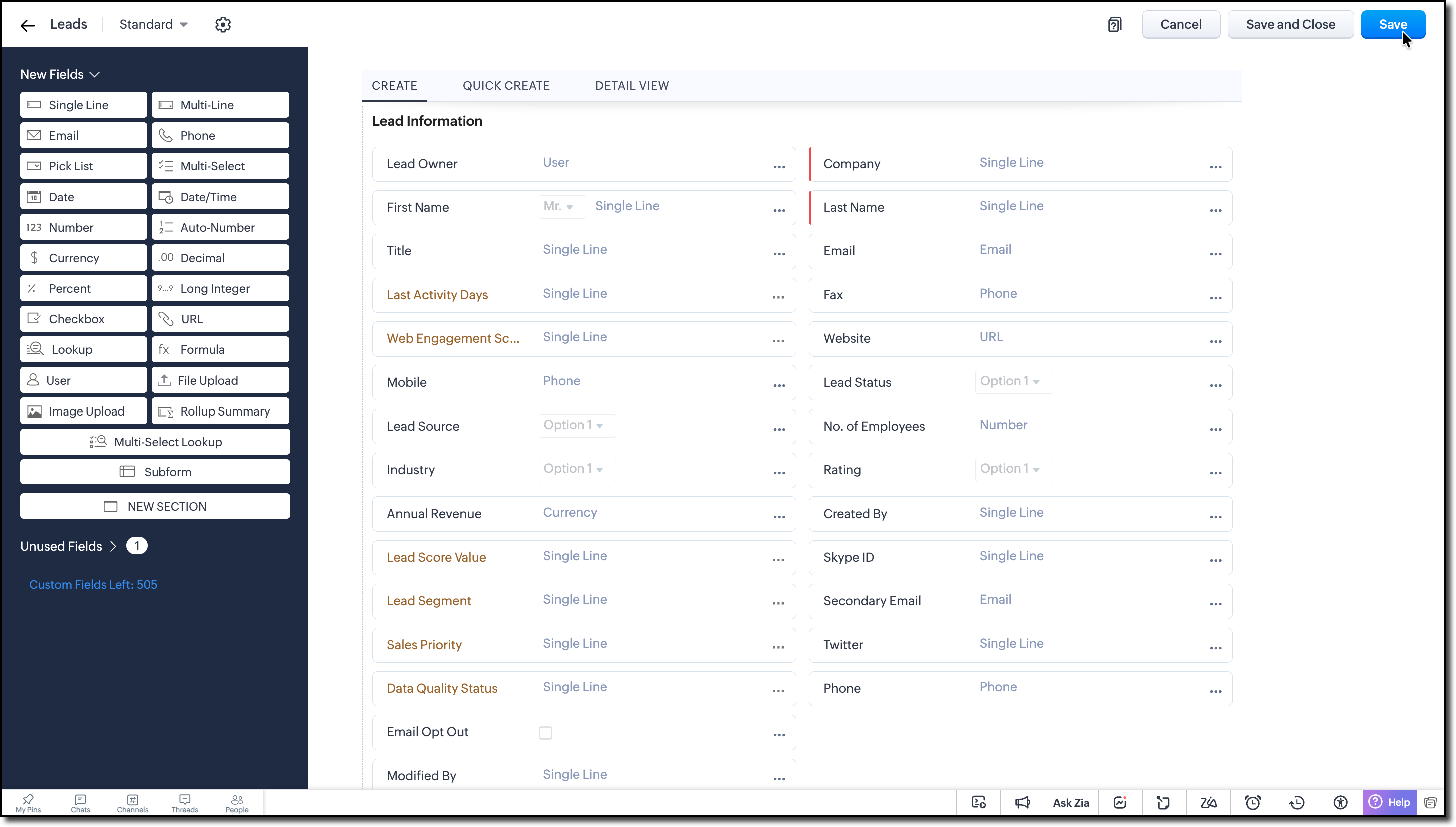
2. Create the following custom Single Line fields to store the calculated values during bulk processing:
- Lead Score Value
- Lead Segment
- Sales Priority
- Data Quality Status
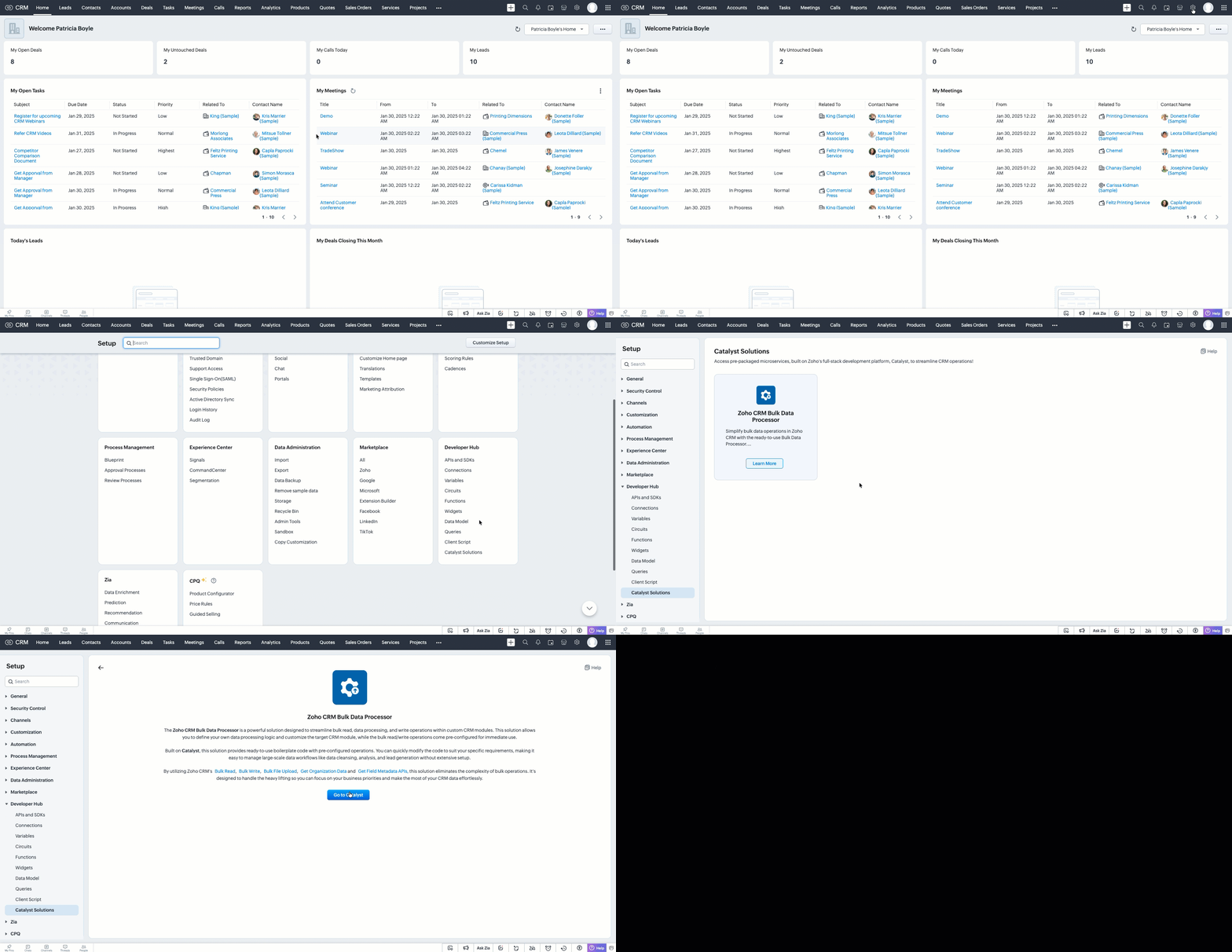
3. Go to Setup > Developer Hub > Catalyst Solutions > Zoho CRM Bulk Data Processor.
4. Click Go to Catalyst and create a Catalyst account if required.
5. Refer to the Catalyst CLI Installation Guide and install it on your local system.
6. Create a new folder on your local system, which will act as a local project directory. Use the following command:
mkdir -p <folder_name> |
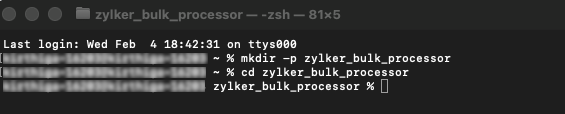
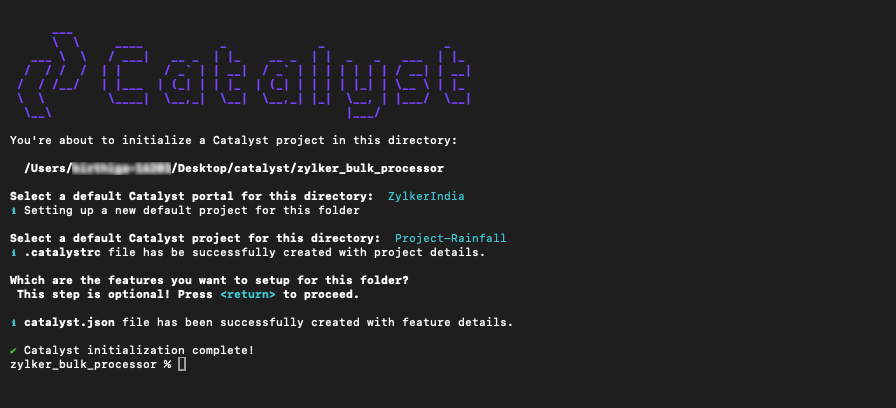
7. Navigate to the project folder in your terminal and execute the following command:
catalyst init |
8. Follow the prompts to select and initialize your desired project from the Catalyst console.
When prompted to choose a feature, press Enter and proceed without choosing any feature.
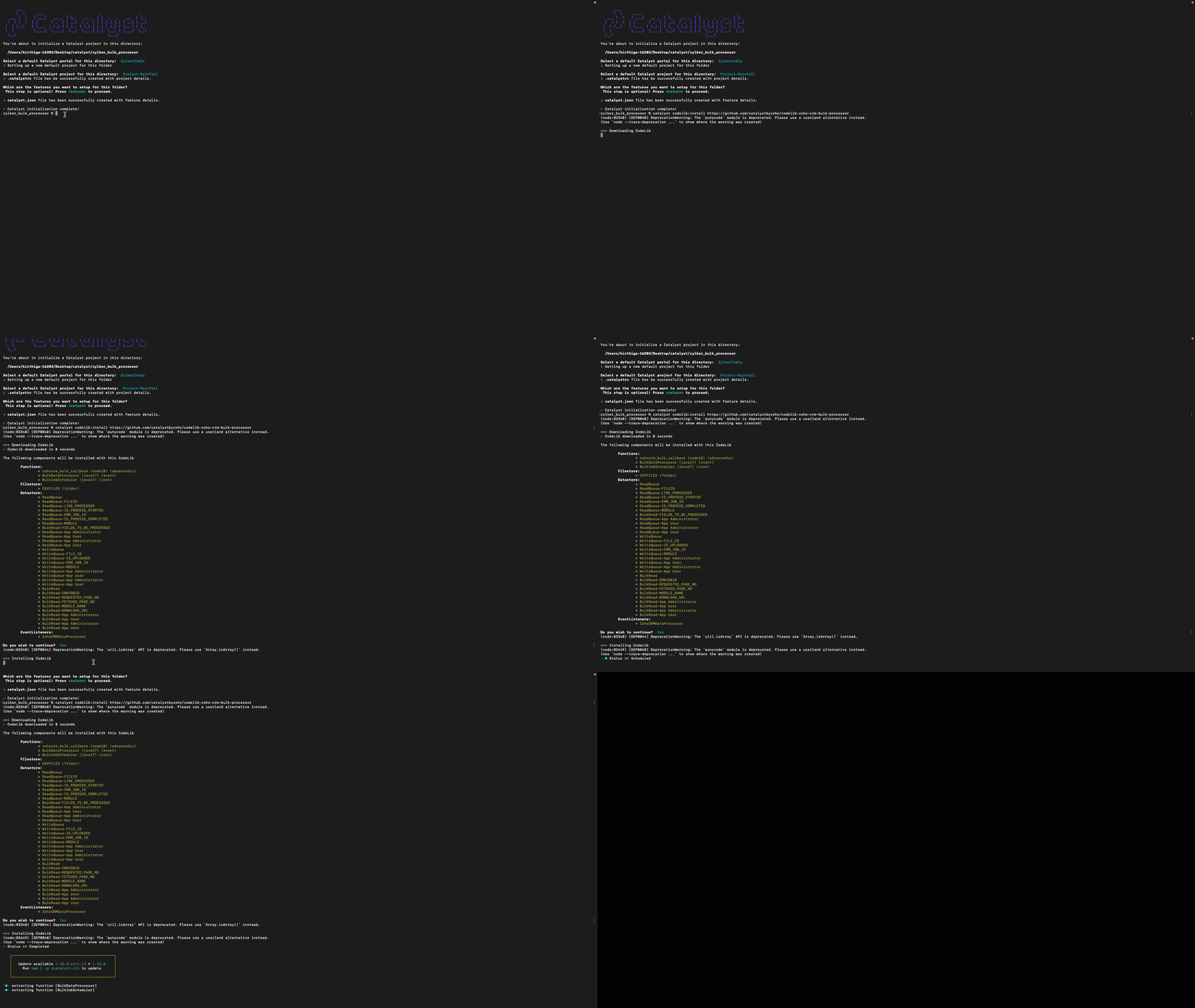
9. Run the following command to install the CRM Bulk Data Processor CodeLib.
catalyst codelib:install https://github.com/catalystbyzoho/codelib-zoho-crm-bulk-processor |
Step 1: Create a Cron Job
1. Open the Catalyst Console and navigate to the same project in which you have installed the CRM Bulk Data Processor CodeLib.
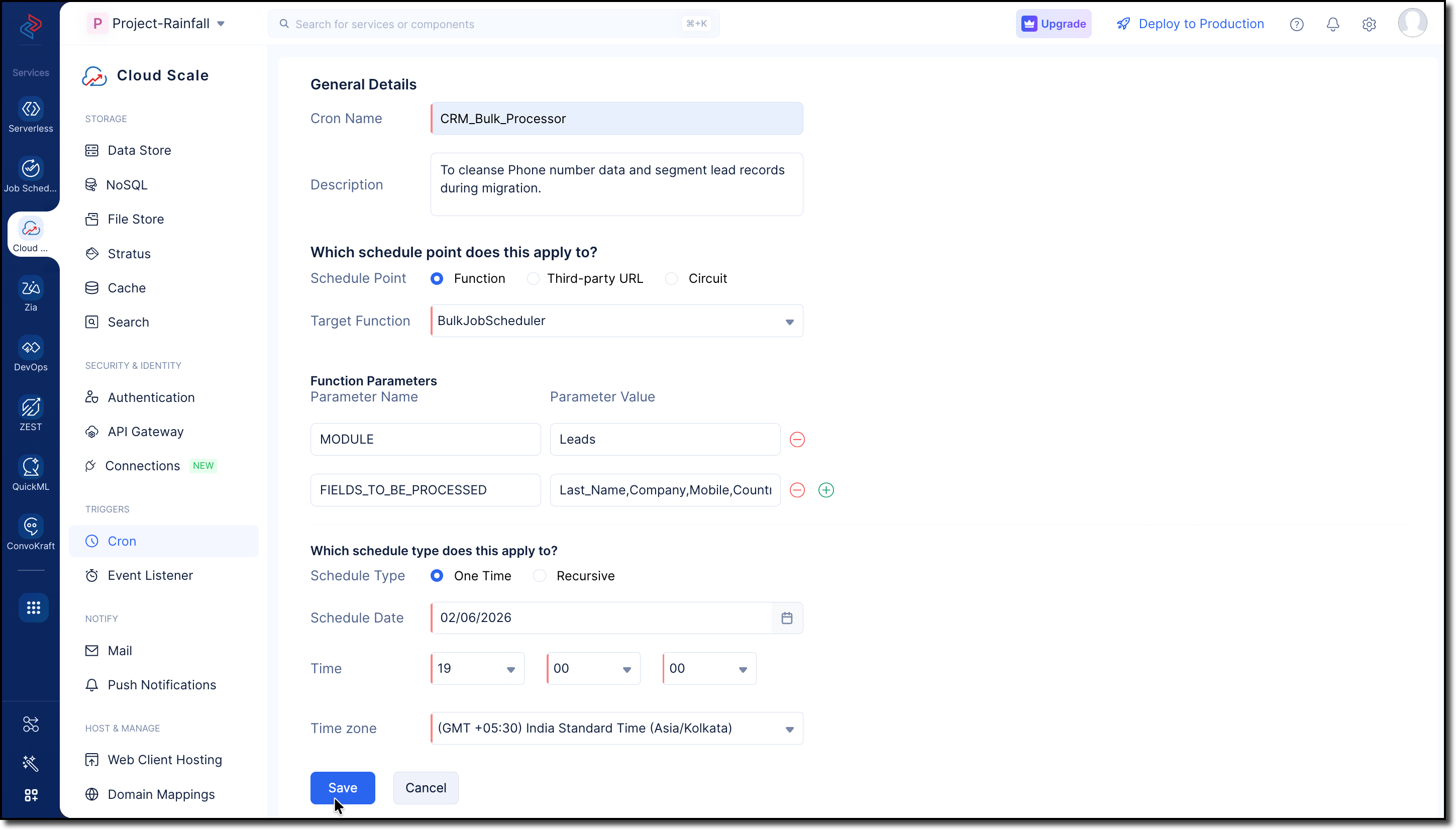
2. Go to Cloud Scale > Triggers > Cron and click Create Cron.
3. Fill in the following details:
- Provide a Name and Description for the cron job.
- Select Function and choose BulkJobScheduler from the dropdown in the Target Function field.
- Enter the following parameters and values:
MODULES -> Leads
FIELDS_TO_BE_PROCESSED -> Last_Name, Company, Mobile, Country, Designation, No_of_Employees, Web_Engagement_Score, Lead_Score_Value, Lead_Segment, Sales_Priority, Data_Quality_Status
Use GET Modules Metadata API and GET Fields Metadata API to get the API names of the required module and fields.
- Choose the Schedule Type as One Time for our use case.
Refer to the Implementing Cron Jobs Help Guide for more details.
Step 2: Configure Zoho CRM API Credentials
1. Create a self-client application in Zoho's API Console.
2. Generate a Grant Token with the following scopes:
- ZohoFiles.files.ALL
- ZohoCRM.bulk.ALL
- ZohoCRM.modules.ALL
- ZohoCRM.settings.ALL
- ZohoCRM.org.ALL

3. Follow the OAuth Help Section for a step-by-step guide to generate Access and Refresh tokens for your Zoho CRM organization.
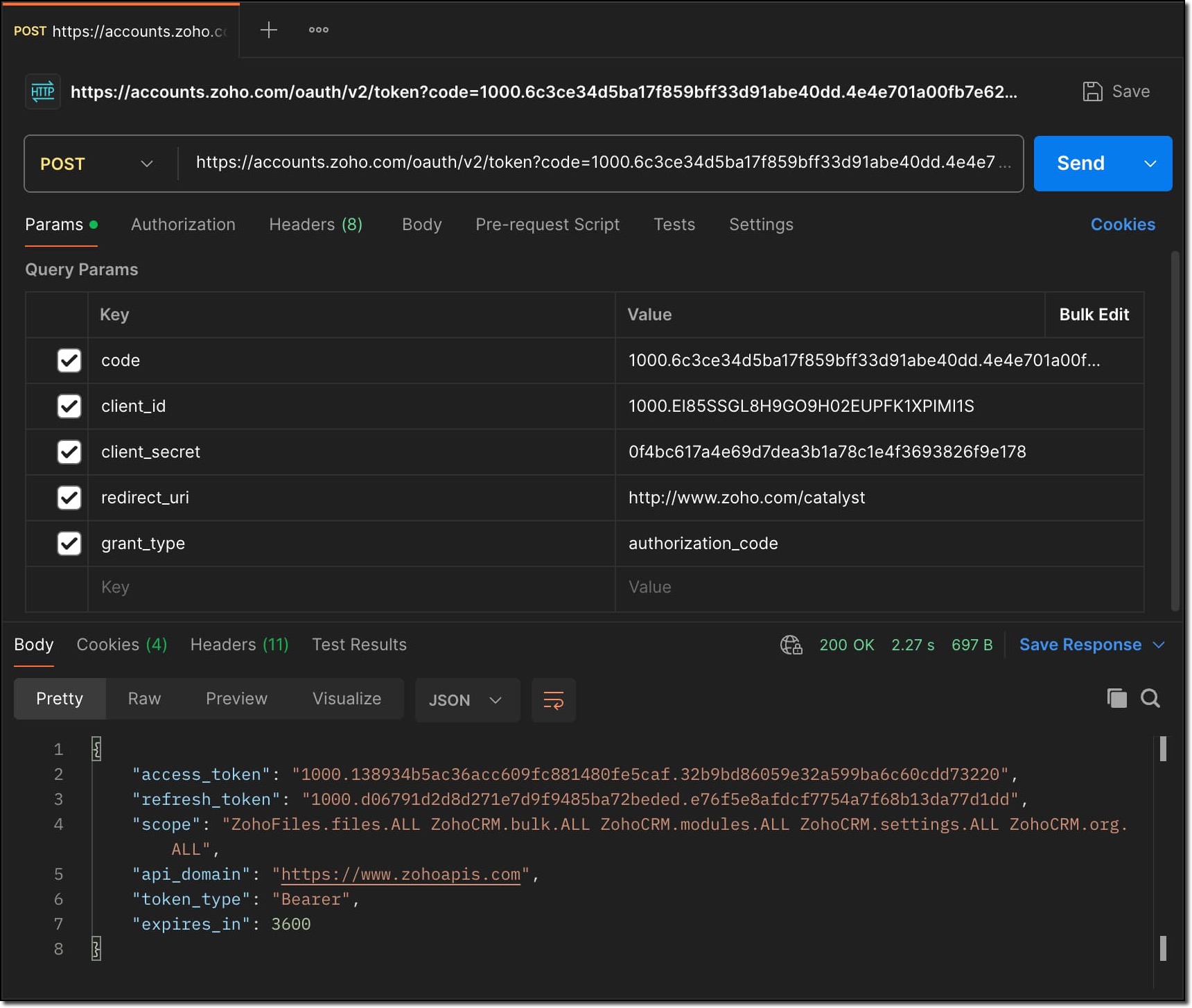
Store all the API credentials securely for later use.
4. To allow Catalyst to access Zoho CRM data, configure the stored API credentials as environment variables in the catalyst-config.json file within the BulkDataProcessor function.
For detailed guidance, refer to the Configure Function Components help guide in CRM Bulk Data Processor.

These environment variables are used by Catalyst Connectors to create access tokens for establishing secure connection between Zoho CRM and Catalyst.
Step 3: Add Business Logic
1. Go to com.processor.record.ZCRMRecordsProcessorImpl.java file of the BulkDataProcessor in the functions directory.
2. Override the ZCRMRecordsProcessor method with the business logic.
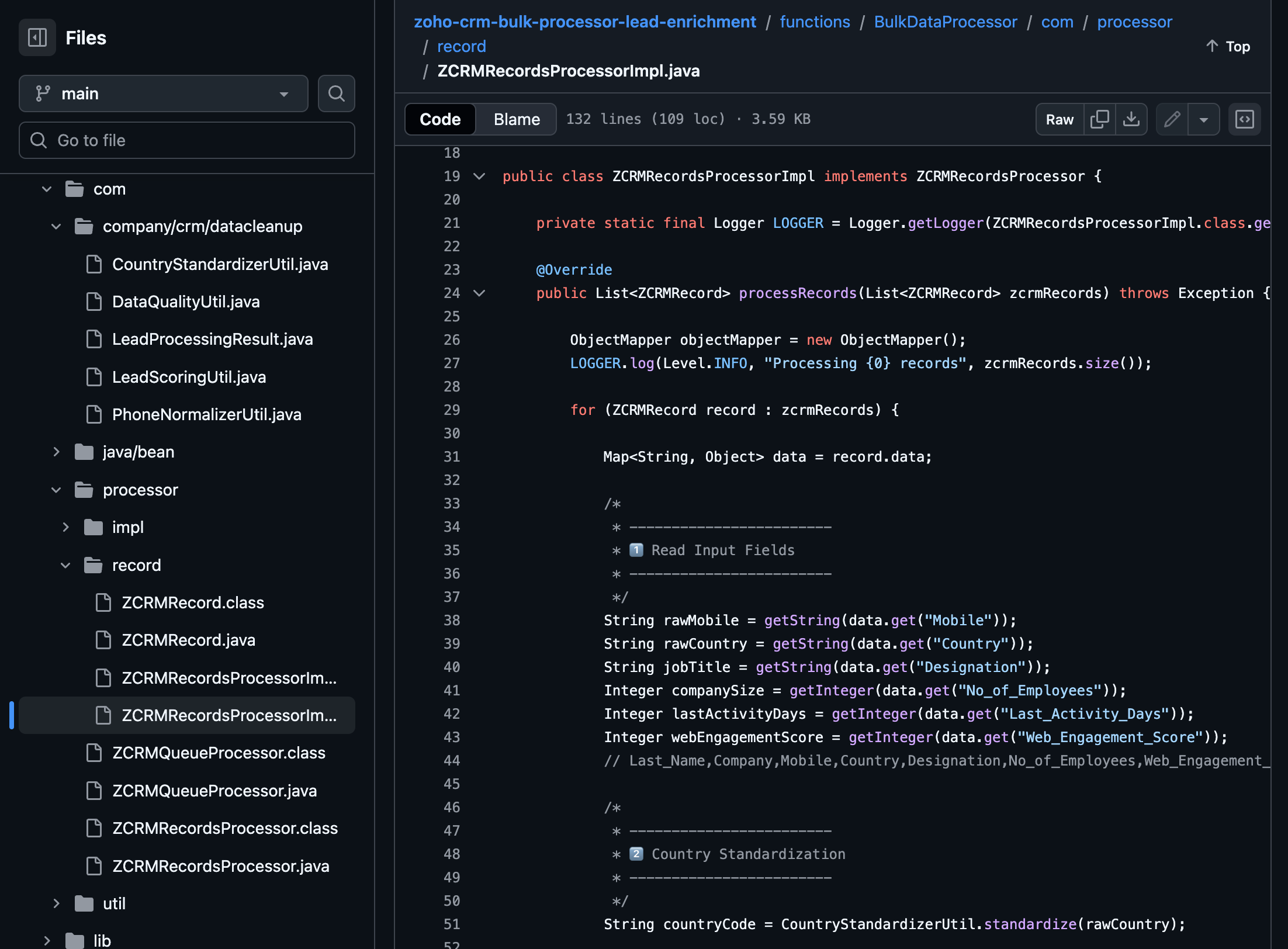
The complete code sample for this use case is available on GitHub for reference.
Following is the major custom logic used here:
Use the GET Fields Metadata API to fetch the API names of the fields required throughout the custom logic.
Phone Number Normalization:
This can be implemented in two stages, Country standardization and Phone Number formatting.
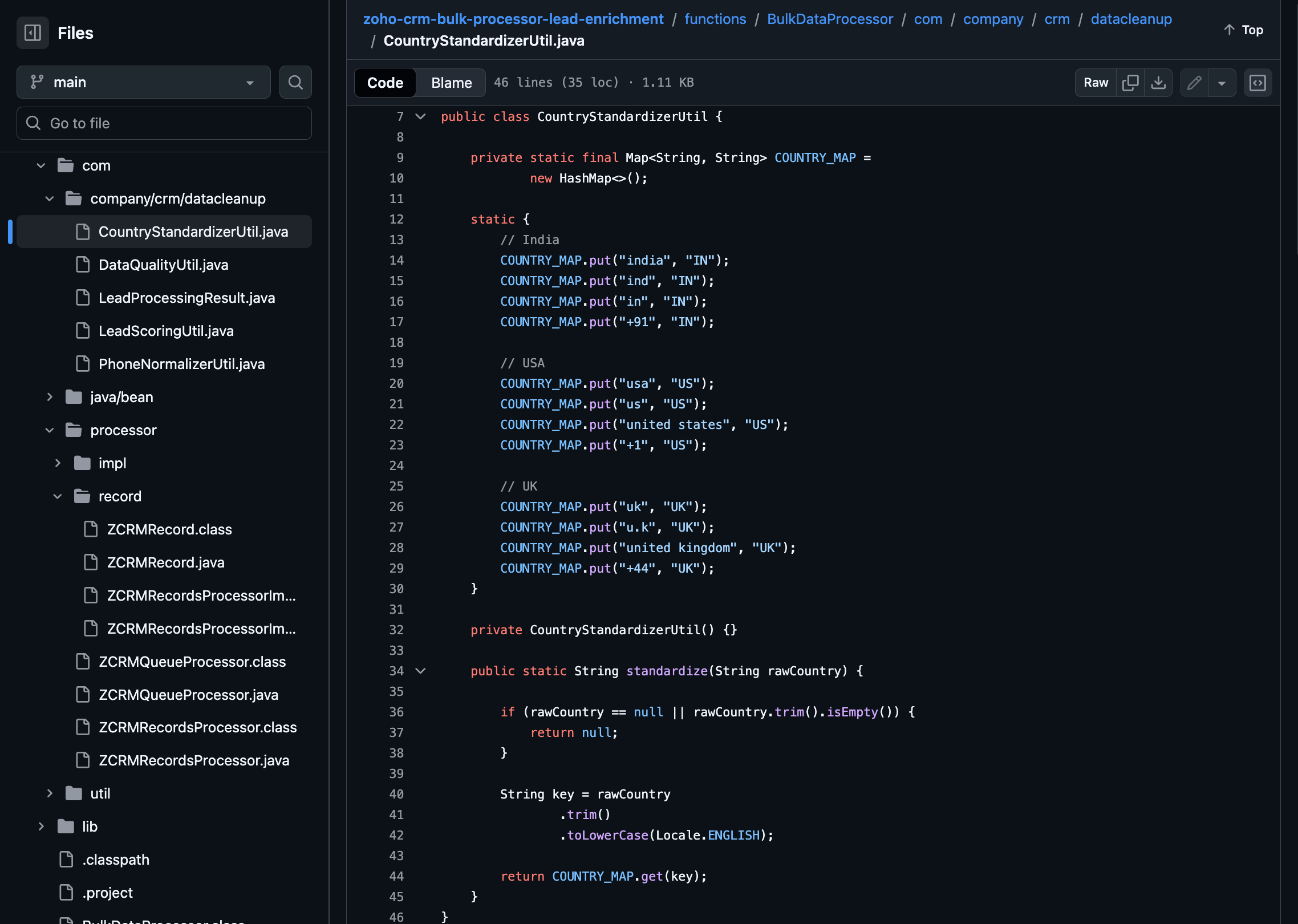
For country standardization, CountryStandardizerUtil maps different variations of the Country field in records to a single standardized country identifier. These variations may include,
- Country Names (India, Unites States, United Kingdom)
- Abbreviations (Ind, IN, USA, US, UK)
- Calling Codes (+91, +1, +44)
With this, we can ensure different interpretations of the same country are interpreted consistently during the process.
Once the country is standardized, Phone Numbers are formatted to E.164 format in the PhoneNormalizerUtil.
It removes all non-numeric characters and converts the Phone input to E.164 format with the respective country codes.
public class PhoneNormalizerUtil { private static final Pattern NON_DIGIT = Pattern.compile("[^0-9]"); public static Optional<String> normalizeToE164(String rawPhone, String countryCode) { if (rawPhone == null || rawPhone.trim().isEmpty()) { return Optional.empty(); } String digits = NON_DIGIT.matcher(rawPhone).replaceAll(""); if (rawPhone.startsWith("+") && digits.length() >= 10) { return Optional.of("+" + digits); } switch (countryCode) { case "IN": return normalizeIndia(digits); case "US": return normalizeUS(digits); case "UK": return normalizeUK(digits); default: return Optional.empty(); } } private static Optional<String> normalizeIndia(String digits) { if (digits.length() == 10) { return Optional.of("+91" + digits); } if (digits.startsWith("91") && digits.length() == 12) { return Optional.of("+" + digits); } return Optional.empty(); } private static Optional<String> normalizeUS(String digits) { if (digits.length() == 10) { return Optional.of("+1" + digits); } if (digits.startsWith("1") && digits.length() == 11) { return Optional.of("+" + digits); } return Optional.empty(); } private static Optional<String> normalizeUK(String digits) { if (digits.startsWith("44") && digits.length() == 12) { return Optional.of("+" + digits); } if (digits.length() == 10) { return Optional.of("+44" + digits); } return Optional.empty(); } } |
Lead Priority and Segmentation
The lead priority is calculated using the Title, No of employees, Last Activity Days and Web Engagement Score fields in the record.
Each field value contributes a predefined number of points:
- If the job title indicates a senior role such as CEO, CTO, Director, or VP, 25 points are added.
- If the company size is 200 employees or more, 20 points are added.
- If the Lead has been active within the last 7 days, 15 points are added.
- If the web engagement score is 70 or higher, 10 points are added.
The sum of all applicable factors is returned as an integer and based on this score the lead's priority and segmentation is assigned as follows:
- High (Hot): score ≥ 70
- Medium (Warm): score ≥ 40
- Low (Cold): score < 40
public static int calculateLeadScore( String jobTitle, Integer companySize, Integer lastActivityDays, Integer webEngagementScore) { int score = 0; // Decision Maker if (jobTitle != null) { String title = jobTitle.toLowerCase(); if (title.contains("ceo") || title.contains("cto") || title.contains("director") || title.contains("vp")) { score += 25; } } // Company Size if (companySize != null && companySize >= 200) { score += 20; } // Recency if (lastActivityDays != null && lastActivityDays <= 7) { score += 15; } // Engagement if (webEngagementScore != null && webEngagementScore >= 70) { score += 10; } return score; } public static String deriveSegment(int score) { if (score >= 70) return "Hot"; if (score >= 40) return "Warm"; return "Cold"; } public static String derivePriority(String segment) { switch (segment) { case "Hot": return "High"; case "Warm": return "Medium"; default: return "Low"; } } |
Lead Quality:
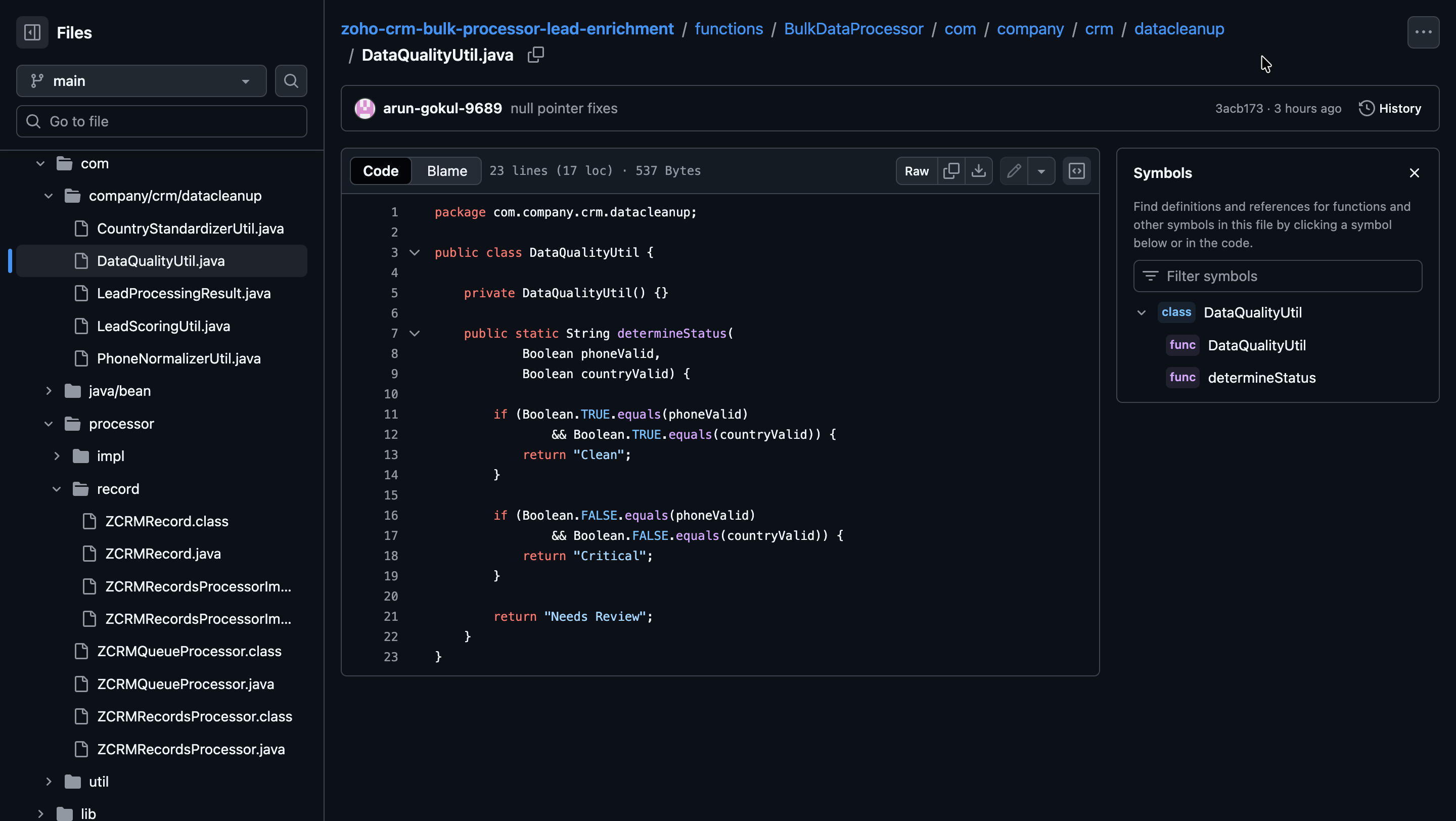
Lead quality is evaluated based on the validity of the Mobile and Country fields in the records.
- Clean: Both field values are valid.
- Critical: Both field values are invalid.
- Needs Review: Only one of the field values is invalid.
Write Back to Records:
The processed data is written back to Zoho CRM as follows:
- Mobile: Formatted phone numbers.
- Lead Score: Total score calculated from all applicable fields.
- Lead Segment: Segment derived from the lead score.
- Sales Priority: Priority assigned based on the lead segment.
- Data Quality Status: Overall quality of the Lead record.
if (normalizedMobile.isPresent()) { data.put("Mobile", normalizedMobile.get()); } data.put("Lead_Score", leadScore); data.put("Lead_Segment", leadSegment); data.put("Sales_Priority", salesPriority); data.put("Data_Quality_Status", dataQualityStatus); } |
Step 4: Deploy to Development
Run the following command to deploy your local customizations to the Development Environment of Catalyst.
catalyst deploy |

You can find the complete code sample on GitHub for reference.
Try it Out!
With the changes deployed to the Development environment, let us now test the solution.
We hope this Kaizen helps you import large volumes of data into Zoho CRM while improving data quality and lead intelligence using the CRM Bulk Data Processor.
Have questions or suggestions? Drop them in the comments or write to us at support@zohocrm.com.
We will circle back to you next Friday with another interesting topic.
On to Better Building!
--------------------------------------------------------------------------------------------------------------------------

Previous Kaizen: Client Script Support for List Page (Canvas) | Kaizen Collection: Directory
--------------------------------------------------------------------------------------------------------------------------
Topic Participants
Kiruthiga G
Sticky Posts
Kaizen #198: Using Client Script for Custom Validation in Blueprint
Nearing 200th Kaizen Post – 1 More to the Big Two-Oh-Oh! Do you have any questions, suggestions, or topics you would like us to cover in future posts? Your insights and suggestions help us shape future content and make this series better for everyone.Kaizen #226: Using ZRC in Client Script
Hello everyone! Welcome to another week of Kaizen. In today's post, lets see what is ZRC (Zoho Request Client) and how we can use ZRC methods in Client Script to get inputs from a Salesperson and update the Lead status with a single button click. In thisKaizen #222 - Client Script Support for Notes Related List
Hello everyone! Welcome to another week of Kaizen. The final Kaizen post of the year 2025 is here! With the new Client Script support for the Notes Related List, you can validate, enrich, and manage notes across modules. In this post, we’ll explore howKaizen #217 - Actions APIs : Tasks
Welcome to another week of Kaizen! In last week's post we discussed Email Notifications APIs which act as the link between your Workflow automations and you. We have discussed how Zylker Cloud Services uses Email Notifications API in their custom dashboard.Kaizen #216 - Actions APIs : Email Notifications
Welcome to another week of Kaizen! For the last three weeks, we have been discussing Zylker's workflows. We successfully updated a dormant workflow, built a new one from the ground up and more. But our work is not finished—these automated processes are
Recent Topics
Disputed Purchase Invoices
We have recently moved to Zoho Books from Sage. In Sage we were able to post a purchase/vendor invoice but mark it as on dispute. This would usually be a pricing query or if something was damaged. It would show in their ledger, so we could agree theirNo TDS Deduction
In some of our case, where we are reselling items at the same rate we purchased. In this scenario, Indian IT Law has a provision to request customer not to deduct TDS if the transaction value is same. TDS is paid by us (intermediary reseller) before weCBSA - GST CHARGES on imports
Hi there, We have a questions about landed cost categorization. We received a shipment from overseas. CBSA invoiced us for the GST on the items. Now we entered the CBSA-GST as a separate bill and attached it as landed cost to the main invoice based onZoho Books
How do I manually insert opening balance?Sales order & purchase order item links for item details
This is fantastic for checking lots of things, I use it a lot. It would be great to see it extended to invoices & bills On another note, may as well throw in my favourite whinge ..... Wish you guys would get the PO receive differences sorted urgently,Bank charges are applied. Please select a bank account.
Hello, I'm trying to add bank charges to a customer payment, but I get the error message "Bank charges are applied. Please select a bank account." I found this old thread, where it says that I need to "select a Bank account for the 'Deposit To' dropdownHow to add receipts
How to add receiptsSupport for auto-upgrade in TrueSync (for Windows)
WorkDrive TrueSync app now supports auto-upgrading to the latest version for Windows OS. You must manually download and install the TrueSync app version 3.4.0 to avail this feature. Download the latest TrueSync app for Windows (version 3.4.0) SupportedWorkDrive API Documentation
WorkDrive provides users and developers an extensive set of APIs to help integrate functionalities of Zoho WorkDrive with other Zoho applications and third-party tools. We have published the official WorkDrive API Documentation page for all external users.March 15, 2023: Zoho Docs is discontinued
As of today (March 15, 2023) Zoho Docs is discontinued for all users. We would like to thank our customers for trusting us for so many years! Going forward, we're confident you'll enjoy using Zoho WorkDrive for all your advanced file management and collaborationIntroducing WorkDrive 4.0: Enhanced productivity. Advanced data administration. (Phase 1)
Hello All, We're excited to share the release of WorkDrive 4.0, which includes important new features and enhancements focused primarily on productivity, secure collaboration, data administration, integrations, and user experience. Read the official announcementExternal download link limit
Can You please help us to understand this For Zoho WorkDrive external users, the download limit is a maximum of 5 GB total download size and a maximum of 50 first-level files and folders What is the meaning of first level? We are using these files inDynamically catching new file creations
I have a team folder with many subfolders, and in those folders we add new documents all the time. I'd like to have a workflow or script to notify me (and then take other actions) when a file is added anywhere in that structure that ends in "summary.txt".Rotate an Image in Workdrive Image Editor
I don't know if I'm just missing something, but my team needs a way to rotate images in Workdrive and save them at that new orientation. For example one of our ground crew members will take photos of job sites vertically (9:16) on his phone and uploadWorkflow workdrive rollout
Hi! When will workflow be rolled out to all users? Thanks.Creating and managing a Team Folder using WorkDrive TrueSync
Hello everyone, Are you tired of constantly switching between your Desktop TrueSync app and the WorkDrive web app to create and manage Team Folders? We’ve made things easier for you. You can now create and manage Team Folders directly within the TrueSyncEdit images seamlessly with WorkDrive's built-in Image Editor
Are you tired of switching between multiple tools just to make simple edits to your images? We understand the hassle, which is why Zoho WorkDrive now comes with a built-in image editing tool, powered by Zoho Annotator. This tool allows you to edit imagesSupercharge your email workflow with WorkDrive's add-in for Microsoft Outlook
Consider this: You’re handling a critical project, and your inbox is packed with important attachments, email threads, and client communications. The back-and-forth routine of downloading files to your computer, uploading them to WorkDrive, and manuallySecure and promote your content with Custom Watermarking
Imagine this: You’re a professional photographer who regularly shares your work online with potential clients and collaborators. Recently, you notice that some of your images have been reposted without any credit or permission. This not only impacts yourJoin us in Singapore for the Zoho WorkDrive User Group meetup!
Hello, everyone! Exciting news! We'll be hosting an upcoming Zoho WorkDrive user group meetup in the beautiful city of Singapore this November. At this Zoho User Group meetup, we'll guide you through ways to use WorkDrive as a platform and build customWorkDrive TrueSync now supports ARM64-based Windows devices!
We’re excited to announce that the Zoho WorkDrive TrueSync app now fully supports Windows devices with ARM64 architecture! Whether you're working on an ARM-based device or an x64 processor, you can now enjoy the same seamless file synchronization experienceOption to Disable Download for Documents Shared via Permalink
Dear Zoho Writer Team, Currently, when sharing a Writer document using the regular permalink (Collaborators with external users), there is no option to restrict the ability to download the document. While the external share link allows such restrictions,How to Download a File from Zoho WorkDrive Using a Public Link
How to Download a File from Zoho WorkDrive Using a Public Link If you're working with Zoho WorkDrive and want to download a file using a public link, here's a simple method to do so using API or a basic script. This approach helps developers or teamsdomain not verified error
Hi when i try to upload a video from zoho creator widget to zoho work drive iam getting domain not verified error.I don't know what to do .In zoho api console this is my home page url https://creatorapp.zoho.com/ and this is my redirect url:www.google.com.IamLive Webinar: Getting Started with Zoho WorkDrive - A Complete Overview
Hello everyone, We’re excited to invite you to our upcoming live webinar! Discover how to set up your team, bring in your data, and make the most of WorkDrive’s collaboration, organization, AI, and security capabilities. This session is perfect for anyoneCalendly One-way sync- Beta Access
Hello Community, Many of our Zoho Calendar users have expressed their interests in Zoho Calendar and Calendly integration. We've been tightly working on with Calendly team to provide a two-way sync between Calendly and Zoho Calendar. However, there haveThe year that was at Zoho Calendar 2023- Part 2
In continuation with our previous post on all the exciting updates and improvements that have shaped Zoho Calendar over the past 12 months, Lets delve into more: Bring your calendars together- Introducing Zoho Calendar and Outlook calendar synchronisationTip of the week #18: Change the event organizer in Zoho Calendar.
We cannot always be available to conduct an event when we organise one. In these circumstances, you can use Zoho Calendar to change the event organizer at any moment before the event begins. This way, you can avoid cancelling the event while still takingTip of the week #20: Create and manage multiple personal calendars.
Zoho Calendar provides users with the facility to create and manage as many calendars as required. All these calendars can be managed and edited as per user requirements. You can alter the calendar view, make changes to the calendar theme, share the calendarTip of the week #24: Subscribe to the calendars of a Zoho Calendar user.
Calendars that are created by Zoho Calendar users can also be added to your Zoho calendar. All public calendars listed by the users will be available when you enter the email address. You can choose the calendar you need to subscribe to. Once the emailRemoving calendar for zoho email group
How do I make it so that an email group created in Zoho Mail does NOT have a calendar? I have a couple groups for our phone systems voicemails - one for each department. Voicemail recordings are sent to this groups email address so they have access toTip of the week #27: Edit personal calendars in Zoho Calendar.
In Zoho Calendar, the personal calendars you create can be edited to make changes you need to make. Edit a Personal Calendar The following changes can be made to the personal calendar by editing it: Calendar title Calendar color Reminders and DescriptionTip of the week #28: Show/ hide, enable/ disable and empty/ delete your calendars in Zoho Calendar.
The popularity of online calendars has soared in recent years. It's used both for personal and professional reasons. Calendars have evolved into an effective productivity tool in our lives, from creating events for birthdays and anniversaries to schedulingTip of the week #30: Share calendars publicly in Zoho Calendar.
In Zoho Calendar, calendars that are created under My Calendars can be shared publicly. Making your calendar public allows others to view it. When you need to share your calendar with a larger group, public sharing can help. You can restrict others fromTip of the week #31: Share your personal calendars within organization.
Keep your Organization members aware of what's happening. In Zoho Calendar, you can share your personal calendar with all the members in your organization using the Share with org option.When you enable org sharing for a particular personal calendar,Tip of the Week #33: Appointment scheduler in Zoho Calendar.
In Zoho Calendar, you can use the Schedule Appointment option to share your appointment request form with the public, allowing people to fill out the form to request an appointment with you. This form can be embedded on your website or blog. VisitorsTip of the Week #34: Embed Calendars using Zoho Calendar
You can make your calendars public and visible to the general public by embedding them in your websites/blogs using Zoho Calendar. You can use the embed code to add your own calendars to your website's/ blog's HTML code, and the calendar will appear onTip of the week #35: Migrate to Zoho Calendar from Google Calendar.
If you are looking to move your Google Calendar events to Zoho Calendar, never worry about missing out the events from your Google Calendar. You can migrate the events from Google Calendar using the export option and import it to Zoho Calendar and manageTip of the week #36: Migrate to Zoho Calendar from Outlook Calendar.
If you've been using Outlook calendar and looking to migrate to Zoho Calendar, you can seamlessly export your calendars from Outlook and import them into Zoho Calendar without losing any events, participants, and the reminders set for each event. To migrateShared calendar issues and duplications
Apparently there was a calendar update? Now when I schedule an event for a team member that has shared his calendar with me, the event makes me the organizer and adds the event to my calendar as well. Previous to this "update" I would scheduled an eventNext Page