Geo-Powered Retail Intelligence with Zoho Analytics
In today’s highly competitive retail landscape, data-driven decisions are no longer optional — they’re essential. While businesses collect vast volumes of data across regions, stores, and customer segments, the real value lies in how effectively this data is visualized and interpreted.
Geo Maps in Zoho Analytics bring location intelligence to the forefront of decision-making. With powerful spatial analytics capabilities, retail businesses can now visualize store performance, identify untapped opportunities, and track customer behavior trends with a simple glance at a map.

This solution demonstrates how Zoho Analytics' Geo Maps can be leveraged to solve real retail business problems, using a step-by-step approach grounded in a practical, ready-to-use dataset.
- Business scenario
- Dataset Overview
- Problem Description
- Why Geo Maps Become a Game-Changer
- Solution Implementation – Report Creation
- Store Performance Analysis (Map – Bubble)
- Revenue-to-Traffic Ratio with Ghost Zone Detection (Map - Filled + Scatter)
- Competitor Pressure Zones (Map – Scatter)
- Customer Gender Distribution (Map - Pie)
- Summary
Business scenario
Imagine you're a retail chain operating hundreds of stores across the United States. Each store generates data—sales, visitor footfall, customer satisfaction, marketing spend—but these numbers alone don’t explain why some stores succeed while others under-perform.
Key challenges include:
- Identifying stores that are struggling before sales drop significantly.
- Understanding whether poor performance is due to location, low visibility, or intense competition.
- Evaluating which regions offer true expansion potential—and which are over-saturated.
With no visual correlation between location and business KPIs, many decisions remain reactive instead of proactive. This is where Geo Maps make all the difference—by transforming isolated data into contextual geographic insights.
Dataset Overview
To power this solution, we’ve created a comprehensive and realistic retail dataset that mirrors how actual store data behaves across geographies.
The dataset includes:
- Store-level performance data: revenue, average purchase value, and satisfaction.
- Customer insights: foot traffic, age, gender distribution.
- Market context: competitor presence and market share, population density, and economic growth rate.
- Geospatial data: zip code, city, state, latitude, and longitude of each store location.
Problem Description
Retail chains often operate on thin margins, and even minor under-performance at store level can have significant impacts across the organization. While dashboards provide revenue and performance trends, they often miss one critical dimension—geography.
Without geographic context, businesses face several recurring challenges:
- Underperforming stores go unnoticed until major losses occur.
- Ghost zones—areas with low store presence but high potential—remain unexplored.
- Marketing budgets get wasted in regions where returns are consistently low.
- Competitor pressure is misjudged due to lack of visibility on regional saturation.
- Store closures become reactive decisions, made after performance has already declined.
In short, data without location awareness leaves decision-makers blind to spatial trends and risks. Businesses need a smarter, more intuitive way to analyze store performance with geographical clarity—before it’s too late.
Why Geo Maps Become a Game-Changer
Geo Maps in Zoho Analytics address this gap by unlocking a visual layer of intelligence that traditional charts can’t offer.

Here’s what makes them a game-changer:
- Location-first insights: Instantly identify how store performance varies across the map - by city, state, or neighborhood.
- Visual correlation of multiple KPIs: Compare revenue, satisfaction, and foot traffic geographically to detect hidden patterns.
- Clutter-free, customizable visuals: Choose the right map type - bubble, filled, pie, or scatter - to match the data you want to analyze.
Unlike static dashboards, Geo Maps enable you to see the problem, context, and opportunity—all in one frame. Whether it's spotting trends, reallocating marketing spend, or planning expansion, this spatial layer puts decision-makers back in control.
Solution Implementation – Report Creation
This section walks through the step-by-step creation of four key Geo Map reports that reveal business insights from store-level data.
1. Store Performance Analysis (Map – Bubble)
To identify how stores are performing across different regions in terms of revenue and customer satisfaction, using a clean, visual-first map representation.
This helps uncover:
- High-performing stores in key zones
- Underperforming regions needing intervention
- Patterns related to location-based store success
Why Map - Bubble?
The Map - Bubble chart is ideal for visualizing store-level metrics using geolocation.
- Size indicates magnitude (e.g., Monthly Revenue)
- Color indicates health or quality (e.g., Customer Satisfaction)
- Each store appears as a distinct bubble based on its lat/long.
Procedure
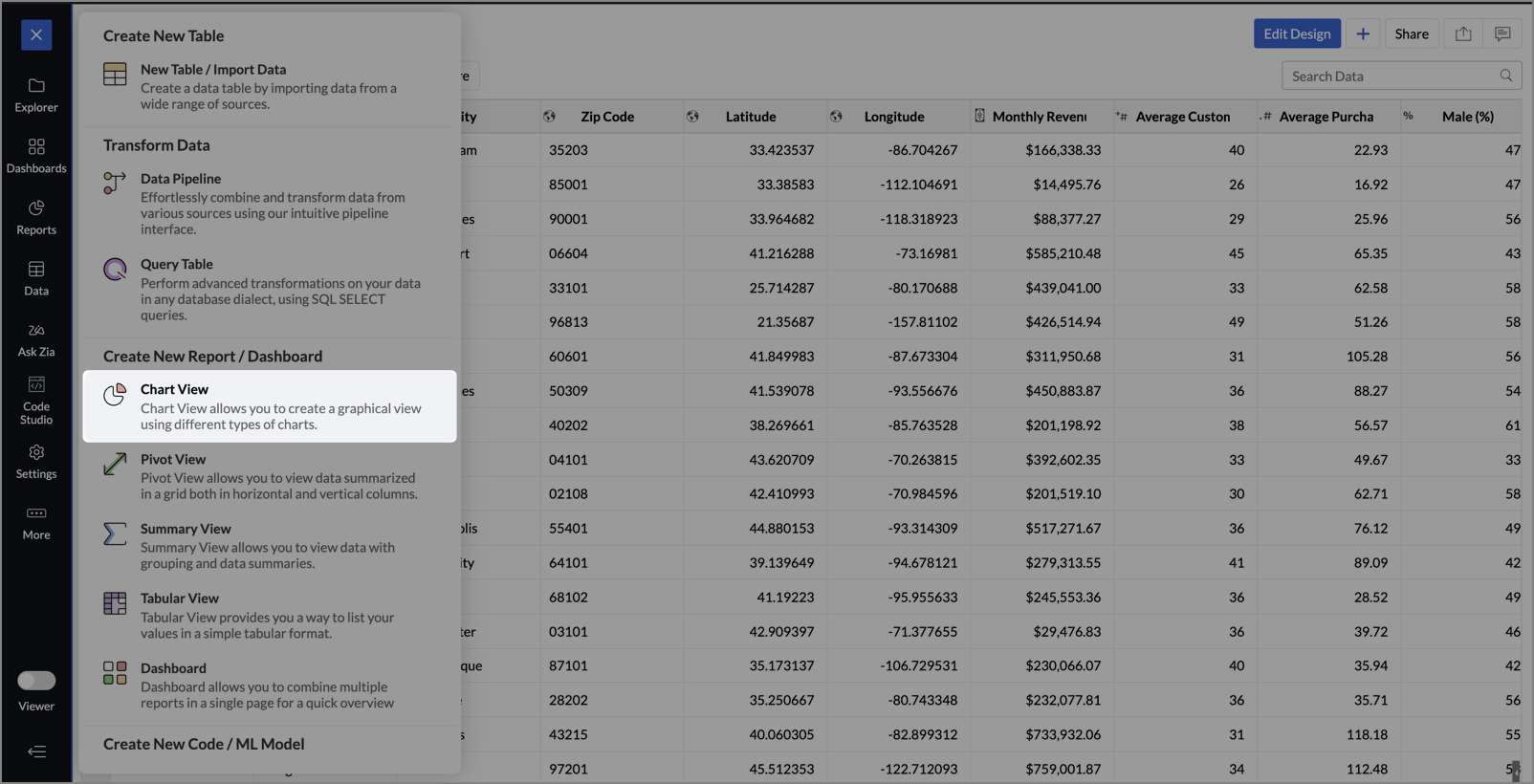
- From the dataset, click the Create icon and select Chart View.
- On the designer page, drag and drop the following columns into their respective shelves:
- Latitude → X-Axis
- Longitude → Y-Axis
- Customer Satisfaction (out of 10) → Color
- Monthly Revenue (USD) → Size
- Store ID, Store Type, City → Tooltip
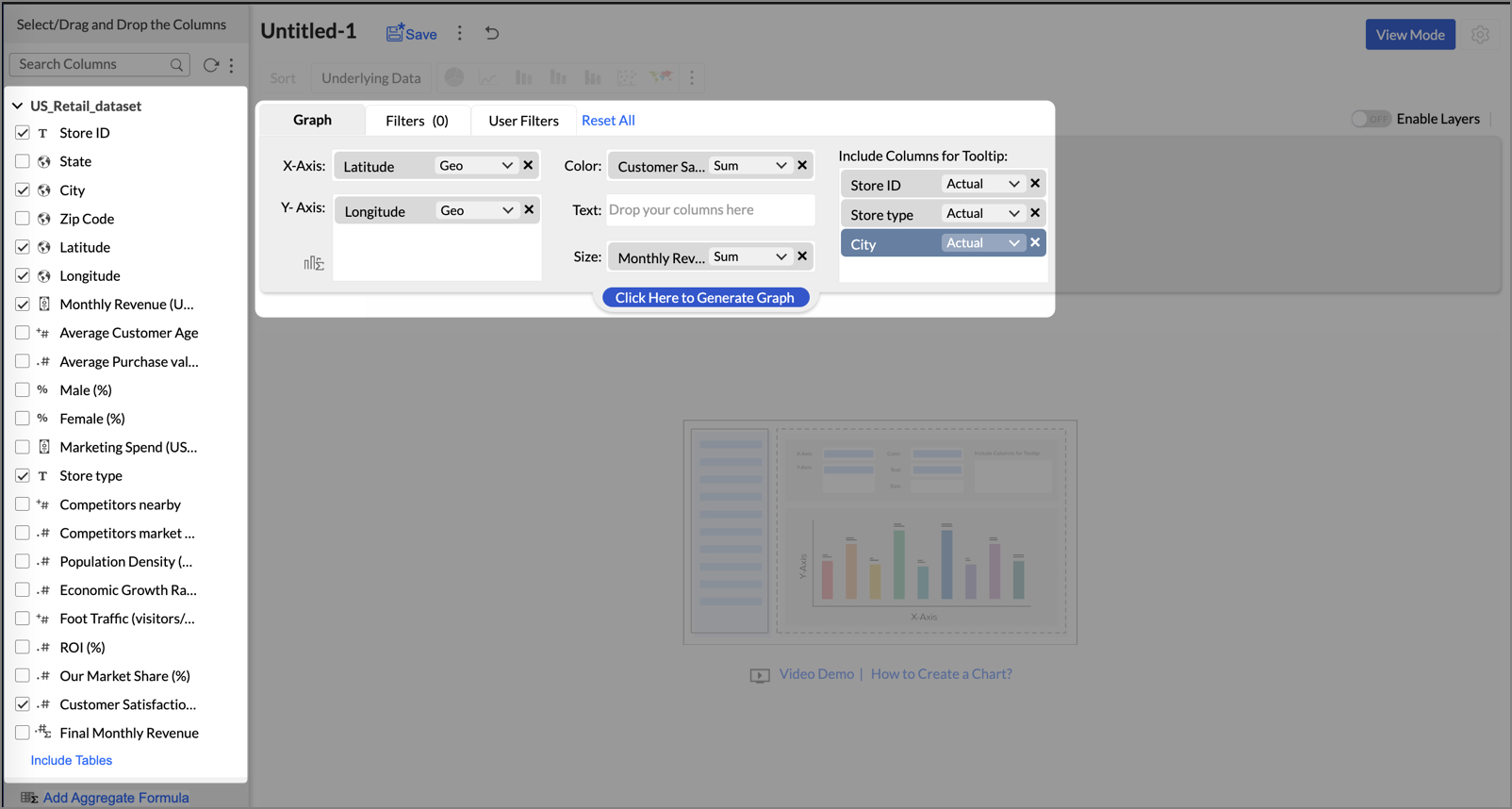
- Click Generate Graph.
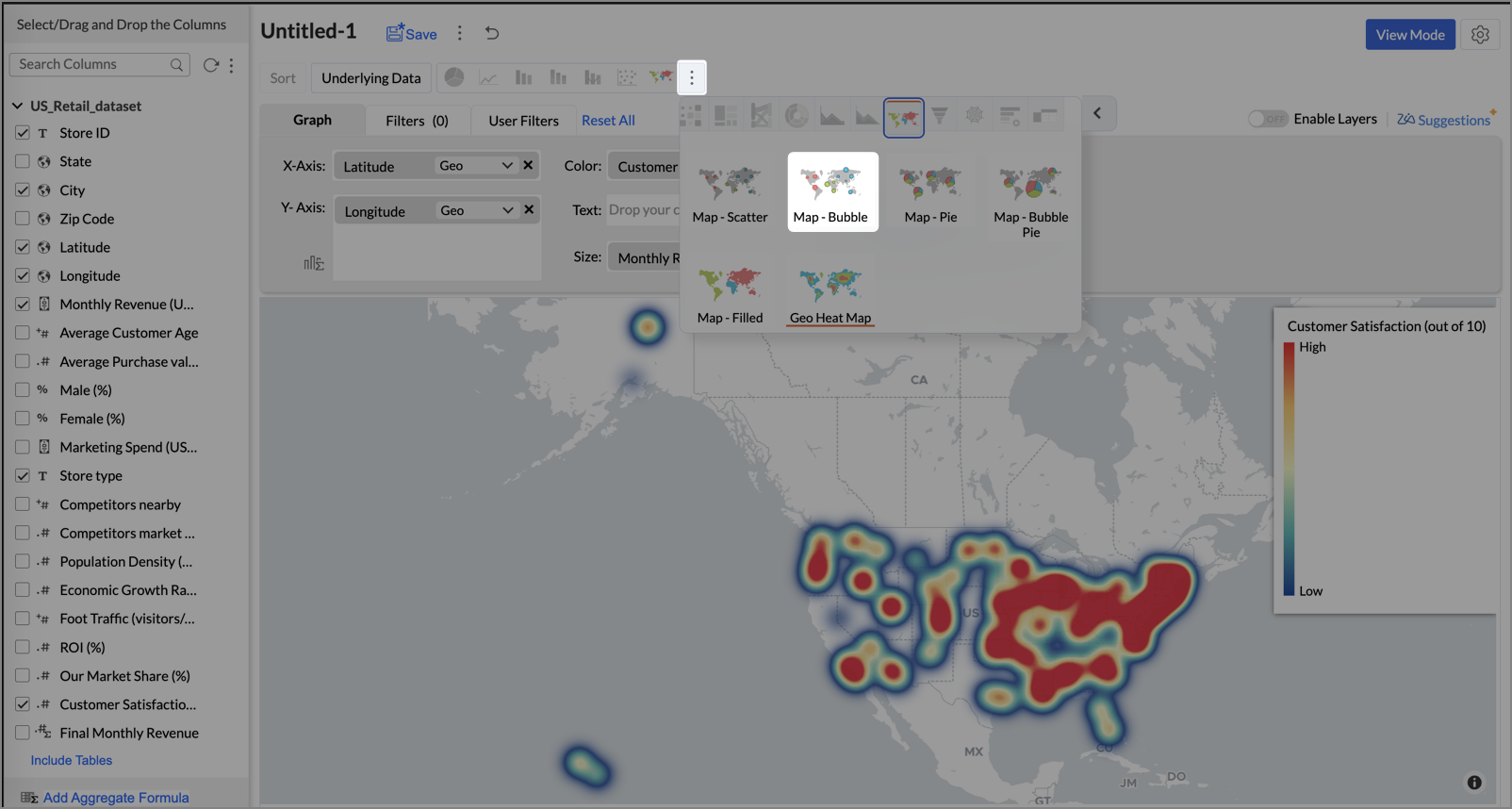
- Click on the ellipsis icon and select the chart type as Map - Bubble.
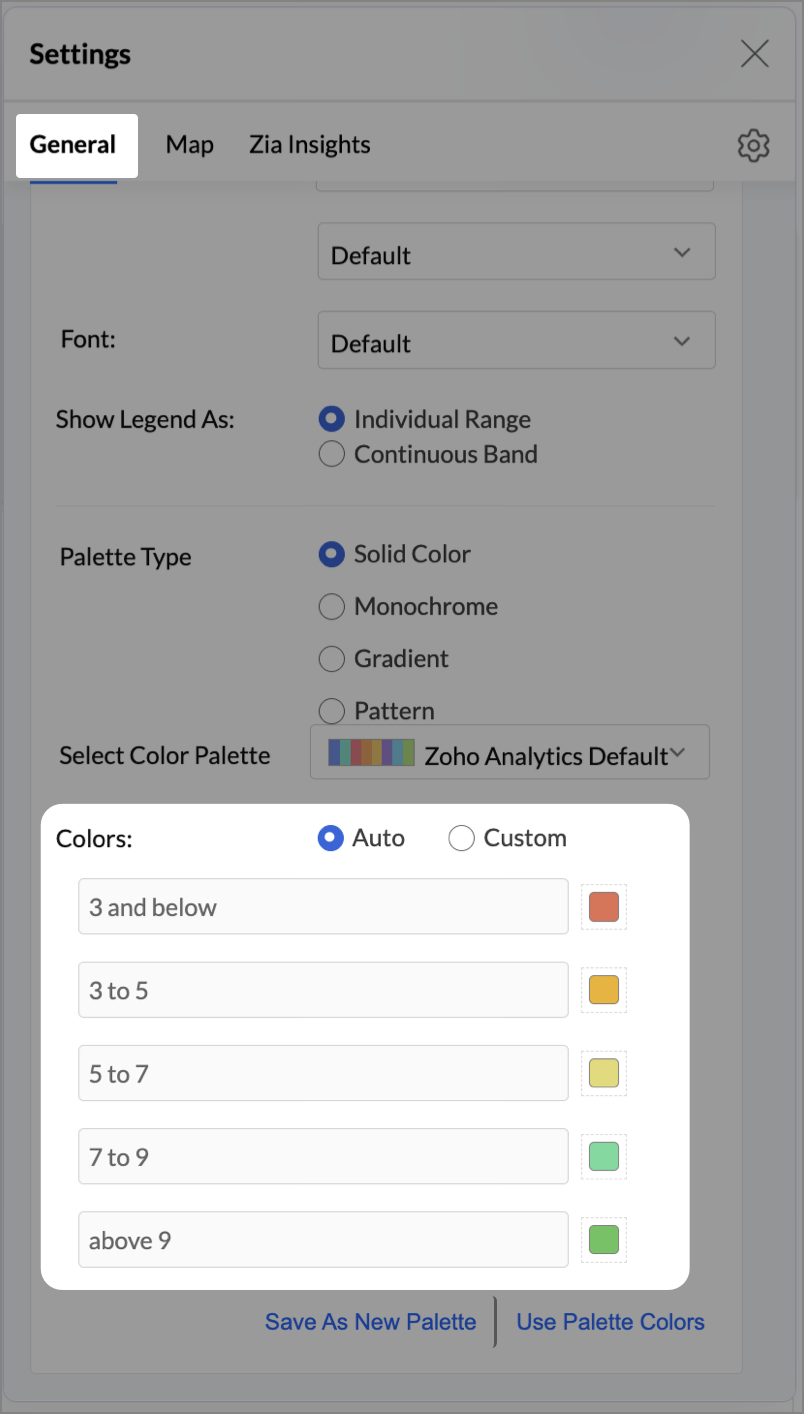
- Click the Settings icon, and under the General tab, click Legend.
- In the Colors section, customize the color scale from red to green to represent satisfaction ranges.
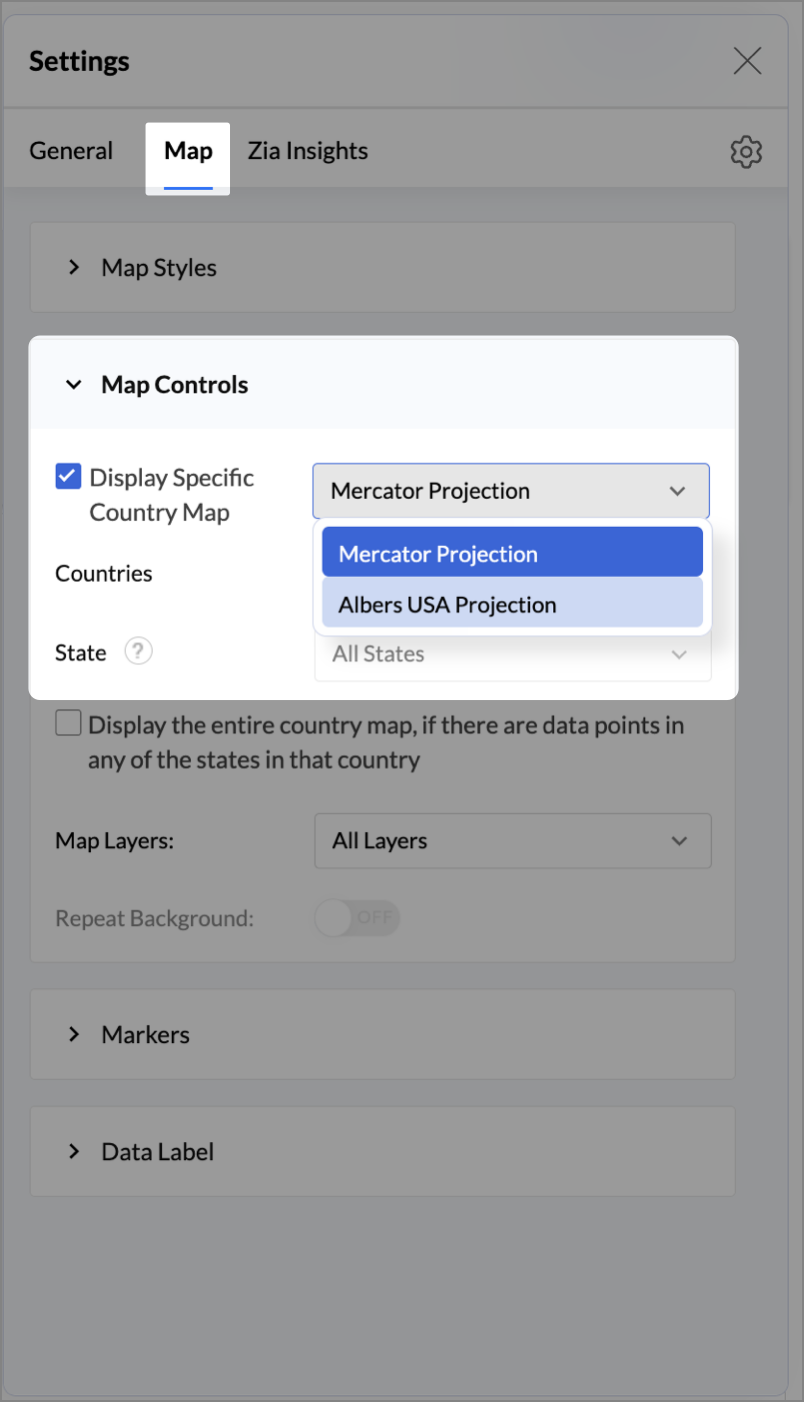
- Under the Map tab, click Map control and enable Display Specific Country Map.
- From the drop-down, select Albers USA Projection. This displays the USA map by placing Alaska and Hawaii below the mainland USA on a single map.
- Rename the report as Store Performance and click Save.
Tip:
Add a User filter such as Store type or State to analyze performance by segment.
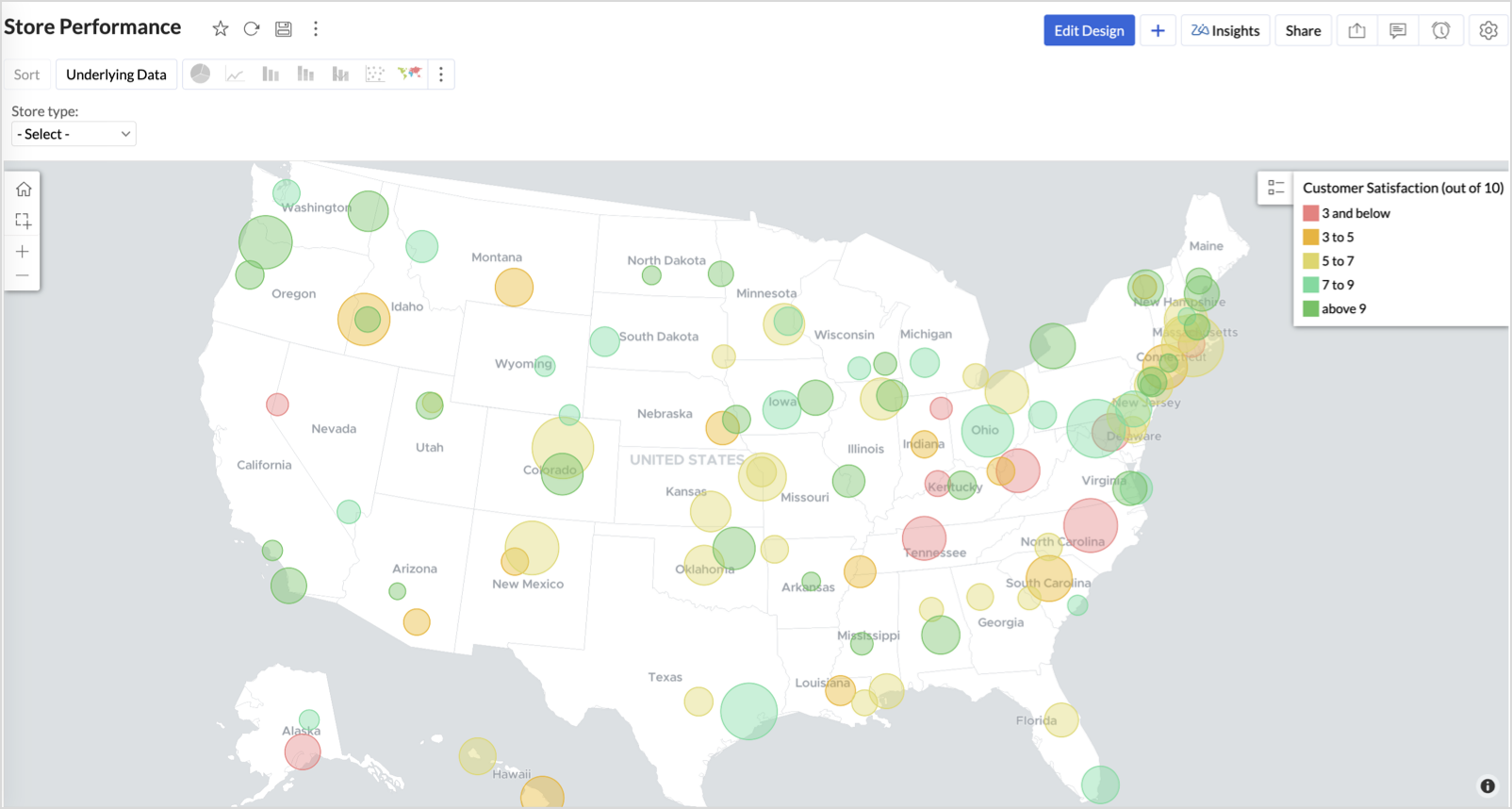
This configuration creates a bubble for every store, sized by its revenue and colored by customer satisfaction — instantly showing how happy customers are in high- or low-revenue zones.
Key Insights
Large bubble + Red color - High revenue but poor satisfaction — risk of churn!
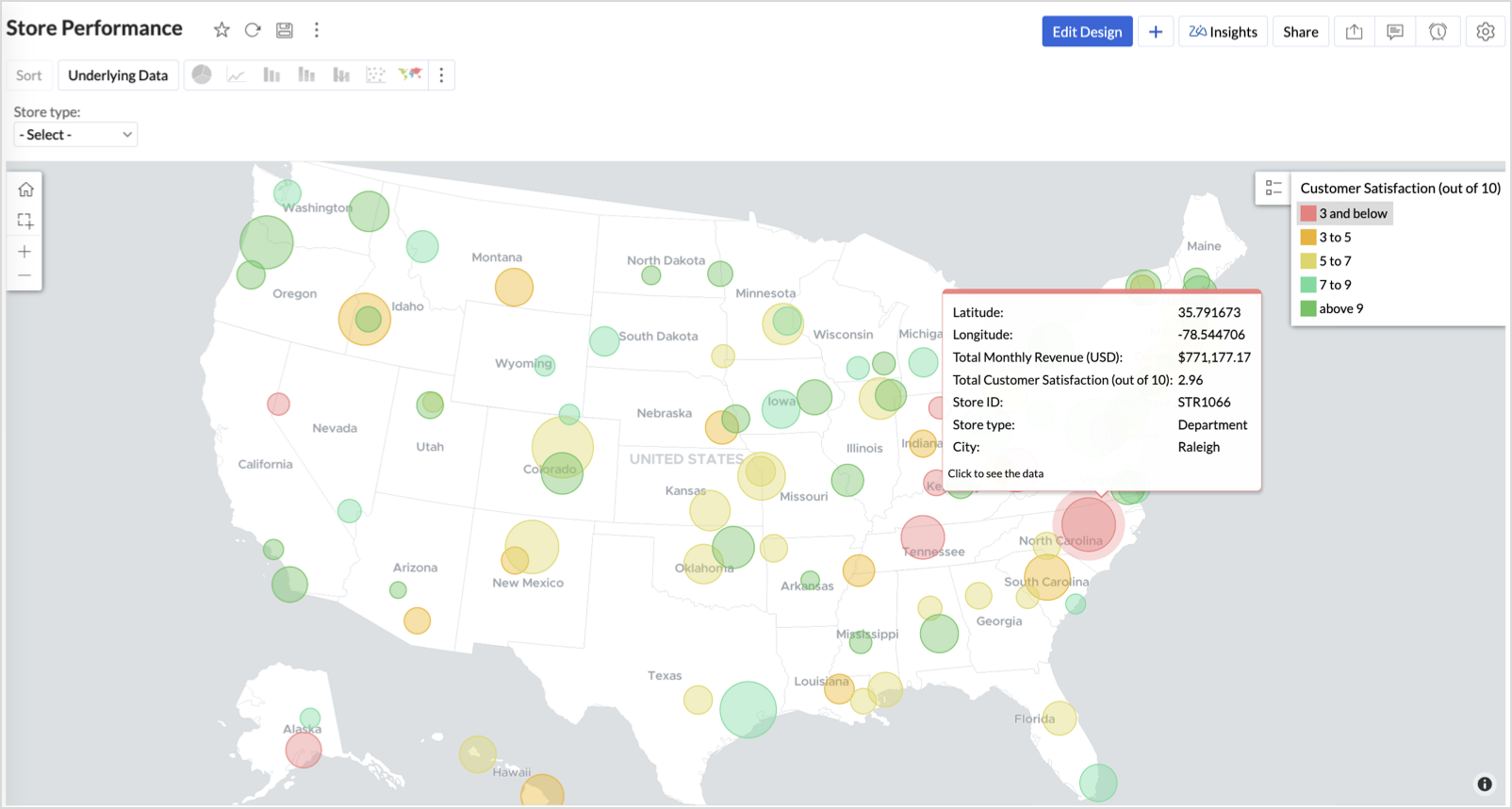
Small bubble + Green color - Low revenue but high satisfaction — possibly underserved
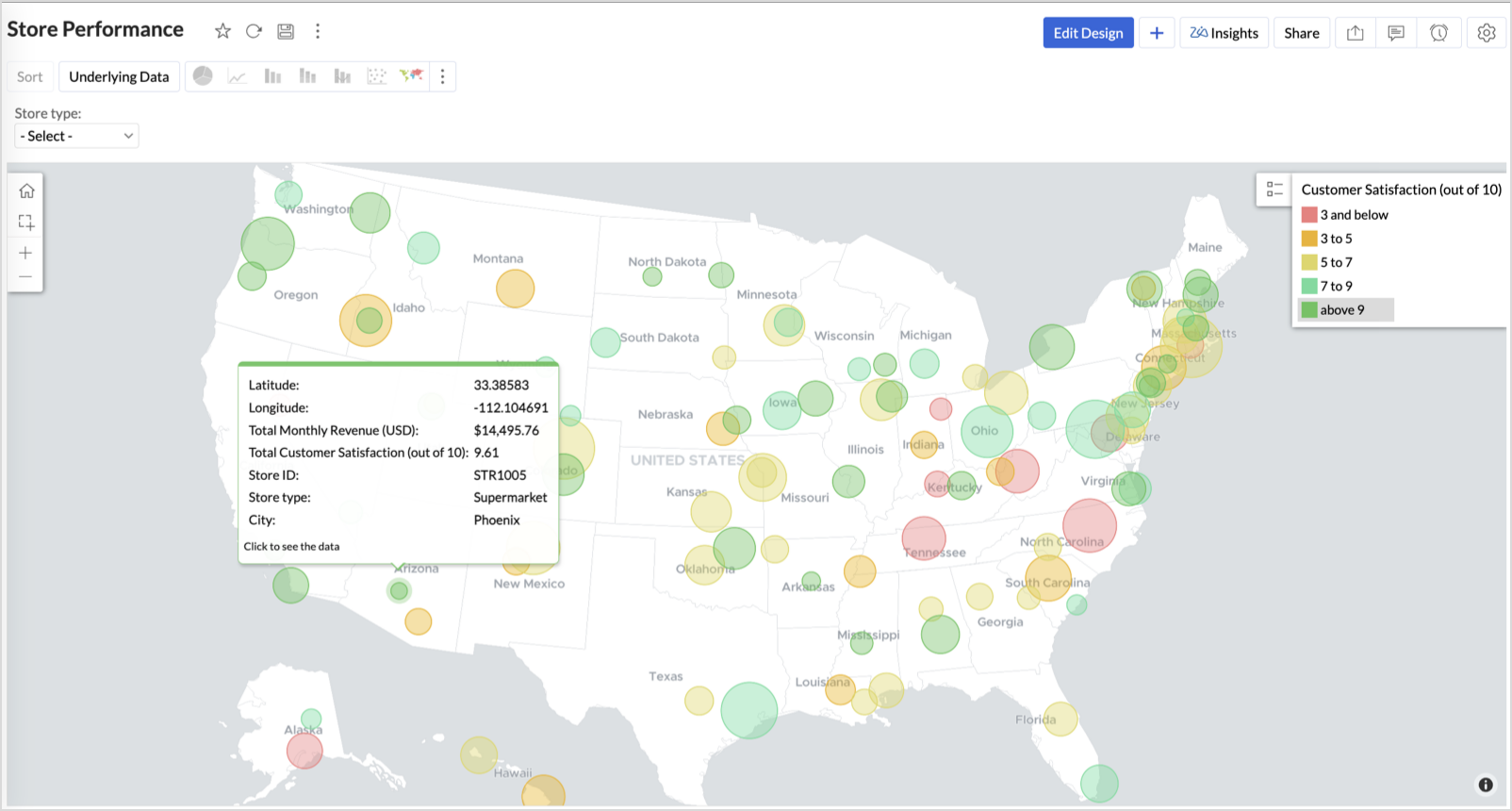
Large bubble + Green color - Healthy performers — consider replicating success
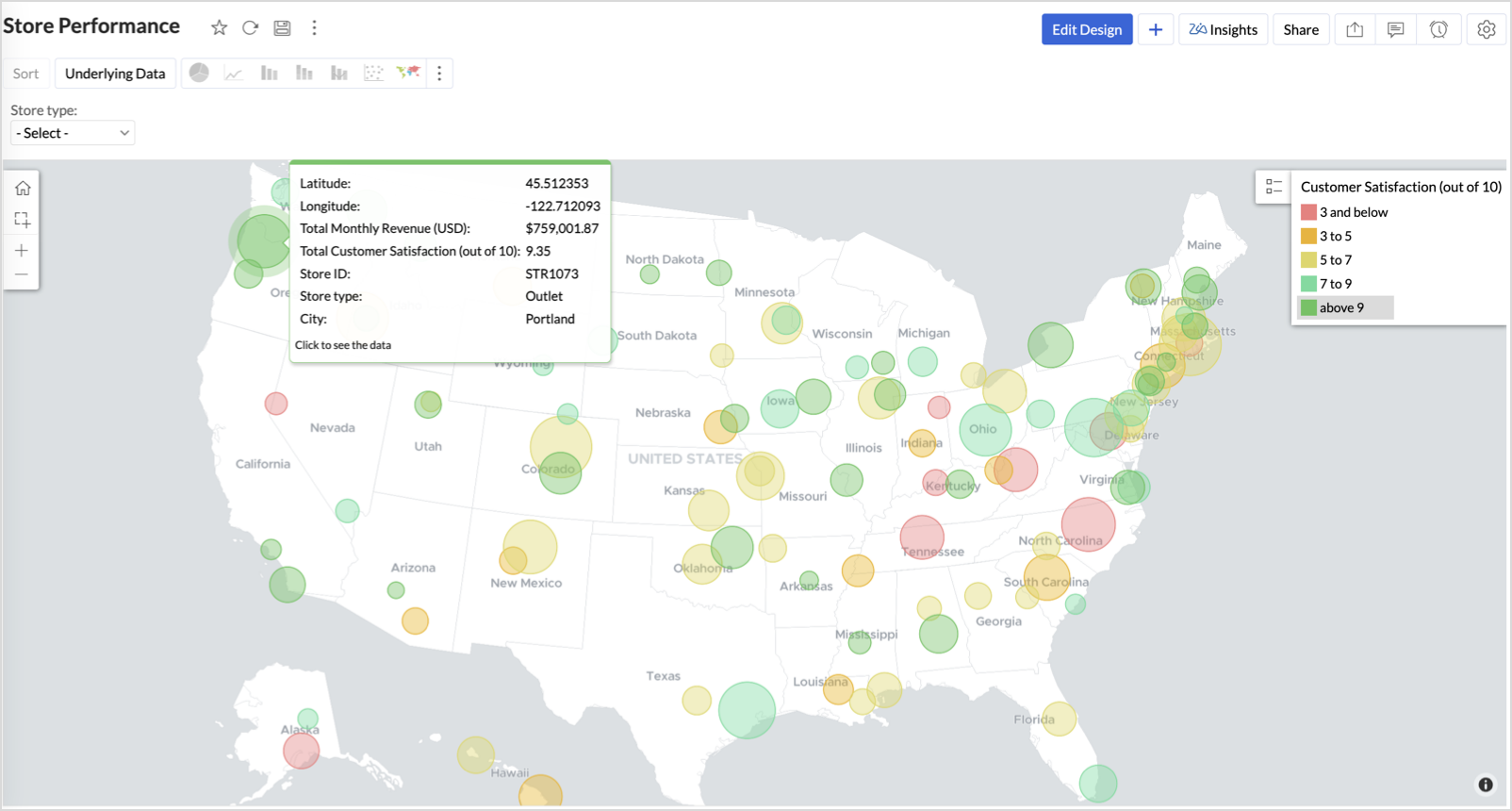
Small bubble + Red color - Low performers — review for possible closure or revamp.
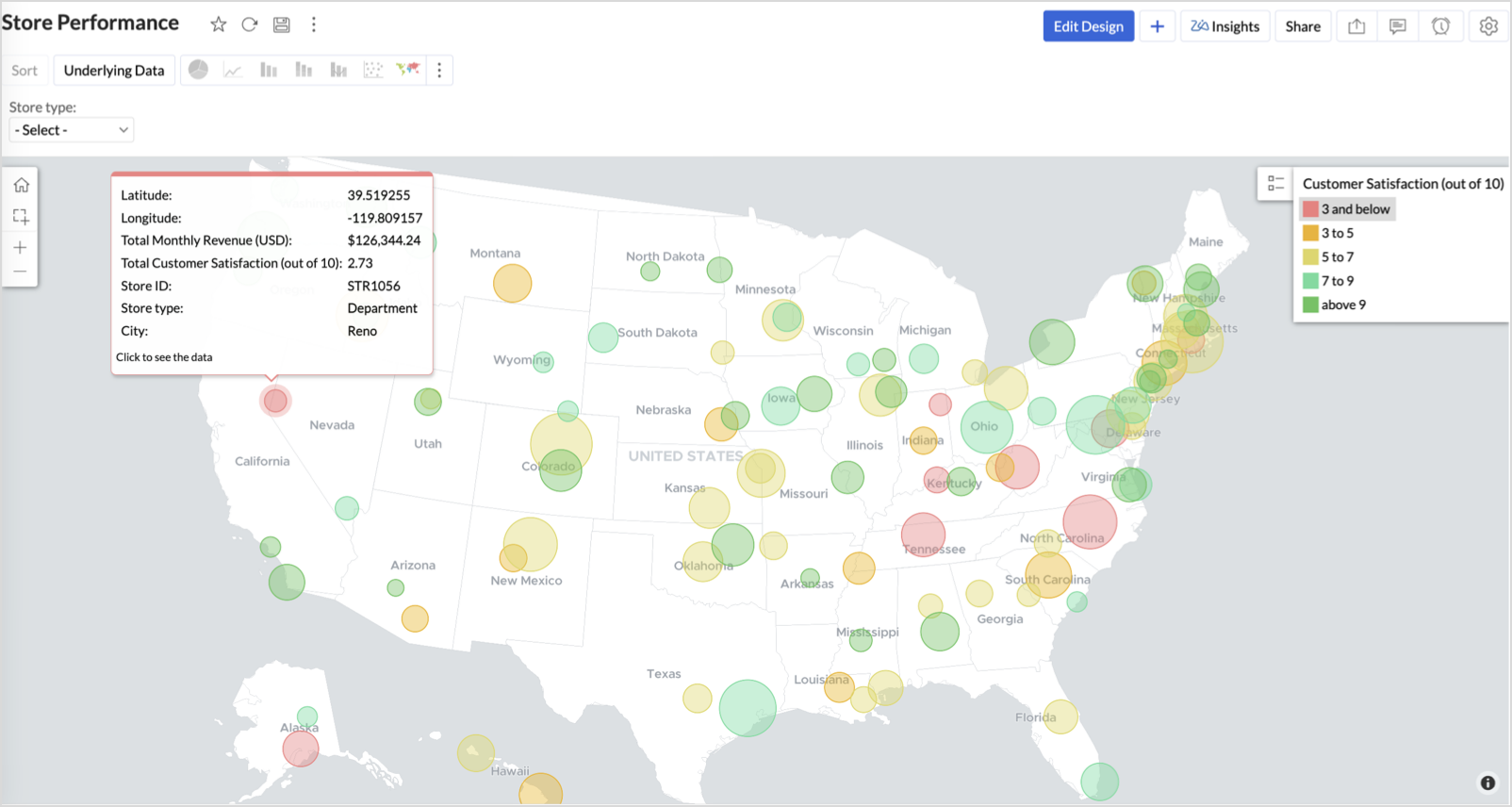
Business Interpretation
This chart acts as a live performance map for executives and analysts. Instead of scanning through tables or KPIs, stakeholders can instantly spot outliers, prioritize investments, and plan corrective actions by just glancing at the map.
2. Revenue-to-Traffic Ratio with Ghost Zone Detection (Map - Filled + Scatter)
To evaluate how efficiently each state is converting foot traffic into store revenue — and more importantly, to identify high-footfall regions without store presence, often referred to as ghost zones.
This chart helps:
- Compare state-level foot traffic against actual revenue
- Spot underutilized or over-performing regions
- Discover untapped markets with high visitor potential but less to no physical stores
Why Map - Filled + Scatter?
- The Map - Filled chart provides a regional perspective of traffic density and revenue generation.
- The Scatter layer overlays actual store locations based on latitude and longitude.
This powerful combo allows you to measure performance where you’re active and spot opportunities where you're not.
Procedure
- From the dataset, click the Create icon and select Chart View.
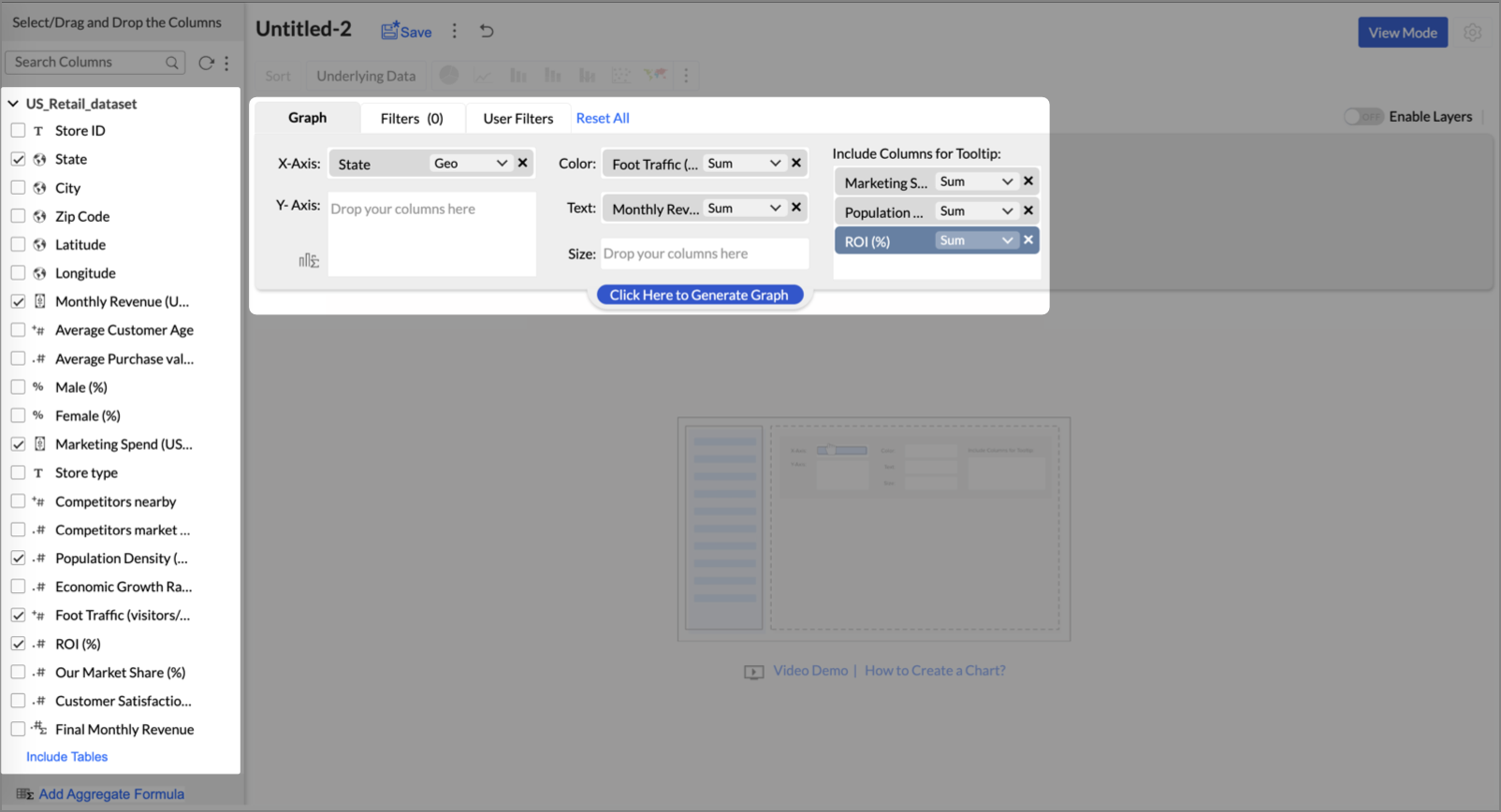
- On the designer page, drag and drop the following columns into their respective shelves:
- State → X-Axis
- Foot Traffic (visitors/month) → Color
- Monthly Revenue (USD) → Text
- Marketing Spend (USD), Population Density (people/sq km), ROI (%) → Tooltip
- Click Generate Graph.
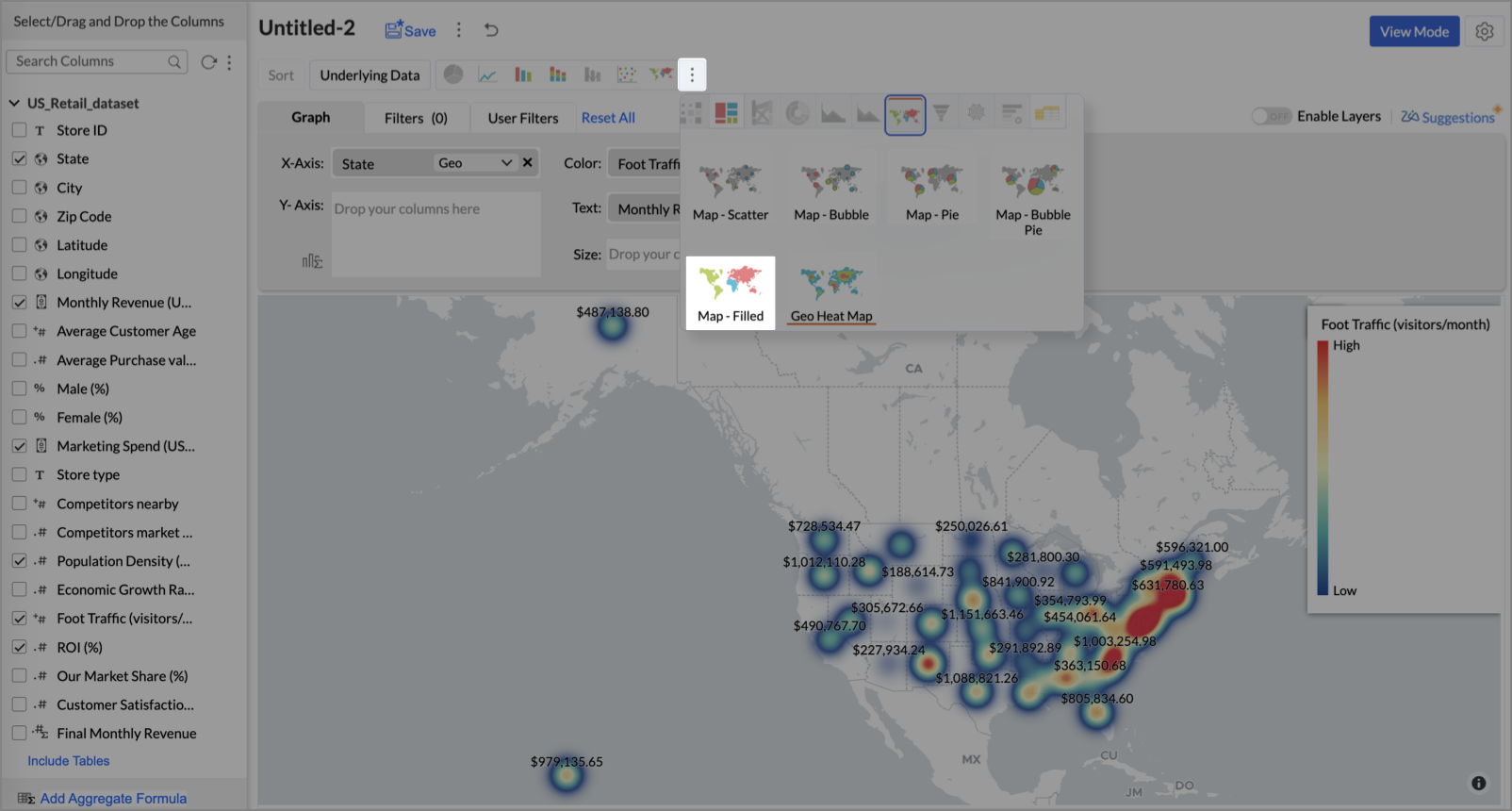
- Click on more option and select the chart type as Map-Filled.
- Click the Settings icon, then click Legend.
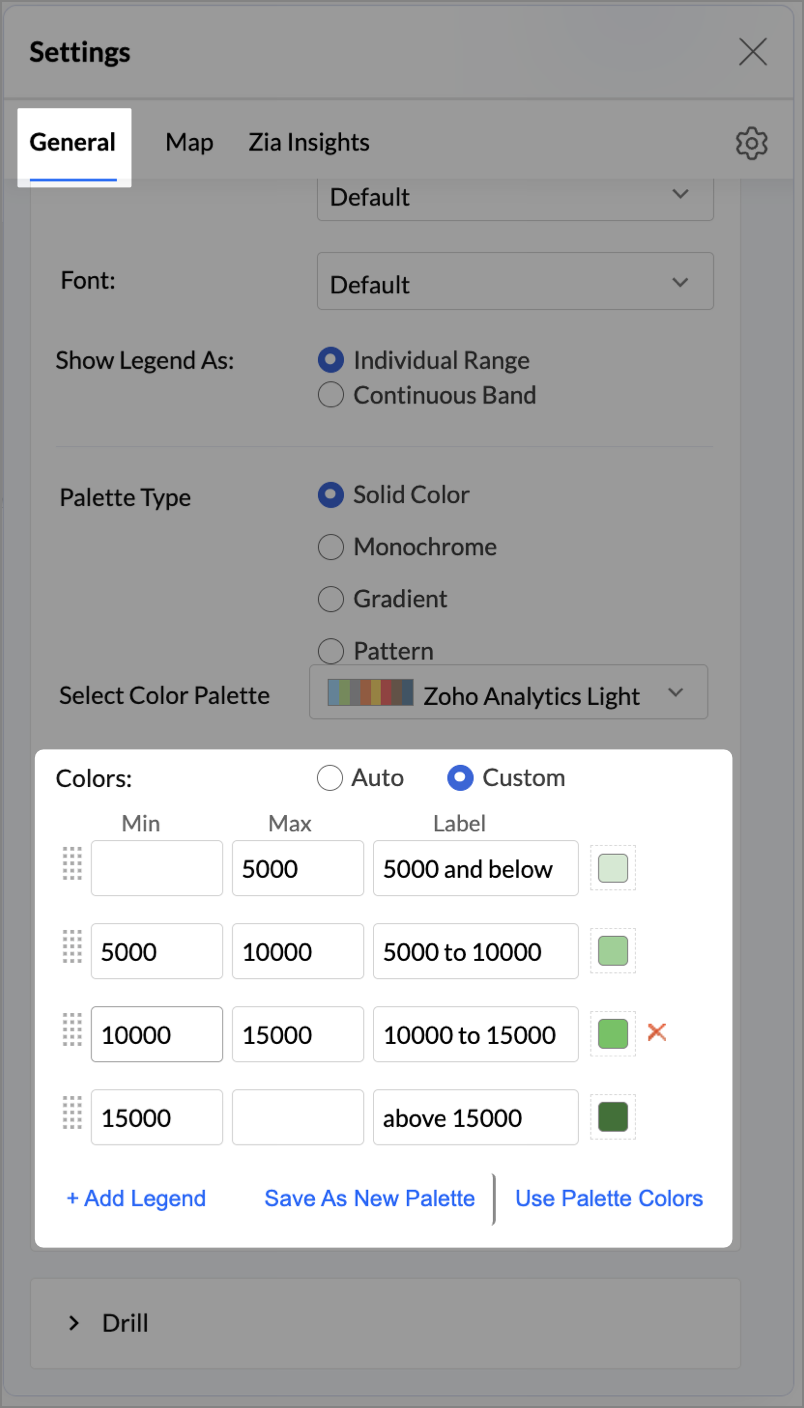
- In the Colors section, assign from light to dark green colors for the below range of foot traffic:
- Below 5,000
- 5,000–10,000
- 10,000–15,000
- Above 15,000
- Under the Map tab, change the map to Albers USA Projection.
This filled layer highlights traffic and revenue across states.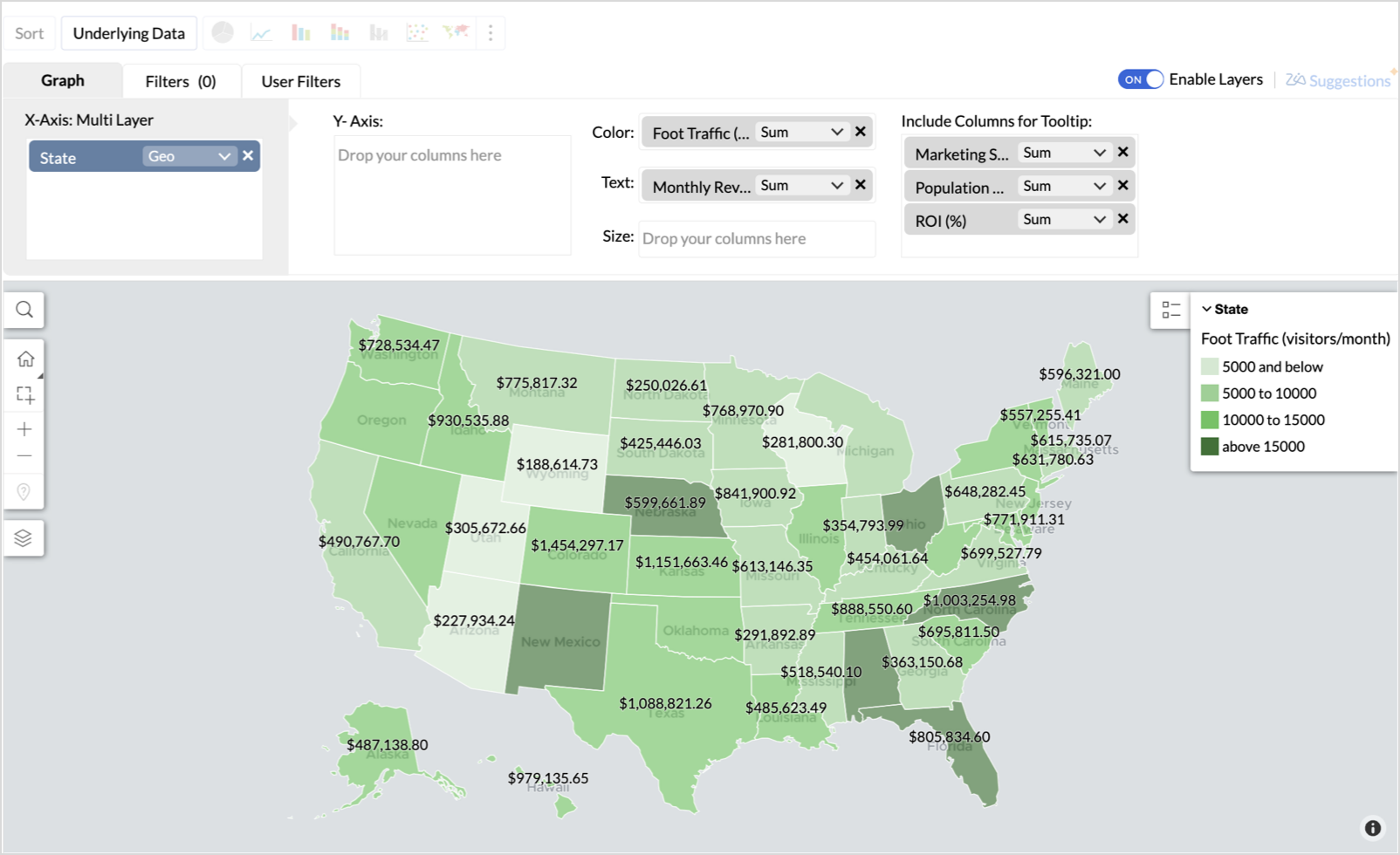
- Toggle Enable Layers to add a second layer.

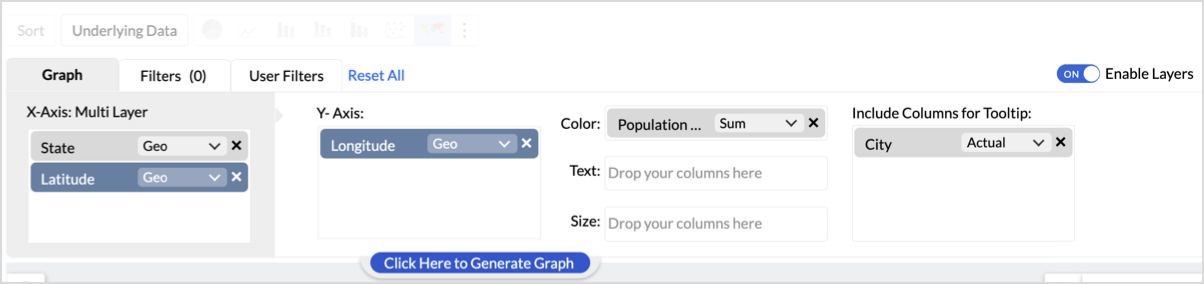
- In the new layer, drag and drop Latitude and Longitude into the X-Axis and Y-Axis respectively, Population density into the Color shelf, and click Generate Graph.
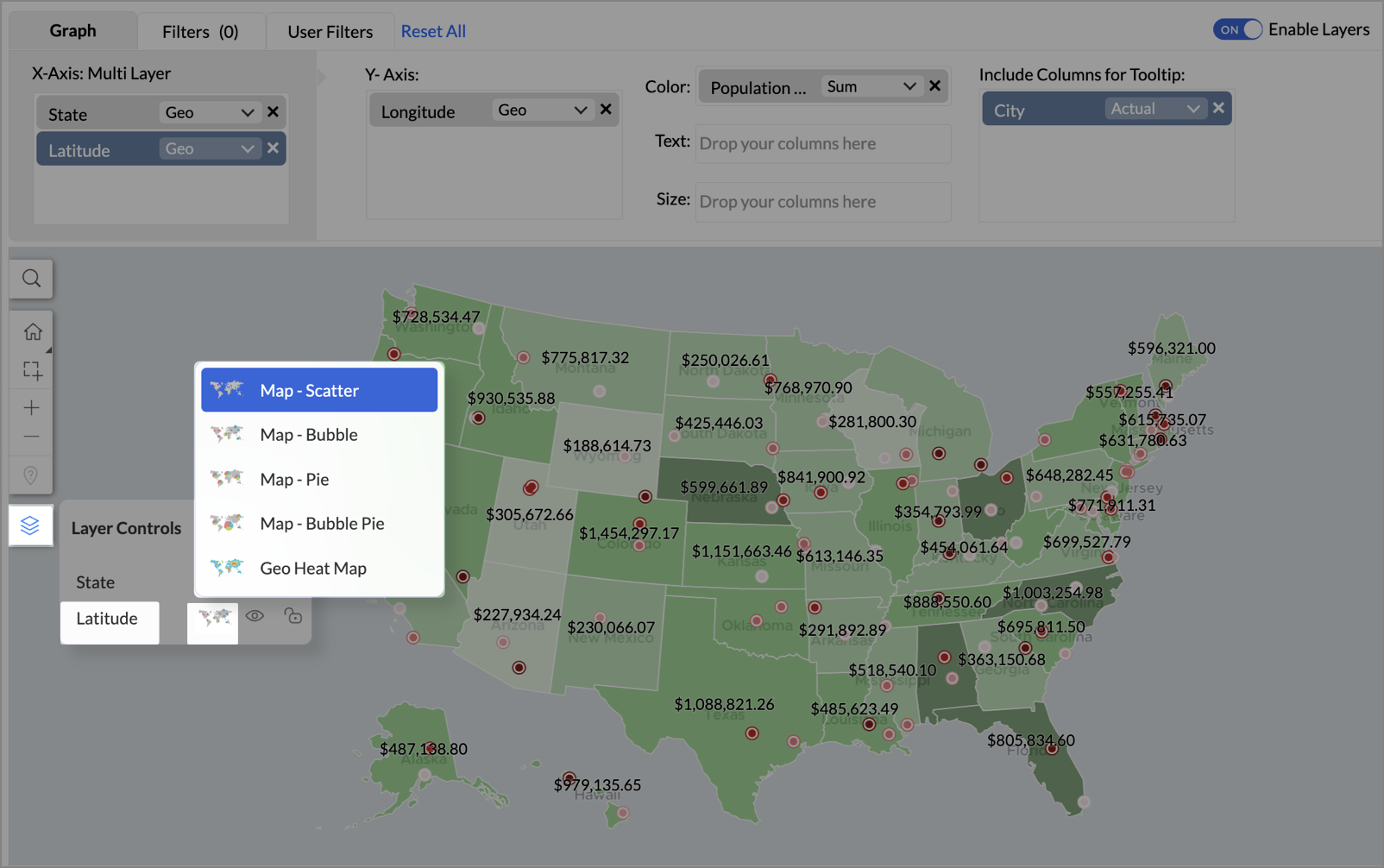
- Click Layer Controls, select Chart Chooser besides Latitude and choose the map as Map - Scatter from the list.
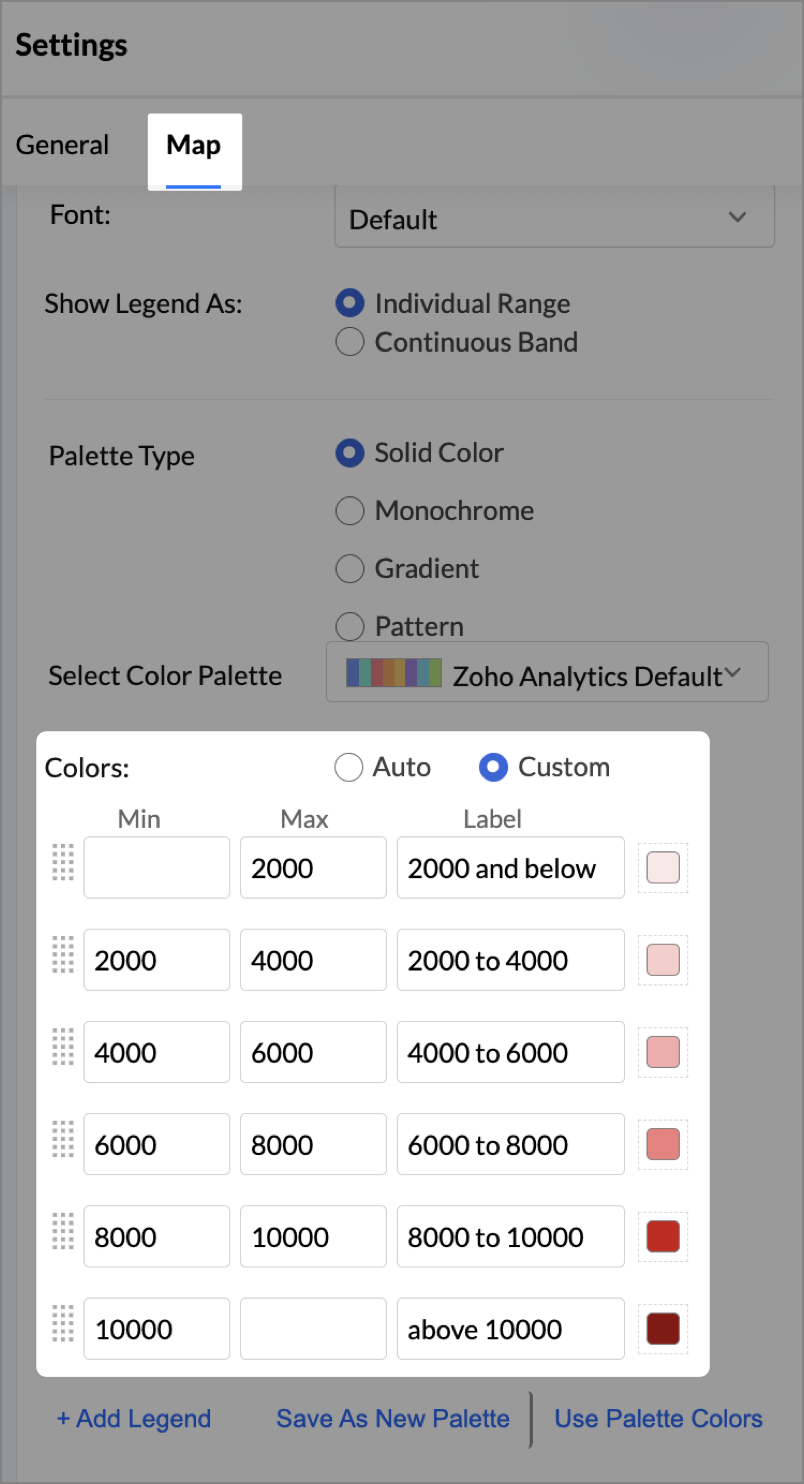
- To customize the second layer, go to Settings → Map → Latitude → Legend, and assign from light to dark red colors for the below range of population density:
- Below 2,000
- 2,000-4,000
- 4,000-6,000
- 6,000-8,000
- 8,000-10000
- Above 10,000
- Rename the report as Revenue-to-Traffic Ratio with Ghost Zone Detection and click Save.
This scatter layer marks the exact store locations, allowing visual correlation with high-traffic regions, revenue, and population density.

Key Insights
Dark green filled (high traffic) + Low revenue - Poor conversion - evaluate strategy or in-store experience
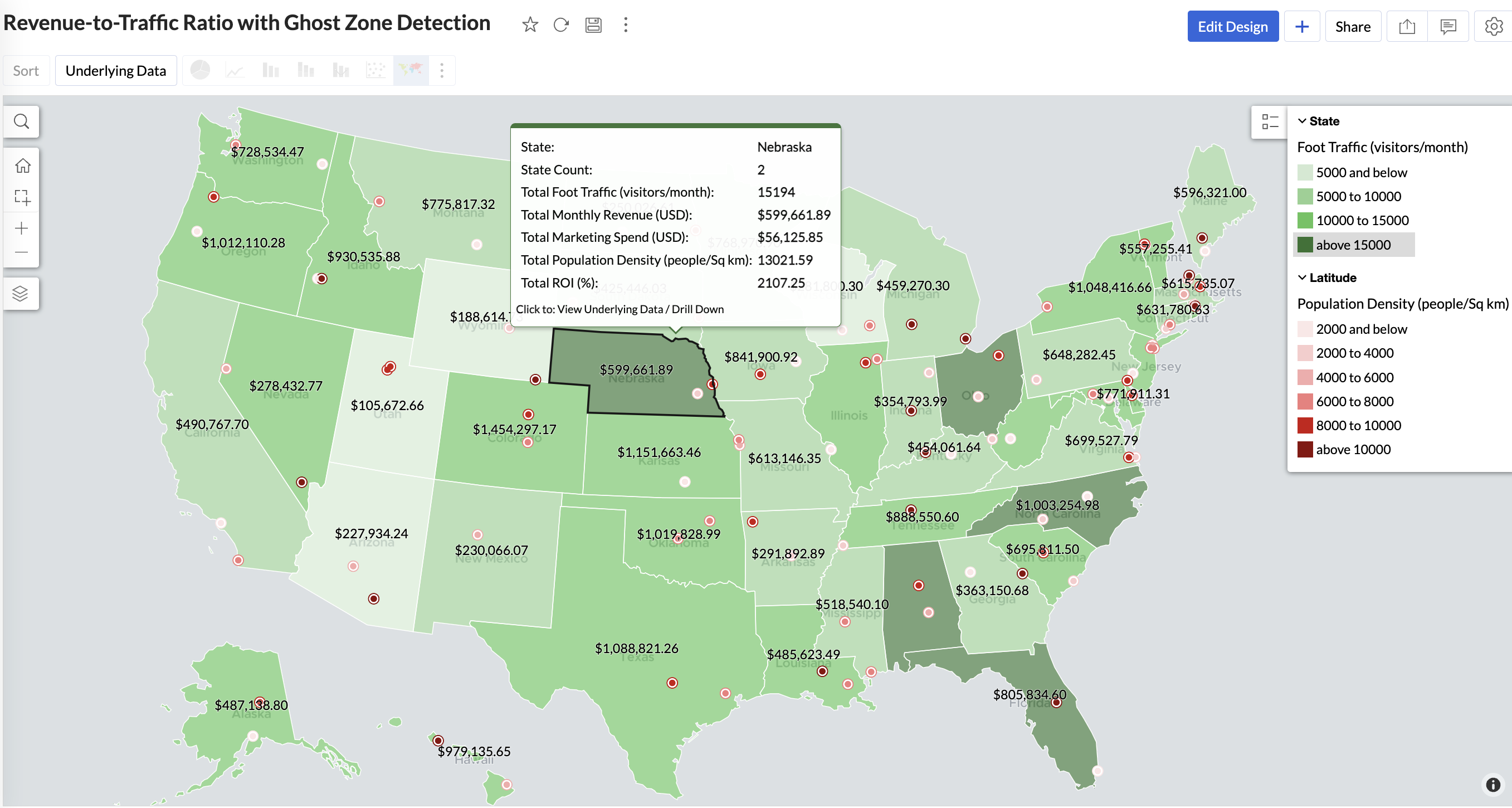
Mid to Dark green filled (high to mid traffic) + balanced revenue - Efficient zones — consider scaling efforts
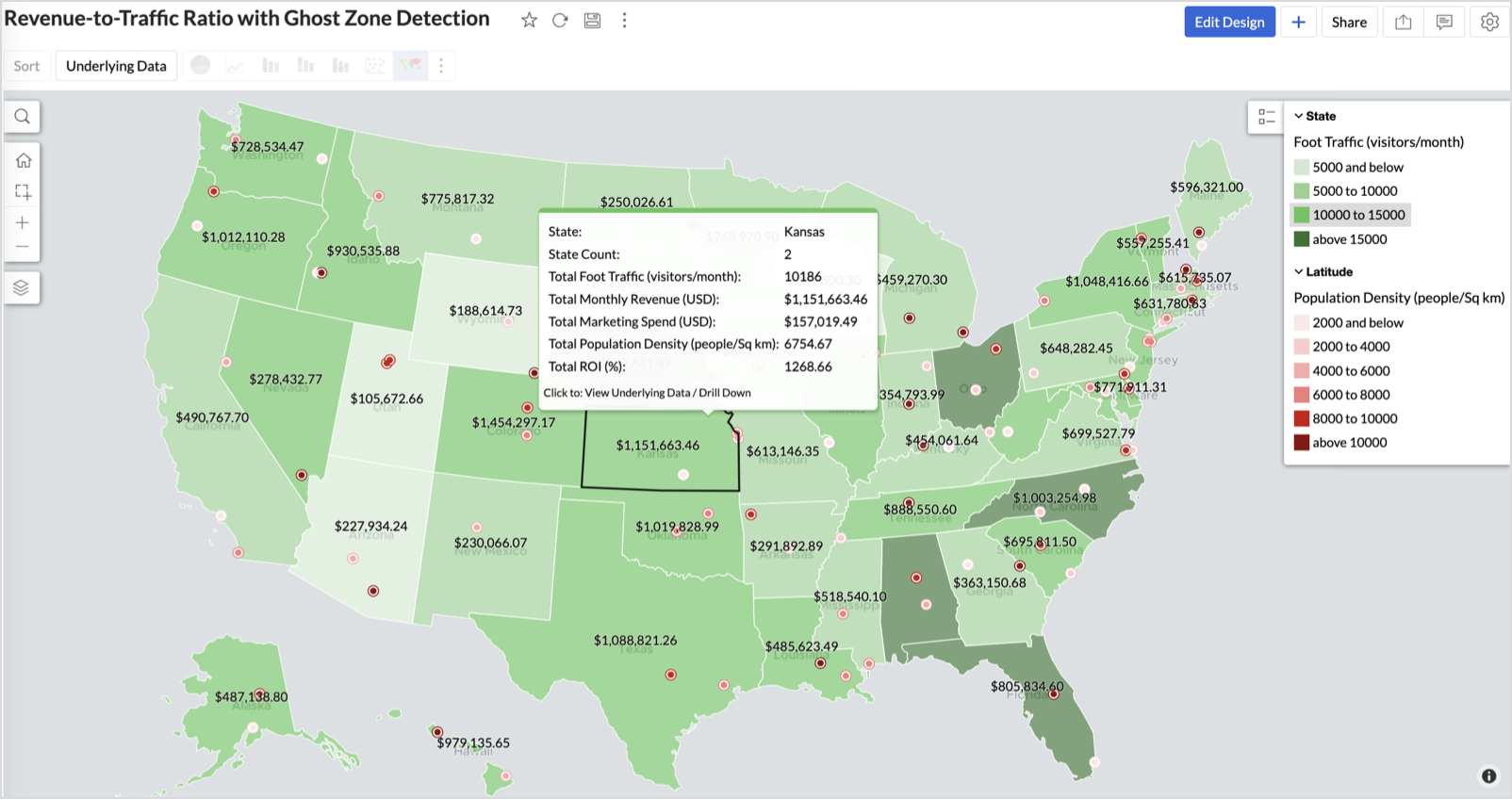
Light green filled (low traffic) + high marketing spend (from tooltip) - Budget drain — reduce spend or re-evaluate targeting
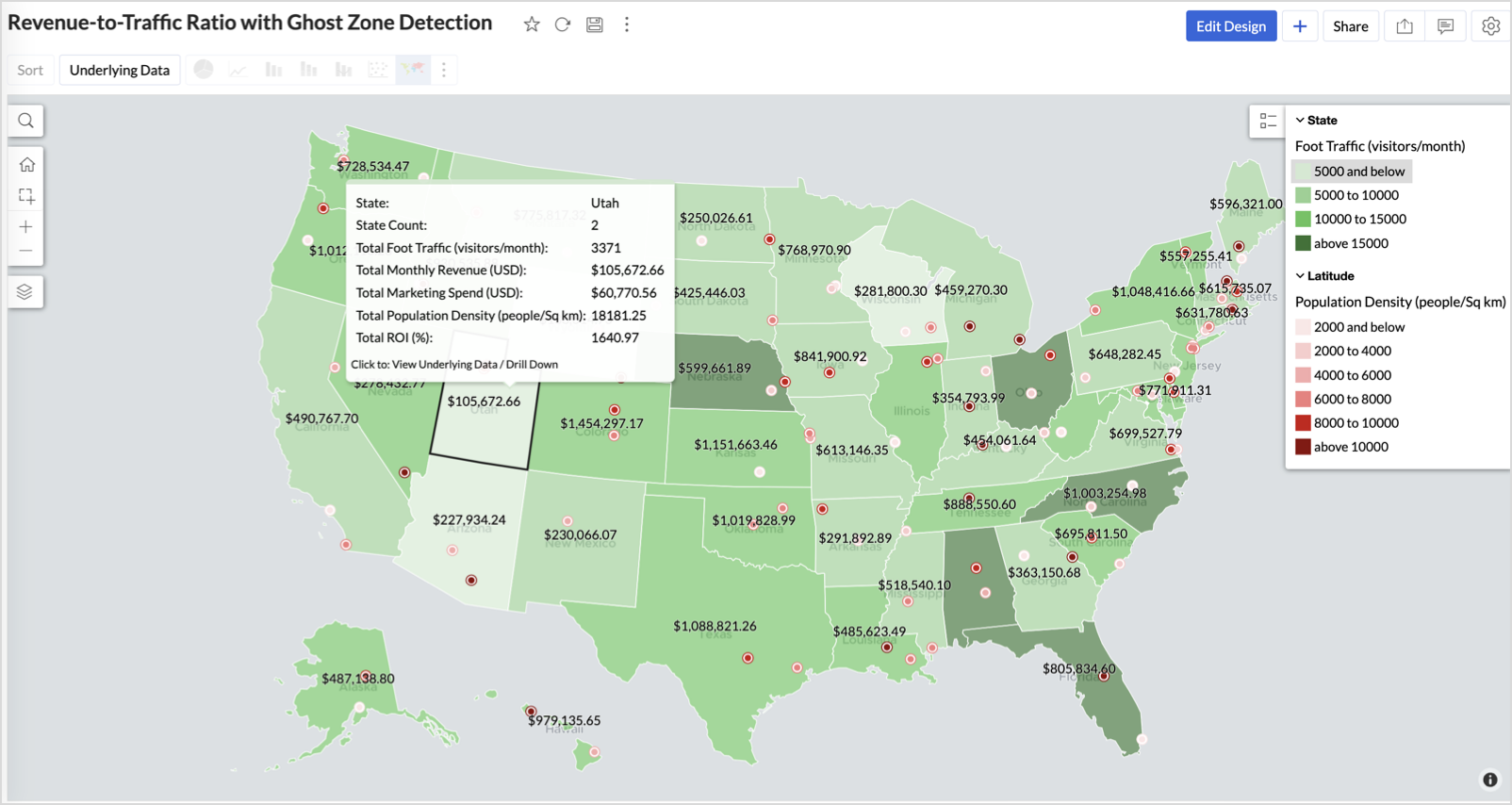
Dark red marker (high population density) + less to no store markers - Ghost Zones — high opportunity areas for expansion
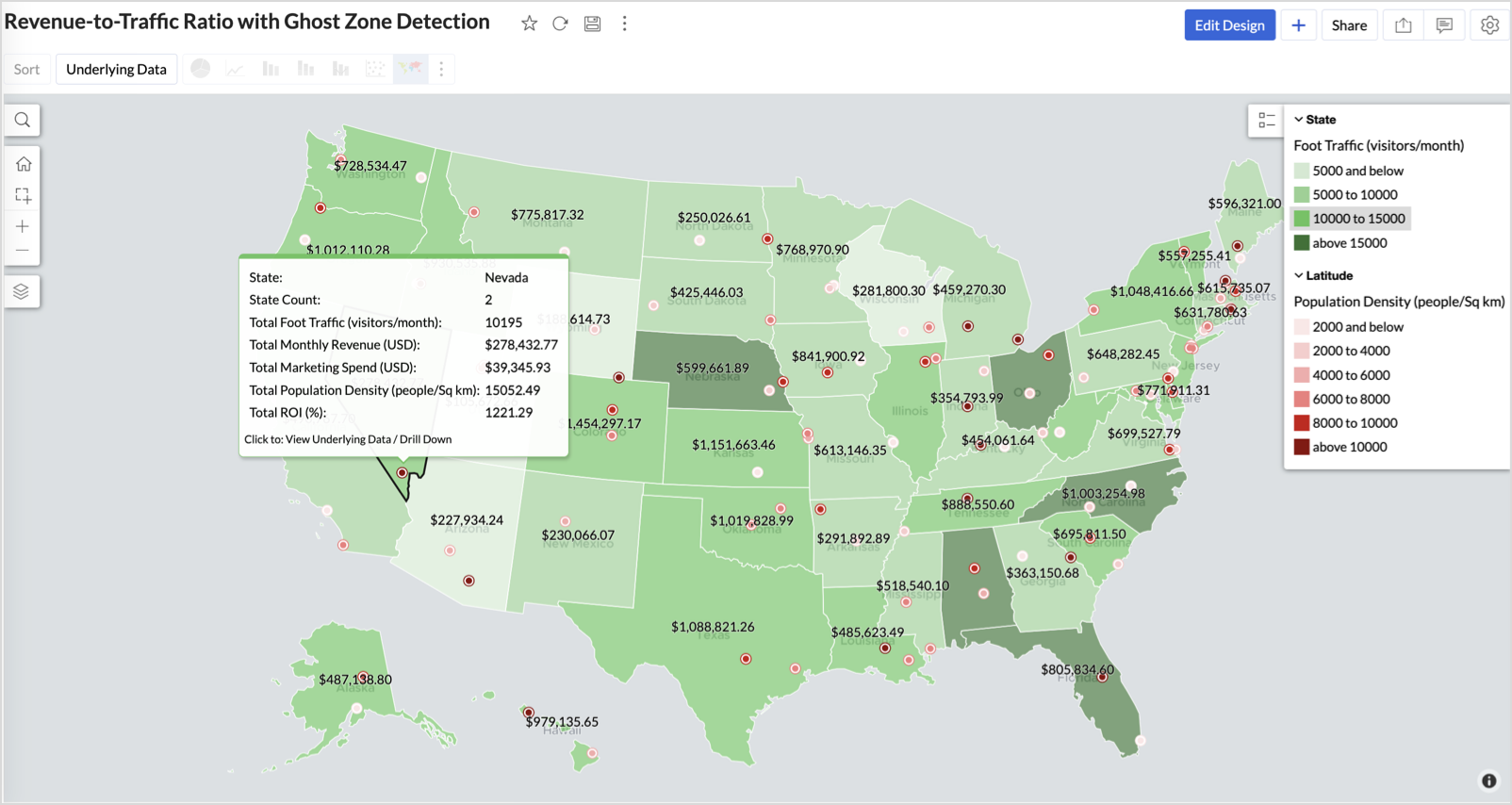
Example: In Las Vegas from Nevada, with a population density of 10,428 people/sq km and only two stores handling 10K–15K visitors/month, monthly revenue of the state remains modest at ~$278K. This indicates a high-opportunity zone for expansion, with strong footfall but untapped revenue potential.
Interpretation & Use
This map is designed for marketing and expansion teams who need to:
- Justify where to open new stores
- Optimize existing resource allocation
It visually answers the question:
Are we generating revenue where people are actually showing up?
Also, with the scatter layer:
Where are we not present — but should be?
3. Competitor Pressure Zones (Map – Scatter)
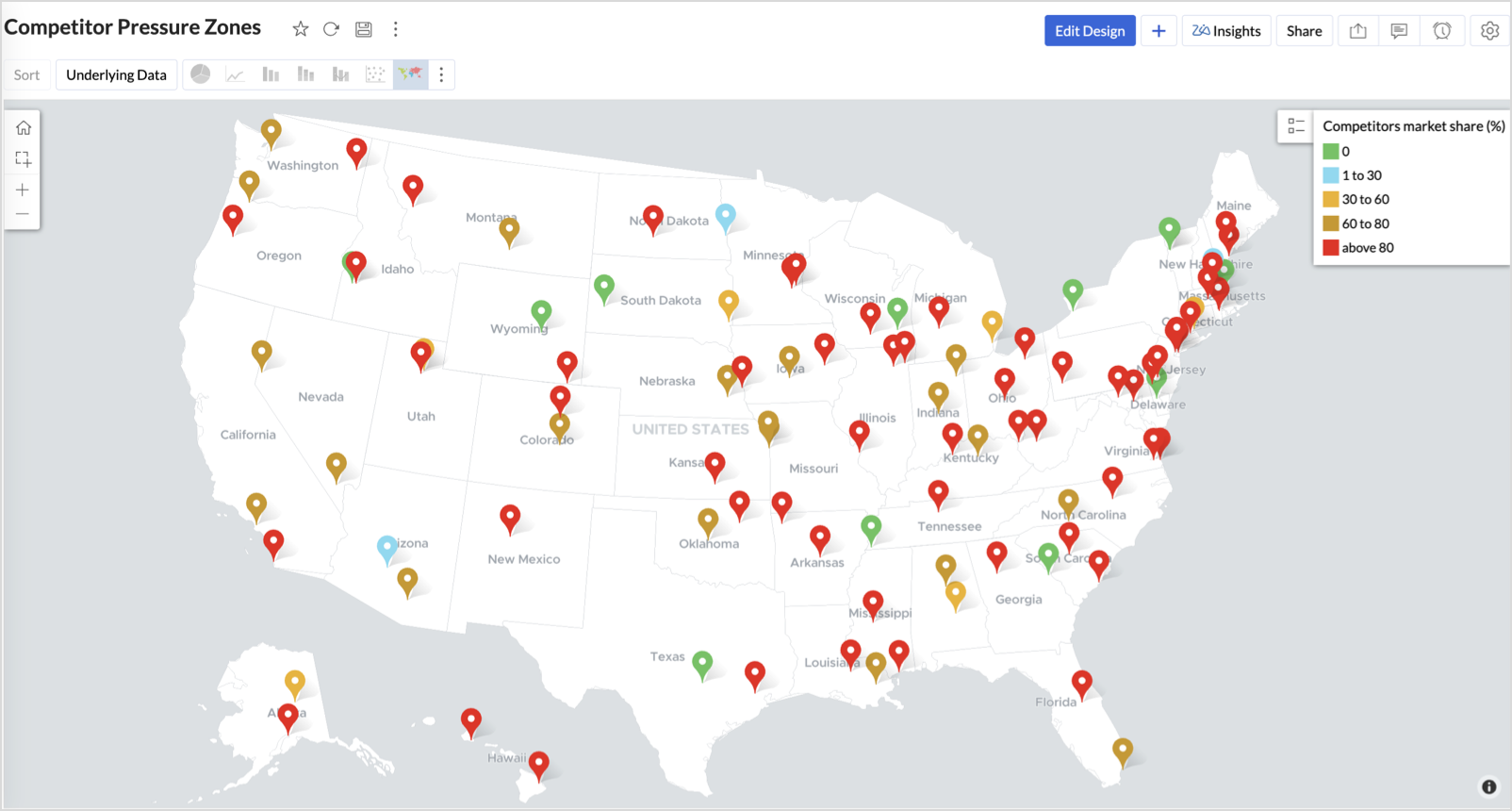
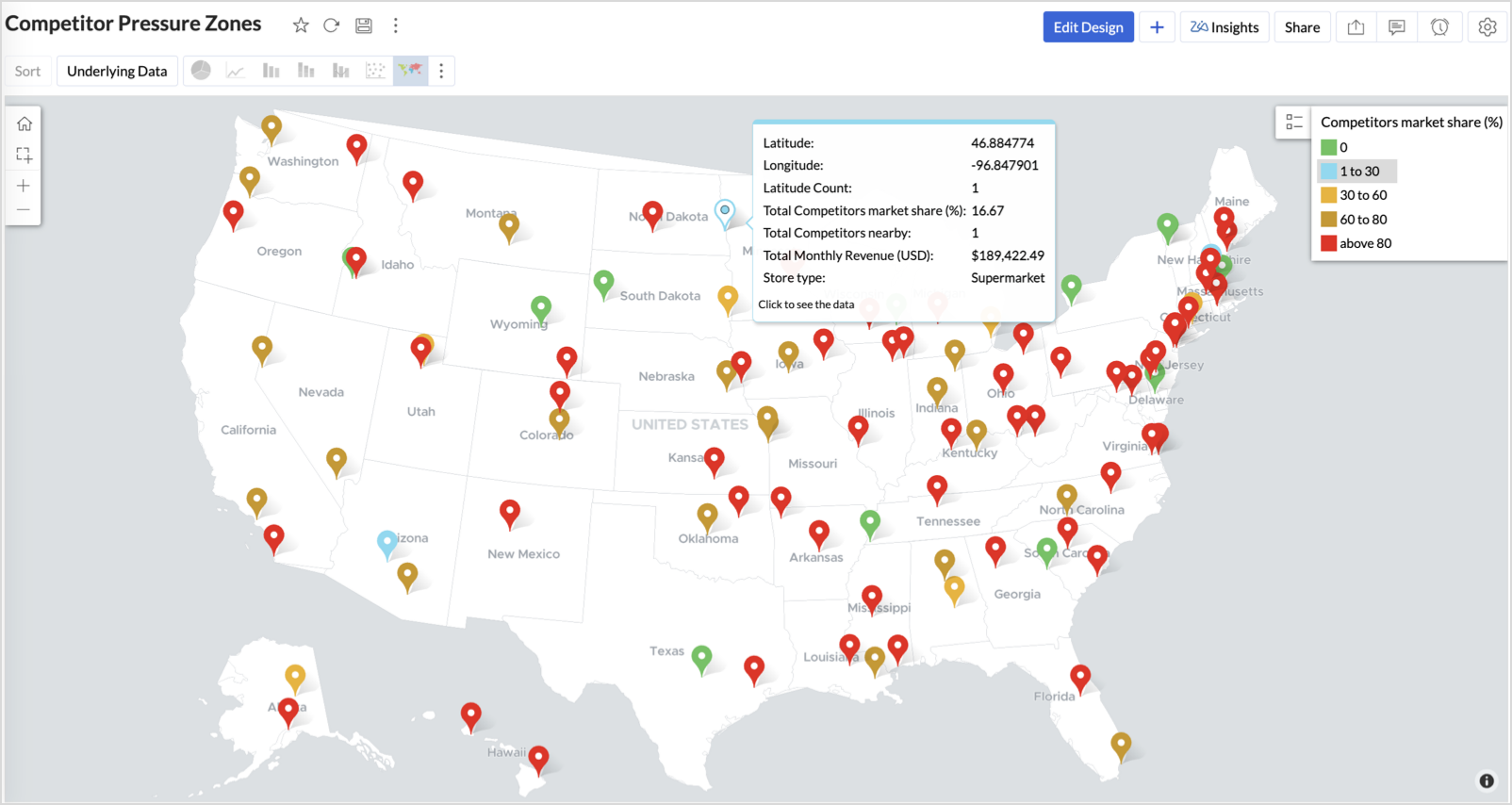
To evaluate how store performance is impacted by nearby competition, using a scatter map that plots every store across the U.S. and reflects competitor market share through color intensity.
This view helps:
- Detect locations under competitive stress
- Identify high-risk zones where your market share is at risk
- Correlate competitor presence with satisfaction and store performance
Why Map - Scatter?
Map - Scatter offers a clean and lightweight visual that plots each store based on its exact coordinates. By encoding competitor market share as color and overlaying other attributes via tooltip, this chart becomes a competitive pressure radar.
Procedure
- From the dataset, click the Create icon and select Chart View.
- In the chart designer, drag and drop the following columns into their respective shelves:
- Latitude → X-Axis
- Longitude → Y-Axis
- Competitors market share → Color
- Competitors nearby, Monthly Revenue, and Store Type → Tooltip
- Click Generate Graph.
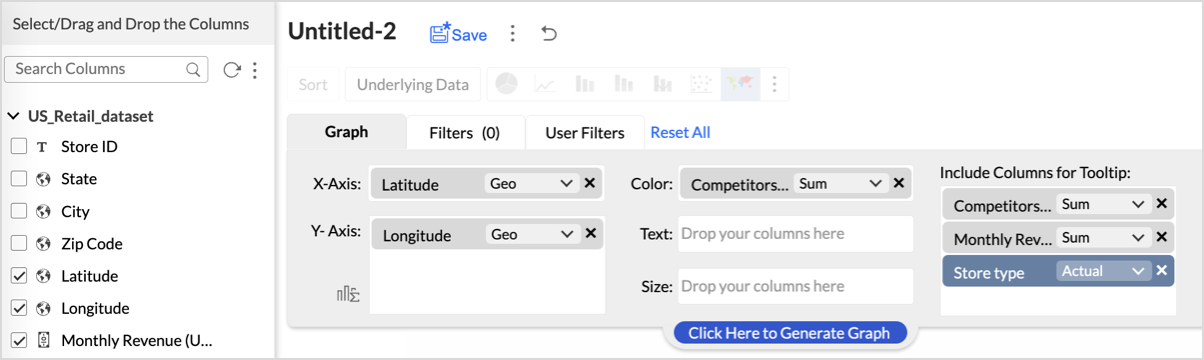
- Click on the more option and select the chart type as Map-Scatter.
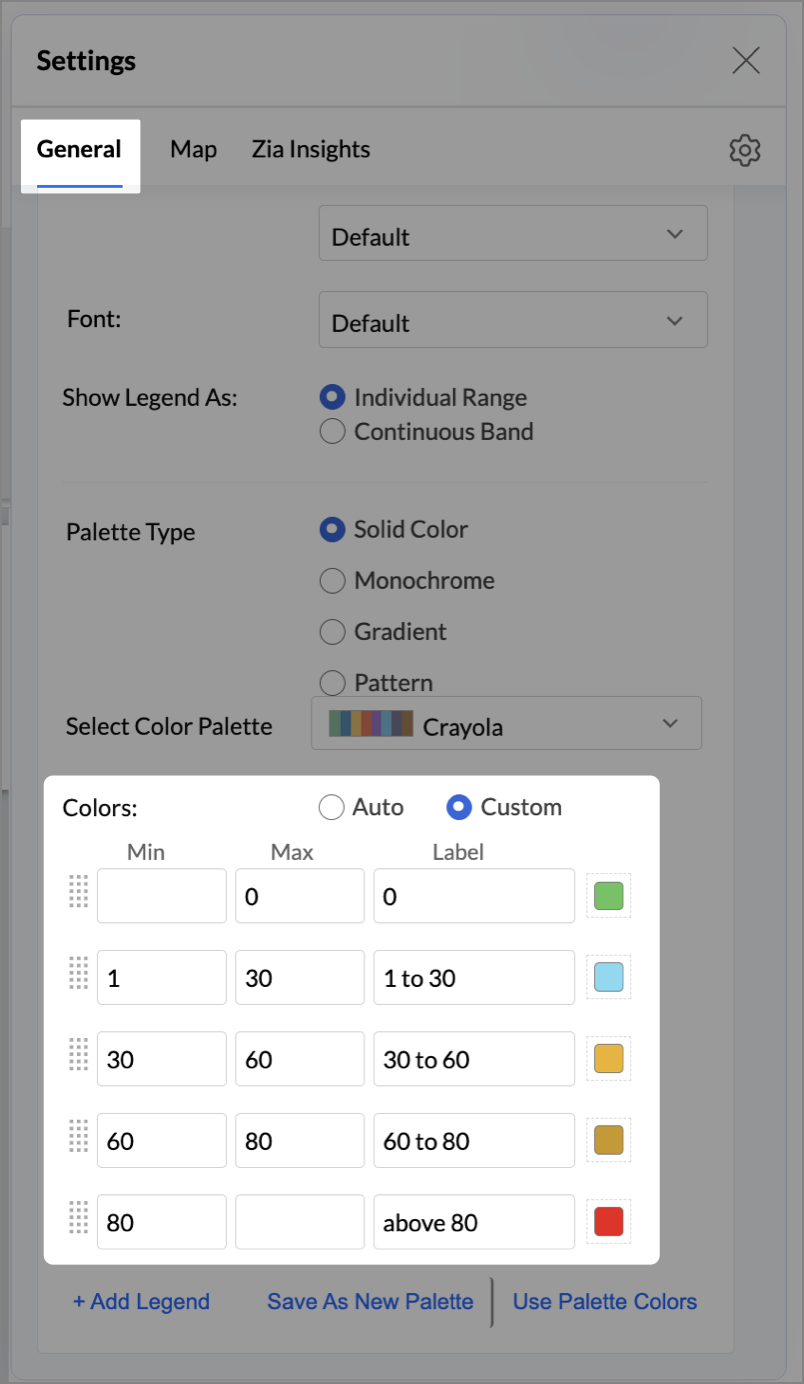
- In the Settings panel, adjust the color gradient to reflect pressure levels
- 0 → Green
- 1-30 → Cyan
- 30-60 → Orange
- 60-80 → Pale red
- Above 80 → Red
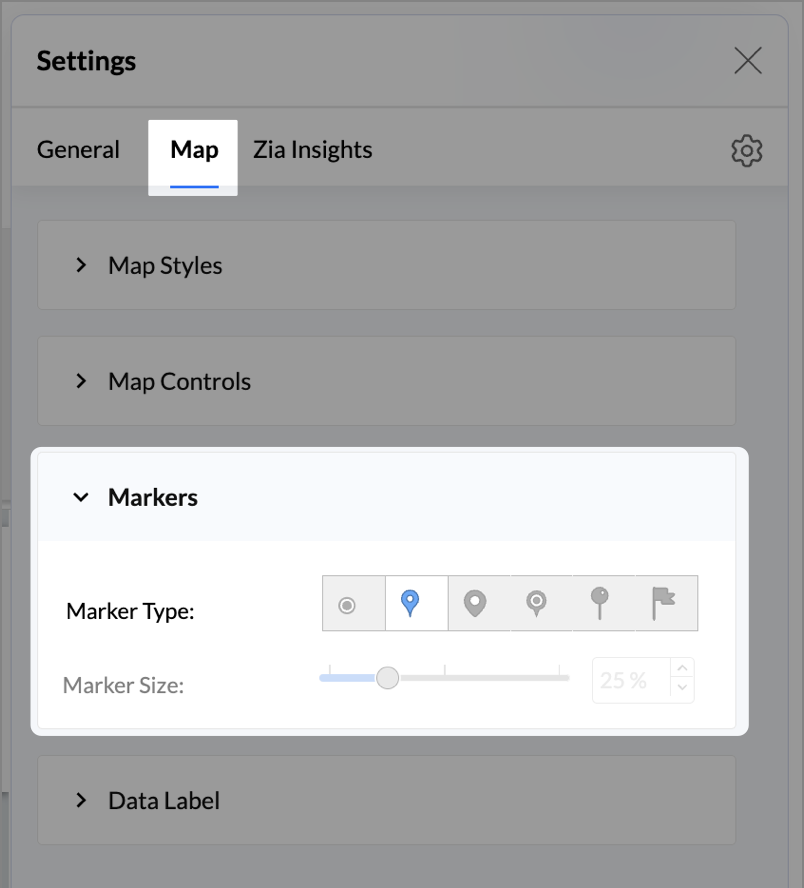
- Change the Marker type under Maps → Marker tab.
- Under the Map tab, change the map to Albers USA Projection.
- Rename the report as Competitor Pressure Zones and click Save.
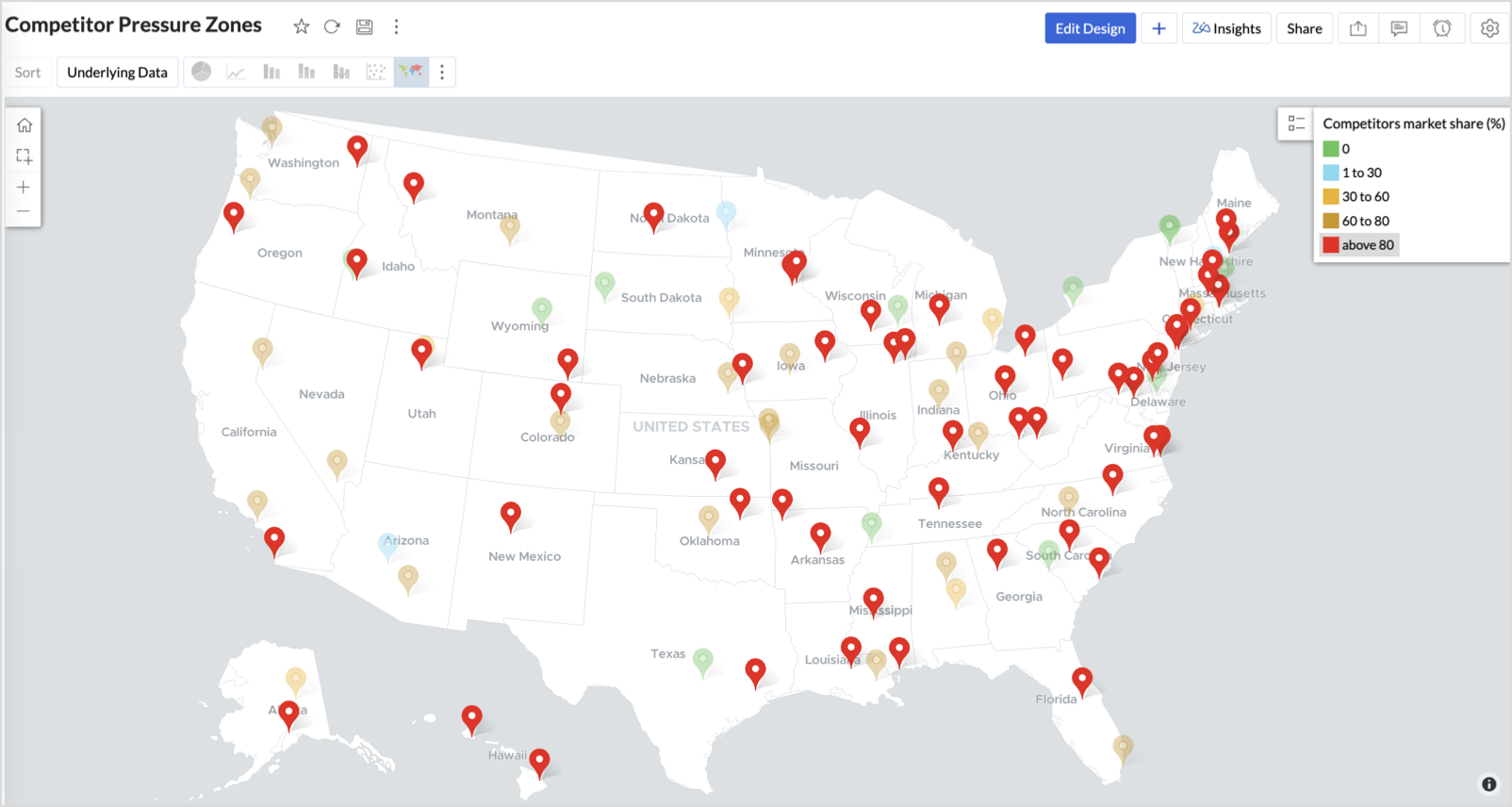
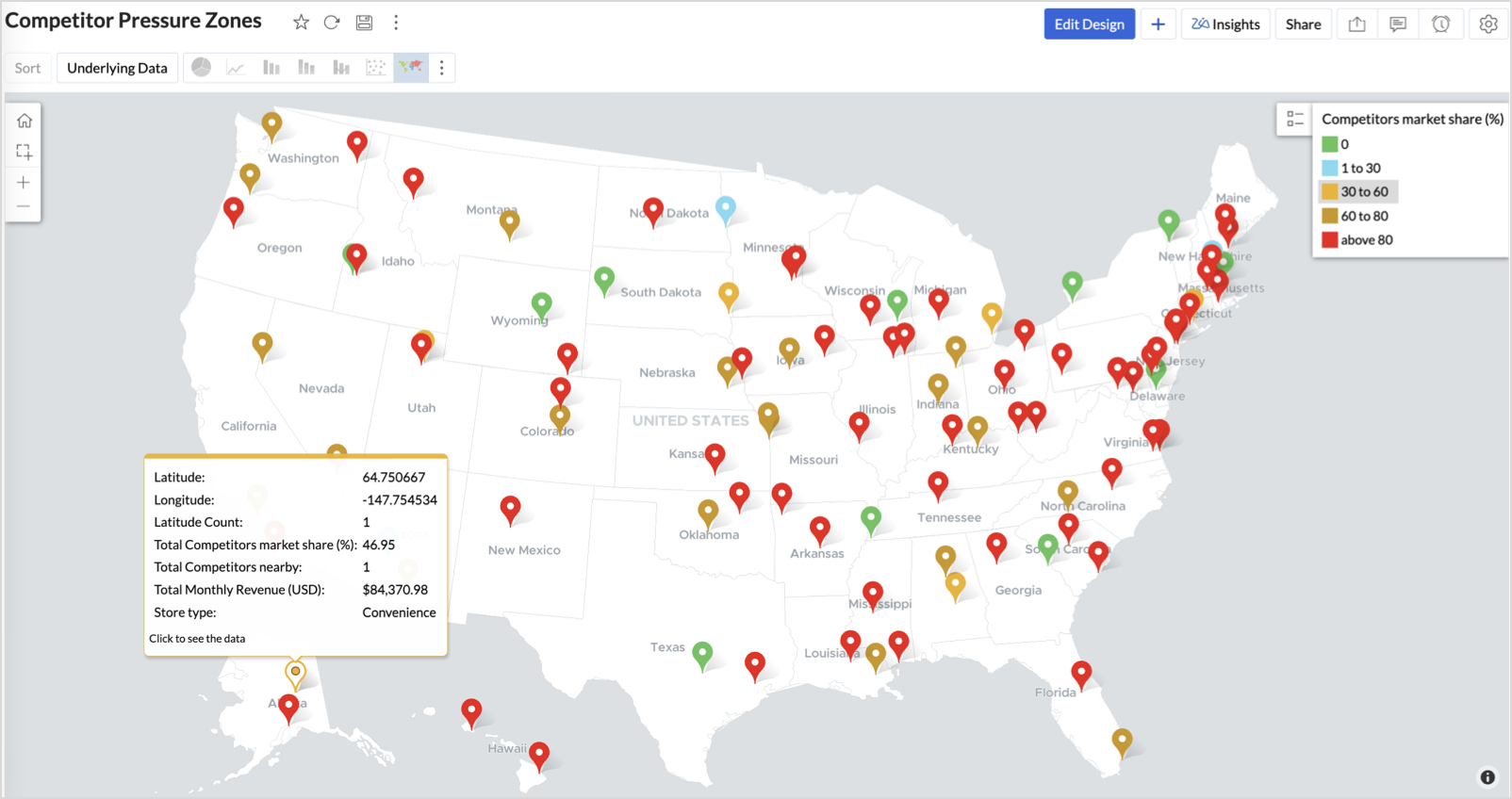
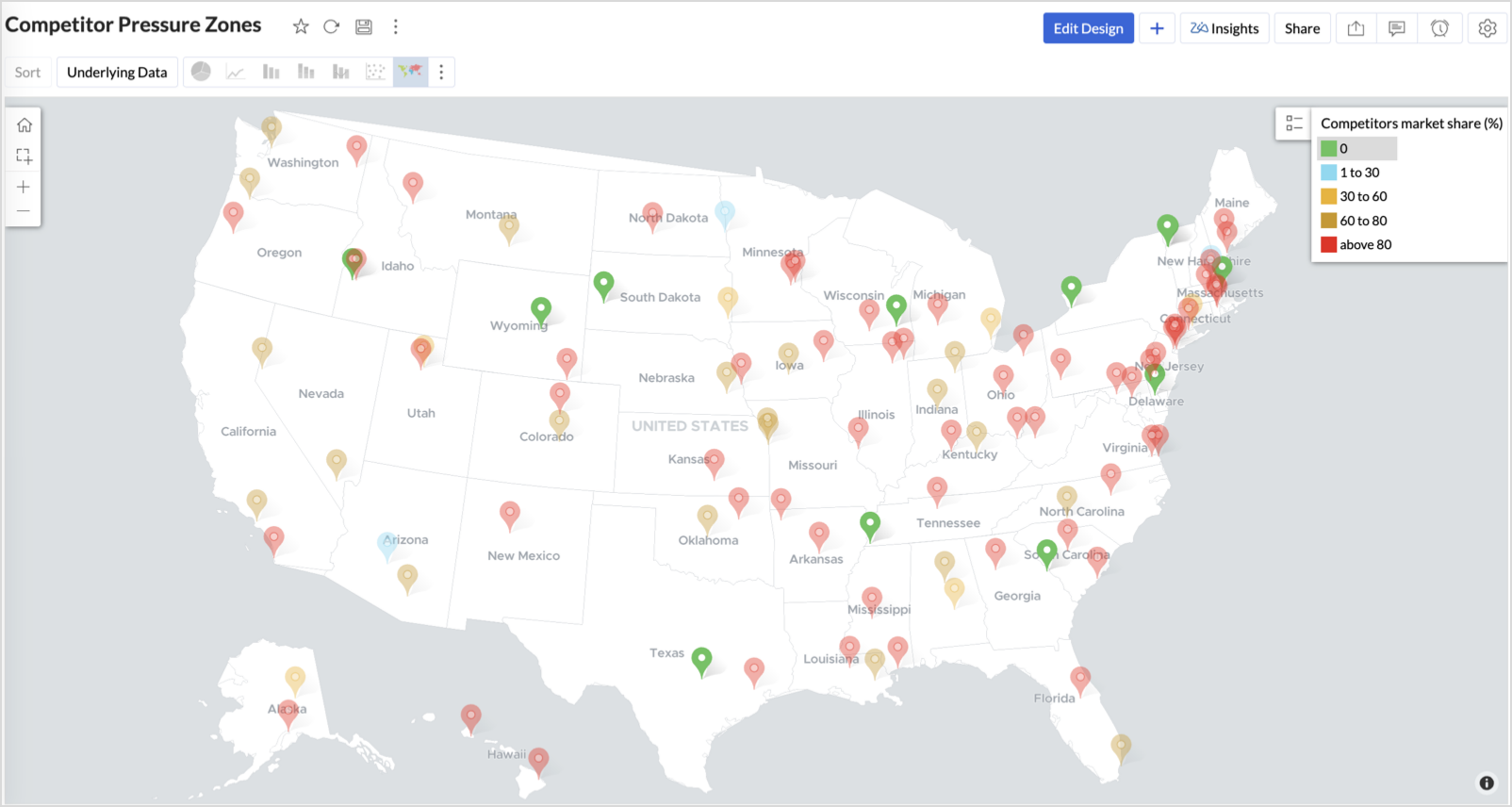
The resulting chart uses color to signal competitive heat around each store, allowing you to scan pressure zones across all regions visually.
Key Insights
Red (80-100%) - High competitor dominance — urgent intervention zone
Orange (30-60%) + low revenue - Growing pressure — performance risk emerging
Green (0%) + strong revenue - Market leader — low competition, strong position
Cyan (1-30%) + moderate revenue - Mild competition — possible opportunity to scale further
Business Interpretation
This chart empowers regional and strategy teams to:
- Detect overcrowded areas where stores are losing share
- Identify safe zones where your brand leads the market
- Spot emerging competitor influence before it cuts into your margins
It acts as a competitive intelligence dashboard, mapping how your store network stands against external threats.
4. Customer Gender Distribution (Map - Pie)
To visualize how the gender distribution of customers varies across store locations. This helps identify stores with significant demographic skews, allowing for more personalized marketing, product selection, and in-store experience.
Why Map - Pie?
The Map - Pie chart is ideal for visualizing data composition across geographical locations.By breaking down each store’s customer base into Male (%) and Female (%) segments, this chart reveals who your customers are and where gender-targeted strategies might work best.
Procedure
- From the dataset, click the Create icon and select Chart View.
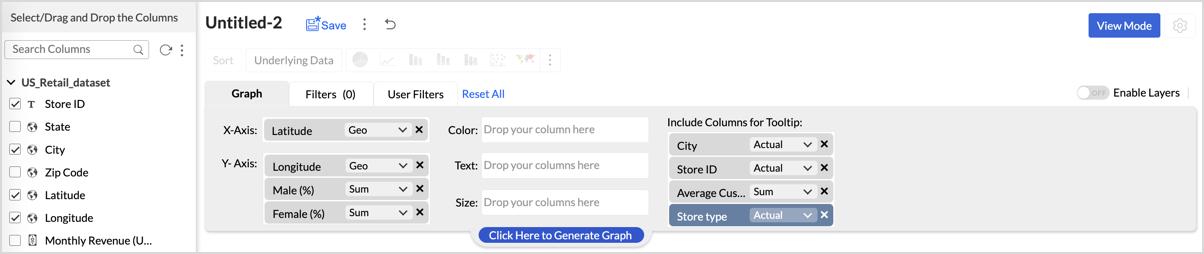
- In the chart designer, drag and drop the following columns into their respective shelves:
- Latitude → X-Axis
- Longitude, Male (%), Female (%) → Y-Axis
- City, Store ID, Average Customer Age, Store Type → Tooltip
- Click Generate Graph.
- In Settings, under the Map tab, change the map to Albers USA Projection.
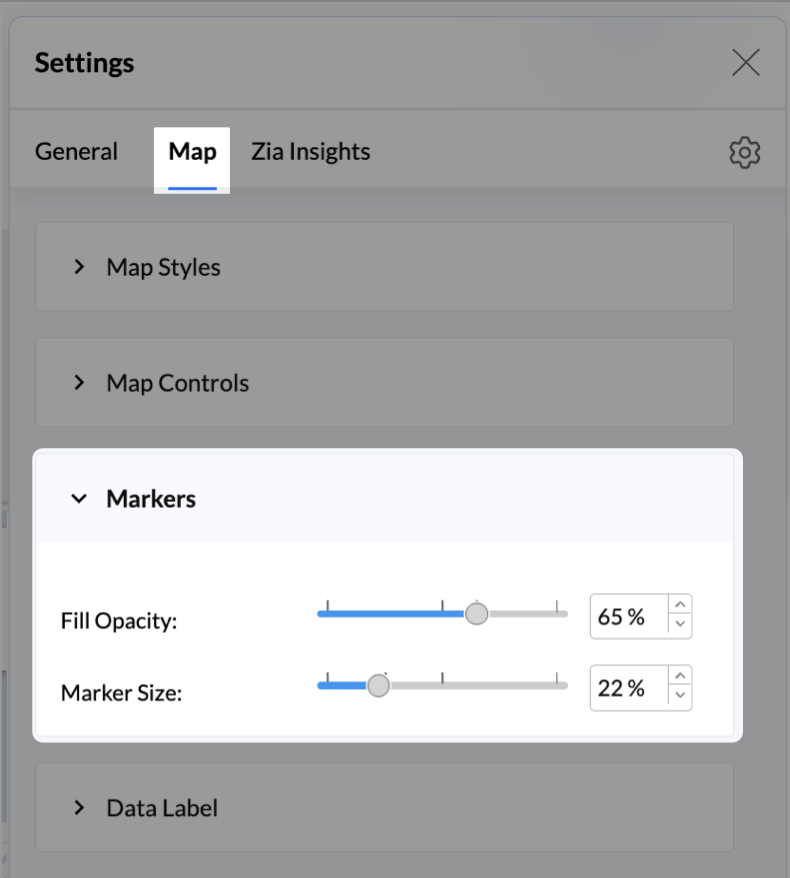
- Click on Markers, adjust the Marker Size as shown.
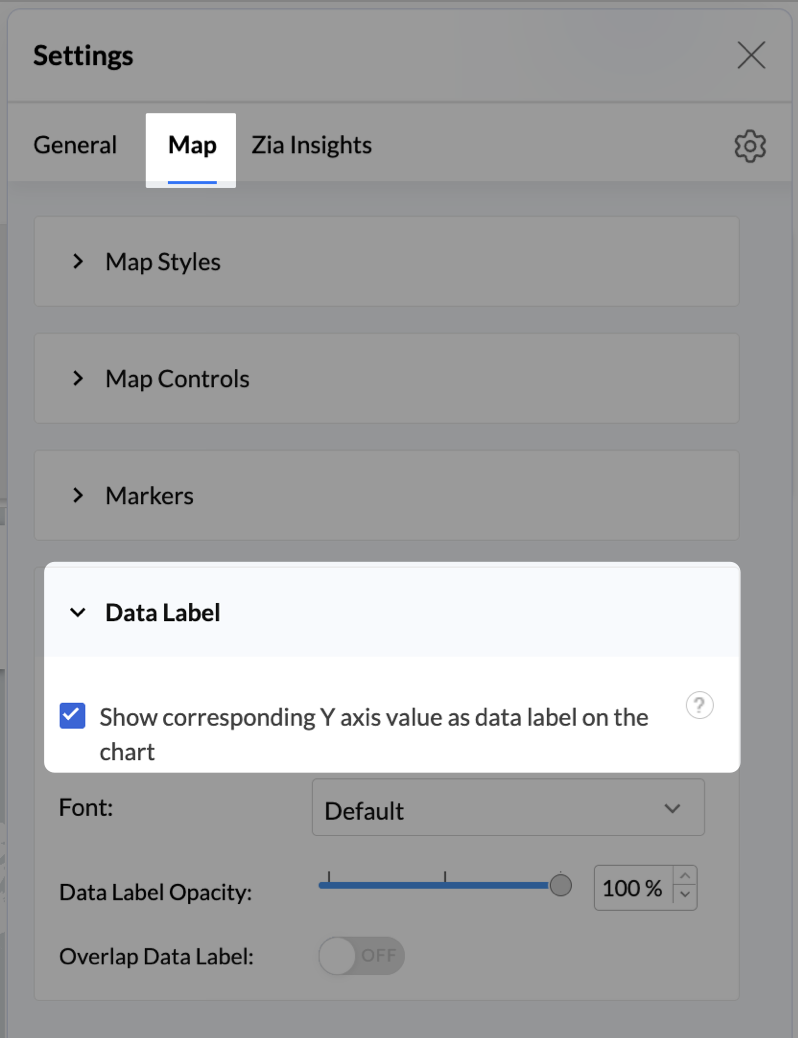
- Click on Data Label, and enable the Show corresponding Y axis value as data label on the chart to display the percentage values on the map.
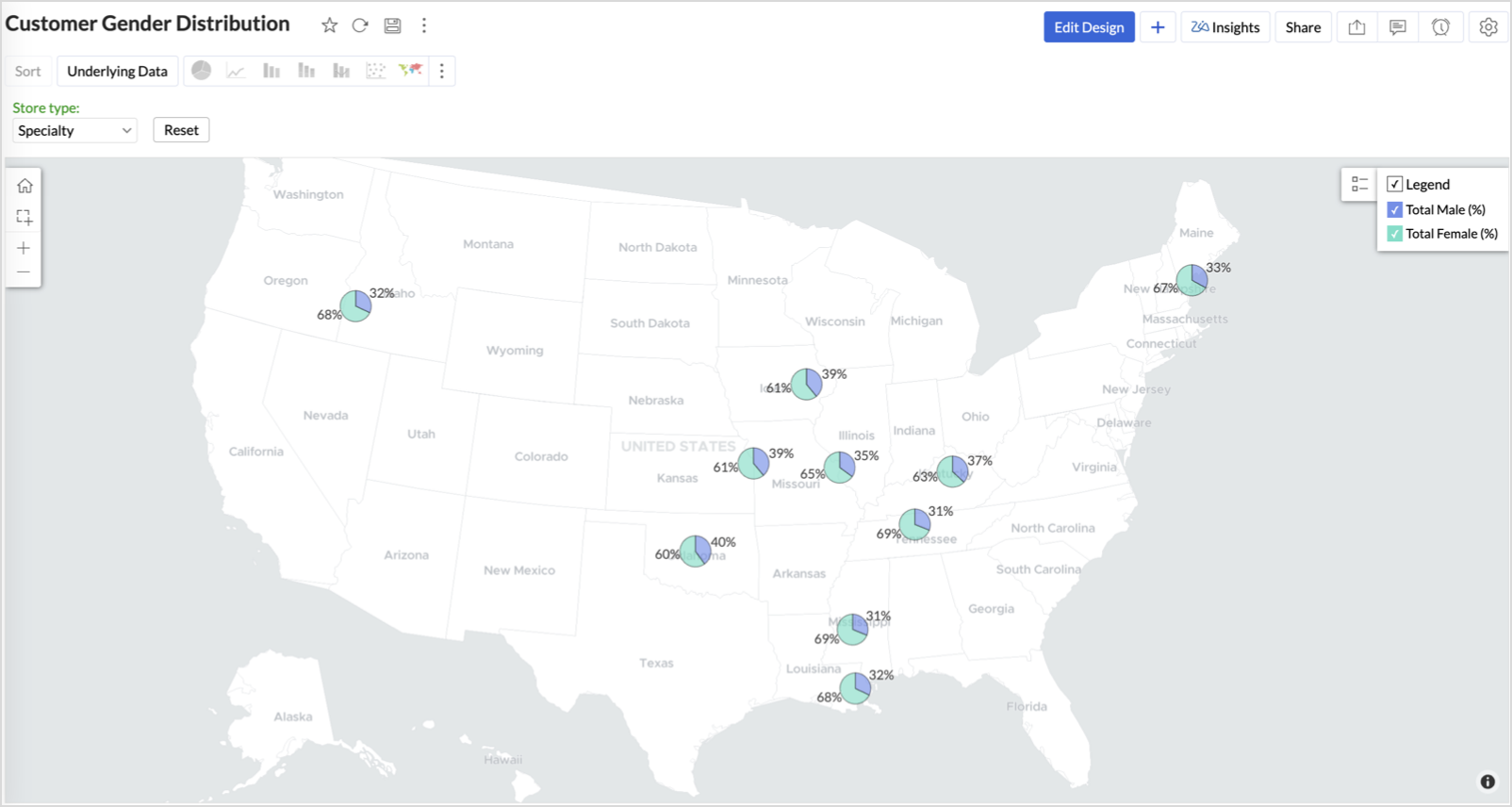
- Add Store Type as User Filters to slice down store-wise gender distribution.
- Rename the report as Customer Gender Distribution and click Save.
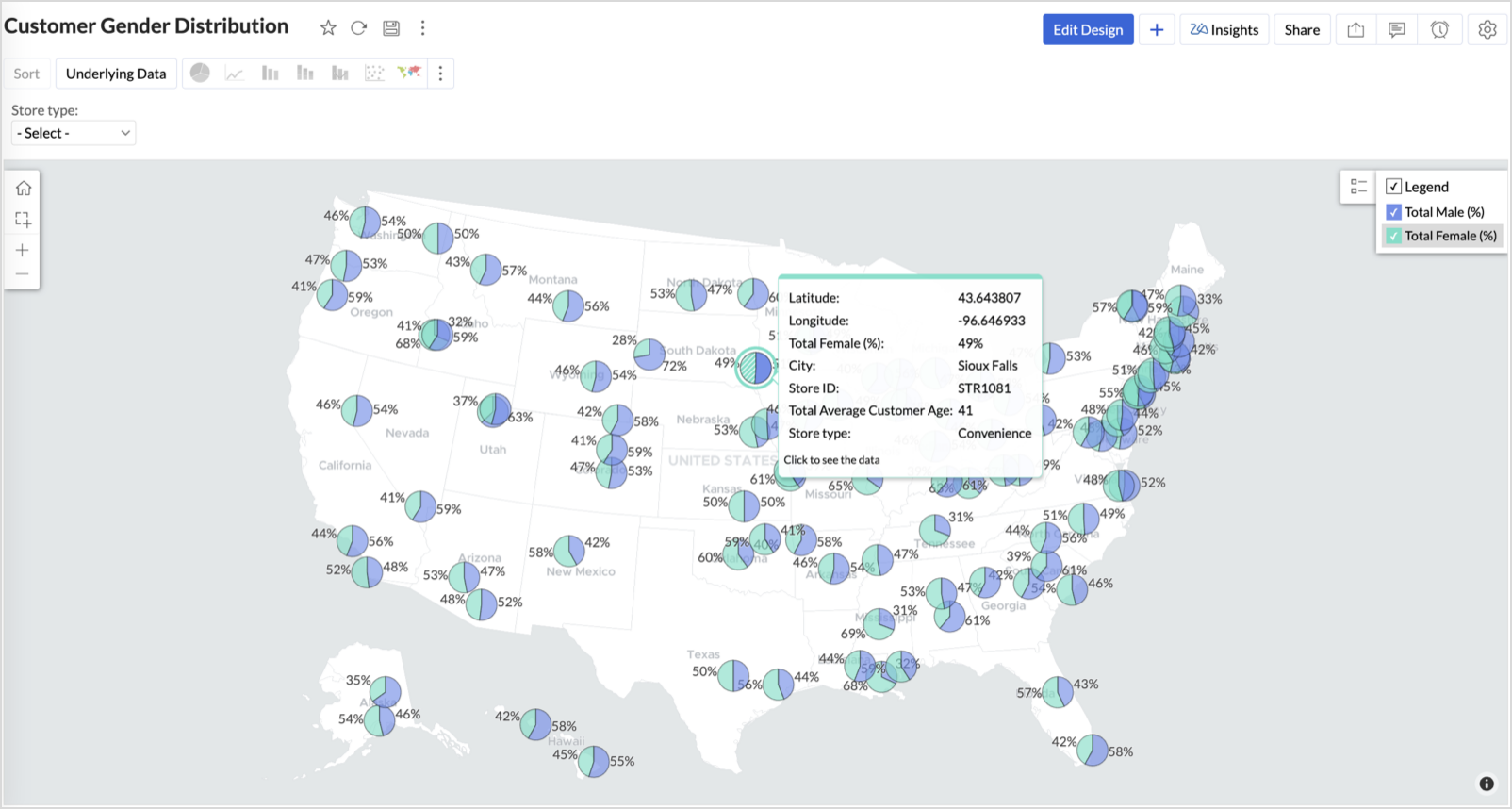
Each store will now display a pie chart representing the gender split among its customers, directly on the map.

Key Insights
Uneven gender split (e.g., 70% Male) - Potential to tailor offerings, branding, or promotions for the dominant gender
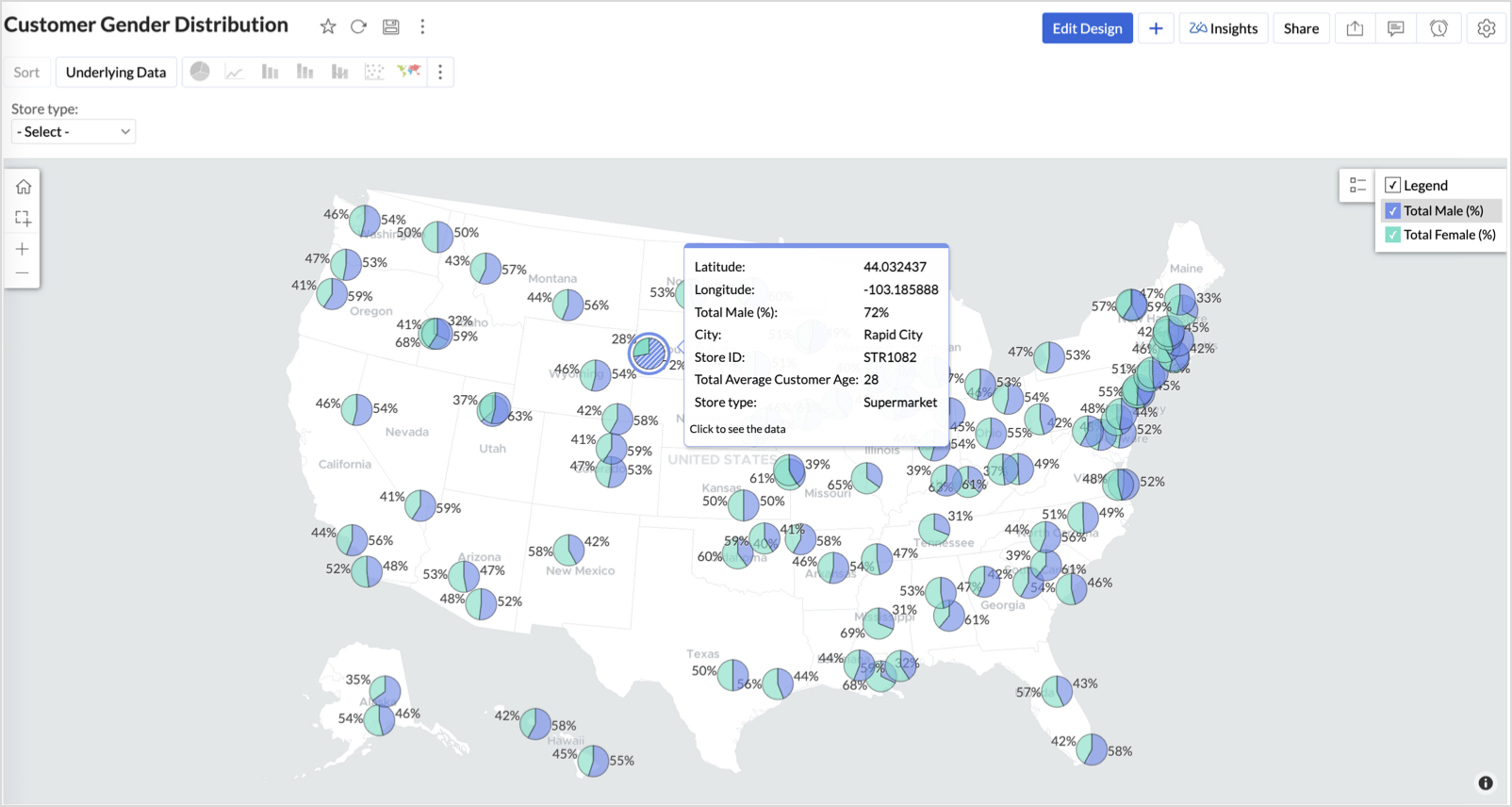
Balanced split (≈50/50) - Opportunity to run inclusive or diversified campaigns
High female ratio + specialty store - Indicates demand for niche products — expand category offerings
Business Interpretation
This chart allows marketing and merchandising teams to:
- Understand gender-based customer clustering across regions
- Launch targeted campaigns (e.g., loyalty programs, promotions)
- Refine product assortments to suit local preferences
For example: A store with 70% female shoppers may benefit from deeper investment in lifestyle categories, while a balanced store could serve as a testing ground for unisex offerings.
Summary
In this phase, we laid the foundation for geo-powered retail intelligence using Zoho Analytics. Through a single, well-structured dataset and four powerful geo map visualizations, we transformed raw store data into real, actionable business insights.
Here’s what we achieved:
|
Report
|
Business Insights
|
|
Store Performance (Bubble)
|
Identified stores that are over performing or at churn risk based on revenue and satisfaction.
|
|
Revenue-to-Traffic Ratio (Filled + Scatter)
|
Detected ghost zones and optimized marketing ROI by comparing traffic and revenue.
|
|
Competitor Pressure Zones (Scatter)
|
Mapped out competitor dominance and spotted at-risk or saturated regions.
|
|
Customer Gender Distribution (Pie)
|
Uncovered demographic patterns to tailor product, marketing, and in-store experience.
|
Click here to access the sample workspace.
These visualizations brought spatial awareness into every performance metric — turning maps into a strategic business tool.
And this... is just the beginning.
Stay tuned for Phase 2 — where Multi-Layer Geo Maps and Network Charts come together to supercharge your business strategy with even deeper spatial insights.
Topic Participants
Pradeepkumar R
Sticky Posts
What's New in Zoho Analytics - November 2025
We're thrilled to announce a significant update focused on expanding your data connectivity, enhancing visualization capabilities, and delivering a more powerful, intuitive, and performant analytics experience. Here’s a look at what’s new. Explore What'sWhat's New in Zoho Analytics - October 2025
Hello Users! We're are back with a fresh set of updates and enhancements to make data analysis faster and more insightful. Take a quick look at what’s new and see how these updates can power up your reports and dashboards. Explore What's New! ExtremeWhat’s New in Zoho Analytics – September 2025
Hello Users!! In this month’s update, we’re raising the bar across multiple touchpoints, from how you bring in data, plan and track projects to how you design and brand your dashboards. We’ve added the all-new Gantt chart for project visualization, expandedAnnouncing Agentic AI - Ask Zia!
We are delighted to roll out the new agentic AI capabilities in Ask Zia, where every stage of the BI workflow is assisted by AI. With a human-in-the-loop approach, Ask Zia ensures that you’re in command of the decision, while AI handles the complexity.Invitation-Based User Access in Zoho Analytics
Hello everyone, We’re rolling out an important update on how users are added to your Zoho Analytics Organization and Workspaces. Previously, when admins added users, they were automatically added to the organization. Moving forward, to improve security
Recent Topics
Limit in number of records for subforms and multi-select lookup fields
It is my understanding that a maximum of 100 items can be selected in a multi-select lookup field, and that a total of 200 items can be selected in total between both subforms in a given module. Are there any ways to work around this limitation if weKaizen #136 - Zoho CRM Widgets using ReactJS
Hey there! Welcome back to yet another insightful post in our Kaizen series! In this post, let's explore how to use ReactJS for Zoho CRM widgets. We will utilize the sample widget from one of our previous posts - Geocoding Leads' Addresses in ZOHO CRMGetting Permission denied to access this portal.
We have one user that can't login to projects even though access has been granted. This user can login to accounts.zoho.com but when login to https://projects.zoho.com/portals.do we get this error: Unauthorized login to this portal Permission denied to access this portal. Check your portal URL again. Sometimes we also get "server too busy". We have tried killing sessions (in accounts.zoho.com) and we have deleted cookies; and tried different computers and still the same problem. All others use canDoes Zoho Docs have a Line Number function ?
Hi, when collaborating with coding tasks, I need an online real time share document that shows line numbers. Does Zoho's docs offer this feature ? If yes, how can I show them ? Regards, FrankSetting Default Views for Custom, List and Detail Views
Hey, Is it possible to set a default custom view, list view and detail view for a module for every user? We are onboarding a lot of non technical people that struggle with these things. Setting the views as default would really help. Btw: also settingFilter Based API request in Zoho Books using POSTMAN
How do I GET only specified CONTACTS based on created time or modified time in Zoho Books using POSTMAN. In the api documentation, it is written we can apply filters but I need a sample request.URL validation
We use an internal intranet site which has a short DNS name which Zoho CRM will not accept. When attempting to update the field it says "Please enter a valid URL". The URL I am trying to set is http://intranet/pm/ Our intranet is not currently setup with a full DNS name and given the amount of links using the shortname probably isn't a feasible change for us.Has anyone been experiencing slow issues?
Dear all, I just want to ask if anyone has been experiencing slow issues with Zoho Creator in the past two weeks? I worked with the ISP to improve network quality by changing routes and upgrading bandwidth, but nothing changed. I am in Vietnam.Zoho Projects Roadshows 2025 - USA
Dear Users, After an amazing response to our roadshows in 2024, we are excited to be back for the second year in a row! Join our team of experts as they walk you through the most-used features in Zoho Projects, explore powerful automation capabilities,Billing Management: #6 Usage Billing in SaaS
Imagine a customer shuffling across multiple subscriptions, a streaming service, a music app, cloud storage, and a design tool. Each one charges a flat monthly fee, regardless of how much or how little they use. Some months, the customer barely opensIs there anyone who has been experiencing issues regarding the Zoho Creator Certification Website in the past 2 weeks?
Dear all , I just wanted to ask is there anyone who was planning on taking the Zoho Creator Developer Certification Test in the past 2 weeks and have been facing errors stating that the website is under maintennance and also not allowed to access theDirectly Edit, Filter, and Sort Subforms on the Details Page
Hello everyone, As you know, subforms allow you to associate multiple line items with a single record, greatly enhancing your data organization. For example, a sales order subform neatly lists all products, their quantities, amounts, and other relevantAllow syncing Activities from other applications
Marketing Automation could be a much more powerful platform if you were able to sync activities into the platform (e.g. purchase, donation, etc) outside of a user doing something on your website. I'd love it if you could sync Custom CRM Modules as activities,Global Sets for Multi-Select pick lists
When is this feature coming to Zoho CRM? It would be very useful now we have got used to having it for the normal pick lists.Integración Books para cumplir la ley Crea y Crece y Ley Antifraude (VeriFactu)
Hola: En principio, en julio de 2025, entra en vigor la ley Crea y Crece y Ley Antifraude (VeriFactu). ¿Sabéis si Zoho va a cumplir con la ley para cumplir con la facturación electrónica conectada a Hacienda? GraciasAsk the Experts #1
Hello everyone! It’s time to transform how you manage projects. Define the processes. Automate the tasks. Streamline the workflows. Let us dive into automation in Zoho Projects — from configuring workflows and custom functions to building triggers, usingHow to overcome Zoho Deluge's time limit?
I have built a function according to the following scheme: pages = {1,2,3,4,5,6,7,8,9,10}; for each page in pages { entriesPerPage = zoho.crm.getRecords("Accounts",page,200); for each entry in entriesPerPage { … } } Unfortunately, we have too many entriesChecking if Creator has Change History
Like zForms - whenever an entry was updated there's an option to attached change history to email notif. Trigger -> Successful form submissionhow to use validation rules in subform
Is it possible to use validation rules for subforms? I tried the following code: entityMap = crmAPIRequest.toMap().get("record"); sum = 0; direct_billing = entityMap.get("direct_billing_details"); response = Map(); for each i in direct_billing { if(i.get("type")Adding contact role to a specific deal js sdk malfunctioning
i was trying to add the contact role to a specific deal contact but repeatedly i am getting this error: { "code": "SUCCESS", "details": { "statusMessage": { "code": "INVALID_DATA", "details": { "expected_data_type": "jsonobject" }, "message": "body",Q3 Updates from Bigin!
Hey Biginners, Hope you’re doing great! As we approach the end of 2025, we truly hope Bigin has been a part of helping you build your dream business this year! We've been busy working behind the scenes to bring you features that make running your businessClient Script | Update - Introducing Subform Events and Actions
Are you making the most of your subforms in Zoho CRM? Do you wish you could automate subform interactions and enhance user experience effortlessly? What if you had Client APIs and events specifically designed for subforms? We are thrilled to introduce{"errors":[{"id":"500","title":"Servlet execution threw an exception"}]}
Here's the call to move a file to trash. The resource_id is accurate and the file is present. header = Map(); header.put("Accept","application/vnd.api+json"); data = Map(); data_param1 = Map(); att_param1 = Map(); att_param1.put("status",51); data_param1.put("attributes",att_param1);Converting Sales Order to Invoice via API; Problem with decimal places tax
We are having problems converting a Sales Order to an Invoice via API Call. The cause of the issue is, that the Tax value in a Sales Order is sometimes calculated with up to 16 decimal places (e.g. 0.8730000000000001). The max decimal places allowed inZoho Canvas - Custom templates for related lists
Hi, I see that the example pages load always one of our related lists in a custom template, but I dont know how to work with that: 1) How can i make my own custom templates for related lists? 2) Where and how can i check out existing custom templates?Kaizen #147 - Frequently Asked Questions on Zoho CRM Widgets
Heya! It's Kaizen time again, folks! This week, we aim to address common queries about Zoho CRM Widgets through frequently asked questions from our developer forum. Take a quick glance at these FAQs and learn from your peers' inquiries. 1. Where can Iopen word file in zoho writer desktop version
"How can I open a Microsoft Word (.doc or .docx) file in Zoho Writer if I only have the file saved on my computer and Zoho Writer doesn't appear as an option when I try 'Open with'? Is there a way to directly open the .doc file in Zoho Writer?"Zoho PDF editor has a lot of issues.
Zoho PDF editor needs a lot of work. It hangs and glitches a lot. Deletes annotations and clearings randomly.Syncing contacts on Android
I'm using the Zoho mail app on Android and although I can see my contacts from within the app, they're not synced to my native contact list and so I can't access them from within the native dialer. Is there any way that I can sync my contacts into my native address book? Regards, MartinZohom mail
Plz resolve the problem . I hope u understand .Zoho sheet desktop version
Hi Zoho team Where can I access desktop version of zoho sheets? It is important as web version is slow and requires one to be online all the time to do even basic work. If it is available, please guide me to the same.ZOHO SHEETS
Where can I access desktop version of zoho sheets? It is important to do basic work If it is available, please guide me to the sameUsing Zoho Flow to create sales orders from won deal in Zoho CRM
Hi there, We are using Zoho Flow to create sales orders automatically when a deal is won in Zoho CRM. However, the sales order requires "Product Details" to be passed in "jsonobject", and is resulting in this error: Zoho CRM says "Invalid input for invalidIs Zoho Sheet available for Linux ?
Is Zoho Sheet available for Linux ?Bharat
ahow to disable staff selection Zoho Booking integrated to SalesIQ?
currently there is only one Consultant in my Zoho Bookings like this I integrate Zoho Bookings into Zoho SalesIQ to create a chatbot. Unfortunately, even though I only have one consultant for a consultation, the user have to pick the consultant. It willZoho Bookings No Sync with Outlook
Zoho Bookings appointments are showing on my Outlook Calendar but Outlook events are not showing on Zoho Bookings. How do I fix this?End Date in Zoho Bookings
When I give my appointments a 30 minutes time I would expect the software not to even show the End Time. But it actually makes the user pick an End Time. Did I just miss a setting?Custom confirmation message
How can I change the message that users see after they submit the booking form? I have to confirm some details before their appointment is officially "confirmed", so I want to change it where it doesn't say their appointment is "confirmed" but ratherIssue showing too many consultations in my workspace link.
Hi Team, I’ve set up two Workspaces to track meetings from different sources. So far, this has been working well, and the two Workspaces are differentiated without any issues. However, when I navigate to Consultations and share the link to my personalNext Page