Kaizen 223 - File Manager in CRM Widget Using ZRC Methods
Hello, CRM Wizards!

Here is what we are improving this week with Kaizen.
we will explore the new ZRC (Zoho Request Client) introduced in Widget SDK v1.5, and learn how to use it to build a Related List Widget that integrates with Zoho WorkDrive. It helps users to preview and upload files directly from the record’s detail page.
Why ZRC?
ZRC is a unified client for making REST calls across all developer-facing components in Zoho CRM. It is currently supported in Widgets and CScript, and will soon be available for other features within the Developer Hub as well.
It simplifies external API usage with:
- async/await support
- Auto JSON parsing
- Unified API client for Zoho CRM developer tools (currently supported for CScript and widgets)
- Stronger error handling
Business Problem
Zylker, a real-estate company, stores documents, images, and property videos for each lead in a third-party cloud storage platform.
However, some of these files exceed 20 MB, making the CRM’s built-in file upload field unsuitable. Their team also needs the ability to preview and upload files directly from the Lead detail page.
Solution Overview
Zylker can build a Related List Widget integrated with their third-party cloud storage platform using ZRC methods.
This widget will allow users to:
- Fetch and display files inside the folder linked to the Lead.
- Preview files (images, PDFs, videos) inside the widget.
- Upload new documents to the same folder.
- Create new subfolders to keep the data organized.
- Navigate subfolders using breadcrumbs.
To keep the demo simple, let us walk you through on building this widget for listing, previewing and uploading files using Zoho WorkDrive.
Prerequisites
1. Create a Custom Field
Create a Single Line field named WorkDrive Folder ID in the Leads module. Check out the Working with Custom Fields document for guidance.
This stores the folder ID created for each lead through workflow rule that we build in the next steps.
2. Create WorkDrive and CRM Connection
- Go to Setup > Developer Hub > Connections and click Create Connection.
- Choose Zoho WorkDrive with the scopes WorkDrive.files.CREATE and WorkDrive.files.READ.
- Click the Create and Connect button and proceed to authorize the connection.
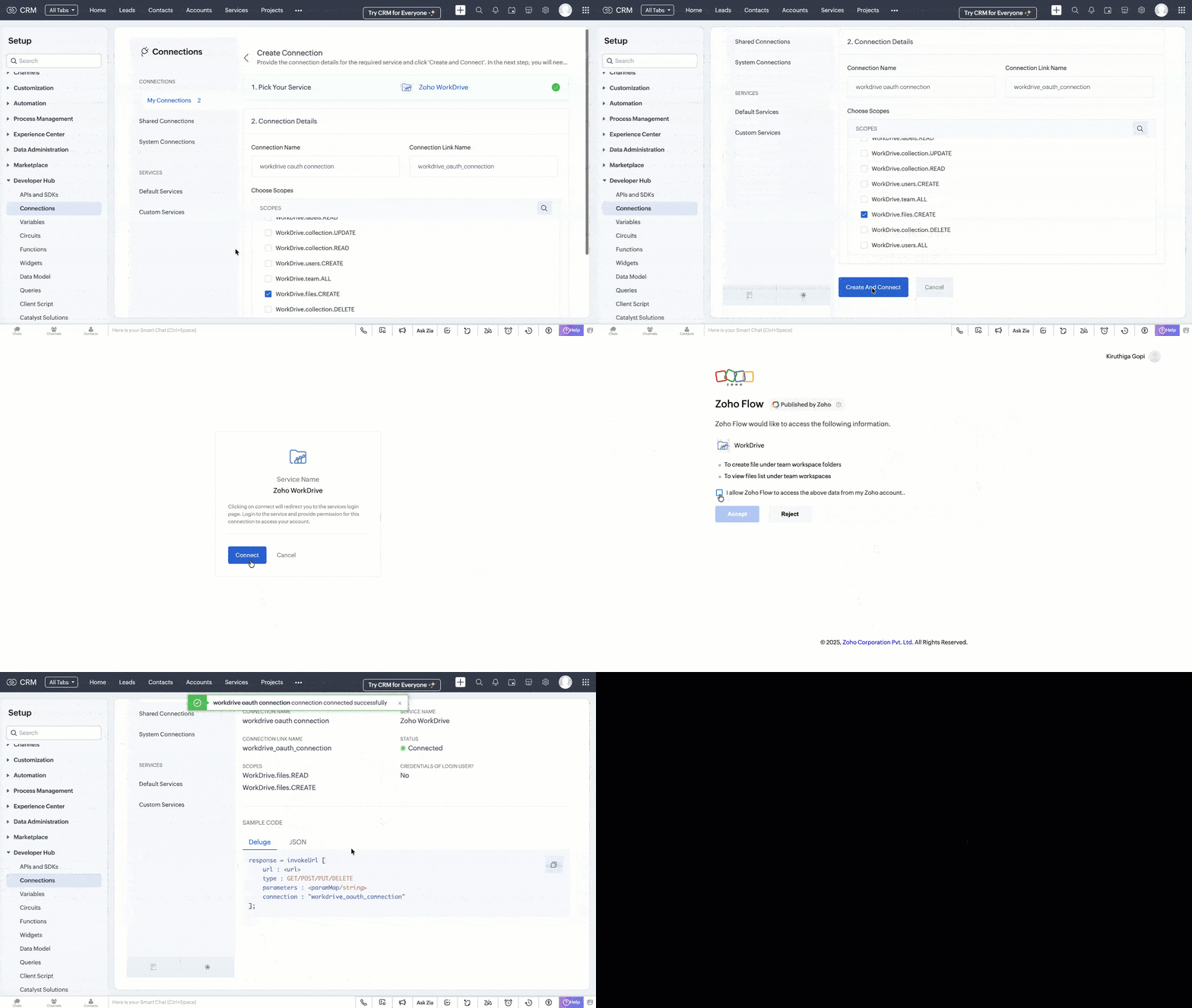
- Similarly, choose Zoho CRM with the ZohoCRM.modules.ALL scope and create the connection.
Refer to the Connections help doc for more information. Store the Connection Link Name to use while making API calls.
3. Automate WorkDrive Folder Creation
- Go to Automation > Workflow Rules in the Setup page and click Create Rule.
- Create a Workflow Rule with the following details:
Module: Leads
Trigger: On Record Creation
Condition: All Records
Action: Custom Action (Deluge Function)
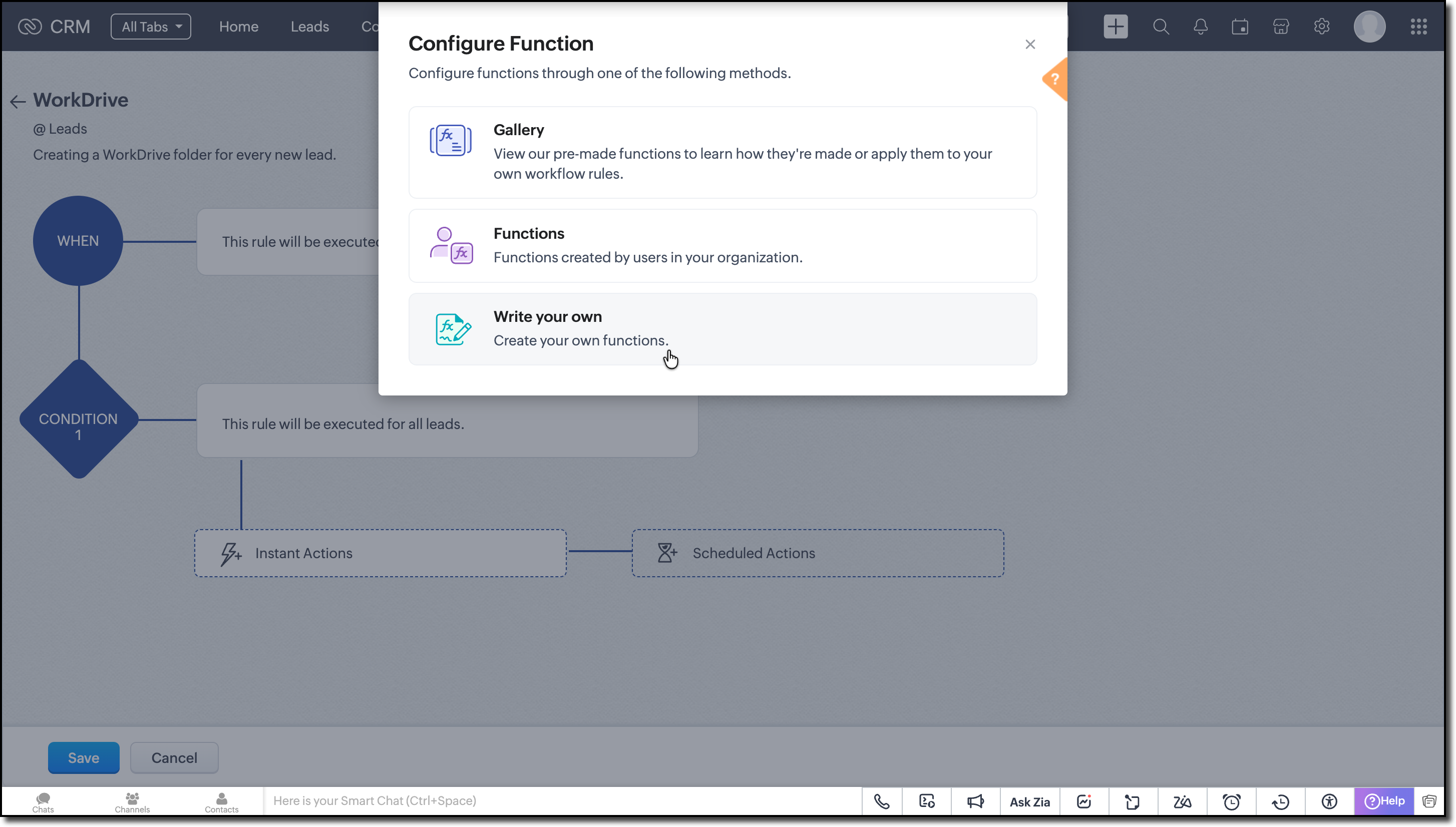
Function Logic:
1. Create a new folder in the WorkDrive combining the lead's record ID and First Name as the folder's name. Use the Invoke URL task to make the Create Folder API call.
responseMap = Map(); attributeInfo = Map(); dataInfo = Map(); headerMap = Map(); headerMap.put("Accept","application/vnd.api+json"); // First Name and Record ID from the argument AttributeInfo.put("name",Name + recordId); // Parent folder ID under which you want to maintain the lead folders attributeInfo.put("parent_id","e8gn06f2d7b3a48044090b7217524be95c9ac"); dataInfo.put("attributes",attributeInfo); dataInfo.put("type","files"); responseMap.put("data",dataInfo); folderCreateResponse = invokeurl [ url :"https://zohoapis.in/workdrive/api/v1/files" type :POST parameters:responseMap.toString() headers:headerMap connection:"workdrive_oauth_connection" // Connection Link Name created in the prerequisites ]; info folderCreateResponse; |
2. Retrieve the folder ID from the API response.
3. Update the Lead’s WorkDrive Folder ID field with this folder ID using Update Records API call.
requestBody = Map(); dataList = List(); record = Map(); // Set field values record.put("WorkDrive_Folder_ID",driveId); // Add record to list dataList.add(record); // Wrap data requestBody.put("data",dataList); updateLead = invokeurl [ url :"https://zohoapis.in/crm/v8/Leads/" + recordId type :PUT parameters:requestBody.toString() connection:"crm_oauth_connection" ]; info updateLead; |
Assign values to the arguments using merge fields while associating the function with Workflow Rule.
Now every Lead has its own WorkDrive folder before the widget loads.

Note:
The complete code snippet for the deluge function is attached to the post for your reference.
Building the Related List Widget
Step 1: Initialize the Widget Project
Review the basics from our earlier Kaizen on CLI Installation, Creating a Widget Project, and Internal hosting of the same.
Step 2: Develop your Widget
After setting up the widget project using CLI, implement the following code logic for the case we are discussing:
- Get the current record's ID from the PageLoad event.
- With the record ID, fetch the lead details using the GET Records API call using the GET ZRC method as shown here.
// data.Entity and data.EntitiyId are the module and record ID from PageLoad const response = await zrc.get( "/crm/v8/" + data.Entity + "/" + data.EntityId ); var workdriveFolderId = response.data.data[0].WorkDrive_Folder_ID; |
- Extract the WorkDrive Folder ID from the response to get the list of files from the folder.
- Since we'll be using WorkDrive APIs multiple times, let’s create a reusable instance with the Connection Link Name and API's base URL. This way, we avoid repeating the same setup for every API call.
Following is sample of how to create a custom instance:
workDriveZrc = zrc.createInstance({ baseUrl: "https://www.zohoapis.in/workdrive/api/v1", connection: "workdrive_oauth_connection", }); |
You can also check out the Create Instance in the requestConfig help section to learn more.
- Now, let us make the GET List of Files/Folder API call using the newly created ZRC instance.
let apiResponse = await workDriveZrc.get( "/files/" + workdriveFolderId + "/files", { headers: { Accept: "application/vnd.api+json", }, } ); |
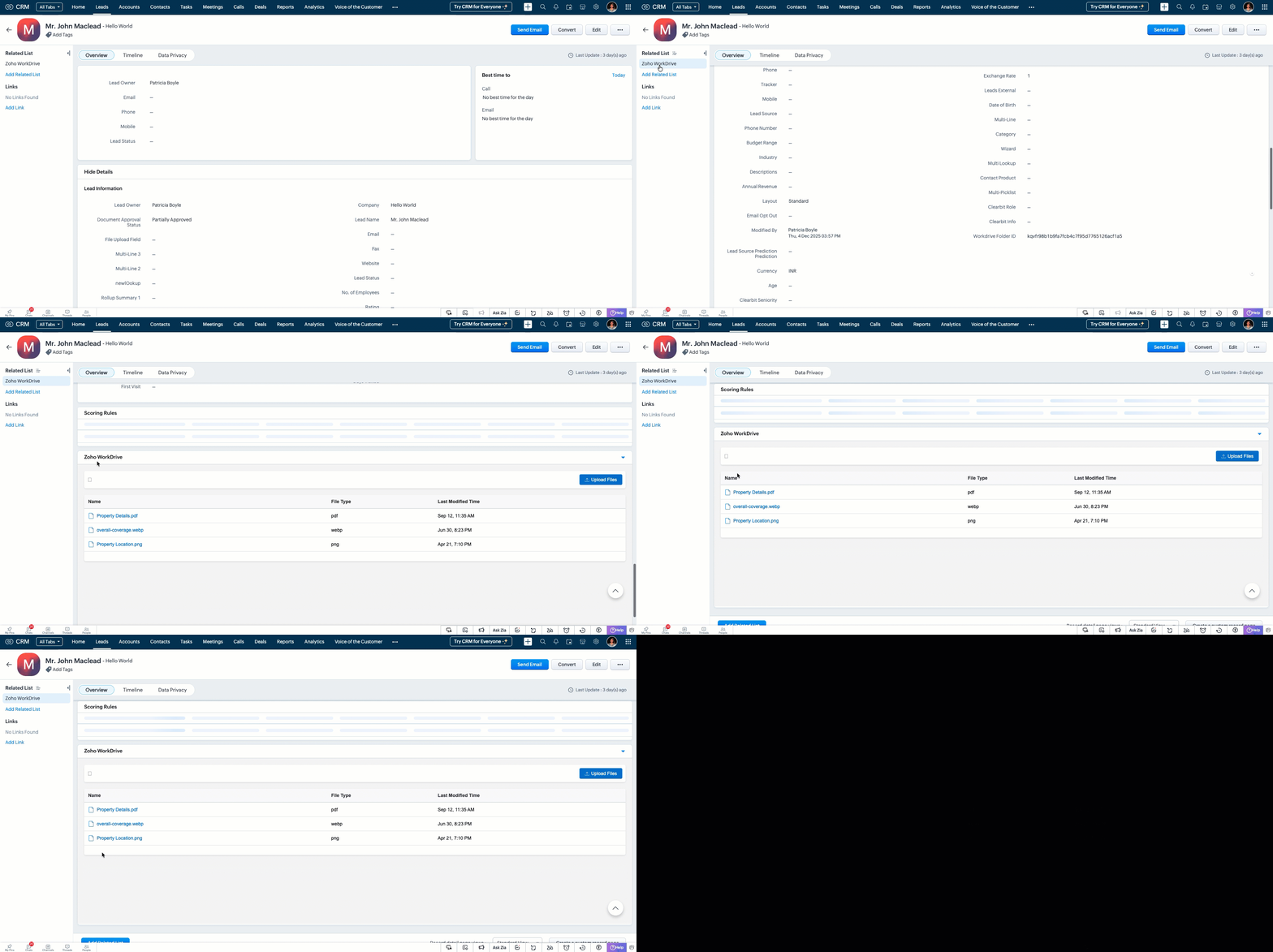
- Display the file details like File Name, Type and Modified Time in a table from the API response. Save the File ID in a variable for displaying preview.
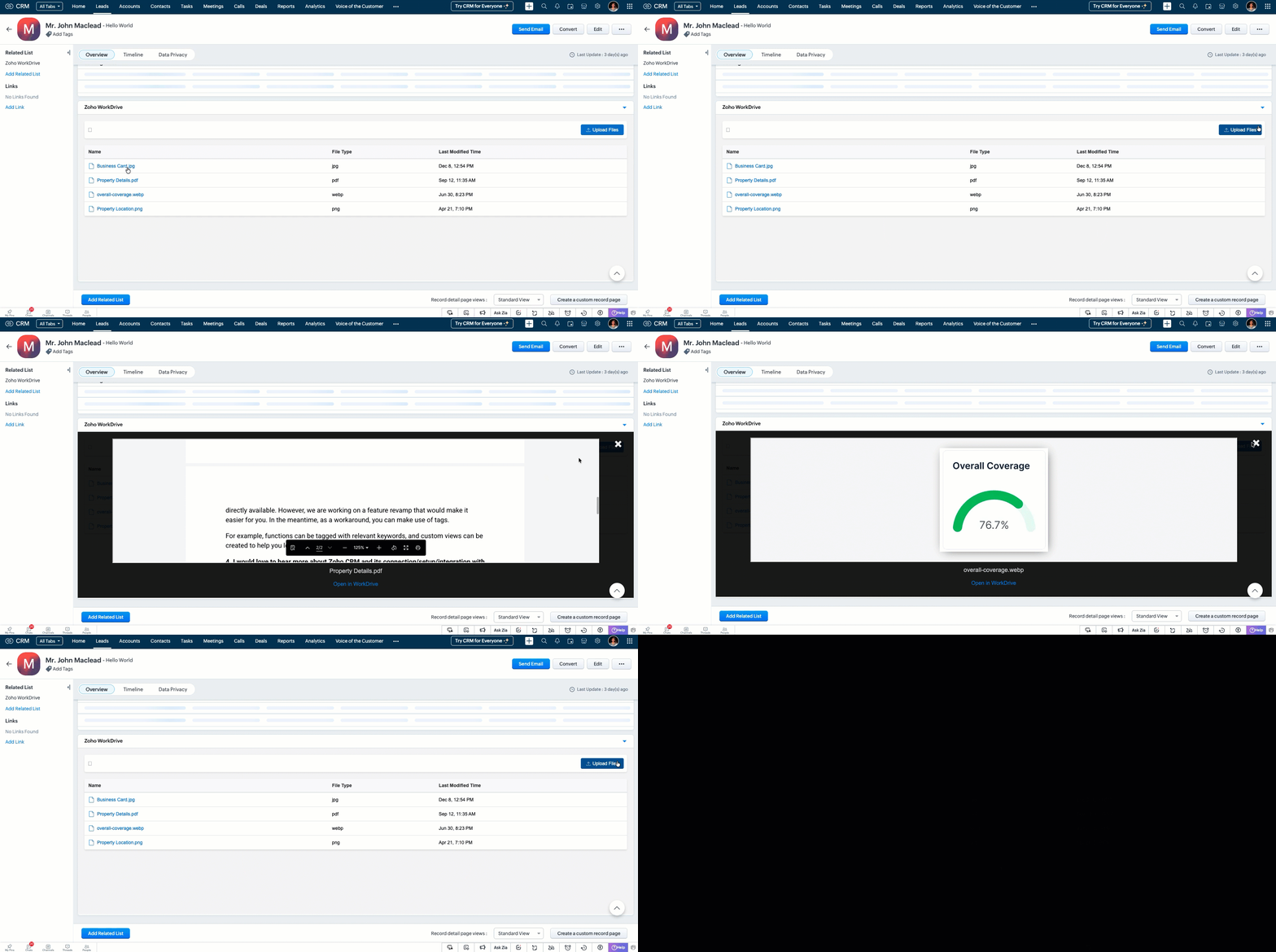
- When user clicks a particular file, use the file ID to fetch the preview URL using the GET Preview Meta Data API. Then load the preview URL in an iframe to display the file.
try { const previewResponse = await workDriveZrc.get( "/files/" + resourceId + "/previewinfo", { headers: { Accept: "application/vnd.api+json", }, } ); parsed = JSON.parse(previewResponse.data); console.log("Preview Data:", parsed); // Extract the preview_url from the expected location previewUrl = parsed && parsed.data && parsed.data.attributes && parsed.data.attributes.preview_url || null; // Remove surrounding quotes if server wrapped the url in quotes if (typeof previewUrl === "string") { previewUrl = previewUrl.replace(/^"(.*)"$/, "$1").trim(); } } catch (err) { console.error("Error fetching preview info for resource:", resourceId, err); } function showPreview(previewUrl, fileName, permalink) { var modal = document.getElementById("modal-container"); var thumbnailFrame = document.getElementById("thumbnail-img"); var caption = document.getElementById("caption"); var workdriveLink = document.querySelector(".redirect-workdrive"); // Load the preview URL into the iframe thumbnailFrame.src = previewUrl; // Set the file name in caption and workdrive link caption.textContent = fileName; workdriveLink.setAttribute("data-link", permalink); // Show the modal modal.style.display = "block"; } |
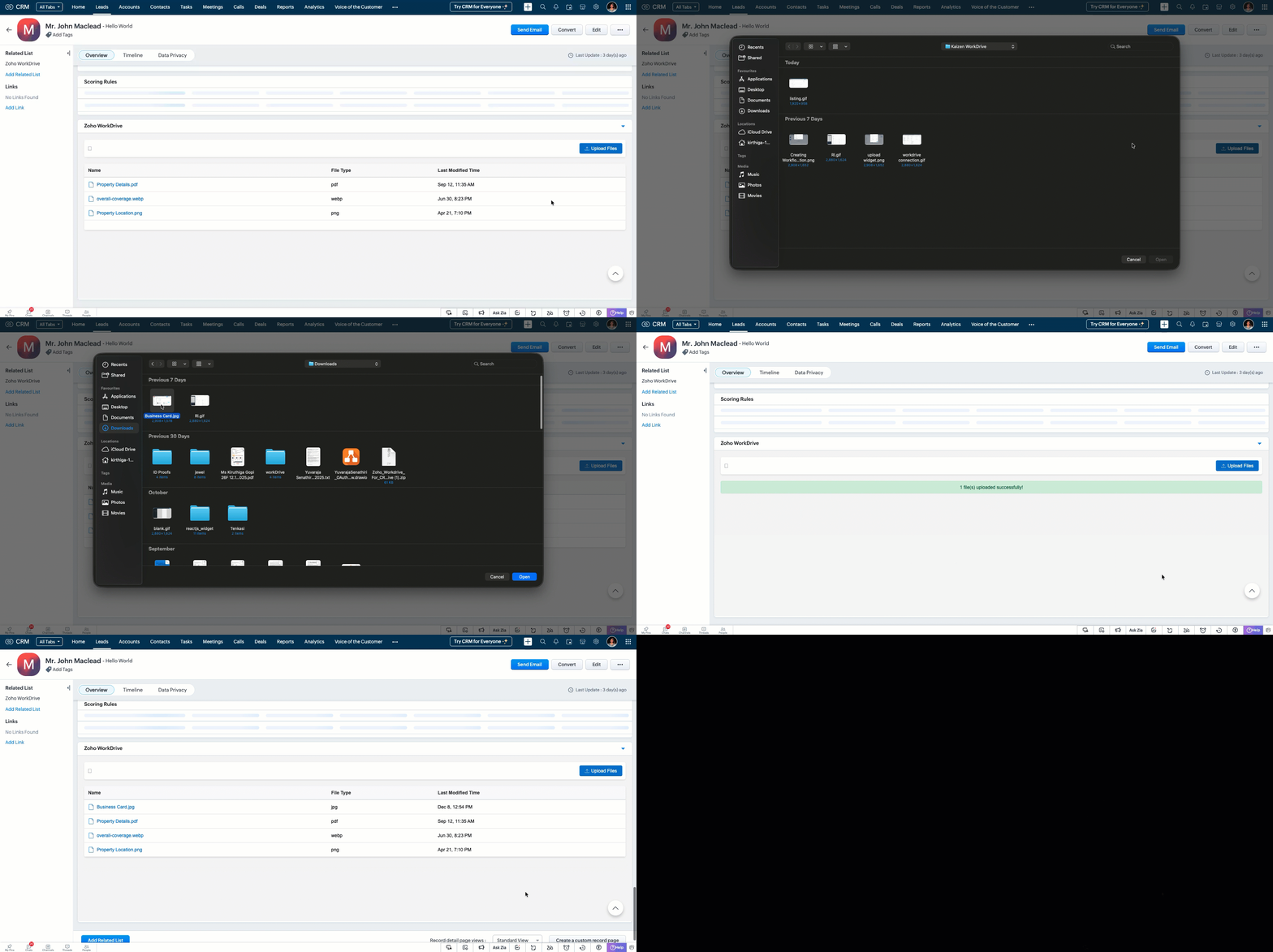
- Create an Upload button for users to select files from their local. Convert the streamed files to blob and execute Upload API call using the custom ZRC instance.
async function workdriveUpload(file, fileType, fileName, folderId) { const fileBlob = new Blob([file], { type: fileType }); try { const formData = new FormData(); formData.append("filename", fileName); formData.append("parent_id", String(folderId).trim()); formData.append("content", fileBlob); const uploadResponse = await workDriveZrc.post( "/upload", formData, { headers: { "Content-Type": "multipart/form-data", }, } ); console.log("Upload response:", uploadResponse.data); return uploadResponse; } catch (error) { console.error("Error uploading file:", error); throw error; } } |
Step 3: Validate and Pack
Follow the steps given in the Widget help page to validate and package the widget.
Step 4: Upload to Zoho CRM
- Go to Zoho CRM > Setup > Developer Hub > Widgets and click Create New Widget.
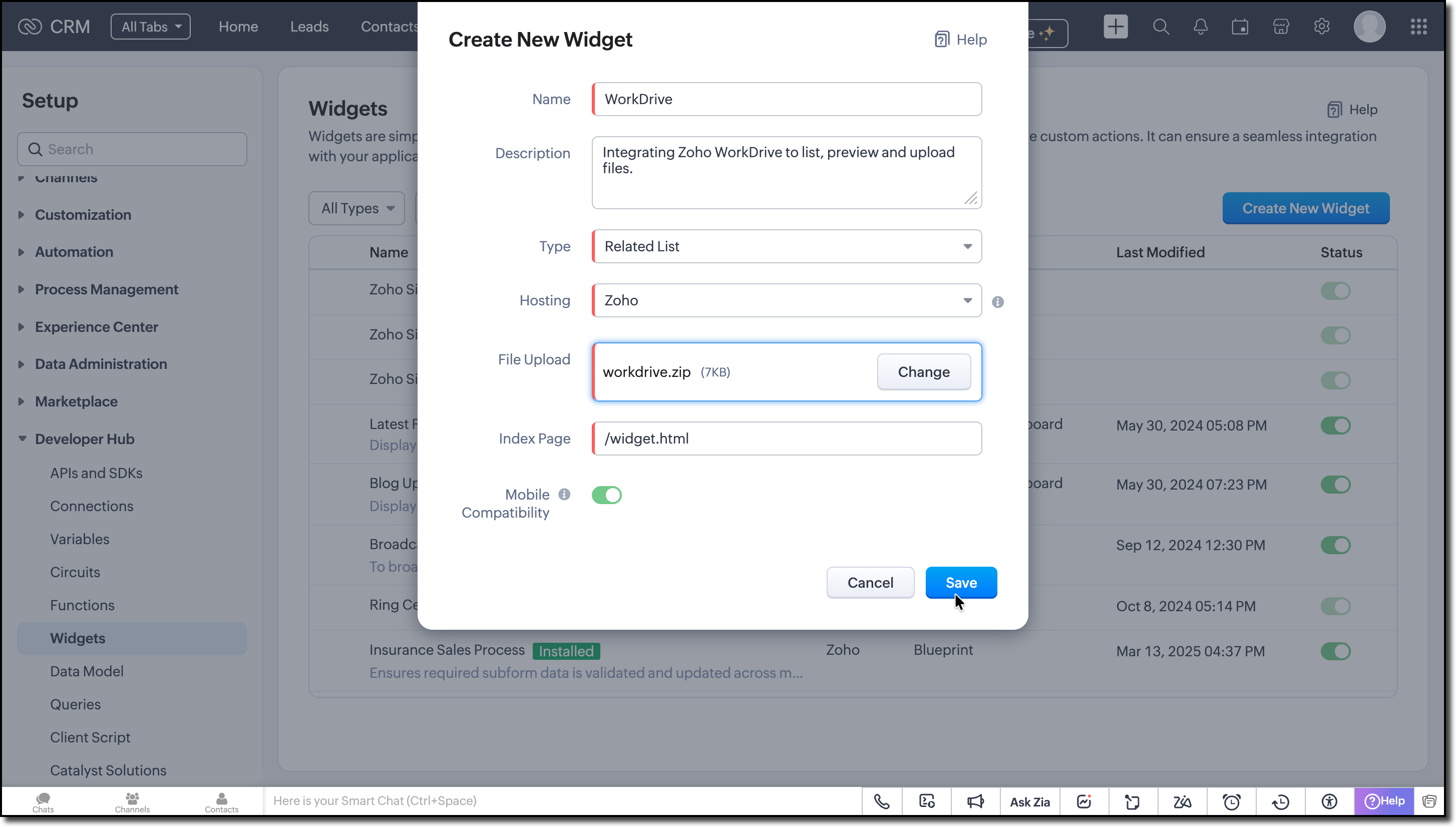
- Fill in the required details such as:
Name: Zoho WorkDrive
Type: Related List
Hosting: Zoho
File Upload: Upload the ZIP created in the dist folder within the widget project directory after packaging in the Step 3.
Index page: /widget.html
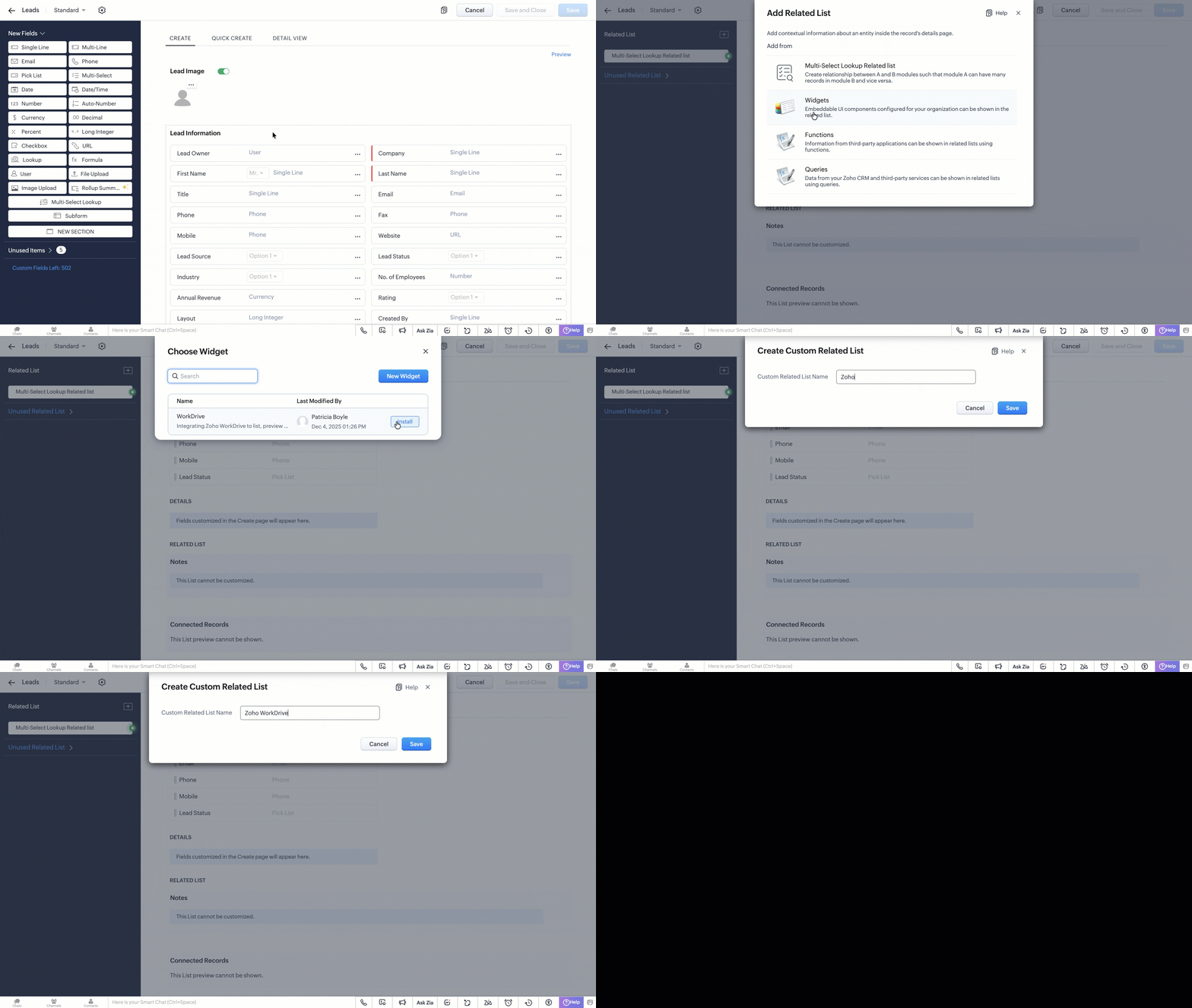
- Create a related list in the Leads module and associate this widget. Refer to the Customize Related Lists help page for more information on creating a related list.
Try it Out!
A complete working code sample of this widget is attached at the bottom of this post for reference.
Now let us see how this works from the Lead's detail page:
1. Listing the available files from Zoho WorkDrive on page load.
2. Uploading new files to the folder.
3. Previewing all the listed files.
We hope this Kaizen helps you explore the new ZRC capabilities and build seamless file-management experiences in Zoho CRM.
Have questions or suggestions? Drop them in the comments or write to us at support@zohocrm.com.
We will circle back to you next Friday with another interesting topic.
On to Better Building!
------------------------------------------------------------------------------------------------------
Related Reading
1. Widgets - An Overview, CLI Installation, Working with Widgets, ZRC Methods, Mobile Compatibility of Widgets and Kaizens
2. Connections - An Overview
6. CRM Customizations - Related Lists and Custom Fields.
------------------------------------------------------------------------------------------------------

Previous Kaizen: Client Script Support for Notes Related List | Kaizen Collection: Home
Topic Participants
Kiruthiga G
Sticky Posts
Kaizen #222 - Client Script Support for Notes Related List
Hello everyone! Welcome to another week of Kaizen. The final Kaizen post of the year 2025 is here! With the new Client Script support for the Notes Related List, you can validate, enrich, and manage notes across modules. In this post, we’ll explore howKaizen #217 - Actions APIs : Tasks
Welcome to another week of Kaizen! In last week's post we discussed Email Notifications APIs which act as the link between your Workflow automations and you. We have discussed how Zylker Cloud Services uses Email Notifications API in their custom dashboard.Kaizen #216 - Actions APIs : Email Notifications
Welcome to another week of Kaizen! For the last three weeks, we have been discussing Zylker's workflows. We successfully updated a dormant workflow, built a new one from the ground up and more. But our work is not finished—these automated processes areKaizen #152 - Client Script Support for the new Canvas Record Forms
Hello everyone! Have you ever wanted to trigger actions on click of a canvas button, icon, or text mandatory forms in Create/Edit and Clone Pages? Have you ever wanted to control how elements behave on the new Canvas Record Forms? This can be achievedKaizen #142: How to Navigate to Another Page in Zoho CRM using Client Script
Hello everyone! Welcome back to another exciting Kaizen post. In this post, let us see how you can you navigate to different Pages using Client Script. In this Kaizen post, Need to Navigate to different Pages Client Script ZDKs related to navigation A.
Recent Topics
The reason I switched away from Zoho Notebook
My main reason for switching to Zoho was driven by three core principles: moving away from US-based products, keeping my data within India as much as possible, and supporting Indian companies. With that intent, I’ve been actively de-Googling my digitalDecimal places settings for exchange rates
Hello, We are facing issues while matching vendor payments with banking feeds. As we often import products/services exchange rate comes into play. Currently, ZOHO allows only six digits for decimal places. We feel that conversions like JPY to INR requireZoho removed ability to see all Scheduled Reports!
If you are not the owner of a scheduled report, Zoho recently removed the capability to see each scheduled report. As an admin who relies on seeing all scheduled reports being sent, this is a terrible update. Now I cannot see ANY scheduled reports...even the ones I am being sent!! This should be a setting for admins to control. This is a bad update.Automate Backups
This is a feature request. Consider adding an auto backup feature. Where when you turn it on, it will auto backup on the 15-day schedule. For additional consideration, allow for the export of module data via API calls. Thank you for your consideration.GCLID and Zoho Bookings
Is there anyway to embed a Zoho Bookings signup on a landing page and pass the GCLID information? More specifically, can this be done using auto-tagging and not manual tagging the GCLID? I know Zappier has an integration to do this but is there a betterMerge Items
Is there a work around for merging items? We currently have three names for one item, all have had a transaction associated so there is no deleting (just deactivating, which doesn't really help. It still appears so people are continuing to use it). I also can't assign inventory tracking to items used in past transactions, which I don't understand, this is an important feature moving forward.. It would be nice to merge into one item and be able to track inventory. Let me know if this is possible.Create PO from an invoice
We are a hardware and software sales company which receives orders over the internet. We drop ship most of our products from a warehouse outside of our company. Our orders get sync'd into Zoho from our store via onesaas as invoices. It would be greatBlueprint or Validation Rules for Invoices in Zoho Books
Can I implement Blueprint or Validation Rules for Invoices in Zoho Books? Example, use case could be, Agent confirms from client that payment is done, but bank only syncs transactions tomorrow. in this case, Agent can update invoice status to done, andResetting auto-number on new year
Hi everyone! We have an auto-number with prefix "D{YYYY}-", it generates numbers like D2025-1, D2025-2, etc... How can we have it auto-reset at the beginning of the next year, so that it goes to D2026-1? Thanks!Delivery and handling of documents e-stamped using Zoho Sign
Hello everyone! Zoho Sign makes it easy to pay non judicial stamp duty online and automatically attach the digitally generated e-stamp challan to electronic documents. We also manage the delivery of physical e-stamped papers. We periodically receive theseThe Social Wall: December 2025
Hello everyone! As we wrap up the final edition of the Social Wall for 2025, it’s the perfect time to look at what went live during December. QR code generator From paying for coffee to scanning metro tickets, QR codes are everywhere and have made everydayCustom AI solutions with QuickML for Zoho CRM
Hello everyone, Earlier, we introduced Custom AI Solutions in CRM that let you access QuickML for your custom AI needs. Building on that foundation, we’ve now enabled a deeper integration: QuickML models can be seamlessly integrated into CRM, and surfaceHelper Functions and DRY principle
Hello everyone, I believe Deluge should be able to use 'Helper functions' inside the main function. I know I can create different standalones, but this is not helpful and confusing. I don't want 10000 different standalones, and I dont want to have toAdd specific field value to URL
Hi Everyone. I have the following code which is set to run from a subform when the user selects a value from a lookup field "Plant_Key" the URL opens a report but i want the report to be filtered on the matching field/value. so in the report there isIntroducing workflow automation for the Products module
Greetings, I hope all of you are doing well. We're happy to announce a few recent enhancements we've made to Bigin's Products module. The Products module in Bigin now supports Workflows, enabling you to automate routine actions. Along with this update,Power up your Kiosk Studio with Real-Time Data Capture, Client Scripts & More!
Hello Everyone, We’re thrilled to announce a powerful set of enhancements to Kiosk Studio in Zoho CRM. These new updates give you more flexibility, faster record handling, and real-time data capture, making your Kiosk flows smarter and more efficientZia Formula Expression Generator for Formula fields
Hello everyone! Formula fields are super useful when you want your CRM to calculate things for you but writing the expression is where most people slow down. You know what you want, but you’re not fully sure which function to use, how the syntax shouldWhere is the settings option in zoho writer?
hi, my zoho writer on windows has menu fonts too large. where do i find the settings to change this option? my screen resolution is correct and other apps/softwares in windows have no issues. regardsCRM project association via deluge
I have created a workflow in my Zoho CRM for closing a deal. Part of this workflow leverages a deluge script to create a project for our delivery team. Creating the project works great however, after or during the project creation, I would like to associateIssue with Zoho Creator Form Full-Screen View in CRM Related List Integration
Hi Team, We have created a custom application in Zoho Creator and integrated it into Zoho CRM as a related list under the Vendor module, which we have renamed as Consignors. Within the Creator application, there is a form named “Pickup Request.” InsideWrapping up 2025 on a high note: CRM Release Highlights of the year
Dear Customers, 2025 was an eventful year for us at Zoho CRM. We’ve had releases of all sizes and impact, and we are excited to look back, break it down, and rediscover them with you! Before we rewind—we’d like to take a minute and sincerely thank youDirectly Edit, Filter, and Sort Subforms on the Details Page
Hello everyone, As you know, subforms allow you to associate multiple line items with a single record, greatly enhancing your data organization. For example, a sales order subform neatly lists all products, their quantities, amounts, and other relevantCustomer Parent Account or Sub-Customer Account
Some of clients as they have 50 to 300 branches, they required separate account statement with outlet name and number; which means we have to open new account for each branch individually. However, the main issue is that, when they make a payment, theyDrop Down Value
Hi, May I know why Zoho Flow treat this drop down as number and not as string. If so, how can I fetch the right value for filtering. This field is from Creator, in Creator upon checking by default it is a string since it's not a lookup field.Projects custom colors replaced by default orange
Since yesterday, projects uploaded to Zoho, to which I had assigned a custom color, have lost the customization and reverted to the default color (orange). Has anyone else had the same problem? If so, how did you resolve it?How to manage task lists in Zoho Desk?
Hello, I use Zoho Desk for IT customer support. I have a list of standard operating procedures (SOPs), including SOPs for onboarding new users, offboarding users, losing a device, etc. These are lists of tasks to be performed depending on the situation.Restrict Users access to login into CRM?
I’m wanting my employees to be able to utilize the Zoho CRM Lookup field within Zoho Forms. For them to use lookup field in Zoho Forms it is my understanding that they need to be licensed for Forms and the CRM. However, I don’t want them to be able toIntroducing Connected Records to bring business context to every aspect of your work in Zoho CRM for Everyone
Hello Everyone, We are excited to unveil phase one of a powerful enhancement to CRM for Everyone - Connected Records, available only in CRM's Nextgen UI. With CRM for Everyone, businesses can onboard all customer-facing teams onto the CRM platform toUnknown table or alias 'A1'
I would like to create a subquery but i am getting the following error: Unknown table or alias 'A1' used in select query. This is the sql statement: SELECT A1.active_paying_customers, A1.active_trial_customers, A1.new_paying_signup, date(A1.date_active_customers),in the Zoho creator i have address field based the customer lookup im selecting the addresss , some times the customer address getting as null i want to show as blank
in the Zoho creator i have address field based the customer lookup im selecting the addresss , some times the customer address getting as null ,i want to show as blank instead of showing null. input.Billing_Address.address_line_1 = ifNUll(input.Customers_Name.Address.address_line_1,"");Question about upgrade and storage space Zoho Notebook
After upgarding my Zoho Notebook plan, I am running into the following issue. I just upgraded from a free Zoho Notebook subscription to Pro Lite after I got a notification in my Window Zoho Notebook desktop app saying that I had run out of space. However,how to add email to existing organization i w
I am already registered my organization and i have an email id. I need one more email id but i can't find anywhere .i want the cheapest email id . how to add ?add zoho account
How to add a zoho mail to previous zoho account? I have twoName changed in settings for mailbox but still not changed when typed in To field
In the email account secretary@ i have updaetd the new staff members details but the old members name still appears when I type secretary@ in the To field. I cant work out where Zoho is finding the old name from. I have deleted the browser cache. If IPrinting to a brother label maker
I see allot of really old unanswered posts asking how to print to a label maker from a zoho creator app. Has their been any progress on providing the capability to create a customized height & width page or print template or whatever to print labels?Sync desktop folders instantly with WorkDrive TrueSync (Beta)
Keeping your important files backed up and accessible has never been easier! With WorkDrive desktop app (TrueSync), you can now automatically sync specific desktop folders to WorkDrive Web, ensuring seamless, real-time updates across devices. Important:Track online, in-office, and client location meetings separately with the new meeting venue option
Hello everyone! We’re excited to announce meeting enhancements in Zoho CRM that bring more clarity and structure to how meetings are categorized. You can now specify the meeting venue to clearly indicate whether a meeting is being held online, at theCalling the new 'Custom API' feature from within a Custom Widget
From what I've learned it is not possible to call an endpoint from the new "Custom API" feature within a Creator Widget. The SDK's doesn't support it yet, when calling it natively you end up with CORS issues or at least I couldn't get it working evenAnnouncing new features in Trident for Mac (1.32.0)
Hello everyone! We’re excited to introduce the latest updates to Trident, which are designed to reinforce email security and protect your inbox from evolving threats. Let’s take a quick look at what’s new. Deliver quarantined emails. Organization adminsMarketing Tip #5: Improve store speed with optimized images
Slow-loading websites can turn visitors away. One of the biggest culprits? Large, uncompressed images. By optimizing your images, your store loads faster and creates a smoother shopping experience leading to higher sales. It also indirectly improves SEO.Next Page