Announcing new features in Trident for Mac (1.32.0)
Hello everyone!
We’re excited to introduce the latest updates to Trident, which are designed to reinforce email security and protect your inbox from evolving threats.
Let’s take a quick look at what’s new.
Deliver quarantined emails.
Organization admins can now review and act on quarantined emails directly within Trident. From the quarantined email notification, admins can choose to deliver the email to the intended recipient after reviewing it.

Block and reject future emails.
When you receive emails with malicious content, you can choose to block and reject emails from that sender. This will move the current email to the Spam folder and bounce all future emails from the sender back to them.

Know when emails track you.
Tracking or spy pixels can pick up on your private data, such as when and where you read the email, IP address, and more, to report it back to the sender. Trident can now automatically detect emails containing spy pixels and display a warning.

Stay alert during email exchanges.
A warning message is now displayed in the following cases to protect users against malicious content and phishing attempts.
- Sending and receiving emails from people outside an organization.
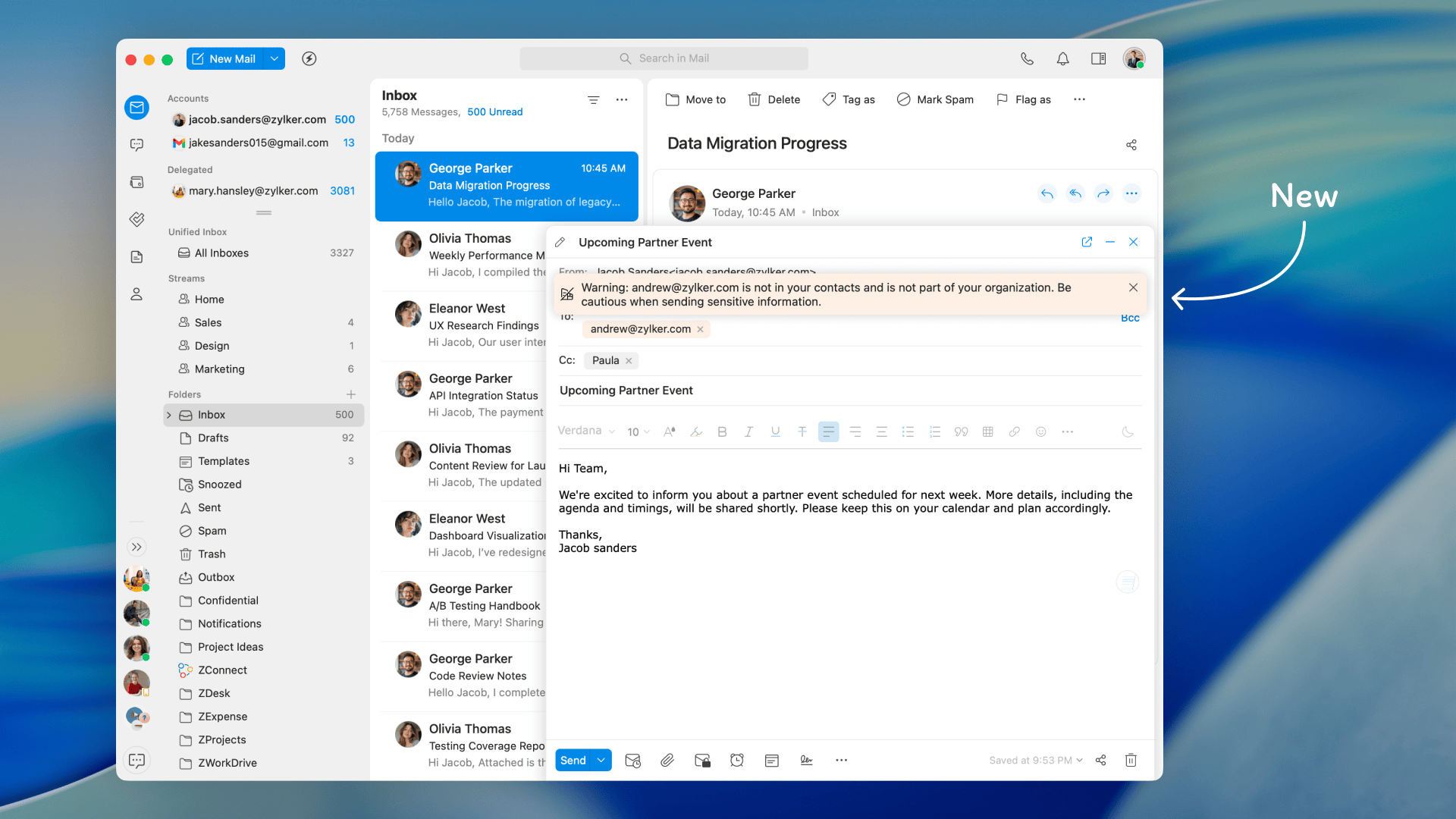
- Receiving emails from unverified domains or senders.
- Receiving emails from a new email address for the first time.
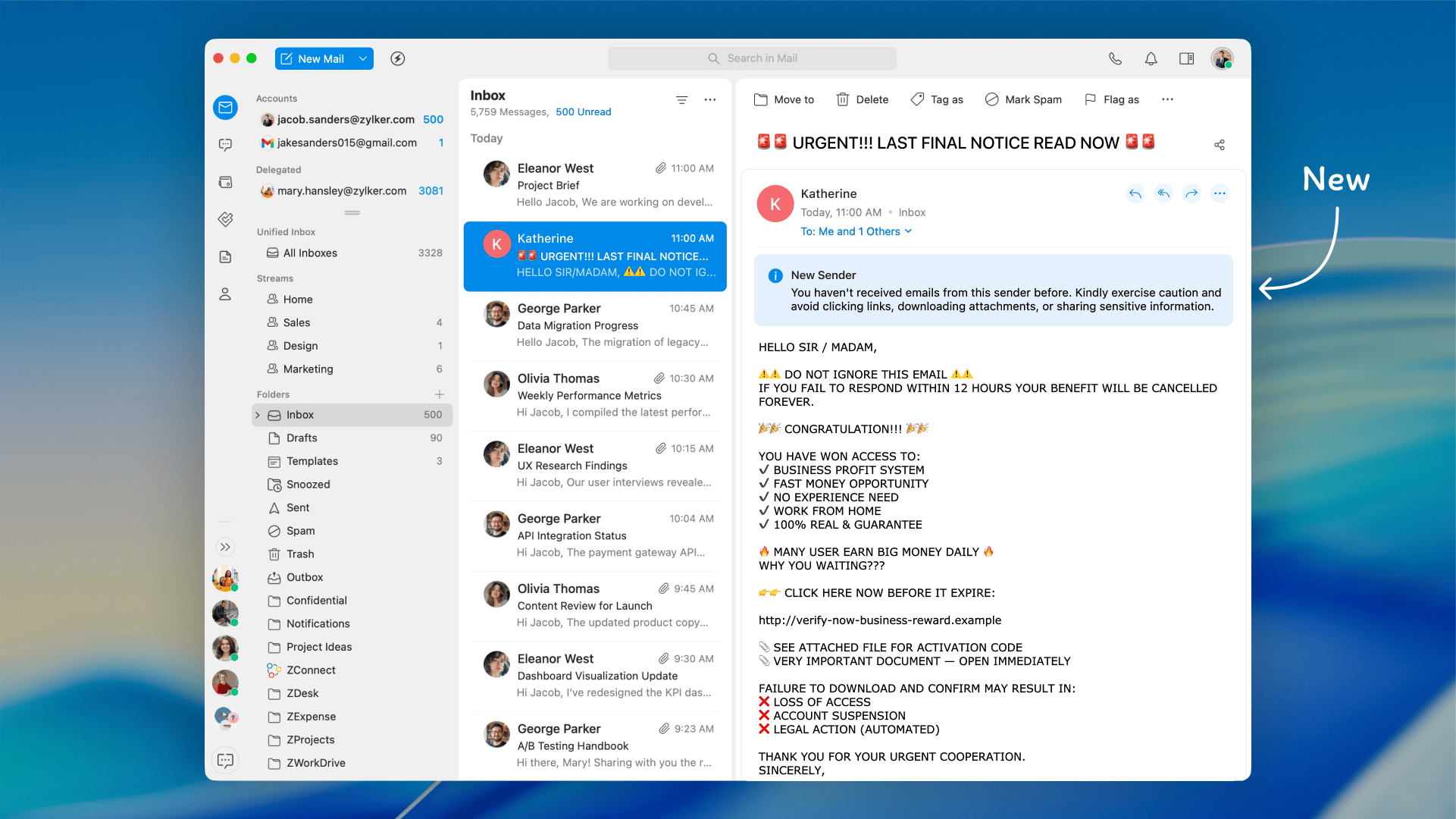
- Receiving emails with suspicious URLs.
To leverage these new features in Trident, update the app to the latest version by following the steps below:
1. Open Trident.
2. In the system menu bar, click Trident.
3. Select Check for Updates from the menu list.

Don't have the app yet? Download it from the website and experience a smarter way to work.
Give these features a spin, and let us know your feedback and suggestions in the comments section below. You can also reach us at trident@zohosupport.com.
To submit your feedback directly through the app, follow the steps below:
1. Open Trident.
2. From the system menu bar, click Help.
3. Select Send Feedback.
4. In the feedback window, enter the necessary details under Subject and Feedback Content.
5. When you're ready, click Submit.

We look forward to hearing from you!
Until next time,
Sneha