Zoho DataPrep
Advanced Analytics for Zoho DataPrep enables you to easily sync the data that you have (cleansed, transformed, and enriched in Zoho DataPrep, with Zoho Analytics. You can then use Zoho Analytics, a self-service BI and analytics software, to easily analyze your data and get valuable insights.
General
1. What is Zoho Analytics?
Zoho Analytics is a self-service BI and data analytics software that lets you analyze your data, create stunning data visualizations, and discover hidden insights in minutes.
Zoho Analytics offers the following important capabilities:
- Complete Online Business Intelligence and analytics service, accessible anytime, anywhere!
- Easy to adopt 'spreadsheet-like' interface with powerful drag & drop based reporting features for quick report creation.
- Visual Analysis capability for in-depth analysis and to slice & dice your data.
- Wide range of reporting capabilities like Dashboards, Charts, Pivot Views, Summary Views, Tabular reports, and KPI widgets.
- Data import from various sources such as data stored in local drive (CSV, Excel, JSON, HTML, XML, JSON, Statistical & MS Access files), Web feeds and cloud storage. Also supports data import from local/hosted Databases and cloud databases. Supports periodic scheduling of importing data.
- Integrated with a suite of 15+ Zoho products such as Zoho CRM, Zoho Desk, Zoho Projects, Zoho People, Zoho Books, Zoho Subscriptions, Zoho Inventory, Zoho Campaigns, etc.,
- Integrated with 45+ popular business applications like Google Ads, Facebook Ads, Bing Ads, Salesforce, MailChimp, Zendesk etc.,
- Integrated with Zapier and Zoho Flow to power up import from over 500+ apps.
- Integrates with custom applications using APIs.
- Blend/merge data from across different sources to create meaningful business reports and get end-to-end cross-functional analytics.
- An advanced formula engine for deriving key business metrics from your data.
- SQL (Structured Query Language) driven querying for powerful data preparation and report creation.
- Data alerts to track vital changes in your key business metrics
- Collaborative reporting and analytics with fine-grained permission control over your shared data and reports with your colleagues & friends.
- Efficiently collaborate with your users by setting up real-time commenting on a shared view.
- Publish reports for wider consumption. Embed reports/dashboards within your websites, web applications, and blogs.
- Email, Export, and Print reports in a variety of formats.
- Highly secure as all users login only over HTTPS (SSL connection). All your data and reports are hosted in secure data centers. (Refer to Security and Privacy)
- Supports Logo Rebranding.
- Get the mobile apps (optimized for both IOS and Android platform) and access the reports and dashboards on the go.
2. Why Zoho DataPrep Advanced Analytics connector?
Zoho DataPrep Advanced Analytics enables you to import/synchronize your data in Zoho DataPrep into Zoho Analytics for advanced reporting and analysis.
Advanced Analytics for Zoho DataPrep brings in all the capabilities of Zoho Analytics described in the above question.
- A full-featured business intelligence (BI) and reporting tool that can slice & dice the Zoho SalesIQ data to create any reports/dashboards you require.
- Create your own reports and dashboards based on not only your Zoho SalesIQ data but also by blending data from other data sources.
- Share reports and dashboards with your colleagues.
- Set up Alerts to get notifications on key business metrics.
- Schedule and email your reports whenever you want.
- Export your reports as PDF, HTML, Excel, CSV and image files.
- Embed your reports on websites, blogs, etc.
3. Who can use the Zoho DataPrep connector?
Users with paid accounts of both Zoho Analytics (any paid plan) and Zoho DataPrep (at least the Professional plan) or Zoho One users can avail this connector.
Users with Administrator roles in Zoho DataPrep can configure this connector.
Pricing & Trial
1. How much does this connector cost?
Zoho DataPrep connector for Analytics is bundled free for all the paid users of Zoho Analytics. The Zoho Analytics paid plans start at ₹1,200 per month (monthly plan subscription). Click to learn more about Zoho Analytics pricing.
2. Do you provide trial evaluation for this connector?
Yes, we do provide a 15-day free trial for this connector from the date of set up.
3. What do you mean by 'Users' in the (connector) pricing plan?
Anyone to whom you privately share your Workspace, tables (data), reports and dashboards, created in Zoho Analytics, for collaboration is considered a 'User' in Zoho Analytics. A user is identified by his/her unique email address, with which their Zoho Analytics account was registered.
Suppose you subscribe to the Zoho Analytics Standard plan, you can privately share the data/reports in your account and collaborate with 4 other persons. Now your Zoho Analytics account is said to have 5 users (including yourself).
4. What do you mean by 'Rows'/'Records' and how is it calculated in the pricing plan?
In Zoho Analytics, a row or record is defined in the same context as in a database (or spreadsheet). In simple terms, a table consists of rows (records) and columns (fields). Each row in a table represents a set of related data and has the same structure.
In a table, each row would represent a single record. The number of rows calculated for pricing is the sum of all rows/records stored across all your Workspace tables in your Zoho Analytics account.
Setup
1. How do I setup the Zoho DataPrep Advanced Analytics connector?
2. How long should I wait for my Zoho DataPrep data to initially appear in Zoho Analytics?
Initial data import will take from a few minutes to a couple of hours depending on the volume of data in your Zoho DataPrep account. You will receive an email notification once the import is complete. If you access the Workspace before the initial fetch is complete, it will not display any data (empty tables i.e., tables with zero rows).
3. How will the data from my Zoho DataPrep be stored in Zoho Analytics?
Datasets from Zoho DataPrep application will be stored in entities called 'Tables' in Zoho Analytics. You can create insightful reports and dashboards over the data stored in this table. Refer to this presentation to learn about creating reports and dashboards.
4. I got this email which said 'Setup Process Failed'/'Synchronization Process Failed'. What should I do?
The import/sync process of your Zoho DataPrep data rarely fails. Hence, you would have received the email for this reason. The Zoho Analytics team will look into it immediately and get back to you, after taking the required corrective action.
Case 1: You will receive the Setup Process Failed mail when there is a failure during the initial fetch. In this case, we request you to:
- Open the corresponding Zoho DataPrep Advanced Analytics Workspace in Zoho Analytics.
- Click the Data Sources tab on the left panel. In case of multiple data sources, open the corresponding Zoho DataPrep data source.
- In the Data Sources page that opens, click the Sync Now link.
- If the issue persists please do write to support@zohoanalytics.com. We will look into it and get back to you immediately.
Case 2: You will receive the Synchronization Failed mail if there is any failure during the data synchronization process between Zoho DataPrep and Zoho Analytics, after the initial setup & import of data. This might be a momentary failure due to some internal issues. This import schedule will be suspended after five successive failures.
5. How frequently can I synchronize my data with Zoho Analytics?
Zoho Analytics offers flexible sync schedules to ensure that your data is always up-to-date for effective analysis. These schedules allow you to automate the process of updating your data, ensuring that your analyses are based on the latest information.
- 1 Hour (Enterprise plan only)
- 3 Hours (Standard plan and above)
- 6 Hours (Standard plan and above)
- 12 Hours (Standard plan and above)
- Every day (Basic plan and above)
6. Can I edit the Zoho DataPrep Advanced Analytics connector Synchronization setting?
Yes, you can edit the Zoho DataPrep connector synchronization setting if you are the administrator of the Zoho DataPrep Advanced Analytics. To do so,
- Open the corresponding Zoho DataPrep Advanced Analytics Workspace in Zoho Analytics.
- Click the Data Sources tab on the left panel. In case of multiple data sources, open the corresponding Zoho DataPrep data source.
- In the Data Sources page that opens, click the Edit Setup link.

- The Edit Setup - Zoho DataPrep dialog will open. Modify the sync settings as needed.
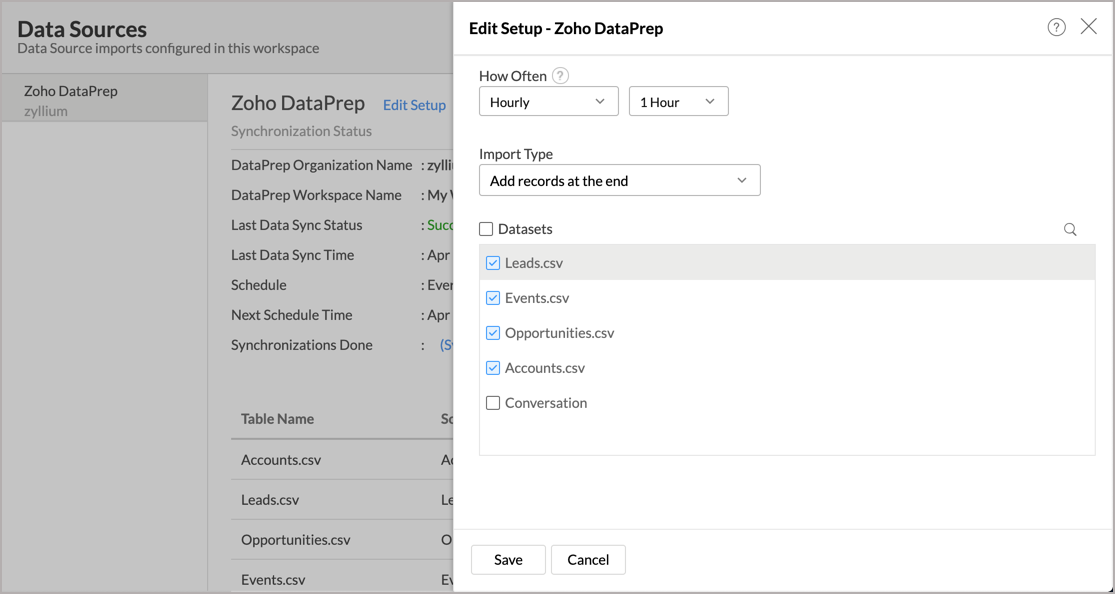
- Click Save. The synchronization setting will be modified and data will be synced in the next synchronization interval.
7. Can I synchronize my Zoho DataPrep data instantly?
Yes, you can synchronize your Zoho DataPrep data instantly when needed.
To synchronize your data instantly:
- Open the corresponding Zoho DataPrep Advanced Analytics Workspace in Zoho Analytics.
- Click the Data Sources tab on the left panel. In case of multiple data sources, open the corresponding Zoho DataPrep data source.
- Click the Sync Now link inline to the Synchronizations Done field. Zoho DataPrep data will get instantly synchronized.
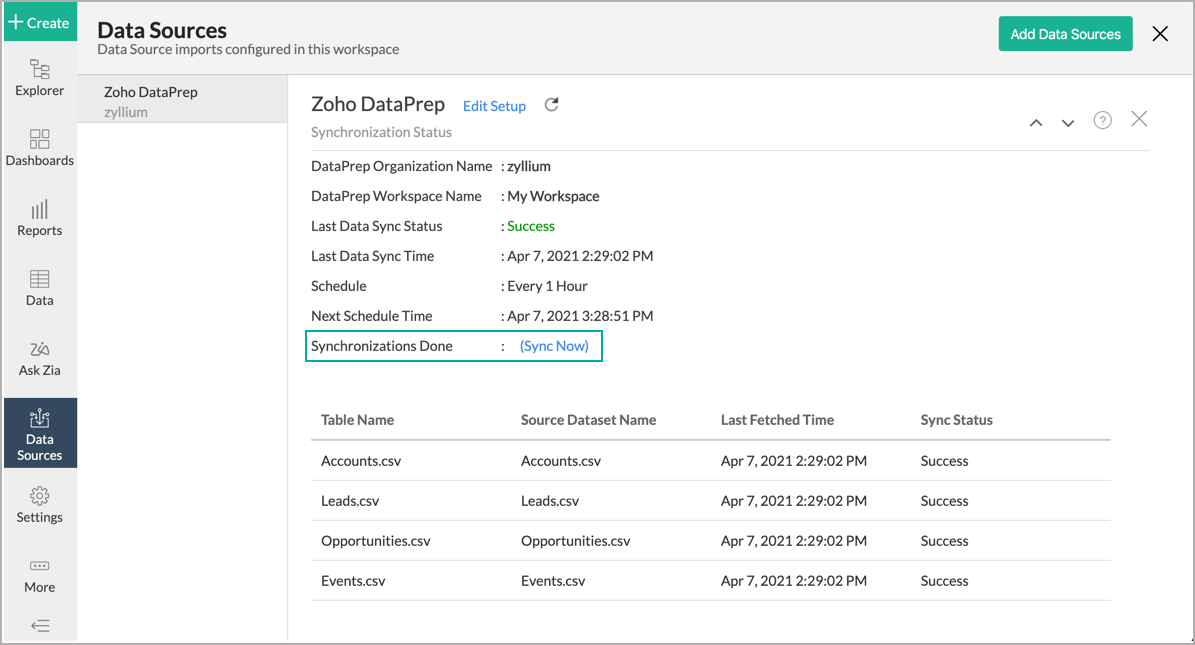
 Note: This option can be used up to five times between the schedules.
8. Can I setup the Zoho DataPrep Advanced Analytics in any other existing Workspace or in any other Advanced Analytics Workspace?
Yes, you can setup the Zoho DataPrep Advanced Analytics in any of the existing Workspace or in any of the Advanced Analytics Workspace to analyze data together. You can do this by creating a new table by importing data.
Refer to the Cross-Functional Analytics section for more details on this.
9. Can I add/modify data in the Zoho DataPrep Analytics data tables within Zoho Analytics?
No, you cannot add/modify data in the Zoho DataPrep data tables. Data from Zoho DataPrep application will automatically get synced into Zoho Analytics in the different tables. You cannot edit any of this data or add new data records from within Zoho Analytics.
However, you can add new tables and add/import data into that, to create reports combining it with the data from Zoho DataPrep.
10. Can I add new columns to the Zoho DataPrep data tables within Zoho Analytics?
No, you cannot add new columns. But, you can add Custom and Aggregate Formulas (i.e., calculated fields) to these tables to help you create powerful reports. Refer to Adding Formulas to know more about this.
11. Can I add new data tables in this Workspace to create reports & dashboards?
Yes, you can add new data tables. Click New > New Table to add a new table in the existing Zoho DataPrep Advanced Analytics Workspace.
With this feature, you can import data from other sources or add them manually into your Workspace to analyze and create reports combining this with your Zoho DataPrep data.
Refer:
- Import data from Files
- Import data from Web Feeds
- Import data from Cloud Storage
- Import data from Local databases
- Import data from Cloud databases
- Import data from popular Business Applications
- Import data using Zoho Analytics API
12. Can I transfer my Zoho Analytics connector to another admin account?
Yes, the Zoho DataPrep connector in your account, can be transferred to another Administrator in the Organization.
An Account Administrator can transfer the connector by transferring the account to an Organization Administrator. An Organization Administrator can transfer the connector setup to another Administrator by unsubscribing from the Organization.
13. How can I remove the Integration?
You can remove the connector from the Data Source page.
- Open the corresponding Zoho DataPrep Advanced Analytics Workspace in Zoho Analytics.
- Click the Data Sources tab on the left panel. In case of multiple data sources, open the corresponding Zoho DataPrep data source.
- Hover the mouse over the Data Source name in the left corner. A Settings icon will appear.
- Click the Settings icon.
- Select Remove Data Source.

The data synchronization from Zoho DataPrep into this Workspace will be removed. However, you will still be able to access this Workspace with existing data.
Reporting Features
1. How do I create my own reports with this connector?
Zoho Analytics offers a wide variety of reporting options such as Charts, Pivot tables, Summary views and Tabular views. This enables you to easily analyze your Zoho DataPrep data and derive great insights. The intuitive drag and drop based designer of Zoho Analytics allows you to easily construct the required reports.
Please refer to our Creating Reports help section to learn more.
2. Can I create reports using the columns from different tables?
Yes, you can create reports using the columns from different tables. The columns from different tables from Zoho DataPrep need to be linked using the look-up column feature. You can create reports by simply dragging and dropping the required columns into the reports designer.
3. What are the report types supported by Zoho Analytics?
Zoho Analytics supports a wide variety of reports.
- Charts
- Pie
- Bubble
- Packed Bubble
- Bar
- Stacked bar
- Line
- Smooth Line
- Scatter
- Combination
- Map Chart
- Area
- Stacked Area
- Web
- Funnel
- Doughnut
- Table View
- Pivot tables (Matrix Views)
- Summary view
- Tabular view
- KPI Widgets
- Single Numeric Widget
- Dial Chart Widget
- Bullet Chart Widget
- Dashboards (multiple reports arranged in the same page)
4. What are Formulas in Zoho Analytics?
Formulas, as the name indicates, are calculations that help you derive key business metrics that can be used for reporting and analysis. Zoho Analytics provides a powerful formula engine to create any type of calculations required, to enable creating the required reports.
Refer to Adding Formulas in Zoho Analytics to know more.
5. Can I create my own custom formulas in Zoho Analytics? If yes, how do I create?
Yes, you can create your own custom formulas in Zoho Analytics. To know how to create your own formulas, refer to the Adding Formulas in Zoho Analytics help page.
6. Can I combine/blend data from other sources with the data from Zoho DataPrep to create reports and dashboards?
Yes, you can combine data from your other sources with your Zoho DataPrep data for analysis.
To do this, you need to add/import a new data table into the Zoho DataPrep Advanced Analytics Workspace as explained in the previous question and then define a look-up to join it with the table from Zoho DataPrep.
To define a lookup relationship between two tables, it is essential that the tables have at least one column which is common between them. Follow the below steps to look up a column from Zoho DataPrep along with the data from any other source.
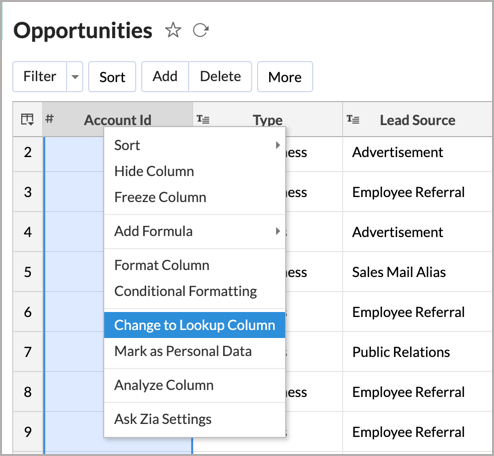
- Open the corresponding table, right-click the column header and select Change to Lookup Column.
- In the Change to Lookup Column dialog that opens, select the column to look up.
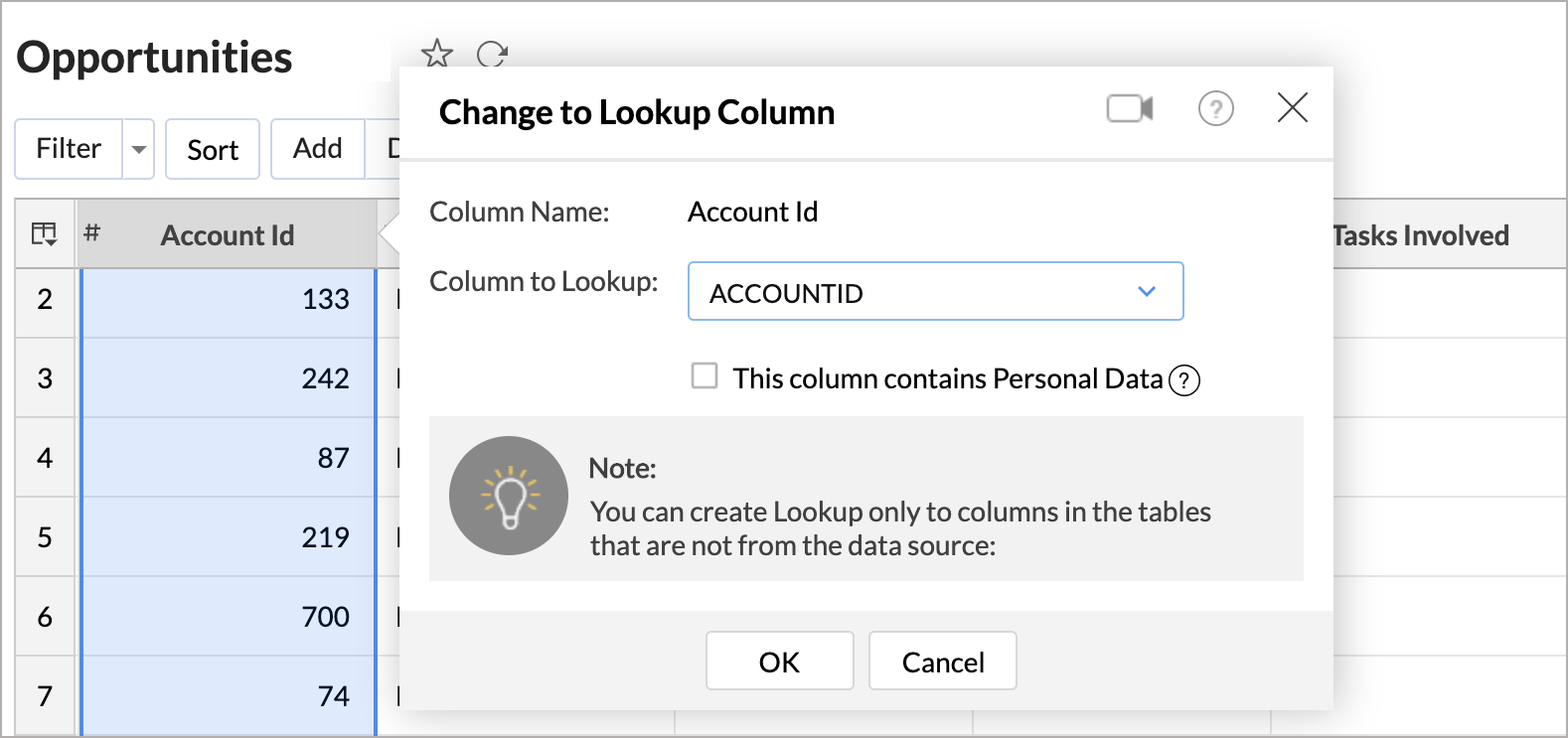
- Click OK.
7. Can I join data from multiple tables to create reports?
Yes, you can join data from multiple tables to create the reports. Refer to Joining Tables in Zoho Analytics for detailed help on this.
8. What are Query Tables?
Zoho Analytics allows you to drive the data required by writing standard SQL SELECT Queries. This feature is called Query Tables.
With Query Tables, you can also combine data from different tables and create reports from the same. Click here to know how to create Query Tables in Zoho Analytics.
Cross-Functional Analytics with Popular Business Applications/Other Data Sources
1. What are the popular business applications/other data sources that I can integrate this connector with?
You can integrate and perform cross-functional analytics with most business applications/other data sources that Zoho Analytics integrates with.
If the data source that you desire to connect is not directly supported by Zoho Analytics, you can connect using the integration tool Zapier/Zoho Flow.
2. How can I analyze the data from the third-party business applications/other data sources along with Zoho DataPrep?
To import data from business apps,
- Open the Workspace in which you have setup the connector.
- Click the Import Data button.
- In the Create New Table tab that opens, select the application or data source that you wish to import.
- Provide the necessary authentication.
- Select the necessary modules and fields.
- Select the schedule import option.
- Click Create. Data from the selected application will be imported into a new table in the Zoho DataPrep Advanced Analytics workspace.
3. Will a lookup relationship between the related modules from Zoho DataPrep and other third-party applications be created automatically?
No, a lookup relationship will not be created between the Zoho DataPrep columns and the modules of the application that you are trying to import automatically.
To manually create a lookup relationship refer this help link - https://help.zoho.com/portal/en/kb/analytics/users-guide/data-modelling-and-preparation/joining-tables/articles/joining-tables
Users, Sharing & Collaboration
1. How do I share the reports in Zoho Analytics with my colleagues?
You can easily share the reports that you create with the other users in your organization. Refer to Sharing and Collaboration help page for more details on this.
Once you privately share a report to your colleagues they will be able to access the reports as you do. Refer here to know how to access the reports.
2. What are the user roles available in Zoho Analytics?
Zoho Analytics offers four user roles - Account Administrator, Organization Administrator, Workspace Administrator, and User. Click to know more about the Zoho Analytics Organization Model and User Roles.
3. Why can't other users edit the reports that I have shared with them?
This is the expected behavior. Only when the users to whom the reports are being shared is set as a Workspace Administrator, they will be able to edit the reports. If a normal user wants to edit the report, he/she will have to save the report with a new name using the Save As option toolbar. The User can edit this report. To know more about user roles click here.
4. Can I share the same report created, to multiple users with different criteria associated so that they see different data?
Yes, you can. Refer to the topic Apply filter criteria.
5. Can I export a report/dashboard?
Yes, you can export the report/dashboard in various file formats such as CSV, EXCEL, PDF, HTML, and Image. Click to know more.
6. How can I print the reports & dashboards created in Zoho Analytics?
To print the report/dashboard, you first need to export it. You can export the report in various file formats such as CSV, EXCEL, PDF, HTML, and Image. Click to know more.
7. How can I email reports & dashboards created in Zoho Analytics in a scheduled manner?
If you are the Administrator of the Zoho Analytics or a 'Workspace Administrator', you can schedule reports and dashboards to be emailed automatically. Refer to the email schedule section.
8. Can I embed/create permalink for reports & dashboards created in Zoho Analytics?
Yes, you can embed/create permalink for reports & dashboards. You can also create a slideshow of views. Refer to the Publishing Option section to learn how to do this.
Solutions
1. Does Zoho Analytics offer Embedded Analytics or rebranding?
Yes, Zoho Analytics supports various rebranding options such as Portal rebranding/white labeling and Logo Rebranding.
Help & Support
1. How do I get technical support on Zoho Analytics?
We offer 24x5 technical support (Monday to Friday). In case if you need our assistance kindly do mail us your questions to support@zohoanalytics.com.
You can also reach out to us on our toll-free numbers.
- United States: +1 (888) 900 9646
- United Kingdom: +44 (20) 35647890
- Australia: +61-2-80662898
- India: +91-44-6965 6060
2. Can I have someone from Zoho do a demo for me?
Yes, certainly. Register for a demo in this page.