Event type availability
In a nutshell
You can set the availability of an event type by basing it on the working hours of the assigned users, or by assigning a schedule from the workspace that defines specific dates and times.
Feature availability
- Available for all plans.
- Super admin and admins can set availability for all event types
- Workspace admins can set availability for all event types under their assigned workspaces
- Managers and staff can only view the availability of event types under their assigned workspaces
1. Overview
Event type availability defines when an event can be booked by controlling the days, dates, and times. In Zoho Bookings, availability for an event type can be managed in two ways:
- Based on user working hours
- Based on a schedule assigned to the event type
When an event type follows user working hours, its availability is calculated using the working hours of the users assigned to it. Appointment slots are shown only when at least one assigned user is available and not already booked. This option is useful when user availability in an even type varies and you do not want the event type to follow a fixed schedule.
When a schedule is assigned, the event type follows the available times, time zone, and date overrides defined in that schedule. You can assign an existing schedule or create a new one directly while configuring availability. The newly created schedules can be reused across multiple event types, making it easy to maintain consistent availability and apply updates centrally.
User-specific hours
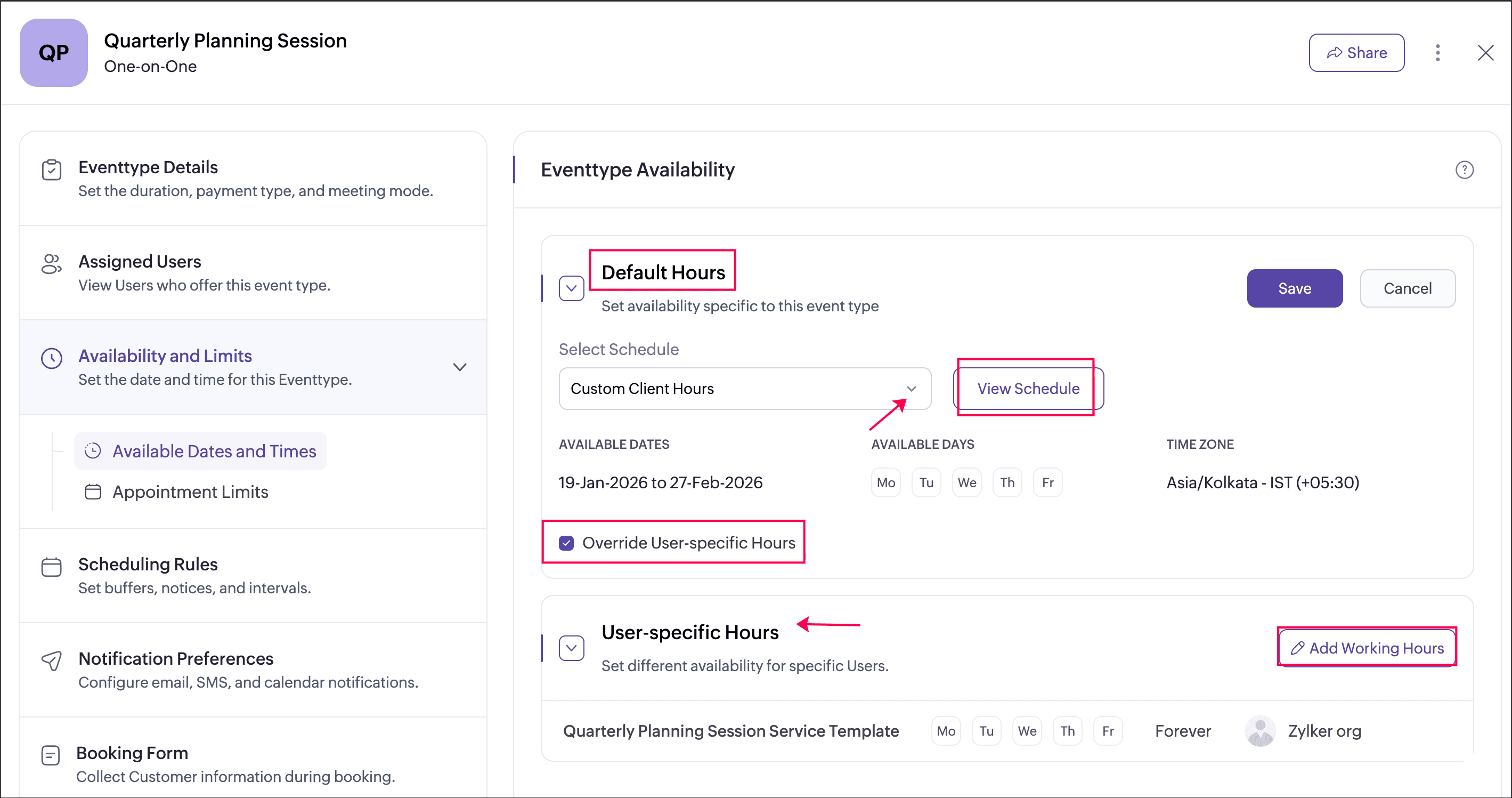
User-specific hours allow you to define a separate schedule for selected users within an event type. This helps when certain users need different availability from the default event type schedule. You can add multiple user-specific schedules for an event type, each applied to different users or groups of users. These schedules apply only to that event type and do not affect the users’ availability in other event types.
Example:
An event type follows a schedule from 9 AM to 6 PM, but certain users require different availability. For instance, User A may be available only from 10 AM to 2 PM, while User B may work from 3 PM to 7 PM. You can define user-specific hours for individual users or groups to reflect this. You can also add extra availability to allow selected users to take bookings beyond the event type’s schedule, or mark them unavailable for specific hours or dates. These changes apply only to this event type and do not affect availability elsewhere.
Override user-specific hours
In some cases, you may want all users to temporarily follow the event type’s default schedule. To do this, you can enable the Override user-specific hours option. When enabled, all users assigned to the event type follow the schedule set under Default Hours, and any user-specific hours are ignored. This option is useful when you want to temporarily disable user-specific availability and apply a single, consistent schedule for all users.
This flexible setup ensures that event types remain available only during intended periods while supporting real-world scenarios such as team-based availability, shared schedules, and user-level adjustments.
2. Use case
Scenario 1: Based on user working hours
A consulting firm offers one-on-one strategy calls where each consultant has different working hours. Consultant A is available from 10 AM to 4 PM, while Consultant B works from 1 PM to 7 PM. When a client books this event type, appointment slots are shown only during the availability of the assigned consultant and exclude all other times. This ensures that bookings are created only when the selected consultant is actually available, without requiring a separate schedule to be maintained for the event type.
Scenario 2: Assigning an existing schedule template
A sales team runs demo calls that are offered only during standard business hours Monday to Friday, 9 AM to 6 PM across multiple event types such as product demos, onboarding calls, and follow-up sessions. Instead of configuring availability for each event type separately, the admin creates a single “Sales Hours” schedule and assigns it to all related event types. Any update to the schedule, such as adding a holiday or changing working hours, is automatically reflected across all assigned event types, ensuring consistency and reducing manual effort.
Scenario 3: Creating a new schedule template
A fitness studio introduces a new weekend-only workshop that runs from October 1st to October 31st, every Saturday and Sunday from 6 AM to 9 AM. Since this availability is unique and not covered by existing schedules, the admin creates a new schedule separately with these specific dates and time slots for the workshop event type. This newly created schedule can later be reused for similar seasonal programs, making it easy to manage special or time-bound offerings without affecting regular classes.
3. Steps to set availability
- Navigate to the required workspace and click Event Types from the left pane.
- Select the event type, then click the Availability and Limits tab.
- Click Available Dates and Times in the left pane and select Customize next to Default Hours.
- Choose one of the following options:
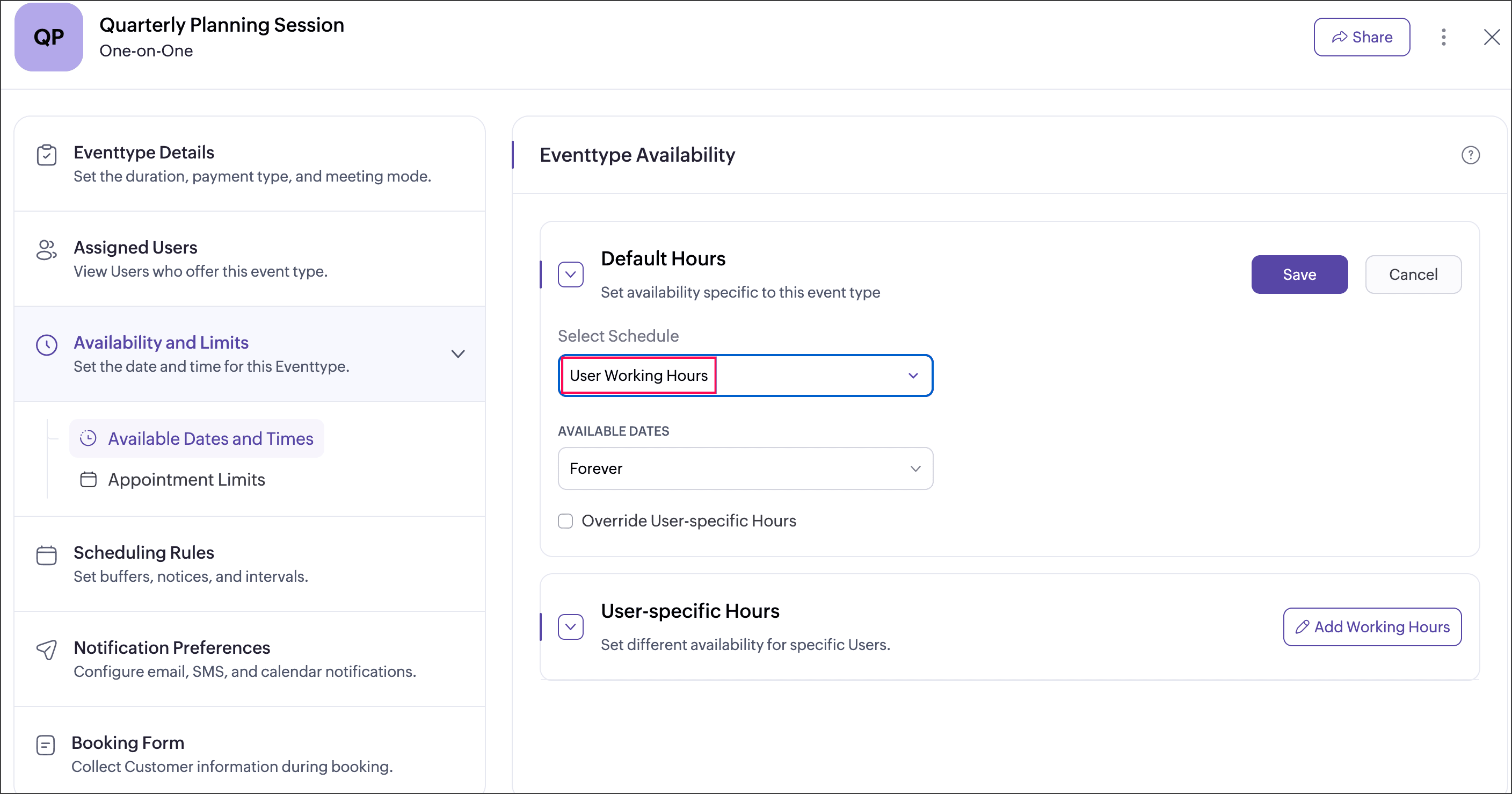
- User working hours: The event type will be available based on the working hours of the users assigned to it.
- Any existing schedule: The event type will follow the working days, time ranges, time zone, and date overrides defined in the selected schedule.Note: Only schedules already created in the workspace will be listed.
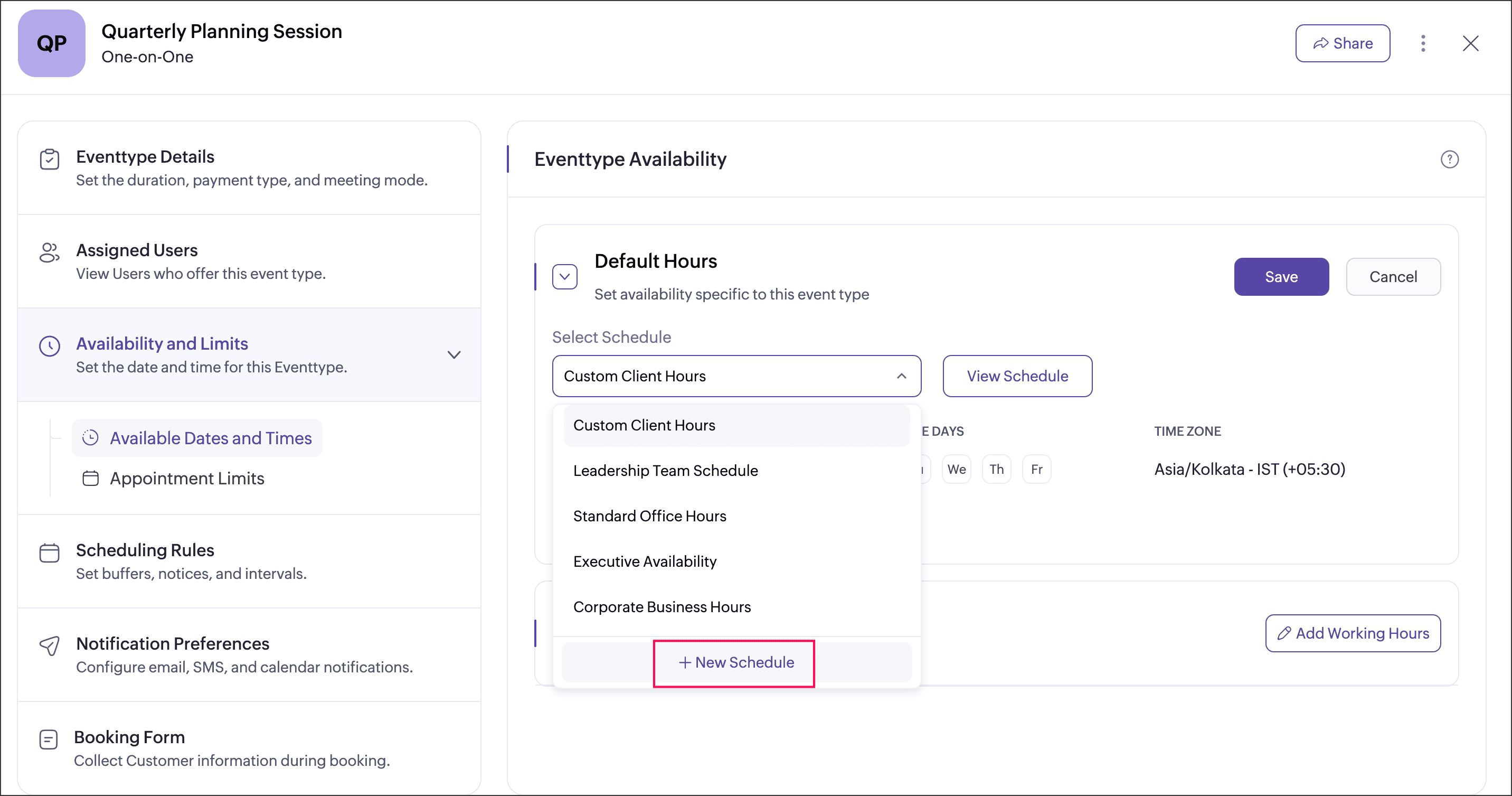
- +New schedule: Create a new schedule with specific working hours and assign it to the event type.Note: The newly created schedule will be listed in the workspace and can also be reused across other event types.
- Control whether user-specific hours should be applied by enabling or disabling the Override user-specific hours option.
- Enable override user-specific hoursThe event type will strictly follow the assigned schedule, and user-specific hours will not be considered.
- Disable override user-specific hours
User-specific hours configured for selected users will override the assigned schedule for this event type. - Click Save to apply the changes. The even type will be available for booking based on the chosen schedule.
4. Steps to add user specific hours
User-specific hours let you assign a separate schedule to selected users within an event type when their availability differs from the default schedule. You can add multiple user-specific schedules for different users or groups, and these apply only to the current event type.
1. Select Available Dates and Time in the left pane and click Add Working Hours next to User-specific Hours.
2. In the Configure Availability screen, enter the below details.
- Schedule Name: Enter a name for the schedule. Each schedule within a workspace should have a unique name.
- Available Dates: You can set the availability by choosing any one option
- Forever: Select this option to make schedule always available. (without a start and end date).
- Custom Range: Select this option to make the schedule available from a start date to an end date.
- Time Zone: Select the timezone for the schedule to follow, so that available times and dates overrides will show according to this timezone.
- Users: Select the users to assign this schedule to.
- Available Times: Choose the hours and days this schedule should be available.
- Date Overrides: Click Add besides Date Overrides to add exceptions to the schedule by adding additional available and unavailable hours.
3. Click Save. The user-specific schedule will be applied to the selected users for this event type.
5. Manage availability
5.1 View availability
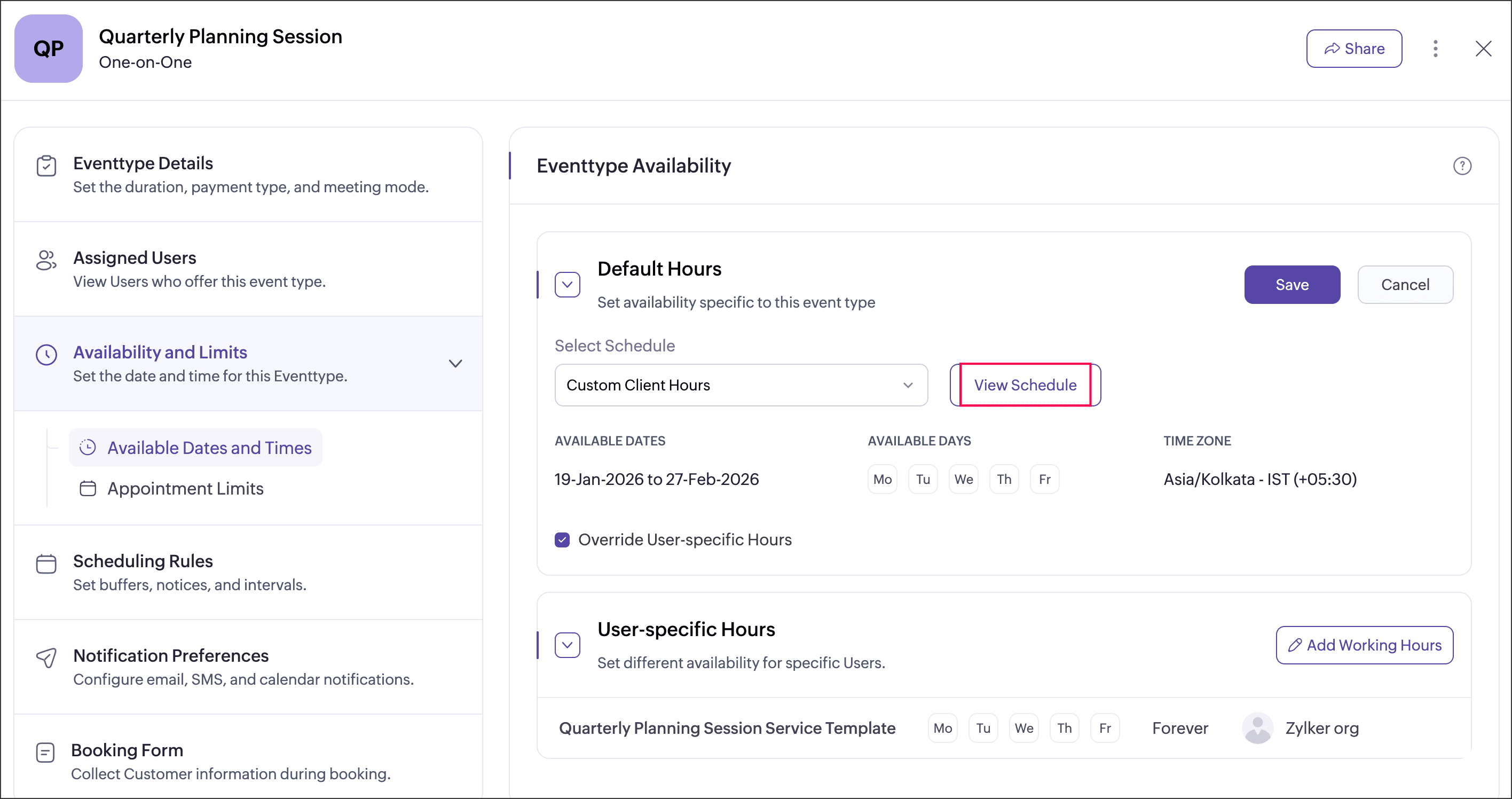
Under the Available Dates and Times tab, you can view the assigned schedule name, available days, date range, and time zone at a glance. Click View Schedule to see full details such as available times, assigned event types and date overrides.
5.2 Edit availability
You can edit an event type’s availability by assigning a different schedule or by creating a new schedule using the + New Schedule option.
If you do not want the event type to follow a schedule, you can choose the User Working Hours option, so the event type will be available for booking only during working hours of the users assigned to the event type.
Once availability is updated, the event type will be available for booking based on the newly selected configuration.
5.3 Override user-specific hours
You can control whether user-specific hours should be applied by enabling or disabling the Override user-specific hours option. This decides whether the event type strictly follows the assigned schedule or allows user-specific overrides for that event type.
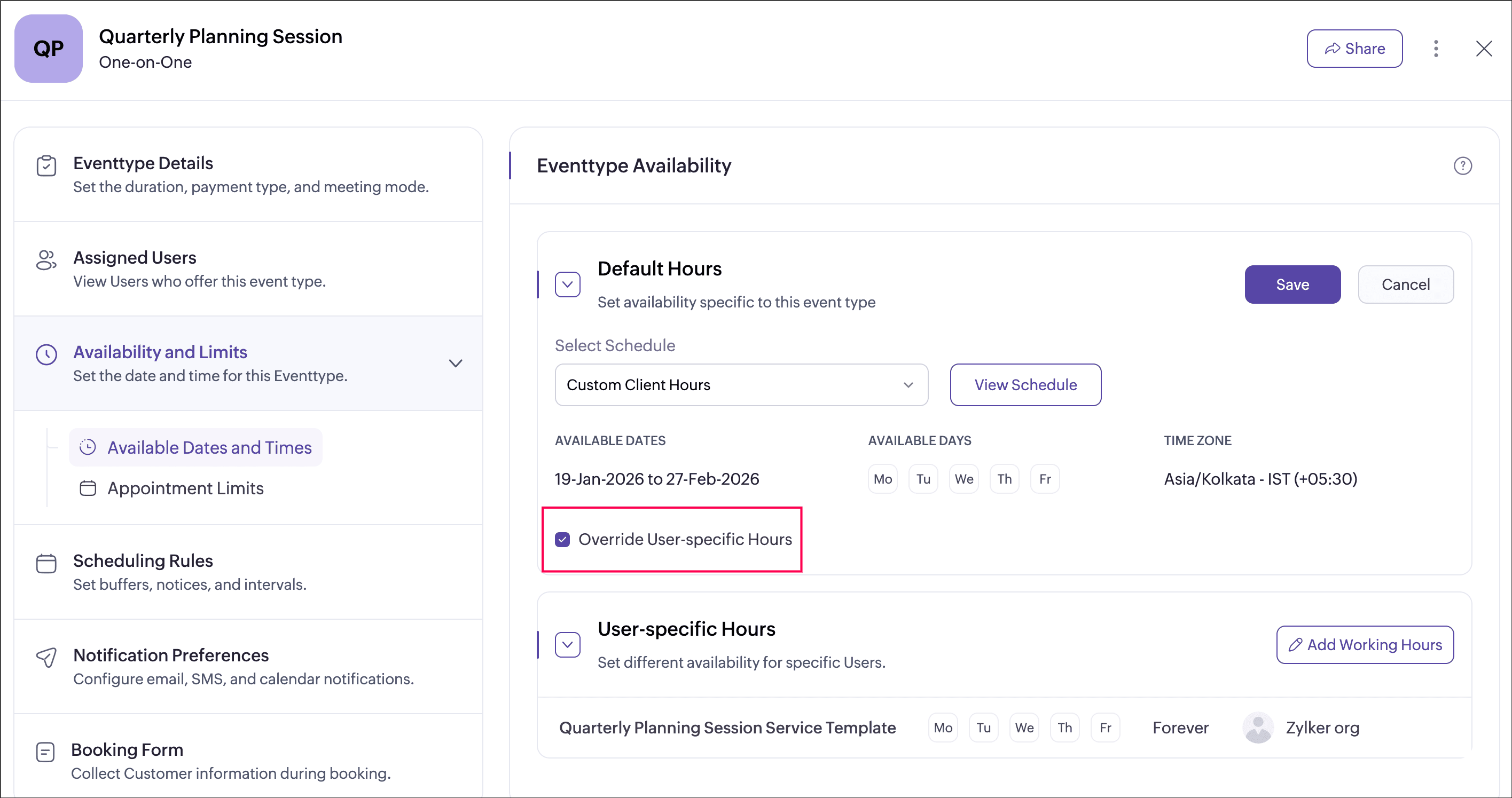
- Enable override user-specific hours
The event type will strictly follow the assigned schedule, and user-specific hours will not be considered. - Disable override user-specific hours
User-specific hours configured for selected users will override the assigned schedule for this event type.
6. Points to note
- Select User Working Hours if you do not want the event type to follow any schedule.
- Each event type can be associated with only one schedule at a time.
- Disable Override user-specific hours if the event type should strictly follow only the assigned schedule.
- User-specific Hours applies only to the selected event type and does not affect user availability in other event types.