Customize record template properties
 This help page is for users in Creator 6. If you are in the older version (Creator 5), click here. Know your Creator version.
The record template designer provides template-level properties that enable you to enhance the visual aspects of the template such as adding a background image, specifying the page dimensions as well as inserting a header and footer. The steps to access these properties are as follows:
- Edit your app.
- Navigate to your Settings page, then click Record Templates .
- Select the required template. Its designer will open.
- Customize the page setup as required.
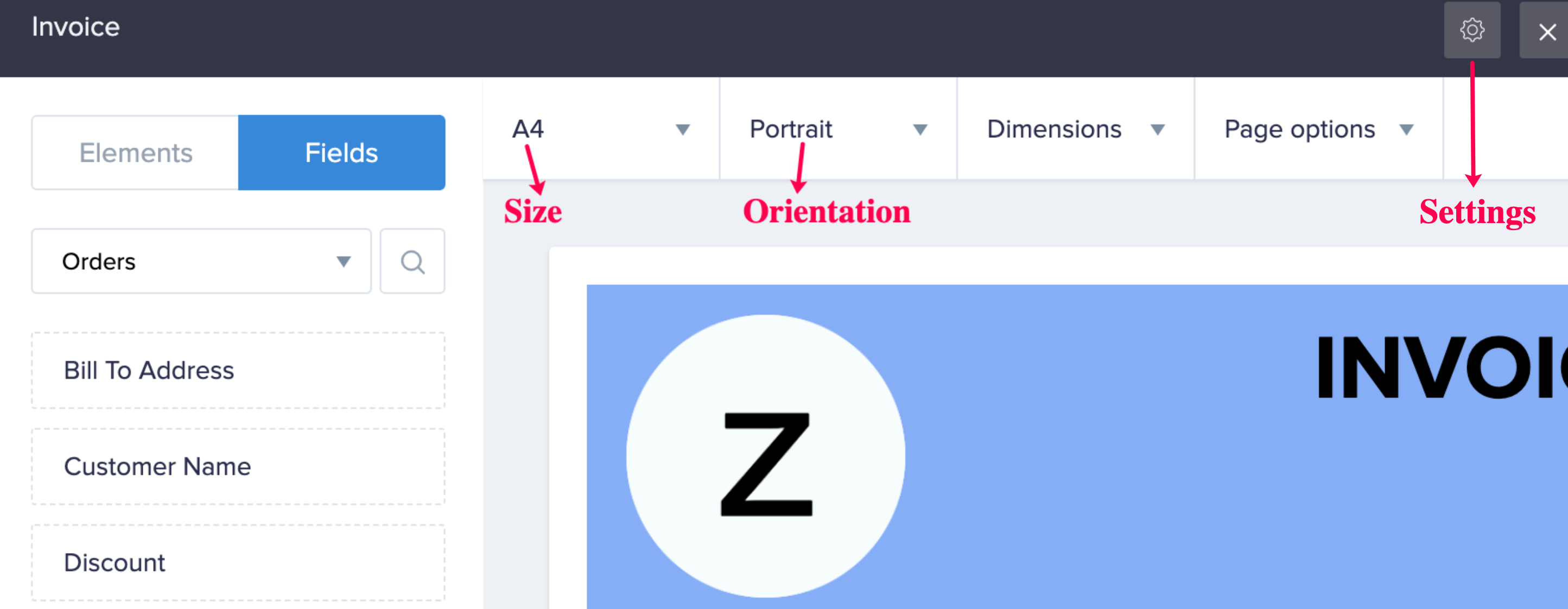
- Click the Settings icon at the top-right corner of the designer. The Properties pane will slide in from the right. You can:
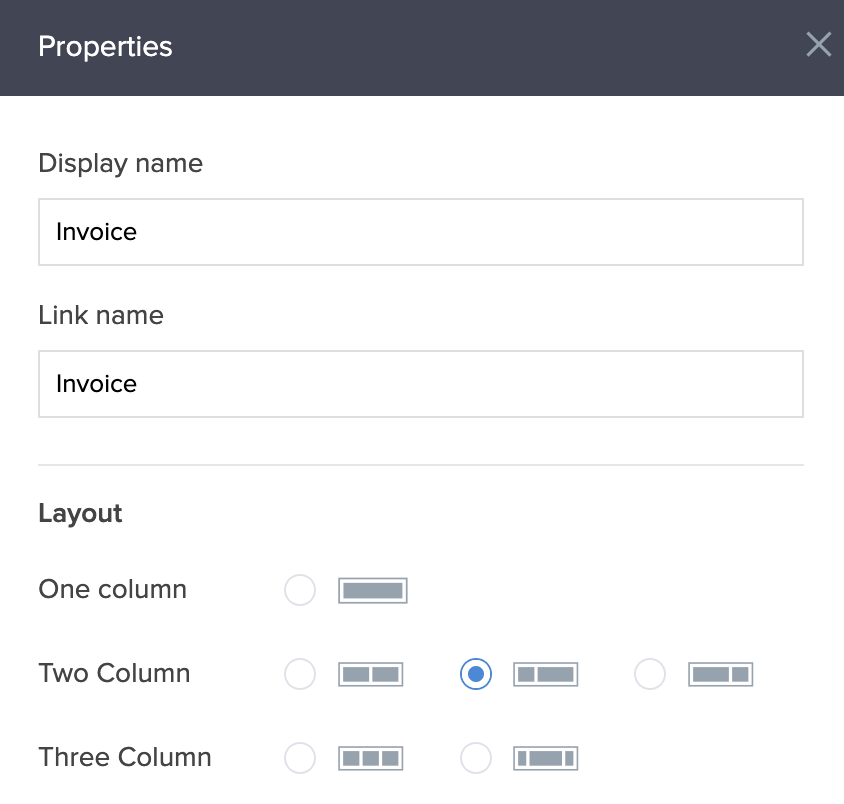
- Set the number of columns to be displayed in the template.
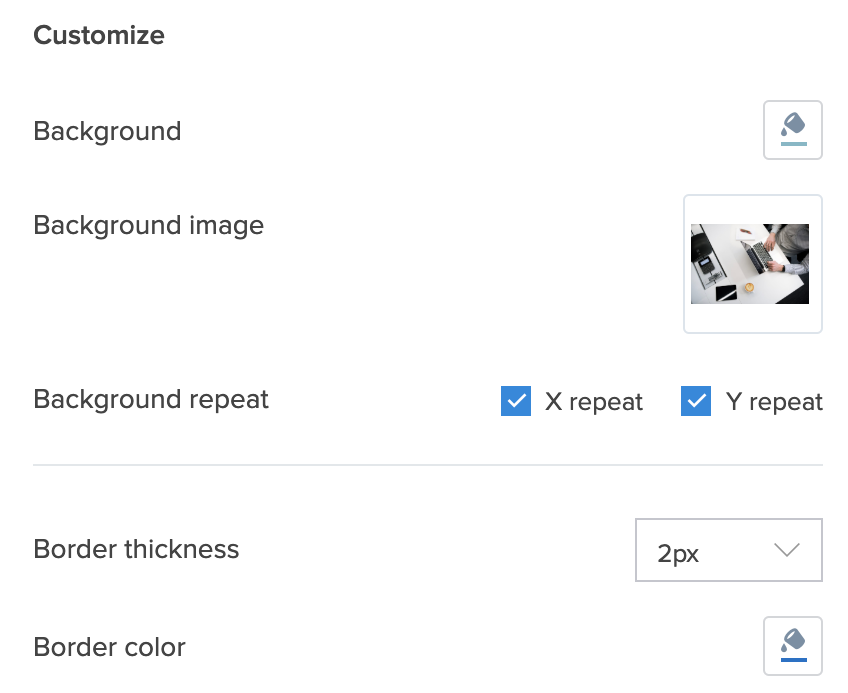
- Set the background and border of the template.
Customize the page setup
You can perform the following customizations in the template designer:
- Rename the Display name and Link name of your template. Learn how
- Set Size : The template's size, such as A3, A4, applies when your users print a record and export it as a PDF. You can also set a custom width that doesn't exceed 2000 px. The height will dynamically be set based on the data present in the record when a user prints or exports it as a PDF.
- Set Orientation : Portrait or landscape
- Set Dimensions , which includes setting:
- Padding : This allows you to specify the space between the template border and its components.
- Margin : This allows you to specify the space around the template i.e outside the template border.
- Set Page Options - To show or hide the header and footer. Header and footer support displaying formatted text, images and data from fields.
Set the number of columns
The layout option allows you to split your template into the data in your record template into one, two or three columns. To set the number of columns:
- Click the Settings icon at the top right corner of the designer.
- Select the required layout from the Properties pane. The one column layout will be selected by default.
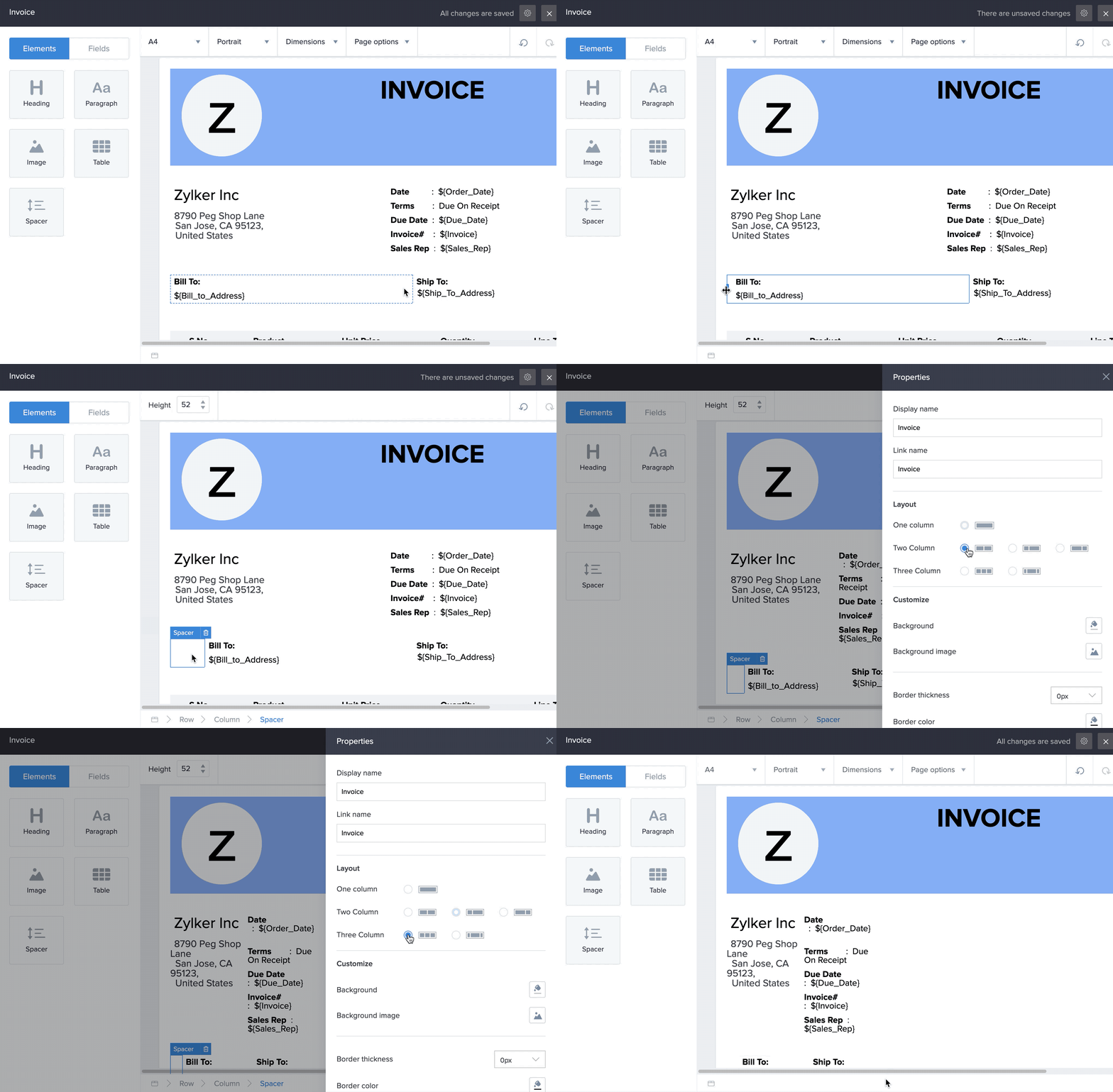
Consequently, the designer also allows you to set each column's width as desired. To do so:
- Hover over the right or left side border of the column you wish to resize. You'll see the resize icon.
- Drag the column border to set the required width. A spacer will be added to accommodate the resizing.
Set the background and border
- Background : The template designer enables you to set the background color and a background image for your template. The background image can be repeated across the x-axis or y-axis, or both axes of the template.
- Border : A record template can sport a border with a maximum thickness of 5 px. You can also set the border color.