My Jobs module in Zoho CRM
The My Jobs module is an action interface where all of your process actions from different modules and processes are categorized and listed for quick access.
You can move your records held in Blueprint transitions, approve records, review and permit valid records into CRM, and validate the authenticity of the submitted image from one place, thus letting you prioritize your process mandates.
What are the primary purposes?
- If you are a sales representative or agent that is part of a business process in Zoho CRM’s Blueprint automation, this My Jobs module will ease your execution by listing all the eligible transitions from various Blueprint processes and modules pend for your action. You can execute necessary transitions right from the MyJobs module and allow the process to move ahead per the configuration.
Learn more about executing Blueprint transitions as a user - If you are a sales manager or an approver of any sort, then all the records that are queued for your approval will be listed under the approvals tab. You can either act on them right away, make bulk actions, or explore each request before making the decision.
Learn more about moderating approvals - If you are designated to verify the eligibility of incoming records into your Zoho CRM database, then these requests are collated as line items making it easy to prioritize them and respond accordingly.
Learn more about reviewing requests - If
you are an user with Adminstrator or any custom profile users with
profile grated with Manage Action permission under Image Validation,
whenever an image fails validation during record creation via Zia Image
Validation, the image will be sent for manual approval. The associated
record will be created.
Note: If the user's profile doesn't have the Manage Action permission under Image Validation, they'll not be able to view this tab
Learn more about validating images
Let’s explore each of them with their actions.
Blueprint transitions
Blueprint is Zoho CRM’s process governance tool that necessitates users’ actions to fulfill process mandates. These actions are called transitions, which upon completing, will move the record ahead in the process.
Primarily, these actions are displayed on top of each record, such that the record owner or user associated can accomplish their actions from within that record.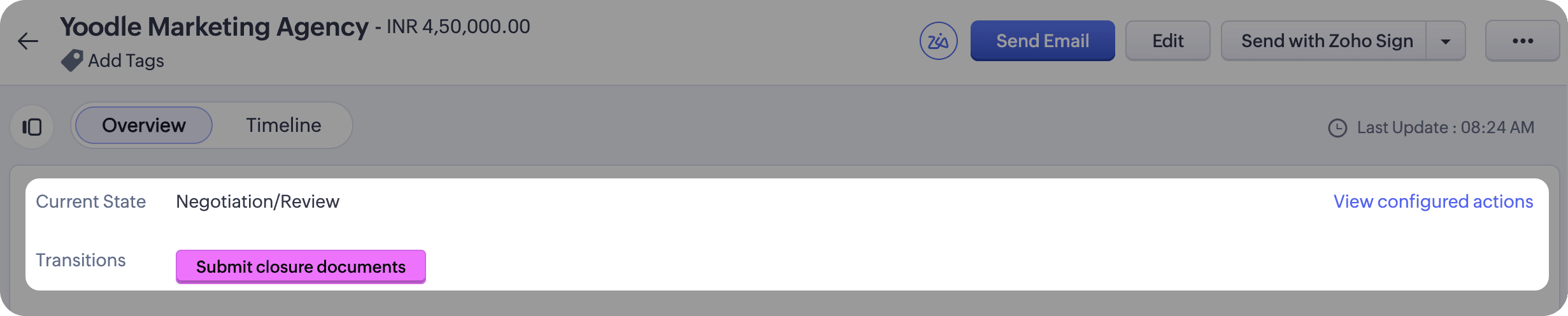
However, if you have actions from multiple records across different modules, the My Jobs module lets you look at all these transitions collectively.
- You can prioritize based on order.
- Act on these transitions one after the other without missing out on any transitions.
Quick actions in your MyJobs to ease your Blueprint execution
Filter list of actions by modules, owners, time submitted.
Sort by Blueprint name.
To learn how to setup Blueprints and transitions, click here.
Approval requests
Approval process in Zoho CRM is a process automation tool that lets you send your records for various kinds of approvals to the respective user, team, user in different roles, groups, or to users associated to a record using the user lookup.
The minute a record becomes eligible for approval, the record will be locked out of users’ edits and will be queued for the approvers’ response. Based on the number of approval level and the order of approval, the record will take as much time to stay in the approvers’ queue until it is completely approved, delegated, or rejected.
As you can imagine, a process will have only a limited number of approvers and an unlimited number of records to approve. In which case, approving each record one by one becomes quite a hassle and that is why Zoho CRM provides you with a consolidated list of approval requests under the MyJobs module.
You can look at the number of approvals lined up in your queue, prioritize them, and respond from right within the same interface.
Quick approver actions available in your MyJobs module
- Mass approve, reject, or delegate requests
- Filter approval requests by participating fields
- Manage columns
- Clip texts
- Navigate between pages
- View approvals listed for you and others (incase of possessing admin access)
- View approval history as timeline with the ability to view based on modules, users, actions, and time of request.
Review requests
Review requests are records lining up to seek permission to enter the CRM database and then into the processes, as automated by the Review Process. Imagine you want to eliminate junk leads and focus only on leads that have true purchase intent. In which case, you can configure a review process, send all leads through review, and allow only those eligible requests into your CRM database and then into the sales pipeline.
Read more: Setup review process
Having these requests as line items will let the reviewers know about the number of action items in their queue, validate the fields marked for review, and respond accordingly.
Within the Reviews tab of My Jobs module, you can
- Sort the requests as ascending or descending based on the status type and modules.
- Look at the review logs to view at the review actions performed across your CRM organization, where in you can filter based on modules, users, actions, and time of submission.
Image validation requests
Image validation under MyJobs lets you manually review images that are previously invalidated by Zia’s optical recognition.
Read more: Image validation by Zia
From the MyJobs module, you can
- Accept or remove the images attached to the record.
- Rate Zia’s accuracy of rejecting the attached image incorrectly.
- Filter the validation requests based on modules, for ease of management.
That’s about My Jobs module in Zoho CRM. It is available for both org users and team users, and the same will be displayed along with organization modules or specifically under team modules as desired.
Managing My Jobs module
The My Jobs is suitable only for those users that are part of a process. If you have other users without having an active role in any of your company’s processes, then you can restrict its visibility for those users based on their profiles.
You can either manage from the modules page in settings or click on the ellipsis displayed next to My Jobs > Manage & Share > Module Permissions.