OTP Verification via SMS
When you configure SMS OTP verification, respondents who access your form via its public link are required to enter their mobile number to receive a one-time password via SMS and verify it before they can access the form.
Setting Up SMS OTP Verification
- Open your form to which you want to configure SMS OTP verification.
- In the left panel, under Form Fields scroll to Advanced Elements and click Verification Page.
- In the Verification Page configuration screen, click Configure on the OTP Verification card.
- In the Configure OTP Verification popup, select SMS.
- Under SMS Gateway, select a gateway from the dropdown. The list of all the SMS Gateway connections created will be listed here. If you have not created a connection yet, click +Add a new connection to create one.
- In Message to display in OTP SMS, update the default OTP message if required.
OTP Expiry Settings
Here you can configure expiration and resend options for the OTP.
OTP Expiration Time
This option sets the amount of time (in minutes) that an OTP is valid for, after it is generated. If the OTP is not used within this time frame, it will expire and the user will have to request a new one.
Set the Same Expiration Time for OTP Session
This option allows you to synchronize the OTP session duration with the OTP validity period.
- When you select this option, the OTP session will expire at the same time as the OTP itself. This means if you set the OTP expiration time to 5 minutes, the session will also expire after 5 minutes. This ensures that both the OTP and the session in which it was generated expire simultaneously.
- If this option is left not selected, the session will follow its default expiration time of 4 hours. In this case, even if the OTP expires (for example, in 5 minutes), the session will remain active for up to 4 hours unless manually terminated or interrupted by other actions. This means you are allowing the user more time within the session, but they will need to request a new OTP after the OTP expires. This can be useful in cases where users need more time in their session, but a short OTP expiration time is still desired.
Number of OTP Resend Requests Allowed
This option determines how many times a user can request a resend of the OTP. Select a number from the dropdown. This limits the number of times a respondent can request for a new OTP to avoid excessive requests for OTP generation.
Show OTP Resend Option After
This option lets you specify the waiting period (in seconds) before the user can request an OTP resend. Set the time delay after which the user will see the option to resend the OTP.
Map OTP Verification Field
You can pre-fill a phone field in the form with the verified mobile number by selecting the required form field from the
dropdown.
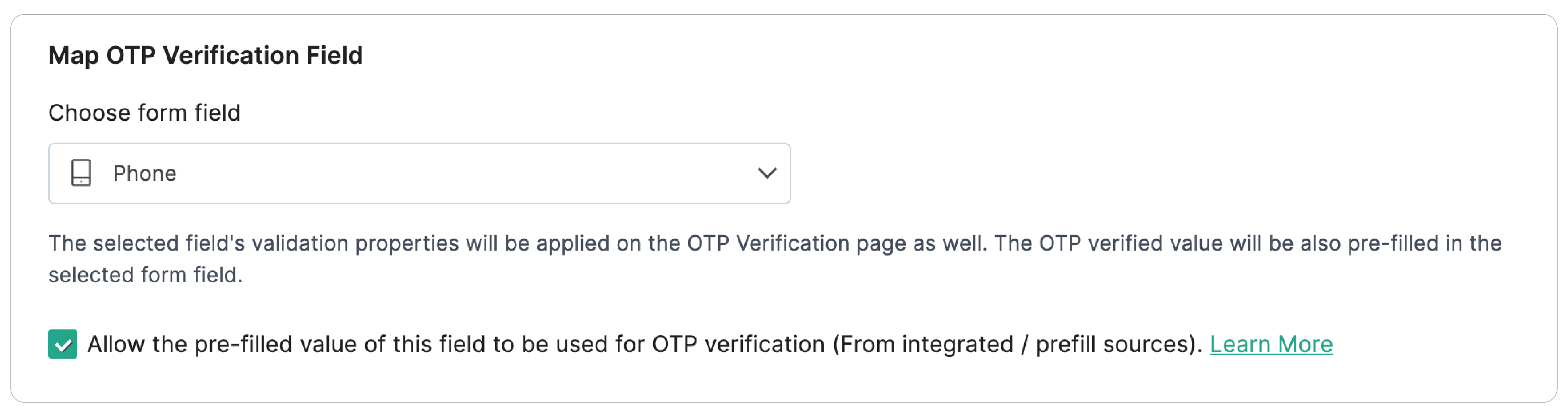

Make sure to include the Country Code in the Phone field Properties in your form builder.
You can choose to use the prefilled value of the selected field for OTP verification by selecting the checkbox as shown above. The value can be prefilled from integrated sources like CRM/ Dynamic prefill from Webhooks/ Field Alias/ Static Prefill URLs. To do this, select the checkbox to use the pre-filled value of the mapped field for verification. In this case, the OTP will be sent exclusively to the prefilled value and cannot be modified on the Verification Page.

Note:
- The following properties configured for the selected Phone field will be applied to the phone number entered by the respondent for verification:
- Field Format
- Allowed Country codes
- Default Country code
- Input Range
- Allow only numbers validation
- No Duplicates validation
- Phone input confirmation
- If you want to restrict your respondent from editing the pre-filled Phone field in the live form, select the Disable Field option under Phone field Properties.
- If the phone field is pre-filled through an integrated service or Field Alias, it cannot be modified on the Verification page. The OTP will be sent exclusively to this pre-filled value.
Instructions & Consent
You can add instructions and a consent declaration for respondents on the Verification Page.
Instructions: Enter any information or guidance you want respondents to read before verifying.
Consent: To include a consent declaration, select Yes for Do you want to include consent? and enter the consent text. Respondents will need to acknowledge the consent before they can proceed with verification.
CAPTCHA
To add an extra layer of security and prevent spam entries, you can enable a CAPTCHA on the Verification Page to evaluate if it is a human or a bot that is filling your form. Under CAPTCHA, select the CAPTCHA Type from the dropdown. Learn more
Note:
- Make sure there is sufficient balance in your chosen SMS gateway service to send OTPs; else, the form access may be restricted to your respondents.
- If you have changed the ownership of your form, the configuration for mobile OTP Verification may not work as intended. The new owner must reconfigure the OTP Verification via mobile for the form with an authorized SMS Gateway service.
Plan wise limit for the maximum number of forms that can have OTP configuration:
Basic - 25
Standard - 100
Professional - 200
Premium - 200
Express - 200
Zoho One Enterprise - 200
Zoho One Enterprise Trial - 3
Check out the FAQ on how to access an OTP Verification enabled form with the same phone number when the field is mapped to a form field with the No Duplicate property.