Map Location
Overview
The Map Location field allows you to display a specific location on a map directly within your form. By providing latitude and longitude coordinates and choosing a map service, you can embed a map with a pin highlighting the given location. You can also add a custom address text at the pin to help respondents identify the location. This field is useful for showing a fixed venue or office location to form respondents, enhancing context and clarity.
Adding a Map Location field
To add and configure a Map Location field in your form:
Navigate to your form builder, locate the Map Location field under the Instructions section.
Click or drag and drop the field into your form.
- In the pop-up that appears, enter Latitude and Longitude of the location you want to show.
To get the coordinates: Open Google Maps and search for the desired location. Right-click the location and click the first option in the menu to copy the comma-separated latitude and longitude values. Paste the left value as Latitude and the right value as Longitude.
Under Map Service, choose Zoho Maps or Google Maps to display the map in the live form.
Zoho Maps requires no additional setup. If you choose Google Maps, make sure that you have configured a Google Maps Connection with a valid API key.Choose the Zoom Level to set how close the map should appear in the live form.
For example, use 0 to show a world map (farthest), 14 for a neighborhood street view, 20 for a building-level view, and 22 to provide an ultra-close view(nearest).Provide an Address Text for the map location.
This label will be shown on the live form at the map pin, helping users identify it.Click Done to insert the field into your form.
When you add a Map Location field to your form, a placeholder map is shown in the builder. In the live form, respondent will see the actual map centered at your specified coordinates, with a marker pinpointing the location and the address text shown as a label. Respondents can zoom in or out and pan the map in any direction, viewing from a close building-level detail to a wider world view.

Note:
- Address Text cannot exceed 150 characters.
- Map Location field is only supported in the latest version of Zoho Forms.
Field Properties
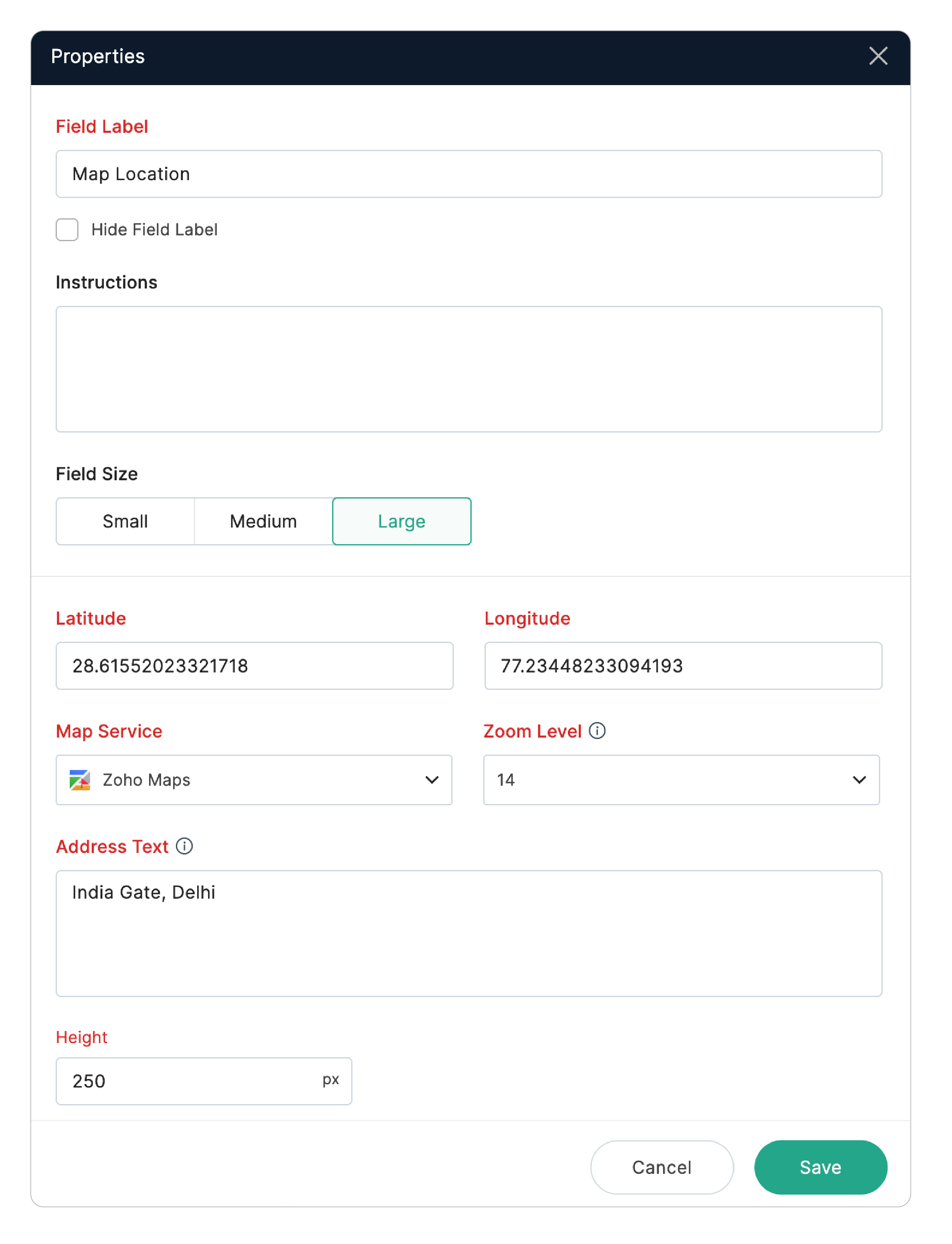
Field Label : This label appears above the map. You can customize it based on your requirement — for example, Event Venue or Office Location.
Instructions: Add Instructions to provide navigation guidance or additional context for your respondents.
Latitude & Longitude: Update the coordinates anytime to change the displayed map location.
Map Service: Switch between Zoho Maps and Google Maps for the displaying the map.
Zoom Level: Adjust the zoom level (world, street, building, or ultra-close view) appropriate for your use case .
Address Text: Use this option to edit or update the address text whenever needed.
Height: Control how large the map appears vertically (in pixels) on your form using this option.
Where to use a Map Location Field
If you need to capture respondent's location or auto-complete address details, Zoho Forms also offers other location-based features:
Geolocation: Capture a respondent’s exact location and optionally restrict submissions within a specific area.
Geo-Stamping: Automatically stamp captured images with the location details and time of capture.
Auto-fill Address From: Enable auto-completion of addresses in Address fields which makes form-filling easier, faster, and more accurate.
By combining the Map Location field with these features, you can display important locations to your users, and also collect precise location data when required—all within Zoho Forms. Using these location-based features together helps you create more informative, user-friendly and professional forms.