Installation And Usage Guide for Zoho FSM Extension for Zoho Invoice
The Zoho FSM for Zoho Invoice extension brings your invoicing and field service operations together, enabling you to manage service processes directly from Zoho Invoice. By connecting customer and quote data in Zoho Invoice with operational records in Zoho FSM, the extension ensures continuity across service delivery and billing. This integration helps teams work more efficiently, maintain better visibility, and deliver a smoother end-to-end service experience.

Prerequisites
- Standard edition or above of Zoho FSM
- Your Zoho FSM Org should be integrated with Zoho Invoice
Functionalities
- Create Zoho FSM Requests, Estimates, and Work Orders from a Zoho Invoice Customer or Quote
- View notes of Zoho FSM records associated with a Zoho Invoice Customer or Quote
- Manage Zoho FSM Records with Quick Actions
- Transition a record from one Zoho FSM module to another
Install the Extension
You can install Zoho FSM for Zoho Invoice either from Zoho Marketplace or from Zoho Invoice.
To install the extension from your Zoho Invoice account:
- Navigate to Settings > Marketplace.
- Under the All Extensions tab, search for Zoho FSM for Zoho Invoice and click it.
- Click Install.
- Select the Zoho Invoice organization where you want to install the extension, select the checkbox for terms and conditions, and click Next.
- Click Connect.
- Click Accept to allow the extension to access the required information.
- Click Install Extension.
- Select a Customer or Quote and click Zoho FSM.
- Click Enable.
Once the extension is installed, certain record permissions and conversion mappings are set by default. Read on to find out how to manage these settings.
Manage Record Permissions
Permission Required: Super Admin of your Zoho FSM org
You can configure settings to manage the user permissions and the options that are available in each record. To manage these settings:
- In Zoho FSM, navigate to Setup > Billing > Billing Setup and select the Extension Settings tab.
- Click the Edit [
] icon next to the Permissions heading.
- In the Edit Permissions overlay, make the necessary changes and click Save.
You can manage these record permissions at any time.
Manage Conversion Mapping
While creating records for Zoho FSM modules within Quotes in Zoho Invoice, some of the details are prefilled in the Create forms. There are field mappings that determine which field values get copied from the Zoho FSM modules to these Zoho Invoice module. To manage these mappings, do the following in Zoho FSM:
- In Zoho FSM, navigate to Setup > Billing > Billing Setup and select the Extension Settings tab.
- Under Conversion Field Mapping, click Configure for the conversion field mapping you want to manage.
- Map the fields from the Zoho FSM modules to Zoho Invoice modules that you want to get copied during conversion and click Save.
Using the Extension
The following can be achieved using the extension:
Access and generate records for Zoho FSM modules within Zoho Invoice
- You can create Zoho FSM Requests, Estimates, and Work Orders from a Zoho Invoice Customer or Quote.
- You can link an existing Zoho FSM Request, Estimate, or Work Order to a Quote. You can link a Zoho FSM Request, Estimate, or Work Order to only a single Quote.
To do so:
- From Customers/Quotes, select a record and click Zoho FSM.
- If the customer is not present in Zoho FSM, click Sync/Sync & Continue to create the record in Zoho FSM.
The customer of type Individual will be added as Contact and of type Business will be added as Company in Zoho FSM. In the left panel of the associated record in Zoho FSM, the link [] to the customer will be present under the Invoice Information section.
- Click the Create dropdown button and select the module whose record you want to create.
- In the Create <Record> page, enter the necessary details and click Save.
The created record will be listed here. Click on the record name to navigate to the record in Zoho FSM.
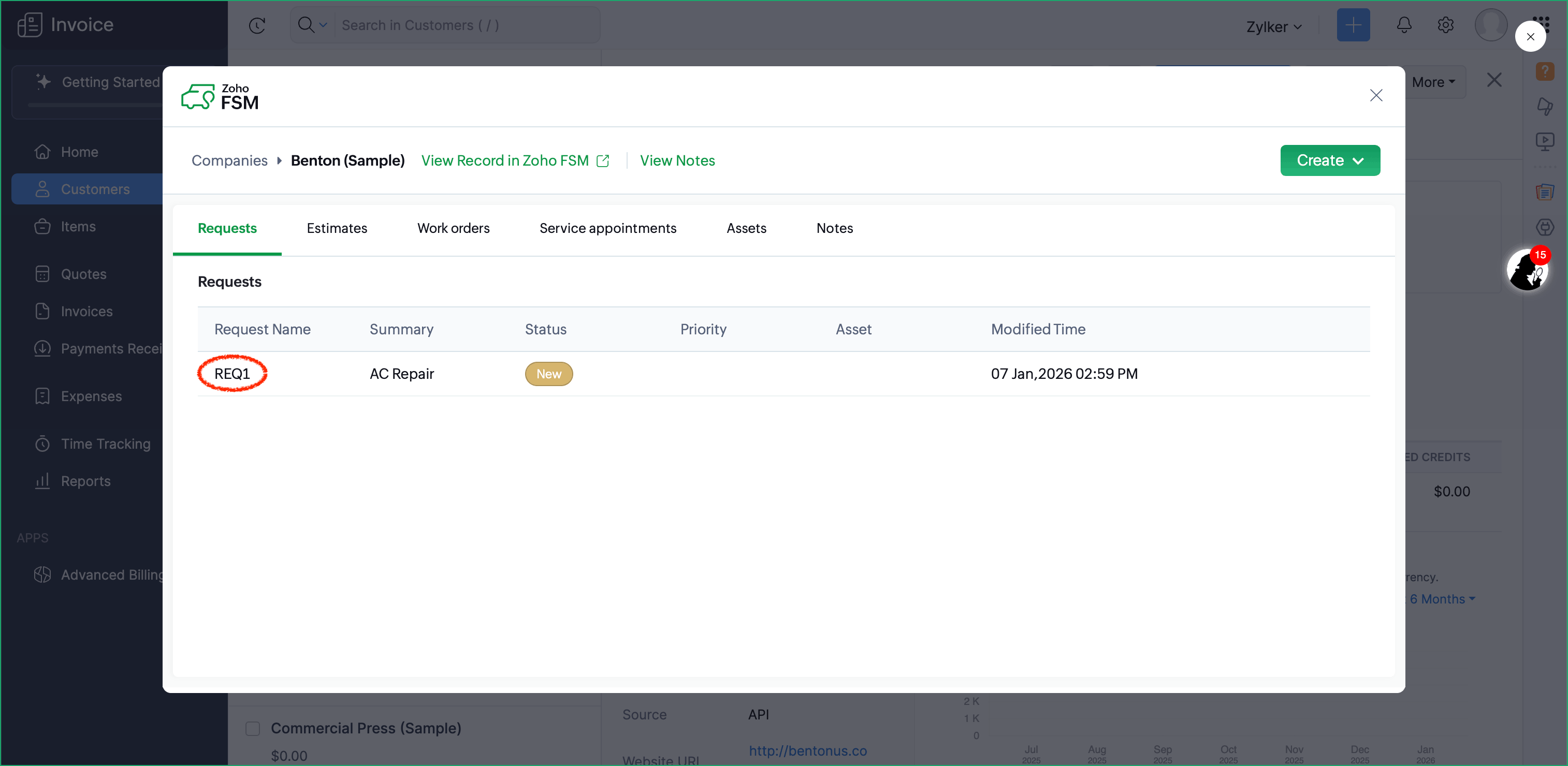
To link a Zoho FSM record to a Quote in Zoho Invoice:
- From Quotes, select a record and click Zoho FSM.
- Select the desired tab and click the Link [
] icon.
- Search for a record, select it, and click Link.
The linked record will be listed here. Click on the record name to navigate to the record in Zoho FSM.
In the left panel of the associated record in Zoho FSM, the link [ ] to the quote will be present under the Finance Information section. Click on
  to unlink this record from the Zoho Invoice quote.
Apart from the records created from Zoho Invoice, you can also view the Service Appointments and Assets associated with the Customer.
View Notes of Zoho FSM Records
The notes that you add to the Contact, Company, Request, Estimate, Work Order, Service Appointment, and Asset records in Zoho FSM can be viewed from Zoho Invoice.
- Within a Customer record in Zoho Invoice, you can view the notes added to it from Zoho FSM. You can also view the notes added to the Request, Estimate, Work Order, Service Appointment, and Asset records associated with the Customer record.
- Within a Quote, you can also view the notes added to the Request, Estimate, and Work Order records associated with it.
To view notes within a Customer record:
- From Customers, select a record and click the Zoho FSM tab.
- Hover over a Request, Estimate, Work Order, Service Appointment, or Asset and click on the View Notes [
] icon.
User will be taken to the Notes tab, and the notes associated with it will be listed. - Click on the View Notes link displayed against the Contact/Company name. User will be taken to the Notes tab, and the notes associated with the Contact/Company will be displayed.
To view notes within a Quote:
- From Quotes, select a record and click the Zoho FSM tab.
- Hover over a Request, Estimate, or Work Order and click on the View Notes [
] icon.
User will be taken to the Notes tab, and the notes associated with it will be listed.
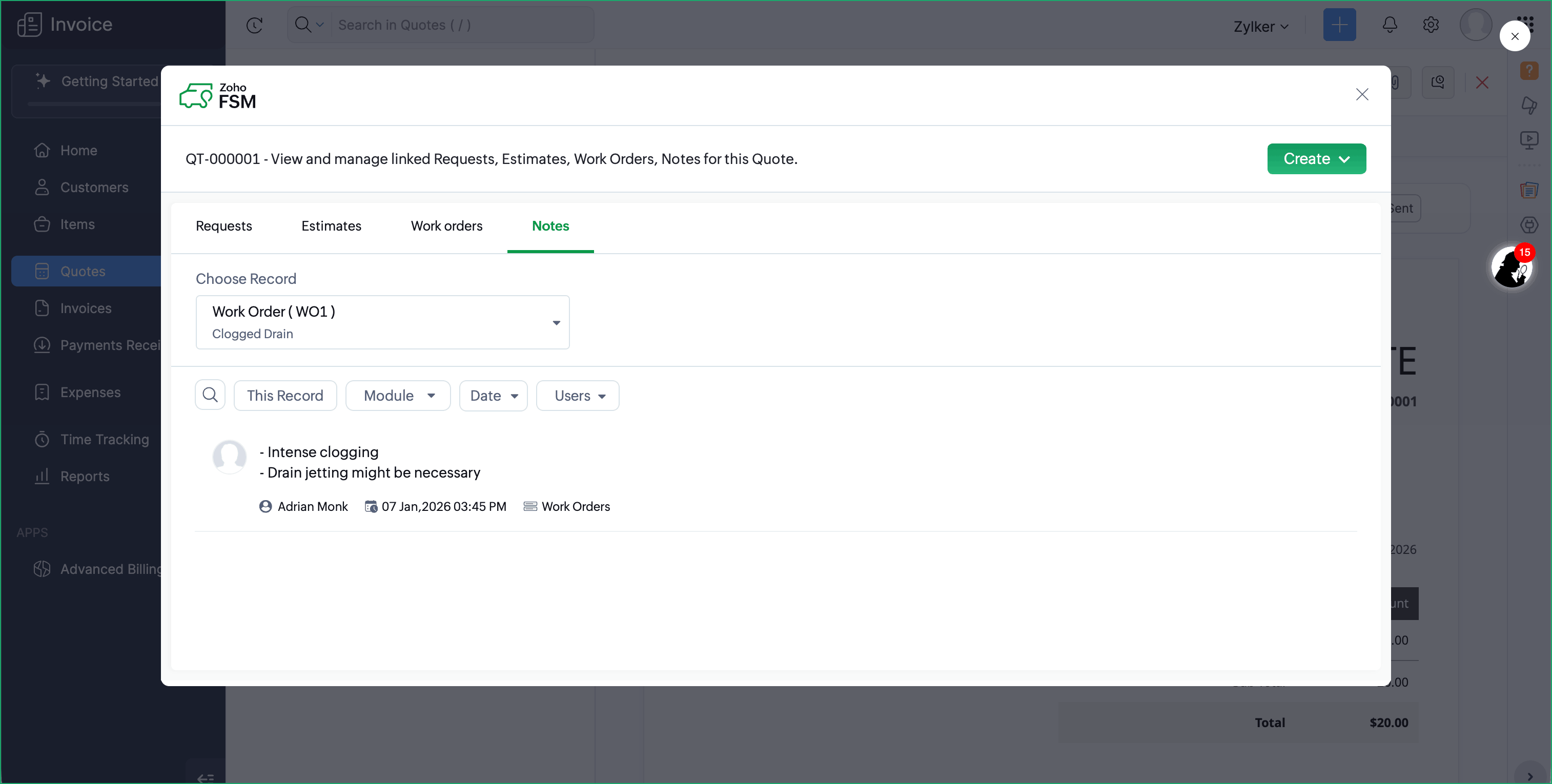
You can also choose the module whose records you want to select.
You can also choose the module whose records you want to select.
Manage Zoho FSM Records with Quick Actions
You can perform the following record actions on Zoho FSM records:
- Go to a Customers/Quotes record in Zoho Invoice and click the Zoho FSM button.
- Hover over a Request, Estimate, or Work Order and click on More Options [
]. You will find the following options:
- Change Owner
- Create Follow Up Work Order (this option will be available only for work orders)
Transition a record from one module to another
To convert a Request to an Estimate or Work Order, or an Estimate to a Work Order:
- Go to a Customers/Quotes record in Zoho Invoice and click the Zoho FSM button.
- Hover over a Request, Estimate, or Work Order and select Convert to Estimate/Convert to Work Order from More Options [
].
- In the Convert to Estimate/Convert to Work Order page, make any necessary changes and click Save.
Note: The Convert to Work Order option will be available only if the Estimate is in the Approved status.
Error Scenarios
Scenario 1: Integration requires admin privileges
If a Zoho FSM user without the Administrator profile installs the extension, they will encounter the error shown in the screenshot below when attempting to complete the integration setup. To resolve this issue, an Administrator must uninstall the extension and then reinstall it.
Scenario 2: Unsupported edition
The extension Zoho FSM for Zoho Invoice cannot be used with the free edition of Zoho FSM. Also, if your Zoho FSM account gets downgraded to the free edition, then you will no longer be able to use the extension. When you click on the Zoho FSM tab within a Zoho Invoice record, you will encounter an error page.
Click Open FSM and upgrade to a paid plan if you want to use the extension.
Uninstall Extension
To uninstall the extension, do the following:
- Navigate to Settings > Marketplace.
- Click the Installed Extensions tab, and click View details for Zoho FSM for Zoho Invoice.
- Click Uninstall click Yes in the confirmation message.