Work Profile
 This feature is available only in the Japan region and is enabled by default. If it is not available in your organization’s account, contact support@zohopeople.com.
What is a Work Profile?
A Work Profile defines an employee's employment details, work conditions, and applicable work-related policies for a specific period. It brings together the employee's employment type, work location, effective period, attendance and leave policies, shifts, working-hour rules, overtime, and access restrictions in a single profile. Work Profiles can be assigned to new or existing employees and can be updated or replaced when their employment terms or working conditions change.
A single work profile bundles together:
- How many hours the employee is expected to work each week (the Weekly Work Hours rule).
- What kind of engagement it is — Permanent, Temporary, On Contract, etc. (the Employment Type).
- What is the employee work location
- How long it is valid — a start and end date
- Which attendance and leave policies apply — attendance policy, leave types, overtime, shifts, breaks, late-night hours, and IP/Geo restrictions.
Instead of configuring these settings employee-by-employee or at organization level, you define them once at the profile level and assign the profile to the right people. This keeps policies consistent, makes bulk changes easy, and gives you a single place to monitor who is covered by which rules and when those rules expire.
Building Blocks of Work Profile
The Work Profile feature is organized into three sections, shown in the left-side menu. They are meant to be set up in the following order:
- Weekly Work Hours: Define reusable work-hour rules (e.g. 40 hrs/week).
- Work Profiles: Combine a work-hour rule with employment type, location, validity, and attendance/leave policies.
- Employees' Work Profiles: Assign the published profiles to employees and monitor their status.
You can assign a work profile while adding users in Zoho People. Navigate to Settings > Manage Accounts > Users > Add Users, enter the required details, and assign a work profile to the employee.
Weekly Work Hours
The Weekly Work Hours section lets you define standard weekly work-hour rules that can be assigned to a work profile. Each rule specifies the required hours per week, along with a name and short code for easy selection.
The Weekly Work Hours list:
- Rule Name — the descriptive name of the rule (e.g. WHR - 1).
- Code — a short reference code (e.g. WH - 1).
- Hours Per Week — the number of working hours the rule represents (e.g. 40).
- Status — a toggle that turns the rule active or inactive. Only active rules can be selected when building a work profile.
- Actions — options to edit or manage the rule.
Add Weekly Working Hour Rule for a Work Profile
To add a weekly work hour rule:
- Navigate to Settings > Employee Information > Work Profile > Weekly Work Hours.
- Click Add Work Hours Rule.
- Enter the rule name and code.
- Enter the hours per week.
- Click Save.
Once saved, the rule appears in the list and becomes available in the Weekly Work Hours dropdown when you create or edit a Work Profile.
Create and Manage Work Profile
A Work Profile defines an employee’s employment details, validity period, weekly work hours, and the policies applicable to their role. You can create multiple work profiles and assign it to employees.
To create a Work Profile:
(i) Basic Details
- Navigate to Settings > Employee Information > Work Profile.
- Click Add Work Profile.
- Enter a name for the work profile and code.
- Select employment type as Contract, Permanent, Temporary, or Trainee.
- Select the user work location for this work profile, to add new location, navigate to Settings > Manage accounts > Organization Setup > Locations.
- Enter the description.
(ii) Work Profile Validity
- Select the Work Profile Validity date.
- From Date — when the profile becomes effective
- To Date — when it expires.
- Weekly Work Hours: select one of the rules from the Weekly Work Hours section, to add weekly work hours, refer to Add Weekly Work Hours.
(iii) Attendance and leave policy configurations
In this section configure the necessary leave policy, attendance policy, late-night hours, overtime rules, break rules, shifts, and IP/geo restrictions for the work profile.
Leave type configuration
Set up or select the leave types applicable for this work policy
To add Leave policy, click Manage Policy
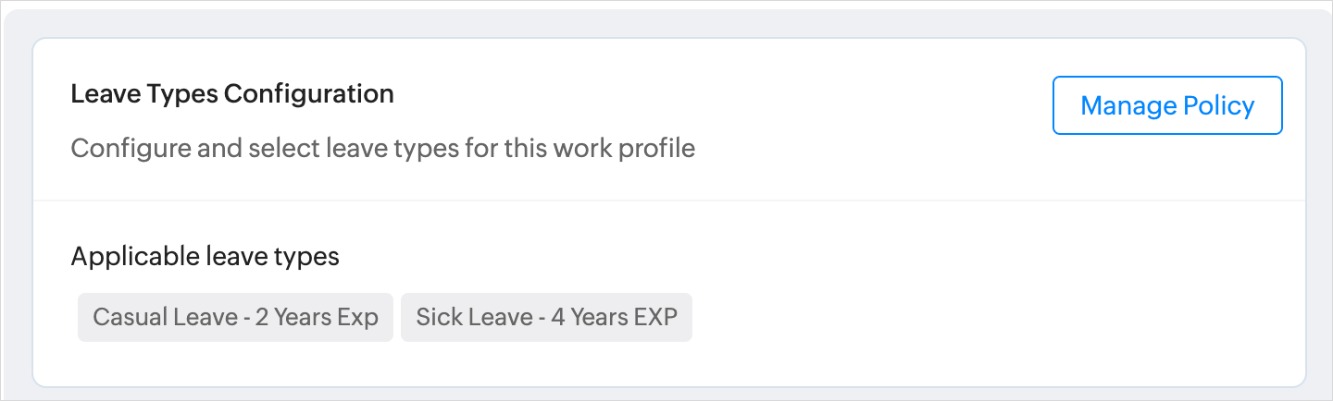
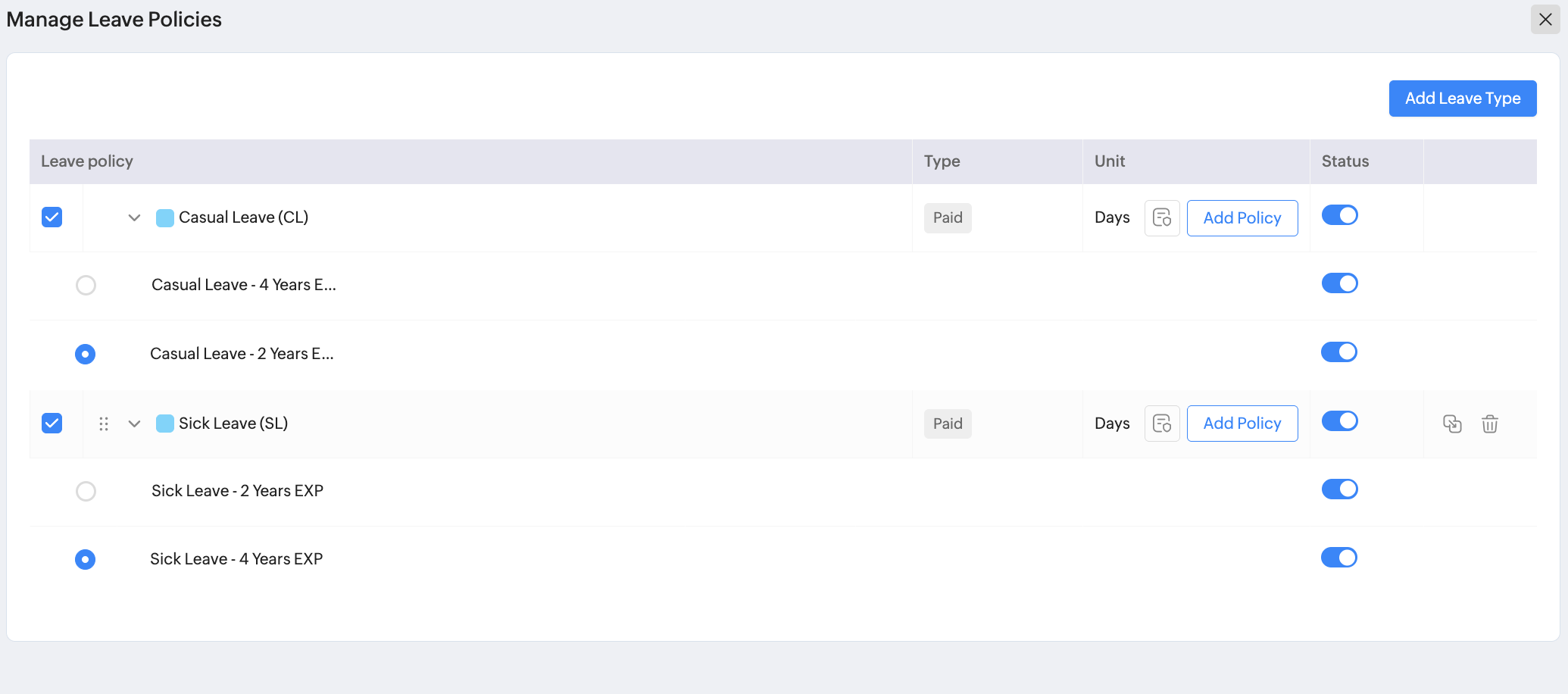
In the manage leave policy, create the necessary leave types such as sick leave, casual leave, maternity leave, bereavement leave.You can create leave type based on Experience based entitlement, Attendance based entitlement, and Leave Grant. Learn more about types of leave policy.
Under each leave type add required leave policy based on entitlement.
Select the required leave type and policy and click Save to apply to the work profile.
Attendance Policy
Configure how employee attendance is recorded, calculated, monitored, and managed in your organization. Define working-hour rules, grace periods, attendance permissions, reminders, deviation alerts, regularization rules, location tracking, and verification settings.
To add attendance policy, click Manage Policies, either select existing configured policy or Add Specific Policy. Learn more on how to configure attendance policy and location tracking.
Late-Night Work Hours
Define a From and To time to specify the late-night work period. Hours worked during this period are tracked separately as late-night work hours for pay calculation. Learn more about late night work hours.
Late night work hours of 10 PM to 5 AM can be defined as shown in the below image:
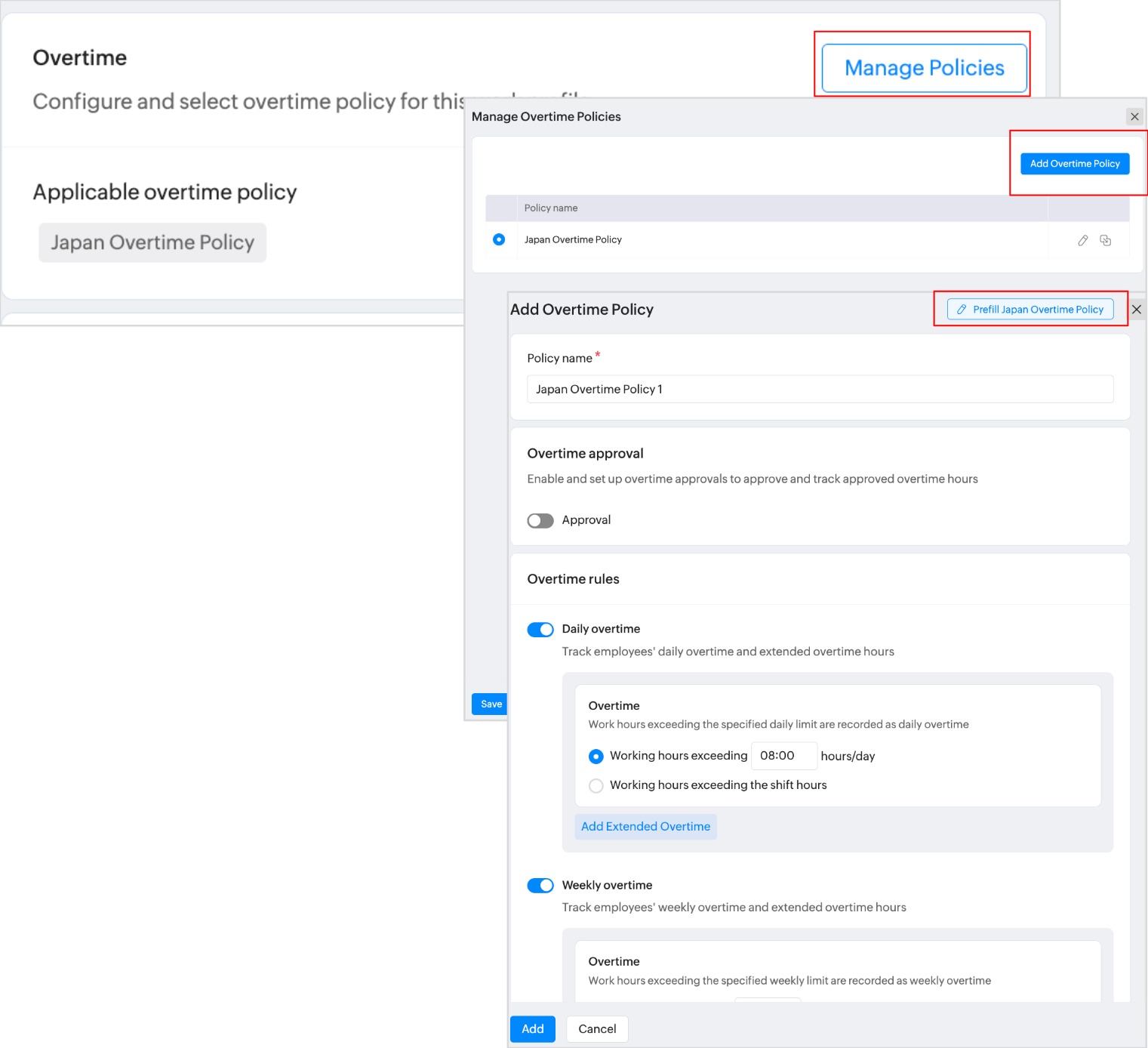
Overtime
Add the overtime rules to this Work Profile. You can prefill with Japan Overtime Policy, and enable overtime approval and define overtime rules. For more information on how to configure overtime policy, refer to Overtime Policy.
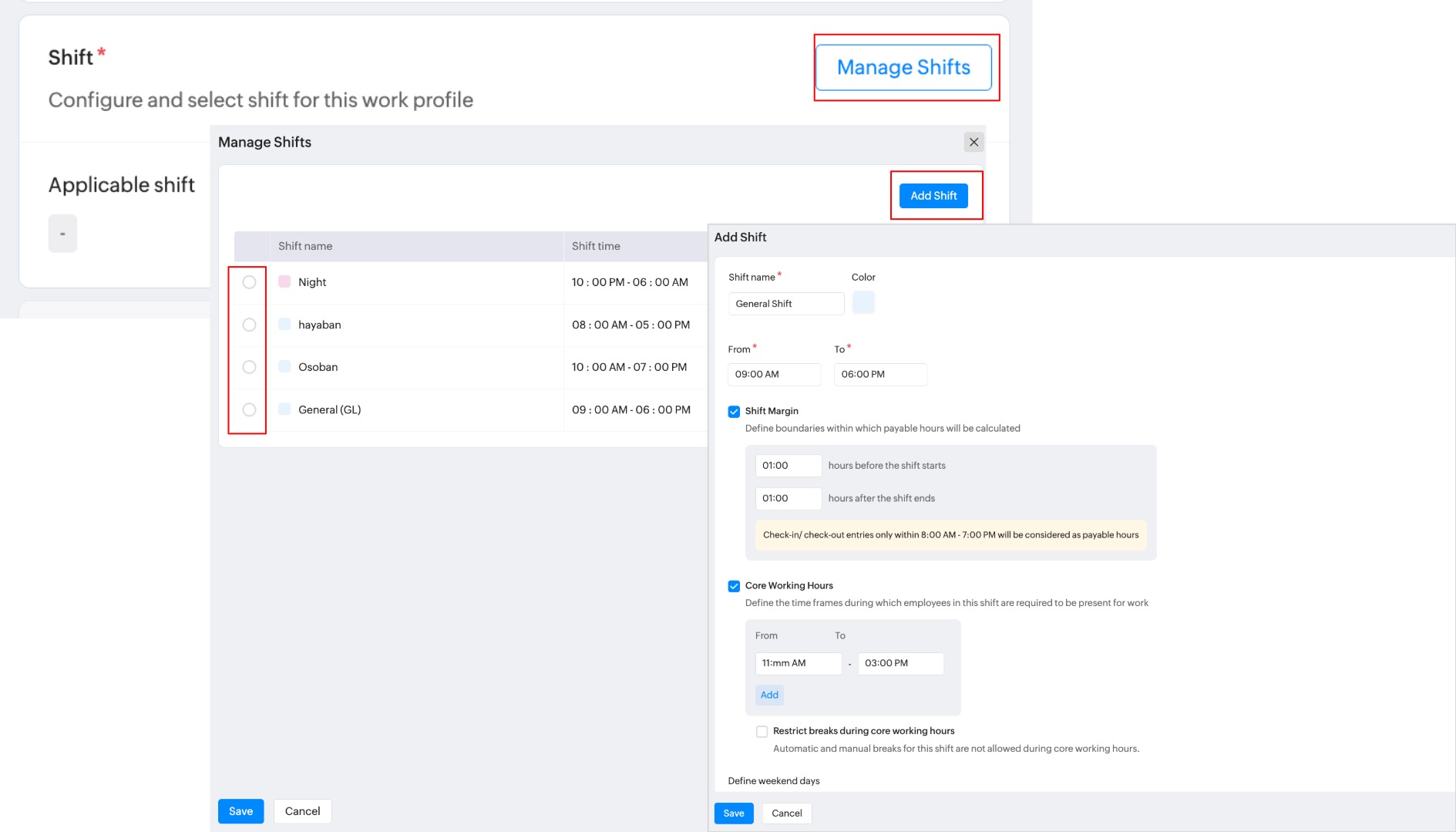
Shift
Define and tag the shift to set the working hours, attendance rules, and other shift-specific settings for employees assigned to this work profile.
Break
Breaks let you define the rest periods (such as a lunch break or a short break) that apply to a work profile. Once configured, these breaks govern how break time is tracked, whether it is paid, and how it affects an employee's total working hours.
IP Restriction
Configure and select IP restrictions to allow attendance marking only from specified IP ranges
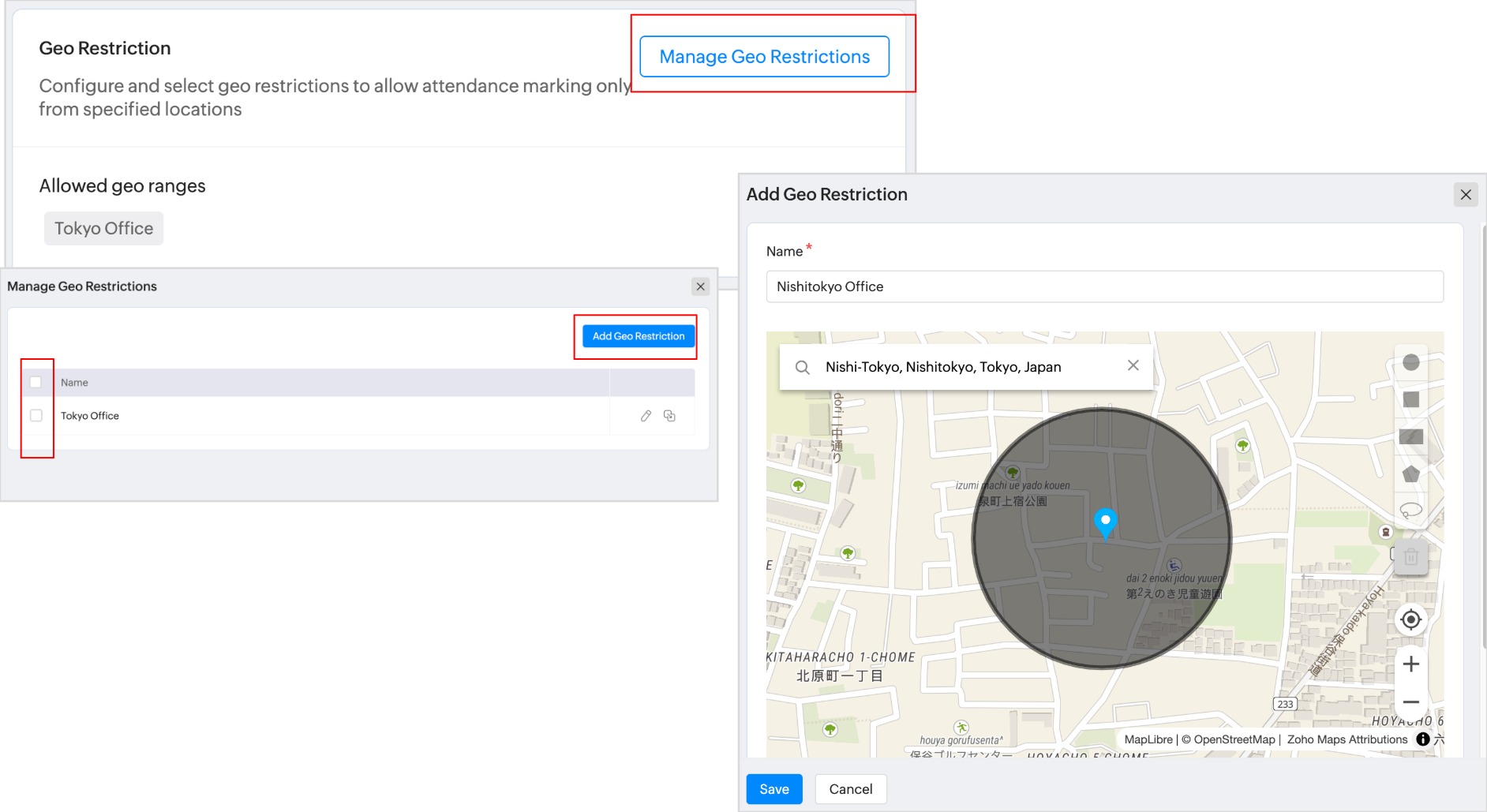
Geo Restriction
Configure and select geo restrictions to allow attendance marking only from specified locations
Assign Work Profile
A work profile defines an employee's working schedule and rules for a specific period. Assigning a work profile links an employee to a profile (for example, Nagoya - WP or Contract WP). You can assign a preset profile as-is, or customize it for an individual employee.
Work profile must be created first to assign it to employees, create work profile under Work Profile tab.
To assign work profile to your employees:
- Navigate to Settings > Employee Information > Work Profile > Employees' Work Profile.
- Click Assign Work Profile in the right.
- Select the Employee you want to assign the profile to and click Next.
- Choose the Work Profile from the list of available profiles.
- Set the Effective Period by entering a start date and an end date. This period determines when the profile is effective and drives the assignment's status and expiry countdown.
- If you need to adjust the profile's settings for this specific employee, make your changes. Otherwise, leave it off to apply the preset profile. The Customized column will show Yes or No accordingly.
- Click Save to complete the Work Profile assignment.
The user will receive the mail related to their work profile assignment and its rules.
If the work profile expires, the employee's login access will be disabled, and they will no longer be able to access Zoho People.