Shift Swap - Zoho People

This feature is enabled on demand, please contact support@zohopeople.com to enable it for your organizational account.
The Shift Swap feature allows employees to exchange their scheduled shifts with other employees. This helps organisations maintain operational continuity while giving employees flexibility to manage their schedules.
Administrators can control how employees can exchange their scheduled shifts with other employees. Determine who can use them, choose the swap method, configure notifications, and set rules for when and how often swaps can be made.
Enable Shift Swap
To allow employees to swap shifts:
- Navigate to Settings > Shifts > Configuration > Shift Swap.
- Enable Shift Swap.
- Set applicability on who can swap shifts in your organization:All users: All employees in the organization can swap shifts with other employees.Specific users: Only employees who meet the defined criteria can swap shifts with other eligible employees. You can set exceptions to restrict specific employees.If 'Allow swaps only within the same department' is enabled, employees can swap shifts only within their own department members.
- Choose the preferred Shift swap method:
- Request-based swap: Employees can submit a swap request to another employee. For example, Employee A can request to exchange a scheduled shift with Employee B. The swap takes effect only after Employee B accepts the request. This method is useful when the employee receiving the swap must explicitly agree to the exchange.
- Direct Swap: Employees can exchange shifts directly without requiring the other employee's acceptance.
- Both: Allows employees to choose between Request-based swap and Direct swap when raising a request.
- Request-based swap: Send a request that the other employee must accept.
- Direct Swap: Exchange the shifts directly without requiring the other employee's acceptance - Enable required notification settings:
Feeds: Feeds notification will be displayed in Zoho People Home > My Space > Overview > Feeds tab.
Email: Email notification will be triggered to employees email id. - The Preferences section allows you to define rules and timelines for submitting and processing shift swap requests. These settings help ensure that shift changes are planned in advance and do not disrupt operations.
- Submit swap requests at least _ hours before shift startEnable this option to require employees to request a shift swap a minimum number of hours before their scheduled shift begins. This ensures adequate time for review and approval. Requests submitted within the restricted time window will not be allowed.
- Swap request must be accepted or approved at least_hours before shift start
Enable this option to set a deadline for responding to shift swap requests. Employees or approvers must accept or approve the request within the defined time before the shift starts. This helps avoid last-minute changes and ensures schedule stability. - Allow swaps only within the same department
Enable this option to restrict shift swaps to employees within the same department. When enabled, employees can only swap shifts with colleagues from their own department. When disabled, employees can swap shifts across departments (based on applicability settings). - Limit swap requests to _ per day
Enable this option to limit the number of swap requests an employee can make within a specified period. Enter the maximum number of requests and select the period. You can also allow unlimited direct swaps by overriding this limit.
Note:
- The shift must be applicable to both employees involved in the swap.
- Employees cannot swap shifts with themselves.
- The shift must be applicable to both employees involved in the swap.
- Employees cannot swap shifts with themselves.
- If approval is configured, the swap will take effect only after the swap request is approved.
How Employees Can Request a Shift Swap
Employees can swap shifts by submitting a Shift Swap request in the Attendance tab.
- Navigate to Attendance > My Data > Shift Swap.
- Click on Add Request.
- Choose Swap request type:
- Same day: Swap shifts for the same date.
- Different day: Swap shifts across different dates.
- Choose the shift date you want to swap.
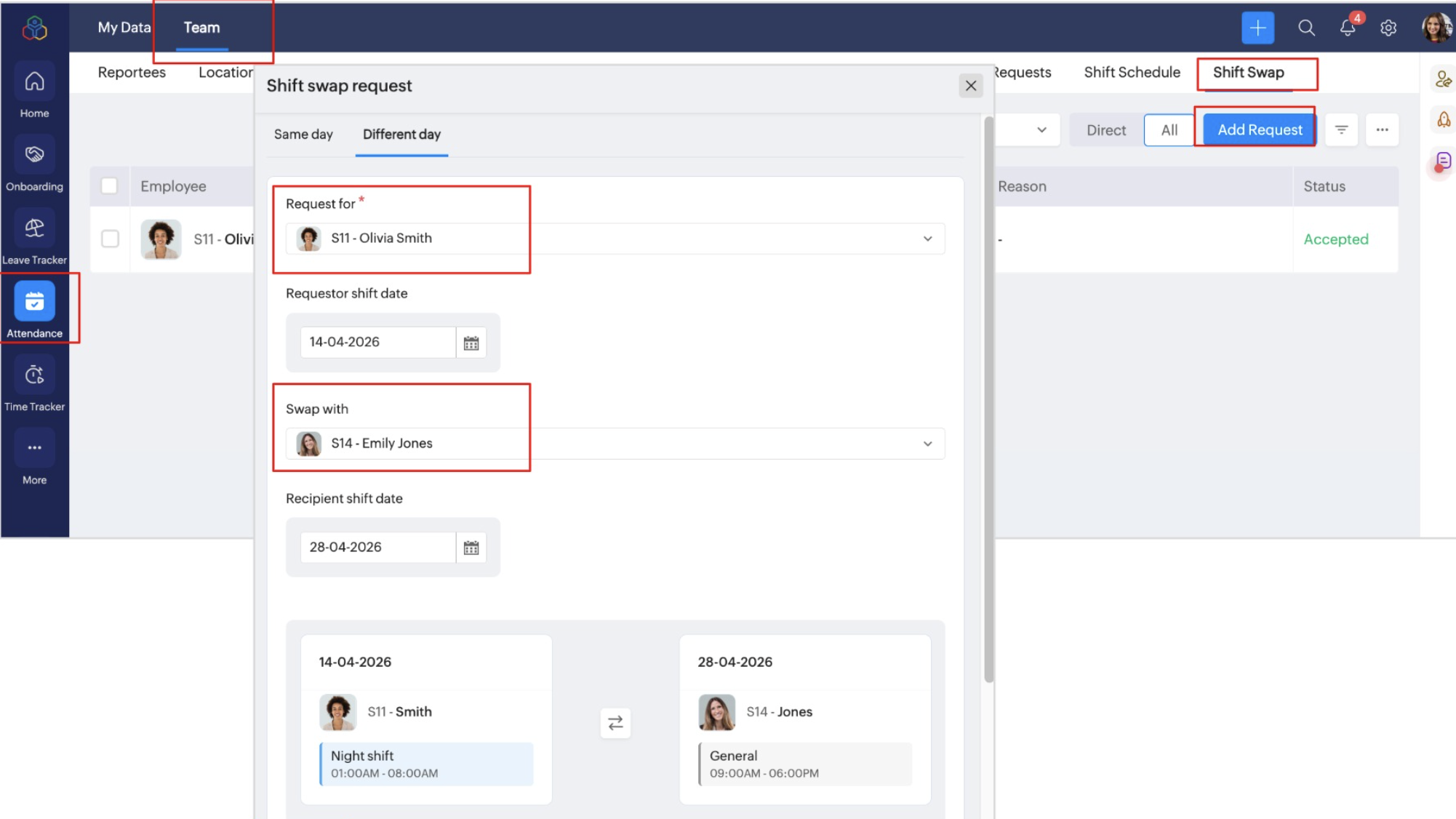
- In Swap with, search for and select the employee you want to swap shifts with.
If you want to Swap shift with different day, select the Different day tab, and select recipient shift date. - Review shift details: The system displays your selected date and shift, along with the selected employee’s date and shift.
- Provide a reason for the shift swap.
- Submission Options: Depending on the shift swap configuration, employees may see one or more of the following submission options:
- Request Swap: Select Request Swap to send the swap request to the selected employee. The recipient can review the request and Accept or Reject it.
- Swap Directly: Select Swap Directly to exchange shifts immediately with the selected employee without requiring the recipient to accept the request.
If approval is configured, the swap will be completed only after the configured approval process is completed. - Click Submit.
The selected employee receives the request. They can accept or reject it.
Note:
- The shift must be applicable to both employees involved in the swap.
- Employees cannot swap shifts with themselves.
- The shift must be applicable to both employees involved in the swap.
- Employees cannot swap shifts with themselves.
- If approval is configured, the swap will take effect only after the swap request is approved.
Managers can raise, approve (if configured) and manage the shift swap requests for their direct or all reportees from the Attendance > Team > Shift Swap tab.
How Employees can View and Respond to Shift Swap Request
To view and respond to the shift swap request:
- Navigate to Attendance > My Data > Shift Swap.
- Click on Received tab.
- Click on the request, review swap details and click Accept.
- If configured, the request may also require manager/admin approval. You can track the request status under:
- Sent (requests you initiated)
- Received (requests sent to you)
Admin Operations - Shift Swap
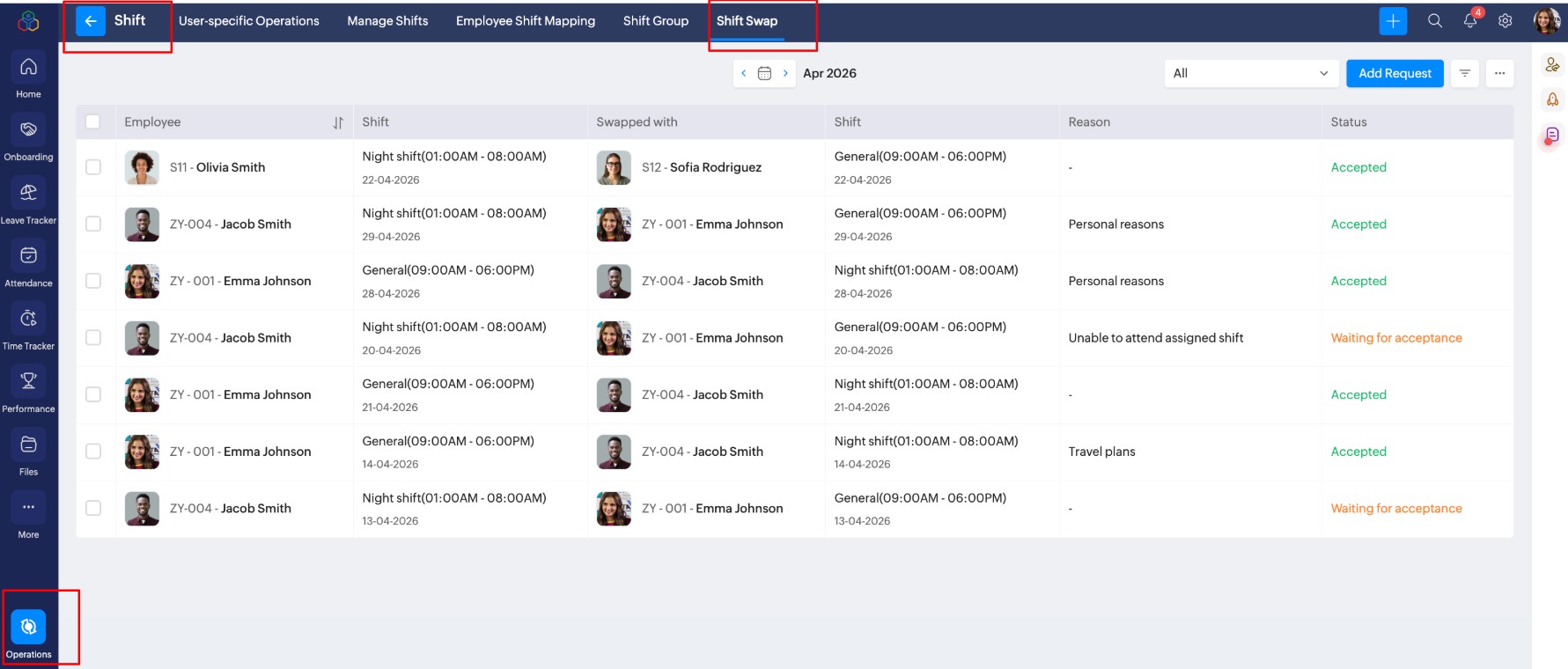
Administrators can manage shift swap requests of the entire organization from Operations > Shift > Shift Swap.
What administrators can do here?
- View all requests
- Create new requests
- Approve requests (if configured)
- Delete requests
To manage shift swap request of your organization, navigate to Operations > Shift > Shift Swap.