FAQ: Leave | Time Off | Holidays | Attendance | Shifts
I have sufficient leave balance, but I receive the error message ‘Leave balance exceeded.’ How can I resolve this?
Follow the steps to verify if the employee has actually exhausted their leave balance and customize policy if required:
This error typically occurs when an employee attempts to apply for leave after exhausting their available balance.
To verify and resolve the issue, please follow the steps below from the Admin account:
Step 1: Check Leave Policy Settings
Navigate to:
- Settings (gear icon) > Leave Tracker / Time Off > Configuration > Leave Policy > Select the relevant Leave Policy > Restrictions
- Verify whether the option “Allow leave requests that exceed the entitled leaves” is disabled. by enabling, this employee will be allowed to apply for leave even if it exceeds the available balance at that time.
Step 2: Review the Employee’s Leave Records / Add a Customized Policy:
follow the steps:
follow the steps:
- Operations > Leave Tracker / Time Off > User Specific Operations
- Search for the employee.
- Click Customize Policy.
- Hover over the relevant leave type and select View History.
Set:
- From Date as the Accrual Period Start Date
- To Date as the Accrual Period End Date
- This will allow you to review the employee’s leave accrual and usage for the selected period.
Will shift-based holiday override location-based holiday?
Yes, shift-based holidays will override location-based holidays, and hence the location-based holidays may not be listed as expected. To sort the case, it is better to set up all the holidays based on either location or shifts alone (for previous, current, and future holidays added in the system).
How can employees view the Leave Calendar for other departments?
Follow these steps to configure access permissions for resource availability and leave calendar report:
If you want to allow employees to view other users' leave in Zoho People, from the admin account go to Settings (Gear Icon) > Leave Tracker > Configuration > Reports, then configure the settings below and click Submit.
Once done, Users can view other users' leave from Home > Organization > Calendar > Click on the Filter option > Reset > Submit
How do I allow employees to request half-day leaves?
Follow the steps below to edit specific leave policies and enable half-day leave applications.
1. Navigate to Settings > Leave Tracker > Configuration > Leave Policy
2. Click on the particular leave policy
3. Go to Restrictions
4. Under Record level restrictions, allow Half day duration for the specific leave policy
5. Save the changes
How to check leave history of users?
Follow the steps below to review a specific leave policy’s history.
1. Navigate to Operations > Leave Tracker > User-Specific Operations
2. Search and select the particular user
3. Click on Customize Policy
4. Click on the ‘View History’ button for the selected leave type
5. Set the date range as required and review the leave history
How to customize leave policy for specific users?
Follow the steps below to customize the specific leave policy of a particular user.
1. Navigate to Operations > Leave Tracker > User-Specific Operations
2. Search and select the particular user
3. Click on Customize Policy
4. Click on the particular leave policy name
5. Update the leave policy and submit the changes.
How to reset the leave policy that was customized for specific users?
Follow the steps below to reset the customized leave policy of a particular user to the default policy.
1. Navigate to Operations > Leave Tracker > User-Specific Operations
2. Search and select the particular user
3. Click on Customize Policy
4. Hover over the particular leave policy name and click on Reset to Default Policy button
A leave policy is not listed in the leave summary of users. However, we can access it under every user profile and apply for leave from the admin account. What could be the reason?
If a leave policy is listed in the admin account but not in the user account, follow the steps below to update the configuration.
1. Navigate to Settings > Leave Tracker > Configuration > Leave Policy
2. Select the specific leave policy
3. Navigate to the Restrictions section and check if the option “Allow only administrators to view and
apply this leave on employee’s behalf” is enabled
4. If this is enabled, you may disable it and save the changes.
How to notify department members or team members about leave?
In the leave form, we have the field “Team email address,” which can be updated by users while applying for leave. The team email address can be input here.
Alternatively, a workflow can be configured to trigger an email every time a leave is submitted or once a leave is approved. In the email alert, the “Team email address” can be added as the To address so that email notifications will be triggered accordingly.
Alternatively, a workflow can be configured to trigger an email every time a leave is submitted or once a leave is approved. In the email alert, the “Team email address” can be added as the To address so that email notifications will be triggered accordingly.
Follow the steps below to configure a workflow and email alert to trigger emails as required.
1. Navigate to Settings > Leave Tracker > Automation > Workflows > Add Workflow
2. Choose the form name as Leave and give a workflow name
3. Configure the trigger event as required (either when new record is created or when the record is approved)
4. Under Actions, add a new email alert
5. Give a name, choose the From address as required, and then choose the To address as “Team email address of the person performing this action” from the Form fields.
6. Customize the message template and save the email alert
7. Add the workflow
Why are the configured leave policies not visible for users though they are applicable?
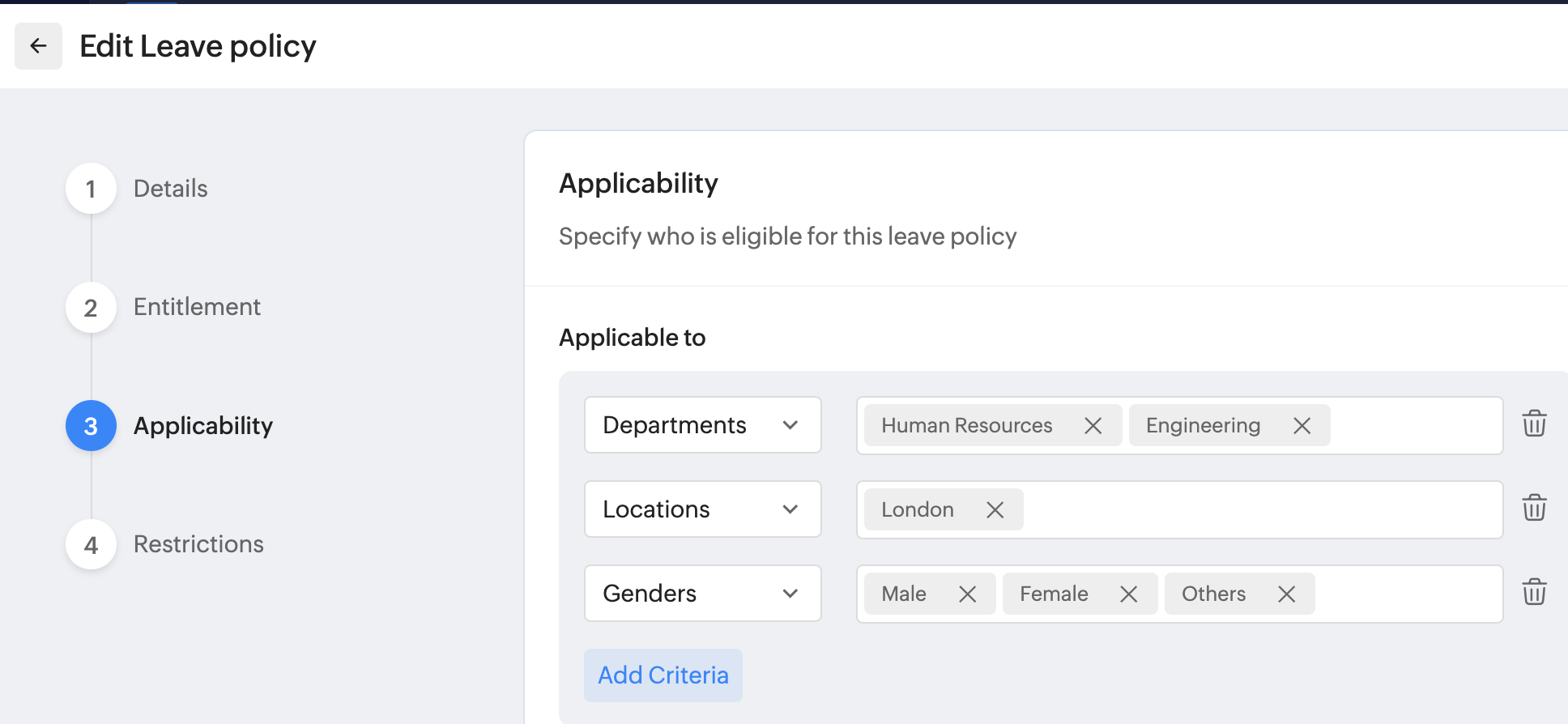
Edit the specific leave policy configuration (Settings > Leave > Configuration > Leave Policy) and review the Applicability section. Check whether the configuration is set to be applicable for the concerned user.
If multiple fields are selected under Applicability, the same fields must also be updated in the user’s profile too. This is because the system evaluates these conditions using an AND condition. In other words, the user must satisfy all the selected criteria to be considered applicable for the leave policy.
For example, if London is selected within Locations, and HR and Engineering is selected in departments, then this leave type is only applicable for all engineers and HRs from London, not just all HR, London-based, Engineering employees.
If any leave policy applies to all employees, directly choose “All Employees” as shown in the screenshot
below to avoid any confusion.
How to manually customize the leave balance of users?
Follow the steps below to manually customize the leave balance of users.
1. Navigate to Operations > Leave Tracker > Click on ‘Customize’ button
2. Select the particular user > Customize the leave balance of the required leave type as of a specific date so that the leave balance will be updated to the new customized balance effective from the selected date
If you’re looking to do this in bulk, you can click on the ellipsis icon next to the Customize button > Import > Download sample template > Select the date as required and import the file.
Learn more about Leave Balance Customization.
Error:“Sorry, this Leave Type is not applicable for you” Why is the user getting this error, while applying for leave, though they are applicable to it?
This error occurs when the user is not yet eligible to apply for the leave based on the leave policy’s effective criteria. For example, if a leave policy is configured to become effective only after 6 months from the employee’s date of joining, the user will not be able to apply for that leave before completing 6 months of service, even if the leave balance has been manually customized. The user will be able to apply for the leave only after
completing the required 6 months. However, if you would like to manually allow a specific user to be applicable to the leave policy before completing 6 months and apply for leave by bypassing this restriction, you can do so by navigating to Operations > User-specific Operations. Search for and select the required user, click Customize Policy, choose the relevant leave policy, review the Effective Date, update it as needed, and save the changes.
Once updated, the leave policy will become effective for that user, and they will be able to apply for leave.
Why is the user encountering an error “The dates for which you are trying to apply leave is too distant from today” while applying for leave?
This error occurs when the user tries to apply for leave too far in advance, for a date in a future year.
Follow the steps below to specify how much in advance employees can request leave.
1. Navigate to Settings > Leave > Configuration > Leave Request
2. Under the “Leave requests for future date” section, specify how much in advance an employee can
apply for leave

Note: Currently the options are: A year, 2 years, and 3 years.
I deleted a leave policy by mistake. How to restore a deleted leave policy?
It is not recommended to delete a leave type. If any specific leave type is no longer in use, it can be expired and disabled. However, follow the steps below to restore a deleted leave policy.
1. Navigate to Settings > Leave > Configuration > Leave Policy
2. Click on the filter icon at the top right > Select the status as "Deleted" and click Apply
3. Click on the “Restore” button
We have a leave policy change in our organization. Can I directly edit and update existing leave policy configurations?
If there is a policy change planned within your organization, it is not recommended to modify the entitlement of an existing leave policy, as this will retroactively update the leave balances of all applicable users from the policy’s effective date.
To avoid this impact, the recommended approach is to create a new leave policy that becomes effective from the start of the new financial year (say, 1st Jan), while setting the existing leave policy to expire on the last day of the previous financial year (say, 31st Dec). This ensures a clear separation between the old and new policy rules.
Before expiring the existing policy, you can export the leave balances as of 31st Dec. Once the new leave policy is created, these exported balances can be imported into the new policy. This process allows the system to carry forward leave balances accurately and apply accruals, carry-forward limits, and encashment rules strictly as defined in the new policy.
By following this approach, you can maintain historical accuracy of leave data, prevent unintended balance recalculations, and ensure a smooth transition for employees into the new leave year without discrepancies or confusion.
We have different work week calendars for different locations. How to differentiate the work calendars?
Follow the steps below to configure different work calendars as required.
1. Navigate to Settings > Leave > Configuration > Work Calendar > Add Work Calendar
2. Choose the applicable location
3. Define the weekdays & weekend
4. Define the calendar year
5. Save
Similarly, create different work calendars as required.
How to allow employees to cancel their leave requests?
Follow the steps below to specify who can cancel a leave request.
1. Navigate to Settings > Leave > Configuration > Leave Request
2. Under Leave Cancellation section, define who can cancel a leave request
3. To include an approval process, click on the highlighted Approvals button and configure it as
required
How to customize the compensatory off balance of users manually?
Compensatory off leave balances cannot be directly added to users. To add comp-off leave balances, appropriate compensatory requests should be submitted.
Follow the steps to add compensatory requests for users.
1. Navigate to Operations > Leave Tracker > Compensatory Request > Add Request
2. Select the user, choose the worked date, and click Submit.
However, for bulk Compensatory off data updates, you can click on the ellipsis icon at the top right and Import.
Download the sample template, update the data in the sample sheet, and then upload the sheet. This will update the comp-off balances of all applicable users.
Why am I not able to delete the compensatory requests that are already availed?
Compensatory requests that have already been availed as compensatory off cannot be deleted directly. To delete the compensatory request, you must first delete the corresponding Compensatory Off leave request. Once the leave request is removed, you will then be able to delete the compensatory request as
required.
The configured holidays are not listed for users in their accounts. What could be the reason?
From the administrator account, Navigate to Operations > Leave Tracker > Holidays > All Holidays and verify whether all holidays are listed.
If the holidays are configured based on location, check whether the user is correctly tagged to the corresponding location in their profile. If not, update the user’s location or modify the holiday applicability accordingly. If the holidays are configured based on shifts, ensure that the user is mapped to the appropriate shift.
Shift-based holidays will override location-based holidays.Is it possible to sync the Zoho People calendar of all users to Google or Microsoft Calendar?
Unfortunately, at this time, it’s not possible to sync the leave data of all users in one go. However, you can create a common Google or Microsoft calendar and ask all users to sync their accounts. While configuring the sync, they can choose this shared calendar so that their leave data gets updated collectively in the same calendar.
Alternatively, as an admin, you can manually sync each user’s leave data to the admin’s calendar by following the steps below.
1. Navigate to Operations > Leave Tracker > User-specific Operation
2. Search and select a user
3. Click the ellipsis icon (next to the Apply Leave button)
4. Sync the calendar as required
5. You can repeat this process for each user to sync their data to the admin’s calendar