Check-in/out and Proof of Delivery
RouteIQ Check-in/out
Log your arrival and departure information with check-in/out like time and date, location, etc. and capture proof of delivery.
This feature is available in the Professional Edition.
Check-in
There are three types of check-in available for you. They are: Route Stop Check-in, RIQ Record Check-in and finally Zoho CRM Check-in. Let us see how we perform all three.
Route Stop Check-In:
1. Open the RouteIQ Mobile App
2. Create a new route or open one that has already been created
3. Select the stop on your route that you have arrived at and tap "check-in".
Route Stop Check-In:
1. Open the RouteIQ Mobile App
2. Create a new route or open one that has already been created
3. Select the stop on your route that you have arrived at and tap "check-in".
RIQ Record Check-In:
1. Open the RouteIQ mobile app
2. Open the module in RouteIQ that contains the record where you would like to check-in. Say you have arrived at a lead named Timothy Charles' office, go to the Leads module and open the record called "Timothy Charles".
3. Click the icon at the bottom to Check-In
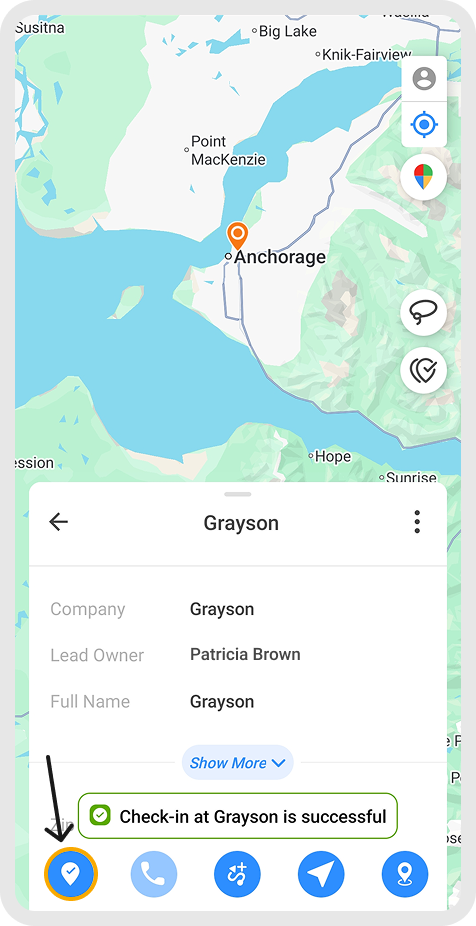
3. Click the icon at the bottom to Check-In
Zoho CRM Check-In:
1. Open the Zoho CRM Mobile App
1. Open the Zoho CRM Mobile App
2. Go to the module from which you want to check-in.

Note: If you check-in from any module other than Meetings, a new meeting will be automatically created and associated to the check-in you had just performed.
3. Click the check-in button.
Check-out
- Tap the check-out icon to check-out at the stop.

As you check-in and check-out from the stops's location. Route's Progress and Visits will be tracked by RouteIQ based on that.
Once the route is completed, the distance traveled and time spent is calculated by RouteIQ. Learn more.
Check-in/out can be restricted by the admin to make sure all check-in/out are performed only at the stop's location with Restricted Check-in/out.
Check-in/out can be automated so that you don't forget to check-in/out with Automated Check-in/out.
Proof of Delivery
You can add attachments such as documents, images, videos, etc and use them as visit or delivery proof. The attachments are stored under the stop's meeting record in Zoho CRM.