Managing Your Surveys
Zoho Survey provides an easy-to-use interface to manage your surveys. You can find your surveys, apply filters, restore them, and trash them all in one place with the My Surveys page. 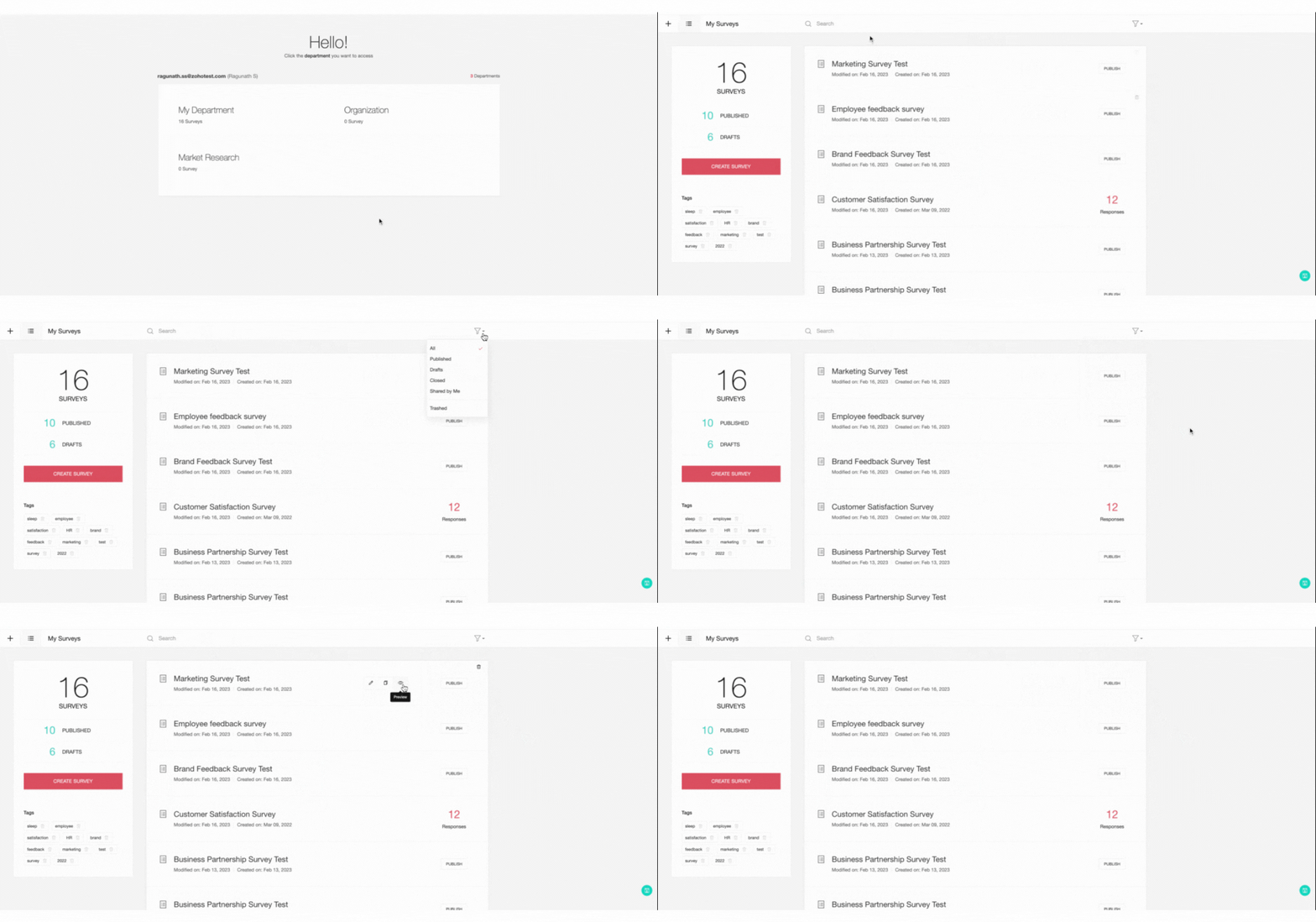
Use Cases:
When it comes to survey management, you can search for the survey of your preference with the search box, filter surveys based on your requirement, delete unwanted surveys, edit surveys anytime, duplicate surveys to save time, preview surveys, publish surveys instantly, and do much more.
To access the My Surveys page:
- Click the Zoho Survey logo in the upper-left corner of the page.
- If you're an Enterprise user, click the department you'd like to access. The My Surveys page will appear.
- To mark a department as default, select Default next to the department.
- You can perform the following actions on the My Surveys page:
Tags
Adding tags will help you find surveys later when you search the tags. You can create tags in the following places:
- Edit survey name
- Duplicate survey
To add tags while editing the survey name:
- Click the survey name on the top banner.
- Type the required tags for the survey next to Add tag. Separate tags with space.
- Click Update. If you're on the My Surveys page, click Create.
To add tags while duplicating the survey:
- Hover over the survey you want to duplicate on the My Surveys page and click Duplicate.
- Type the required tags for the survey next to Add tag. Separate tags with space.
- Click Create.
Filter
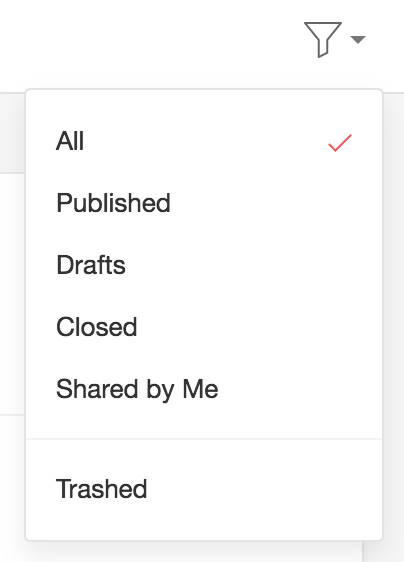
Apply filters to manage your search results with ease. When you apply a filter, Zoho Survey shows the filter that has been applied. Click Clear Filter to remove an existing filter. You can apply the following filters on the My Surveys page:
- All: All of your surveys
- Published: All published surveys
- Drafts: Surveys that have been saved as drafts
- Closed: Surveys that have been closed
- Shared by Me: Surveys that you have shared with others
-
Trashed: Surveys that have been moved to trash
To filter by tags:
You can also filter surveys by using tags and find surveys associated with the tags on the left pane of the My Surveys page. To remove the existing tags, click  , next to the tag.
, next to the tag.Search
You can find surveys easily by typing related keywords into the search bar on the My Surveys page.

Edit
Edit your surveys at any time. Remember, carefully crafted surveys will produce more accurate results.
To edit a survey:
- Hover over the survey name and click
 . You'll be taken to the survey editor.
 - Edit the survey as per your requirement. Remember to save the changes on each page.
Duplicate
You can copy a survey as many times as you'd like. Customize the survey name or use the suggestion provided by Zoho Survey.
To duplicate a survey:
- Hover the mouse over the survey you want to duplicate and click
 .
. - Type the new survey name.
- Type tags for this survey next to Add tag. Separate tags with space.
- Click Save.
Delete
Use the Delete function to remove unused surveys. Deleted surveys are first moved to your Trash and can be restored later if needed. You can also delete them from the trash to remove them permanently.
To move a survey to the trash, click  to the right of the survey name to move that survey into the trash.
to the right of the survey name to move that survey into the trash.
To find deleted surveys:
Click the filter icon on the My Surveys page and select Trashed.
Now, you can see the list of trashed surveys here. If you want to remove a survey permanently, delete it from the trash.
To delete a survey permanently:
- Click the filter icon on the My Surveys page and select Trashed.
- Hover over the survey you want to delete and click
 . A confirmation dialog box will appear.
 - Click Yes, Delete This Survey. You need to manually delete each survey.
|
Note
|
|
To delete each survey, you need to manually repeat the above-mentioned steps.
|
To restore a survey from trash:
- Click the filter icon on the My Surveys page and select Trashed.
- Hover over the survey you'd like to restore and click
 . You need to manually restore each survey.
|
Note
To restore each survey, you need to manually repeat the above-mentioned steps.
|
Behaviours:
- Edits can be made to the survey name, category name and tags anytime by opening the survey.
- Surveys once deleted from the Trashed section cannot be recovered.
Access:
All the management actions can be performed through your Zoho Survey account starting with a free plan.