Bidirectional sync between Zoho Bookings and Zoho CRM - Part 1
Hey, community members!
The default integration between Zoho CRM and Zoho Bookings is unidirectional, which means that any appointments booked, rescheduled, or deleted in Zoho Bookings will be reflected in Zoho CRM. However, any modifications made to events in Zoho CRM that originated from Zoho Bookings will not be reflected back in Zoho Bookings. Hence, as we're announcing in this community post, we've made the sync bidirectional.
This community post will cover the process of configuring appointment bookings from Zoho CRM in Zoho Bookings, as well as managing appointment statuses such as Canceled, No Show and Completed. We have addressed the rescheduling action in a separate post. To view it, please click on the following link: Reschedule Action
This community post will be beneficial for active Zoho CRM users who handle all their meetings within Zoho CRM. Additionally, you can use this community post as a reference to explore various automation possibilities tailored to your business requirements. For instance, with this post's guidance, when you update a booking's status field to "Completed" in Zoho CRM, it will automatically sync with Zoho Bookings and trigger an automated "Mark as completed" email to customers. This enhancement will improve your Zoho Bookings and Zoho CRM synchronization experience, making appointment management easier.
Prerequisites of bidirectional sync:
- Zoho Bookings Premium subscription
- Zoho CRM paid subscription
- Enable Zoho CRM integration within Zoho Bookings
The purpose of enabling the Zoho CRM integration within Zoho Bookings is to transfer booking details from Zoho Bookings to Zoho CRM. In this configuration, the mandatory field is the Booking ID, which is passed from Zoho Bookings to Zoho CRM through the integration. Whenever an appointment is booked, customer details will be sent to the designated CRM module, and a corresponding record will be created in the Meetings module within Zoho CRM, which will help in automating the workflow.
Here's the complete demo video that covers all the configurations discussed in the community post below:
Timestamps for your reference:
0:35 - Purpose of this community post
Here's the complete demo video that covers all the configurations discussed in the community post below:
Timestamps for your reference:
0:35 - Purpose of this community post
1:26 - Zoho CRM plugin installation
4:43 - Custom field creation
7:20 - Function creation
9:22 - Connection creation
10:24 - Configuring arguments
11:06 - Workflow creation
13:33 - Argument mapping
14:41 - Output verification
17:41 - Conclusion
How we're approaching this bidirectional sync
1. Booking an appointment from Zoho CRM
Install the Zoho Bookings for Zoho CRM plugin within your Zoho CRM application. This plugin enables the creation of a "New Appointment" button within the Zoho CRM Leads and Contacts module, which enables you to select the desired booking page you wish to open. You can choose from various workspace, service, or staff booking pages. After configuration, you can initiate the process of scheduling bookings directly from within your Zoho CRM account.
- Guide on Zoho Bookings and Zoho CRM plugin installation: Booking page selection for Zoho CRM plugin
2. Booking status: Completed or No Show
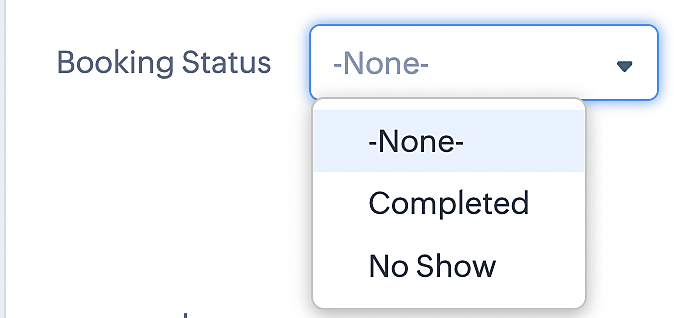
To update a booking's status (Completed or No Show), we've added a new picklist properties field named "Booking Status" in the Meetings module and configured it with two options: "completed" and "no show". Depending on the booking status chosen, the corresponding booking in Zoho Bookings will be updated.
- Details on how to add a custom field to the Meetings module : Customizing modules
- Here's a video that demonstrates how to add a field to a module in Zoho CRM: Adding fields
Reference:
3. Booking status: Canceled
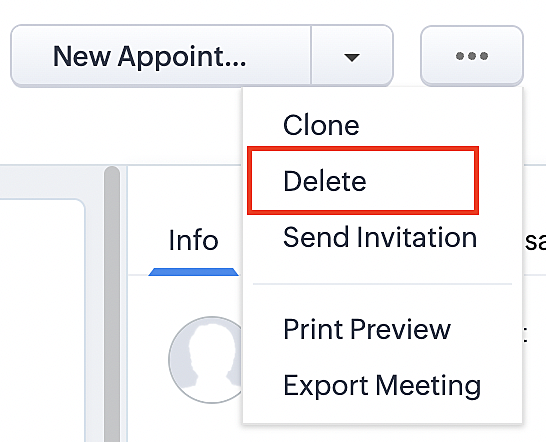
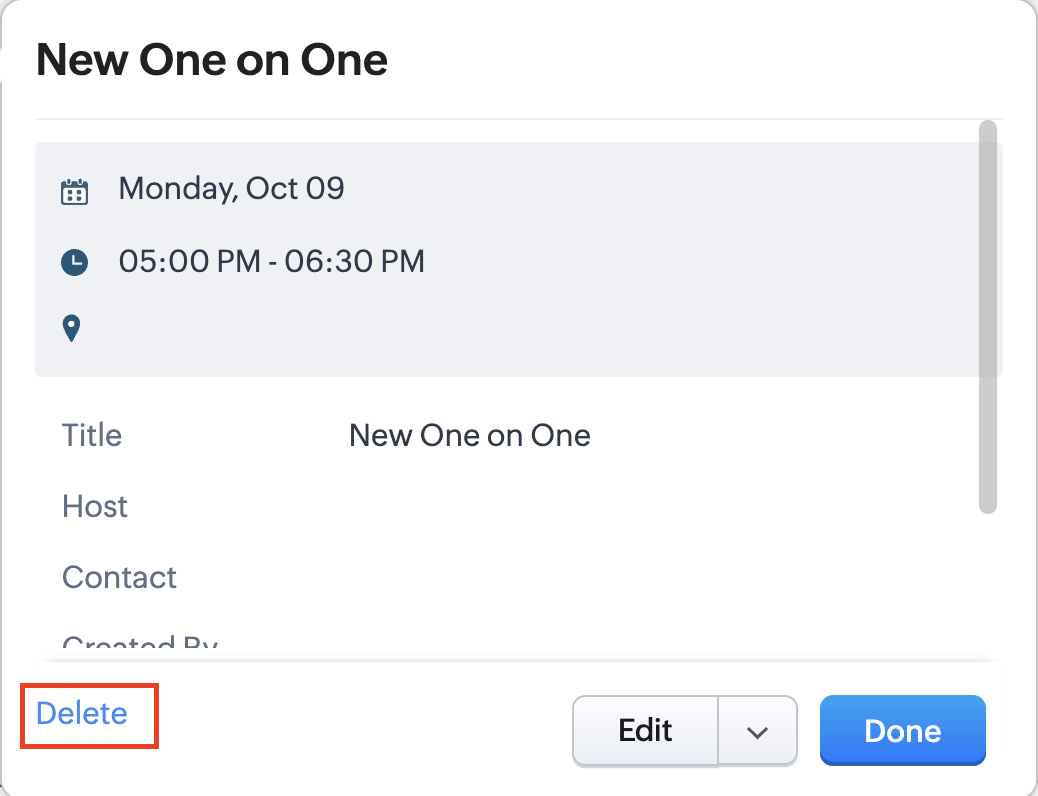
Whenever a meeting is deleted from the Meetings module, the corresponding booking in the Zoho Bookings app will also be canceled automatically. The meeting can be deleted either from the Meetings module or directly from the calendar.
To enable bidirectional sync between Zoho CRM and Zoho Bookings
Complete these steps in Zoho CRM.
Step 1: Creating connections
You first need to establish a connection between Zoho CRM and Zoho Bookings. Zoho Bookings is listed as one of the default connections in Zoho CRM, making it simple to set up. Select the Zoho Bookings connection, define the connection name and scope, and you'll be all set. This connection will enable you to link both applications and facilitate the seamless transfer of data.
Read here for more details on how to create connection in Zoho CRM: Connections
Step 2: Creating functions
In this context, we'll be creating three functions: one for marking appointments as completed, another for canceling appointments, a third for marking appointments as no shows, and a fourth for rescheduling appointments. For each function, we must also configure arguments, which pass values or data into a function when making a call. Here, we'll pass the booking ID to the function as an argument to update the necessary booking status.
i. To create a function for marking appointments as completed:
1. Go to Setup > Developer Space > Functions.
2. In the Functions page, click + Create New Function.

3. Configure the function name, display name, and description.
4. Set the category as automation.
This opens the Deluge script page.
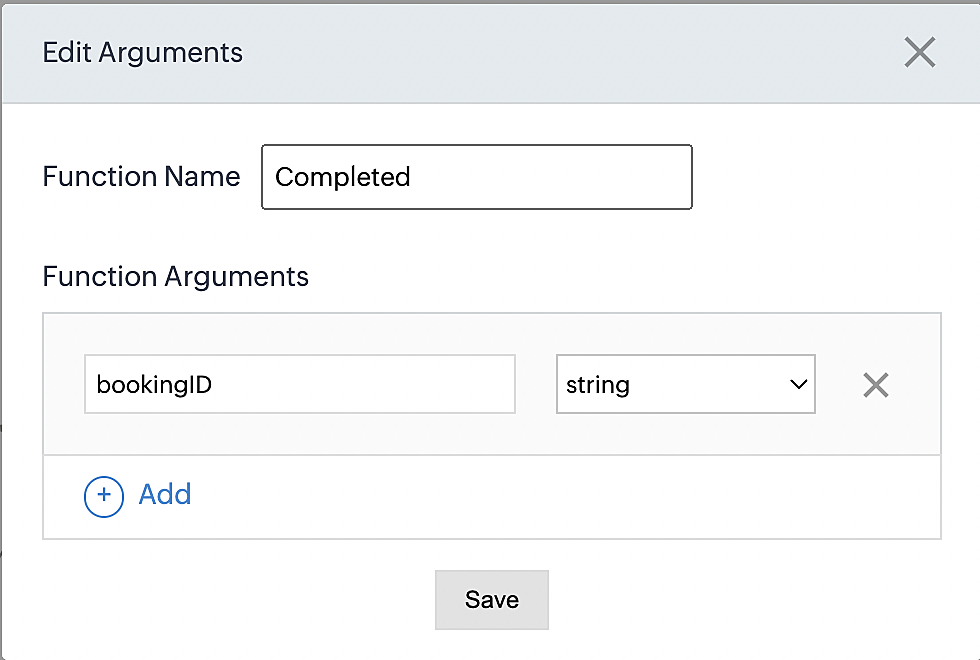
5. Next, configure the function's arguments:
A. Click on Edit Arguments on the Deluge script page.

B. Set the Parameter Name as bookingID. (Please note that the "bookingID" value is case sensitive and must match
the term used in the code).
C. Set the type as string.
Reference:
Please configure the below code in the Deluge script page.
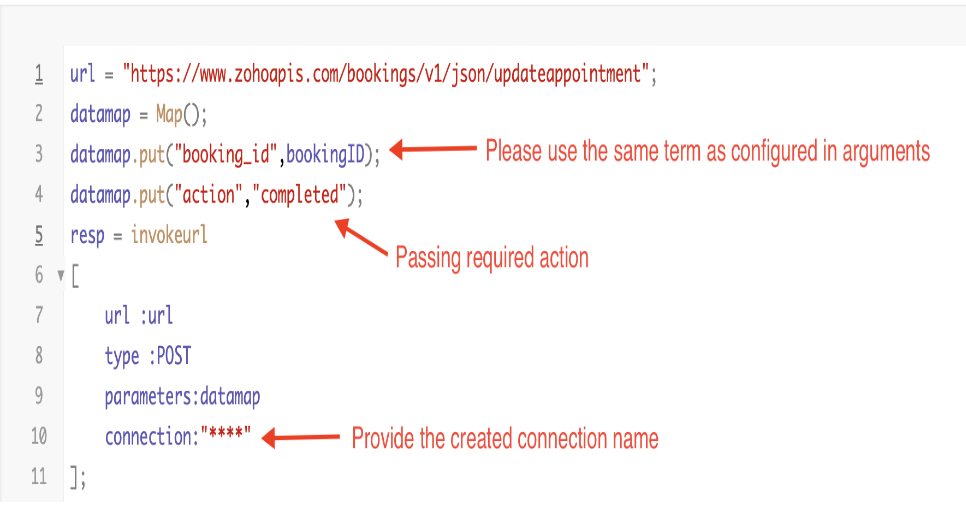
By completing these steps, we've configured a function that will mark appointments as completed.
ii. To create a function for marking appointments as no shows
1. Go to Setup > Developer Space > Functions.
2. In the Functions page, click + Create New Function.

3. Configure the function name, display name, and description.
4. Set the category as automation.
This opens the Deluge script page.
5. Next, configure the function's arguments:
A. Click on Edit Arguments on the Deluge script page.

B. Set the Parameter Name as bookingID. (Please note that the "bookingID" value is case sensitive and must match
the term used in the code).
C. Set the type as string.
Reference:
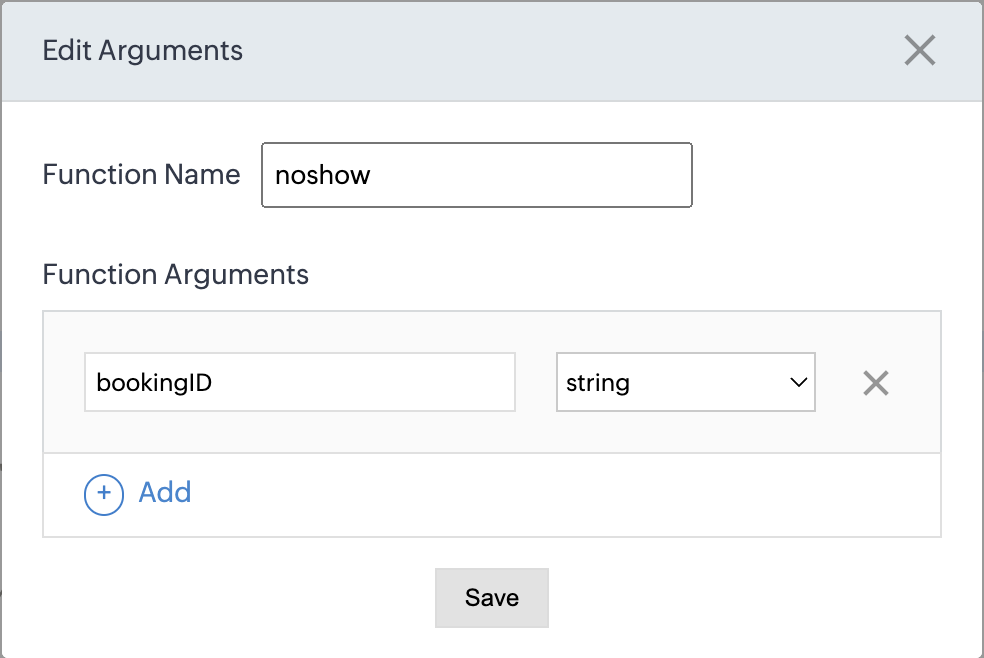
Please configure the below code on the Deluge script page.
Code link: No show
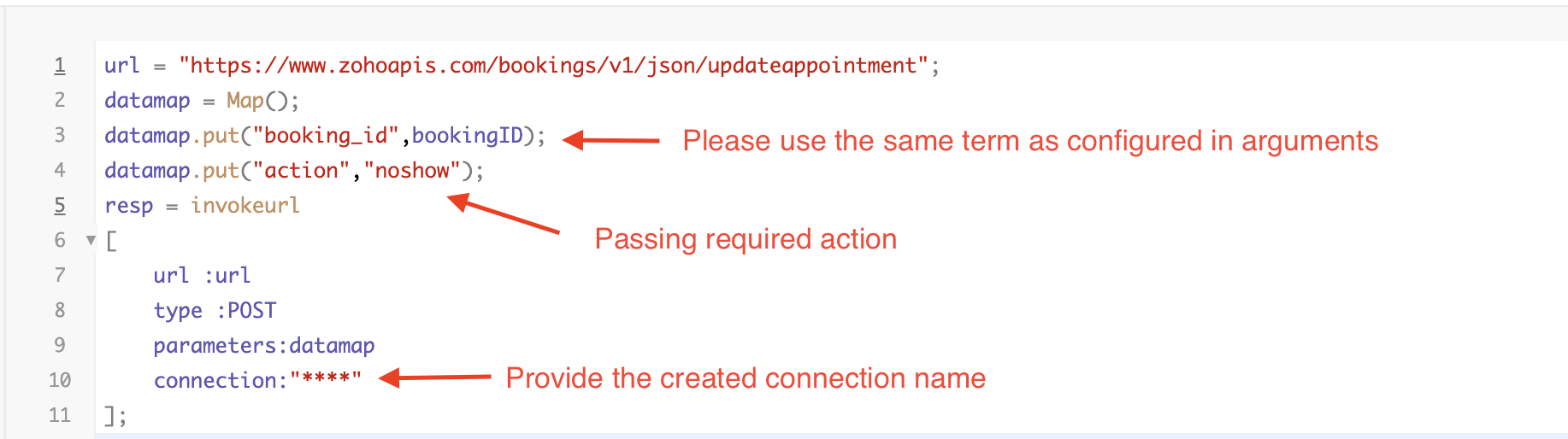
By completing these steps, we've configured a function that marks appointments as no shows.
iii. To create a function for marking appointments as canceled
1. Go to Setup > Developer Space > Functions.
2. In the Functions page, click + Create New Function.

3. Configure the function name, display name, and description.
4. Set the category as automation.
This opens the Deluge script page.
5. Next, configure the function's arguments:
A. Click on Edit Arguments on the Deluge script page.

B. Set the Parameter Name as bookingID. (Please note that the "bookingID" value is case sensitive and must match
the term used in the code).
C. Set the type as string.
Reference
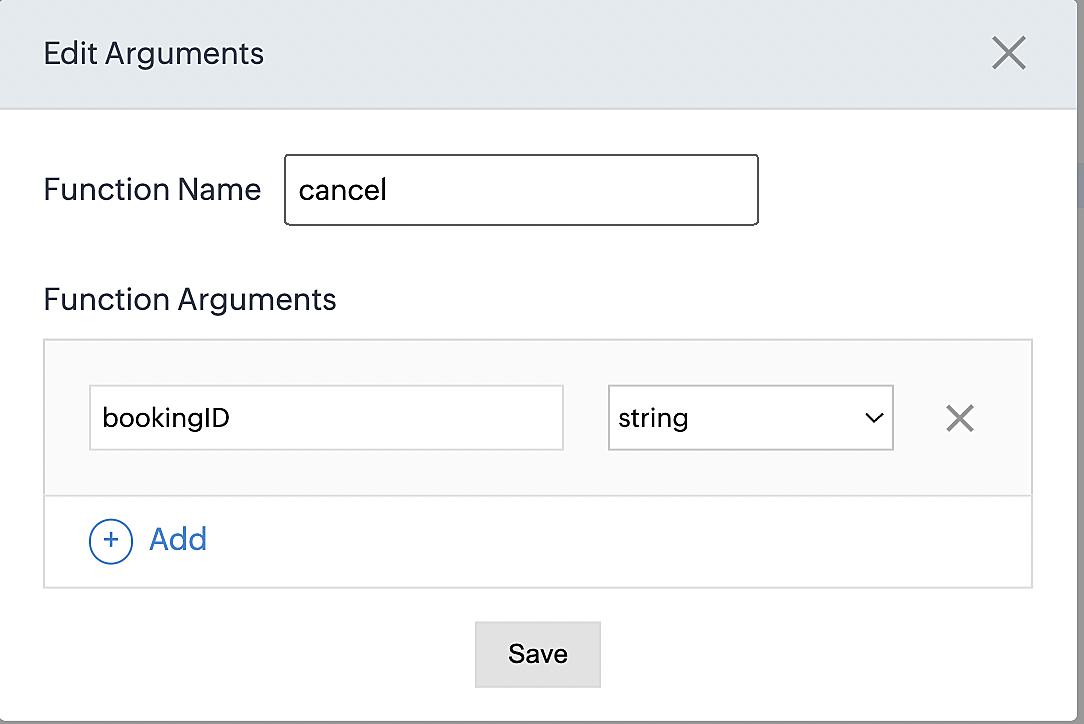
Please configure the below code on the Deluge script page.
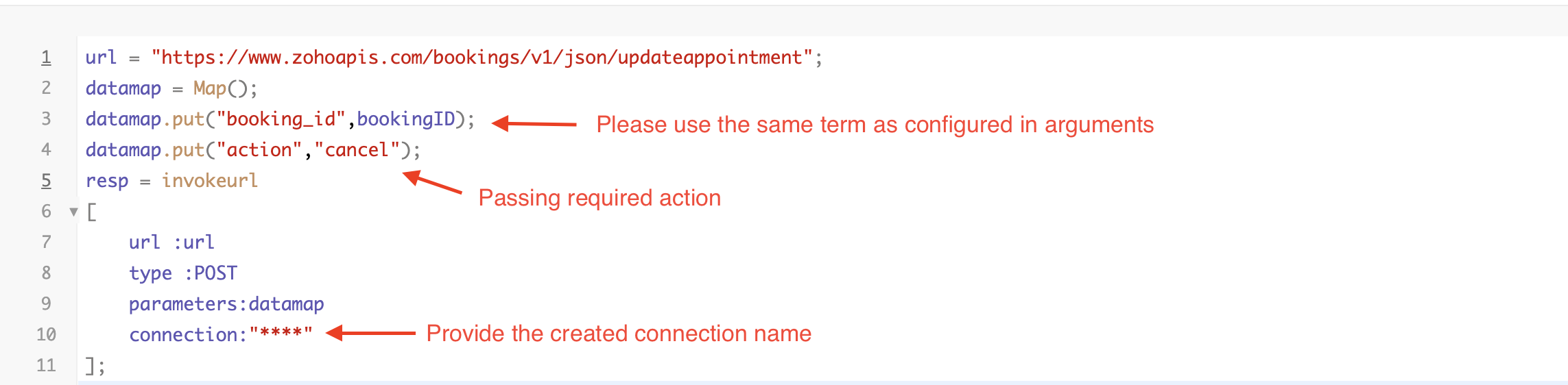
By completing these steps, we've configured a function that marks appointments as canceled.
Code explanation
Below is an explanation of the code that covers all the configurations present in the three functions mentioned above (cancel, mark as completed, and mark as no show).
Line 1: Based on the Zoho Bookings account's data center, we're setting up the API endpoint URL configuration.
Lines 2 - 4: To update appointments, we utilize the Zoho Bookings API. Within the update appointment API, there are two mandatory fields that need to be included: BookingID and action (completed/cancel/noshow).
Lines 5 - 10: We use the invokeURL task for API calls. To learn more about the invokeURL task, please refer to the following document: InvokeURL task for API calls
Now, let's proceed and learn about the process of creating a workflow and linking the established functions to it. This will enable us to automate the entire appointment status updating process.
Step 3: Creating a workflow
Workflow rules are sets of actions (email notifications, tasks and field updates) that are executed when specified conditions are met. Here, we'll generate workflow rules for each action to activate the respective function, thereby automating the appointment status updating process.
i. Creating a workflow for "canceling" appointments in Zoho Bookings when a meeting is deleted in Zoho CRM
Part 1: Creating the rule
1. Go to Setup > Automation > Workflow Rules.
2. In the Workflow Rules page, click Create Rule.

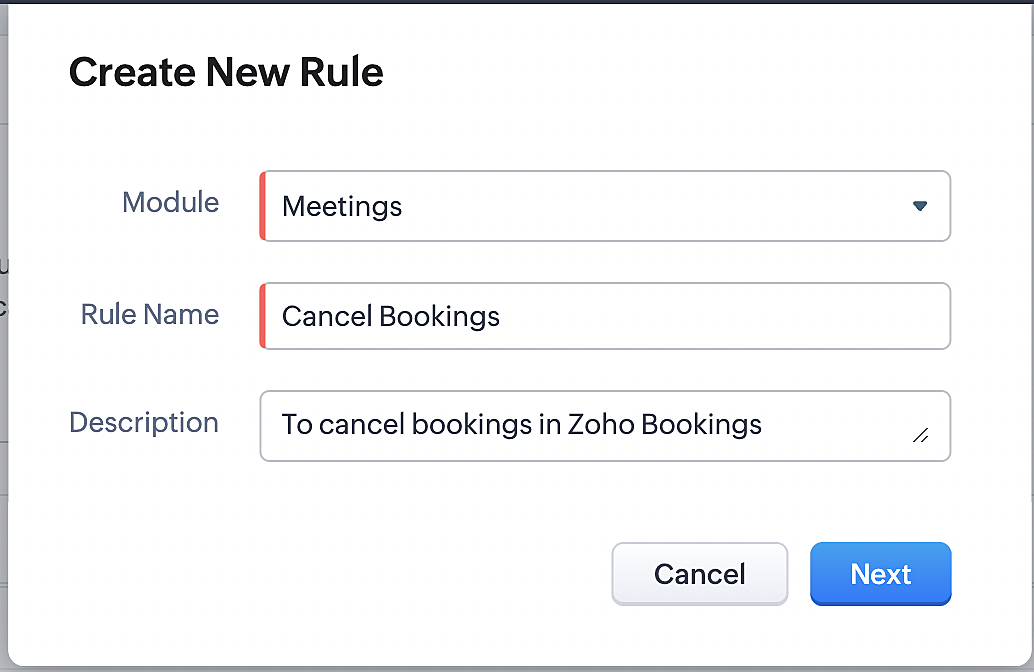
3. Select "Meetings" under Module and configure rule name and description as required.
More details: Create Rule
Reference:
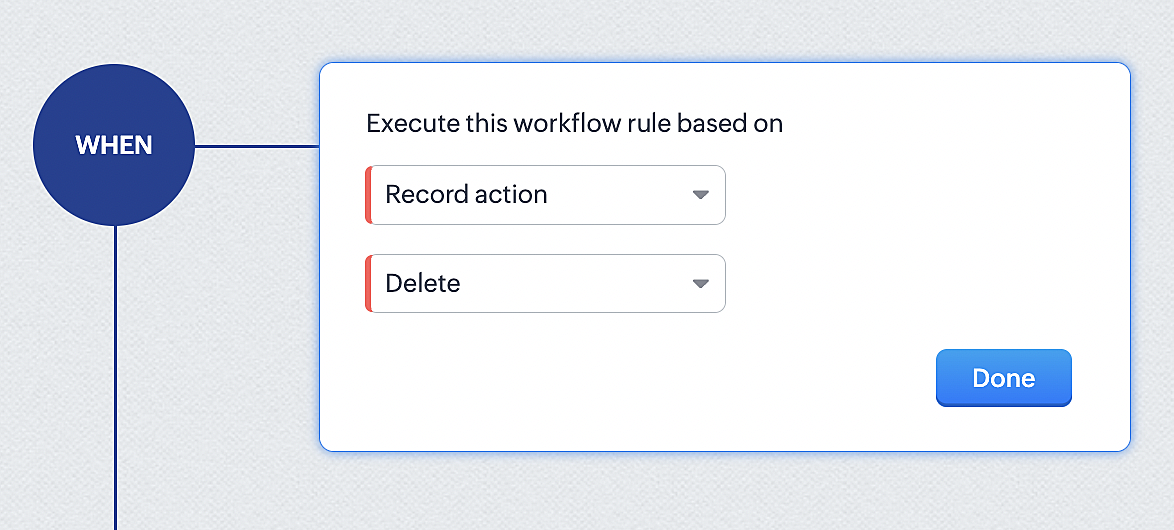
1. Select Record Action > Delete > Done to execute the rule when meetings are deleted.
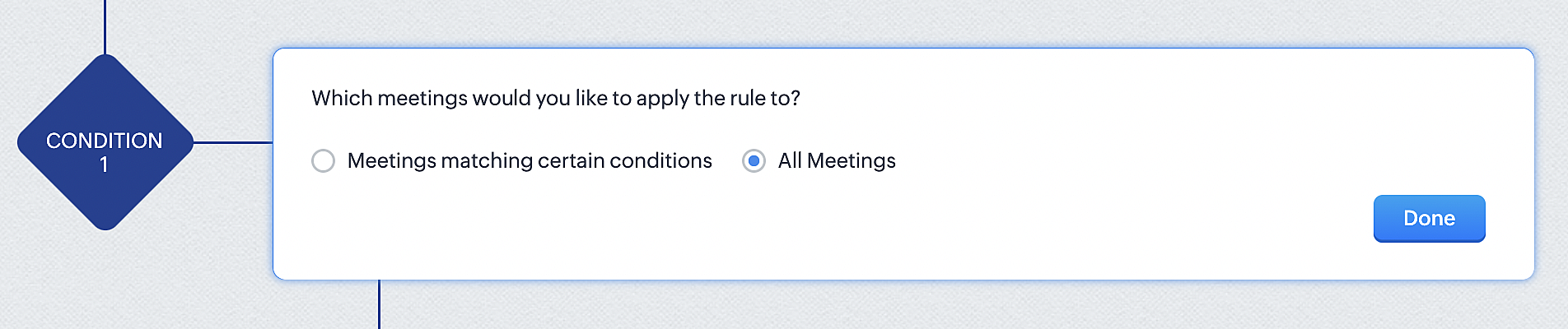
2. Configure condition > All Meetings.
3. Instant Actions > Function.
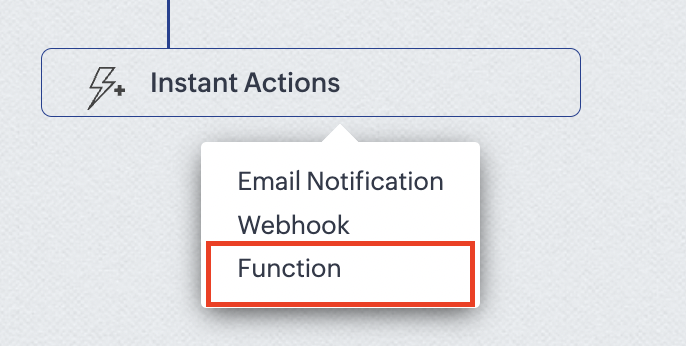
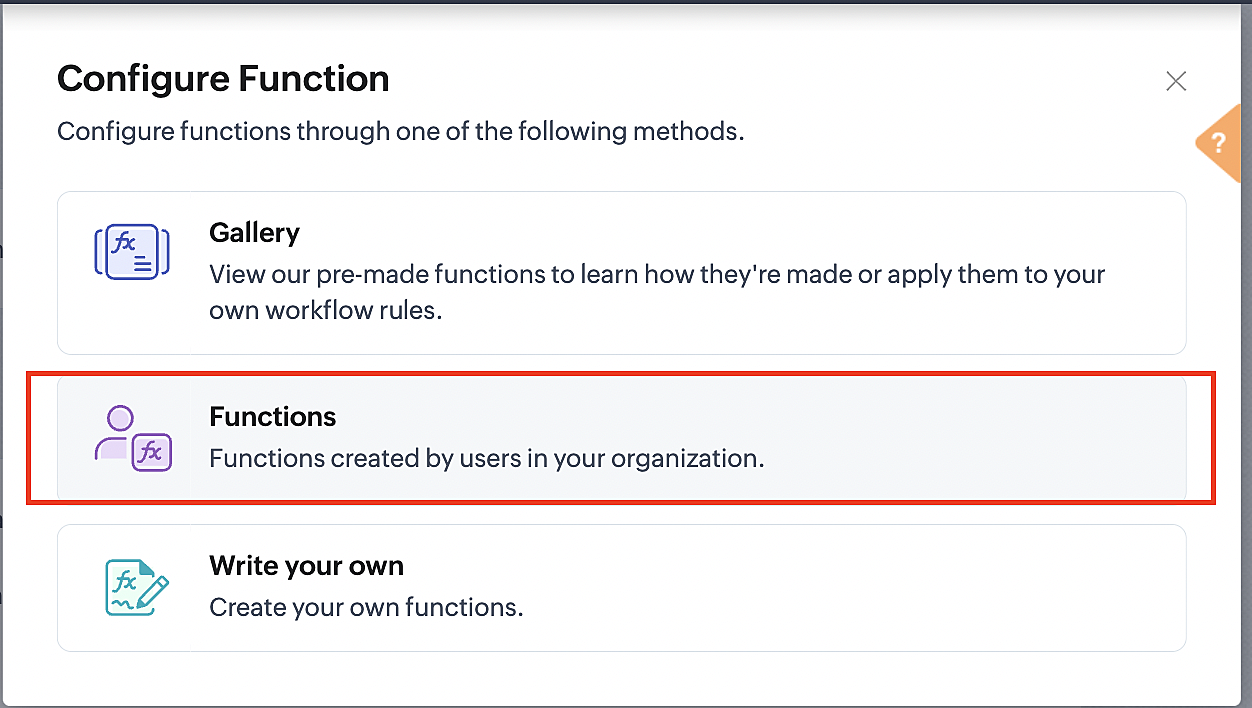
4. Click the New Function button.

5. In the Configure custom function page, select the "cancel" function you created from among the functions users in your organization have created.
Part 3: Argument mapping
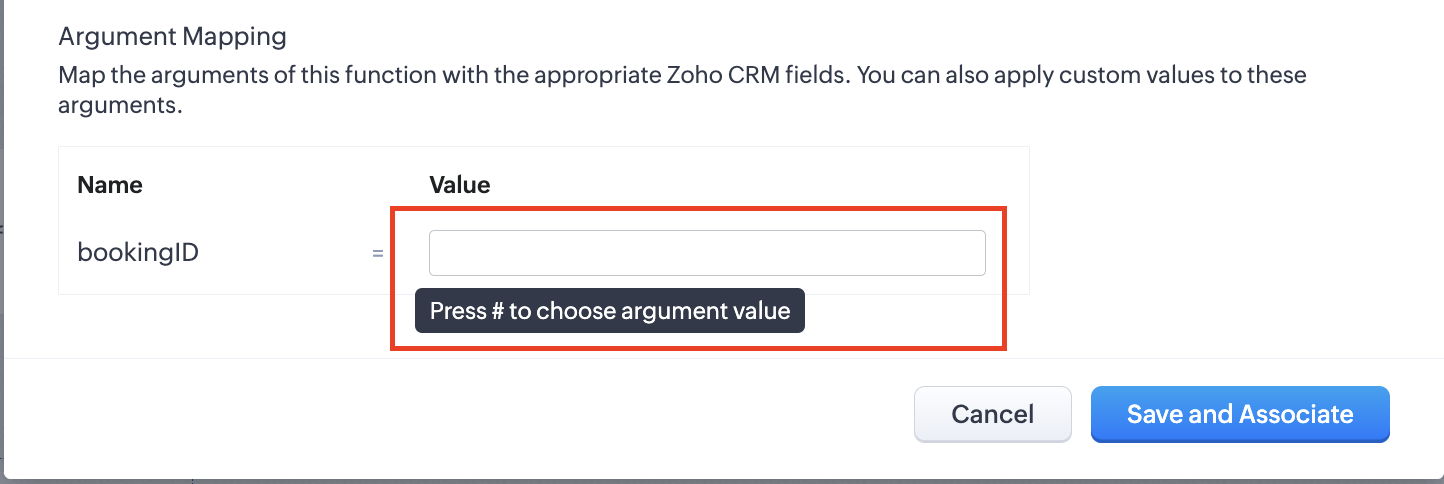
1. Press # to choose an argument value.
2. Select Meetings under Module and BookingId in the field.
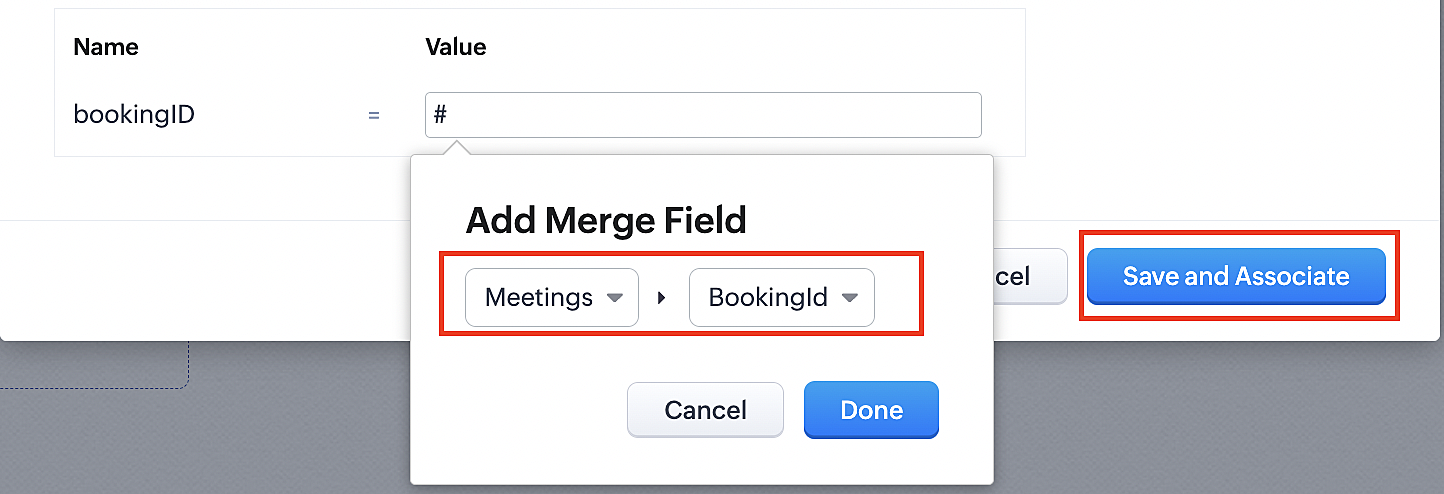
3. Click the Save and Associate button.
Reference:
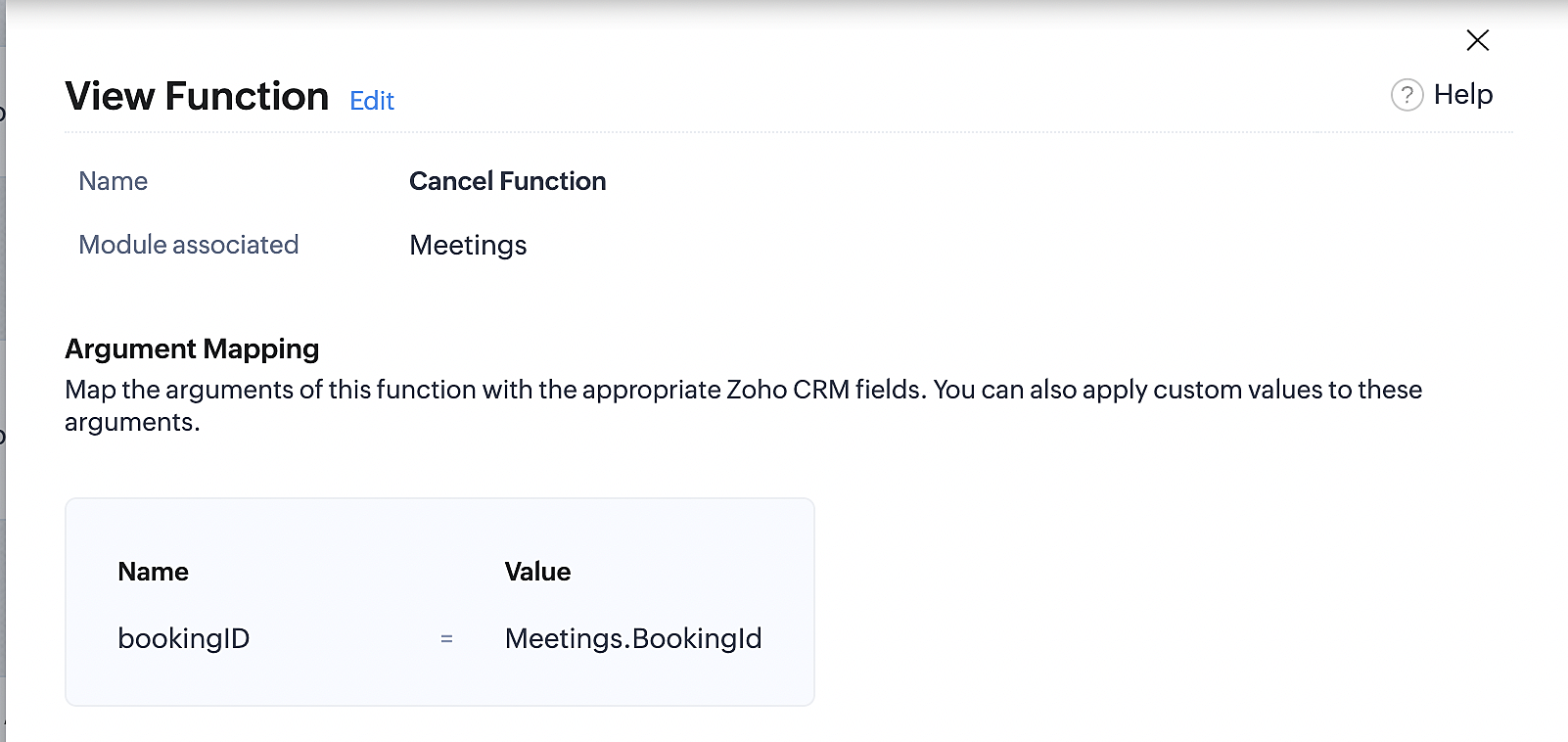
Below is the final flow of the cancel booking workflow:
At the end of Part 3, we will have created a workflow that will be executed automatically when meetings are deleted in Zoho CRM. Simultaneously, the bookings associated with the meeting will also be canceled in Zoho Booking.
ii. Creating workflow for updating an appointment's status as "no show" in Zoho Bookings when the meeting's booking status is marked as no show in Zoho CRM
Part 4: Creating the rule
1. Go to Setup > Automation > Workflow Rules.
2. In the Workflow Rules page, click Create Rule.

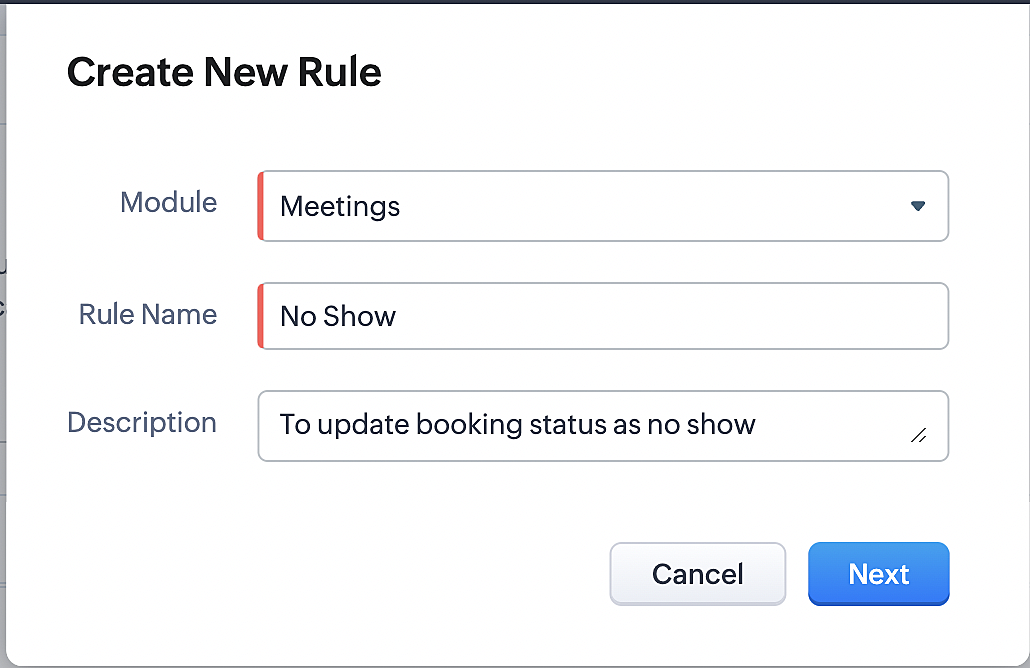
3. Select Meetings under Module and configure the rule name and description as required.
Reference:
Part 5: Specifying the rule trigger
If you encounter difficulties while navigating through the steps mentioned below, please refer to Part 2 above, where we have provided step-by-step screenshots for clarification.
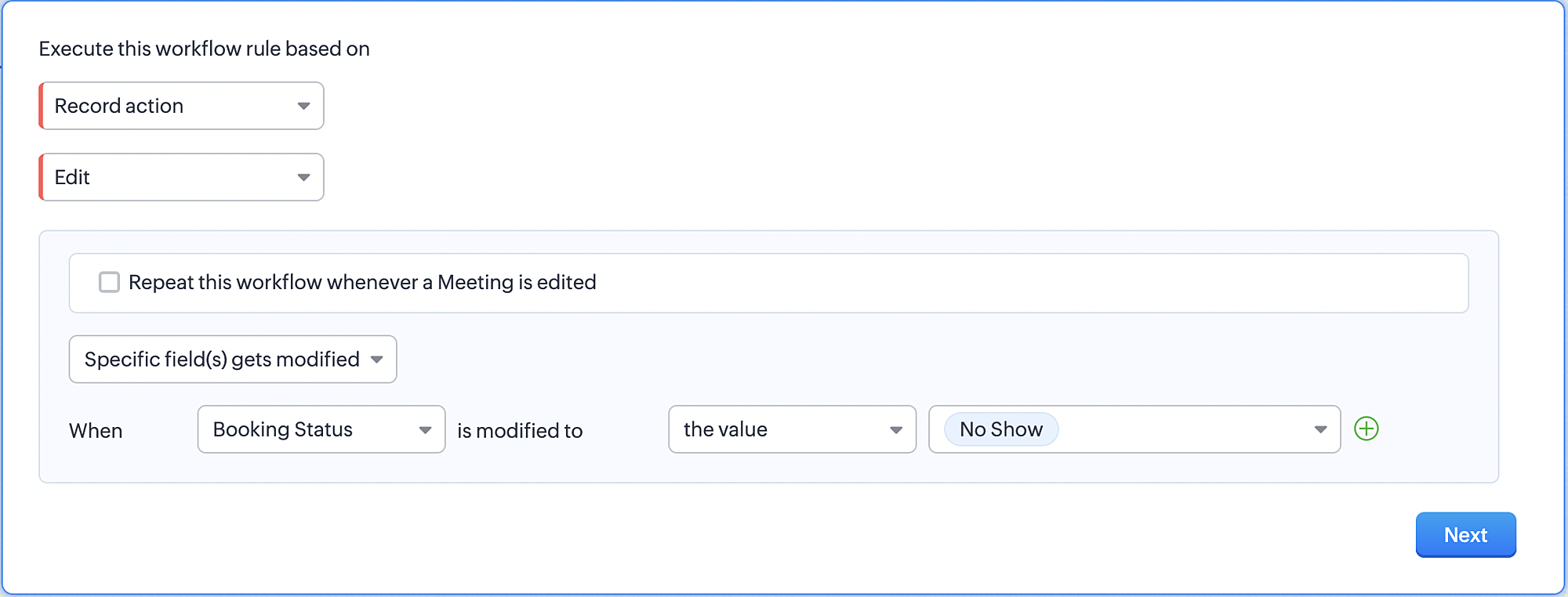
1. Record Action > Edit.

2. Enable the Specific field(s) gets modified and configure it per the screenshot below.
a. This is to ensure that the workflow is executed only when the booking status under the meeting module is
updated to "No Show".
updated to "No Show".
3. Configure condition > All Meetings.
4. Instant Actions > Function > New Function.
5. In the Configure custom function page, select the "no show" function you created from among the functions
users in your organization have created.
users in your organization have created.
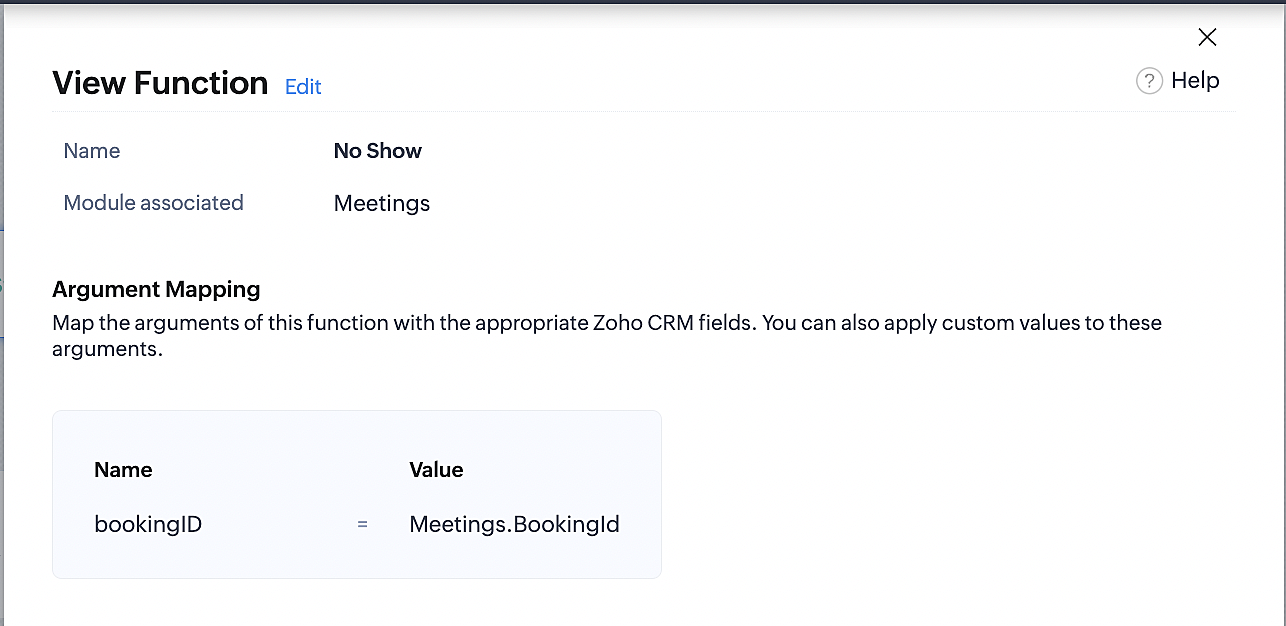
Part 6: Argument mapping:
If you encounter difficulties while navigating through the steps mentioned below, please refer to Part 3 above, where we have provided step-by-step screenshots for clarification.
1. Press # to choose an argument value.
2. Select Meetings under Module and configure the field as "BookingId".
3. Click Save and Associate button.
Reference:
Below is the final flow of the "No Show" booking status workflow:
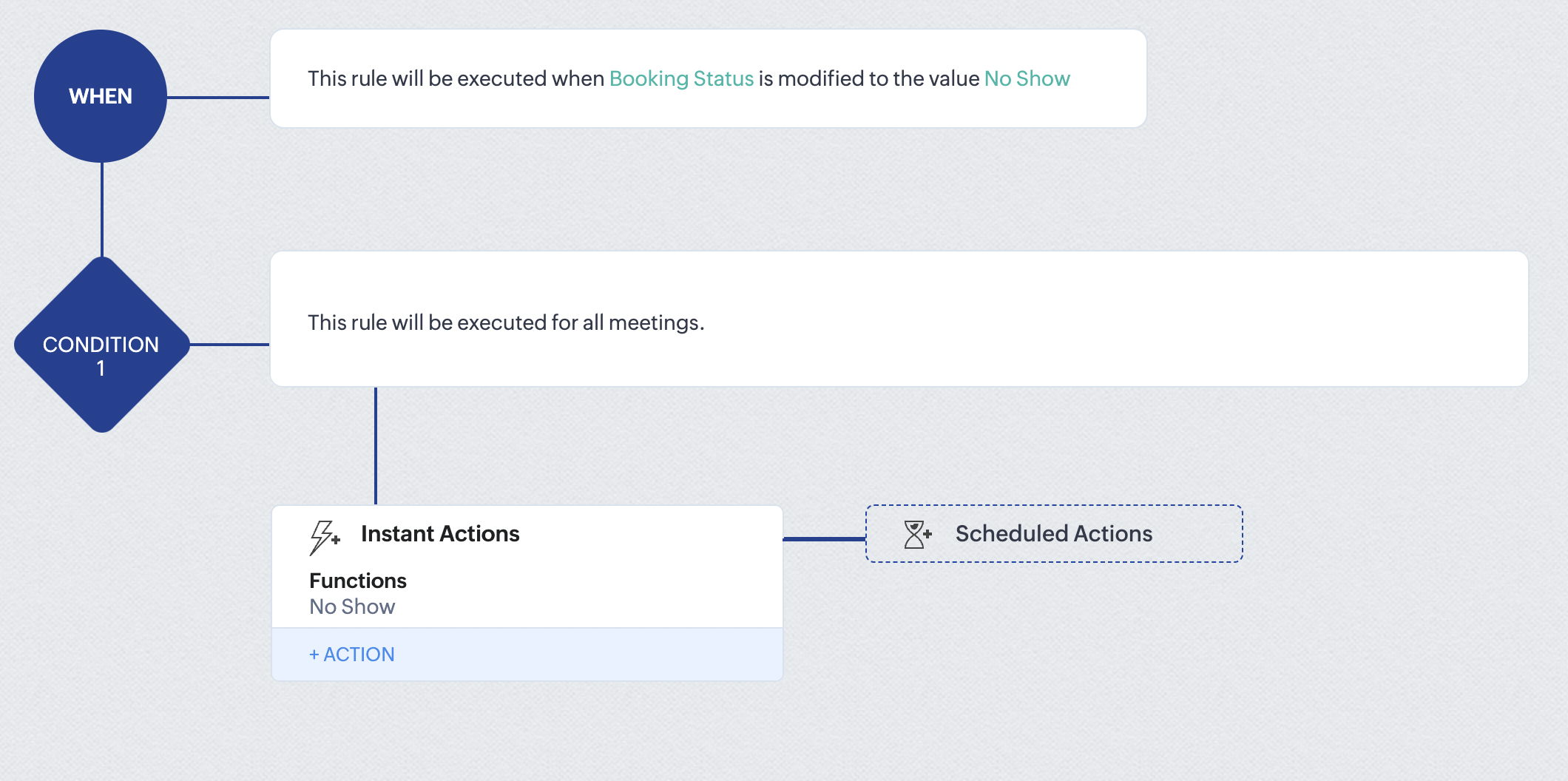
At the end of part 6, we will have created a workflow that automatically executes when the booking status field within the Zoho CRM Meetings module is updated to "No Show." This action will result in the associated bookings for that meeting also being marked as "No Show" in Zoho Bookings.
iii. Creating workflow for updating appointment status as "Completed" in Zoho Bookings when the booking status field of the meeting is marked as completed in Zoho CRM.
Part 7: Creating the rule
1. Go to Setup > Automation > Workflow Rules.
2. In the Workflow Rules page, click Create Rule.

3. Select Meetings under Module and configure rule name and description as required.
Reference:
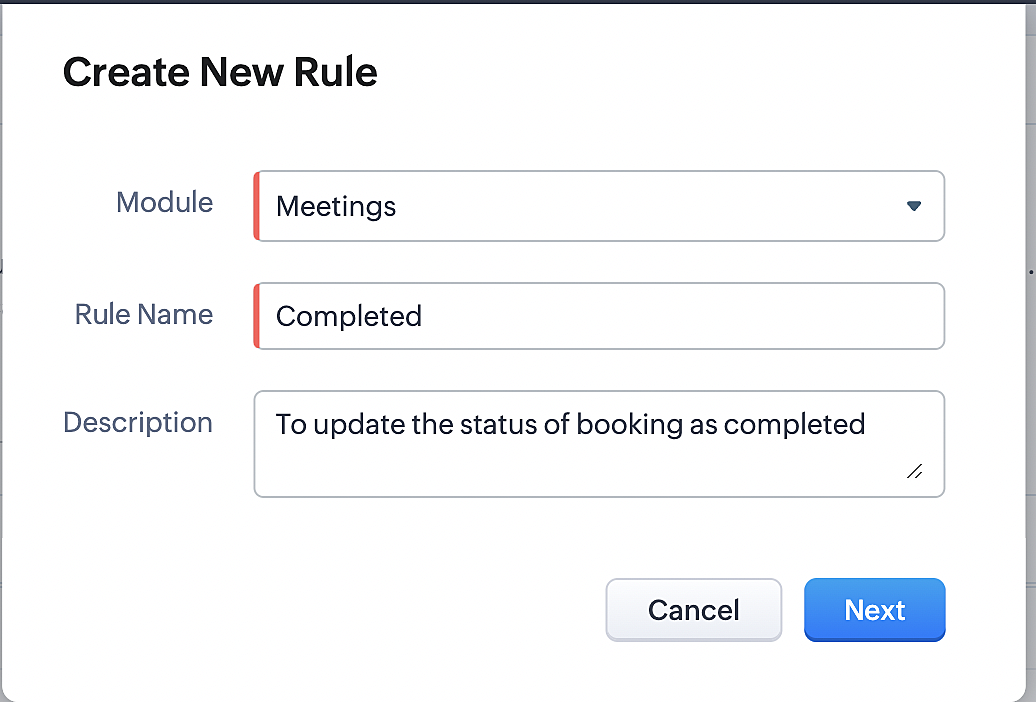
Part 8: Specifying the rule trigger
If you encounter difficulties while navigating through the steps mentioned below, please refer to Part 2 above, where we have provided step-by-step screenshots for clarification.
1. Record Action > Edit.

2. Enable the Specific field(s) gets modified setting and configure it per the screenshot below.
a. This serves to ensure that the workflow is executed only when the booking status under the Meetings module is
updated to "Completed".
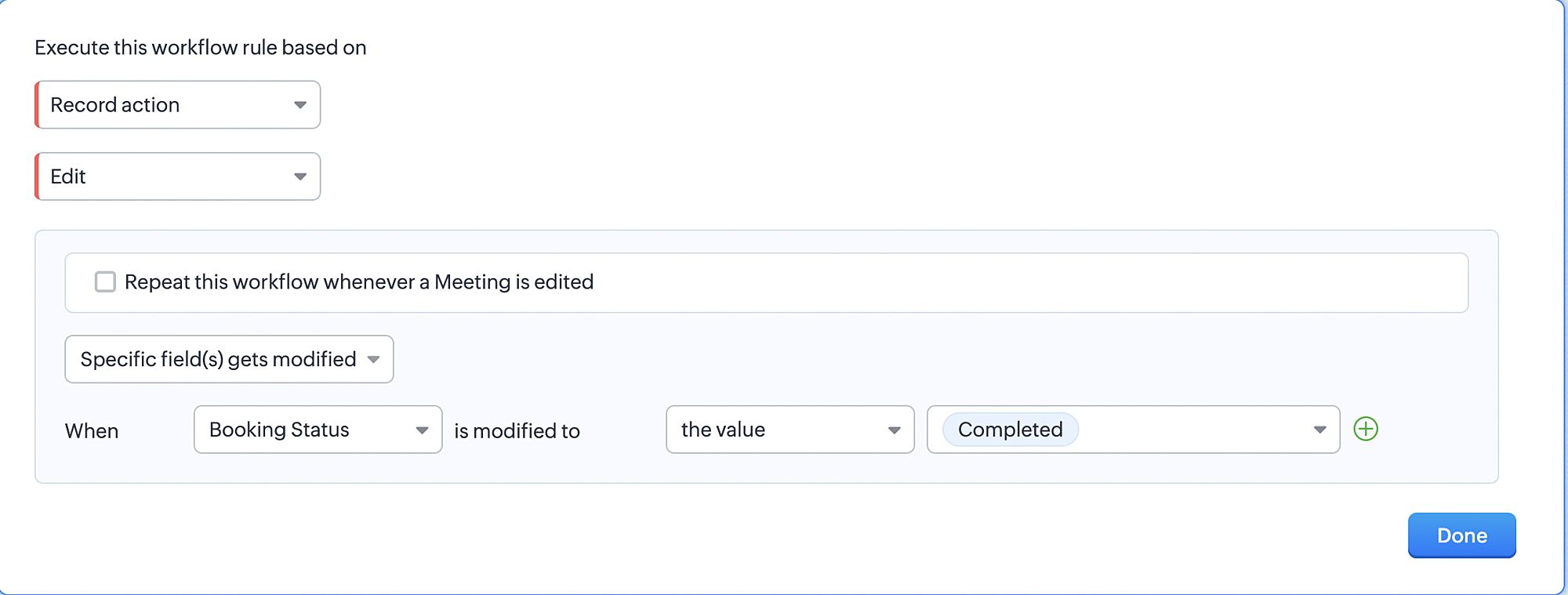
3. Configure condition > All Meetings.
4. Instant Actions > Function > New Function.
5. In the Configure custom function page, select the "completed" function you created from among the functions users
in your organization have created.
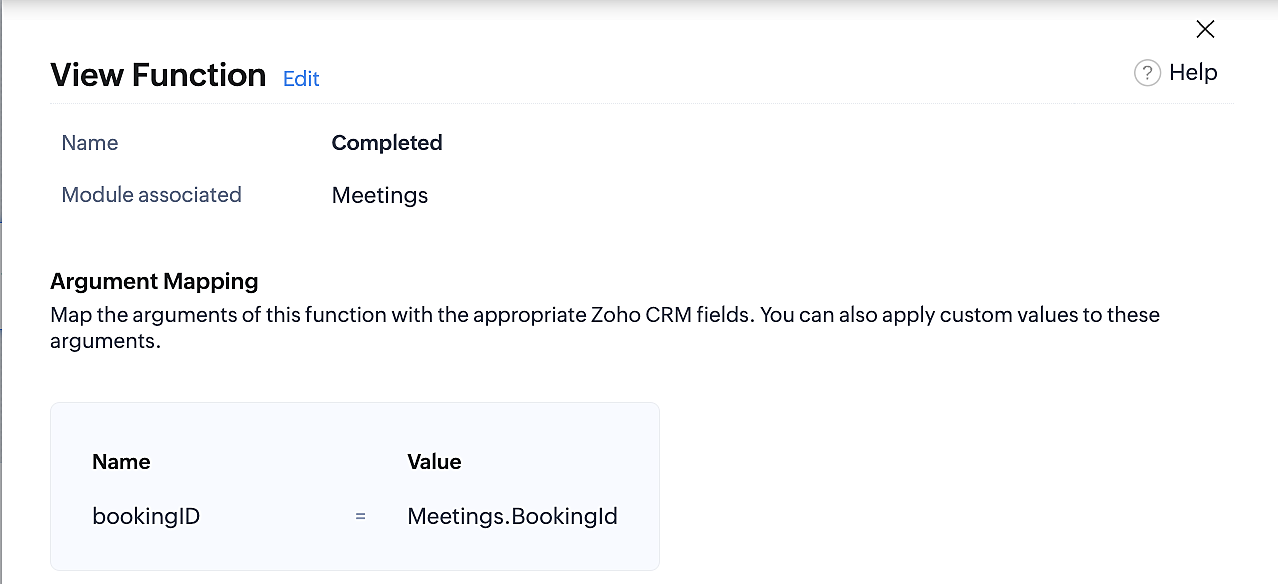
Part 9: Argument mapping:
If you encounter difficulties while navigating through the steps mentioned below, please refer to Part 3 above, where we have provided step-by-step screenshots for clarification.
1. Press # to choose an argument value.
2. Select Meetings under Module and configure the field as "BookingId".
3. Click Save and Associate button.
Reference:
Below is the final flow of the "Completed" booking status workflow:
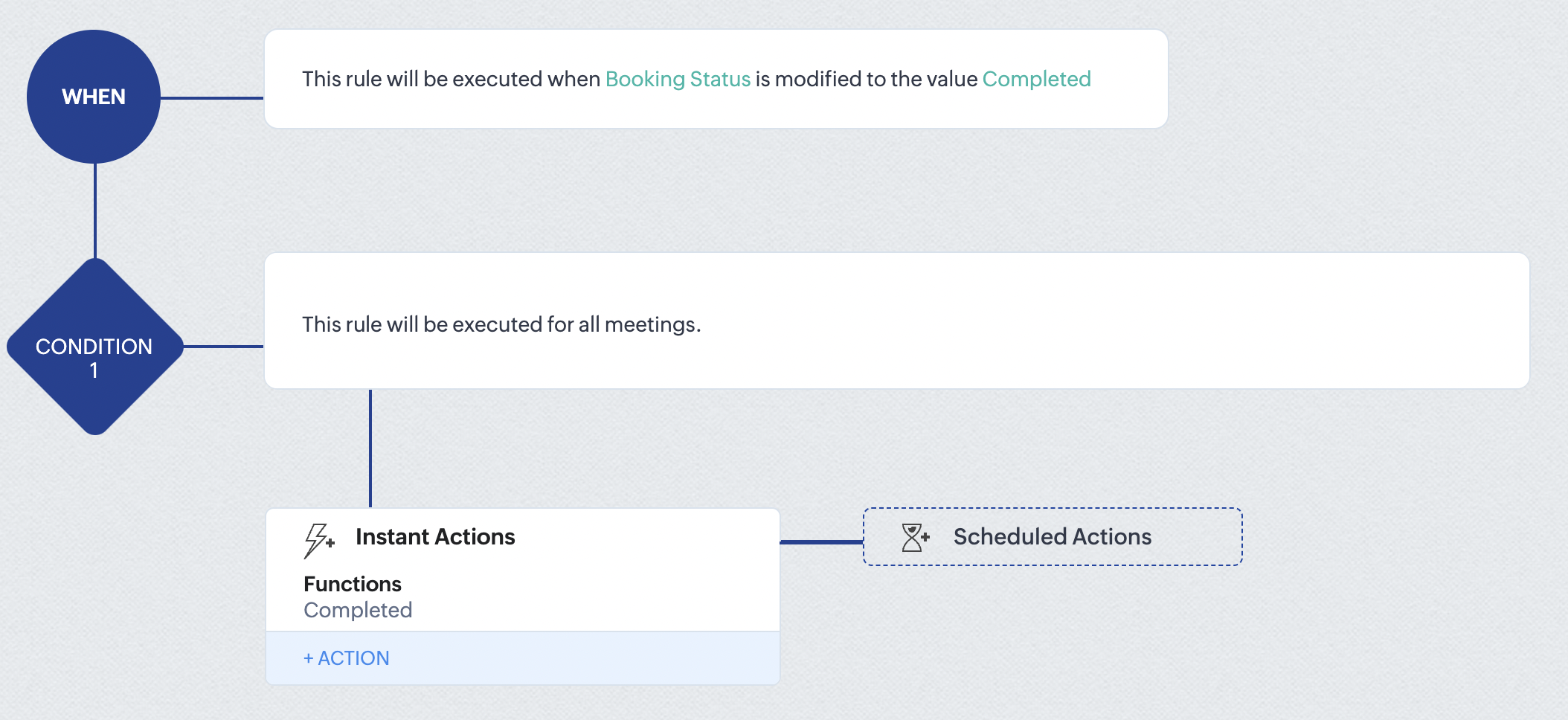
At the end of part 9, we will have created a workflow that is automatically executed when the booking status field within the Zoho CRM Meetings module is updated to "Completed." As a result, the associated bookings for that meeting will also be marked as "Completed" in Zoho Bookings.
Conclusion
We've reached the end of this community post. With the integration mentioned above in place, you'll be able to book, cancel, and update the status of appointments in Zoho Bookings directly from your Zoho CRM application. This will help you effectively manage your appointments in one place. As mentioned above, we've covered the rescheduling action in a separate post, which you can access by clicking on the following link: Reschedule Action
Furthermore, we've outlined a method for automating appointment statuses in detail. You can use this document as a reference to explore the various possibilities that suit your needs.
If you have any questions or need assistance with your configuration, please email us at hello@zohobookings.com or support@zohobookings.com.
Topic Participants
Kaushik S
bruce
Ishwarya SG
PrismaNote Support
Sticky Posts
Good news! Calendar in Zoho CRM gets a face lift
Dear Customers, We are delighted to unveil the revamped calendar UI in Zoho CRM. With a complete visual overhaul aligned with CRM for Everyone, the calendar now offers a more intuitive and flexible scheduling experience. What’s new? Distinguish activitiesEnhancement to ICR’s field prompting: Preferred data extraction using advanced field prompting
Dear Customers, We hope you’re well A quick background Intelligent Character Recognition (ICR) comes as part of Zia’s optical recognition capability called Zia Vision. When we introduced it last April, the data extraction was training-based and was applicableZoho CRM's sales trend and sales follow-up trend dashboards are now customizable
Dear Customers, We're here with good news! Sales trend and sales follow-up trend are two system-defined dashboards that help you understand trends and anomalies in your sales outreach and conversion efforts. They use Zia's intelligence to identify patternsIntroducing Multiple Sandbox Types and Support for Module's Data Population
Register here for the upcoming Focus Group webinar on Multiple Sandbox | Help documentation to learn more about the new enhancements Hello everyone, Sandbox in CRM is a testing environment for users to create and test new configurations like workflowVoC in Zoho CRM is now data savvy: Explore response drilldown, summary components and participation in CRM criteria
VoC has all the goods when it comes to customer intelligence—which is why we're constantly enhancing it. We recently added the following: A customer drilldown component that shows you the list of prospects and customers behind a chart's attribute Expanded
Recent Topics
Problem applying batch operation error keeps looping that error
Problem applying batch operation error keeps looping that error an wont loginShared Email Sending Duplicate Copies of Emails
Hi there, We recently have moved our info@ email to Team Inbox to trial. We set this channel up using the Microsoft setup which works fine and have 3 users. I am wanting to know: 1. When I send a new email, it will create a copy of that email and sendmerhaba
merhaba sosyal medya paketimiz mevcut ama yorumları göremiyoruz ve o yüzden cevap veremiyoruz destek rica ediyoruz.Teaminbox not working
We couldn't send or receive any mail within the team inbox. Displaying error 'Unable to process this request.'Related lists New option in missing
hi I have created quite a few modules and added as related lists to my main module. Some have new, some dont I can not see why?Cliq and ToDo integrations?
I'm a bit surprised not to find any way to open a Cliq chat for the current thread, or to create a Zoho Mail ToDo from a thread. Are these on the roadmap?Reply-to names are mangled
Hello, I'm seeing an odd behavior in replies. Steps to reproduce: 1. Click reply to an email from "John Doe <doe.john@example.com> in TeamInbox Expected outcome: TO field pre-filled with "John Doe <doe.john@example.com>" Actual outcome: TO field pre-filledI CANT UPGRADE MY FREE ACCOUNT
I TRY TO UPGRADE MY FREE ACCOUNT AND I COULD NOT UPGRADE IT CAN SOMEBODY TELL ME WHY? AND I HAVE THE MONEY SO.Level up your ASO game with tags & categories in store reviews
Introducing tags and categories in Apptics' store reviews Dear Apptics community, If your app is listed on the Play Store or App Store, you already know how important store reviews and ratings are. They’re one of the most direct signals of user sentimentIncluding attachments with estimates
How can attachments be included when an estimate is sent/emailed and when downloaded as a .pdf? Generally speaking, attachments should be included as part of an estimate package. Ultimately, this is also true for work orders and invoices.Adding VENDOR SKU to PURCHASE ORDERS
how can we add the Vendor SKU when issuing a Purchase Order , so the PO shows the Supplier SKU and our own Internal SKU , which is what we want to receive into the system .Possible to freely prompt/query CRM data using Zia?
Is it possible to prompt Zia to query on any information stored in the CRM, especially on the data stored in custom text fields? My use case is the people in my organisation have entered lots of text in custom text fields to capture information from anRestrict employees to take only one day holiday from a multi-day festival holiday
Hi everyone, I have a requirement related to Optional/Festival Holidays in Zoho People. For example, in the month of May there are three optional holiday dates: May 11, May 12, and May 13. Employees can choose one of these days as their optional holiday.Cannot modify colours in invoice email template
I have tried switching browsers... but I cannot change the (pretty horrible) default colours in the preset email when sending an invoice... the blue banner, red outstanding total and the bright green button... I can change other things but not the colours?Cannot find zpuid for Zoho Projects user
I'm using the Zoho Projects v3 API to create a task. The task is created successfully, but in order to assign the task owner, the "Create a Task" API also requires the zpuid of the task owner. Unfortunately I cannot find any user-related API calls thatPrint a document from Zoho Writer via Zoho Creator
If i use the code below i can get writer to create a new document or email it to me but i want to be able to print it directly from the browser and not have to send it via email and then print. Below is the code im using. Attached options form zoho writerAllow styling for specific Subform fields in Zoho Creator
Sometimes in forms we need to visually highlight a specific field inside a Subform (for example Sanctioned Amount, Approved Value, Critical Fields, etc.) so that users immediately notice it while entering data. Currently there is no direct UI option toCareer site URL - Suggestion to modify URL of non-english job posting
Hi, I would like to suggest making a few modification to career sites that are not in english. Currently, the URL are a mix of different languages and are very long. It makes for very unprofessional looking URLs... Here is an example of one of our URL3/18 オンライン勉強会のお知らせ Zoho ワークアウト (無料)
ユーザーの皆さま、こんにちは。コミュニティチームの中野です。 3月開催のZoho ワークアウトの開催が決定しましたのでご案内します。 今回はZoomにて、オンライン開催します。 ▶︎参加登録はこちら(無料) https://us02web.zoom.us/meeting/register/BoNTN7zYR8OvOPGShqBY0A ━━━━━━━━━━━━━━━━━━━━━━━━ Zoho ワークアウトとは? Zoho ユーザー同士で交流しながら、サービスに関する疑問や不明点の解消を目指すイベントです。New 2026 Application Themes
Love the new themes - shame you can't get a little more granular with the colours, ie 3 different colours so one for the dropdown menu background. Also, I did have our logo above the application name but it appears you can't change logo placement positionPlaceholder format in Number field does not reflect Max Digits configuration
When the Max Digits (Maximum digits of number) property is set to a smaller value (for example, 2 digits), the placeholder in the input field still displays a 7-digit format (#######). The same behavior can also be observed in Decimal and Currency fieldHow does SKU work when selling products in parts in Zoho Inventory
Hello everyone, Zoho Inventory does not understand the physical cutting of the piece.. It only tracks quantities of the unit (like feet ). So when you sell part of an item, the system simply reduces quantity for that SKU. Assume that i have a 50 ft longCRM Cadences - working timesThe Friday afternoon? The next Monday morning? Not at all?
I think I’m writing saying that cadence emails are only sent during the organisations set working hours in CRM. So if a particular email is set to send for example in three days and that lands on a Sunday (when working hours are not operational) whenCRM Cadences - working times
I think I’m right in saying that cadence emails are only sent during the organisations set working hours in CRM. So if a particular email is set to send for example in three days and that lands on a Sunday (when working hours are not operational) whenPush Notification for New Bookings in Zoho Bookings App
when a someone schedules an appointment through the booking page, is there any option to receive a push notification in the mobile app?Intergrating multi location Square account with Zoho Books
Hi, I have one Square account but has multiple locations. I would like to integrate that account and show aggregated sales in zoho books. How can I do that? thanks.Add the same FROM email to multiple department
Hi, We have several agents who work with multiple departments and we'd like to be able to select their names on the FROM field (sender), but apparently it's not possible to add a FROM address to multiple departments. Is there any way around this? Thanks.Zoho Desk View Open Tickets and Open Shared Tickets
Hi, I would like to create a custom view so that an agent can view all the open tickets he has access to, including the shared tickets created by a different department. Currently my team has to swich between two views (Open Tickets and Shared Open Tickets).Clone Banking Transaction
Why is there no option to CLONE a Transaction in the Banking module?? I often clone Expenses (for similar expense transactions each month) so I would also like to clone Income transactions. But there is no option in Banking to clone an existing IncomeZoho Expense - Bi-Weekly Report Automation
Hi Zoho Expense Team, My feature request is to please include an option to automate creation of reports bi-weekly (every 2 weeks)Application Architecture in Zoho Creator: Why You Should Think About It from the Start
Many companies begin using Zoho Creator by building simple forms to automate internal processes. This is natural — the platform is extremely accessible and allows applications to be built very quickly. The challenge begins to appear when the applicationArquitetura de Aplicações no Zoho Creator: Por que pensar nisso desde o início
Muitas empresas começam a utilizar o Zoho Creator criando formulários simples para automatizar processos internos. Isso é natural — a plataforma é extremamente acessível e permite construir aplicações rapidamente. O problema começa a aparecer quando aDark Mode - Font Colors Don't Work
When editing a document in Dark Mode and selecting font colors, they don't show up on screen. Viewing/editing the same document in Light Mode shows them just fine.How to Customize & Reorder Spaces in Zoho One 25 (Spaces UI) — Admin Tips Not in the Docs
Hey Zoho Community, After digging around in the new Spaces UI, I found a couple of admin features that aren't well documented yet but are really useful. Sharing here in case others are looking for the same things. 🔁 How to Change the Default Space UsersSystem Components menu not available for Tablet to select language
I have attached a screenshot of my desktop, mobile, and tablet menu builder options. I am using 2 languages in my application. Language Selection is an option under the System Components part of the menu, but only for my desktop and phone(mobile). MyApprovals in Zoho Creator
Hi, This is Surya, in one of my creator application I have a form called job posting, and I created an approval process for that form. When a user submits that form the record directly adding to that form's report, even it is in the review for approval.How Zoho Desk contributes to the art of savings
Remember the first time your grandmother gave you cash for a birthday or New Year's gift, Christmas gift, or any special day? You probably tucked that money safely into a piggy bank, waiting for the day you could buy something precious or something youEstimate PDF Templates - logo too large
Hello, I cloned a standard estimate template, but my logo is showing up much larger than intended. This doesn’t happen with the standard invoice template, where the logo displays correctly. How can I adjust the logo size in the estimate template? ThankSelect CRM Custom Module in Zoho Creator
I have a custom module added in Zoho CRM that I would like to link in Zoho creator. When I add the Zoho CRM field it does not show the new module. Is this possible? Do i need to change something in CRM to make it accesible in Creator?Invoice emails not sending but reminders are
I am a new user. I have been creating some dummy invoices before I go live and have struck a block. Emails for the invoice are not being recieved by the recipient, however, when I send a reminder for the same invoice the email is sent. NOTE: I have checkedNext Page