Kaizen #131 - Bulk Write for parent-child records using Scala SDK
Hello and welcome back to this week's Kaizen!
Last week, we discussed how to configure and initialize the Zoho CRM Scala SDK. This week, we will be exploring the Bulk Write API and its capabilities. Specifically, we will focus on executing bulk write operations for parent-child records in a single operation, and how to do this using Scala SDK.
Quick Recap of Bulk Write API
Bulk Write API facilitates efficient insertion, updation, or upsertion of large datasets into your CRM account. It operates asynchronously, scheduling jobs to handle data operations. Upon completion, notifications are sent to the specified callback URL or the job status can be checked periodically.
When to use Bulk Write API?
- When scheduling a job to import a massive volume of data.
- When needing to process more than 100 records in a single API call.
- When conducting background processes like migration or initial data sync between Zoho CRM and external services.
Steps to Use Bulk Write API:
- Prepare CSV File: Create a CSV file with field API names as the first row and data in subsequent rows.
- Upload Zip File: Compress the CSV file into a zip format and upload it via a POST request.
- Create Bulk Write Job: Use the uploaded file ID, callback URL, and field API names to create a bulk write job for insertion, update, or upsert operations.
- Check Job Status: Monitor job status through polling or callback methods. Status could be ADDED, INPROGRESS, or COMPLETED.
- Download Result: Retrieve the result of the bulk write job, typically a CSV file with job details, using the provided download URL.
In our previous Kaizen posts - Bulk Write API Part I and Part II, we have extensively covered the Bulk Write API, complete with examples and sample codes for the PHP SDK. We highly recommend referring to those posts before reading further to gain a better understanding of the Bulk Write API.
With the release of our V6 APIs, we have introduced a significant enhancement to our Bulk Write API functionality. Previously, performing bulk write operations required separate API calls for parent and each child module. But with this enhancement, you can now import them all in a single, operation or API call.
Field Mappings for parent-child records in a single API call
When configuring field mappings for bulk write operations involving parent-child records in a single API call, there are two key aspects to consider: creating the CSV file containing the data and constructing the input JSON for the bulk write job.
Creating the data CSV file:
To set up the data for a bulk write operation involving parent-child records, you need to prepare separate CSV files - one for the parent module records, and one each for each child module records. In these CSV files, appropriate field mappings for both parent and child records need to be defined.
The parent CSV file will contain the parent records, while the child CSV file will contain the child records. To make sure that each child record is linked to its respective parent record, we will add an extra column (MappingID in the image below) to both the parent and child CSV files. This column will have a unique identifier value for each parent record. For each record in the child CSV file, the value in the identifier column should match the value of the identifier of the parent record in the parent CSV file. This ensures an accurate relationship between the parent and child records during the bulk write operation.
Please be aware that the mapping of values is solely dependent on the mappings defined in the input JSON. In this case, the column names in the CSV file serve only as a reference for you. Please refer to the notes section towards the end of this document for more details.
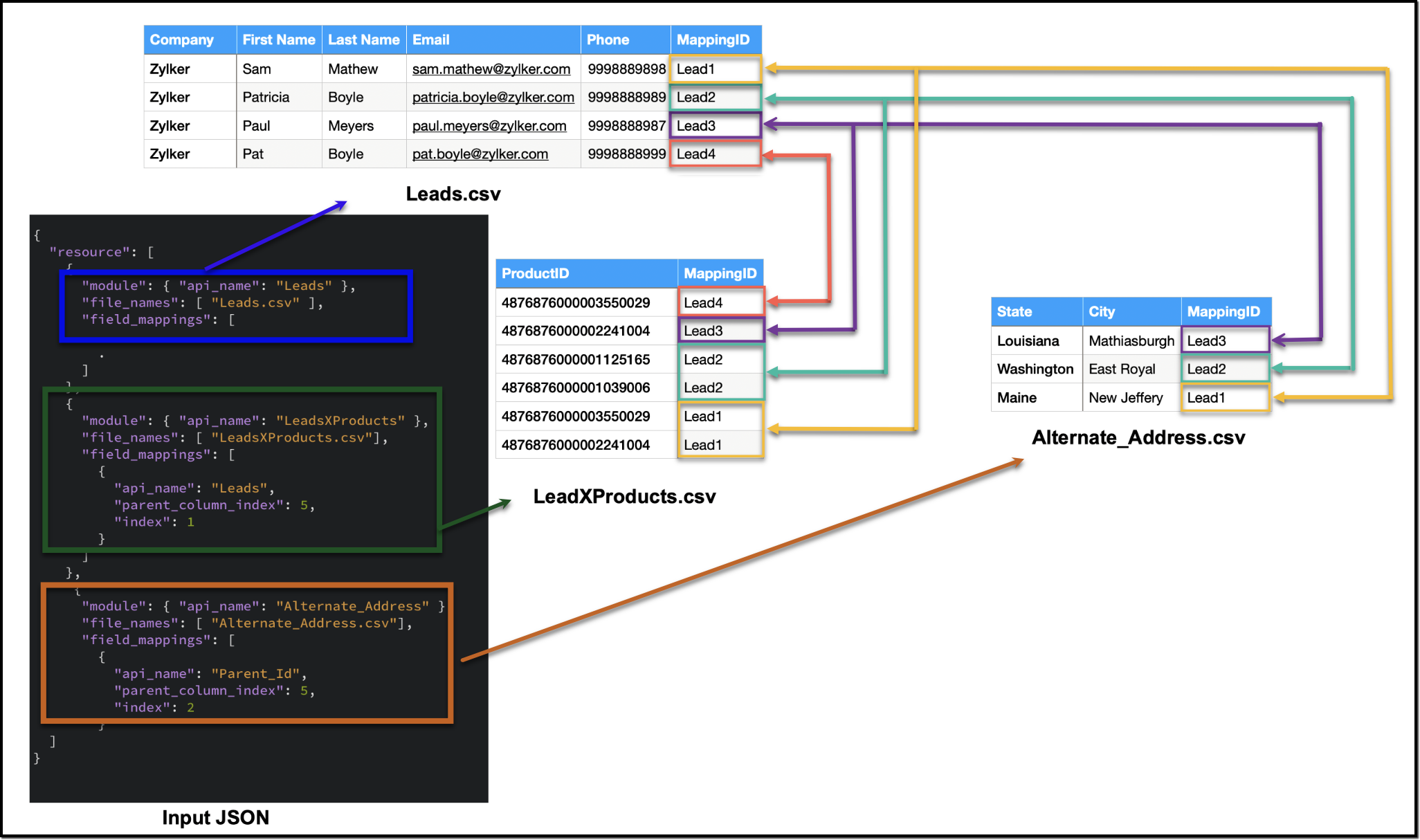
Creating the CSV file remains consistent across all types of child records, and we have already discussed how each child record is linked to its respective parent record in the CSV file. To facilitate the same linkage in the input JSON, we have introduced a new key called parent_column_index. This key assists us in specifying which column in the child module's CSV file contains the identifier or index linking it to the parent record. In the upcoming sections, we will explore preparing the input JSON for various types of child records.
Additionally, since we have multiple CSV files in the zip file, we have introduced another new key named file_names in resources array. file_names helps in correctly mapping each CSV file to its corresponding module.
Ensure that when adding parent and child records in a single operation, the parent module details should be listed first, followed by the child module details in the resource array of the input body.
1. Multiselect Lookup Fields
In scenarios involving multiselect lookup fields, the Bulk Write API now allows for the import of both parent and child records in a single operation.
In the context of multiselect lookup fields, the parent module refers to the primary module where the multiselect lookup field is added. For instance, in our example, consider a multiselect lookup field in the Leads module linking to the Products module.
Parent Module : Leads
Child module : The linking module that establishes the relationship between the parent module and the related records (LeadsXProducts)
Here are the sample files for the "LeadsXProducts" case:
Leads.csv (Parent)

LeadsXProducts.csv (Child)
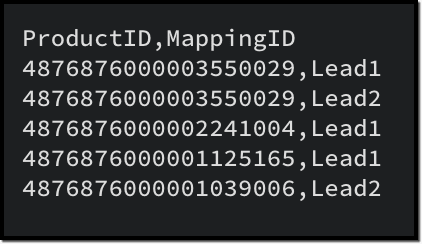
Given below is a sample input JSON for this bulk write job. Please note that the index of the child linking column should be mapped under the key index, and the index of the parent column index should be mapped under parent_column_index.
To map the child records to their corresponding parent records (linking module), you must use the field API name of the lookup field that links to the parent module. For example, in this case, the API name of the lookup field linking to the Leads module from the LeadsXProducts is Leads.
{ "operation": "insert", "ignore_empty": true, "callback": { "url": "http://www.zoho.com", "method": "post" }, "resource": [ { "type": "data", "module": { "api_name": "Leads" //parent module API name }, "file_id": "4876876000006855001", "file_names": [ "Leads.csv" //parent records CSV file ], "field_mappings": [ // field mappings for the parent record fields { "api_name": "Company", //field API name "index": 0 //index in the CSV file }, { "api_name": "First_Name", "index": 1 }, { "api_name": "Last_Name", "index": 2 }, { "api_name": "Email", "index": 3 }, { "api_name": "Phone", "index": 4 } ] }, { "type": "data", "module": { "api_name": "LeadsXProducts" //child module API name }, "file_id": "4876876000006855001", "file_names": [ "LeadsXProducts.csv" //child records CSV file ], "field_mappings": [ { "api_name": "Products", "find_by": "id", "index": 0 }, { "api_name": "Leads", //field API name of the lookup field in the Linking Module "parent_column_index": 5, // the index of the identifier column in the parent CSV file "index": 1 //index of the identifier column in the child CSV file } ] } ] } |
The following is a sample code snippet for the Scala SDK, to achieve the same functionality. Find the complete code here.
var module = new MinifiedModule() // Create a new instance of MinifiedModule module.setAPIName(Option("Leads")) // Set the API name for the module to "Leads" resourceIns.setModule(Option(module)) resourceIns.setFileId(Option("4876876000006899001")) // Set the file ID for the resource instance resourceIns.setIgnoreEmpty(Option(true)) var filenames = new ArrayBuffer[String] // Create a new ArrayBuffer to store file names filenames.addOne("Leads.csv") resourceIns.setFileNames(filenames) // Set the file names for the resource instance // Create a new ArrayBuffer to store field mappings var fieldMappings: ArrayBuffer[FieldMapping] = new ArrayBuffer[FieldMapping] // Create a new FieldMapping instance for each field var fieldMapping: FieldMapping = null fieldMapping = new FieldMapping fieldMapping.setAPIName(Option("Company")) fieldMapping.setIndex(Option(0)) fieldMappings.addOne(fieldMapping) . . // Set the field mappings for the resource instance resourceIns.setFieldMappings(fieldMappings) resource.addOne(resourceIns) requestWrapper.setResource(resource) resourceIns = new Resource resourceIns.setType(new Choice[String]("data")) module = new MinifiedModule() module.setAPIName(Option("LeadsXProducts")) resourceIns.setModule(Option(module)) resourceIns.setFileId(Option("4876876000006899001")) resourceIns.setIgnoreEmpty(Option(true)) filenames = new ArrayBuffer[String] filenames.addOne("LeadsXProducts.csv") resourceIns.setFileNames(filenames) fieldMappings = new ArrayBuffer[FieldMapping] fieldMapping = new FieldMapping fieldMapping.setAPIName(Option("Products")) fieldMapping.setFindBy(Option("id")) fieldMapping.setIndex(Option(0)) fieldMappings.addOne(fieldMapping) fieldMapping = new FieldMapping fieldMapping.setAPIName(Option("Leads")) //Specify the API name of the lookup filed in the Linking Module fieldMapping.setParentColumnIndex(Option(5)) //Specify the index of the identifier column in the parent CSV file fieldMapping.setIndex(Option(1)) //Specify the index of the identifier column in the child CSV file fieldMappings.addOne(fieldMapping) resourceIns.setFieldMappings(fieldMappings) resource.addOne(resourceIns) requestWrapper.setResource(resource) |
2. Multi-User Lookup fields
In case of multi-user lookup fields, the parent module remains the module where the multi-user field is added. The child module is the lookup module created to facilitate this relationship.
For instance, let's consider a scenario where a multi-user field labeled Referred By is added in the Leads module, linking to the Users module.
Parent module : Leads
Child module : The linking module, LeadsXUsers.
To get more information about the child module, please utilize the Get Modules API. You can get the details of the fields within the child module using the Fields API.
Here is a sample CSV for adding a multi-user field records along with the parent records:
LeadsXUsers.csv
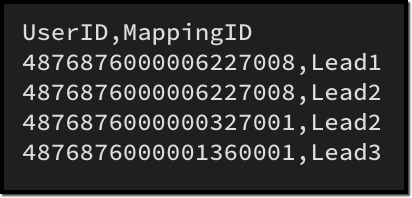
Please ensure that you create a zip file containing the corresponding CSV files, upload it to the platform and then initiate the bulk write job using the file ID. The values for index and parent_column_index will vary based on your specific CSV files.
To create a bulk write job using Create Bulk Write job API, add the following code snippet to your resource array.
{ "type": "data", "module": { "api_name": "Leads_X_Users" // child module }, "file_id": "4876876000006887001", "file_names": [ "LeadsXUsers.csv" //child records CSV file name ], "field_mappings": [ { "api_name": "Referred_User", "find_by": "id", "index": 0 }, { "api_name": "userlookup221_11", //API name of the Leads lookup field in LeadsXUsers module "parent_column_index": 5, // the index of the identifier column in the parent CSV file "index": 1 // the index of the identifier column in the child CSV file } ] } |
To do the same using Scala SDK, add the following code snippet to your code:
resourceIns = new Resource resourceIns.setType(new Choice[String]("data")) module = new MinifiedModule() module.setAPIName(Option("Leads_X_Users")) resourceIns.setModule(Option(module)) resourceIns.setFileId(Option("4876876000006904001")) resourceIns.setIgnoreEmpty(Option(true)) filenames = new ArrayBuffer[String] filenames.addOne("LeadsXUsers.csv") resourceIns.setFileNames(filenames) fieldMappings = new ArrayBuffer[FieldMapping] fieldMapping = new FieldMapping fieldMapping.setAPIName(Option("Referred_User")) fieldMapping.setFindBy(Option("id")) fieldMapping.setIndex(Option(0)) fieldMappings.addOne(fieldMapping) fieldMapping = new FieldMapping fieldMapping.setAPIName(Option("userlookup221_11")) fieldMapping.setParentColumnIndex(Option(5)) fieldMapping.setIndex(Option(1)) fieldMappings.addOne(fieldMapping) resourceIns.setFieldMappings(fieldMappings) resource.addOne(resourceIns) requestWrapper.setResource(resource) |
3. Subform data
To import subform data along with parent records in a single operation, you must include both the parent and subform CSV files within a zip file and upload it. In this context, the parent module refers to the module where the subform is added, and the child module is the subform module.
For instance, consider a subform named Alternate Address in the Leads module, with fields such as City and State.
Parent module : Leads
Child module : Alternate_Address (api name of the Subform module).
In the subform CSV file (Alternate_Address.csv), in addition to the data columns, include a column to denote the linkage to the parent record.
Once the zip file containing both the parent and subform CSV files is prepared, proceed to upload it to initiate the import process. When you create the bulk write job, ensure to specify the appropriate values for index and parent_column_index based on your specific CSV files in the input.
Here is a sample CSV for the subform data, corresponding to the parent CSV provided earlier.
Alternate_Address.csv
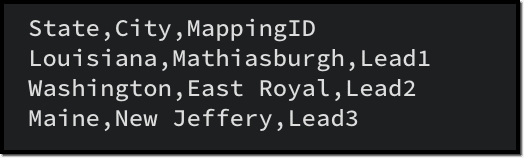
To create a bulk write job using Create Bulk Write job API to import the subform data, add the following code snippet to your resource array.
{ "type": "data", "module": { "api_name": "Alternate_Address" //Subform module API name }, "file_id": "4876876000006915001", "file_names": [ "Alternate_Address.csv" //child (subform) records CSV ], "field_mappings": [ { "api_name": "State", "index": 0 }, { "api_name": "City", "index": 1 }, { "api_name": "Parent_Id", //Leads lookup field in the subform module "parent_column_index": 5, "index": 2 } ] } |
To do the same using Scala SDK, add the following code snippet to your code:
resourceIns = new Resource resourceIns.setType(new Choice[String]("data")) module = new MinifiedModule() module.setAPIName(Option("Alternate_Address")) resourceIns.setModule(Option(module)) resourceIns.setFileId(Option("4876876000006920001")) resourceIns.setIgnoreEmpty(Option(true)) filenames = new ArrayBuffer[String] filenames.addOne("Alternate_Address.csv") resourceIns.setFileNames(filenames) fieldMappings = new ArrayBuffer[FieldMapping] fieldMapping = new FieldMapping fieldMapping.setAPIName(Option("State")) fieldMapping.setIndex(Option(0)) fieldMappings.addOne(fieldMapping) fieldMapping = new FieldMapping fieldMapping.setAPIName(Option("City")) fieldMapping.setIndex(Option(1)) fieldMappings.addOne(fieldMapping) fieldMapping = new FieldMapping fieldMapping.setAPIName(Option("Parent_Id")) fieldMapping.setParentColumnIndex(Option(5)) fieldMapping.setIndex(Option(2)) fieldMappings.addOne(fieldMapping) resourceIns.setFieldMappings(fieldMappings) resource.addOne(resourceIns) requestWrapper.setResource(resource) |
4. Line Items
To import line items along with the parent records, an approach similar to handling subform data is used. The parent module is the module housing the parent records, while the child module corresponds to the line item field.
For instance, in the Quotes module, to import product details within the record, the child module should be Quoted_Items.
Here is a sample CSV for importing the parent records to the Quotes module:
Quotes.csv

Given below is a sample CSV to add the product details in Quoted Items:
Quoted_Items.csv
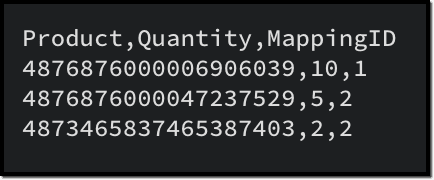
Now to create a bulk write job for these records, here is a sample input JSON:
{ "operation": "insert", "ignore_empty": true, "callback": { "url": "http://www.zoho.com", "method": "post" }, "resource": [ { "type": "data", "module": { "api_name": "Quotes" }, "file_id": "4876876000006949001", "file_names": [ "Quotes.csv" ], "field_mappings": [ { "api_name": "Subject", "index": 0 }, { "api_name": "Deal_Name", "find_by" : "id", "index": 1 }, { "api_name": "Quote_Stage", "index": 2 }, { "api_name": "Account_Name", "find_by" : "id", "index": 3 } ] }, { "type": "data", "module": { "api_name": "Quoted_Items" }, "file_id": "4876876000006949001", "file_names": [ "Quoted_Items.csv" ], "field_mappings": [ { "api_name": "Product_Name", "find_by" : "id", "index": 0 }, { "api_name": "Quantity", "index": 1 }, { "api_name": "Parent_Id", "parent_column_index": 4, "index": 2 } ] } ] } |
To do the same using Scala SDK, add this code snippet to your file:
val bulkWriteOperations = new BulkWriteOperations val requestWrapper = new RequestWrapper val callback = new CallBack callback.setUrl(Option("https://www.example.com/callback")) callback.setMethod(new Choice[String]("post")) requestWrapper.setCallback(Option(callback)) requestWrapper.setCharacterEncoding(Option("UTF-8")) requestWrapper.setOperation(new Choice[String]("insert")) requestWrapper.setIgnoreEmpty(Option(true)) val resource = new ArrayBuffer[Resource] var resourceIns = new Resource resourceIns.setType(new Choice[String]("data")) var module = new MinifiedModule() module.setAPIName(Option("Quotes")) resourceIns.setModule(Option(module)) resourceIns.setFileId(Option("4876876000006953001")) resourceIns.setIgnoreEmpty(Option(true)) var filenames = new ArrayBuffer[String] filenames.addOne("Quotes.csv") resourceIns.setFileNames(filenames) var fieldMappings: ArrayBuffer[FieldMapping] = new ArrayBuffer[FieldMapping] var fieldMapping: FieldMapping = null fieldMapping = new FieldMapping fieldMapping.setAPIName(Option("Subject")) fieldMapping.setIndex(Option(0)) fieldMappings.addOne(fieldMapping) fieldMapping = new FieldMapping fieldMapping.setAPIName(Option("Deal_Name")) fieldMapping.setFindBy(Option("id")) fieldMapping.setIndex(Option(1)) fieldMappings.addOne(fieldMapping) fieldMapping = new FieldMapping fieldMapping.setAPIName(Option("Quote_Stage")) fieldMapping.setIndex(Option(2)) fieldMappings.addOne(fieldMapping) fieldMapping = new FieldMapping fieldMapping.setAPIName(Option("Account_Name")) fieldMapping.setIndex(Option(3)) fieldMapping.setFindBy(Option("id")) fieldMappings.addOne(fieldMapping) resourceIns.setFieldMappings(fieldMappings) resource.addOne(resourceIns) requestWrapper.setResource(resource) resourceIns = new Resource resourceIns.setType(new Choice[String]("data")) module = new MinifiedModule() module.setAPIName(Option("Quoted_Items")) resourceIns.setModule(Option(module)) resourceIns.setFileId(Option("4876876000006953001")) resourceIns.setIgnoreEmpty(Option(true)) filenames = new ArrayBuffer[String] filenames.addOne("Quoted_Items.csv") resourceIns.setFileNames(filenames) fieldMappings = new ArrayBuffer[FieldMapping] fieldMapping = new FieldMapping fieldMapping.setAPIName(Option("Product_Name")) fieldMapping.setFindBy(Option("id")) fieldMapping.setIndex(Option(0)) fieldMappings.addOne(fieldMapping) fieldMapping = new FieldMapping fieldMapping.setAPIName(Option("Quantity")) fieldMapping.setIndex(Option(1)) fieldMappings.addOne(fieldMapping) fieldMapping = new FieldMapping fieldMapping.setAPIName(Option("Parent_Id")) fieldMapping.setParentColumnIndex(Option(4)) fieldMapping.setIndex(Option(2)) fieldMappings.addOne(fieldMapping) resourceIns.setFieldMappings(fieldMappings) resource.addOne(resourceIns) requestWrapper.setResource(resource) |

Notes :
- When importing a single CSV file (parent or child module records separately), field_mappings is an optional key in the resource array. If you skip this key, the field mappings must be defined using the column names in the CSV file. In such cases, the column names should correspond to the field API names. Additionally, all columns should be mapped with the correct API names, and there should not be any extra unmapped columns.
- When importing parent and child records in a single API call, field_mappings is a mandatory key.
- The identifier column in the parent and child CSV can have different column names, as the mapping is done based on the input JSON.
Points to remember
- An uploaded file can be used for a single bulk write job only. If you want to retry the operation with the same data, upload the file again to generate a new file ID.
- When adding parent and child records in a single operation, ensure that the parent module comes first, followed by the child module details in the resource array of the input body.
- The parent and all child CSV files should be zipped into a single file and uploaded. You cannot use more than one zip file in a single bulk write job.
- Define appropriate mappings for both parent and child records using the parent_column_index and index key to establish the relationship.
- Utilize the resources > file_names key to map the correct CSV with the appropriate module
- For each parent in the parent records file:
- By default, the limit for Subforms and Line Items is set to 200. While you can configure this limit for subforms in the UI, customization options are not available for Line Items.
- MultiSelect Lookup fields have a maximum limit of 100. If you have more than 100 associations for a MultiSelect Lookup field, you may schedule additional bulk write jobs for the child records alone, importing 100 records at a time.
- The maximum limit for Multi-User Lookup fields is restricted to 10.
We hope that you found this post useful, and you have gained some insights into using the Bulk Write API effectively. If you have any queries, let us know in the comments below, or feel free to send an email to support@zohocrm.com. We would love to hear from you!
