Kaizen 215 - Workflow APIs - Part 3

Welcome back to another week of Kaizen!
Over the last couple of weeks, we’ve joined Zylker Cloud Services as they review and improve their workflows. In Part 1, we discovered and audited their sprawling workflow landscape. In Part 2, we learned how to use the Configuration API to understand valid triggers and actions, preventing errors before they happen.
Now, it is time to take action. Zylker has identified the "VP Alert - High Value Deal" workflow as a prime candidate for an update. It is old, has never run, and its logic might be too narrow. We will also explore how to create a new workflow from scratch to handle a new business requirement.
STEP 5: Update an Existing Workflow
From our audit in Step 2, we know that the existing ‘VP Alert - High Value Deal’ workflow (id: 4876876000016390024) hadn’t triggered even once. The original $50,000 threshold missed many valuable deals. Most winning opportunities actually land above $30,000. It has never executed, suggesting the criteria are too strict.
Let us use the Update Workflow Rule API to fix it. We'll change the criteria to trigger for deals greater than or equal to $30,000 and add an additional email notification.
What you can and cannot update
When working with the Update Workflow Rule API, not every field in a workflow is open for modification. Think of it like editing an existing automation blueprint. Some foundations are fixed, while others are flexible.
You can update:
Name and Description
Trigger : You can update triggers, but only within the same trigger type. For example, you can change a Record Action trigger from create to edit, but not from a Record Action trigger to a Score-based trigger. For more details on this, please refer to our detailed help documentation here.
Conditions and Criteria : add, remove, or refine them.
Actions : add new ones, remove existing ones, or update their configuration.
Status : activate or deactivate a workflow rule.
What cannot be updated
There are a few key restrictions to remember:
You cannot change the module associated with the workflow.
You cannot switch trigger categories (e.g., from Record Action to Email Trigger).
You cannot retain unsupported actions when changing to a trigger that doesn’t support them. For instance, if you change a trigger from Edit to Delete, but keep an Assign Owner action, the update will fail, because “Assign Owner” isn’t valid for Delete triggers.
Updating an existing workflow is not about replacing everything. it is about editing precisely what needs to change.
Here is how to do it:
Fetch the workflow details using the Get Workflow Rule API. This gives the full structure, including condition IDs, action IDs, and trigger details.
Identify what needs to change.
In this case, to fix the “VP Alert - High Value Deal” workflow, we can update the Workflow rule to:
lower the threshold to $300,000
change the comparator to greater_than.
To make the workflow more useful, Zylker has also decided to add a few new actions.
But before doing that, the developers needed to confirm which actions are supported for this workflow’s trigger type. That is where last week’s Configuration API comes in handy. Since we already know this is a Record Action trigger (create_or_edit), we can refer to the configuration response we explored in Part 2 to see which actions are valid.
{ "api_name": "create_or_edit", "deprecated": false, "name": "CreateorEdit", "scheduled_actions_supported": true, "actions": [ "field_updates", "assign_owner", "add_tags", "remove_tags", "email_notifications", "tasks", "create_record", "create_connected_record", "add_meeting", "webhooks", "functions", "circuits", "flow" ] }, |
The response clearly shows that email notifications, field updates, and tags are all supported for this trigger type. With that confidence, in addition to updating the condition, we can also add a 'Priority' tag to those records that trigger the Workflow. This makes the workflow more visible and actionable across the sales hierarchy.
Sample Request:
PUT {{api-domain}}/crm/v8/settings/automation/workflow_rules/4876876000016390024
{ "workflow_rules": [ { "description": "Notify sales leadership and track strategic opportunities", "name": "VP Alert - High Value Deal.", "conditions": [ { "sequence_number": 1, "criteria_details": { "criteria": { "group_operator": "AND", "group": [ { "comparator": "greater_than", // change in comparator operator "field": { "api_name": "Amount" }, "value": "300000" // Lowered threshold }, { "comparator": "equal", "field": { "api_name": "Stage" }, "value": "Negotiation/Review" } ] } }, "instant_actions": { "actions": [ { "type": "add_tags", "module": "Deals", "details": { "tags": [ { "name": "Priority" } ], "overwrite": true } } ] }, "id": "4876876000016390025" // id of the condition to be updated } ] } ] } |
After this update, the workflow now triggers for any deal worth more than $300,000 in the Negotiation/Review stage. Apart from sending the email notifications and adding the follow up task, it also tags these deals as Priority.
Edit vs Add:
To edit an existing condition or action, include its existing id in your update payload. Zoho CRM will recognize it as an update to that object.
To add a new condition or action, simply omit the id. CRM treats any object without an ID as a new addition.
STEP 6: Create a new Workflow Rule
With the “VP Alert - High Value Deal” workflow now fixed and performing as expected, Zylker’s sales team quickly began to see results.
But their sales team noticed that deals often stall after proposals are sent, with no systematic follow-up. Zylker has hence refined the requirements for a new Workflow.
They want to automatically trigger follow-up actions when a high-value deal (above ₹30,000) is marked “Closed Lost” due to pricing reasons. This workflow must ensure that every lost opportunity is reviewed, tagged, and re-engaged after a cooling-off period. To achieve this, they want to create a workflow to be triggered whenever a deal’s Stage is updated to Closed Lost. It must perform the following actions:
Add tags Lost due to Pricing and Re-engagement Pending.
Send an email alert to the Sales team, with the details of the failed Deal, so they can look into the reasons.
After 30 business days, automatically create another “Lost Deal - Feedback” task to remind the owner to re-contact the customer for feedback, and for future opportunities.
Before proceeding, Zylker makes an API call to the Workflow Configuration endpoint. This ensures that their chosen trigger type and actions are supported. From the response snippet below, it is clear that a field_update trigger supports scheduled actions and the required action types.
{ "api_name": "field_update", "deprecated": false, "name": "FieldUpdate", "scheduled_actions_supported": true, "actions": [ "field_updates", "assign_owner", "add_tags", "remove_tags", "email_notifications", "tasks", "create_record", "create_connected_record", "add_meeting", "webhooks", "functions", "circuits", "flow" ] } |
With these details validated, we can now move on to adding a new workflow for Zylker using the Create Workflow Rule API request.
Understanding the input JSON structure
Every workflow definition follows the same hierarchy - defining when the rule runs, what conditions it checks, and which actions it performs.
The top-level input object contains a workflow_rules array. You must include just one workflow rule object per request. Each workflow rule defines its name, trigger type, and one or more condition blocks, each with its own criteria and actions.
Here is a breakdown of what is inside a single workflow rule:
{ "workflow_rules": [ { "name": "VP Alert - High Value Deal.", //name of the workflow rule "description": "Notify leadership when high-value deals are lost due to pricing.", "module": { "api_name": "Deals" }, //module to which the workflow applies "execute_when": { ... }, //trigger configuration (e.g., on record edit, field update, etc.) "conditions": [ { "sequence_number": 1, // order of execution. this is the first condition "criteria_details": { ... }, // condition logic (criteria group) "instant_actions": { "actions": [ ... ] }, //instant actions executed instantly cheduled_actions": [ // schedules actions executed after a delay { "execute_after": { ... }, // delay period for the scheduled action "actions": [ ... ] } ] }, { "sequence_number": 2, // second condition "criteria_details": { ... }, "instant_actions": { "actions": [ ... ] } } ] } ] } |
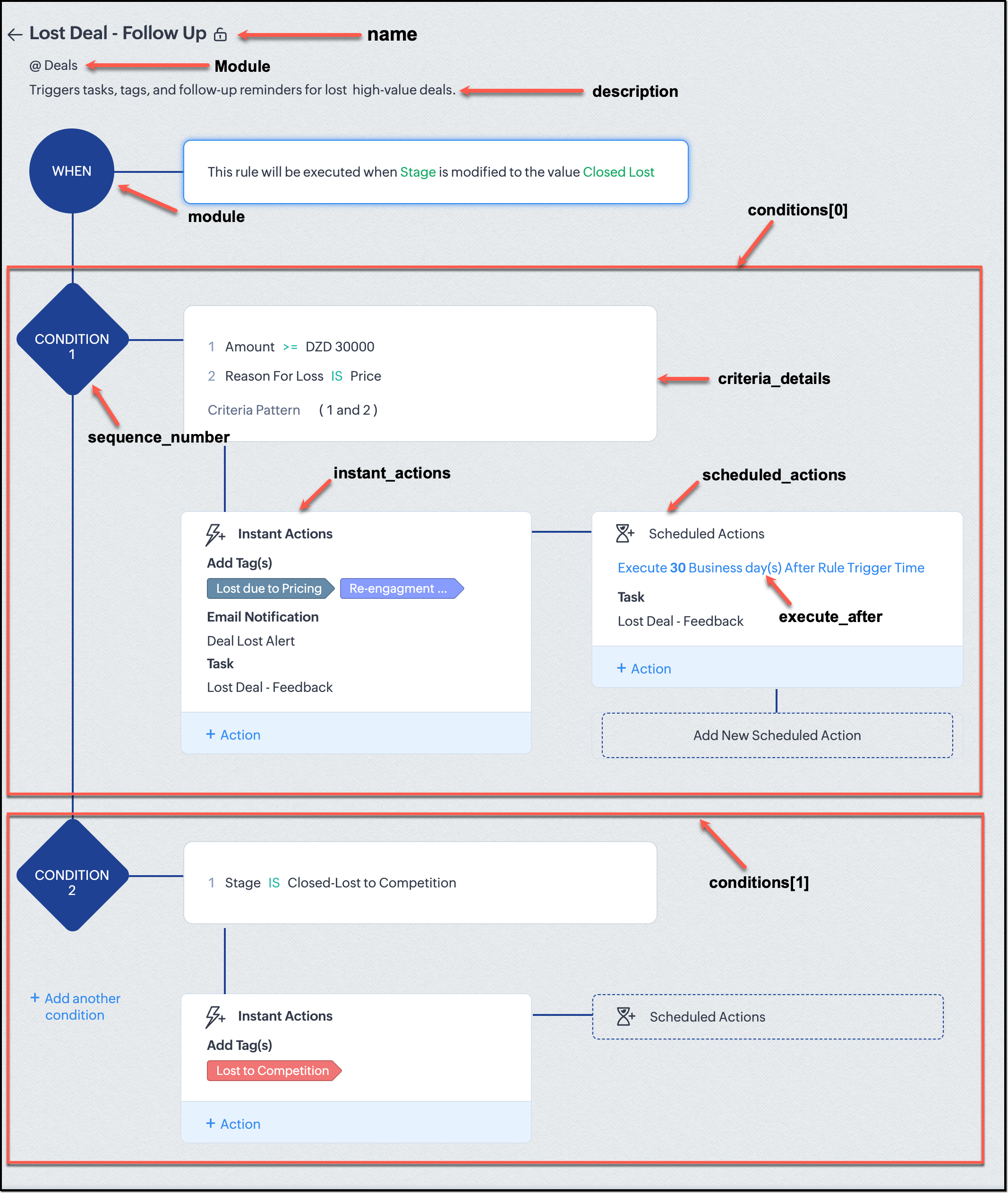
Associative vs. Non-Associative Actions
Every workflow rule performs one or more actions like sending an email, creating a task, or updating a field, etc. These actions fall into two broad categories: associative and non-associative.
Type | Description | Example Actions |
Non- Associative Actions | These are defined inside the workflow rule itself. They do not need to exist beforehand. You can configure their details directly within the workflow payload. | Create record, schedule a call, add a meeting, convert records, social actions, create record on email received, assign owner, |
Associative Actions | These are reusable actions created separately in CRM and referenced by their IDs. They can be used across multiple workflows and other automation tools. | Field updates, Email notifications, tasks, Webhooks, Add/Remove tags |
When you create or update a workflow via API, the associative actions require you to pass their existing action IDs. These IDs can be fetched using the corresponding Actions APIs : Field Updates, Email Notifications, Webhooks, and Tasks. In the coming weeks of Kaizen, we will take a closer look at each of these Actions APIs. We will see how to create, manage, and delete them within your workflow automation strategy.
Sample Request:
POST {{api-domain}}/crm/v8/settings/automation/workflow_rules
{ "workflow_rules": [ { "execute_when": { "details": { "trigger_module": { "api_name": "Deals", "id": "4876876000000002181" }, "criteria": { "comparator": "equal", "field": { "api_name": "Stage", "id": "4876876000000002565" }, "type": "value", "value": "Closed Lost" }, "repeat": false, "match_all": false }, "type": "field_update" }, "module": { "api_name": "Deals", "id": "4876876000000002181" }, "description": "Triggers tasks, tags, and follow-up reminders for high-value deals lost due to pricing", "name": "Lost Deal due to Pricing - Follow Up", "conditions": [ { "sequence_number": 1, "instant_actions": { "actions": [ { "name": "Lost Deal - Feedback", "id": "4876876000016794047", "type": "tasks" }, { "details": { "module": { "api_name": "Deals", "id": "4876876000000002181" }, "over_write": false, "tags": [ { "name": "Lost due to Pricing", "id": "4876876000016794071", "color_code": "#658BA8" }, { "name": "Re-engagement pending", "id": "4876876000016794075", "color_code": "#879BFC" } ] }, "type": "add_tags" }, { "name": "Deal Lost Alert", "id": "4876876000016794062", "type": "email_notifications" } ] }, "scheduled_actions": [ { "execute_after": { "period": "business_days", "unit": 30 }, "actions": [ { "name": "Lost Deal - Feedback", "id": "4876876000016794047", "type": "tasks" } ] } ], "criteria_details": { "criteria": { "group_operator": "AND", "group": [ { "comparator": "greater_equal", "field": { "api_name": "Amount", "id": "4876876000000002557" }, "type": "value", "value": "30000" }, { "comparator": "equal", "field": { "api_name": "Reason_For_Loss__s", "id": "4876876000002440001" }, "type": "value", "value": "Price" } ] } } } ] } ] } |
The execute_when defines when the workflow should fire.
type = field_update means this rule runs when a field’s value changes.
criteria : Stage = Closed Lost so the rule triggers whenever the Stage field is updated to Closed Lost.
repeat = false ensures it will not trigger multiple times for the same record.
In simple terms: “Whenever a deal is marked as Closed Lost, run this workflow.” The criteria_details section refines the trigger. The workflow only runs when the Amount ≥ ₹30,000 AND Reason for Loss = Price.
The instant_actions section inside the conditions array has the actions to be executed immediately when the criteria are met.
Add Tags : labels the record for easy filtering and reporting.
Send Email Alert : notifies the sales team instantly about the lost deal.
The scheduled_actions defines what happens after some time has passed. In this case, after 30 business days. Here, the workflow automatically creates a “Lost Deal - Feedback” task, reminding the deal owner to follow up with the customer to get feedback, and for future opportunities.
- The Amount is greater than or equal to ₹30,000, and
The Reason for Loss is “Price.”
By combining these elements, this workflow achieves a full closed-loop follow-up system.
Conclusion:
Zylker’s updated and new workflows make their automation smarter and more responsive. They are now able to spot key deals and ensure lost opportunities are revisited.
We hope you are now well on your way to mastering Workflow APIs. Share your thoughts in the comments or write to us at support@zohocrm.com.

Additional Reading:
- Workflow APIs - Part 1 - Auditing Workflows
- Workflow APIs - Part 2 - Find out what actions and triggers are supported for each module
Topic Participants
Anu Abraham
Sticky Posts
Kaizen #210 - Answering your Questions | Event Management System using ZDK CLI
Hello Everyone, Welcome back to yet another post in the Kaizen Series! As you already may know, for the Kaizen #200 milestone, we asked for your feedback and many of you suggested topics for us to discuss. We have been writing on these topics over theKaizen #198: Using Client Script for Custom Validation in Blueprint
Nearing 200th Kaizen Post – 1 More to the Big Two-Oh-Oh! Do you have any questions, suggestions, or topics you would like us to cover in future posts? Your insights and suggestions help us shape future content and make this series better for everyone.Kaizen #226: Using ZRC in Client Script
Hello everyone! Welcome to another week of Kaizen. In today's post, lets see what is ZRC (Zoho Request Client) and how we can use ZRC methods in Client Script to get inputs from a Salesperson and update the Lead status with a single button click. In thisKaizen #222 - Client Script Support for Notes Related List
Hello everyone! Welcome to another week of Kaizen. The final Kaizen post of the year 2025 is here! With the new Client Script support for the Notes Related List, you can validate, enrich, and manage notes across modules. In this post, we’ll explore howKaizen #217 - Actions APIs : Tasks
Welcome to another week of Kaizen! In last week's post we discussed Email Notifications APIs which act as the link between your Workflow automations and you. We have discussed how Zylker Cloud Services uses Email Notifications API in their custom dashboard.
Recent Topics
Do you have software like Windows software?
We want swadeshi softwareTrying to export a report to Excel via a deluge script
I have this code from other posts but it gives me an error of improper statement, due to missing ; at end of line or incomplete expression. Tried lots of variations to no avail. openUrl(https://creatorapp.zoho.com/<username>/<app name>/XLSX/#Report:<reportname>,"sameNeed help to create a attach file api
https://www.zoho.com/crm/developer/docs/api/v8/upload-attachment.html Please help me to create it... It's not working for while. Do you have some example?Export view via deluge.
Hi, Is it possible to export a view (as a spreadsheet) via deluge? I would like to be able to export a view as a spreadsheet when a user clicks a button. ThanksPossible to generate/download Quote PDF using REST API?
See title. Is there any way after a quote has been created to export to a PDF using a specified template and then download it? Seems like something that should be doable. Is this not supported in the API v2.0?Bug in allowing the user to buy out of stock items
Hi i want to allow the user to buy out of stock items, according to the commerce documentation if i disable Restrict "Out of stock" purchases it will, but it doesnt work, so i want to know if it had any relation with zoho inventory, and if theres anyReplace Lookup fields ID value with their actual name and adding inormation from subforms
Hi everyone, I wanted to see if someone smarter than me has managed to find any solutions to two problems we have. I will explain both below. To start we are syncing data from Zoho CRM to Zoho Analytics and I will use the Sales Order module when givingCan a Zoho Sites page be embedded into another website (outside Zoho)
Hi All, We have a request from a client - they'd like to take one of our information pages created in Zoho Sites and embed it into their own website? I was told through an email with Zoho that this was possible >>Thank you for your patience regardingBug in allowing the user to buy out of stock items
Hi i want to allow the user to buy out of stock items, according to the commerce documentation if i disable Restrict "Out of stock" purchases it will, but it doesnt work, so i want to know if it had any relation with zoho inventory, and if theres anyTransition Criteria Appearing on Blueprint Transitions
On Monday, Sept. 8th, the Transition criteria started appearing on our Blueprints when users hover over a Transition button. See image. We contacted Zoho support because it's confusing our users (there's really no reason for them to see it), but we haven'tZoho CRM Sales Targets for Individual Salespeople
Our organistion has salespeople that are allocated to different regions and have different annual sales targets as a result. I am building an CRM analytics dashboard for the sales team, which will display a target meter for the logged in salesperson.Transfer all Related Data to new Account Owner
Currently when I change the account Owner I only see the option to change only the open deals But I want the new account owner to take over all the related modules and all the deal stages Is it not possible right now? Am I missing something? Do I reallyHow to Calculate MTTR (Mean Time to Resolve)
We want to calculate MTTR (Mean Time to Resolve) in our Zoho Analytics report under Tickets. Currently, we are using the following fields: Ticket ID Ticket Created Time Ticket Closed Time Ticket On Hold Time We are planning to calculate MTTR (in days)How to export project tasks, including the comments
Hi, how can I export the project tasks, whereby I can also see the comments associated to a specific task? The use-case is that often we use comments to discuss or update a task related ideas. I would like to export the tasks, where we can also see theDoes Zoho Sheet Supports https://n8n.io ?
Does Zoho Sheet Supports https://n8n.io ? If not, can we take this as an idea and deploy in future please? ThanksBigin Android app update: User management
Hello everyone! In the most recent Bigin Android app update, we have brought in support for the 'Users and Controls' section. You can now manage the users in your organization within the mobile app. There are three tabs in the 'Users and Controls' section:Share records with your customers and let them track their statuses in real time.
Greetings, I hope everyone is doing well! We're excited to introduce the external sharing feature for pipeline records. This new enhancement enables you to share pipeline records with your customers via a shareable link and thereby track the status ofLive webinar: Discover Zoho Show: A complete walkthrough
Hello everyone, We’re excited to invite you to our upcoming live webinar, Discover Zoho Show: A Complete Walkthrough. Whether you’re just getting started with Show or eager to explore advanced capabilities, this session will show you useful tips and featuresDeal Stage component/widget/whatever it is... event
Deal Stages I am trying to access the event and value of this component. I can do it by changing the Stage field but users can also change a Deal Stage via this component and I need to be able to capture both values. Clicking on 'Verbal' for instance,Create advanced slideshows with hybrid reports using Zoho Projects Plus
Are your quarterly meetings coming up? It’s time to pull up metrics, generate reports, and juggle between slides yet again. While this may be easier for smaller projects, large organizations that run multiple projects may experience the pressure whenFormula field with IF statement based on picklist field and string output to copy/paste in multi-line field via function
Hello there, I am working on a formula field based on a 3-item picklist field (i.e. *empty value*, 'Progress payment', 'Letter of credit'). Depending on the picked item, the formula field shall give a specific multi-line string (say 'XXX' in case of 'ProgressUnified Directory : How to Access ?
I signed in to Zoho One this morning and was met with the pop up about the upgraded directory (yay!) I watched the video and pressed "Get Started" ... and it took me back to the standard interface. How do I actually access the new portal/directory ?Zoho CRMの流入元について
Zoho CRMとZoho formsを連携し、 formsで作成したフォームをサイトに埋め込み運用中です。 UTMパラメータの取得をformsを行い、Zoho CRMの見込み客タブにカスタム項目で反映される状況になっています。 広告に関してはUTMパラメータで取得できているため問題ないのですが、オーガニック流入でフォーム送信の場合も計測したいです。メールやGoogle、Yahoo、directなどの流入元のチャネルが反映されるようにしたいのですが、どのように設定したら良いでしょうか。 また、Error While Sign in on Zoho Work Drive
Dear Team, I hope this email finds you well. I have recently created a Zoho account and started using it. But while I am trying to log in to Zoho work drive it won't log me in its crashing every time I try it. I have tried it on android app, phone browserChoosing a portal option and the "Unified customer portal"?
I am trialling Zoho to replace various existing systems, one of which is a customer portal. Our portal allows clients to add and edit bookings, complete forms, manage their subscriptions and edit some CRM info. I am trying to understand how I might bestTranslation support expanded for Modules, Subforms and Related Lists
Hello Everyone! The translation feature enables organizations to translate certain values in their CRM interface into different languages. Previously, the only values that could be translated were picklist values and field names. However, we have extendedUnified task view
Possible to enable the unified task view in Trident, that is currently available in Mail?Importing data into Assets
So we have a module in Zoho CRM called customers equipments. It links to customers modules, accounts (if needed) and products. I made a sample export and created extra fields in zoho fsm assets module. The import fails. Could not find a matching parentAllow instruction field in Job Sheets
Hello, I would like to know if it is possible to have an instruction field (multi line text) in a job sheet or if there is a workaround to be able to do it. Currently we are pretty limited in terms of fields in job sheets which makes it a bit of a struggleStreamlining Work Order Automation with Zoho Projects, Writer & WorkDrive
Hello Community, Here is the first post in 'Integration & Automation' Series. Use Case :: Create, Merge, Sign & Store Documents in Zoho WorkDrive. Scenario :: You have a standard Work Order template created in Zoho Writer. When a task status is chosenThe dimensions of multilingual power
Hola, saludos de Zoho Desk. Bonjour, salutations de Zoho Desk. Hallo, Grüße von Zoho Desk. Ciao, saluti da Zoho Desk. Olá, saudações da Zoho Desk. வணக்கம், Zoho Desk இலிருந்து வாழ்த்துகள். 你好,来自 Zoho Desk 的问候。 مرحباً، تحيات من Zoho Desk. नमस्ते, ZohoMulti-line address lines
How can I enter and migrate the following 123 state street Suite 2 Into a contact address. For Salesforce imports, a CR between the information works. The ZOHO migration tool just ignores it. Plus, I can't seem to even enter it on the standard entry screen.Accessing Zoho Forms
Hi all, We're having trouble giving me access to our company's Zoho Forms account. I can log in to a Forms account that I can see was set up a year ago, but can't see any shared forms. I can log into Zoho CRM and see our company information there withoutCost of good field
Is there a way we can have cost of good sold as a field added to the back end of the invoicing procedure and available in reports?How to add image to items list in Invoice or Estimate?
Hello! I have just started using Zoho Invoice to create estimates and, possibly to switch from our current CRM/ERP Vendor to Zoho. I have a small company that is installing CCTV systems and Alarm systems. My question is, can I add images of my "items" to item list in Zoho Invoice and Estimates and their description? I would like to show my clients the image of items in our estimates so they can decide if they like these items. And I tell you, often they choose more expensive products just becauseIssue with the Permission to Zoho Form
I am getting an error by signing in to zoho form as it is stated that i don't have permission to access this is admin accountCRM templates
Hello everyone, In my company we use Zoho campaigns where we set up all newsletters and we use Zoho CRM for transactional emails. I have created some templates in Zoho campaigns but from my understanding i cannot use those in Zoho CRM, right?Pending Sales Order Reports
Pending sale order report is available for any single customer, Individual report is available after 3-4 clicks but consolidated list is needed to know the status each item. please help me.Zoho Mail SMTP IP addresses
We are using Zoho Mail and needs to whitelist IP for some redirections from your service to another e-mails. You can provide IP address list for Zohomail SMTP servers?Trying to Add Tasks to Other Users Is Utterly Baffling
As the title says, the process of trying to create a task for someone in my team is so unintuitive and illogical that I have given up trying to do it. This is a feature that I pay for but it is so poorly devised and implemented that my team has givenNext Page