Kaizen 215 - Workflow APIs - Part 3

Welcome back to another week of Kaizen!
Over the last couple of weeks, we’ve joined Zylker Cloud Services as they review and improve their workflows. In Part 1, we discovered and audited their sprawling workflow landscape. In Part 2, we learned how to use the Configuration API to understand valid triggers and actions, preventing errors before they happen.
Now, it is time to take action. Zylker has identified the "VP Alert - High Value Deal" workflow as a prime candidate for an update. It is old, has never run, and its logic might be too narrow. We will also explore how to create a new workflow from scratch to handle a new business requirement.
STEP 5: Update an Existing Workflow
From our audit in Step 2, we know that the existing ‘VP Alert - High Value Deal’ workflow (id: 4876876000016390024) hadn’t triggered even once. The original $50,000 threshold missed many valuable deals. Most winning opportunities actually land above $30,000. It has never executed, suggesting the criteria are too strict.
Let us use the Update Workflow Rule API to fix it. We'll change the criteria to trigger for deals greater than or equal to $30,000 and add an additional email notification.
What you can and cannot update
When working with the Update Workflow Rule API, not every field in a workflow is open for modification. Think of it like editing an existing automation blueprint. Some foundations are fixed, while others are flexible.
You can update:
Name and Description
Trigger : You can update triggers, but only within the same trigger type. For example, you can change a Record Action trigger from create to edit, but not from a Record Action trigger to a Score-based trigger. For more details on this, please refer to our detailed help documentation here.
Conditions and Criteria : add, remove, or refine them.
Actions : add new ones, remove existing ones, or update their configuration.
Status : activate or deactivate a workflow rule.
What cannot be updated
There are a few key restrictions to remember:
You cannot change the module associated with the workflow.
You cannot switch trigger categories (e.g., from Record Action to Email Trigger).
You cannot retain unsupported actions when changing to a trigger that doesn’t support them. For instance, if you change a trigger from Edit to Delete, but keep an Assign Owner action, the update will fail, because “Assign Owner” isn’t valid for Delete triggers.
Updating an existing workflow is not about replacing everything. it is about editing precisely what needs to change.
Here is how to do it:
Fetch the workflow details using the Get Workflow Rule API. This gives the full structure, including condition IDs, action IDs, and trigger details.
Identify what needs to change.
In this case, to fix the “VP Alert - High Value Deal” workflow, we can update the Workflow rule to:
lower the threshold to $300,000
change the comparator to greater_than.
To make the workflow more useful, Zylker has also decided to add a few new actions.
But before doing that, the developers needed to confirm which actions are supported for this workflow’s trigger type. That is where last week’s Configuration API comes in handy. Since we already know this is a Record Action trigger (create_or_edit), we can refer to the configuration response we explored in Part 2 to see which actions are valid.
{ "api_name": "create_or_edit", "deprecated": false, "name": "CreateorEdit", "scheduled_actions_supported": true, "actions": [ "field_updates", "assign_owner", "add_tags", "remove_tags", "email_notifications", "tasks", "create_record", "create_connected_record", "add_meeting", "webhooks", "functions", "circuits", "flow" ] }, |
The response clearly shows that email notifications, field updates, and tags are all supported for this trigger type. With that confidence, in addition to updating the condition, we can also add a 'Priority' tag to those records that trigger the Workflow. This makes the workflow more visible and actionable across the sales hierarchy.
Sample Request:
PUT {{api-domain}}/crm/v8/settings/automation/workflow_rules/4876876000016390024
{ "workflow_rules": [ { "description": "Notify sales leadership and track strategic opportunities", "name": "VP Alert - High Value Deal.", "conditions": [ { "sequence_number": 1, "criteria_details": { "criteria": { "group_operator": "AND", "group": [ { "comparator": "greater_than", // change in comparator operator "field": { "api_name": "Amount" }, "value": "300000" // Lowered threshold }, { "comparator": "equal", "field": { "api_name": "Stage" }, "value": "Negotiation/Review" } ] } }, "instant_actions": { "actions": [ { "type": "add_tags", "module": "Deals", "details": { "tags": [ { "name": "Priority" } ], "overwrite": true } } ] }, "id": "4876876000016390025" // id of the condition to be updated } ] } ] } |
After this update, the workflow now triggers for any deal worth more than $300,000 in the Negotiation/Review stage. Apart from sending the email notifications and adding the follow up task, it also tags these deals as Priority.
Edit vs Add:
To edit an existing condition or action, include its existing id in your update payload. Zoho CRM will recognize it as an update to that object.
To add a new condition or action, simply omit the id. CRM treats any object without an ID as a new addition.
STEP 6: Create a new Workflow Rule
With the “VP Alert - High Value Deal” workflow now fixed and performing as expected, Zylker’s sales team quickly began to see results.
But their sales team noticed that deals often stall after proposals are sent, with no systematic follow-up. Zylker has hence refined the requirements for a new Workflow.
They want to automatically trigger follow-up actions when a high-value deal (above ₹30,000) is marked “Closed Lost” due to pricing reasons. This workflow must ensure that every lost opportunity is reviewed, tagged, and re-engaged after a cooling-off period. To achieve this, they want to create a workflow to be triggered whenever a deal’s Stage is updated to Closed Lost. It must perform the following actions:
Add tags Lost due to Pricing and Re-engagement Pending.
Send an email alert to the Sales team, with the details of the failed Deal, so they can look into the reasons.
After 30 business days, automatically create another “Lost Deal - Feedback” task to remind the owner to re-contact the customer for feedback, and for future opportunities.
Before proceeding, Zylker makes an API call to the Workflow Configuration endpoint. This ensures that their chosen trigger type and actions are supported. From the response snippet below, it is clear that a field_update trigger supports scheduled actions and the required action types.
{ "api_name": "field_update", "deprecated": false, "name": "FieldUpdate", "scheduled_actions_supported": true, "actions": [ "field_updates", "assign_owner", "add_tags", "remove_tags", "email_notifications", "tasks", "create_record", "create_connected_record", "add_meeting", "webhooks", "functions", "circuits", "flow" ] } |
With these details validated, we can now move on to adding a new workflow for Zylker using the Create Workflow Rule API request.
Understanding the input JSON structure
Every workflow definition follows the same hierarchy - defining when the rule runs, what conditions it checks, and which actions it performs.
The top-level input object contains a workflow_rules array. You must include just one workflow rule object per request. Each workflow rule defines its name, trigger type, and one or more condition blocks, each with its own criteria and actions.
Here is a breakdown of what is inside a single workflow rule:
{ "workflow_rules": [ { "name": "VP Alert - High Value Deal.", //name of the workflow rule "description": "Notify leadership when high-value deals are lost due to pricing.", "module": { "api_name": "Deals" }, //module to which the workflow applies "execute_when": { ... }, //trigger configuration (e.g., on record edit, field update, etc.) "conditions": [ { "sequence_number": 1, // order of execution. this is the first condition "criteria_details": { ... }, // condition logic (criteria group) "instant_actions": { "actions": [ ... ] }, //instant actions executed instantly cheduled_actions": [ // schedules actions executed after a delay { "execute_after": { ... }, // delay period for the scheduled action "actions": [ ... ] } ] }, { "sequence_number": 2, // second condition "criteria_details": { ... }, "instant_actions": { "actions": [ ... ] } } ] } ] } |
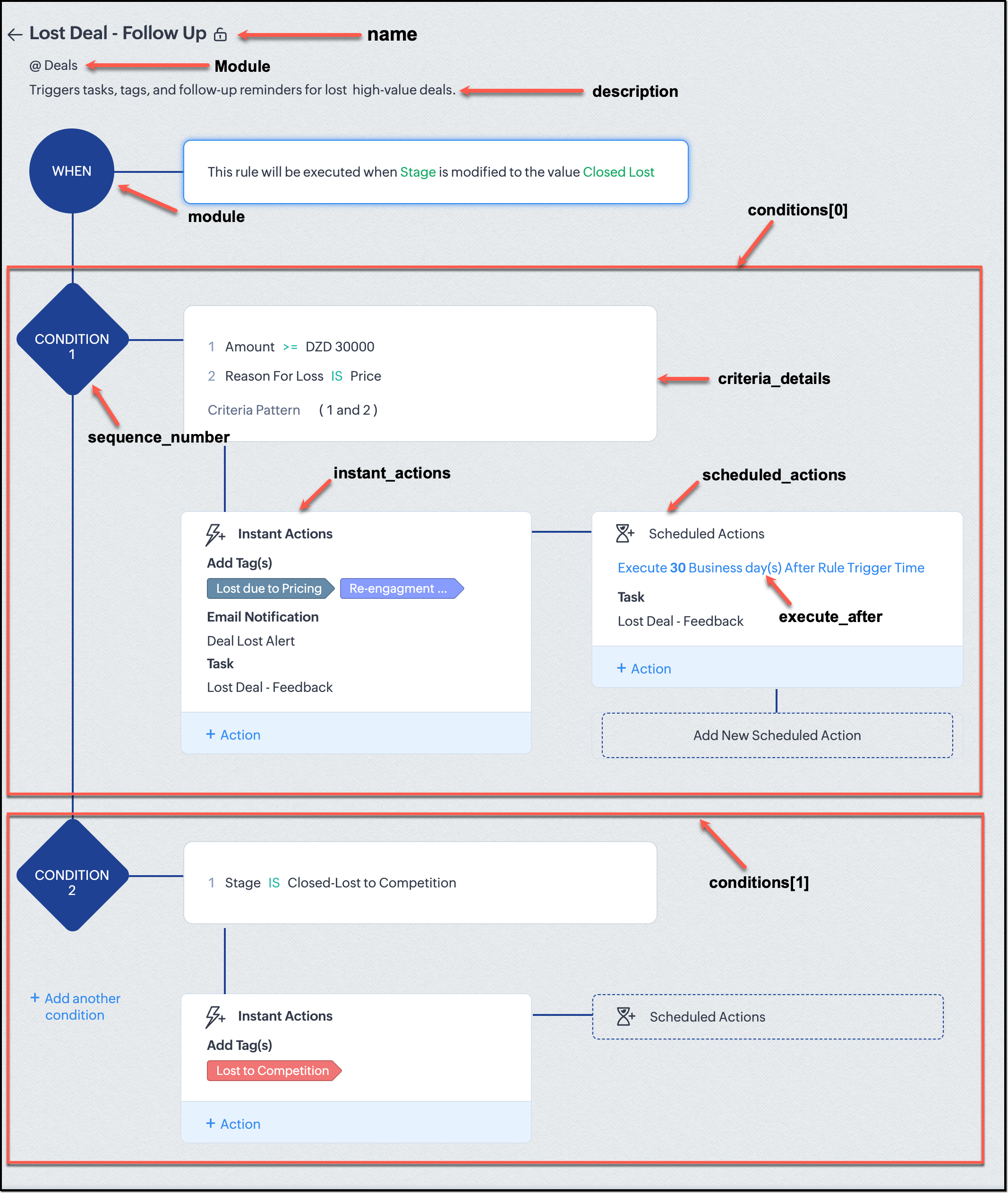
Associative vs. Non-Associative Actions
Every workflow rule performs one or more actions like sending an email, creating a task, or updating a field, etc. These actions fall into two broad categories: associative and non-associative.
Type | Description | Example Actions |
Non- Associative Actions | These are defined inside the workflow rule itself. They do not need to exist beforehand. You can configure their details directly within the workflow payload. | Create record, schedule a call, add a meeting, convert records, social actions, create record on email received, assign owner, |
Associative Actions | These are reusable actions created separately in CRM and referenced by their IDs. They can be used across multiple workflows and other automation tools. | Field updates, Email notifications, tasks, Webhooks, Add/Remove tags |
When you create or update a workflow via API, the associative actions require you to pass their existing action IDs. These IDs can be fetched using the corresponding Actions APIs : Field Updates, Email Notifications, Webhooks, and Tasks. In the coming weeks of Kaizen, we will take a closer look at each of these Actions APIs. We will see how to create, manage, and delete them within your workflow automation strategy.
Sample Request:
POST {{api-domain}}/crm/v8/settings/automation/workflow_rules
{ "workflow_rules": [ { "execute_when": { "details": { "trigger_module": { "api_name": "Deals", "id": "4876876000000002181" }, "criteria": { "comparator": "equal", "field": { "api_name": "Stage", "id": "4876876000000002565" }, "type": "value", "value": "Closed Lost" }, "repeat": false, "match_all": false }, "type": "field_update" }, "module": { "api_name": "Deals", "id": "4876876000000002181" }, "description": "Triggers tasks, tags, and follow-up reminders for high-value deals lost due to pricing", "name": "Lost Deal due to Pricing - Follow Up", "conditions": [ { "sequence_number": 1, "instant_actions": { "actions": [ { "name": "Lost Deal - Feedback", "id": "4876876000016794047", "type": "tasks" }, { "details": { "module": { "api_name": "Deals", "id": "4876876000000002181" }, "over_write": false, "tags": [ { "name": "Lost due to Pricing", "id": "4876876000016794071", "color_code": "#658BA8" }, { "name": "Re-engagement pending", "id": "4876876000016794075", "color_code": "#879BFC" } ] }, "type": "add_tags" }, { "name": "Deal Lost Alert", "id": "4876876000016794062", "type": "email_notifications" } ] }, "scheduled_actions": [ { "execute_after": { "period": "business_days", "unit": 30 }, "actions": [ { "name": "Lost Deal - Feedback", "id": "4876876000016794047", "type": "tasks" } ] } ], "criteria_details": { "criteria": { "group_operator": "AND", "group": [ { "comparator": "greater_equal", "field": { "api_name": "Amount", "id": "4876876000000002557" }, "type": "value", "value": "30000" }, { "comparator": "equal", "field": { "api_name": "Reason_For_Loss__s", "id": "4876876000002440001" }, "type": "value", "value": "Price" } ] } } } ] } ] } |
The execute_when defines when the workflow should fire.
type = field_update means this rule runs when a field’s value changes.
criteria : Stage = Closed Lost so the rule triggers whenever the Stage field is updated to Closed Lost.
repeat = false ensures it will not trigger multiple times for the same record.
In simple terms: “Whenever a deal is marked as Closed Lost, run this workflow.” The criteria_details section refines the trigger. The workflow only runs when the Amount ≥ ₹30,000 AND Reason for Loss = Price.
The instant_actions section inside the conditions array has the actions to be executed immediately when the criteria are met.
Add Tags : labels the record for easy filtering and reporting.
Send Email Alert : notifies the sales team instantly about the lost deal.
The scheduled_actions defines what happens after some time has passed. In this case, after 30 business days. Here, the workflow automatically creates a “Lost Deal - Feedback” task, reminding the deal owner to follow up with the customer to get feedback, and for future opportunities.
- The Amount is greater than or equal to ₹30,000, and
The Reason for Loss is “Price.”
By combining these elements, this workflow achieves a full closed-loop follow-up system.
Conclusion:
Zylker’s updated and new workflows make their automation smarter and more responsive. They are now able to spot key deals and ensure lost opportunities are revisited.
We hope you are now well on your way to mastering Workflow APIs. Share your thoughts in the comments or write to us at support@zohocrm.com.

Additional Reading:
- Workflow APIs - Part 1 - Auditing Workflows
- Workflow APIs - Part 2 - Find out what actions and triggers are supported for each module
Topic Participants
Anu Abraham
Sticky Posts
Kaizen #198: Using Client Script for Custom Validation in Blueprint
Nearing 200th Kaizen Post – 1 More to the Big Two-Oh-Oh! Do you have any questions, suggestions, or topics you would like us to cover in future posts? Your insights and suggestions help us shape future content and make this series better for everyone.Kaizen #226: Using ZRC in Client Script
Hello everyone! Welcome to another week of Kaizen. In today's post, lets see what is ZRC (Zoho Request Client) and how we can use ZRC methods in Client Script to get inputs from a Salesperson and update the Lead status with a single button click. In thisKaizen #222 - Client Script Support for Notes Related List
Hello everyone! Welcome to another week of Kaizen. The final Kaizen post of the year 2025 is here! With the new Client Script support for the Notes Related List, you can validate, enrich, and manage notes across modules. In this post, we’ll explore howKaizen #217 - Actions APIs : Tasks
Welcome to another week of Kaizen! In last week's post we discussed Email Notifications APIs which act as the link between your Workflow automations and you. We have discussed how Zylker Cloud Services uses Email Notifications API in their custom dashboard.Kaizen #216 - Actions APIs : Email Notifications
Welcome to another week of Kaizen! For the last three weeks, we have been discussing Zylker's workflows. We successfully updated a dormant workflow, built a new one from the ground up and more. But our work is not finished—these automated processes are
Recent Topics
Problem with reports due to "Connected" items change - Yes this IS a problem
Now that the change has been made to use "connected" items I can no longer run the reporting I need in CRM. I should be able to start with Deals as the parent, connect down to the Account (Account_Name) on the deal as the child, then to any child itemsIntroducing notifications in the vendor portal
Imagine this: You're a recruiter working with multiple vendors on a high-volume hiring project. You’ve just updated a job description after a last-minute change from the hiring manager. One of your vendors, however, is still working off the older versionAnalytics for notes created
Is there a way I can see how many notes were created per day? Via reporting or analytics?Cannot update Recurring_Activity on Tasks – RRULE not accepted
Hello, I am trying to update Tasks in Zoho CRM to make them recurring yearly, but I cannot find the correct recurrence pattern or way to update the Recurring_Activity field via API or Deluge. I have tried: Sending a string like "RRULE:FREQ=YEARLY;INTERVAL=1"Add image to report...
Greetings, I send a weekly color coded report via Creator email. I would like to add the legend somewhere in the report. Header, footer where ever. I have the legend saved on Google Drive and can access it via shared link. Sure someone has wanted to addMore controls for User Fields in CRM
Dear All, We are here with a minor but crucial enhancement to the user fields—now set accessibility permissions to the records for user field. User field allows you to extend co-ownership of records to your peers. You can collaborate with them for certainCalls to accounts rather than leads or contacts?
So..... We have a dilemma and I'm hoping someone has encountered this before and figured out a fix. We have just migrated to Zoho. It's great.....expect for how "Calls" are handled.... We are B2B. We do not use the leads module. A "Lead/Prospect" forImage Upload Field | Zoho Canvas
I'm working on making a custom view for one of our team's modules. It's an image upload field (Placement Photo) that would allow our sales reps to upload a picture of the house their working on. However, I don't see that field as a opinion when buildingPower of Automation :: Automated 'Delayed & Closed' Status Update Based on Due Date
Hello Everyone, A custom function is a software code that can be used to automate a process and this allows you to automate a notification, call a webhook, or perform logic immediately after a workflow rule is triggered. This feature helps to automateRange names in Zoho Sheet are BROKEN!
Hi - you've pushed an update that has broken range names. A previously working spreadsheet now returns errors because the range names are not updating the values correctly. I've shared a video with the support desk to illustrate the problem. This spreadsheetpopulate email address and name in zoho desk?
Is it possible to populate the email address and name in the zoho desk widget? We only use it in the context of an authenticated user, so we already know the user's name and email. Thanks,Are there default/pre-built dashboards in Zoho Desk?
Hi, I am looking for some pre-built dashboard templates in Zoho Desk, similar to what we can find in CRM/Projects, etc Thank youSAP S/4 HANA to CRM Integration - change the SAP Client ID
Hi I am trying to push the business partners from SAP S/4 HANA to ZOHO CRM module. The SAP Client ID is 421 in my case....kindly let me know how do I specify the sap client because it's a dropdown with specific values as of now. Thanks Ravi AswaniAdding branded signature to tickets reply
Hi, i am unable to figure out how to add signatures with logo to tickets reply. please advice .How to share ticket numbers across different ticket types
I'm running an event and have three different ticket types. Add on Event + Main Event - Early bird Main Event only - Early bird Add on Event only - Early bird And Standard class - shown but not available until early bird finishes Add on Event + Main EventAdding Social Media Buttons to Basic Campaigns
Hi, I'm quote new to using Zoho Campaigns and I can't work out how to add Social Media Buttons into my basic campaign? In MailChimp there's a button that brings the icons into your campaign for you. I've tried adding the social media icons as 'buttons' in Zoho but it's not looking great. Can anyone help? Thanks!Hide Inactive Social Sign-In Providers from Login Screen
Hello Zoho Team, We hope you are doing well. Currently, Zoho One allows admins to configure security policies and enable or disable Social Sign-In options for third-party providers such as Apple, Google, Microsoft, LinkedIn, Yahoo, Twitter, Facebook,[Free Webinar] AI Agents in Zoho Creator - Creator Tech Connect
Hello Everyone! We welcome you all to the upcoming free webinar on the Creator Tech Connect Series. The Creator Tech Connect series is a free monthly webinar that runs for around 45 minutes. It comprises technical sessions in which we delve deep intoDownload All Attached Files
It would be extremely useful to have "download-all" functionality for downloading files attached to a task, subtask, comment, forum post or hosted in the "Documents" section etc. We've instructed our users to zip multiple files prior to uploading, but of course they forget all the time. Having to download lots of files one-at-a-time off a comment or task wastes a lot of time.Ship via Carrier Not Working Since Commerce Update
Since the recent update to the Commerce platform, I can no longer use the ship via carrier function. It will take me to the address screen and let me verify them but when I go to save and move tot he next screen it will not do anything. This is happeningautomations: Can I execute a step on a specific date?
I have created a form in Zoho forms, and created a contacts list. I have also begun setting up an automation with the intention of sending the form to the contact list on a specific date every month (via email) for the entire year (essentially sendingZoho Expense - The ability to add detail to a Trip during booking
As an admin, I would like the ability to add more detail to the approved Trips. At present a requestor can add flights, accommodation details and suggest their preferences. It would be great if the exact details of the trip could be added either by theAdding Folders in Android App
Is it possible to create a new email folder within the Zoho Mail Android app? Or can this only be done from the desktop version of Zoho Mail? Cheers!Schedule Exports for Regular Project Updates
Tracking project data often means exporting data at regular intervals. Instead of manually exporting data every time, users can schedule exports for Phases, Tasks, and Tasks in Zoho Projects. These exports can be set to run once, daily, weekly, or monthlyQuestion about custom fields using Pivot Tables.
I have created a pivot table showing annual revenue of a client and how much payment that client is paying my company. Is there a way using pivot table to add an additional field that subtracts those to fields / shows me a percentage of that difference?Request for Light/Dark Mode
Would love the ability to switch between Light and Dark mode similar to Zoho CRM. https://help.zoho.com/portal/en/community/topic/introducing-dark-mode-light-mode-a-new-look-for-your-crmJourney Email - Ignored Contacts
I have a journey setup which simply sends a string of emails over time. For some reason I am getting large amounts of the contacts who enter the first email being ignored and I can't find anywhere in reports or audit logs why these contacts are notInvolved account types are not applicable when create journals
{ "journal_date": "2016-01-31", "reference_number": "20160131", "notes": "SimplePay Payroll", "line_items": [{ "account_id": "538624000000035003", "description": "Net Pay", "amount": 26690.09, "debit_or_credit": "credit" }, { "account_id": "538624000000000403", "description": "Gross", "amount": 32000, "debit_or_credit": "debit" }, { "account_id": "538624000000000427", "description": "CPP", "amount": 1295.64, "debit_or_credit": "debit" }, { "account_id": "538624000000000376", "description":Zoho Books - Include Payment Terms as a Custom View filter
It would be great if you could created a custom view based on Payment Terms. This would be really handy for seeing a list of customers who have credit terms. A workaround is not required. I could do something with a creditor checkbox, but it would beHow to update changed purchase account of item in invoice
I have selected the wrong purchase account for various articles and created invoices. I had to adjust the purchase account in the article afterwards, but the old purchase account is still posted in the transaction-journal of the invoice. To adjust theHelp - Zoho CRM notification on mobile (IOS/Android)
Hello Community! Can I get the IOS/Andoid CRM app to notify me of events, calls, etc. due as I can with MANY other apps? I am running the free Zoho I would like this to be native to the Zoho CRM app. I do not want to write a sep. mobile appZoho Books Idea - Include another field in Bank Details for Address
Hi Books team, Currently use the Description field in the Bank Details to store the bank's address. This works fine but it would be great if you could add another field for Bank Address, so that other notes about the bank account could be stored in thea question about the COQL API v8
When I specify eight or more values in a WHERE IN clause and execute it, an error occurs. Is there a limit to the number of values that can be specified in a WHERE IN clause? ↓Error select * FROM Vendors WHERE (id in (1, 2, 3, 4, 5, 6, 7, 8, 9)) ↓SuccessZoho Books Idea - Bank Details Button on Banking
Hi Books team, Sometimes I'm asked to share bank details with a customer or a colleague. So I go to the Banking Module, find the correct bank account, click Setting > Edit, then copy and paste the bank details. Wouldn't it be great if there was a buttonJS SDK 8.0 – TypeError: Cannot read properties of undefined (reading 'getCacheStore') with sample code
Hello Zoho Support Team, I’m integrating the Zoho CRM JavaScript SDK v8.0 and I’m getting the error below when running your official sample. I tested directly from: https://github.com/zoho/zohocrm-javascript-sdk-8.0/blob/main/samples/create_records_sample/create_records.jsFunction #55: Convert multiple quotes to single SO using Custom Button
Hello everyone, and welcome back to our series! In Zoho Books, after a quote is accepted by your customer, it can be converted into a sales order or an invoice. Often, a customer might have multiple quotes, and for easier billing or upon the customer'sTime based workflow without edit/action
Hello I need help solving this problem if possible. We have Deals come into the CRM via Live Transfer which have the field properties: Stage = New Channel = Inbound Some of them don't get answered so we want these to automatically go into our OutboundWhat's New - August 2025 | Zoho Backstage
Every month, Zoho Backstage grows with you. These updates aren't just features and fixes, they're about making your workday smoother, your events more impactful, and your attendees happier. We’ve listened, learned, and shaped this release to keep thingsprevent selling expired items
Hello. I need to make a constraint on expired batch items not to be sold. Is it possible in Zoho Inventory? if so, then how? Thanks for further help.Product details removed during update from other system
We maintain our product details in an other system. These details are synchronized with Zoho at the end of each day, through an API. This has worked perfectly sofar. But last Monday, all product codes and some other product data have been wiped duringNext Page