Kaizen 215 - Workflow APIs - Part 3

Welcome back to another week of Kaizen!
Over the last couple of weeks, we’ve joined Zylker Cloud Services as they review and improve their workflows. In Part 1, we discovered and audited their sprawling workflow landscape. In Part 2, we learned how to use the Configuration API to understand valid triggers and actions, preventing errors before they happen.
Now, it is time to take action. Zylker has identified the "VP Alert - High Value Deal" workflow as a prime candidate for an update. It is old, has never run, and its logic might be too narrow. We will also explore how to create a new workflow from scratch to handle a new business requirement.
STEP 5: Update an Existing Workflow
From our audit in Step 2, we know that the existing ‘VP Alert - High Value Deal’ workflow (id: 4876876000016390024) hadn’t triggered even once. The original $50,000 threshold missed many valuable deals. Most winning opportunities actually land above $30,000. It has never executed, suggesting the criteria are too strict.
Let us use the Update Workflow Rule API to fix it. We'll change the criteria to trigger for deals greater than or equal to $30,000 and add an additional email notification.
What you can and cannot update
When working with the Update Workflow Rule API, not every field in a workflow is open for modification. Think of it like editing an existing automation blueprint. Some foundations are fixed, while others are flexible.
You can update:
Name and Description
Trigger : You can update triggers, but only within the same trigger type. For example, you can change a Record Action trigger from create to edit, but not from a Record Action trigger to a Score-based trigger. For more details on this, please refer to our detailed help documentation here.
Conditions and Criteria : add, remove, or refine them.
Actions : add new ones, remove existing ones, or update their configuration.
Status : activate or deactivate a workflow rule.
What cannot be updated
There are a few key restrictions to remember:
You cannot change the module associated with the workflow.
You cannot switch trigger categories (e.g., from Record Action to Email Trigger).
You cannot retain unsupported actions when changing to a trigger that doesn’t support them. For instance, if you change a trigger from Edit to Delete, but keep an Assign Owner action, the update will fail, because “Assign Owner” isn’t valid for Delete triggers.
Updating an existing workflow is not about replacing everything. it is about editing precisely what needs to change.
Here is how to do it:
Fetch the workflow details using the Get Workflow Rule API. This gives the full structure, including condition IDs, action IDs, and trigger details.
Identify what needs to change.
In this case, to fix the “VP Alert - High Value Deal” workflow, we can update the Workflow rule to:
lower the threshold to $300,000
change the comparator to greater_than.
To make the workflow more useful, Zylker has also decided to add a few new actions.
But before doing that, the developers needed to confirm which actions are supported for this workflow’s trigger type. That is where last week’s Configuration API comes in handy. Since we already know this is a Record Action trigger (create_or_edit), we can refer to the configuration response we explored in Part 2 to see which actions are valid.
{ "api_name": "create_or_edit", "deprecated": false, "name": "CreateorEdit", "scheduled_actions_supported": true, "actions": [ "field_updates", "assign_owner", "add_tags", "remove_tags", "email_notifications", "tasks", "create_record", "create_connected_record", "add_meeting", "webhooks", "functions", "circuits", "flow" ] }, |
The response clearly shows that email notifications, field updates, and tags are all supported for this trigger type. With that confidence, in addition to updating the condition, we can also add a 'Priority' tag to those records that trigger the Workflow. This makes the workflow more visible and actionable across the sales hierarchy.
Sample Request:
PUT {{api-domain}}/crm/v8/settings/automation/workflow_rules/4876876000016390024
{ "workflow_rules": [ { "description": "Notify sales leadership and track strategic opportunities", "name": "VP Alert - High Value Deal.", "conditions": [ { "sequence_number": 1, "criteria_details": { "criteria": { "group_operator": "AND", "group": [ { "comparator": "greater_than", // change in comparator operator "field": { "api_name": "Amount" }, "value": "300000" // Lowered threshold }, { "comparator": "equal", "field": { "api_name": "Stage" }, "value": "Negotiation/Review" } ] } }, "instant_actions": { "actions": [ { "type": "add_tags", "module": "Deals", "details": { "tags": [ { "name": "Priority" } ], "overwrite": true } } ] }, "id": "4876876000016390025" // id of the condition to be updated } ] } ] } |
After this update, the workflow now triggers for any deal worth more than $300,000 in the Negotiation/Review stage. Apart from sending the email notifications and adding the follow up task, it also tags these deals as Priority.
Edit vs Add:
To edit an existing condition or action, include its existing id in your update payload. Zoho CRM will recognize it as an update to that object.
To add a new condition or action, simply omit the id. CRM treats any object without an ID as a new addition.
STEP 6: Create a new Workflow Rule
With the “VP Alert - High Value Deal” workflow now fixed and performing as expected, Zylker’s sales team quickly began to see results.
But their sales team noticed that deals often stall after proposals are sent, with no systematic follow-up. Zylker has hence refined the requirements for a new Workflow.
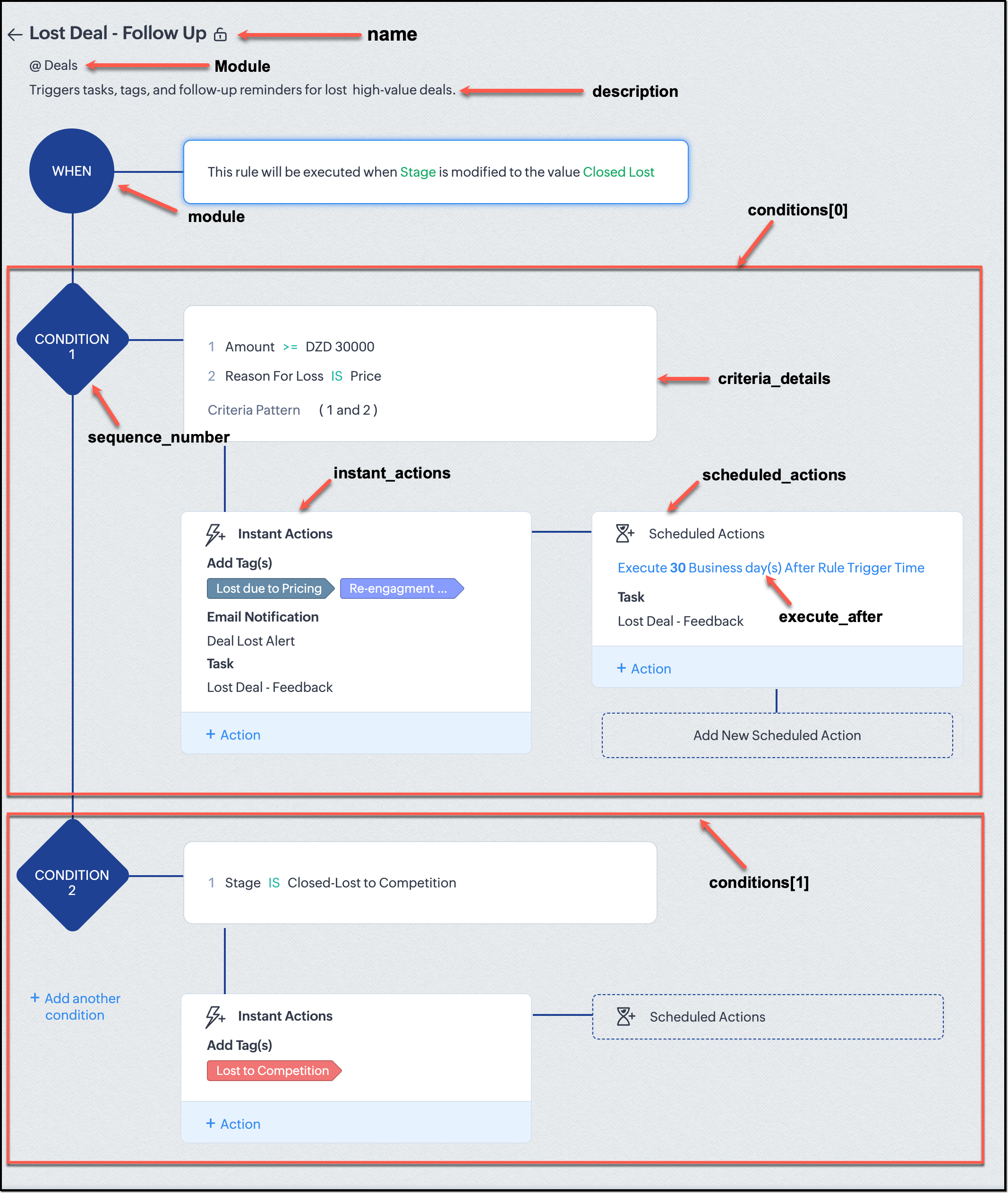
They want to automatically trigger follow-up actions when a high-value deal (above ₹30,000) is marked “Closed Lost” due to pricing reasons. This workflow must ensure that every lost opportunity is reviewed, tagged, and re-engaged after a cooling-off period. To achieve this, they want to create a workflow to be triggered whenever a deal’s Stage is updated to Closed Lost. It must perform the following actions:
Add tags Lost due to Pricing and Re-engagement Pending.
Send an email alert to the Sales team, with the details of the failed Deal, so they can look into the reasons.
After 30 business days, automatically create another “Lost Deal - Feedback” task to remind the owner to re-contact the customer for feedback, and for future opportunities.
Before proceeding, Zylker makes an API call to the Workflow Configuration endpoint. This ensures that their chosen trigger type and actions are supported. From the response snippet below, it is clear that a field_update trigger supports scheduled actions and the required action types.
{ "api_name": "field_update", "deprecated": false, "name": "FieldUpdate", "scheduled_actions_supported": true, "actions": [ "field_updates", "assign_owner", "add_tags", "remove_tags", "email_notifications", "tasks", "create_record", "create_connected_record", "add_meeting", "webhooks", "functions", "circuits", "flow" ] } |
With these details validated, we can now move on to adding a new workflow for Zylker using the Create Workflow Rule API request.
Understanding the input JSON structure
Every workflow definition follows the same hierarchy - defining when the rule runs, what conditions it checks, and which actions it performs.
The top-level input object contains a workflow_rules array. You must include just one workflow rule object per request. Each workflow rule defines its name, trigger type, and one or more condition blocks, each with its own criteria and actions.
Here is a breakdown of what is inside a single workflow rule:
{ "workflow_rules": [ { "name": "VP Alert - High Value Deal.", //name of the workflow rule "description": "Notify leadership when high-value deals are lost due to pricing.", "module": { "api_name": "Deals" }, //module to which the workflow applies "execute_when": { ... }, //trigger configuration (e.g., on record edit, field update, etc.) "conditions": [ { "sequence_number": 1, // order of execution. this is the first condition "criteria_details": { ... }, // condition logic (criteria group) "instant_actions": { "actions": [ ... ] }, //instant actions executed instantly cheduled_actions": [ // schedules actions executed after a delay { "execute_after": { ... }, // delay period for the scheduled action "actions": [ ... ] } ] }, { "sequence_number": 2, // second condition "criteria_details": { ... }, "instant_actions": { "actions": [ ... ] } } ] } ] } |
Associative vs. Non-Associative Actions
Every workflow rule performs one or more actions like sending an email, creating a task, or updating a field, etc. These actions fall into two broad categories: associative and non-associative.
Type | Description | Example Actions |
Non- Associative Actions | These are defined inside the workflow rule itself. They do not need to exist beforehand. You can configure their details directly within the workflow payload. | Create record, schedule a call, add a meeting, convert records, social actions, create record on email received, assign owner, |
Associative Actions | These are reusable actions created separately in CRM and referenced by their IDs. They can be used across multiple workflows and other automation tools. | Field updates, Email notifications, tasks, Webhooks, Add/Remove tags |
When you create or update a workflow via API, the associative actions require you to pass their existing action IDs. These IDs can be fetched using the corresponding Actions APIs : Field Updates, Email Notifications, Webhooks, and Tasks. In the coming weeks of Kaizen, we will take a closer look at each of these Actions APIs. We will see how to create, manage, and delete them within your workflow automation strategy.
Sample Request:
POST {{api-domain}}/crm/v8/settings/automation/workflow_rules
{ "workflow_rules": [ { "execute_when": { "details": { "trigger_module": { "api_name": "Deals", "id": "4876876000000002181" }, "criteria": { "comparator": "equal", "field": { "api_name": "Stage", "id": "4876876000000002565" }, "type": "value", "value": "Closed Lost" }, "repeat": false, "match_all": false }, "type": "field_update" }, "module": { "api_name": "Deals", "id": "4876876000000002181" }, "description": "Triggers tasks, tags, and follow-up reminders for high-value deals lost due to pricing", "name": "Lost Deal due to Pricing - Follow Up", "conditions": [ { "sequence_number": 1, "instant_actions": { "actions": [ { "name": "Lost Deal - Feedback", "id": "4876876000016794047", "type": "tasks" }, { "details": { "module": { "api_name": "Deals", "id": "4876876000000002181" }, "over_write": false, "tags": [ { "name": "Lost due to Pricing", "id": "4876876000016794071", "color_code": "#658BA8" }, { "name": "Re-engagement pending", "id": "4876876000016794075", "color_code": "#879BFC" } ] }, "type": "add_tags" }, { "name": "Deal Lost Alert", "id": "4876876000016794062", "type": "email_notifications" } ] }, "scheduled_actions": [ { "execute_after": { "period": "business_days", "unit": 30 }, "actions": [ { "name": "Lost Deal - Feedback", "id": "4876876000016794047", "type": "tasks" } ] } ], "criteria_details": { "criteria": { "group_operator": "AND", "group": [ { "comparator": "greater_equal", "field": { "api_name": "Amount", "id": "4876876000000002557" }, "type": "value", "value": "30000" }, { "comparator": "equal", "field": { "api_name": "Reason_For_Loss__s", "id": "4876876000002440001" }, "type": "value", "value": "Price" } ] } } } ] } ] } |
The execute_when defines when the workflow should fire.
type = field_update means this rule runs when a field’s value changes.
criteria : Stage = Closed Lost so the rule triggers whenever the Stage field is updated to Closed Lost.
repeat = false ensures it will not trigger multiple times for the same record.
In simple terms: “Whenever a deal is marked as Closed Lost, run this workflow.” The criteria_details section refines the trigger. The workflow only runs when the Amount ≥ ₹30,000 AND Reason for Loss = Price.
The instant_actions section inside the conditions array has the actions to be executed immediately when the criteria are met.
Add Tags : labels the record for easy filtering and reporting.
Send Email Alert : notifies the sales team instantly about the lost deal.
The scheduled_actions defines what happens after some time has passed. In this case, after 30 business days. Here, the workflow automatically creates a “Lost Deal - Feedback” task, reminding the deal owner to follow up with the customer to get feedback, and for future opportunities.
- The Amount is greater than or equal to ₹30,000, and
The Reason for Loss is “Price.”
By combining these elements, this workflow achieves a full closed-loop follow-up system.
Conclusion:
Zylker’s updated and new workflows make their automation smarter and more responsive. They are now able to spot key deals and ensure lost opportunities are revisited.
We hope you are now well on your way to mastering Workflow APIs. Share your thoughts in the comments or write to us at support@zohocrm.com.

Additional Reading:
- Workflow APIs - Part 1 - Auditing Workflows
- Workflow APIs - Part 2 - Find out what actions and triggers are supported for each module
Topic Participants
Anu Abraham
Sticky Posts
Kaizen #198: Using Client Script for Custom Validation in Blueprint
Nearing 200th Kaizen Post – 1 More to the Big Two-Oh-Oh! Do you have any questions, suggestions, or topics you would like us to cover in future posts? Your insights and suggestions help us shape future content and make this series better for everyone.Kaizen #226: Using ZRC in Client Script
Hello everyone! Welcome to another week of Kaizen. In today's post, lets see what is ZRC (Zoho Request Client) and how we can use ZRC methods in Client Script to get inputs from a Salesperson and update the Lead status with a single button click. In thisKaizen #222 - Client Script Support for Notes Related List
Hello everyone! Welcome to another week of Kaizen. The final Kaizen post of the year 2025 is here! With the new Client Script support for the Notes Related List, you can validate, enrich, and manage notes across modules. In this post, we’ll explore howKaizen #217 - Actions APIs : Tasks
Welcome to another week of Kaizen! In last week's post we discussed Email Notifications APIs which act as the link between your Workflow automations and you. We have discussed how Zylker Cloud Services uses Email Notifications API in their custom dashboard.Kaizen #216 - Actions APIs : Email Notifications
Welcome to another week of Kaizen! For the last three weeks, we have been discussing Zylker's workflows. We successfully updated a dormant workflow, built a new one from the ground up and more. But our work is not finished—these automated processes are
Recent Topics
Blueprint - Mandatory file upload field
Hi, File upload (as we as image upload) field cannot be set as mandatory during a blueprint transition. Is there a workaround? Setting attachments as mandatory doesn't solve this need as we have no control over which attachments are added, nor can weZoho Books - Include Quote Status in Workflow Field Triggers
Hi Zoho Books team, I recently tried to create a Workflow rule based on when a Quote is Accepted by the customer. This is something which I thought would be very easy to do, however I discovered that Status is not listed as a field which can be monitoredZoho Books - Show Related Sales Orders on Quotes
Hi Books team, I've noticed that the Quotes don't show show the related Sales Order. My feature request is to also show related Sales Orders above the Quote so it's easy to follow the thread of records in the sales and fulfilment process. Below screenshotAdd VAT/Tax line to bank adjustments
When categorising transactions and matching bank feeds with transactions such as customer payments, we use the "Add Adjustment" to add things like fees/bank fees. It would be useful to choose a VAT/Tax rate here. Whilst there is a bank charges option when adding a payment, this goes into the default bank charges account. We use the adjustments so that we can choose the account and separate our fees. We use different card providers and Worldpay charges VAT so we are stuck. We cannot integrate withNew Menu Layout Feedback
I'd really like to see the banking item back on the top of the menu. I'm sure part of it is just because that's what I'm accustomed to. However, for a bookkeeping program, I think there's a logic to having banking be on top. Not a giant issue, but somethingForm Accessibility
Hi, is there an update on the accessibility standard of Zoho forms? Are the forms WCAG 2.1 AA compliant?Cannot schedule report delivery
The only 'send option' available when exporting reports is 'immediately' The option to schedule the report is missing.adding attachment in sendmail script where attachment is in a CRM field
Hi all, I have a custom field of type 'File Upload' in one of my modules in my CRM. I want to include the file in that field as an attachment to an email - which is done from a button on the 'Results' module. I have created a script and a button to initiate an email from that module. The Deluge scripting window has allowed me to add arguments for all the fields I need to use except for the one file upload type field. My script currently looks like the below (content of the email omitted). As you[Free Webinar] Learning Table Series - AI-Enhanced Insurance Claim Management in Zoho Creator
Hello Everyone! We’re excited to invite you to another edition of Learning Table Series, where we showcase how Zoho Creator empowers industries with innovative and automated solutions. Struggling with lengthy claim processes, a lack of visibility intoNot sure how to use credits to my account
Hi I have a $50 credit to my account. I'm just wondering how I can apply that to either a current invoice or to try a new service. Any advice would be great, thanks. Kind Regards ChrisControl who sees Timeline and Interactions in Zoho CRM through Profiles
The feature has been enabled for all DCs (except US, EU, and IN DCs). We will be rolling it out to the other DCs in the upcoming days. Dear All, In a CRM, not all users would require access to the history of a record. For instance, a Marketing OperationsZoho Desk Integration - Add the option to send the estimate from the Zoho Desk Ticket Integration
Hi, Currently in the Zoho Desk integration, the user is able to create an estimate from a ticket, once the estimate is created the user can see the estimate under the ticket (see screenshot below), but is not able to send that estimate from Zoho Desk.CRM Validation Rules Support Only Single Condition
Simply put, CRM validation rules support only a single condition for each field on "All Records". You also cannot specify additional validation rules on the same field because it has already been used in an existing validation rule. The ONLY solutionUnapproved Leaves are hard to distinguish in Attendance View
This is a an unapproved leave request It appears in the Attendance view without any visual indicator if its approved or not For a whole day request this might be manageable but for hourly requests it gets very hard to know which are approved, which arePerformance Appraisal Probation Period
Hello All, Is there any possible way to create an appraisal cycle for new staff members, at the end of probation period? Many thanks!Zoho Creatorの一括操作における処理の同期/非同期について
現在、Creatorのレポート機能を利用して、複数のレコードに対して一括で処理を実行しようとしていますが、処理の実行順序について確認したいことがあります。 レポート内の複数レコードに一括で処理を実行した際、処理は同期的に行われるのでしょうか?それとも非同期的に行われるのでしょうか? 【同期処理の場合】 レコード①に対する処理が開始され、終了後にレコード②に対する処理が開始され、最後にレコード③に対する処理が実行されるように、処理が順番に行われる場合。 【非同期処理の場合】 レコード①、レコード②、レコード③の処理が一斉に開始され、それぞれ並行して処理が行われ、全処理が終了する場合。Why I always need to reauthorize the connection, what should I need to refresh connection automatically.
Hi good day, I'm having a problem with the custom connection, i'm sending webhooks (BULK READ API) from crm and process the rest in zoho flow, at first the connection is working but an hour, it give me that error (invalid token), and it need to createMail Delivery Failed
Good morning, I have just set up an account with 5 users, however each time a message is sent to 1 user a m'mail delivery failed' message is generated. See below. Any ideas Thanks Rob This message was created automatically by mail delivery software. A message that you sent could not be delivered to one or more of its recipients. This is a permanent error. The following address(es) failed: robb@thesmartgroup.ae mailbox is full: retry timeout exceeded ------ This is a copy of the message,Delete commerce website
I need to delete a commerce website, but the only option is to click on settings, REQUEST DELETE, choose an urgency notice, add a message....AND THEN nothing, no way to send the request. Why is nothing simple!?!?! I just want to delete the store. TheAdding external users to Zoho Social under Zoho ONE licence - how to best achieve this
My client has a small business, and we are looking to implementing Zoho ONE with a single flexible user licence as that is all they really need and offers the best pricing for the range of modules we eventually wish to set them up with, one of which willThis mobile number has been marked spam. Please contact support.
Problem Description: One of our sales agents in our organization is unable to sign in to Zoho Mail. When attempting to log in, the following message appears: This mobile number has been marked as spam. Please contact support at as@zohocorp.com @zohocorpWhat’s New in Zoho Inventory | April 2025
Hello users, April has been a big month in Zoho Inventory! We’ve rolled out powerful new features to help you streamline production, optimise stock management, and tailor your workflows. While several updates bring helpful enhancements, three major additionsPass current date to a field using Zoho Flow
I am trying to generate an invoice automatically once somebody submits a record in Zoho CRM. I get an error in the invoice date. I have entered {{zoho.currentdate}} in the Date field. When I test the flow, I get "Zoho Books says "Invalid value passedAPI: Mark Sales Order as Open + Custom Status
Hi, it's possible to create Custom Status (sub-status actually) states for the Sales Order. So you have Open, Void. Then under Open you can have Open, and create one called Order Paid, Order Shipped, etc etc...which is grouped under Open. I can use theTip 26: How to hide the "Submit" button from a form
Hi everyone, Hope you're staying safe and working from home. We are, too. By now, we at Zoho are all very much accustomed to the new normal—working remotely. Today, we're back with yet another simple but interesting tip--how to hide the Submit button from your forms. In certain scenarios, you may want to hide the submit button from a form until all the fields are filled in. Use case In this tip, we'll show you how to hide the Submit button while the user is entering data into the form, and thenHow do I move Notes around within a Group?
It says here: " You can now sort notes by title (alphabetically), or by date modified and date created. You can even organize your notes by dragging and dropping them into a particular order. To sort your notes, simply go to Settings and tap “Sort By.” Please note: all sort settings will be saved and synced across devices, except for custom sorting. Custom sorting will be device specific."However, I am unable to 'custom sort' in either Notebook for Mac or on the Web. In addition, I can't find theZoho Sign: need to leave document pending for up to a year, or maybe there's a better way?
I have zoho one, maybe there's a better way to do this with another service than sending a zoho sign template from zoho crm. At the end of the day this requirement is due to regulations, no matter how dumb it may seem. I'm just looking for a way of gettingUnable to edit or delete email address
I signed up for free Zoho today. I usually am pretty good at understanding and configuring things like this, but your interface baffles me, and your online help is cryptic to say the least. I have spent hours just trying to set up a couple of email accounts in Zoho before pointing my domain MX records to Zoho. I solved some other issues on my own, but I can't figure out this latest problem: I have created two email addresses in Zoho. Let's call the first one myname@mydomain.com and the second oneMastering Zia Match Scores | Let's Talk Recruit
Feeling overwhelmed by hundreds of resumes for every job? You’re not alone! Welcome back to Let’s Talk Recruit, where we break down Zoho Recruit’s features and hiring best practices into simple, actionable insights for recruiters. Imagine having an assistantWe are unable to process your request now. Please try again after sometime or contact support@zohoaccounts.com
I cannot sign up and return the error of we are unable to process your request now. Please try again after sometime or contact support@zohoaccounts.comMulti-currency - What's cooking ?
Hi, We have been doing this feature for sometime and we would like to give you some glimpses of it. Working with Multi Currency : Multicurrency support gives you the ability to handle business transactions in multiple currencies. You can define a base currency for your organization and add more currencies with exchange rates based on the base currency. Setup : From the setup page, you can manage all the currencies supported by your organization. Currencies pageHow to reduce programmatically the image uploaded by user?
I need a function that will automatically reduce the pixel dimension to 800 x 600 pixels / 180 resolution or (approx. 1.37MB) of image uploaded by user from digital camera, for example, 2271 x 1704 pixels /180 resolution or approx. 11.1MB. After the user selected the image, the function will able to detect if pixels is above 800x600, process the photo (crop/ reduce) and resume upload. Need help...Dark mode for Zoho Creator / Zoho CRM Code editor
Hi Team, Is there any plans for Dark mode in Zoho creator / Zoho Crm code editor and development pages in pipeline?ZOHO Android Client
Hi, I installed the Android app, but it had an issue, so I reinstalled it. I was able to add multiple accounts, but now when I add the next account, it just duplicates the one I already have and will not even allow me to enter the info for another account.I'd like to suggest a feature enhancement for SalesIQ that would greatly improve the user experience across different channels.
Hello Zoho Team, Current Limitation: When I enable the pre-chat form under Brands > Flow Controls to collect the visitor’s name and email, it gets applied globally across all channels, including WhatsApp, Messenger, and Instagram. This doesn't quite alignEnhance Barcode/QR Code scanner with bulk scanning or continuously scanning
Dear Zoho Creator, As we all know, after each scan, the scanning frame closes. Imagine having 100 items; we would need to tap 100 times and wait roughly 1 second each time for the scanning frame to reopen on mobile web. It's not just about wasting time;Managing Rental Sales in Zoho Inventory
I am aware that Zoho Inventory is not yet set up to handle rental sales and invoicing. Is anyone using it for rentals anyway? I'd like to hear about how others have found work arounds to manage inventory of rental equipment, rental payments, etc. ThZoho Flow to Creator 3001 Respoonse
I have updated my Flows with the new V2 connection to Zoho Creator, but now some Flows do not work. They take in data from a Webhook and are supposed to create a record in Creator, however creator returns a 3001 message along with a failure, but I cannotFile Upload to Work Drive While Adding Records in Zoho Creator Application
Hi I am trying to set a file attachment field in zoho creator form, to enable the user to upload a scanned document from their local pc. The file should be uploaded to zoho workdrive and not to the default zoho creator storage. The file link should beWhy not possible to generate?
Using this https://desk.zoho.com/DeskAPIDocument#TicketCount#TicketCount_Getticketcountbyfield on my ZML script url :"https://desk.zoho.com/api/v1/ticketsCountByFieldValues?departmentId=XXXXXXXXXXX&accountId!=XXXXXXXXX&customField1=cf_country_1:XXXXXX&field=overDue"Next Page