Announcing new features in Trident for Windows (v.1.26.5.0)
Hello Community,
Trident for Windows is here with exciting new features to elevate your email communication and enhance productivity. Let’s dive into what’s new!
Open .eml files in Trident.
You can now open .eml files directly using Trident. This makes it easy to access email content stored locally on your system.
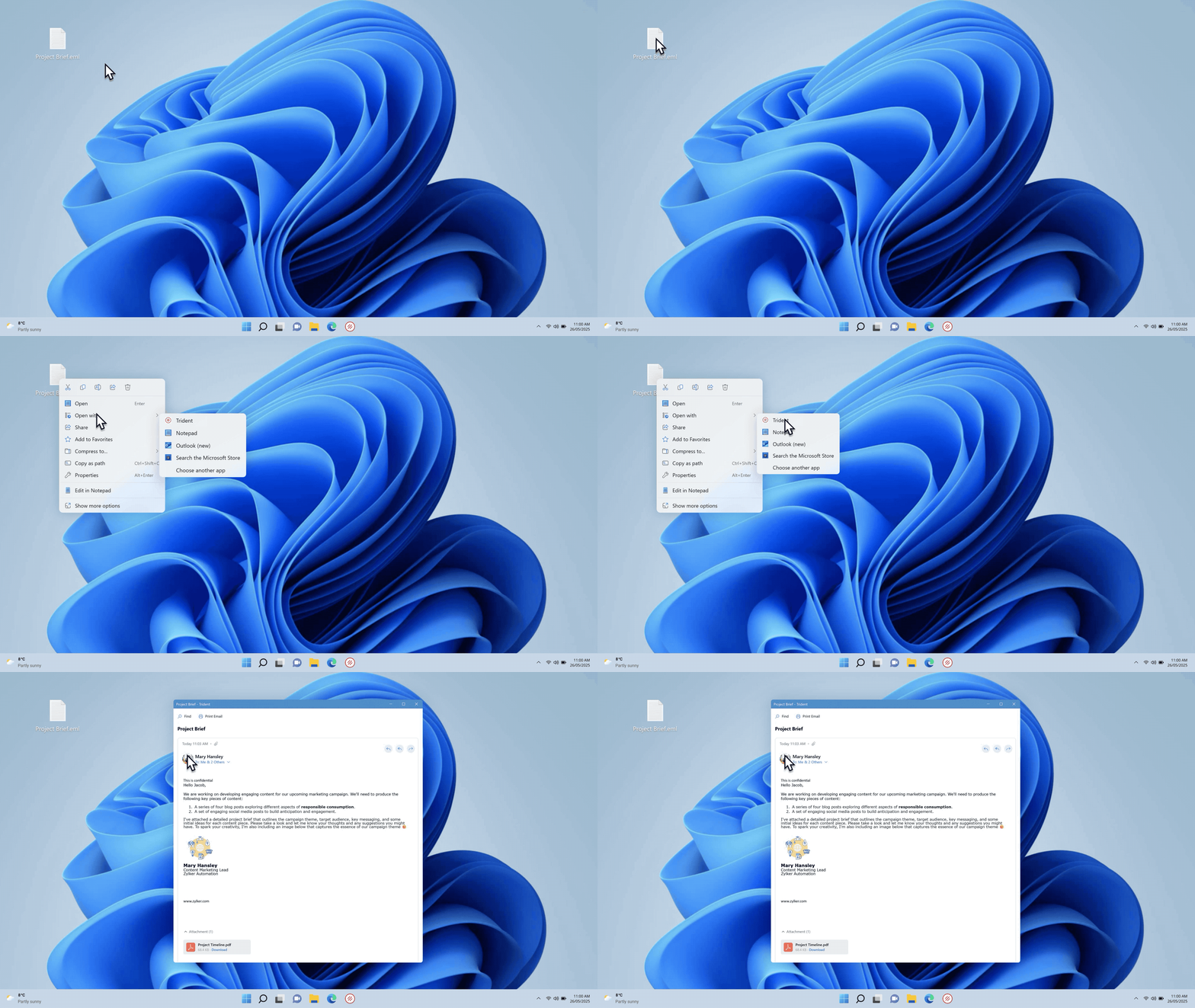
You can now open .eml files directly using Trident. This makes it easy to access email content stored locally on your system.
Switch between light and dark modes in email detail view.
In addition to the Dark, Light, and System themes available in Trident's customization options, you now view the email detail in Light and Dark modes without changing the app's Dark theme.

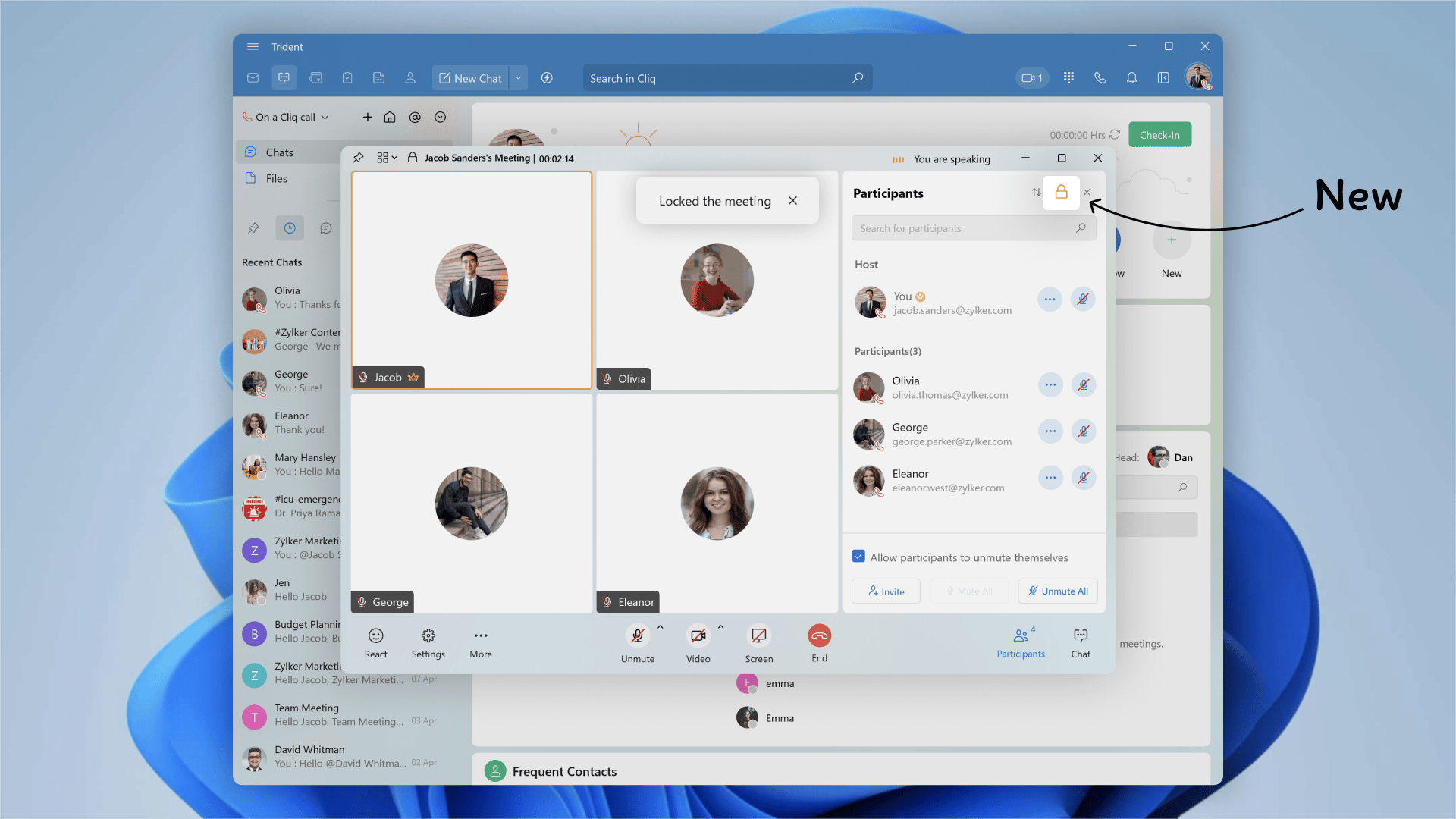
Host locked meetings for private conversations.
The host and co-host of audio and video meetings can now lock an ongoing meeting. This prevents unauthorized persons from joining the meeting, allowing you to host truly private and secure meetings.
Search within conversations.
You can now search for messages, files, and more right the within the chatbox. Quickly find the information you need from within channels, groups, and personal chats.

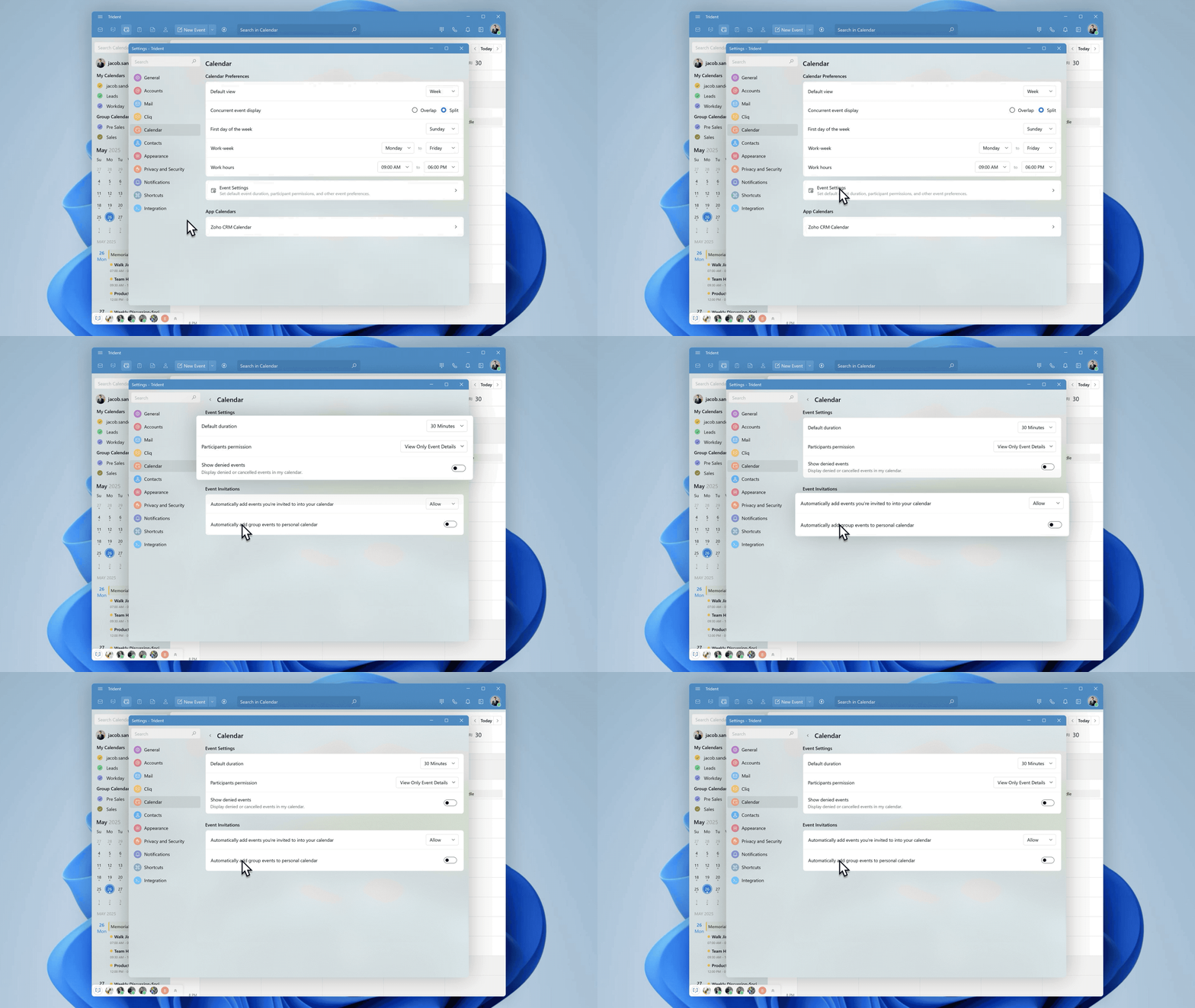
Customize calendar event settings.
You can now customize default calendar event settings in Trident, including setting the default event duration, managing participant permissions, deciding whether to show declined events in your calendar, and more.
More conference platform options.
Along with the existing conference platform options, Webex is now available for use when scheduling calendar events. To access these platforms in Trident, ensure that your email account is configured with these platforms and the integrations are enabled in Zoho Calendar web.

Add multiple assignees to a task.
You can now assign more than one person to a task, enabling better collaboration, shared ownership, and improved task tracking within your team.

Delete personal contacts.
You can now delete personal contacts to remove outdated or duplicate entries and keep your contact list organized.

To leverage these new features in Trident, update the app to the latest version by following the steps below:
- Click the Main Menu icon on the top-left corner of the app.
- Select Check for Updates from the menu list.

If you haven't already downloaded the app, you can download it here. Trident is available for free for all paid and trial users of Zoho Mail, Zoho Workplace, and Zoho One (using Zoho Mail).
Give these features a spin and let us know your experience, as well as any suggestions, by submitting feedback right within the app. You can also reach us at trident@zohosupport.com.
To submit your feedback directly through the app, follow the steps below:
- Click the Main Menu icon in the top-left corner of the app.
- Select Feedback.
- In the feedback window, enter the necessary details under Subject and Feedback Content.
- Once you're ready, click Submit.
We look forward to hearing from you!
Until next time,
Sneha
Sneha