Bidirectional sync between Zoho Bookings and Zoho CRM - Part 1
Hey, community members!
The default integration between Zoho CRM and Zoho Bookings is unidirectional, which means that any appointments booked, rescheduled, or deleted in Zoho Bookings will be reflected in Zoho CRM. However, any modifications made to events in Zoho CRM that originated from Zoho Bookings will not be reflected back in Zoho Bookings. Hence, as we're announcing in this community post, we've made the sync bidirectional.
This community post will cover the process of configuring appointment bookings from Zoho CRM in Zoho Bookings, as well as managing appointment statuses such as Canceled, No Show and Completed. We have addressed the rescheduling action in a separate post. To view it, please click on the following link: Reschedule Action
This community post will be beneficial for active Zoho CRM users who handle all their meetings within Zoho CRM. Additionally, you can use this community post as a reference to explore various automation possibilities tailored to your business requirements. For instance, with this post's guidance, when you update a booking's status field to "Completed" in Zoho CRM, it will automatically sync with Zoho Bookings and trigger an automated "Mark as completed" email to customers. This enhancement will improve your Zoho Bookings and Zoho CRM synchronization experience, making appointment management easier.
Prerequisites of bidirectional sync:
- Zoho Bookings Premium subscription
- Zoho CRM paid subscription
- Enable Zoho CRM integration within Zoho Bookings
The purpose of enabling the Zoho CRM integration within Zoho Bookings is to transfer booking details from Zoho Bookings to Zoho CRM. In this configuration, the mandatory field is the Booking ID, which is passed from Zoho Bookings to Zoho CRM through the integration. Whenever an appointment is booked, customer details will be sent to the designated CRM module, and a corresponding record will be created in the Meetings module within Zoho CRM, which will help in automating the workflow.
Here's the complete demo video that covers all the configurations discussed in the community post below:
Timestamps for your reference:
0:35 - Purpose of this community post
Here's the complete demo video that covers all the configurations discussed in the community post below:
Timestamps for your reference:
0:35 - Purpose of this community post
1:26 - Zoho CRM plugin installation
4:43 - Custom field creation
7:20 - Function creation
9:22 - Connection creation
10:24 - Configuring arguments
11:06 - Workflow creation
13:33 - Argument mapping
14:41 - Output verification
17:41 - Conclusion
How we're approaching this bidirectional sync
1. Booking an appointment from Zoho CRM
Install the Zoho Bookings for Zoho CRM plugin within your Zoho CRM application. This plugin enables the creation of a "New Appointment" button within the Zoho CRM Leads and Contacts module, which enables you to select the desired booking page you wish to open. You can choose from various workspace, service, or staff booking pages. After configuration, you can initiate the process of scheduling bookings directly from within your Zoho CRM account.
- Guide on Zoho Bookings and Zoho CRM plugin installation: Booking page selection for Zoho CRM plugin
2. Booking status: Completed or No Show
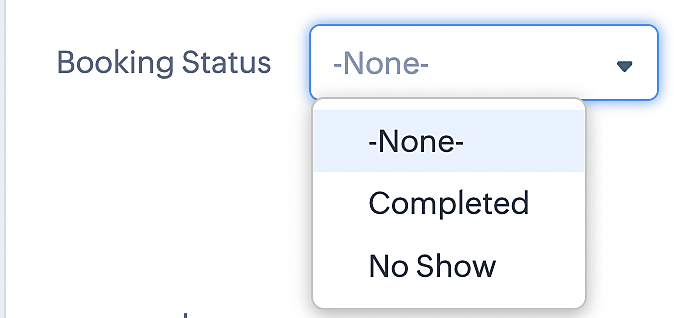
To update a booking's status (Completed or No Show), we've added a new picklist properties field named "Booking Status" in the Meetings module and configured it with two options: "completed" and "no show". Depending on the booking status chosen, the corresponding booking in Zoho Bookings will be updated.
- Details on how to add a custom field to the Meetings module : Customizing modules
- Here's a video that demonstrates how to add a field to a module in Zoho CRM: Adding fields
Reference:
3. Booking status: Canceled
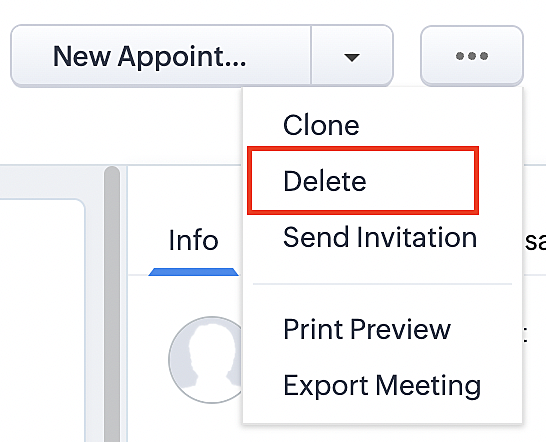
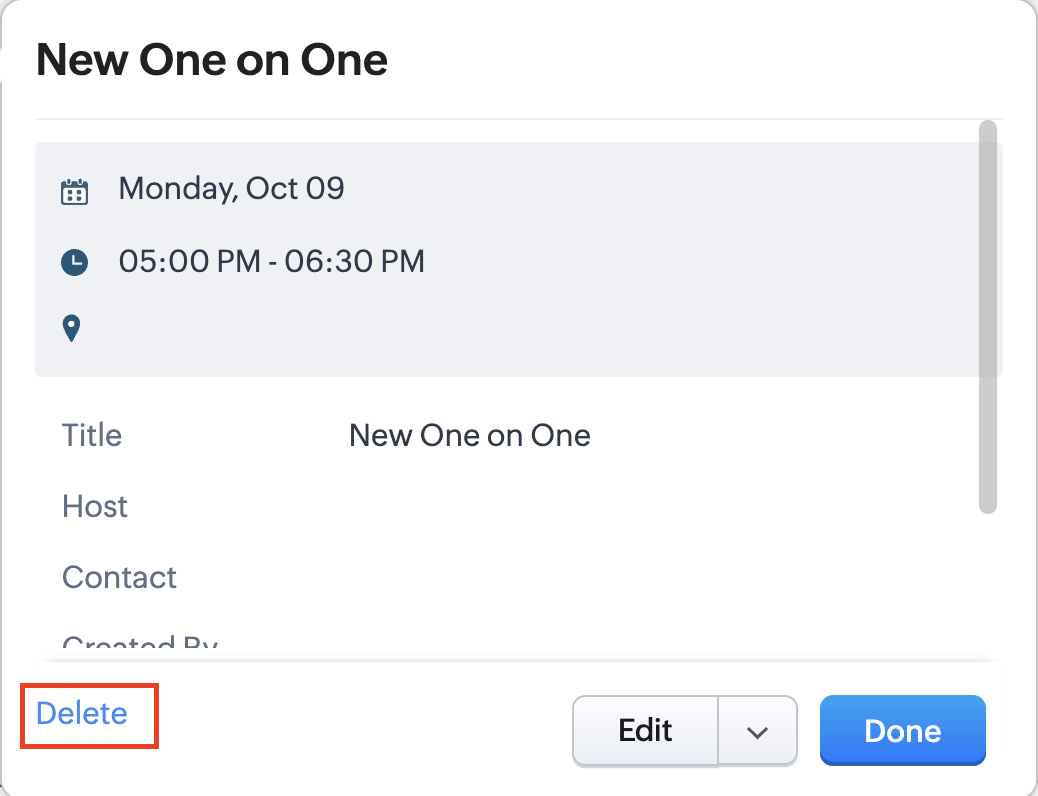
Whenever a meeting is deleted from the Meetings module, the corresponding booking in the Zoho Bookings app will also be canceled automatically. The meeting can be deleted either from the Meetings module or directly from the calendar.
To enable bidirectional sync between Zoho CRM and Zoho Bookings
Complete these steps in Zoho CRM.
Step 1: Creating connections
You first need to establish a connection between Zoho CRM and Zoho Bookings. Zoho Bookings is listed as one of the default connections in Zoho CRM, making it simple to set up. Select the Zoho Bookings connection, define the connection name and scope, and you'll be all set. This connection will enable you to link both applications and facilitate the seamless transfer of data.
Read here for more details on how to create connection in Zoho CRM: Connections
Step 2: Creating functions
In this context, we'll be creating three functions: one for marking appointments as completed, another for canceling appointments, a third for marking appointments as no shows, and a fourth for rescheduling appointments. For each function, we must also configure arguments, which pass values or data into a function when making a call. Here, we'll pass the booking ID to the function as an argument to update the necessary booking status.
i. To create a function for marking appointments as completed:
1. Go to Setup > Developer Space > Functions.
2. In the Functions page, click + Create New Function.

3. Configure the function name, display name, and description.
4. Set the category as automation.
This opens the Deluge script page.
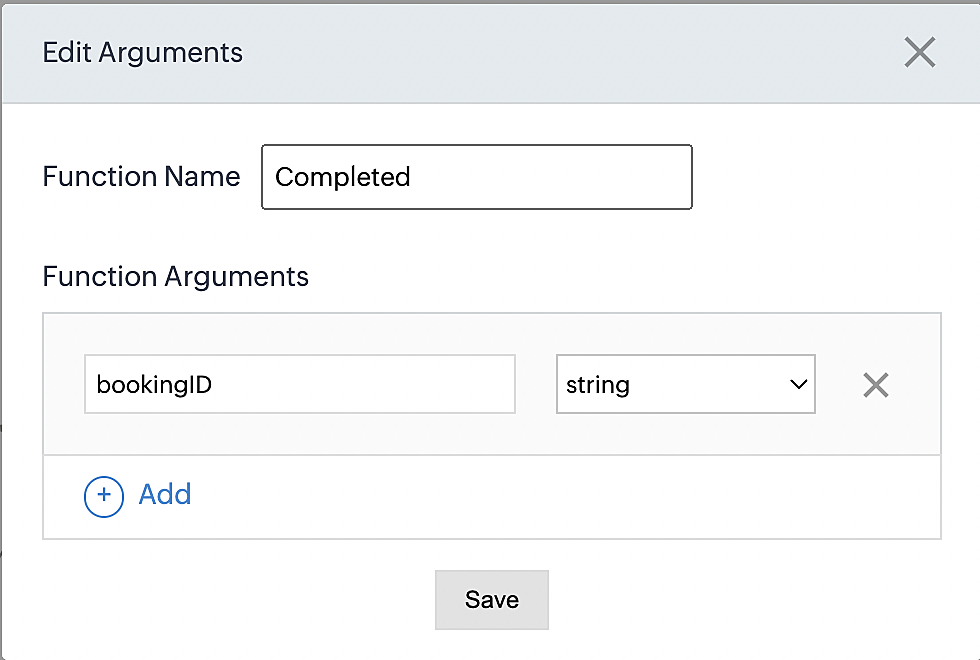
5. Next, configure the function's arguments:
A. Click on Edit Arguments on the Deluge script page.

B. Set the Parameter Name as bookingID. (Please note that the "bookingID" value is case sensitive and must match
the term used in the code).
C. Set the type as string.
Reference:
Please configure the below code in the Deluge script page.
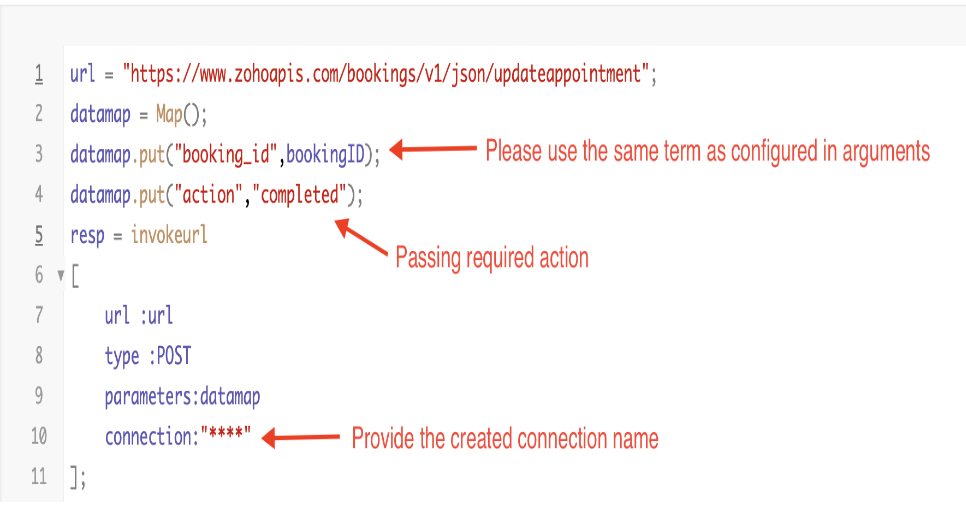
By completing these steps, we've configured a function that will mark appointments as completed.
ii. To create a function for marking appointments as no shows
1. Go to Setup > Developer Space > Functions.
2. In the Functions page, click + Create New Function.

3. Configure the function name, display name, and description.
4. Set the category as automation.
This opens the Deluge script page.
5. Next, configure the function's arguments:
A. Click on Edit Arguments on the Deluge script page.

B. Set the Parameter Name as bookingID. (Please note that the "bookingID" value is case sensitive and must match
the term used in the code).
C. Set the type as string.
Reference:
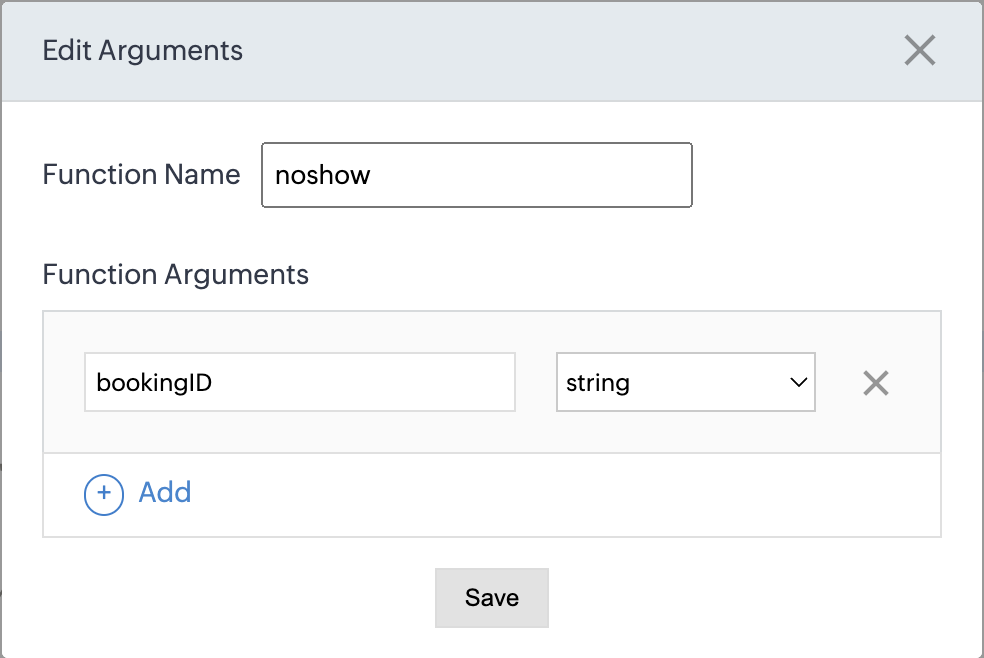
Please configure the below code on the Deluge script page.
Code link: No show
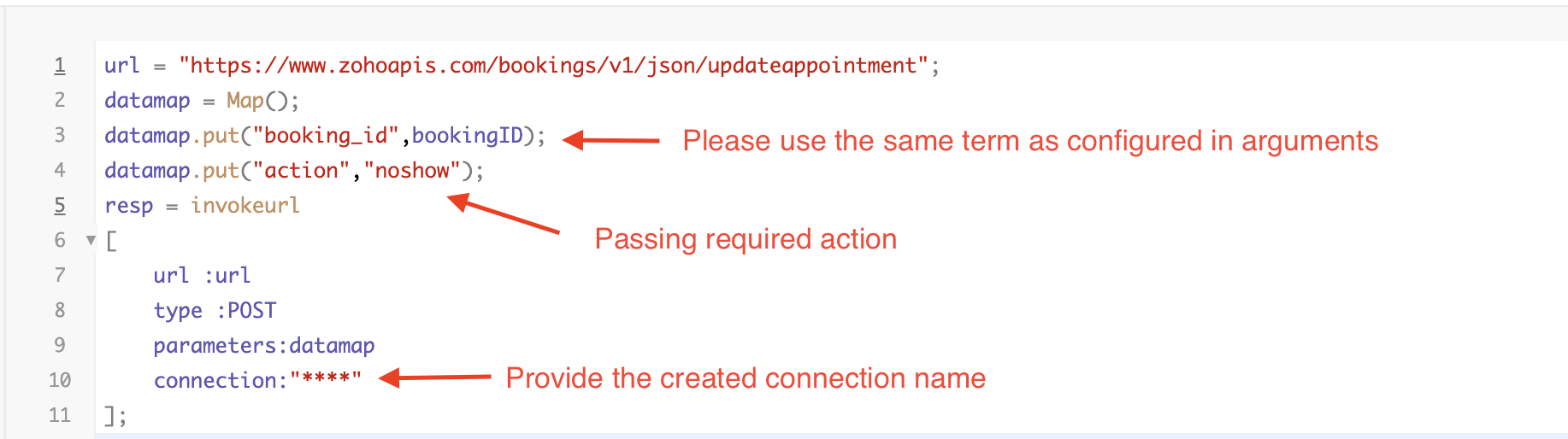
By completing these steps, we've configured a function that marks appointments as no shows.
iii. To create a function for marking appointments as canceled
1. Go to Setup > Developer Space > Functions.
2. In the Functions page, click + Create New Function.

3. Configure the function name, display name, and description.
4. Set the category as automation.
This opens the Deluge script page.
5. Next, configure the function's arguments:
A. Click on Edit Arguments on the Deluge script page.

B. Set the Parameter Name as bookingID. (Please note that the "bookingID" value is case sensitive and must match
the term used in the code).
C. Set the type as string.
Reference
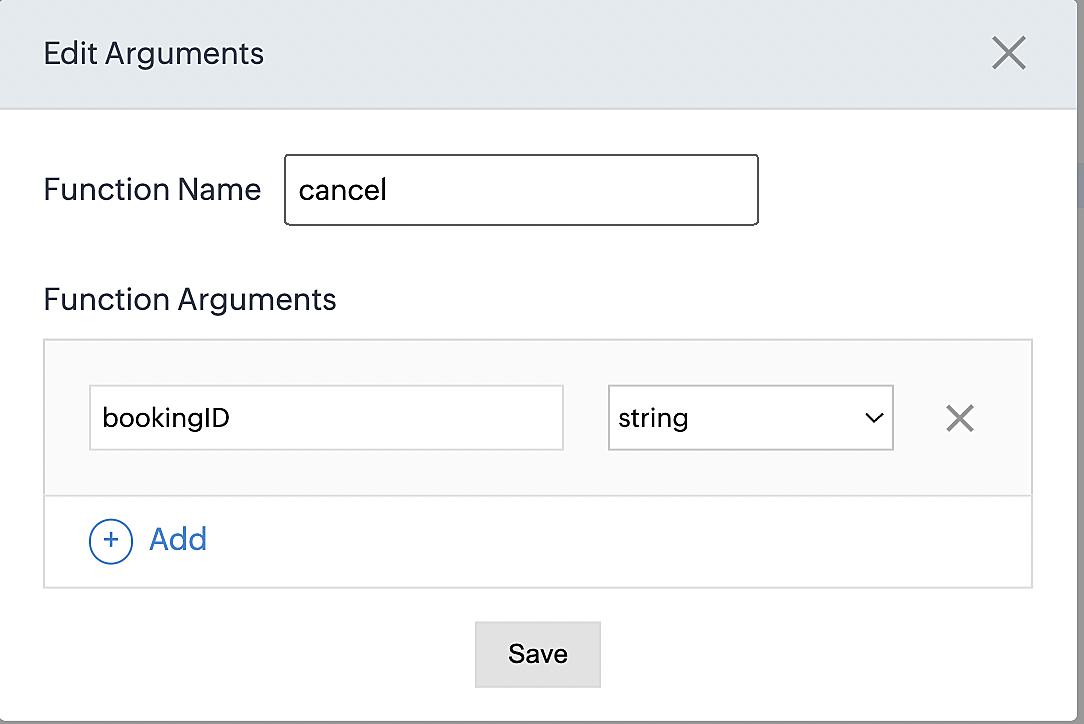
Please configure the below code on the Deluge script page.
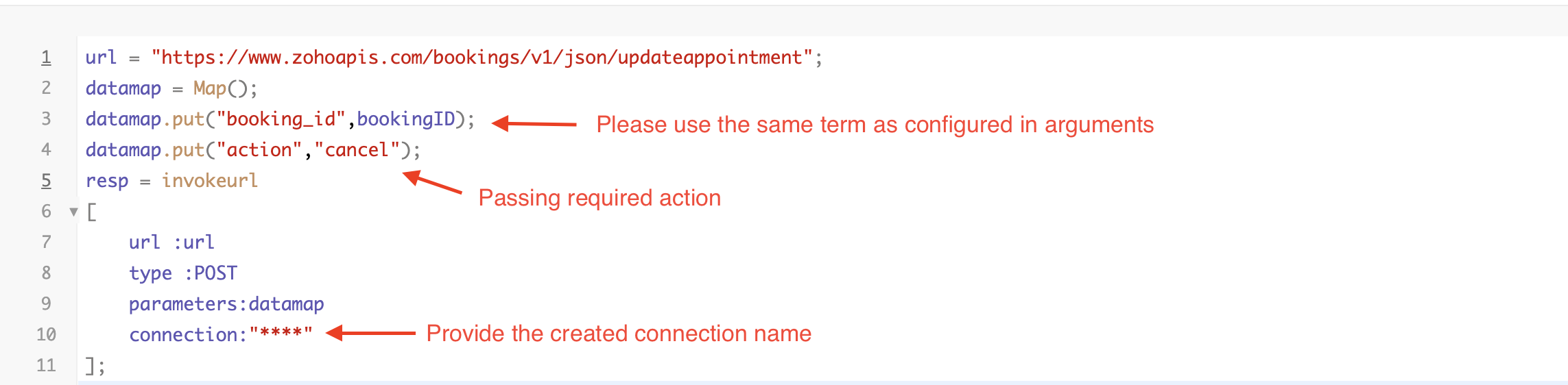
By completing these steps, we've configured a function that marks appointments as canceled.
Code explanation
Below is an explanation of the code that covers all the configurations present in the three functions mentioned above (cancel, mark as completed, and mark as no show).
Line 1: Based on the Zoho Bookings account's data center, we're setting up the API endpoint URL configuration.
Lines 2 - 4: To update appointments, we utilize the Zoho Bookings API. Within the update appointment API, there are two mandatory fields that need to be included: BookingID and action (completed/cancel/noshow).
Lines 5 - 10: We use the invokeURL task for API calls. To learn more about the invokeURL task, please refer to the following document: InvokeURL task for API calls
Now, let's proceed and learn about the process of creating a workflow and linking the established functions to it. This will enable us to automate the entire appointment status updating process.
Step 3: Creating a workflow
Workflow rules are sets of actions (email notifications, tasks and field updates) that are executed when specified conditions are met. Here, we'll generate workflow rules for each action to activate the respective function, thereby automating the appointment status updating process.
i. Creating a workflow for "canceling" appointments in Zoho Bookings when a meeting is deleted in Zoho CRM
Part 1: Creating the rule
1. Go to Setup > Automation > Workflow Rules.
2. In the Workflow Rules page, click Create Rule.

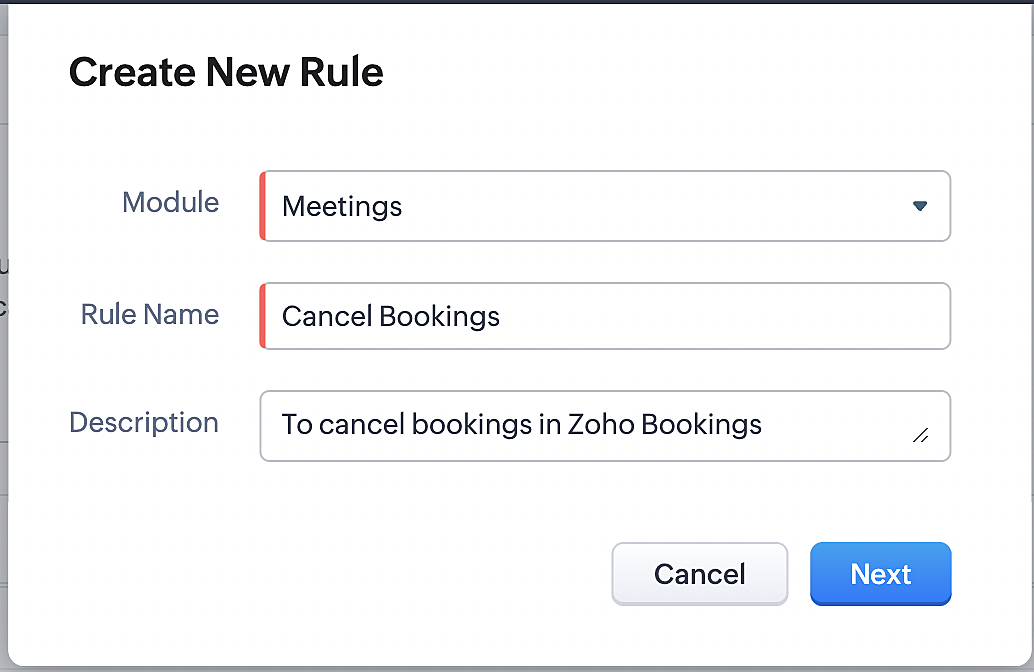
3. Select "Meetings" under Module and configure rule name and description as required.
More details: Create Rule
Reference:
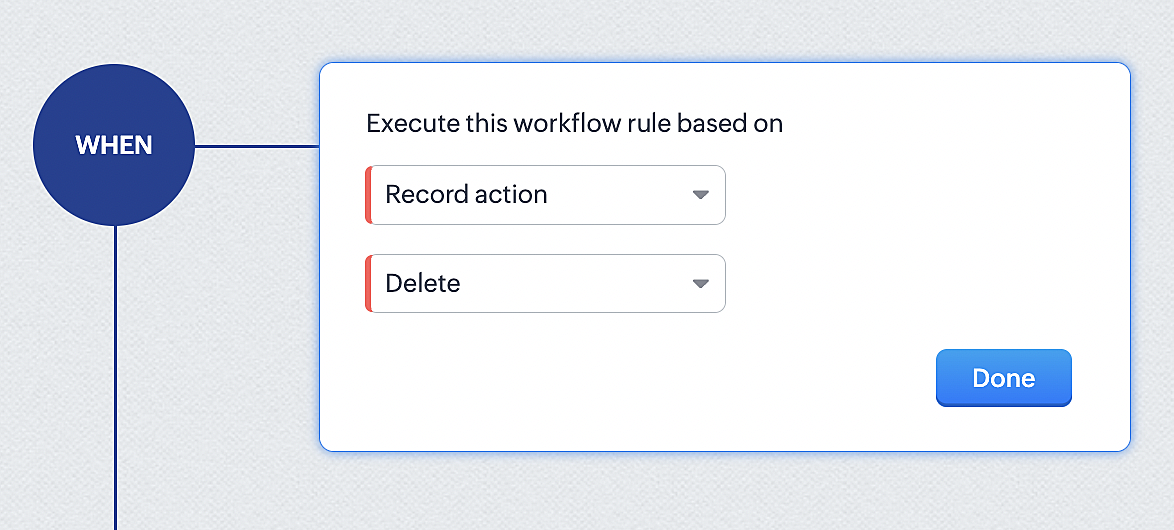
1. Select Record Action > Delete > Done to execute the rule when meetings are deleted.
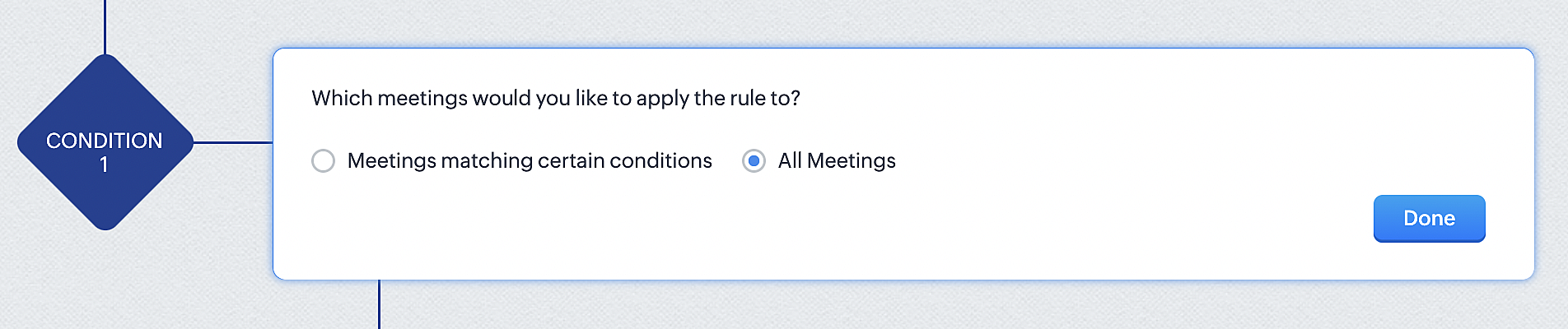
2. Configure condition > All Meetings.
3. Instant Actions > Function.
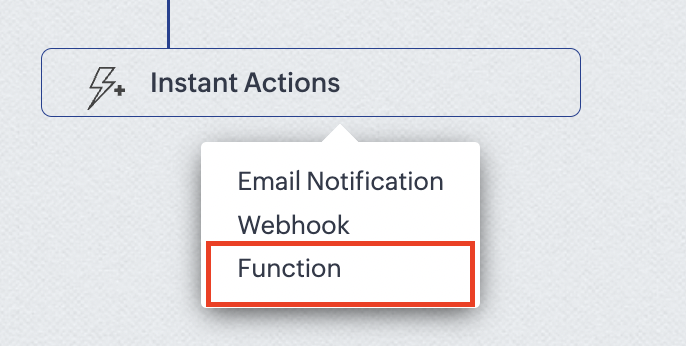
4. Click the New Function button.

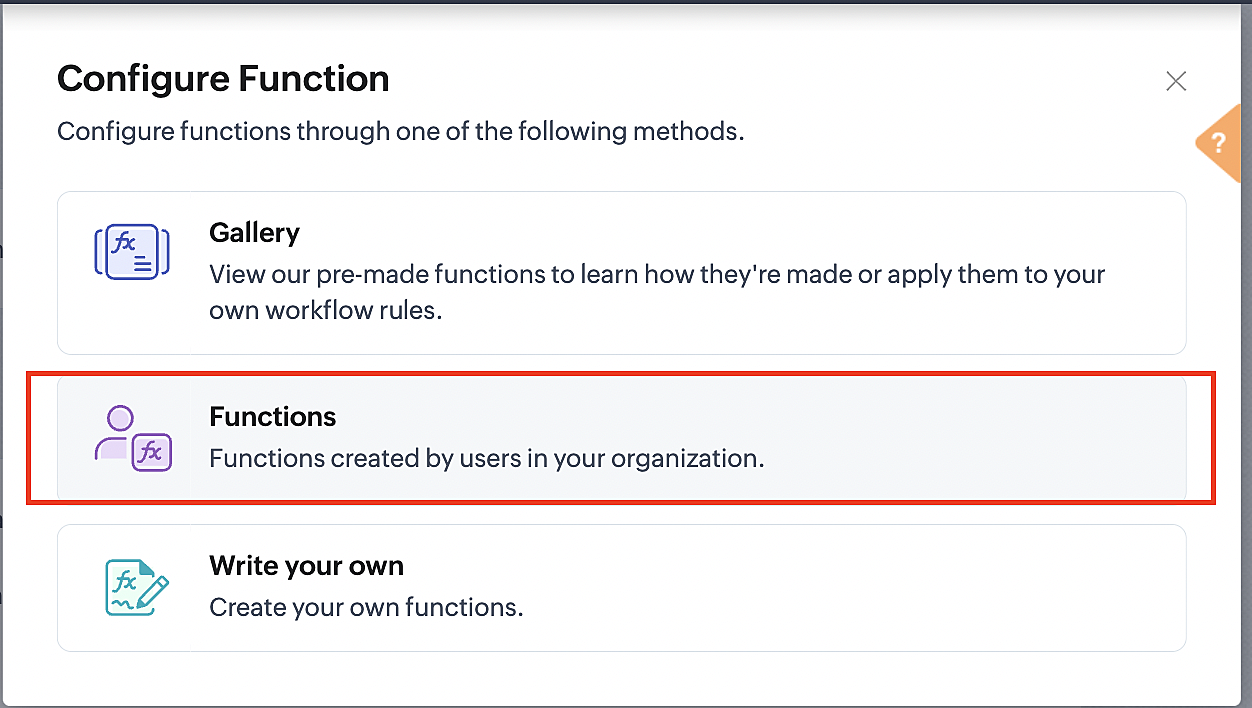
5. In the Configure custom function page, select the "cancel" function you created from among the functions users in your organization have created.
Part 3: Argument mapping
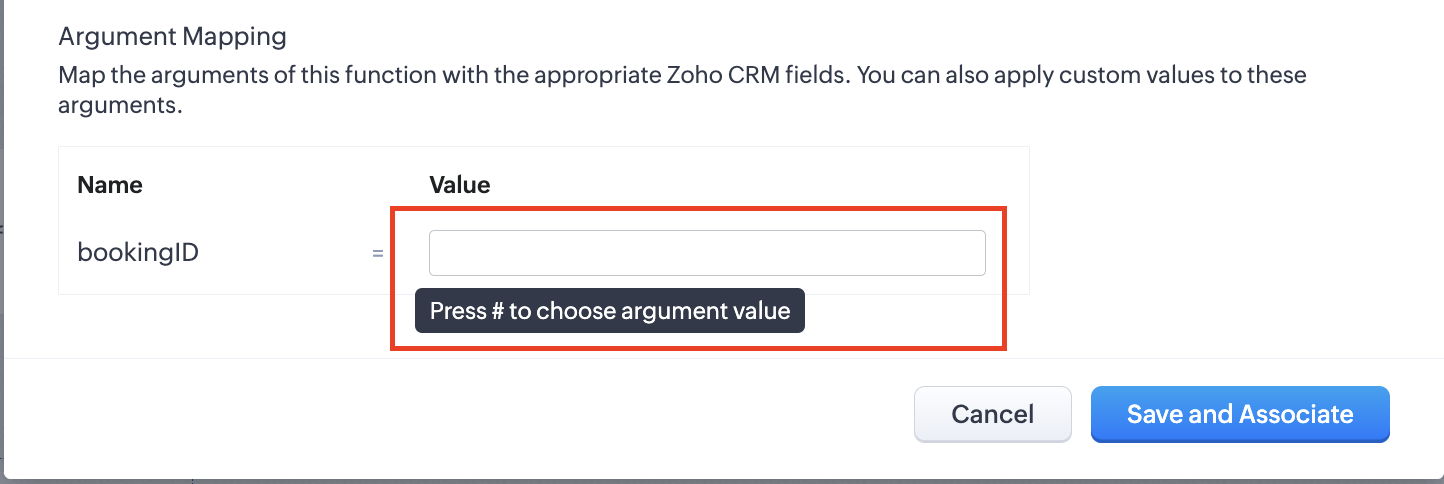
1. Press # to choose an argument value.
2. Select Meetings under Module and BookingId in the field.
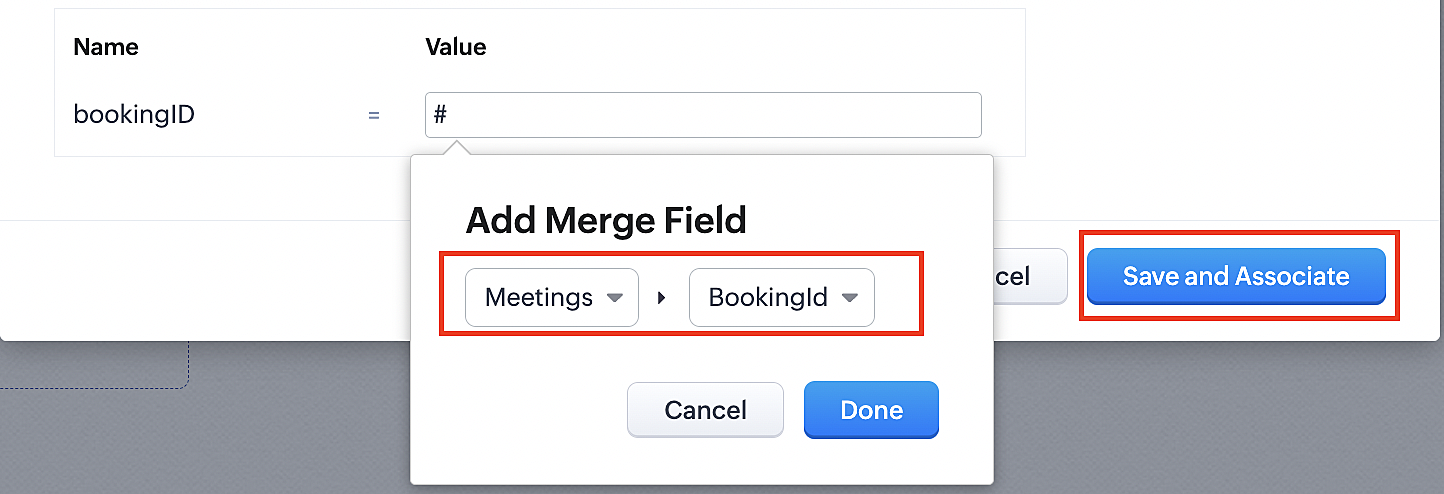
3. Click the Save and Associate button.
Reference:
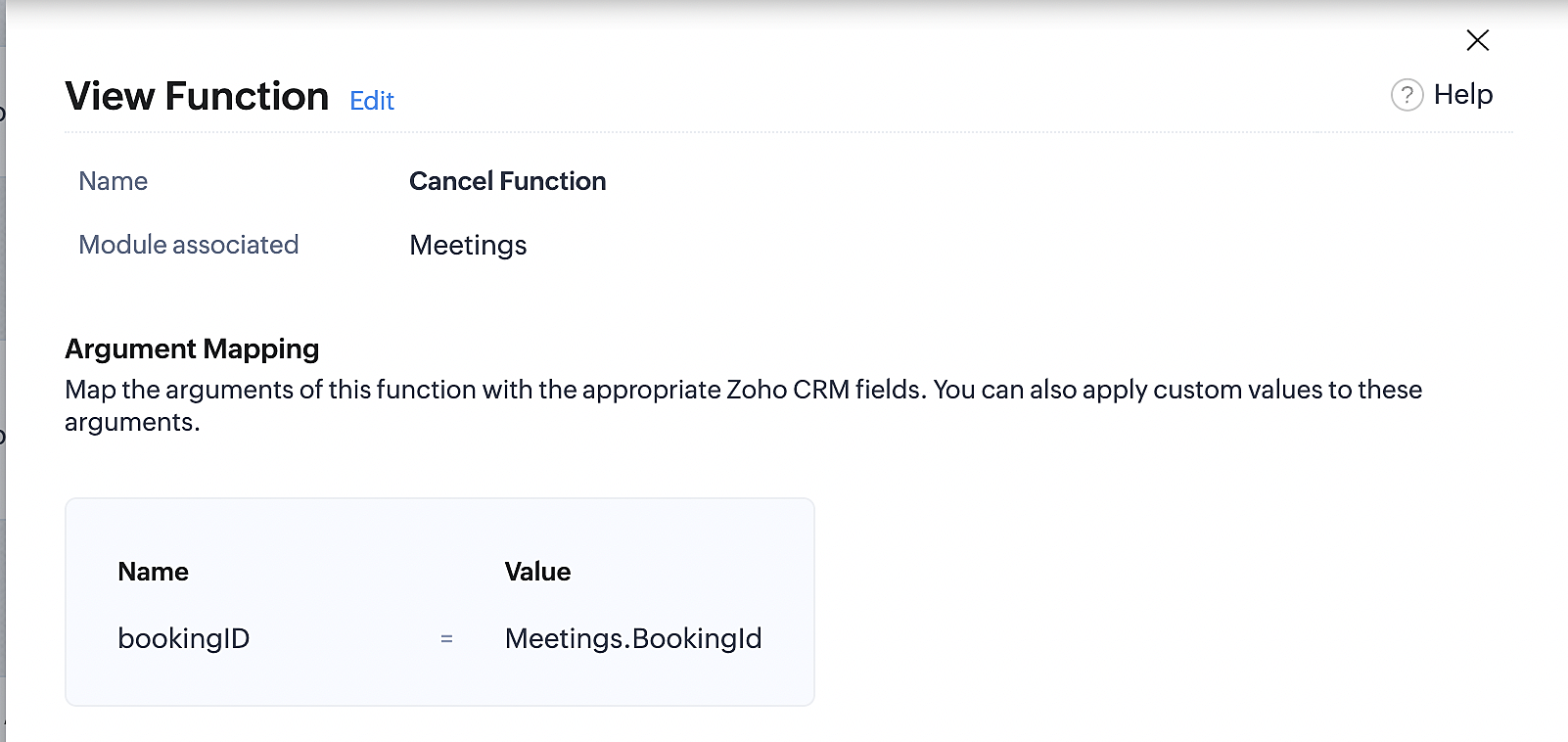
Below is the final flow of the cancel booking workflow:
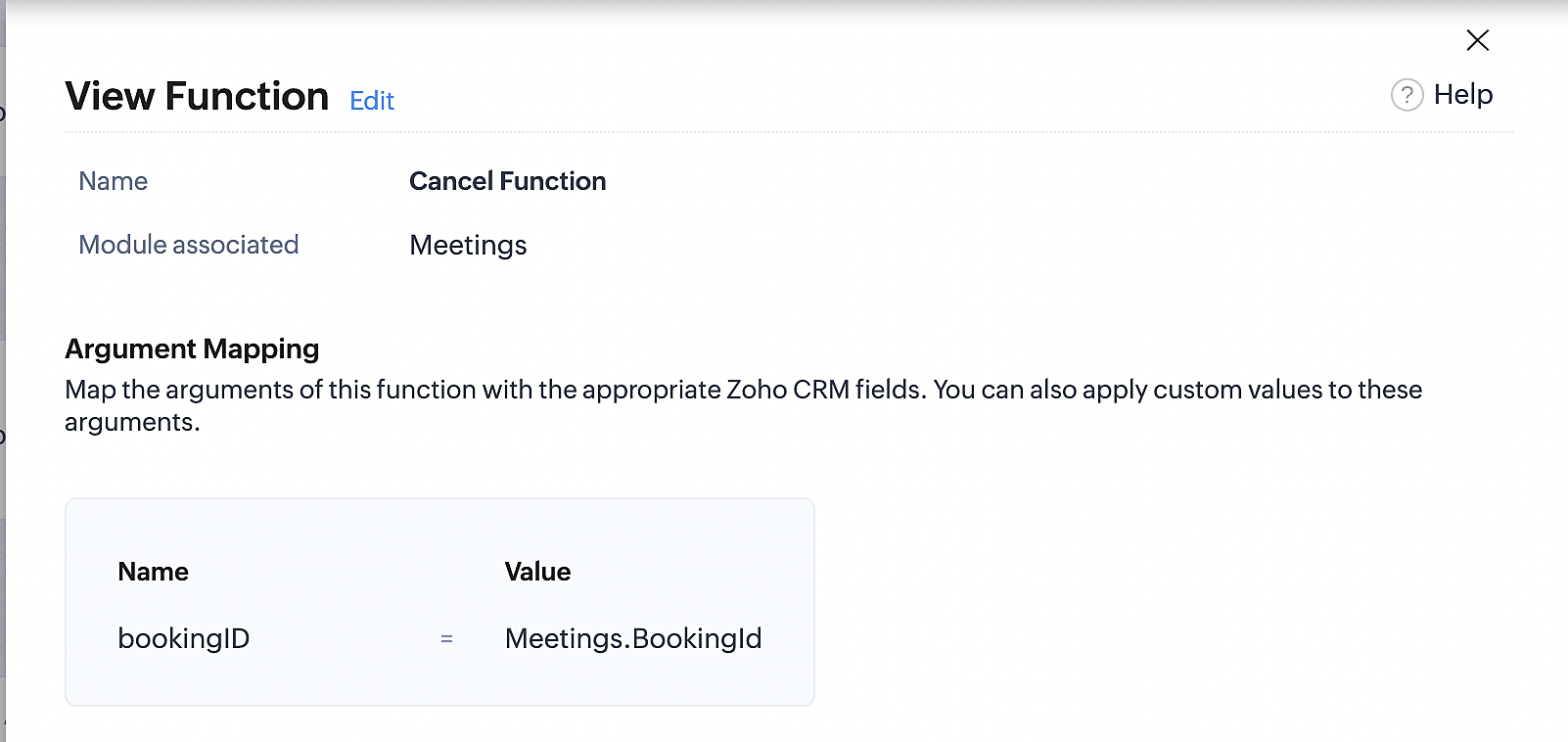
At the end of Part 3, we will have created a workflow that will be executed automatically when meetings are deleted in Zoho CRM. Simultaneously, the bookings associated with the meeting will also be canceled in Zoho Booking.
ii. Creating workflow for updating an appointment's status as "no show" in Zoho Bookings when the meeting's booking status is marked as no show in Zoho CRM
Part 4: Creating the rule
1. Go to Setup > Automation > Workflow Rules.
2. In the Workflow Rules page, click Create Rule.

3. Select Meetings under Module and configure the rule name and description as required.
Reference:
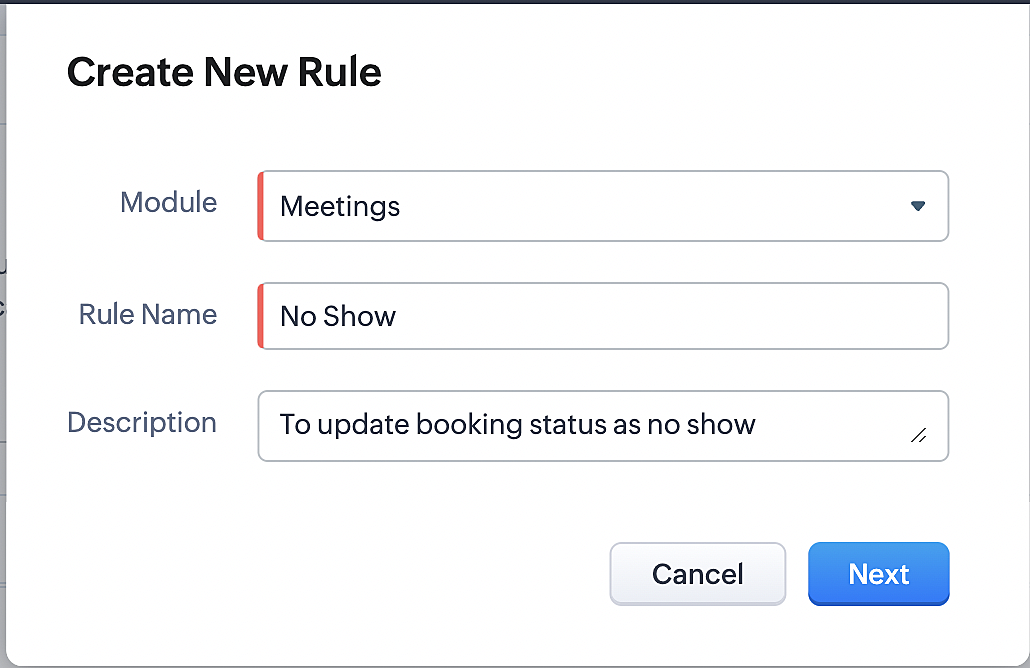
Part 5: Specifying the rule trigger
If you encounter difficulties while navigating through the steps mentioned below, please refer to Part 2 above, where we have provided step-by-step screenshots for clarification.
1. Record Action > Edit.

2. Enable the Specific field(s) gets modified and configure it per the screenshot below.
a. This is to ensure that the workflow is executed only when the booking status under the meeting module is
updated to "No Show".
updated to "No Show".
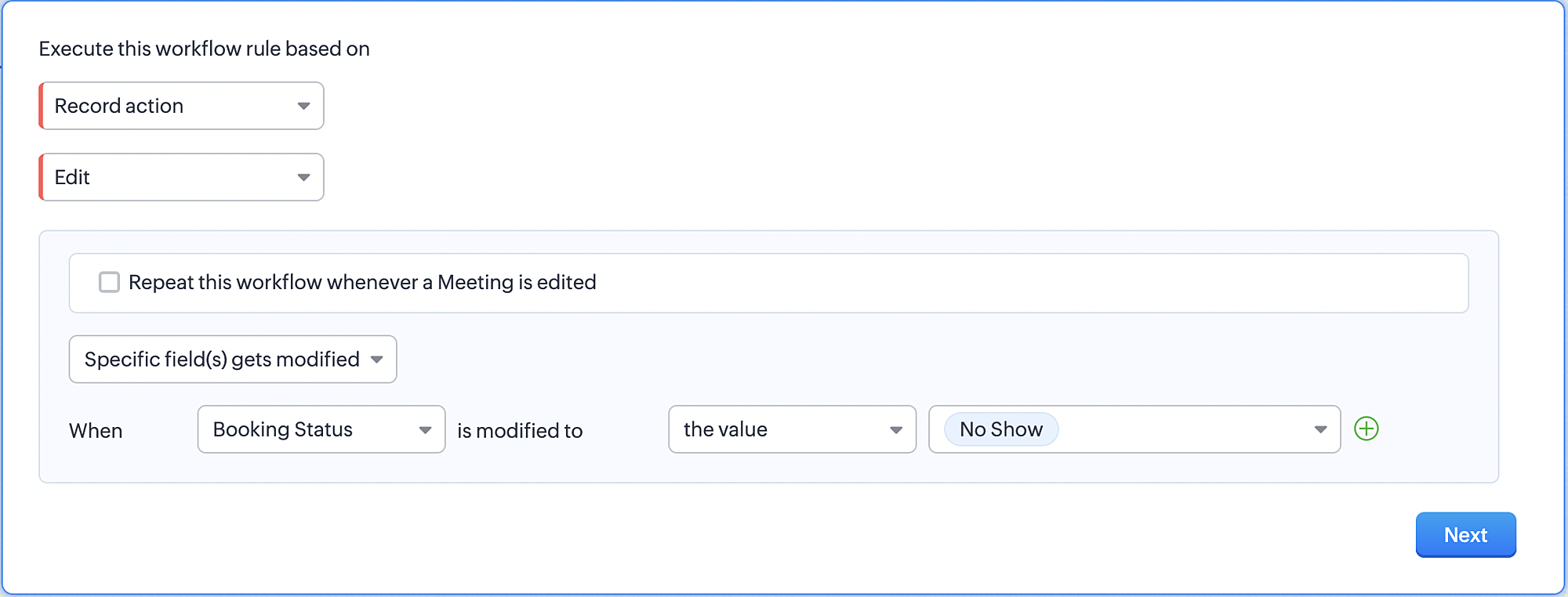
3. Configure condition > All Meetings.
4. Instant Actions > Function > New Function.
5. In the Configure custom function page, select the "no show" function you created from among the functions
users in your organization have created.
users in your organization have created.
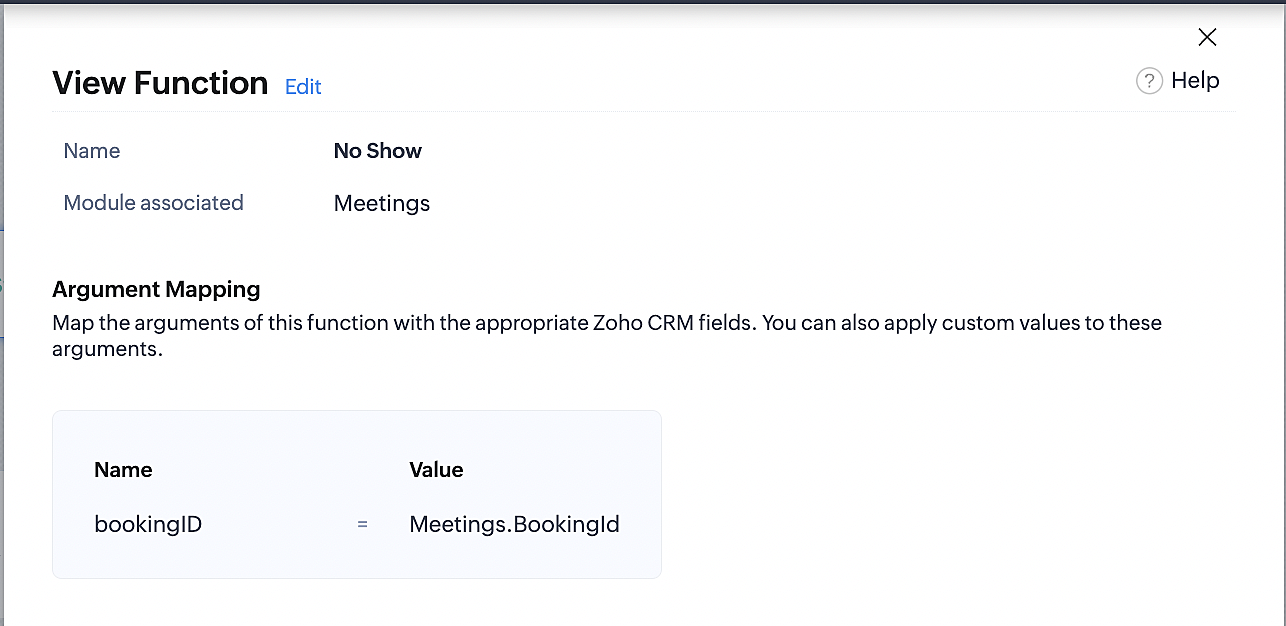
Part 6: Argument mapping:
If you encounter difficulties while navigating through the steps mentioned below, please refer to Part 3 above, where we have provided step-by-step screenshots for clarification.
1. Press # to choose an argument value.
2. Select Meetings under Module and configure the field as "BookingId".
3. Click Save and Associate button.
Reference:
Below is the final flow of the "No Show" booking status workflow:
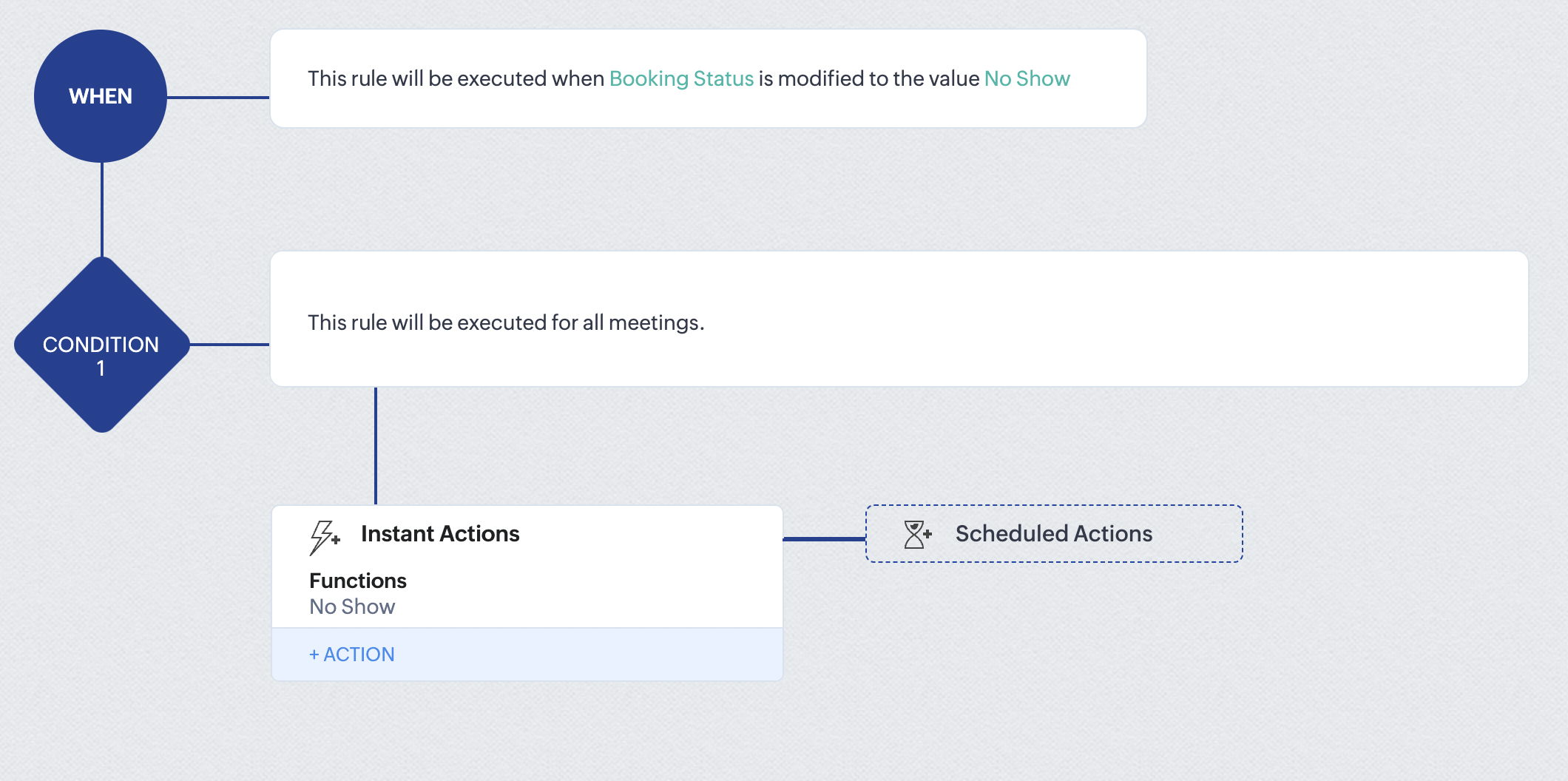
At the end of part 6, we will have created a workflow that automatically executes when the booking status field within the Zoho CRM Meetings module is updated to "No Show." This action will result in the associated bookings for that meeting also being marked as "No Show" in Zoho Bookings.
iii. Creating workflow for updating appointment status as "Completed" in Zoho Bookings when the booking status field of the meeting is marked as completed in Zoho CRM.
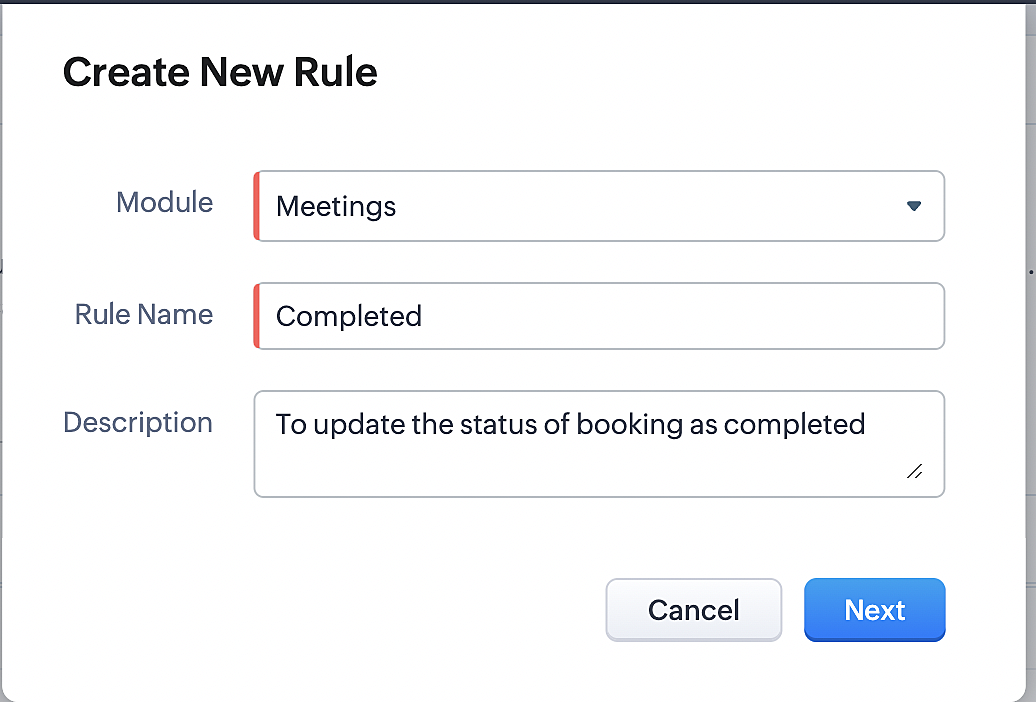
Part 7: Creating the rule
1. Go to Setup > Automation > Workflow Rules.
2. In the Workflow Rules page, click Create Rule.

3. Select Meetings under Module and configure rule name and description as required.
Reference:
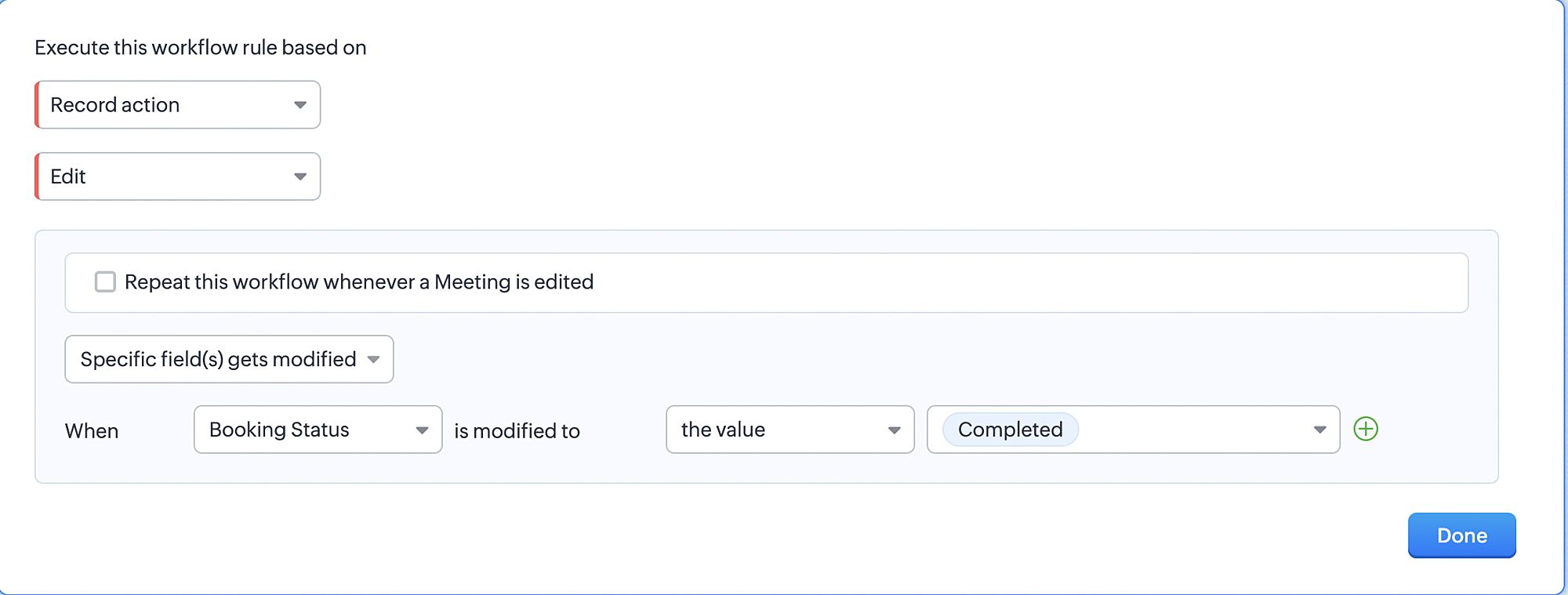
Part 8: Specifying the rule trigger
If you encounter difficulties while navigating through the steps mentioned below, please refer to Part 2 above, where we have provided step-by-step screenshots for clarification.
1. Record Action > Edit.

2. Enable the Specific field(s) gets modified setting and configure it per the screenshot below.
a. This serves to ensure that the workflow is executed only when the booking status under the Meetings module is
updated to "Completed".
3. Configure condition > All Meetings.
4. Instant Actions > Function > New Function.
5. In the Configure custom function page, select the "completed" function you created from among the functions users
in your organization have created.
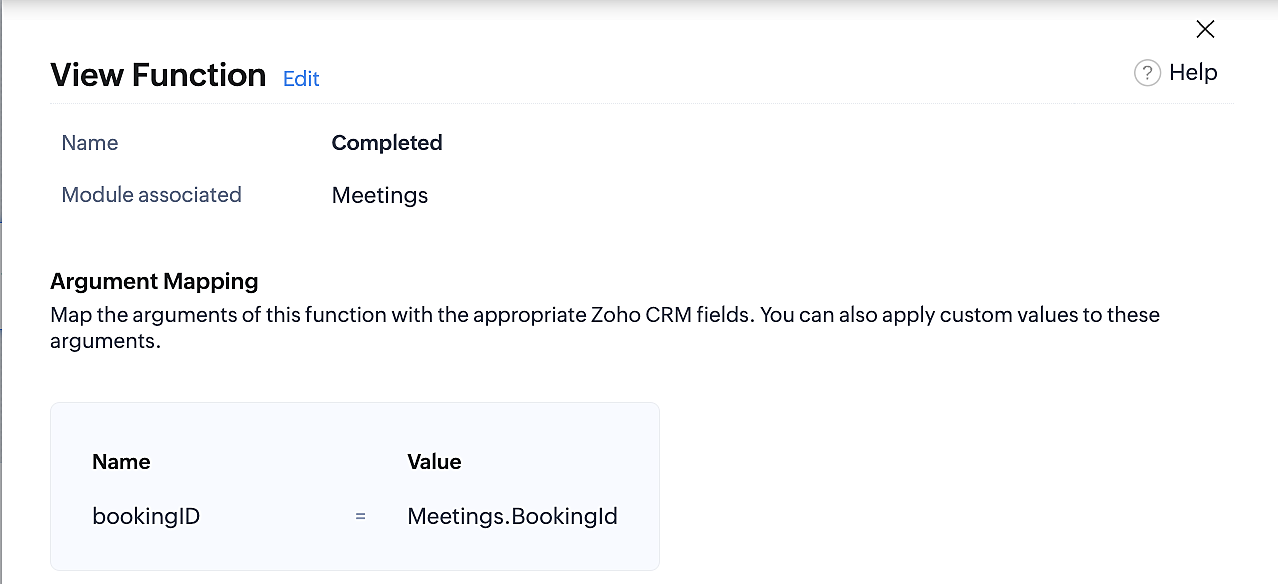
Part 9: Argument mapping:
If you encounter difficulties while navigating through the steps mentioned below, please refer to Part 3 above, where we have provided step-by-step screenshots for clarification.
1. Press # to choose an argument value.
2. Select Meetings under Module and configure the field as "BookingId".
3. Click Save and Associate button.
Reference:
Below is the final flow of the "Completed" booking status workflow:
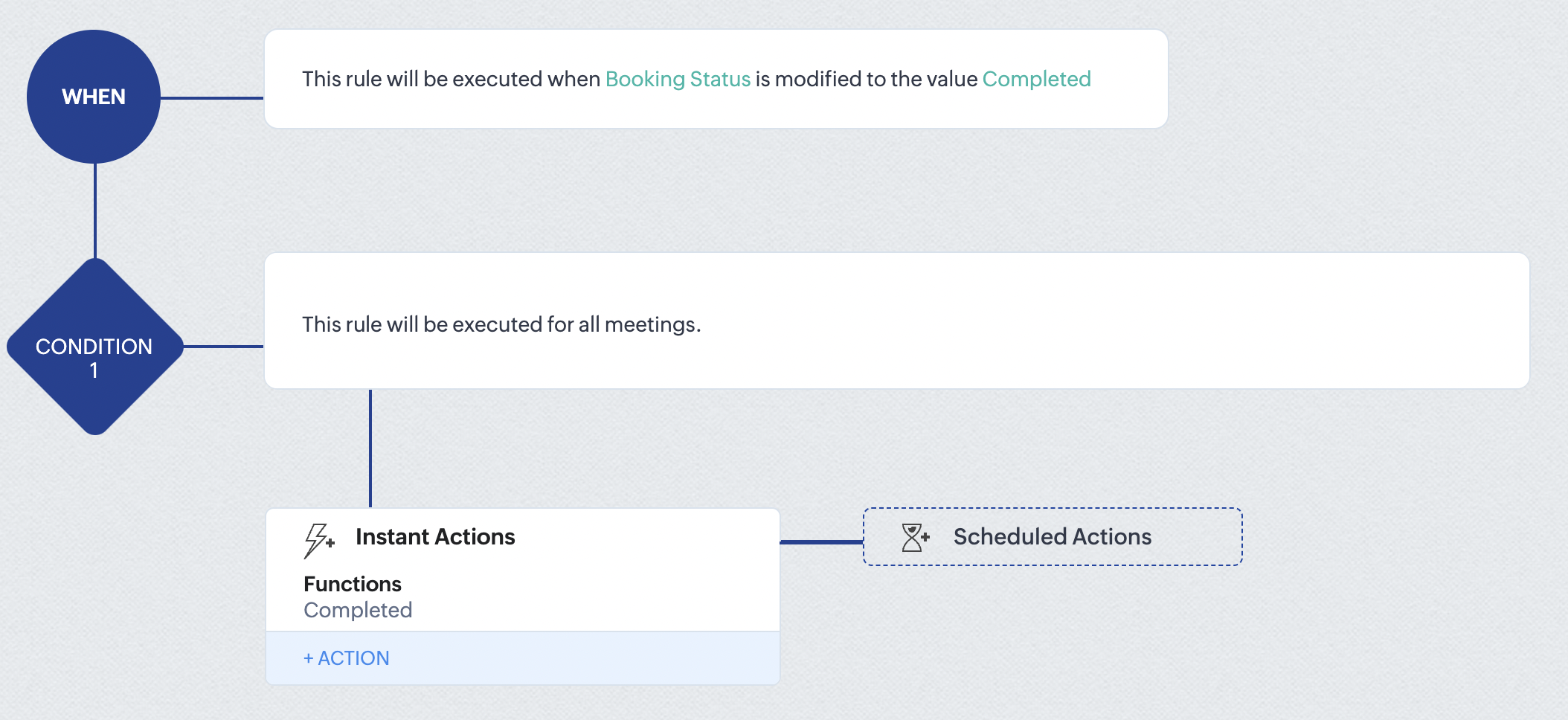
At the end of part 9, we will have created a workflow that is automatically executed when the booking status field within the Zoho CRM Meetings module is updated to "Completed." As a result, the associated bookings for that meeting will also be marked as "Completed" in Zoho Bookings.
Conclusion
We've reached the end of this community post. With the integration mentioned above in place, you'll be able to book, cancel, and update the status of appointments in Zoho Bookings directly from your Zoho CRM application. This will help you effectively manage your appointments in one place. As mentioned above, we've covered the rescheduling action in a separate post, which you can access by clicking on the following link: Reschedule Action
Furthermore, we've outlined a method for automating appointment statuses in detail. You can use this document as a reference to explore the various possibilities that suit your needs.
If you have any questions or need assistance with your configuration, please email us at hello@zohobookings.com or support@zohobookings.com.
Topic Participants
Kaushik S
bruce
Ishwarya SG
PrismaNote Support
Sticky Posts
Good news! Calendar in Zoho CRM gets a face lift
Dear Customers, We are delighted to unveil the revamped calendar UI in Zoho CRM. With a complete visual overhaul aligned with CRM for Everyone, the calendar now offers a more intuitive and flexible scheduling experience. What’s new? Distinguish activitiesEnhancement to ICR’s field prompting: Preferred data extraction using advanced field prompting
Dear Customers, We hope you’re well A quick background Intelligent Character Recognition (ICR) comes as part of Zia’s optical recognition capability called Zia Vision. When we introduced it last April, the data extraction was training-based and was applicableZoho CRM's sales trend and sales follow-up trend dashboards are now customizable
Dear Customers, We're here with good news! Sales trend and sales follow-up trend are two system-defined dashboards that help you understand trends and anomalies in your sales outreach and conversion efforts. They use Zia's intelligence to identify patternsIntroducing Multiple Sandbox Types and Support for Module's Data Population
Register here for the upcoming Focus Group webinar on Multiple Sandbox | Help documentation to learn more about the new enhancements Hello everyone, Sandbox in CRM is a testing environment for users to create and test new configurations like workflowVoC in Zoho CRM is now data savvy: Explore response drilldown, summary components and participation in CRM criteria
VoC has all the goods when it comes to customer intelligence—which is why we're constantly enhancing it. We recently added the following: A customer drilldown component that shows you the list of prospects and customers behind a chart's attribute Expanded
Recent Topics
Payroll and BAS ( Australian tax report format )
Hello , I am evaluating Zoho Books and I find the interface very intuitive and straight forward. My company is currently using Quickbooks Premier the Australian version. Before we can consider moving the service we would need to have the following addressed : 1.Payroll 2.BAS ( business activity statement ) for tax purposes 3.Some form of local backup and possible export of data to a widely accepted format. Regards Codrin MitinInvalid scope choice: Workdrive integration in CRM
Bug: There is an invalid option in the permission choices for Workdrive integration in CRM. If the entry "WorkDrive.teamfolder.CREATE" is selected, it will return a message indicating invalid OAuth scope scope does not exist.What's New - February 2026 | Zoho Backstage
February 2026 brings a major new addition and a collection of enhancements across Zoho Backstage. We thought about writing a long introduction, but the updates in this release make a strong case on their own. So we’ll skip the buildup and dive straightAttaching files to emails within CRM Deals.
Hello, We have recently started using the extension "Workdrive for CRM" (Related List) to view/store our documents for each Deal, instead of using Attachments. Overall it feels like a better way to go but the user experience is not so great when it comesAnyone worked out how to export or screengrab a full heatmap?
I'd love to be able to include a copy of a heatmap in a report but can't work out how to grab the whole thing as there doesn't appear to be an export function? Thanks in advance.Establishing Relationships among contacts/leads with Reciprocal
Is there any way to create a relationship between contacts and leads and be able to go into just one of the files and have it reciprocate the entry in the other file? For example, if I have two people say John and Jane Smith who are husband and wife.Placeholder for Agent Signature in Email Templates
Dear Zoho Team, I hope this message finds you well. We currently face a limitation when designing email templates in Zoho Desk. While we can create email templates and include a footer at the end, the agent signature is always appended by default at theCustom View and Custom Fields on Zoho Books
Hi, I have some custom fields on Estimates and Invoices. I also use Custom Views so I can have a lot of information at a glance. I want to include my custom fields as columns in my custom views of estimates / invoice, but it looks like is not possible.%PaymentLink%
Does not work. Software creates a BAD link. ....and yes payment options are turned on. Link on the invoice pdf once opened will work but this template is a joke.Syncing calendar with Google Calendar doesn't work when events are sent to auto repeat
Hi... The ZOHO CRM -- GOOGLE CALENDAR sync is broken. If I create a single event on either side, sync works, but if I create an event with auto repeat on either side it doesn't work. Furthermore, events created before the sync don't show up in the calendar.Allow Global Admin to access/edit all forms without changing owners
Hi there, Please consider adding a feature where the Global Admin of the account an automatically access/edit any form in the Company Account. I'm the Global Admin on our Zoho One plan, and we have multiple users that use/create forms. But for me to accessCan Zoho Marketing Automation send OTP codes via WhatsApp during user registration?
The flow I would like to implement is: A user signs up in the mobile app and enters their phone number. The system generates a one-time verification code (OTP). The OTP is sent to the user via WhatsApp message. The user enters the code in the app to confirmWhere to show Customization Field ?
Dear Sir, I have made some New Field in Item Field Customisation. Now I don't require that field in Estimate, Sales Orders etc. I just wants that field in Sales Invoice to Show/Hide... Is that possible ?What's New in Zoho Analytics - February 2026
Hello Users! We're back with another round of updates for Zoho Analytics. This month's release focuses on giving you greater flexibility in how you visualize, manage, and act on your data - with new features like custom visualizations, remote MCP server,Zoho Books (and other Finance Suite Apps) - Clickable Item Name on Invoices and Reports
Hi Zoho Books team, It would be really helpful if the Item Name on Reports were clicable to take me to the item. The same on Invoices, often I am looking at an invoice and I want to look at the deails of a product. A link here would be helpful to jumpZOHO Reports are taking longer time to get refresh
Hi Team, Since last few days, I'm facing issues in getting updated reports. For eg: right after making an expense entry or even posting a journal, it is taking longer then expected for the updated reports. Refer below: "You are viewing the report thatDisplay actual mileage on an invoice
My users are creating expenses in Zoho expense. For example, they expense 10 miles and get paid 7 dollars (10 miles * IRS rate of .70). If I look at the expenses in Zoho Books, it does show them at 10 miles at .70 cent When I add these expense to an invoiceCan't change form's original name in URL
Hi all, I have been duplicating + editing forms for jobs regarding the same department to maintain formatting + styling. The issue I've not run into is because I've duplicated it from an existing form, the URL doesn't seem to want to update with the newCan you create relationships BETWEEN contacts within the same module
I am setting up my CRM, and I want to have a way to connect contacts within the same module. Is there a way to do this? If not - how do I decide how to split up contacts to make connections? What are best practices for this? We have clients who needFunction and workflow to create customer payment and send receipt
I am attempting to set up a workflow/custom function for the automatic creation of a customer payment and sending the email receipt, but am receiving the error "Improper Statement Error might be due to missing ';' at end of the line or incomplete expression" I've been over everything several times and cannot see where the error is (code is copied into the attached document). I haven't used custom functions before with Deluge, so it's very likely something very simple, or I've completely muckedDisable Sign Up option in Zoho Creator Portal and show only Sign In page
Is it possible to disable the Sign Up option in a Zoho Creator portal? The requirement is to show only the Sign In page and completely remove or hide the Sign Up page, so users cannot create accounts directly from the portal login page. Is there any settingRestrict Payment Methods
Allow us to restrict certain payment methods specific for each customer.How to install Widget in inventory module
Hi, I am trying to install a app into Sales Order Module related list, however there is no button allow me to do that. May I ask how to install widget to inventory module related list?Can I view the KB in the same way as a customer logged in as my Agent?
Sorry if this seems a mad question. I have some Articles that I want to be seen by my Agents and the status of these is set to Agents only. We also have some that are set to Public. When I sign in with my private email address (as a customer) I canWhat’s New in Zoho Inventory — Latest Features, Integrations & Updates | December 2025
Zoho Inventory has evolved significantly over the past months, bringing you smarter, faster, and more connected tools to streamline your operations. Whether you’re managing multichannel sales, complex fulfillment workflows, or fast-moving stock, our newestWhich user's capacity is used for Shared Mailbox storage?
We use shared mailboxes at our company, and their size is increasing daily. Which user(s)'s total mailbox limit is being used up by this space?Evernote (ENEX) import limitations
I have been with Evernote since 2010, but the latest price increase is ridiculous. I am currently testing Zoho Notebook as a replacement. I am impressed so far - if it were not for critical need to import legacy Evernote notes, I would 100% migrate toCan I create a CODE 128 custom field for my items in Zoho Inventory and then use it for generating Sales Orders?
Can anyone helps me, I don't want to use the SKU code for scanning my products. Because all my products have a CODE-128 label attached.Prevent duplicate with custom fields?
I was wondering something about custom field/custom modules in Zoho Desk. For some reason you can make a custom field mandatory but not unique? For example, if I create a custom module to manage equipment and renewal and make a field serial number noZoho Books' 2025 Wrapped
Before we turn the page to a new year, it’s time to revisit the updates that made financial management simpler and more intuitive. This annual roundup brings together the most impactful features and enhancements we delivered in 2025, offering a clearMultiple Vendor SKUs
One of the big concerns we have with ZOHO Inventory is lack of Vendor Skus like many other inventory software packages offer. Being able to have multiple vendor skus for the same product would be HUGE! It would populate the appropriate vendor Sku forCreate Invoice automated with Package
Does anyone knows how to create an invoice from a SO when we have created the package? We do these manually. and validate that the product packed is the product invoiced (if the order is partially packed) Regards, JSUnable to integrate Zoho Projects and Zoho Workdrive
I'm a Zoho One subscriber. When I go to Zoho Projects > Settings > Marketplace > Zoho Apps I do not see an option for Zoho Workdrive but I do see one for Zoho Docs that does nothing. How do I get the option to integrate Zoho WorkDrive and Zoho ProjeDisable payment thank-you emails
Hello, can someone please tell me how to disable sending of the "Payment Thank-You" emails?How to backdate record payment for the invoice
I would like to record a payment which happened 2 days ago, but I am not able to select any date later than today. I backdated the invoice, too, but it doesn't change anythingHelp with deluge script
Hi Community, this is my first Deluge script. I've pieced it together from reading various articles I want to use it in a workflow to 1 Convert a lead to a contact 2. Create a record in a custom module Below is what I have got so far but it does not fireMarketer's Space: Why email authentication matters in Zoho Campaigns
Welcome back to another post in Marketer's Space! If you've recently started using Zoho Campaigns, you've probably come across terms like SPF and DKIM. You may have also noticed emails that show "via zcsend.net" in Gmail when testing or sending campaigns.Feature Request: "Send Invitation" Toggle for Events
I am writing to request a critical "Quality of Life" update for the Activities module. Currently, adding people to the Participants field in an Event triggers an automatic email invitation/acceptance tracking with no way to opt-out. For general eventsEdit email address that appears on invoice
Hi How do I change the email address that appears on invoices, it is showing the email address that i used to sign up to zoho with but I want to change it to another email address that we use for accounts. also is there a way to edit the position of aIntroducing Zoho Sprints 3.0
Zoho Sprints is consistently evolving in steady increments. The introduction of the latest version, with its enterprise level solutions, brings to you advanced capabilities that propel your agile efforts in the right direction. Here's a quick glimpseNext Page