Tip #56- Accessibility Controls in Zoho Assist: Hearing- 'Insider Insights'
As we begin the new year, it’s a great time to focus on making our tools more inclusive and accessible for everyone. Remote support often involves long hours in front of screens, varying lighting conditions, and users with diverse accessibility needs. This is where Accessibility Controls in Zoho Assist play an important role, helping reduce eye strain, improve focus, and create a more comfortable experience for both technicians and end users.
In our previous post, we explored Accessibility for Vision in detail. In this post, we’ll walk you through how to access Accessibility for Hearing.
How to Access Accessibility Controls in Zoho Assist
Log in to Zoho Assist using your credentials.
From the dashboard, click on your Profile in the top-right corner.
Select Accessibility.
Within Accessibility Controls, you’ll find four key categories, including Hearing.
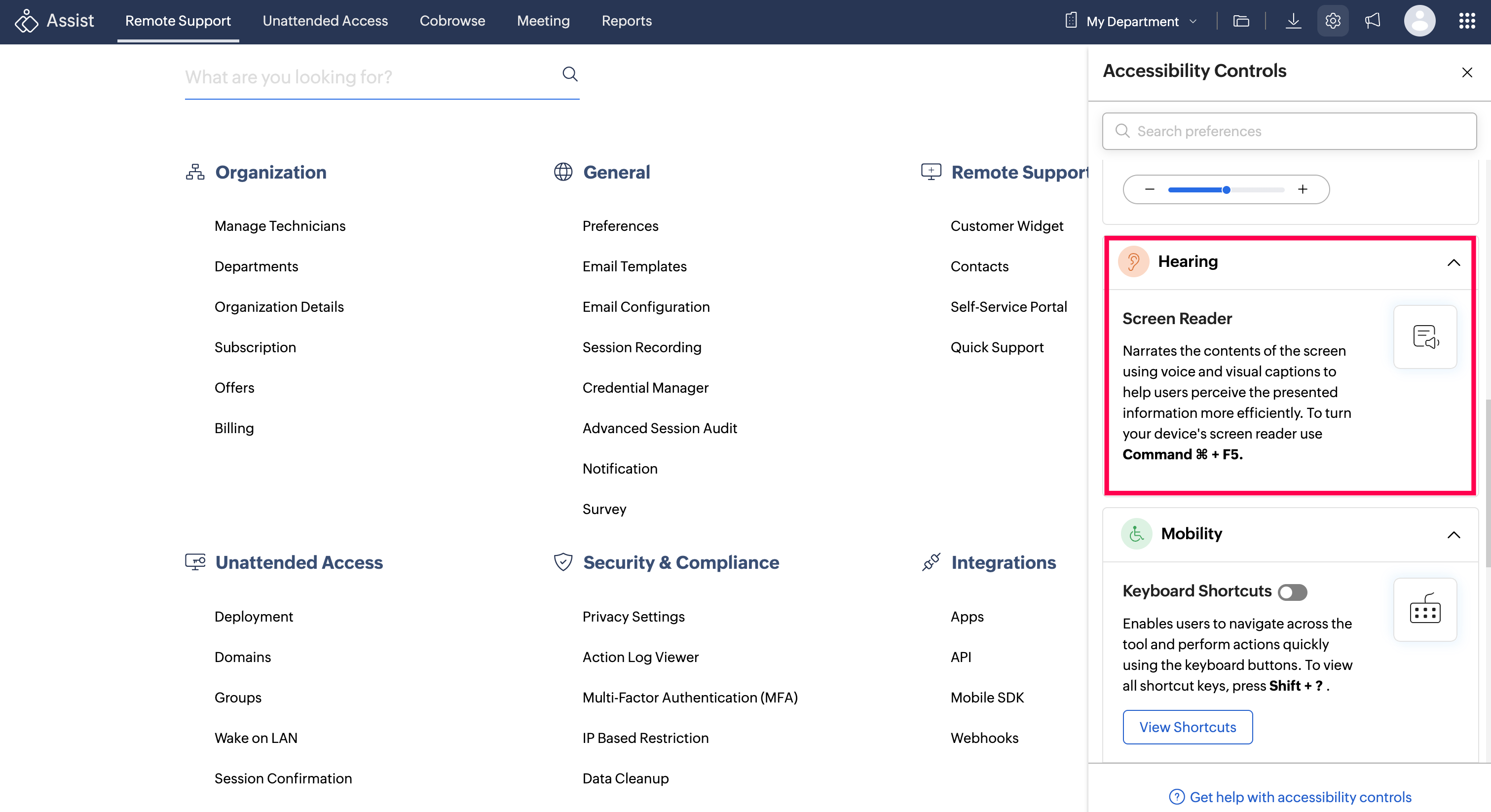
Hearing: Screen Reader
The Screen Reader narrates on-screen content using voice and visual captions, making it easier for users to perceive and interact with on-screen information.
To enable the screen reader on your device:
Press Command (⌘) + F5