Visualize your data with a new set of charts: Treemap, Butterfly, Sankey, and Cluster charts in Zoho CRM
Dear customers,
When it comes to analytics, it's not just about the numbers; it's about understanding the story behind them.
With that philosophy in mind, we’re excited to introduce a line of representations to the existing array of chart types in Zoho CRM: Treemap, butterfly, sankey and cluster charts. Let's go!
Treemaps
Treemap charts are used to visually represent hierarchical datasets in a rectangular layout. It aligns its parent categories as larger tiles with their sub-categories nested within them. The size of each tile is proportional to its corresponding value, making it easy to compare different segments within the hierarchy.
This is how a treemap chart looks:

These structured data representations help you understand overall performance and contributions, as well as compare participating entities at a glance.
Unlike traditional bar charts or pie charts, treemaps can be used if your datasets are large and exhibit parent-child relationships.
Here are some examples to better understand their usage:
Comparing revenue distribution between functions
A company's revenue is distributed among its functions before it gets further disbursed to its employees. Treemap charts can be used to depict this distribution and compare it between functions. As you can see below, the hierarchy can be represented as a treemap to compare it directly with other functions:

The hierarchy at the top shows just the numbers and levels, but the treemap chart represents the numbers proportionally, allowing leaders to visualize the difference in distribution.
Interpretation: As you can easily see in the treemap, sales and marketing receive the same amount of revenue, while engineering is given significantly more than the other two.
Likewise, with treemap charts, you can:
- Compare popular lead sources with lead counts is the measure and lead source being the participating entity—a classic single-grouping configuration.
- View cost savings achieved across departments. With the departments as the grouping parameters and the cost saved as the measured amount, the chart lays out all the departments as tiles in proportion, based on money saved.
- Compare ad spends across channels, where channels are the parent grouping and ad spend is the measured unit.
Butterfly
Butterfly charts are used to compare two related datasets side-by-side, resulting in a representation that looks like a butterfly or tornado.
Now, how does it differ from bar charts?
The standard bar chart can compare two entities for a given measure. Say, you are comparing the performance of Mary and Charles. The two users' data is represented using bars, and the length will denote their performances. But, when it comes to comparing their performances over a period or their contribution across different stages, a bar chart is not sufficient.


With butterfly charts, you can:
- Compare revenue between two of your branches each month. With branches being compared for sum of sales revenue, grouped by closing date.
- Compare the performance of two reps in a given quarter. Compared between two users for average of amount of deals, grouped by closing date until today.
In addition to the user-based comparison above, butterfly charts are well-suited to visualizing other types of data comparisons, like:
- Picklist-based comparisons
- Duration-based comparisons
- Aggregate-based comparisons
Business scenario
Comparing the number of deals closed for each lead sources: Duration-based comparison
You can identify the productive lead source by comparing the number of deal closures for every lead source in your organization based on their closing week.

Analyzing effective sales methodology, inbound vs. outbound: Picklist-based comparison
Businesses use both inbound and outbound lead generation strategies, and each of these methods can reap different results based on the season and occasion. By comparing inbound versus outbound each month, you can identify which works best at what time.

Analyze the amount versus the expected revenue between accounts: Aggregate-based comparison
Expected revenue is a result of a deal's progression in the sales pipeline. Comparing the amount versus their expected revenue will not only help visualize the expected revenue of participating accounts but also indicate the accounts' stage in the sales pipeline.

Sankey
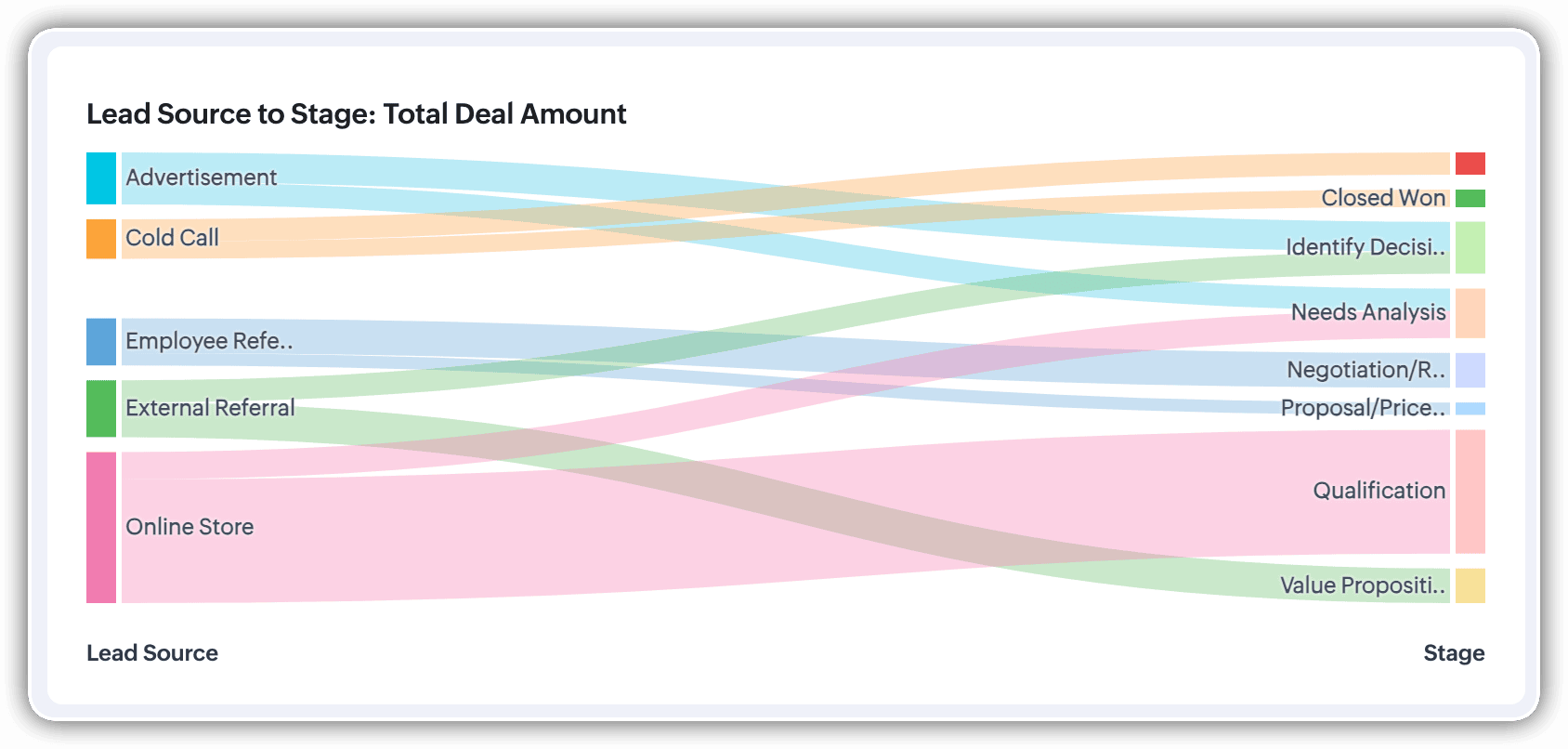
A Sankey Chart is designed to visualize the movement of data across different data groups. Unlike traditional charts—such as bar, column, pie, or donut—that mainly provide a static distribution of values, the Sankey Chart focuses on illustrating the flow between multiple segments or grouping fields. This makes it an ideal choice when you want to track how values (like lead counts, revenue, or deal statuses) move from one category to the next.

Key features
- Flow visualization: With the Sankey Chart, you can observe the movement of data between different groups.
- Multiple grouping fields: This chart works best when you have at least two grouping fields. You can go even further and add a third grouping to see an even more detailed mapping of your data flow.
- Simple configuration: The configuration for the Sankey Chart is as simple as any other chart type in Analytics.
Business scenarios:
Imagine you’re a sales manager trying to get a better handle on your team’s performance and your company’s pipeline. You want to understand not just how many deals are coming in, but also which sources are contributing the most value—and how those deals are progressing through different sales stages.
Let’s say you want to understand which lead sources are driving the most deal activity and how those deals progress through the pipeline. You can create a Sankey chart that maps the count of deals from Lead Source to Stage.

After analyzing the chart, you might notice that Online Store brings in a high volume of early-stage deals, while sources like External Referral contribute fewer deals that are more likely to reach advanced stages like Proposal or Negotiation.
This insight helps you prioritize nurturing the most profitable channels.
Sankey charts can also be helpful in other operational scenarios where understanding transitions across stages or teams is essential:
- Regional revenue distribution: Visualize how revenue flows across different regions, product categories, and their corresponding annual revenue. This helps you compare which regions contribute the most to each product line and where your high-value segments lie.
- Ticket handling flow: Visualize the flow of support tickets from their origin channel to internal departments and finally to resolution statuses. This can reveal workload imbalances or common points of delay in your support process.
Cluster
A cluster chart is similar to stacked column charts, but instead of stacking horizontally, the data is represented as vertical bars. As you create a column chart with multiple groupings, you can change the type of column chart to a cluster chart to achieve this representation.

In the above image, you can see the stacked column chart compares the number of lead conversions based on popular sources between countries. The stacks appearing on top of existing stacks ask you to calibrate the record count (y-axis) based on the previous stacks, which can lead to inaccurate interpretations. In this case, a cluster representation will paint a clearer picture of the analyses.
Other minor enhancements:
In addition to the three charts we mentioned above, we've also made the following minor changes:
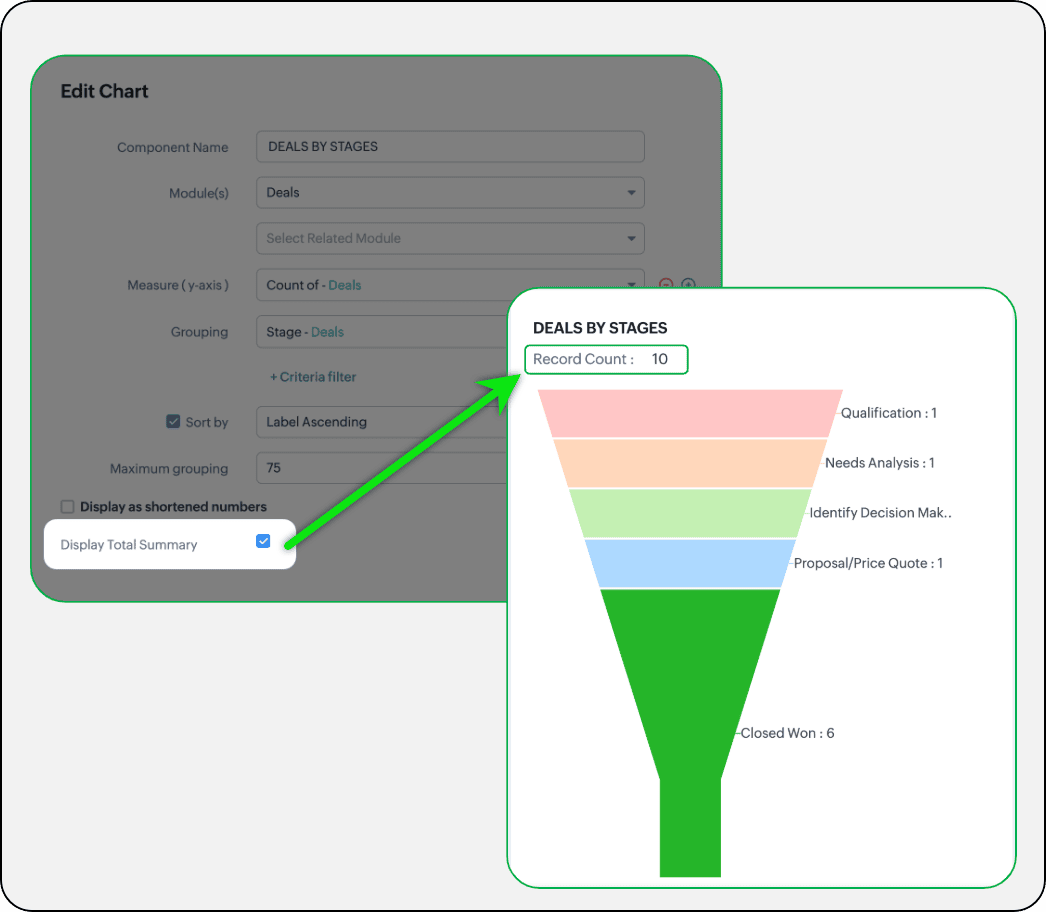
- Display total summary: Thus far, for all charts, each participating measure included labels. Now, to better understand overall contributions, a check box to display the total summary is provided under More options on the Chart Configuration page. Based on the configuration, the total revenue or the rolled-up quantities will be prominently displayed.
- Merge Y-axis: For charts that use two y-axis measurements, the intention is to view the progression of one entity against these two measures. Despite the scale, if the y-axis on the left is disproportionate to the values of the y-axis on the right, the plotted graph will result in a graphically and logically incorrect representation.
As you can see in the image below, the plot area of the sum of amount bar and the sum of expected revenue aligns close together, while, the difference between $700,000 and $40,500 is drastic, creating inaccurate interpretations.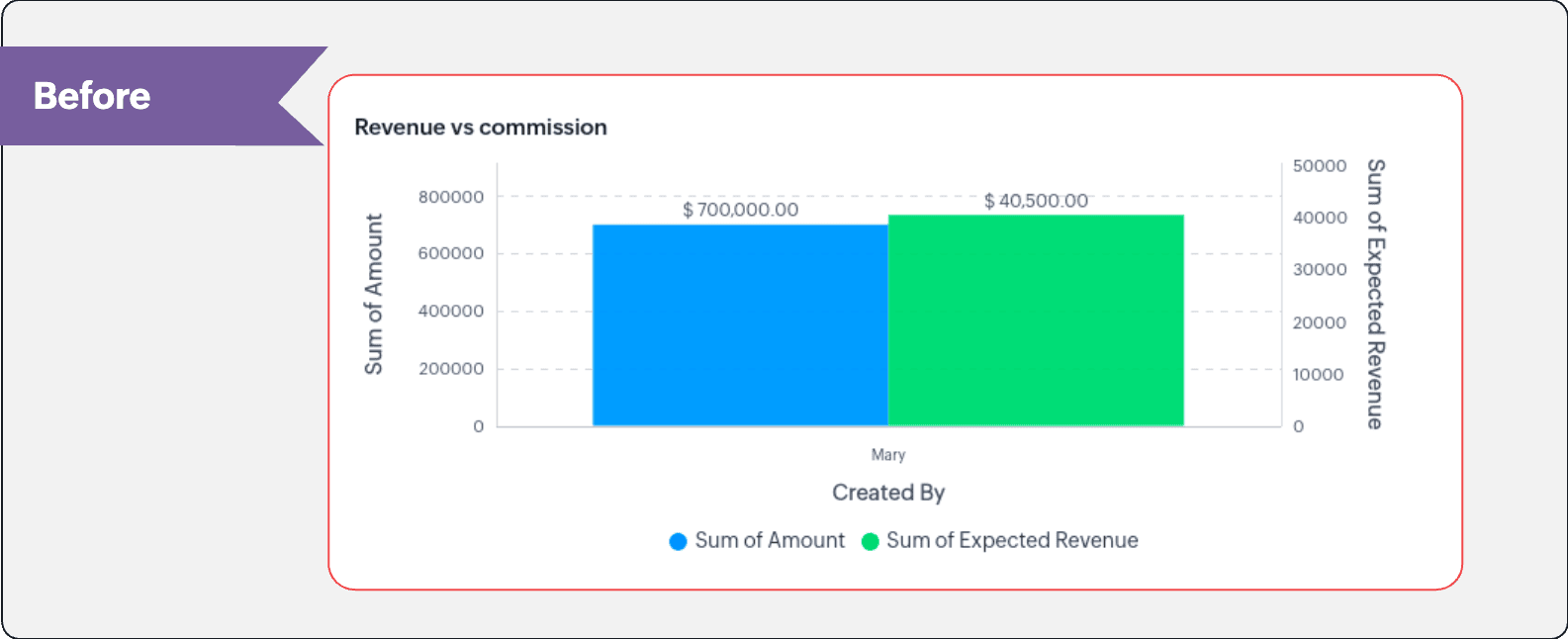
In this enhancement, we're allowing neighboring values of measures to merge so that the interpretation can be more visually accurate.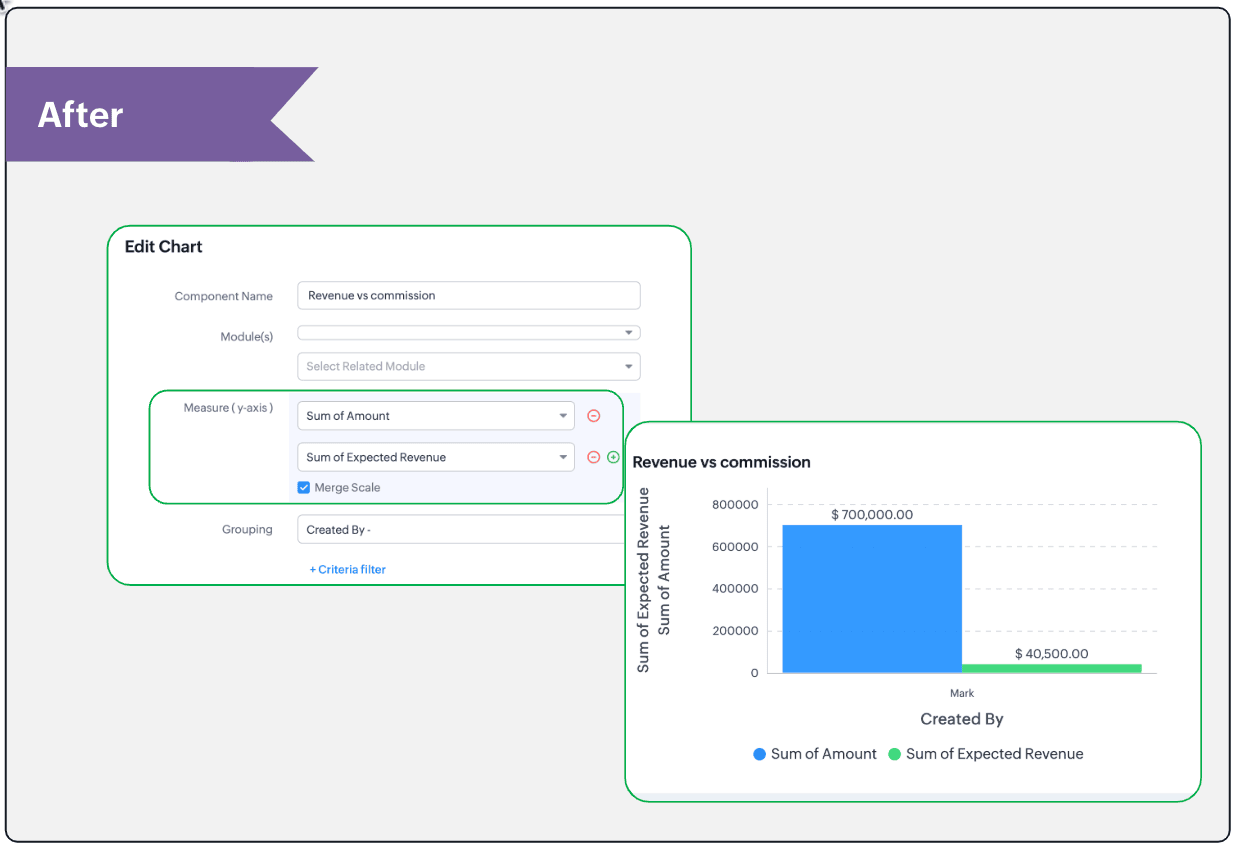
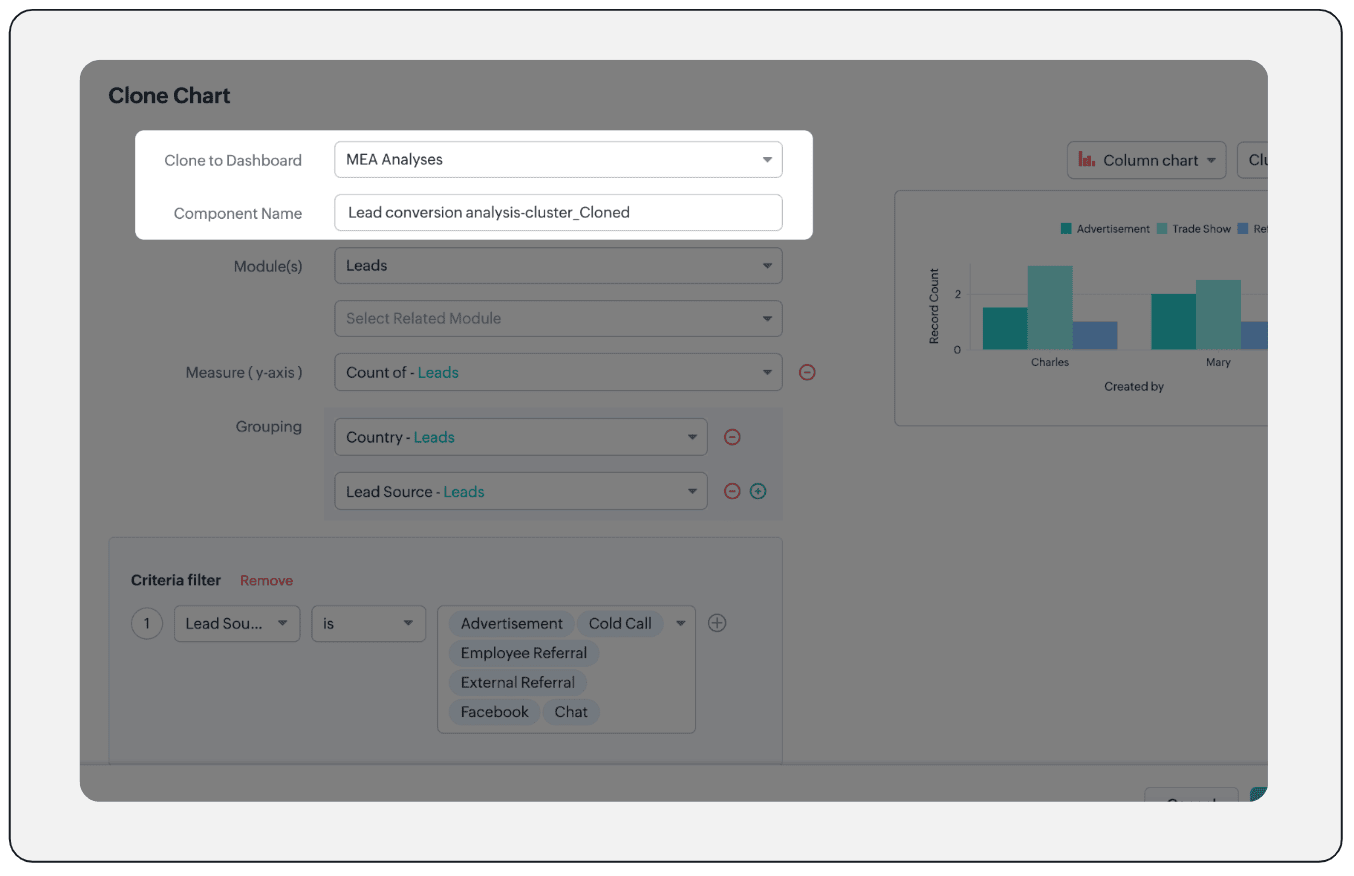
- Clone components to a different dashboard: Dashboards in Analytics serve in unique ways for various audiences—there can be separate dashboards for the sales team, marketing team, engineering team, and so on, and the chances of using the same measure for reference is common. Thus, when you clone a chart, you can now determine the target dashboard in which the cloned chart can be placed.
Resource: Help document
Thanks and have a good one!
Kind regards,
Saranya Balasubramanian
Saranya Balasubramanian
Topic Participants
Saranya Balasubramanian
Sticky Posts
Presenting ABM for Zoho CRM: Expand and retain your customers with precision
Picture this scenario: You're a growing SaaS company ready to launch a powerful business suite, and are looking to gain traction and momentum. But as a business with a tight budget, you know acquiring new customers is slow, expensive, and often deliversGood news! Calendar in Zoho CRM gets a face lift
Dear Customers, We are delighted to unveil the revamped calendar UI in Zoho CRM. With a complete visual overhaul aligned with CRM for Everyone, the calendar now offers a more intuitive and flexible scheduling experience. What’s new? Distinguish activitiesCreate and populate a record in an instant: Introducing zero-shot field prompting to Zia's ICR
A couple of months ago, we upgraded our in-house AI image detection and validation tool, Zia Vision, with intelligent character recognition (ICR). By training Zia with sample images, you could create and enrich CRM records with data extracted from standardIn-person ZUG Meetups for Real Estate Professionals - US Q1 2026
The Real Estate Zoho User Group is going on a multi-city, in-person meetup tour across the US, and we’d love to see you there! These meetups are a great opportunity to: Connect with fellow real estate professionals using Zoho Share challenges and discoverNimble enhancements to WhatsApp for Business integration in Zoho CRM: Enjoy context and clarity in business messaging
Dear Customers, We hope you're well! WhatsApp for business is a renowned business messaging platform that takes your business closer to your customers; it gives your business the power of personalized outreach. Using the WhatsApp for Business integration
Recent Topics
Default in fields on Form B based on the user selection in Form A
Hi Everyone, I have added an action button to a form report to bring up a new form based on user selection, see it indicated in red below: Then when the ne form loads, I want to default in some of the fields based on the record the user was selected on.Last activity time is acting like last modified time
When i edit the description or any field in the potential, account, contact and lead, the Last Activity Time is being updated like the Modified Time. This is messing all workflows and reports and we are unable to track real last time of activities likeEnhancements to the formula field in Zoho CRM: Auto-refresh formulas with the "Now" function, stop formula executions based on criteria, and include formulas within formulas
Dear Customers, We hope you're well! By their nature, modern businesses rely every day on computations, whether it's to calculate the price of a product, assess ROI, evaluate the lifetime value of a customer, or even determine the age of a record. WithHEX/RGB Color Input in Visual Editor
Hello Zoho Pagesense Team, We hope you're doing well. We’d like to submit a feature request to improve the color selection options in the Pagesense popup editor. Current Limitation: Currently, to set text colors, users must move the color slider manually.CRM and Campaigns- tags not integrating?
Hi! I am setting up an automation in zoho campaigns and it says the crm is integrated...but when I want to use a trigger of a certain tag I created for people in the crm to denote those who purchased, it doesnt have that tag available as an option inMaximum limit of rows exceeded
I am trying to add a row to a spreadsheets that has fewer than 60 rows. I keep getting an error message that says I have exceeded the maximum limit of 65,536 rows. Any ideas out there?Can't change form's original name in URL
Hi all, I have been duplicating + editing forms for jobs regarding the same department to maintain formatting + styling. The issue I've not run into is because I've duplicated it from an existing form, the URL doesn't seem to want to update with the newTip #7: 5 formas de mantener tus listas de correo electrónico
Tips and Tricks #7, adaptado de Susmit Sen ¡Hola, comunidad! Esta semana volvemos con nuestros Tips and Tricks para Zoho Campaigns. En esta ocasión, voy a darte algunos consejos para mantener limpias tus listas de correo electrónico, y empezar el 2021Mail Merge related Lists
When I try to merge an associated list the fields do not have a checkbox to choose them as it does in the tutorials. Am I missing something? Any ideas would be appreciated.create-a-purchase-receive API issues
Hello all, I'm trying to use the create a purchase receive inventory API documented here (https://www.zoho.com/inventory/api/v1/purchasereceives/#create-a-purchase-receive) however when I do am getting the following error {"code":9,"message":"The purchaseZoho Pagesense really this slow??? 5s delay...
I put the pagesense on my website (hosted by webflow and fast) and it caused a 5s delay to load. do other people face similar delays?Heatmap: Missing Content Elements - Zoho Page Sense
Hi there, I'm trying out Zoho Page Sense to generate heatmaps for my Wix pages. My problem: Some parts of my Wix pages don't show on my heatmap, the heatmap is just empty there. Maybe Wix default lazy loading setting causes this error? Is there a wayMarketing Tip #3: Use social proof to build trust
People trust people. Showcasing reviews, testimonials, or “bestseller” badges on your product pages can nudge hesitant buyers toward purchase. Try this today: Add one customer testimonial or highlight your top-selling product on your homepage. Or, doWriting by Hand in "Write" Notes
Hi there! I just downloaded this app a few moments ago, and I was wondering if there was a way to write things by hand in "Write" mode instead of just typing in the keyboard. It would make things a bit more efficient for me in this moment. Thanks!Make CAMPAIGNS email look as simple as possible
Hi there I'm trying to make my Campaigns email look as much like a normal email as possible. I'm a bit stuck with the "justification" of the email email block. Can I LEFT JUSTIFY the "whole email" to make it look "normal"? (Please see screenshot attached)Zoho Sign Reminder email template
Is there a template we can edit for the reminder emails? I don't see it in Settings / Choose a templatePreview an upload PDF or File
I have a form where the customer has to upload a file (normally PDF - never jpeg) When in report view I want to be able to preview the uploaded file without having to download it. If I click on the upload it downloads to my computer, I want to be ableHow to filter emails by Reply-to field?
I receive a very particular newsletter from an association A registered on a website W (that is used by many associations), and the emails fields are not great: the From just contains the generic website's W's email, while A is only mentioned in the Reply-toHow to invite friends on other social media platforms to one of my group chats in arattai?
Hello, I have formed chat groups in arattai. I want to invite my friends on other social media platforms like WhatsApp/ FB to one of my groups. Different friends would be invited to different groups. How to share an invite link of one of my groups toLine spacing
I coudn't decrease the line spacing to space smaller then a single line. There is too much space between the lines that make the document look ugly. Please fix that. Liran. fonarGoogle Fonts Integration in Pagesense Popup Editor
Hello Zoho Pagesense Team, We hope you're doing well. We’d like to submit a feature request to enhance Zoho Pagesense’s popup editor with Google Fonts support. Current Limitation: Currently, Pagesense offers a limited set of default fonts. Google FontsControl Position of “X” (Close) Button in Popup Editor
Hello Zoho PageSense Team, We hope you're doing well. We would like to request a customization improvement in the PageSense popup editor. Current Limitation: Currently, the position of the “X” (close) button is fixed and cannot be customized in the popupAdd Standalone “Save” Button in Pagesense Popup Editor
Hello Zoho Pagesense Team, We hope you're doing well. We would like to request an important usability improvement in the Pagesense popup editor. Current Limitation: There is currently no dedicated Save button while building a popup. The only way to saveText Direction Control in Pagesense Popup Editor
Hello Zoho Pagesense Team, We hope you're doing well. We’d like to submit a feature request to add text direction control in the Pagesense popup editor. Current Limitation: Currently, the popup editor does not provide native support for RTL (Right-to-Left)Autosave in Pagesense Popup Editor
Hello Zoho Pagesense Team, We hope you're doing well. We’d like to submit a feature request to enhance the Pagesense editor with an autosave functionality. Current Limitation: Currently, changes made in the Pagesense editor must be manually saved. InBilling frequency is not displayed correctly.
Hello There is an issue while displaying the billing frequency on a subscription quote. I am able to activate the subscription details and get this lovely overview: If I am adding a Plan which I charge quarterly, first of all it should be possible toCreating Secret via Vault API
Hi I am trying to create a secret through vault api. This is the response I get. One thing I am not sure is how to decrypt the secretdata, how to get the secrettypeid? { "operation": { "result": { "error_code": "", "message": "Sorry, we are unable to process your request.",Is It Possible to Hide Menu Option from Main Navigation?
Is it possible to hide a menu option, e.g. Admin, from the Main Navigation based on some criteria, e.g. login = zoho.adminuserUnleash the power of detail, with Table View.
What use is context that's not available where you need it? With this in mind, we bring you the Table View. This feature will add more power to the way you organize and work through your ticket load. Table View comes in handy when you want more control over the ticket information you see. This is a nifty tool for users who find themselves limited in terms of the level of information that is being offered in the Classic View and Compact View. With an upper limit of 15 columns, agents can glean mostKaizen #126 - Circuits in Zoho CRM - Part 1
Hello everyone! Welcome back to another week of Kaizen! Today, we will discuss an exciting topic—Circuits in Zoho CRM. For starters, we will discuss what Circuits are, how beneficial they are for businesses, different views of a Circuit, and the differentMultiple clients in one project
Hi team, What is the possibility to have more than one client to be linked for one project in the Zoho Books? Our business model is to have a project, and this project have expenses/bills, as well, we issue invoices for this same project to several customers.Workdrive on Android - Gallery Photo Backups
Hello, Is there any way of backing up the photos on my android phone directly to a specific folder on Workdrive? Assuming i have the workdrive app installed on the phone in question. EmmaRendering PDF to view on page
My company upload lots of PDF files onto Zoho. But every time we open it, it downloads the file instead of viewing it on the web page. Does Zoho allow uploaded PDF files to be rendered to view on web page yet? I've been trying to use <embed> or <object> but it cannot be loaded. (similar thread: https://help.zoho.com/portal/community/topic/how-to-open-a-pdf-file-of-a-view-in-preview-mode)Dynamically Fetching Lookup Field Display Value
I have an audit trail form, Audit_Changes, that tracks old vs new values across different forms. For lookup fields, the old/new value is the ID, but I also need the display value. What's a best practice for dynamically fetching the display value of theAbility to Create New Items When Zoho Trident is Minimized via tray or taskbar icon
Allow users to create new items (emails, calendar events, tasks, etc.) directly from the system tray icon or by right clicking the task bar icon, even when the window is minimized or not actively running in the foreground. This enables quick access toI can not see Undeliverable emails from my Mass Email Leads activity in CRM
I am sending email templates and I can not see the Undeliverables? I only receive the "Out of Office" replies and any manual replies from the lead. Can you please let me know where the Undeliverable emails are sent so I can use the information to clean up the database?Select Zoho Contacts as Meeting Participants in Zoho Cliq
Hello Zoho Cliq Team, We hope you're doing well. We would like to request an enhancement to the meeting scheduling functionality in Zoho Cliq. Current Limitation: When scheduling a meeting in Zoho Cliq, participants can only be selected from: OrganizationAbility to Select External Users from Participants List When Scheduling Meetings
Hello Zoho Cliq Team, We hope you're doing well. We would like to request an enhancement to the meeting scheduling experience in Zoho Cliq. Current Limitation when scheduling a meeting in Zoho Cliq: External users can be selected from the list only underKaizen #212 - Map Dependency Fields in Zoho CRM using APIs
Hi Everyone!! Welcome back to another week of Kaizen series! Over the past few weeks, we have been addressing your questions and feedback shared through our Kaizen 200th feedback form. Thank you for your continued engagement and thoughtful queries. WeOutdated state in mexico
Hello Zoho team, the drop down to add the state for customers, when they introduce their state in mexico has a city named “Distrito Federal” that name changed many years ago to “ciudad de mexico”. could you please update this so my clients can find theNext Page