Automating Attendance Tracking with Zoho Cliq Developer Platform
I wish remote work were permanently mandated so we could join work calls from a movie theatre or even while skydiving! But wait, it's time to wake up! The alarm has snoozed twice, and your team has already logged on for the day.

How does this solution benefit a business?
- Real-time reminders reduce instances of ghost check-ins and ensure accurate recording of everyone's logged hours.
- Essential for attendance tracking, payroll accuracy, compliance with labour laws, and audits.
- The entire team stays informed, fostering a cohesive workflow that eliminates the need for micromanagement.
Before beginning to script the code below, we must create a connection in Cliq with Zoho People. Once a connection is created and connected, you can use it in Deluge integration tasks and invoke URL scripts to access data from the required service.
Create a Zoho People default connection with any unique name with the scopes - ZohoPeople.Attendance.ALL , ZohoPeople.forms.ALL and ZohoPeople.leave.ALL
ⓘ Document for reference : Connections in Cliq
How to obtain or locate the channel unique name in Cliq?
Navigate to the top right corner of the channel and locate the three dots. Click it.
In the menu that appears, select "Channel info" and a pop-up will open, displaying detailed channel information.
- After a successful login in Cliq, hover to the top right corner and click your profile. Post clicking, navigate to Bots & Tools > Schedulers.
- On the right, click the "Create Scheduler" button.
- To learn more about schedulers and their purposes, refer to the Introduction to Schedulers.
- Create a scheduler using your preferred name. Specify the following details: the scheduler name and a description.

- For the recurring period, choose the type "Weekly." Select Monday through Friday and set the time of execution to 11 AM or any other time that aligns with your company's check-in time, or customise the recurring period based on your specific use case.
- Finally, click "Save & edit code" and paste the following code.
- currentDate = zoho.currentdate;
- currentDateString = currentDate.toString("dd-MMM-yyyy");
- fromIndex = 1;
- toIndex = 200;
- // Get all active users
- users = zoho.people.getRecords("employee",fromIndex,toIndex,{},"{CONNECTION_LINK_NAME}");
- usersList = List();
- usersList.addAll(users);
- iterations = {1,2,3,4,5,6,7,8,9,10,11,12,13,14,15,16,17,18,19,20,21,22,23,24,25};
- // Get All Employees ( 4000 MAX )
- if(users.size() == 200)
- {
- for each iteration in iterations
- {
- fromIndex = fromIndex + toIndex;
- toIndex = toIndex + 200;
- users = zoho.people.getRecords("employee",fromIndex,toIndex,{},"{CONNECTION_LINK_NAME}");
- if(users.size() > 0 && users.size() == 200)
- {
- usersList.addAll(users);
- }
- else if(users.size() > 0 && users.size() < 200)
- {
- usersList.addAll(users);
- break;
- }
- else
- {
- break;
- }
- }
- }
- // Get all the employees checkedin from the morning.
- getAttendenceEntries = invokeurl
- [
- url :"https://people.zoho.com/api/attendance/fetchLatestAttEntries?duration=240"
- type :GET
- connection:"{CONNECTION_LINK_NAME}"
- ];
- latestAttendanceRecords = getAttendenceEntries.get("response").get("result");
- checkedInUsers = List();
- for each userRecord in latestAttendanceRecords
- {
- checkedInEmployeeEmail = userRecord.get("emailId");
- checkedInUsers.add(checkedInEmployeeEmail);
- }
- // Get all the employees who applied for leave both approved and pending ( Remove PENDING to exclude only the leave approved employees )
- leaveApprovedEmployees = invokeurl
- [
- url :"https://people.zoho.com/api/v2/leavetracker/leaves/records?from=" + currentDateString + "&to=" + currentDateString + "&dateFormat=dd-MMM-yyyy&approvalStatus=[APPROVED,PENDING]"
- type :GET
- connection:"{CONNECTION_LINK_NAME}"
- ];
- info leaveApprovedEmployees;
- leaveApprovedEmployeesList = List();
- for each member in leaveApprovedEmployees.get("records")
- {
- leaveApprovedEmployeesList.add(member.get("EmployeeId"));
- }
- info leaveApprovedEmployeesList;
- // Add the users to yet to checkin list if they are not checked from the morning and not applied for leave
- usersYetToCheckIn = list();
- for each user in usersList
- {
- employeeEmail = user.get("EmailID");
- employeeId = user.get("EmployeeID");
- employeeStatus = user.get("Employeestatus");
- if(!checkedInUsers.contains(employeeEmail) && !leaveApprovedEmployeesList.contains(employeeId) && employeeStatus.equals("Active"))
- {
- usersYetToCheckIn.add(employeeEmail);
- }
- }
- // Mention the list of users in the channel.
- if(usersYetToCheckIn.size() == 0)
- {
- info "No users were found yet to checked-in at 11 PM today. Great to see everyone wrapping in on time! ✅";
- }
- else
- {
- usersYetToCheckInString = "";
- for each user in usersYetToCheckIn
- {
- usersYetToCheckInString = usersYetToCheckInString + "[" + user + "](mail:" + user + ") \n";
- }
- usersYetToCheckInString = usersYetToCheckInString.subString(0,usersYetToCheckInString.length() - 2);
- response = Map();
- card = Map();
- card.put("title","Employees who haven’t checked in yet ( " + usersYetToCheckIn.size() + " )");
- card.put("thumbnail","https://i.pinimg.com/originals/85/e9/f3/85e9f3f5ac31fc5aab586e208297f43d.gif");
- card.put("theme","modern-inline");
- response.put("card",card);
- response.put("text",usersYetToCheckInString);
- info zoho.cliq.postToChannel("{CHANNEL_UNIQUE_NAME}",response);
- }
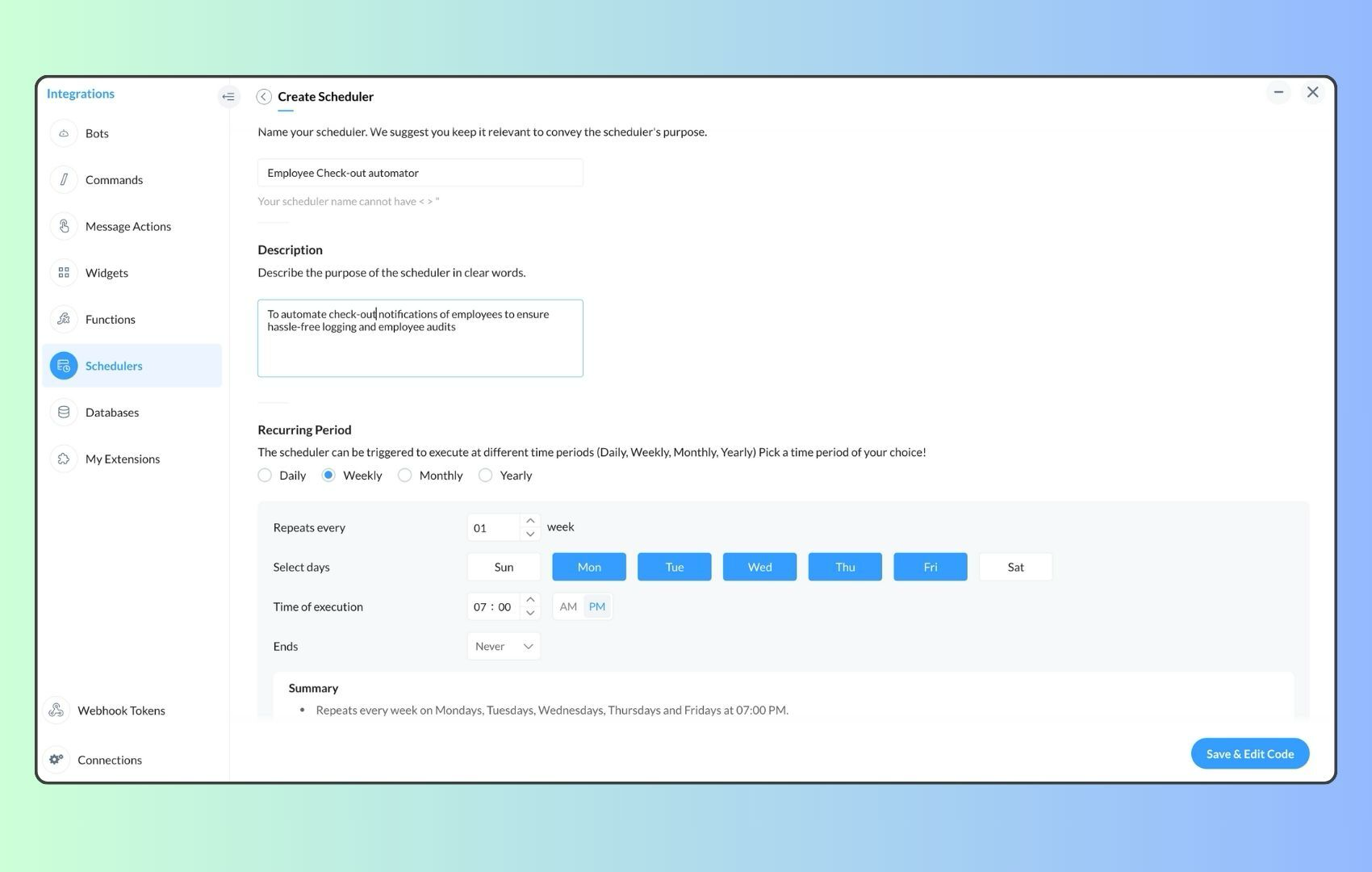
- Now, let's follow the same steps and create a scheduler for checkout reminders. Under the recurring period, choose the type as "Weekly." Select Monday through Friday and set the time of execution to 7 PM or any other time that aligns with your company's checkout time, or customise the recurring period based on your specific use case.
- Click "Save & edit code" and paste the following code.
- attendanceResponse = invokeurl
- [
- url :"https://people.zoho.com/api/attendance/fetchLatestAttEntries?duration=600"
- type :GET
- connection:"{CONNECTION_LINK_NAME}"
- ];
- info attendanceResponse;
- todayDate = zoho.currenttime.toString("YYYY-MM-dd");
- latestAttendanceRecords = attendanceResponse.get("response").get("result");
- usersWithoutCheckout = list();
- if(latestAttendanceRecords.size() > 0)
- {
- for each userRecord in latestAttendanceRecords
- {
- userEmail = userRecord.get("emailId");
- dailyEntries = userRecord.get("entries");
- for each dailyEntry in dailyEntries
- {
- if(dailyEntry.containsKey(todayDate))
- {
- todayEntryDetails = dailyEntry.get(todayDate);
- attendanceLogs = todayEntryDetails.get("attEntries");
- for each logEntry in attendanceLogs
- {
- if(!logEntry.containsKey("checkOutTime"))
- {
- usersWithoutCheckout.add("{@" + userEmail + "}");
- }
- }
- }
- }
- }
- }
- usersWithoutCheckoutString = usersWithoutCheckout.toString("\n");
- if(usersWithoutCheckoutString.trim().length() == 0){
- usersWithoutCheckoutString = "No users were found checked-in after 7 PM today. Great to see everyone wrapping up on time! ✅";
- }
- response = Map();
- card = Map();
- card.put("title","List of users who remain checked in ( " + usersWithoutCheckout.size() + " )");
- card.put("thumbnail","https://media.tenor.com/Hd8nLZZTPRYAAAAi/alarm-clock-alarm.gif");
- card.put("theme","modern-inline");
- response.put("card",card);
- response.put("text",usersWithoutCheckoutString);
- info zoho.cliq.postToChannel("{CHANNEL_UNIQUE_NAME}",response);
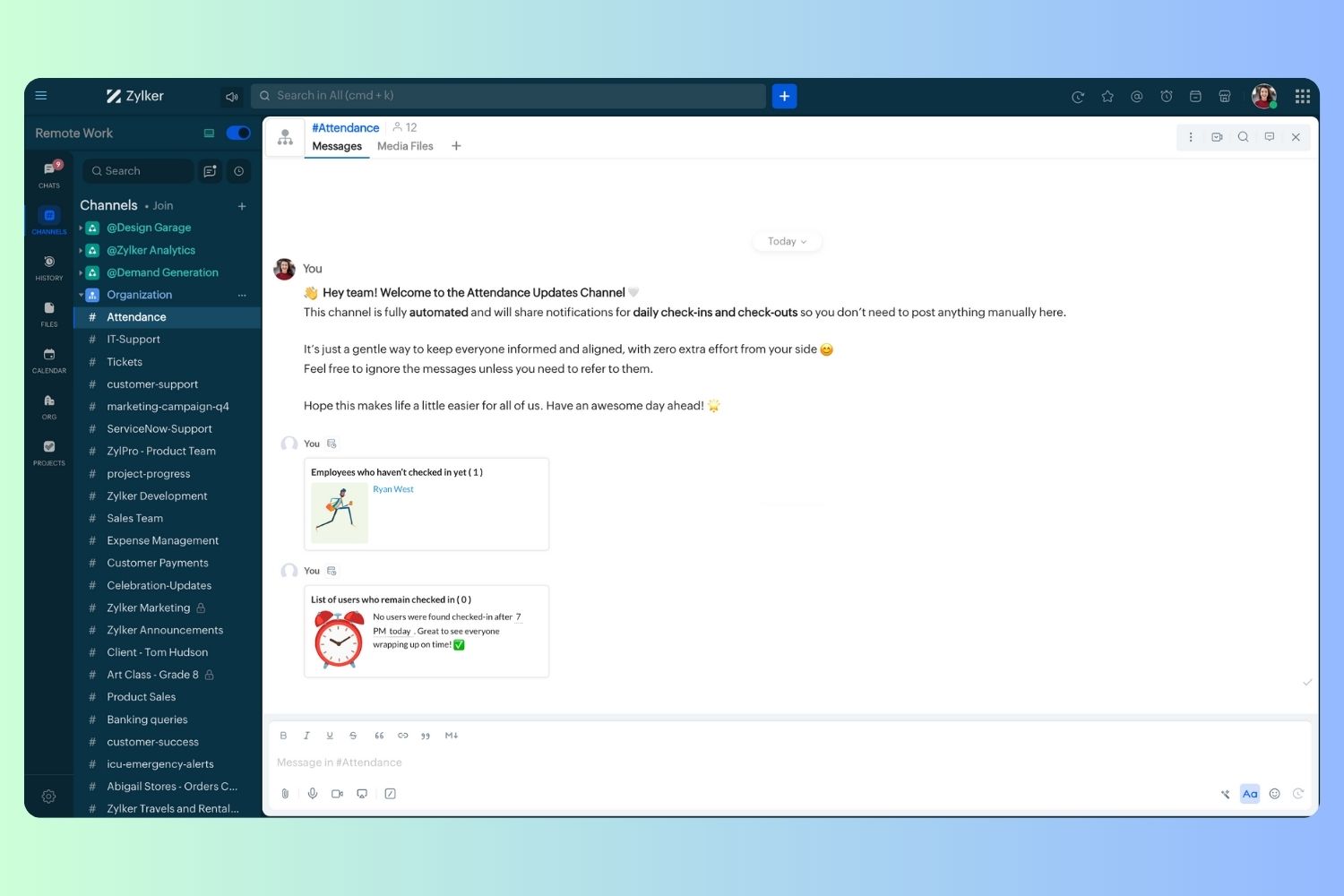
Wrapping up and checking out for the day, hopefully
Topic Participants
Harsha SS
Ram Freedman
Sticky Posts
Automate attendance tracking with Zoho Cliq Developer Platform
I wish remote work were permanently mandated so we could join work calls from a movie theatre or even while skydiving! But wait, it's time to wake up! The alarm has snoozed twice, and your team has already logged on for the day. Keeping tabs on attendanceAutomating Employee Birthday Notifications in Zoho Cliq
Have you ever missed a birthday and felt like the office Grinch? Fear not, the Cliq Developer Platform has got your back! With Zoho Cliq's Schedulers, you can be the office party-cipant who never forgets a single cake, balloon, or awkward rendition ofCustomer payment alerts in Zoho Cliq
For businesses that depend on cash flow, payment updates are essential for operational decision-making and go beyond simple accounting entries. The sales team needs to be notified when invoices are cleared so that upcoming orders can be released. In contrast,Accelerate Github code reviews with Zoho Cliq Platform's link handlers
Code reviews are critical, and they can get buried in conversations or lost when using multiple tools. With the Cliq Platform's link handlers, let's transform shared Github pull request links into interactive, real-time code reviews on channels. ShareApp Spotlight : PagerDuty for Zoho Cliq
App Spotlight brings you hand-picked apps to enhance the power of your Zoho apps and tools. Visit the Zoho Marketplace to explore all of our apps, integrations, and extensions. In today's fast-paced world, seizing every moment is essential for operational
Recent Topics
How can I assign courses to Spaces?
How can I make courses show up here in this space?:When will Zoho Learn be able to support SCORM files on the mobile app?
When I click the SCORM content, I just get a message saying it's not possible yet. Yet implies that it will be coming soon. All I'm asking for is a realistic timeline so I know whether or not to invest my time in using it. If it will be soon, then I willAnnouncing new features in Trident for Windows (v.1.35.6.0)
Hello Community! Trident for Windows just got better with an update that makes working with your emails even more efficient. Let’s dive into what’s new! Work with PST files more efficiently. You can now do more than just view mounted PST files. You canMarketing Tip #9: Track your traffic sources
Not all marketing channels work equally well. Knowing whether your visitors come from Google, Instagram, or email helps you focus on what actually drives sales. Try this today: Check your Zoho Commerce reports or connect Zoho PageSense to see your topGoogle Analytics import data inaccurate (as of October 11, 2025)
We have Zoho Analytics connected to GA4 to import daily event data. This has been running without issue for a couple of years. However, a month ago we started noticing discrepancies. All data until October 10 lines up perfectly - October 11 onward isPrevent accidental duplicate entry of Customer Ordersome
Zoho Support has confirmed that Zoho currently does not have any method (using Deluge, flow or any other method) to alert a user when a sales order has been entered twice using the same customer reference number (i.e. a duplicate). Most ERP platformsZoho Books | Product updates | November 2025
Hello users, We’ve rolled out new features and enhancements in Zoho Books. From translating email notification templates to the new transaction locking restrictions, explore the updates designed to enhance your bookkeeping experience. Making Tax DigitalInsert Image into Notebook page
Prior to today, I could add images to my notebook pages. Today when I tried to do this I got an error message that said something like, "There's been a problem on our end. Try again later." So, I've tried all the ways I know how, but I can't insert an【開催報告】名古屋 ユーザー交流会 Vol.2 2025/11/21 Zoho Analytics / Inventory で実現する在庫の"未来予測"
ユーザーの皆さま、こんにちは。コミュニティチームの中野です。 11/21(金)に名古屋 ユーザー交流会 を開催しました。 本投稿では、当日実施したセッションの様子及び投影資料をお届けします。 会場にて参加できなかった皆さまも、ぜひご参照ください。 (Zoho 社員セッションの登壇資料については、11/28(金)開催の東京回の開催報告で共有いたします) 今年2回目の開催となる名古屋 ユーザー交流会では、株式会社エンツナクリエイト 野末さんによる Zoho Analytics / InventoryIs there a way to automatically add Secondary Contacts (CCs) when creating a new ticket for specific customers?
Some of our customers want multiple contacts to receive all notifications from our support team. Is there a way to automatically add secondary contacts to a ticket when our support team opens a new ticket and associates it with an account? This wouldImproved RingCentral Integration
We’d like to request an enhancement to the current RingCentral integration with Zoho. RingCentral now automatically generates call transcripts and AI-based call summaries (AI Notes) for each call, which are extremely helpful for support and sales teams.Edit Pinned Comments in Zoho Desk
It's great that private comments can now be pinned to the top of the ticket but what would be extremely helpful would be to allow for the pinned comment to be edited vs. having to find the comment in the ticket to edit it.Updating Secondary Contact (CCs)
We use Zoho Forms to capture the user request and integrated with Zoho Desk to raise tickets. Active Microsoft login is captured in our Zoho forms and registered as Primary contact in Zoho desk ticket. We also an have an option to raise ticket on behalfblank page after login
blank page after logging into my email account Thanks youWriterTh
After every space Writer goes to capital letters mode in my Android tablet. The cap mode stays till the second letter is typed in the word then it comes to normal mode.Zoho writer unable to merge documents to PDF with basic fonts in Hebrew or fonts from my computer
I created several forms that will be merged into PDF files through Zoho Writer and I am unable to receive the PDF in the basic fonts of the Hebrew language or in the fonts I have on my computer. The writer exports to PDF an exchange font that looks veryI have already created some Bots, Commands, and Widgets in Cliq, but I am still not seeing the “Create Extension” option in my account. Could you please help me enable or access this option?
Infinite loop of account verification
Hi I can't do anything on my zoho account. I always get this message Hi Sheriffo Ceesay As a security measure, you need to link your phone number with this account and verify it to proceed further. When ever I supply the details, it displays that the number is associated with another account. I don't have any other account on zoho so this is really annoying.How we cut CRM updates from ~20 minutes down to 2, our real workflow
Updating the Zoho CRM after every call used to be one of the biggest time sucks for our team. By the time you write your notes, clean them up, fill in the fields, and log everything properly… you’ve easily lost 15–20 minutes per call. We started experimentingArattai App Features Update
1. Offline Messaging & Sync Enable users to compose messages without internet and deliver them automatically via peer-to-peer methods (Bluetooth/WiFi Direct) when nearby users are available. This would be a game-changer for rural India with unreliableHow to add Product Add-Ons, Mandatory Forms, and Auto-Save Address in Zoho Commerce
Hi all, I need help setting up several behaviors in Zoho Commerce. I can’t find the correct configuration options, so I want to confirm whether these are supported or if there is a workaround. 1. Product-Specific Add-Ons (Example: GWB Subscription) WhenZohomail
Im trying to setup email address zohoPROBLEMA
Salve, non riesco a inviare email, e mi esce una tabela errore temporaneo. come posso risolvere il problema ?Forever FREE Business Email with Zoho Mail
Forever FREE Business Email with Zoho Mail: is it available?Weekly Tips : Make collaboration effortless with Whiteboard in Zoho Mail
Working with your team often means switching between emails, notes, and other applications just to explain an idea. Maybe you are trying to sketch a layout, plan a workflow, or quickly brainstorm ideas—with text alone, things can get confusing. So howFormula field number of days between 2 dates
Hi, I want to have a formula field which calculates the following: IF EndDate < TODAY and Oproep is true (this is a checkbox field) than EndDate - StartDate, otherwise TODAY - StartDate It should calculate the number of days How can I write this for'email address already exists'
I deleted a user from my organization and want to use the same email address that user had, but the email address seems to still exist somewhere as I get 'email address already exists' when I try and create it. I have deleted the entire organization andZOHO reporting DKIM entries are not configured, when they have been configured and verified by 3rd parties
Why is ZOHO reporting to my organisation users the following: "The DKIM entries in your domain's DNS records are not configured. Please contact your administrator for configuring DKIM to ensure optimal RSVP invite delivery." When I have configured theManage Bookings directly from Zoho Mail
Greetings from the Zoho Bookings team! We’re introducing the new Zoho Bookings extension for Zoho Mail, designed to help you view appointments, copy time slots and share booking links without leaving your inbox. This integration brings scheduling rightMy notes from the past 2 months have disappeared
Hola, necesito ayuda urgente. Hoy, al iniciar sesión en mi Zoho Notebook como todos los días, me llevé una gran sorpresa al descubrir que todas mis notas de los últimos dos meses habían desaparecido. Estas notas son muy importantes para mí, ya que usoHow can I load a network into the cliq desktop app?
I have both the standard cliq log in for my org and I am part of a cliq network. In the browser I can choose which I log in to. However, in teh desktop app if I log in it will alwasy load my org's cliq. Can I switch this to the network I have createAbility to modify what displays in calendar invite?
I am a long time calendly user and want to make the switch to bookings. I understand that there is not currently a meets/hangouts integration, is one on the roadmap? Is there anyway I can modify the calendar invite to include the meet link? I can add it to the emails no problem, but I would also like it to display on their calendar. Is there some work around I can do to get it on the calendar? Also am I able to modify the calendar event title?Issue with Booking Confirmation Page Not Displaying, Leading to Customer Anxiety and Unnecessary Support Calls
I am writing to express my growing concern regarding the confirmation process in Zoho Bookings, particularly the inconsistent display of the confirmation page after a successful payment. As a mobile service provider, I rely on Zoho Bookings platform forIs it possible to turn off all capabilities for a customer to schedule, reschedule or cancel an appointment?
Is it possible to turn off all capabilities for a customer to schedule, reschedule or cancel an appointment? I would like to set it up so only staff can schedule appointments. Is this possible?Is there a way to generate a virtual meeting for a group service in Zoho Bookings?
Are virtual meetings not supported for group services/meetings? I have integrated Zoom with one-on-one services, but I need a way to create an online group meeting. ThanksWhere we can change the icon in social preview
Hi, we changed our logo, and the image that appear in preview (ex : when we post a appointment link somewhere) is still our old logo. I did change our logo in the org setting. https://bookings.zoho.com/app/#/home/dashboard/settings/basic-info?clview=falseZoho Bookings changes Lead Source
Hi. i would like to know if there's a way for Zoho Bookings to not change the lead source when booking a lead for an appointment as the lead source will be used in a report. Scenario: Lead source: Website after booking an appointment Lead source: Zoho Bookings Thanks. DanNeed to set workflow or journey wait time (time delay) in minutes, not hours
Minimum wait time for both Campaigns workflows and Marketing Automation journeys is one hour. I need one or the other to be set to several minutes (fraction of the hour). I tried to solve this by entering a fraction but the wait time data type is an integerSuggestion: Associating Assets with Company in Zoho FSM
Hello Team, I would like to share an idea based on practical experience. Currently, all assets in the Zoho FSM Asset module are linked to a specific contact person. I would like to know if it is possible to associate assets with a company instead. ThisZoho Inventory / Finance Suite - Extend Visibility of File Names on Attachment Fields
Hi Inventory / Finance Suite team, I noticed recently that when you add an attachment field to a module in Inventory, only the first 8 characters of the file name are visible on the details view. 8 characters is not a useful amount and there is plentyNext Page