Bidirectional sync between Zoho Bookings and Zoho CRM - Part 1
Hey, community members!
The default integration between Zoho CRM and Zoho Bookings is unidirectional, which means that any appointments booked, rescheduled, or deleted in Zoho Bookings will be reflected in Zoho CRM. However, any modifications made to events in Zoho CRM that originated from Zoho Bookings will not be reflected back in Zoho Bookings. Hence, as we're announcing in this community post, we've made the sync bidirectional.
This community post will cover the process of configuring appointment bookings from Zoho CRM in Zoho Bookings, as well as managing appointment statuses such as Canceled, No Show and Completed. We have addressed the rescheduling action in a separate post. To view it, please click on the following link: Reschedule Action
This community post will be beneficial for active Zoho CRM users who handle all their meetings within Zoho CRM. Additionally, you can use this community post as a reference to explore various automation possibilities tailored to your business requirements. For instance, with this post's guidance, when you update a booking's status field to "Completed" in Zoho CRM, it will automatically sync with Zoho Bookings and trigger an automated "Mark as completed" email to customers. This enhancement will improve your Zoho Bookings and Zoho CRM synchronization experience, making appointment management easier.
Prerequisites of bidirectional sync:
- Zoho Bookings Premium subscription
- Zoho CRM paid subscription
- Enable Zoho CRM integration within Zoho Bookings
The purpose of enabling the Zoho CRM integration within Zoho Bookings is to transfer booking details from Zoho Bookings to Zoho CRM. In this configuration, the mandatory field is the Booking ID, which is passed from Zoho Bookings to Zoho CRM through the integration. Whenever an appointment is booked, customer details will be sent to the designated CRM module, and a corresponding record will be created in the Meetings module within Zoho CRM, which will help in automating the workflow.
Here's the complete demo video that covers all the configurations discussed in the community post below:
Timestamps for your reference:
0:35 - Purpose of this community post
Here's the complete demo video that covers all the configurations discussed in the community post below:
Timestamps for your reference:
0:35 - Purpose of this community post
1:26 - Zoho CRM plugin installation
4:43 - Custom field creation
7:20 - Function creation
9:22 - Connection creation
10:24 - Configuring arguments
11:06 - Workflow creation
13:33 - Argument mapping
14:41 - Output verification
17:41 - Conclusion
How we're approaching this bidirectional sync
1. Booking an appointment from Zoho CRM
Install the Zoho Bookings for Zoho CRM plugin within your Zoho CRM application. This plugin enables the creation of a "New Appointment" button within the Zoho CRM Leads and Contacts module, which enables you to select the desired booking page you wish to open. You can choose from various workspace, service, or staff booking pages. After configuration, you can initiate the process of scheduling bookings directly from within your Zoho CRM account.
- Guide on Zoho Bookings and Zoho CRM plugin installation: Booking page selection for Zoho CRM plugin
2. Booking status: Completed or No Show
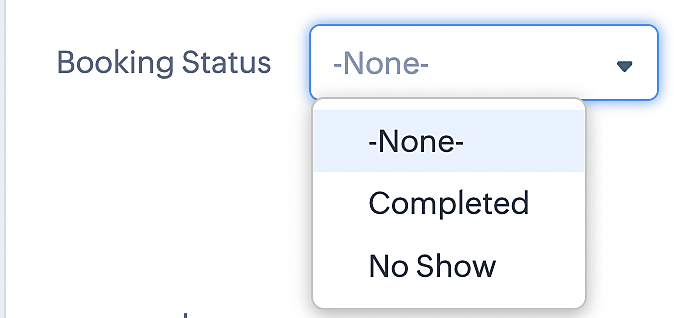
To update a booking's status (Completed or No Show), we've added a new picklist properties field named "Booking Status" in the Meetings module and configured it with two options: "completed" and "no show". Depending on the booking status chosen, the corresponding booking in Zoho Bookings will be updated.
- Details on how to add a custom field to the Meetings module : Customizing modules
- Here's a video that demonstrates how to add a field to a module in Zoho CRM: Adding fields
Reference:
3. Booking status: Canceled
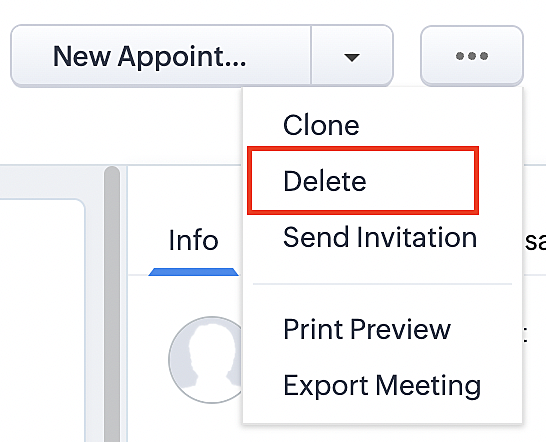
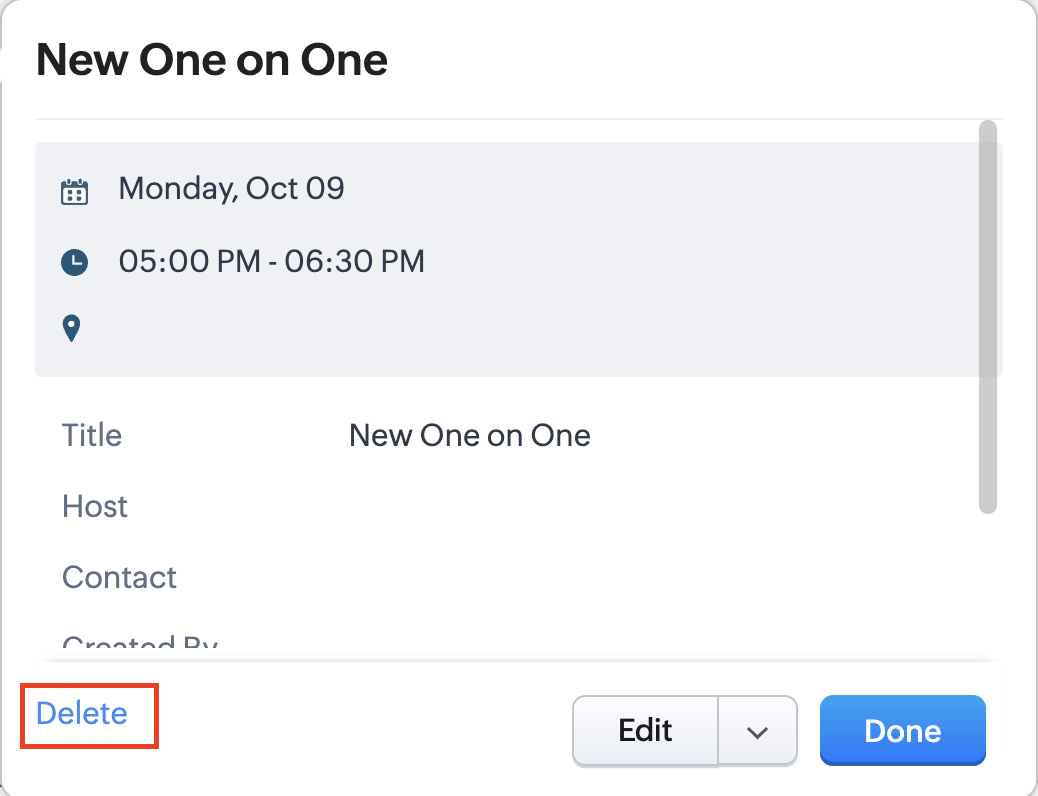
Whenever a meeting is deleted from the Meetings module, the corresponding booking in the Zoho Bookings app will also be canceled automatically. The meeting can be deleted either from the Meetings module or directly from the calendar.
To enable bidirectional sync between Zoho CRM and Zoho Bookings
Complete these steps in Zoho CRM.
Step 1: Creating connections
You first need to establish a connection between Zoho CRM and Zoho Bookings. Zoho Bookings is listed as one of the default connections in Zoho CRM, making it simple to set up. Select the Zoho Bookings connection, define the connection name and scope, and you'll be all set. This connection will enable you to link both applications and facilitate the seamless transfer of data.
Read here for more details on how to create connection in Zoho CRM: Connections
Step 2: Creating functions
In this context, we'll be creating three functions: one for marking appointments as completed, another for canceling appointments, a third for marking appointments as no shows, and a fourth for rescheduling appointments. For each function, we must also configure arguments, which pass values or data into a function when making a call. Here, we'll pass the booking ID to the function as an argument to update the necessary booking status.
i. To create a function for marking appointments as completed:
1. Go to Setup > Developer Space > Functions.
2. In the Functions page, click + Create New Function.

3. Configure the function name, display name, and description.
4. Set the category as automation.
This opens the Deluge script page.
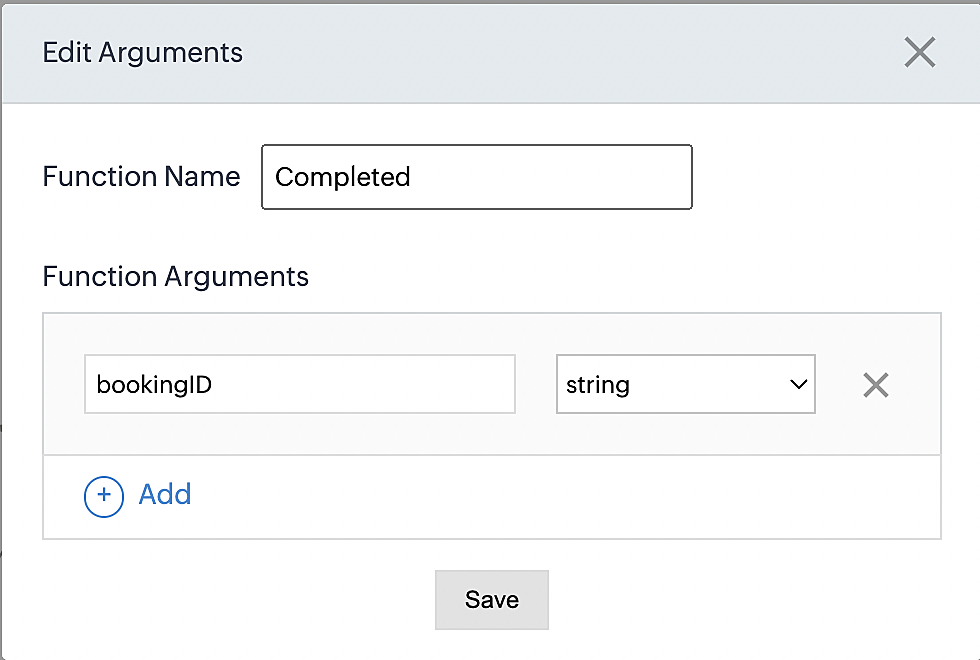
5. Next, configure the function's arguments:
A. Click on Edit Arguments on the Deluge script page.

B. Set the Parameter Name as bookingID. (Please note that the "bookingID" value is case sensitive and must match
the term used in the code).
C. Set the type as string.
Reference:
Please configure the below code in the Deluge script page.
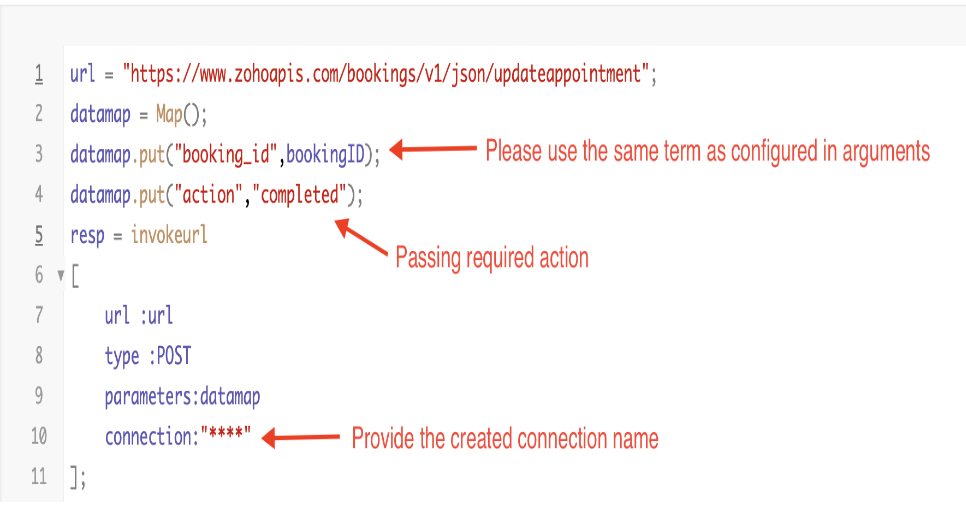
By completing these steps, we've configured a function that will mark appointments as completed.
ii. To create a function for marking appointments as no shows
1. Go to Setup > Developer Space > Functions.
2. In the Functions page, click + Create New Function.

3. Configure the function name, display name, and description.
4. Set the category as automation.
This opens the Deluge script page.
5. Next, configure the function's arguments:
A. Click on Edit Arguments on the Deluge script page.

B. Set the Parameter Name as bookingID. (Please note that the "bookingID" value is case sensitive and must match
the term used in the code).
C. Set the type as string.
Reference:
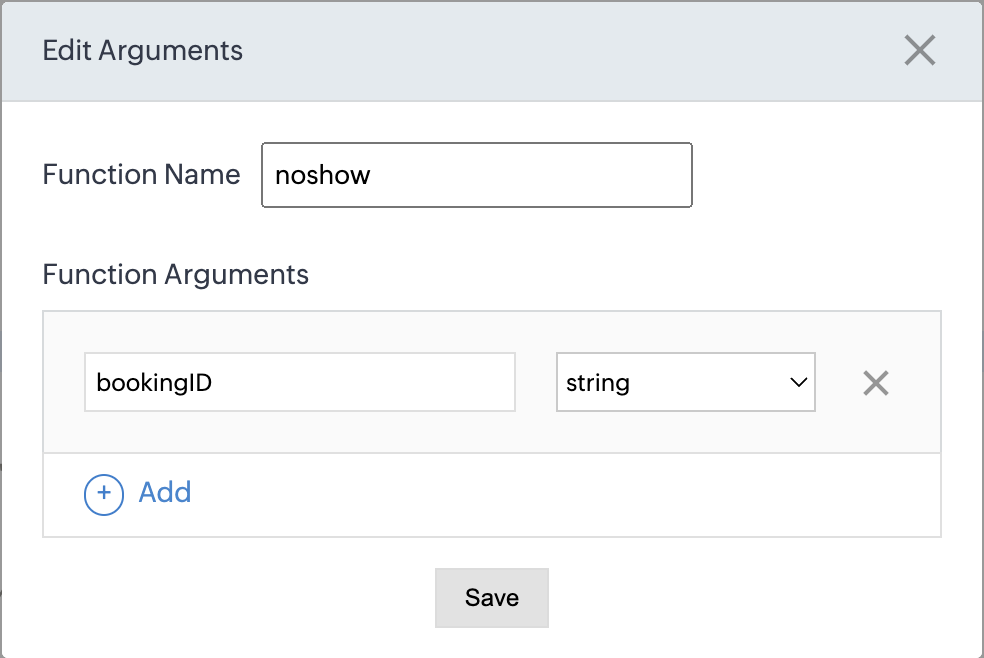
Please configure the below code on the Deluge script page.
Code link: No show
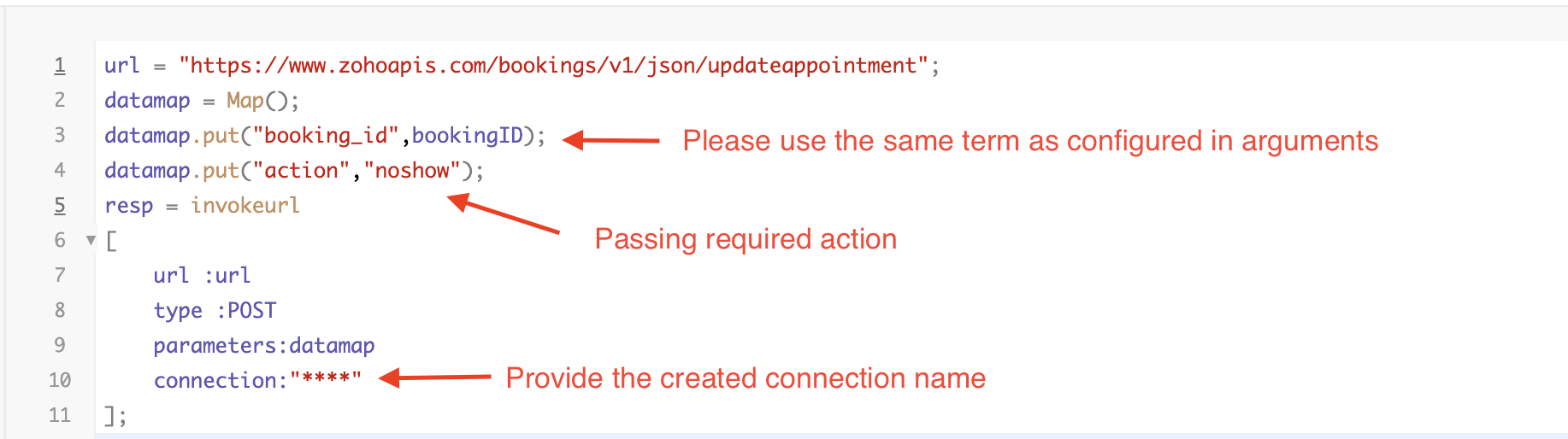
By completing these steps, we've configured a function that marks appointments as no shows.
iii. To create a function for marking appointments as canceled
1. Go to Setup > Developer Space > Functions.
2. In the Functions page, click + Create New Function.

3. Configure the function name, display name, and description.
4. Set the category as automation.
This opens the Deluge script page.
5. Next, configure the function's arguments:
A. Click on Edit Arguments on the Deluge script page.

B. Set the Parameter Name as bookingID. (Please note that the "bookingID" value is case sensitive and must match
the term used in the code).
C. Set the type as string.
Reference
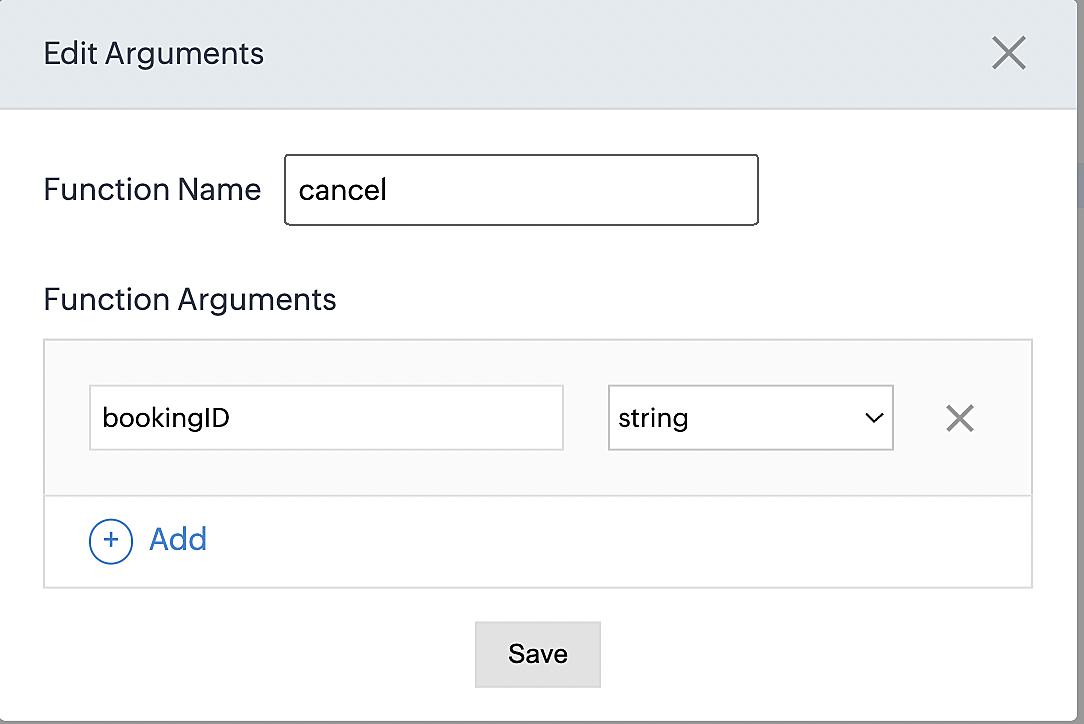
Please configure the below code on the Deluge script page.
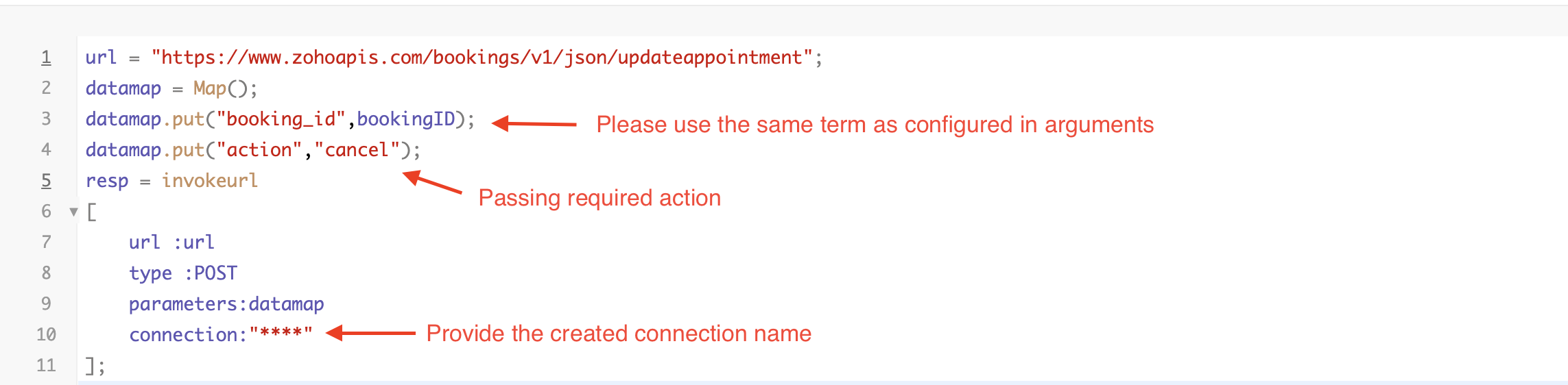
By completing these steps, we've configured a function that marks appointments as canceled.
Code explanation
Below is an explanation of the code that covers all the configurations present in the three functions mentioned above (cancel, mark as completed, and mark as no show).
Line 1: Based on the Zoho Bookings account's data center, we're setting up the API endpoint URL configuration.
Lines 2 - 4: To update appointments, we utilize the Zoho Bookings API. Within the update appointment API, there are two mandatory fields that need to be included: BookingID and action (completed/cancel/noshow).
Lines 5 - 10: We use the invokeURL task for API calls. To learn more about the invokeURL task, please refer to the following document: InvokeURL task for API calls
Now, let's proceed and learn about the process of creating a workflow and linking the established functions to it. This will enable us to automate the entire appointment status updating process.
Step 3: Creating a workflow
Workflow rules are sets of actions (email notifications, tasks and field updates) that are executed when specified conditions are met. Here, we'll generate workflow rules for each action to activate the respective function, thereby automating the appointment status updating process.
i. Creating a workflow for "canceling" appointments in Zoho Bookings when a meeting is deleted in Zoho CRM
Part 1: Creating the rule
1. Go to Setup > Automation > Workflow Rules.
2. In the Workflow Rules page, click Create Rule.

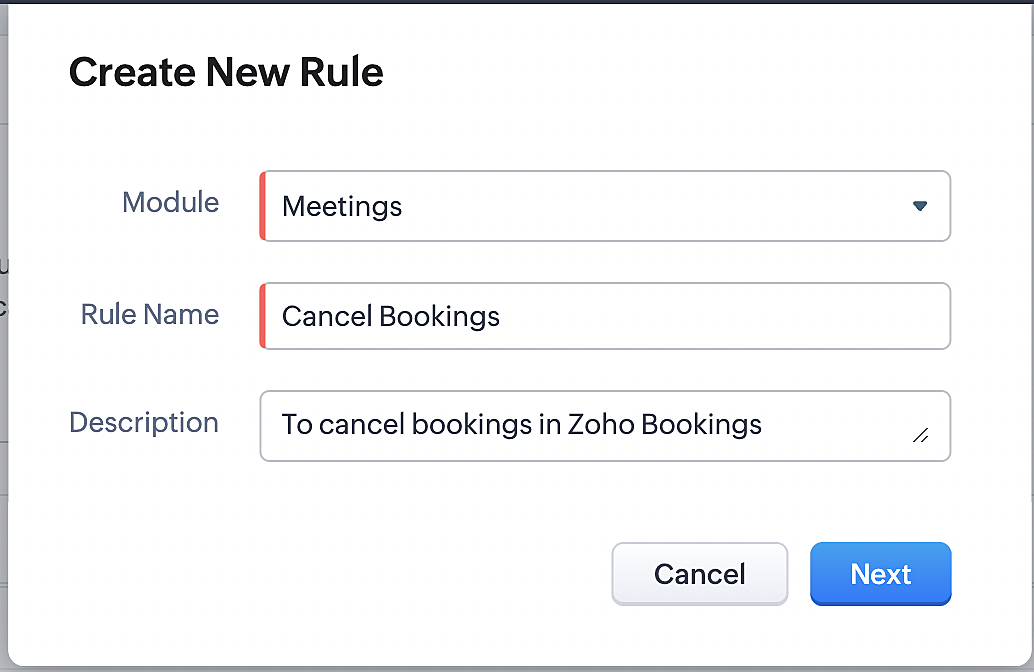
3. Select "Meetings" under Module and configure rule name and description as required.
More details: Create Rule
Reference:
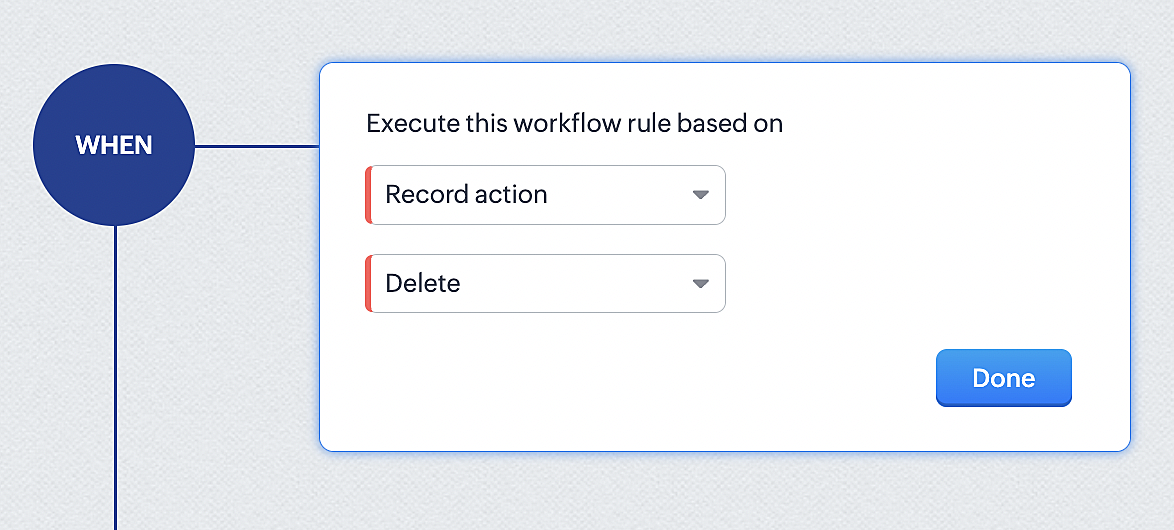
1. Select Record Action > Delete > Done to execute the rule when meetings are deleted.
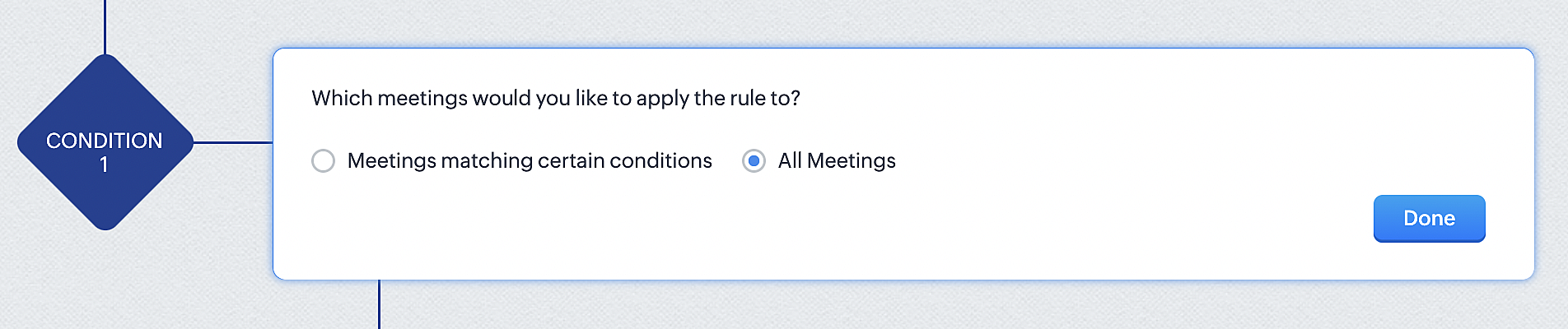
2. Configure condition > All Meetings.
3. Instant Actions > Function.
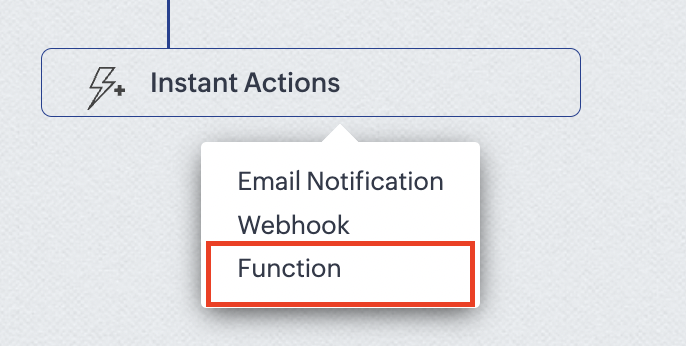
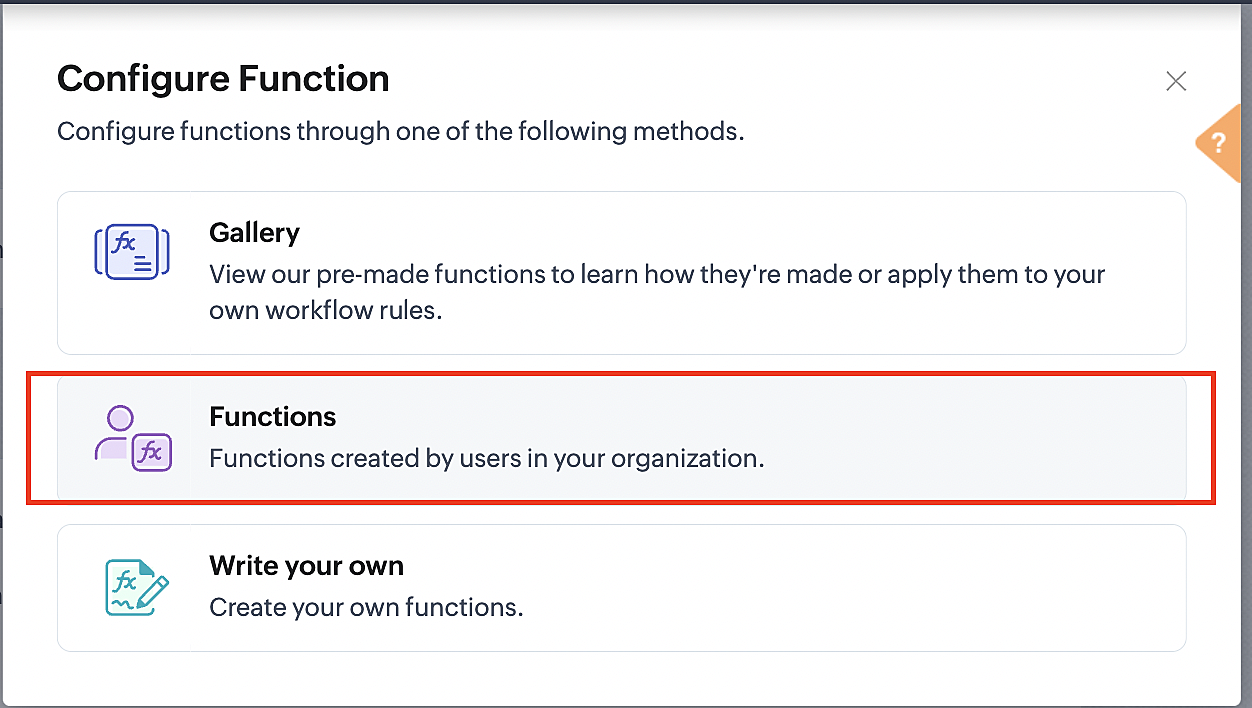
4. Click the New Function button.

5. In the Configure custom function page, select the "cancel" function you created from among the functions users in your organization have created.
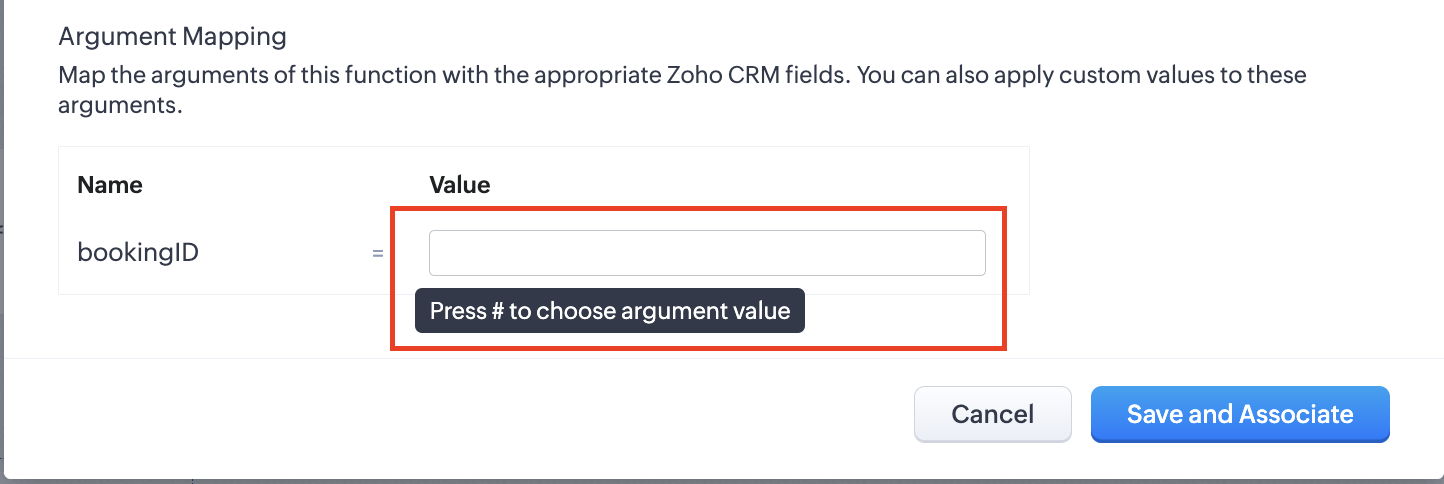
Part 3: Argument mapping
1. Press # to choose an argument value.
2. Select Meetings under Module and BookingId in the field.
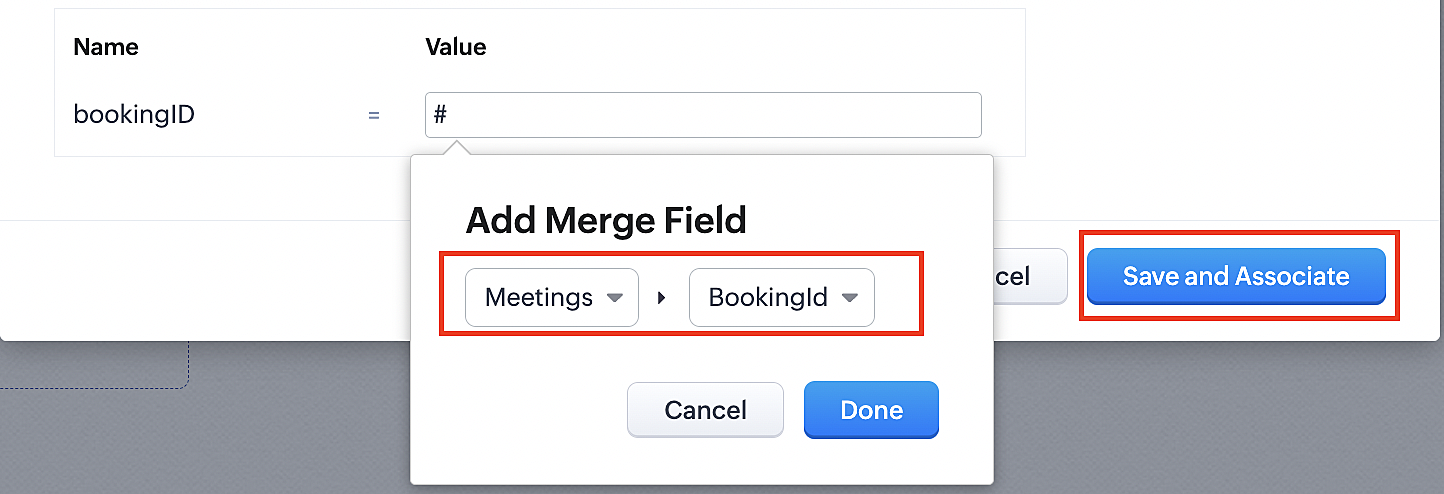
3. Click the Save and Associate button.
Reference:
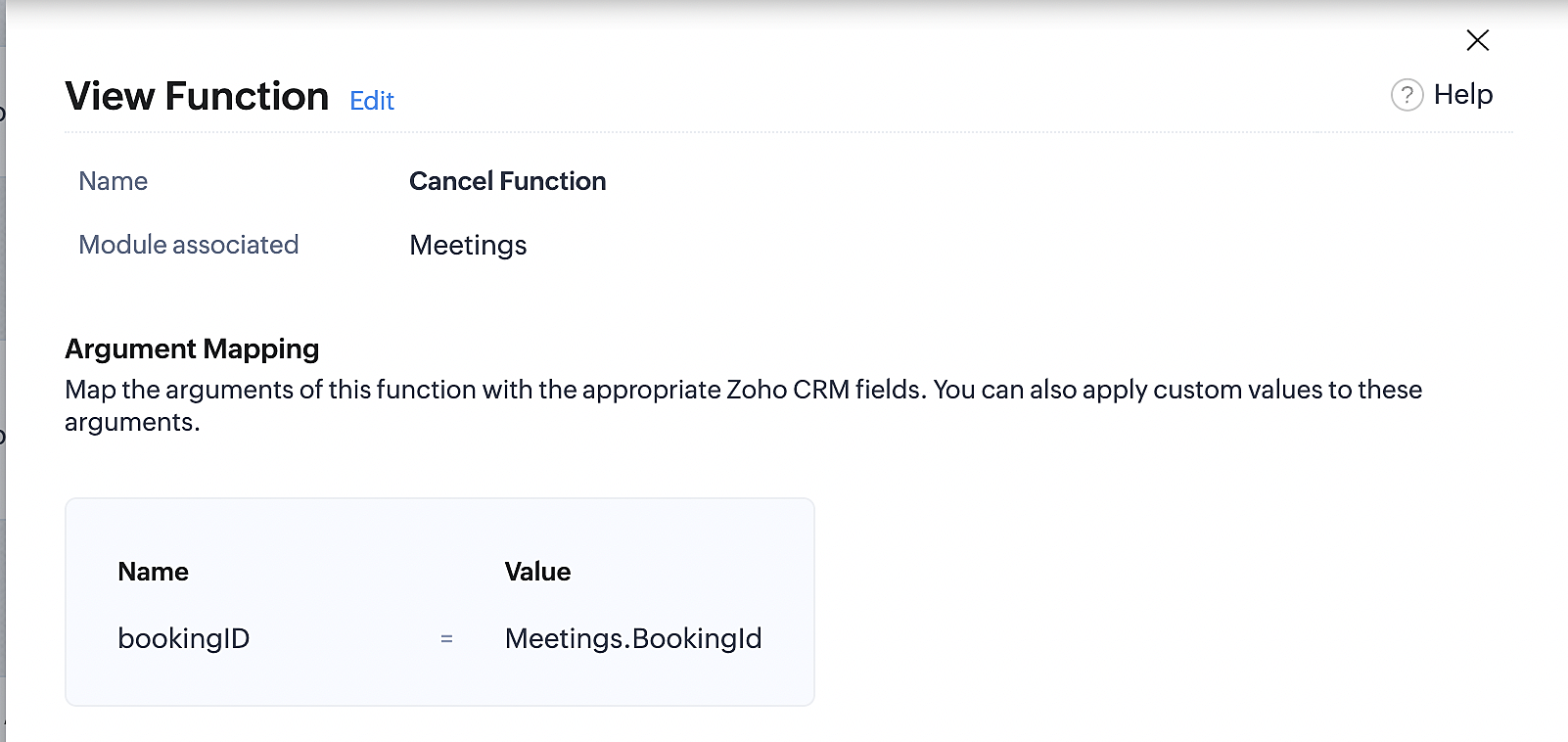
Below is the final flow of the cancel booking workflow:
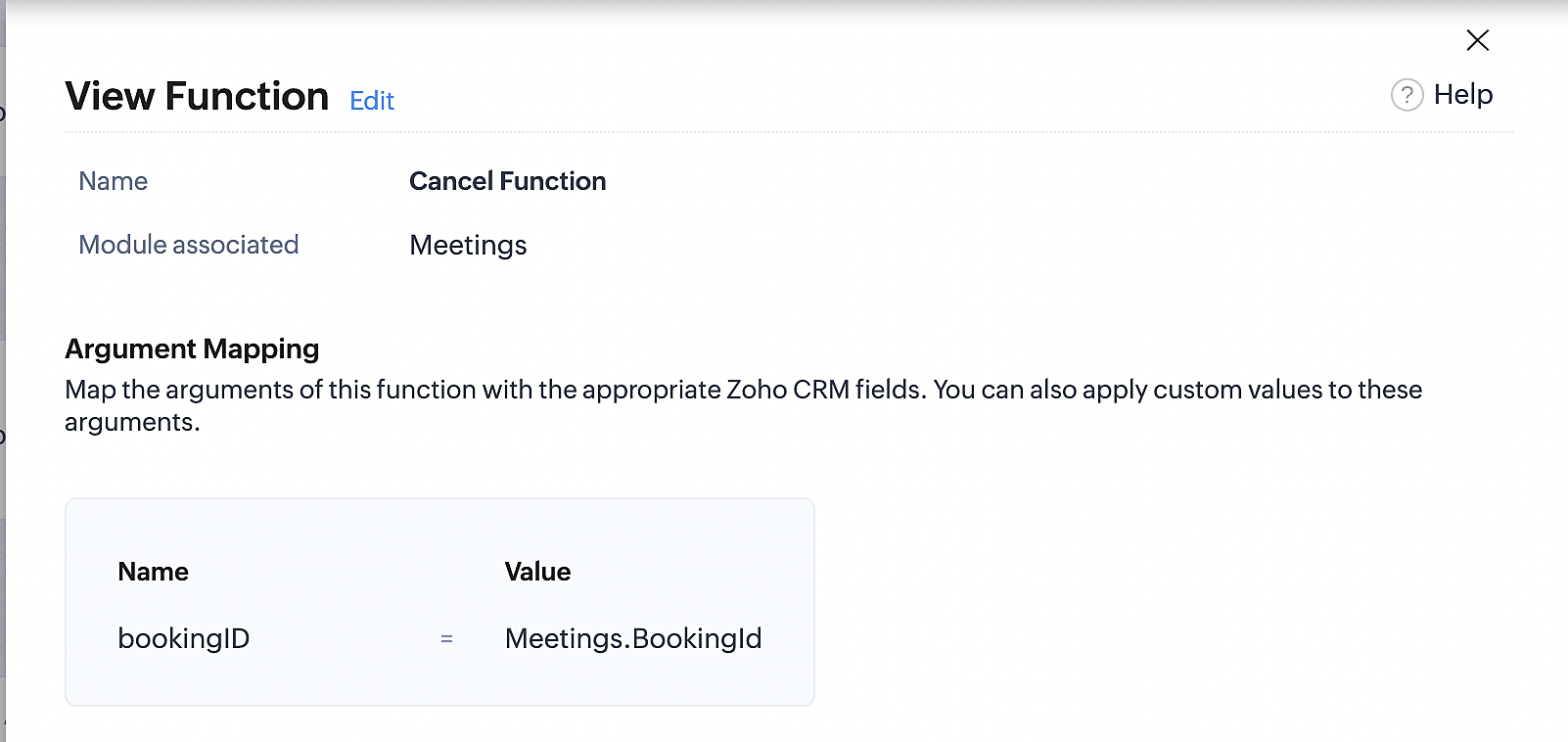
At the end of Part 3, we will have created a workflow that will be executed automatically when meetings are deleted in Zoho CRM. Simultaneously, the bookings associated with the meeting will also be canceled in Zoho Booking.
ii. Creating workflow for updating an appointment's status as "no show" in Zoho Bookings when the meeting's booking status is marked as no show in Zoho CRM
Part 4: Creating the rule
1. Go to Setup > Automation > Workflow Rules.
2. In the Workflow Rules page, click Create Rule.

3. Select Meetings under Module and configure the rule name and description as required.
Reference:
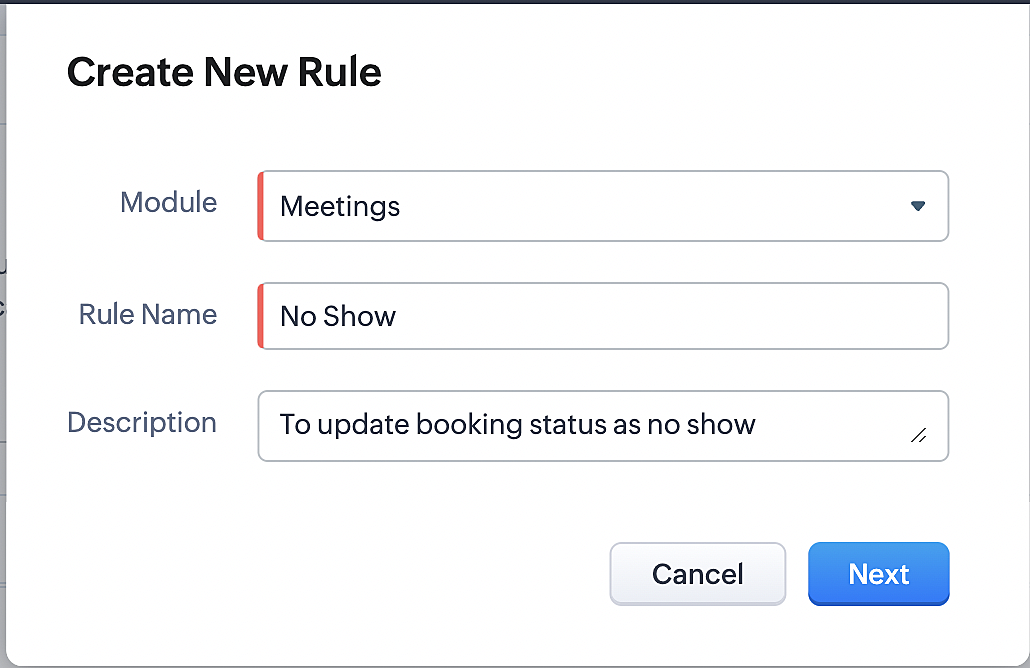
Part 5: Specifying the rule trigger
If you encounter difficulties while navigating through the steps mentioned below, please refer to Part 2 above, where we have provided step-by-step screenshots for clarification.
1. Record Action > Edit.

2. Enable the Specific field(s) gets modified and configure it per the screenshot below.
a. This is to ensure that the workflow is executed only when the booking status under the meeting module is
updated to "No Show".
updated to "No Show".
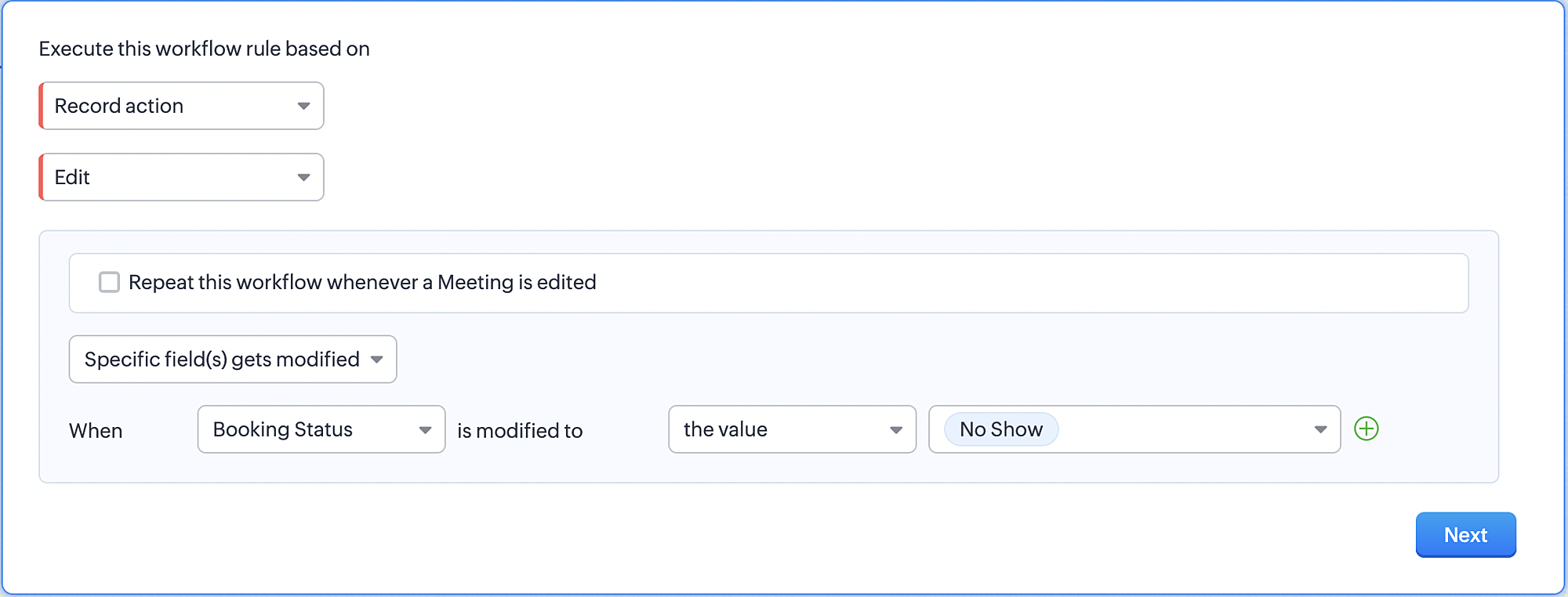
3. Configure condition > All Meetings.
4. Instant Actions > Function > New Function.
5. In the Configure custom function page, select the "no show" function you created from among the functions
users in your organization have created.
users in your organization have created.
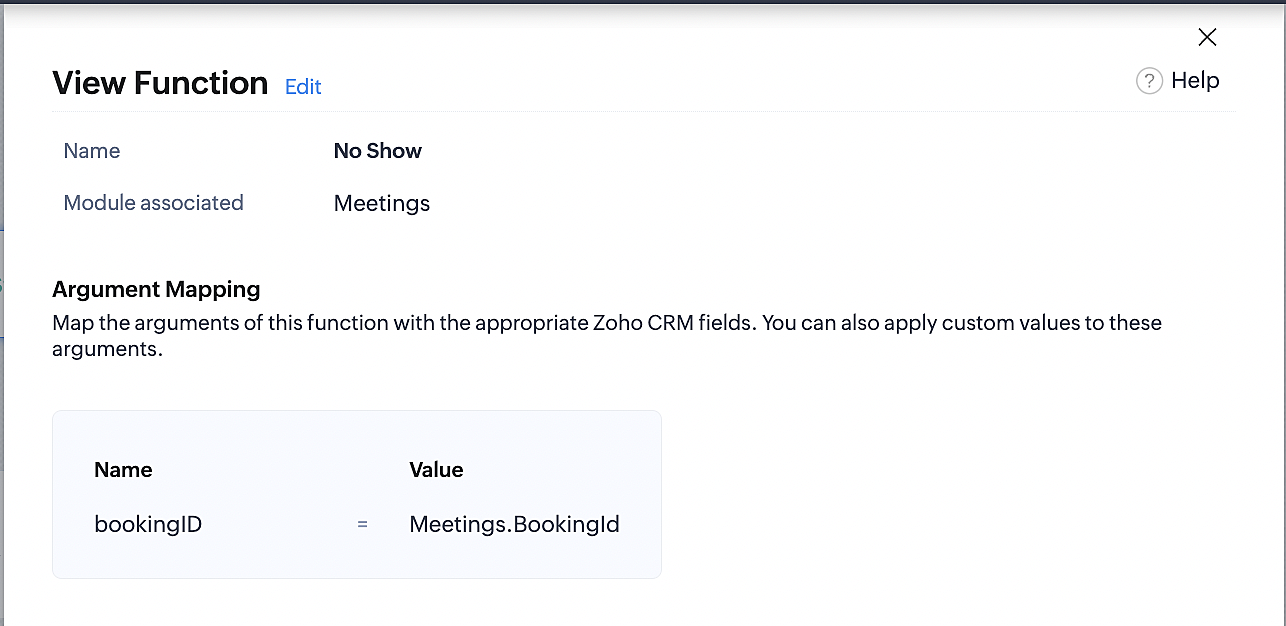
Part 6: Argument mapping:
If you encounter difficulties while navigating through the steps mentioned below, please refer to Part 3 above, where we have provided step-by-step screenshots for clarification.
1. Press # to choose an argument value.
2. Select Meetings under Module and configure the field as "BookingId".
3. Click Save and Associate button.
Reference:
Below is the final flow of the "No Show" booking status workflow:
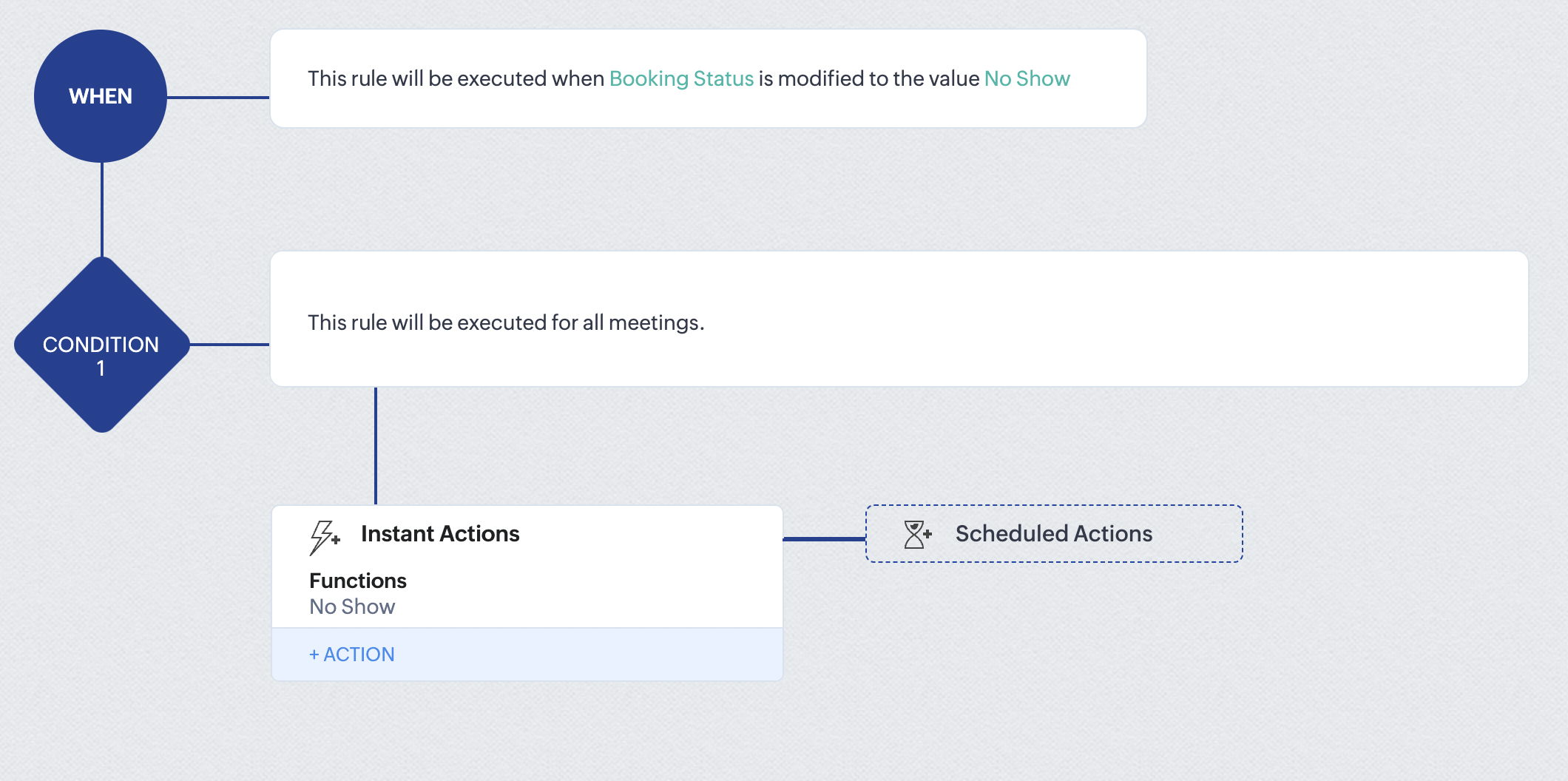
At the end of part 6, we will have created a workflow that automatically executes when the booking status field within the Zoho CRM Meetings module is updated to "No Show." This action will result in the associated bookings for that meeting also being marked as "No Show" in Zoho Bookings.
iii. Creating workflow for updating appointment status as "Completed" in Zoho Bookings when the booking status field of the meeting is marked as completed in Zoho CRM.
Part 7: Creating the rule
1. Go to Setup > Automation > Workflow Rules.
2. In the Workflow Rules page, click Create Rule.

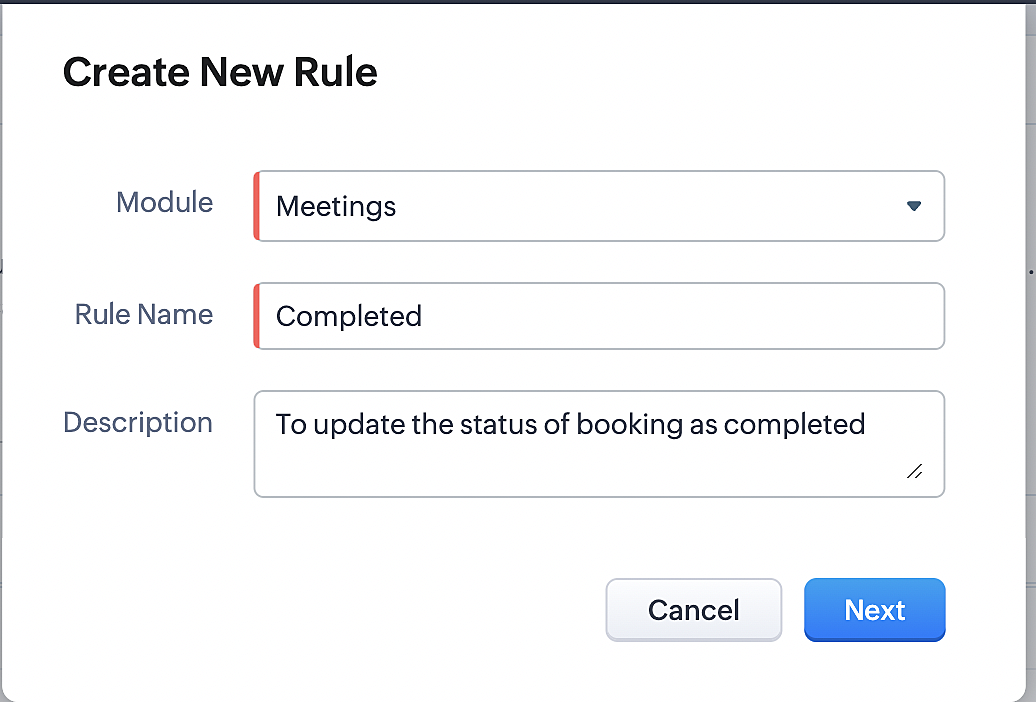
3. Select Meetings under Module and configure rule name and description as required.
Reference:
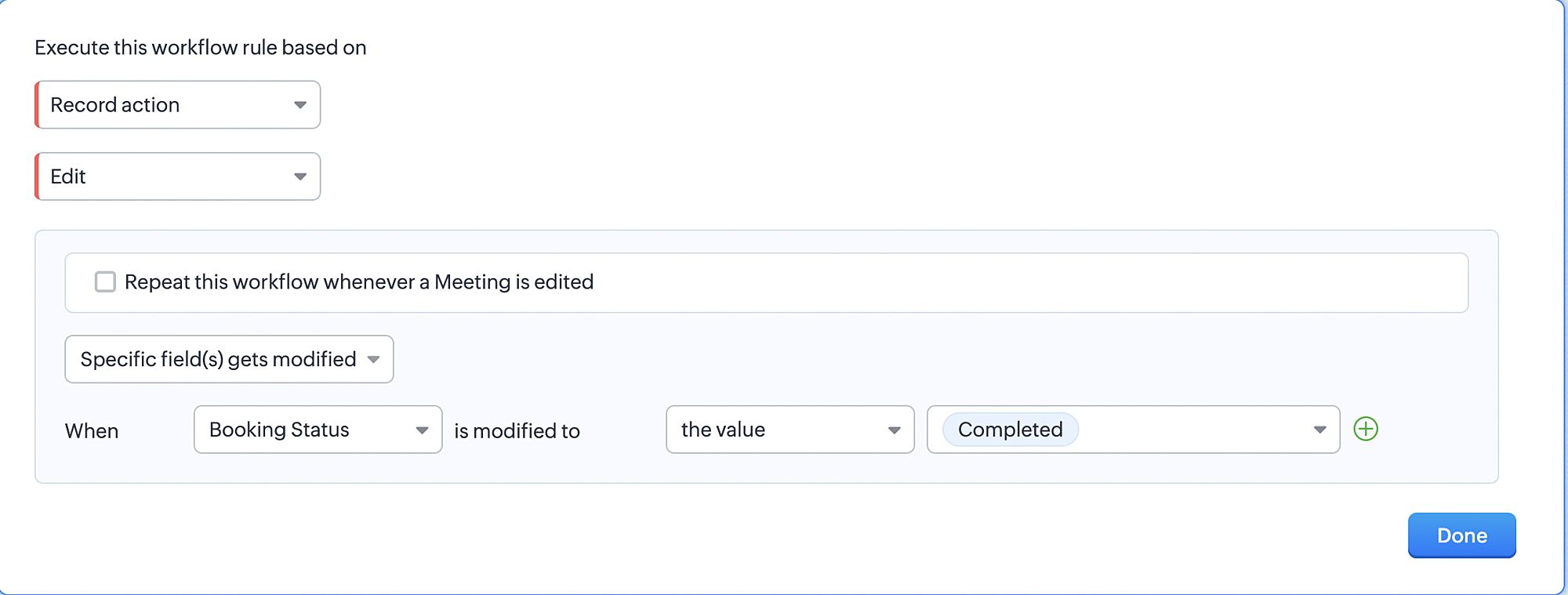
Part 8: Specifying the rule trigger
If you encounter difficulties while navigating through the steps mentioned below, please refer to Part 2 above, where we have provided step-by-step screenshots for clarification.
1. Record Action > Edit.

2. Enable the Specific field(s) gets modified setting and configure it per the screenshot below.
a. This serves to ensure that the workflow is executed only when the booking status under the Meetings module is
updated to "Completed".
3. Configure condition > All Meetings.
4. Instant Actions > Function > New Function.
5. In the Configure custom function page, select the "completed" function you created from among the functions users
in your organization have created.
Part 9: Argument mapping:
If you encounter difficulties while navigating through the steps mentioned below, please refer to Part 3 above, where we have provided step-by-step screenshots for clarification.
1. Press # to choose an argument value.
2. Select Meetings under Module and configure the field as "BookingId".
3. Click Save and Associate button.
Reference:
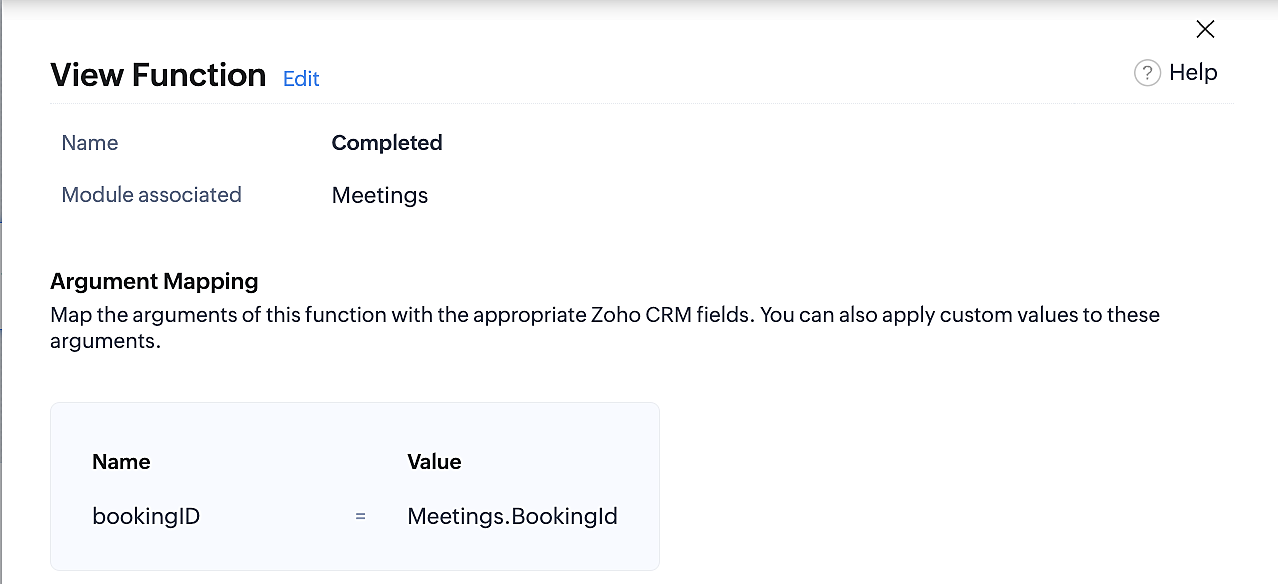
Below is the final flow of the "Completed" booking status workflow:
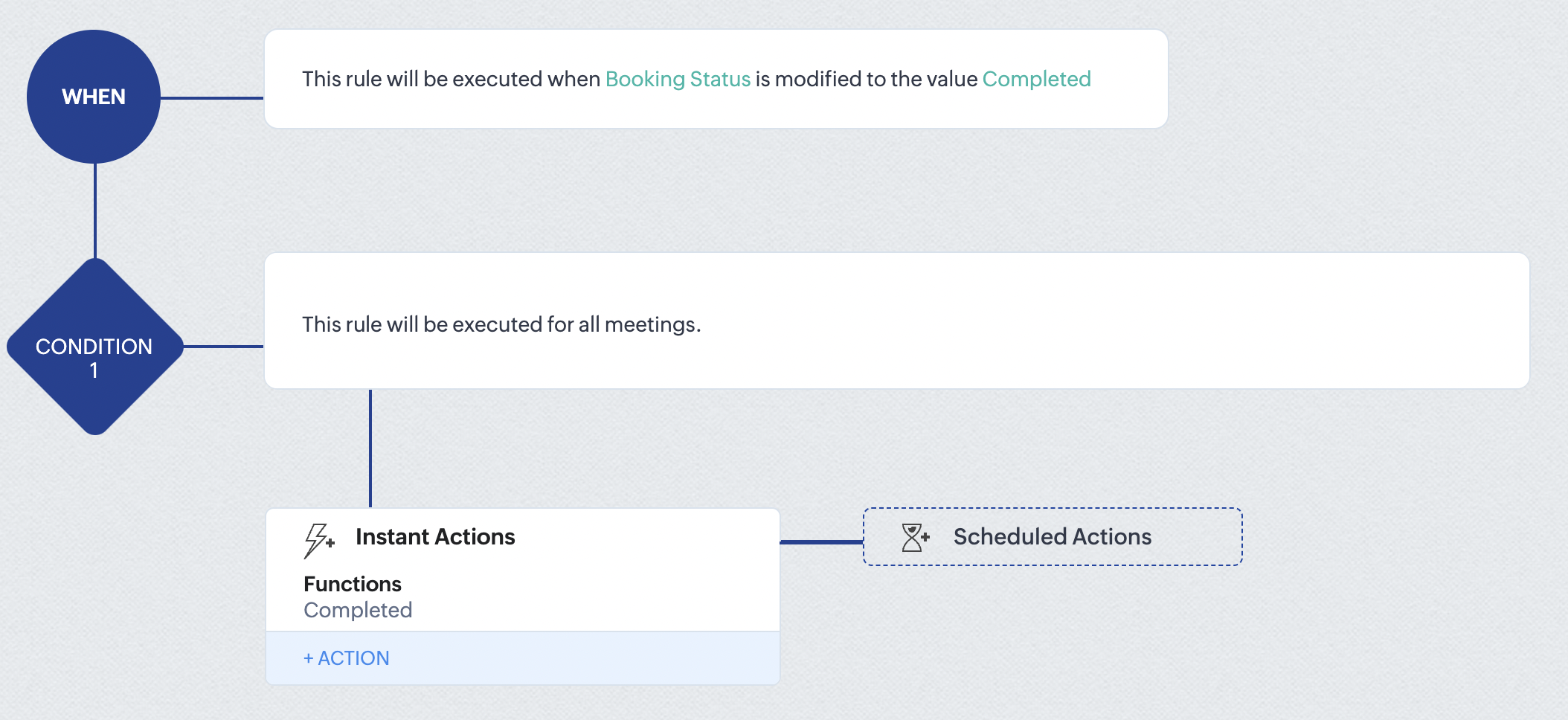
At the end of part 9, we will have created a workflow that is automatically executed when the booking status field within the Zoho CRM Meetings module is updated to "Completed." As a result, the associated bookings for that meeting will also be marked as "Completed" in Zoho Bookings.
Conclusion
We've reached the end of this community post. With the integration mentioned above in place, you'll be able to book, cancel, and update the status of appointments in Zoho Bookings directly from your Zoho CRM application. This will help you effectively manage your appointments in one place. As mentioned above, we've covered the rescheduling action in a separate post, which you can access by clicking on the following link: Reschedule Action
Furthermore, we've outlined a method for automating appointment statuses in detail. You can use this document as a reference to explore the various possibilities that suit your needs.
If you have any questions or need assistance with your configuration, please email us at hello@zohobookings.com or support@zohobookings.com.
Topic Participants
Kaushik S
bruce
Ishwarya SG
PrismaNote Support
Sticky Posts
Enhancement to ICR’s field prompting: Preferred data extraction using advanced field prompting
Dear Customers, We hope you’re well A quick background Intelligent Character Recognition (ICR) comes as part of Zia’s optical recognition capability called Zia Vision. When we introduced it last April, the data extraction was training-based and was applicableGood news! Calendar in Zoho CRM gets a face lift
Dear Customers, We are delighted to unveil the revamped calendar UI in Zoho CRM. With a complete visual overhaul aligned with CRM for Everyone, the calendar now offers a more intuitive and flexible scheduling experience. What’s new? Distinguish activitiesAccessibility in Zoho CRM: Not just a feature—a way to empower
For instructions on setting up these controls, please check this help document: Configuring accessibility controls. Hello everyone, Today (December 3, 2024), on the International Day of Persons with Disabilities, we begin our journey towards a CRM thatScaling the customer journey: What's new in CommandCenter
Dear Customers, The last time we connected about CommandCenter, it was about the tool's new controls and revamped UI. Personally, the overhaul of the UI from the last update, still excites me. Today, we're here with news about its scalability and addedZoho CRM's sales trend and sales follow-up trend dashboards are now customizable
Dear Customers, We're here with good news! Sales trend and sales follow-up trend are two system-defined dashboards that help you understand trends and anomalies in your sales outreach and conversion efforts. They use Zia's intelligence to identify patterns
Recent Topics
Zoho Desk - Event Calendar View
Hi Desk team, Are there any plans to introduce a calendar or timeline view for Events in Zoho Desk? It would be very helpful if we could see Events visually in a calendar and/or timeline. This is very helpful when desk side support activities need toRe-Apply SLA When Ticket Reopened from Closed Status?
If you have an SLA applied, timers are deactivated when going to "On Hold" status type and reactivated when going back to an Open status type. What we discovered is when a customer replies to a closed case and it reopens, the SLA is not applied and timersOption to Delete Chats in IM
Currently, there is no option to delete any chats in IM, regardless of their source.Is it possible to make tags "required"
We would like to be able to make the tag field a requirement for agents before they can close a ticket. This would help with monthly reporting, where a lot of tickets end up with no tag, causing manual work to go back and add the correct tag for eachShowing the map along with mileage expense
When you use the GPS to track mileage, it shows you the map of the actual path travelled. It would be very useful and practical to save that map with the mileage expense, so that when the report is created, it provides a map of each mileage expense associatedID:2406331
Hello, I have sent the form (ID:2406331) but no answer after two days. This is a paid subscription, I am not allowed to use the eighth paid slot of 50GB email space anymore, only 7 are being used. Is anyone going to help me please so I can use the eighthCRM x WorkDrive: File storage for new CRM signups is now powered by WorkDrive
Availability Editions: All DCs: All Release plan: Released for new signups in all DCs. It will be enabled for existing users in a phased manner in the upcoming months. Help documentation: Documents in Zoho CRM Manage folders in Documents tab Manage filesApproval Workflow for Purchase Orders Abrir
The requirement is , that all purchase orders greater than or equal to 5000 go through an approval process from certain people, but within books I only see that the approvers can be by levels or any approver but we cannot enter a rule like these. CanI would like to know wich person viewed the file
I have a franchise and my Operative Manual is in WorkdriveI, the user can´t download but despite I know How many views the file had, I would like to know wich person viewed the file Is it possible? thank youTransaction Rule Matching
Q1. Is there a method to have the Transaction Rules applied across multiple Bank Accounts? Q2. To match "contains" text in Transaction Rules, is a wildcard or regular expression required? Is it case sensitive? Would searching for "issue" in the followingNotebook on Mac: Fuzzy fonts in list view
Hi, I am running Notebook on Mac OS 26. Generally it works fine, and the font display in the notes themselves is crisp. However, in the notes list (left of the open note) the font of the note titles as well as first lines is noticeable fuzzy. AttachedTrigger workflows from SLA escalations in Zoho Desk?
Hey everyone, I’m currently working with SLA escalation rules in Zoho Desk and ran into a limitation that I’m hoping someone here has solved more elegantly. As far as I can tell, SLA escalations only support fairly limited actions (like changing the ticketZoho CRM Email Templates 100% Width No Background How?
Hi, On the Zoho CRM Email Templates in setup > customization > templates > new templates > I choose blank template, but still it puts in a gray background and a max width for the email. I just want to make an email that looks like an email I would send from gmail that has no background or max width. How do you do this?ZOHO CRM Quote Export / Quote Report
How can I either Export my quote list, or create a Report that shows all quotes AND includes the NOTES field in a column. I attempted to Run a Report which includes ALL FIELDS, however it does not include the Notes Field (but oddly does include the fieldsIntroducing Radio Buttons and Numeric Range Sliders in Zoho CRM
Release update: 1. 2 March 2026: Currently out for CN, JP, AU and CA DCs (Free and standard editions). For other DCs, this will be released by mid-March. 2. 26 March 2026: CA, SA, AU, JP, CN DCs - Free, Standard, Professional, Enterprise, Ultimate, CRMAll new Address Field in Zoho CRM: maintain structured and accurate address inputs
Availability Update: 29 September 2025: It's currently available for all new sign-ups and for existing Zoho CRM orgs which are in the Professional edition exclusively for IN DC users. 2 March 2026: Available to users in all DCs except US and EU DC. 24Adding a Mark Up
Can you use the discount column to be a mar up column on estimates and invoices?URGENT. Recovering email without eArchive
Hello, I have deleted some email from my trash but do not have eArchive. Is it possible to recovery without this? many thanks!Subscription Statuses - Dunning
How are other companies handling the scenario when customers don't pay and dunning takes over? Our issue is that in my situations, we want our customers to be able to catch up their late payments and continue their subscription after the dunning processLogo Doesnt appear on email
Hi, 1. PROBLEM: mails sent to customer from zoho invoice ( Estimates and incoices etc.) Logo doesnt appaer on email. 2. SUGGESTION: there must be an option to select from google fonts if we want specific font to the pdf templates. thanksHow to see Statement Details Shown in Unclassified Transactions in All Transactions?
All, The list of Unclassified Transactions show the Statement Details and Descriptions. What is the method to see that column in the All Transactions list? -Thanks!Non-Avalara Tax Automation wtih Zoho Books
We are paying a ridiculous amount for Avalara. Our team wants to make a change, but they're the only software fully integrated with Zoho. We also don't have the bandwidth to do this manually, so we do need some sort of automated software solution. WeMigrating to the new outgoing webhook model in Zoho Connect
Dear User, Outgoing webhooks configured across the Zoho Connect Integrations page, Zoho Flow, and Zapier will stop working after May 31, 2026. This is due to an upcoming upgrade to our outgoing webhook flow. This update is mandatory only for networksCreate formula calculations in Assemblies for scaling quantities
Something we have been encountering with our composite items is dealing with scaling of quantity of one or more items within the composite assembly relative to the number of complete units being sold. I.e. running the equation 2(n-1) on one of the assemblyLastest update
The latest update to notepad has completely trashed all my notes. If I go to view it it just opens up a screen with a box with dotted lines around it for me to add something I can import saved nodes but you can't view them at all. Anybody else havingTip #67- Exploring technician console: Disable Input Devices- 'Insider Insights'
Hello Zoho Assist Community! Picture this: you are in the middle of a critical remote session, carefully configuring a system or running an important update, and the customer accidentally clicks somewhere or types something that undoes your progress.What matters more in Zoho implementations: tools or system architecture?
I recently worked on a full-stack migration for a catering equipment business using Zoho One with Shopify, and it raised a few interesting observations. The setup included migrating a large product catalog (around 9,700+ SKUs), integrating multiple supplierFacturation électronique 2026 - obligation dès le 1er septembre 2026
Bonjour, Je me permets de réagir à divers posts publiés ici et là concernant le projet de E-Invoicing, dans le cadre de la facturation électronique prévue très prochainement. Dans le cadre du passage à la facturation électronique pour les entreprises,[Webinar] Solving business challenges: One tool for documents, forms, PDFs, e-signatures, and more
Hi Zoho Writer users, Most businesses rely on multiple tools, such as a word processor, form builder, e-signature provider, and PDF editor, for their document workflows. Managing multiple subscriptions, switching between tools, and moving data acrossDeposit on invoice
I'm trying to figure out how to customize an Estimate to include a Deposit/Retainer Invoice line within the Estimate. I tried creating my own custom field called "Deposit" where I manually inputted the deposit amount, which was nice. However, my employerZoho NOTEBOOK: What are file size restrictions?
I understand that Zoho NOTEBOOK is a free product, and what it offers is great. But I'm wondering what the file size restrictions are. When I record an audio note in Zoho Notebook, what is the maximum length of recording time/audio file size? When I wish to upload MP4 video, what is the maximum video size I can upload per Zoho Notebook restriction? Moreover, does Zoho Notebook use its own storage structure, or can I upgrade my storage for Zoho Notebook to add larger file attachments, videos and audioConcern Regarding Stock Validation in Inventory Management
Hi Zoho Team, We would like to highlight a concern regarding stock validation in the inventory system. As per standard inventory management practices, if the stock level is zero, the system should not allow users to create a shipment, packing slip, orAutomation Series #2: SLA vs Supervisor Rule in Zoho Desk
SLA vs Supervisor Rule: Keeping tickets on track in Zoho Desk This post is part of the "Desk Automation Series," Chapter 1. Through this series, we will help you choose the right automation type in Zoho Desk by comparing commonly confused automationsZoho Recruit - Email Relay
Good day, Has anyone succeeded in setting up an email relay for Office 365? If I add the details from https://support.microsoft.com/en-us/office/pop-imap-and-smtp-settings-8361e398-8af4-4e97-b147-6c6c4ac95353, I get the connection error. Regards, EkaBetter use of contacts
Zoho inventory has the ability to add multiple contacts to customers. However Zoho inventory doesn't currently provide a way to link a contact to objects like sales orders. This means that while you can tell what company has placed a sales order you can'tNotebook AI limits
Hi folks, Working with the AI transcription tools in Notebook, on the Mac App, which I find quite handy, but the one thing I am struggling with is the inability to either edit or copy the results of the transcript: I can't click in any of the boxes, andDisappointment with Zoho Payments
Dear Gowdhaman, I am writing to inform you that I am removing Zoho Payments from my website. I cannot continue to disappoint my customers due to the lack of UPI support, as has been the case with my experience so far. Please note that the 0.5% transactionZoho Commerce B2B
Hello, I have signed up for a Zoho Commerce B2B product demo but it's not clear to me how the B2B experience would look for my customers, in a couple of ways. 1) Some of my customers are on terms and some pay upfront with credit card. How do I hide/showExporting All Custom Functions in ZohoCRM
Hello, All I've been looking for a way to keep about 30 functions that I have written in Zoho CRM updated in my own repository to use elsewhere in other instances. A github integration would be great, but a way to export all custom functions or any wayRename system-defined labels in Zoho CRM
Renaming system-defined labels is now available across all DCs. Hello everyone, Zoho CRM includes predefined system fields across modules to support essential CRM operations. Until now, the labels of these fields were fixed and could not be edited fromNext Page