Building extensions #5: Integrating applications with Zoho Projects through Connections
In our last post, we discussed the essential features that a Zoho Projects extension can provide. Starting with this post andin every subsequent post going forward, we'll go through each of those features in depth, one by one, with an example use case.
In this post, we'll explore the Connections feature in detail.
Connections: When and why?
Creating a tightly coupled integration requires the establishment of a secure connection between applications. To achieve this secured connection, the Sigma platform provides the Connection feature that can be used to establish a secure link and perform data operations across applications seamlessly and efficiently through an extension.
Use case
Working on development-related tasks might require dealing with a variety of files, such as code snippets, help documents, or service level agreements. While several file management applications are available to securely store and organize data, manually handling file storage between applications remains challenging.
For our example, let's use Zoho Projects to manage all tasks, and Dropbox to manage and store data.
What is the difficulty faced?
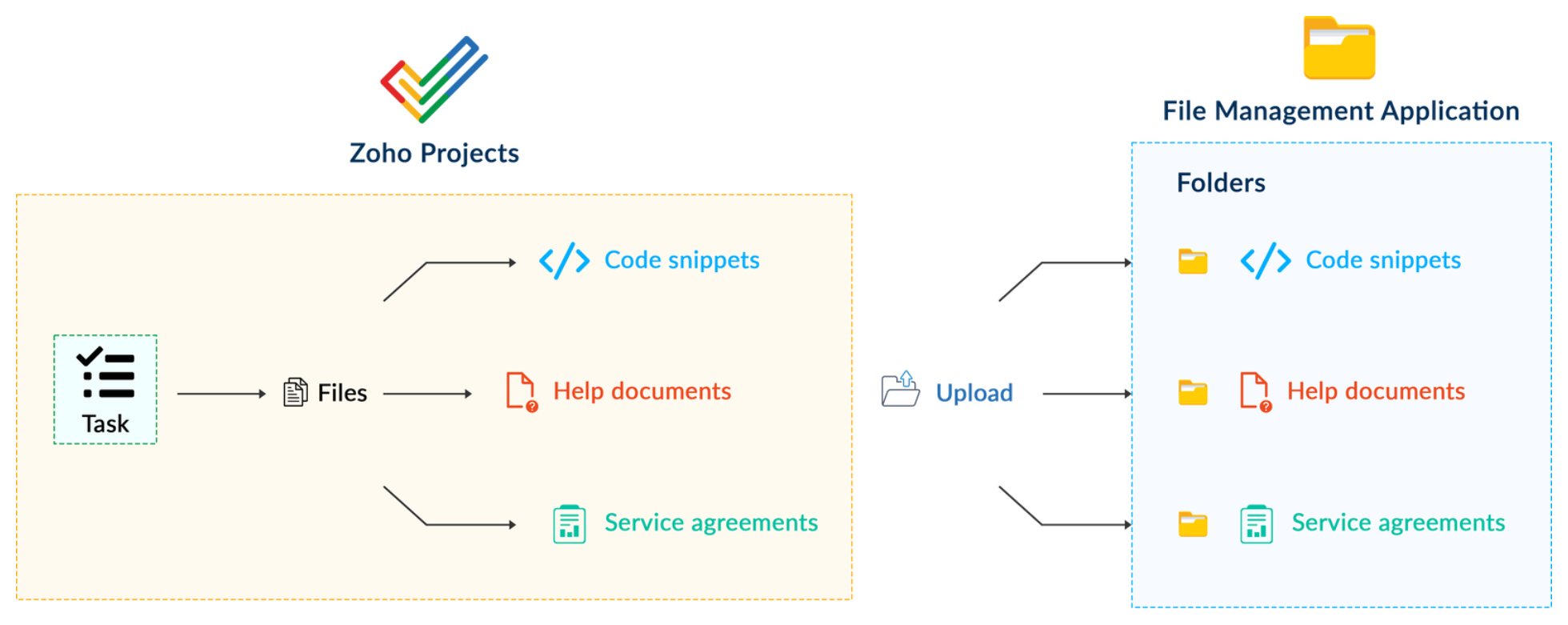
Dropbox offers a file request feature that allows you to collect files and organize them into folders. However, as we talked about in our previous post, manually categorizing and uploading task-related files to their respective file request folders in Dropbox would be a time-consuming and laborious activity. Instead, it would be more efficient to integrate Dropbox with Zoho Projects so that uploading task files to Dropbox file request folders can be done instantly from within Zoho Projects.
How can it be sorted?
You can create a connection between Zoho Projects and Dropbox. With the secure connection setup, the file request folders available in Dropbox can be listed on the task details page of Zoho Projects through an extension. You may then easily upload files from Zoho Projects to their corresponding folders in Dropbox, saving time and making you more organized.
What are the components required to achieve this use case?
- A connection between Zoho Projects and Dropbox.
- An extension configuration that includes:
- Creating an extension
- Configuring the plugin manifest
- Setting up the widget code to display the Dropbox file request folders inside the Zoho Projects task details page.
Now, let's see how we can achieve each of these components.
1. Creating a secure connection using the Connection feature
- Log in or sign up into developer.zoho.com.
- Go to Sigma and access your workspace.
- Once you enter your workspace, select the Connections section in Sigma.
Note: Connections created in Zoho Projects are also accessible within the Connections section in Sigma. These connections can be used in extensions to connect with other applications.
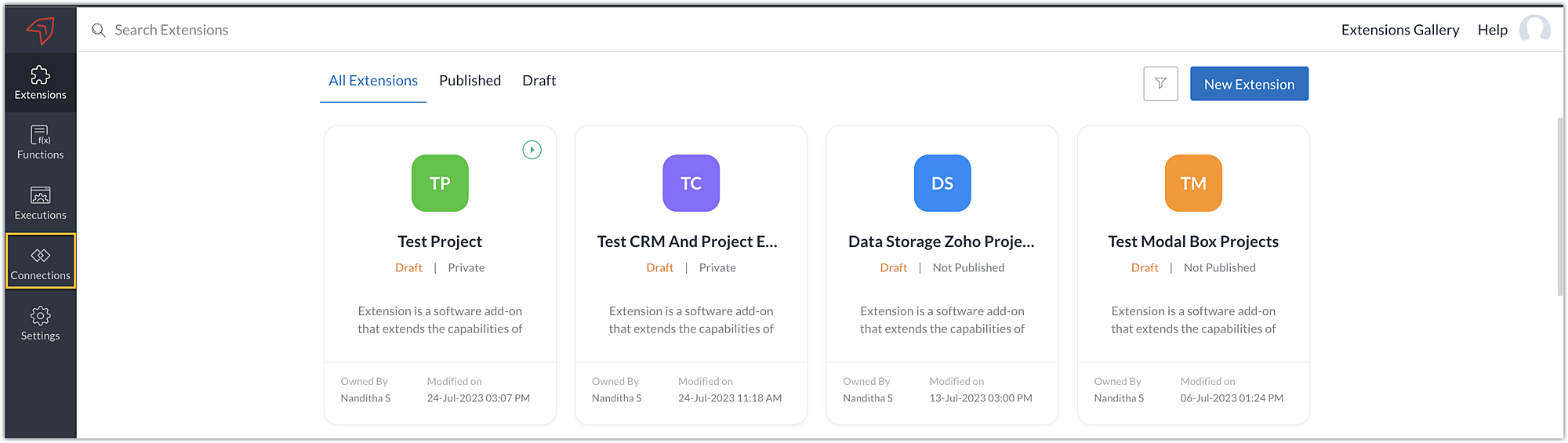
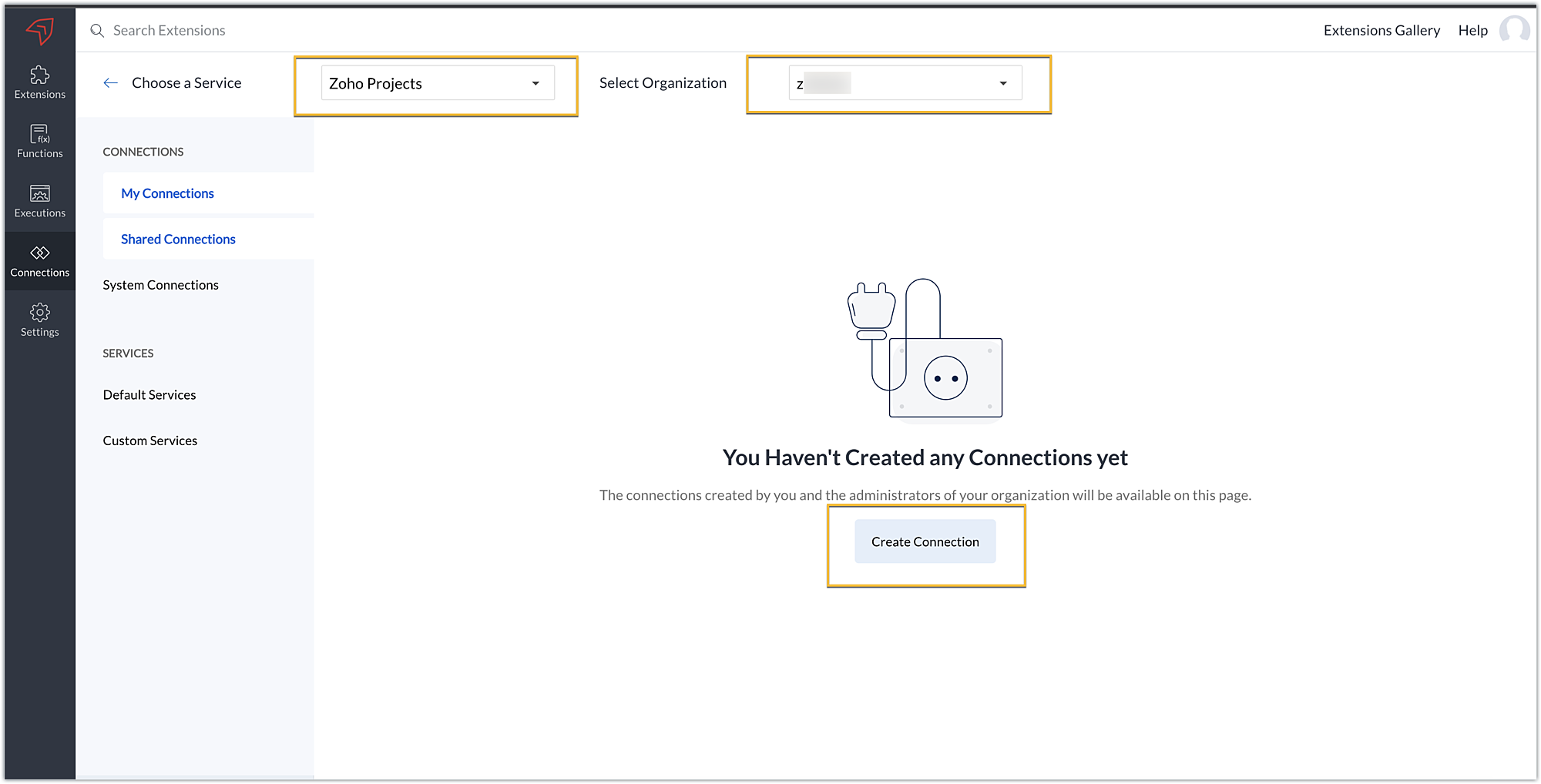
- Choose the service as Zoho Projects and select your Zoho Projects organization. Click on Create Connection.
- Sigma offers a list of default services from which you can choose and easily connect with Zoho Projects. If the application you want to integrate isn’t in the default list, you can add and build a connection with it using the custom services option.
Note: If you’re looking to connect Zoho Projects with another Zoho Product that also follows the OneAuth authentication mechanism, select the service Zoho OneAuth from the Default Services list to create the connection.
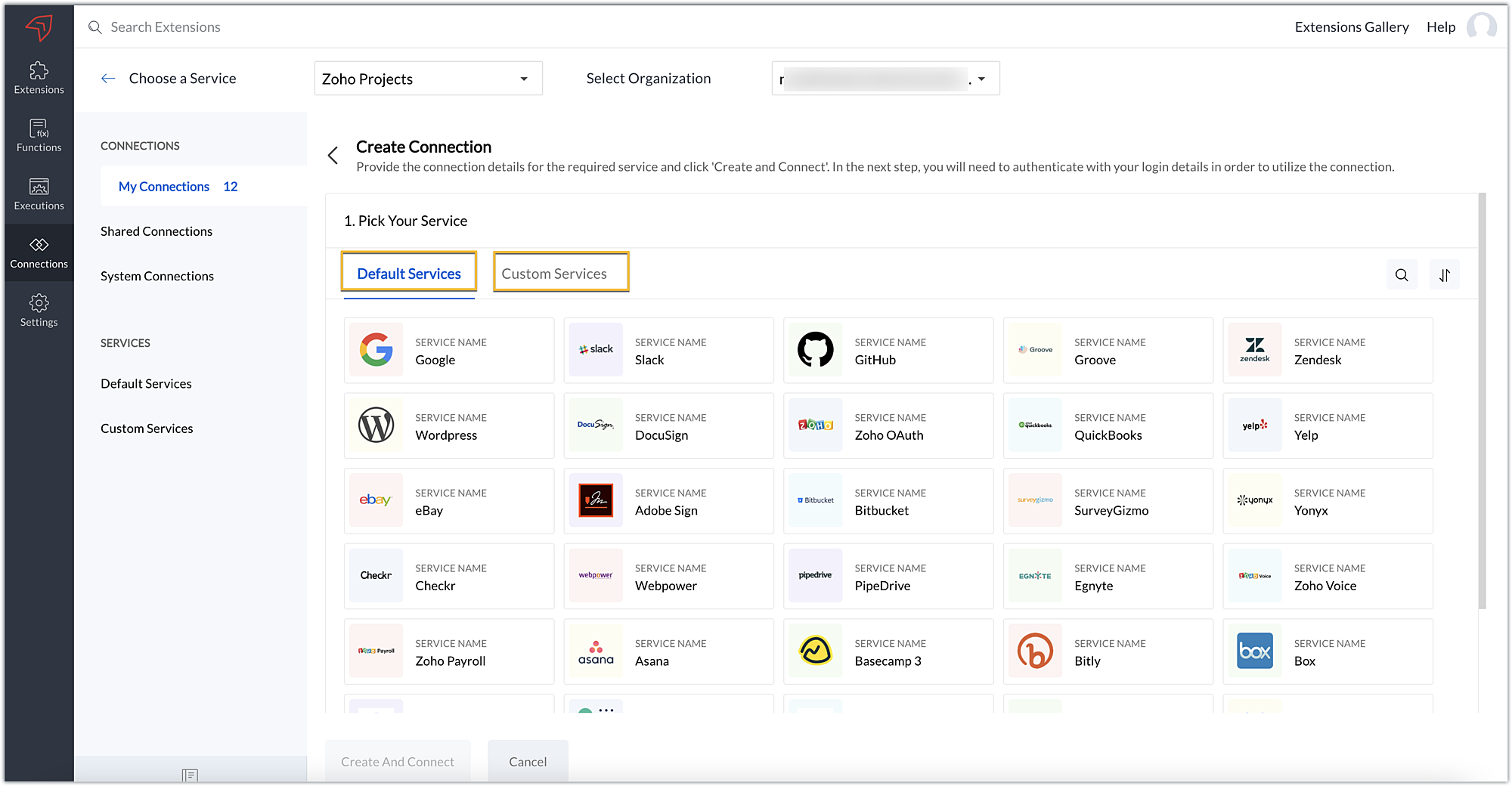
- In our example, the application to connect with Zoho Projects is Dropbox, and because it’s in the Default Services list, go ahead and choose Dropbox.
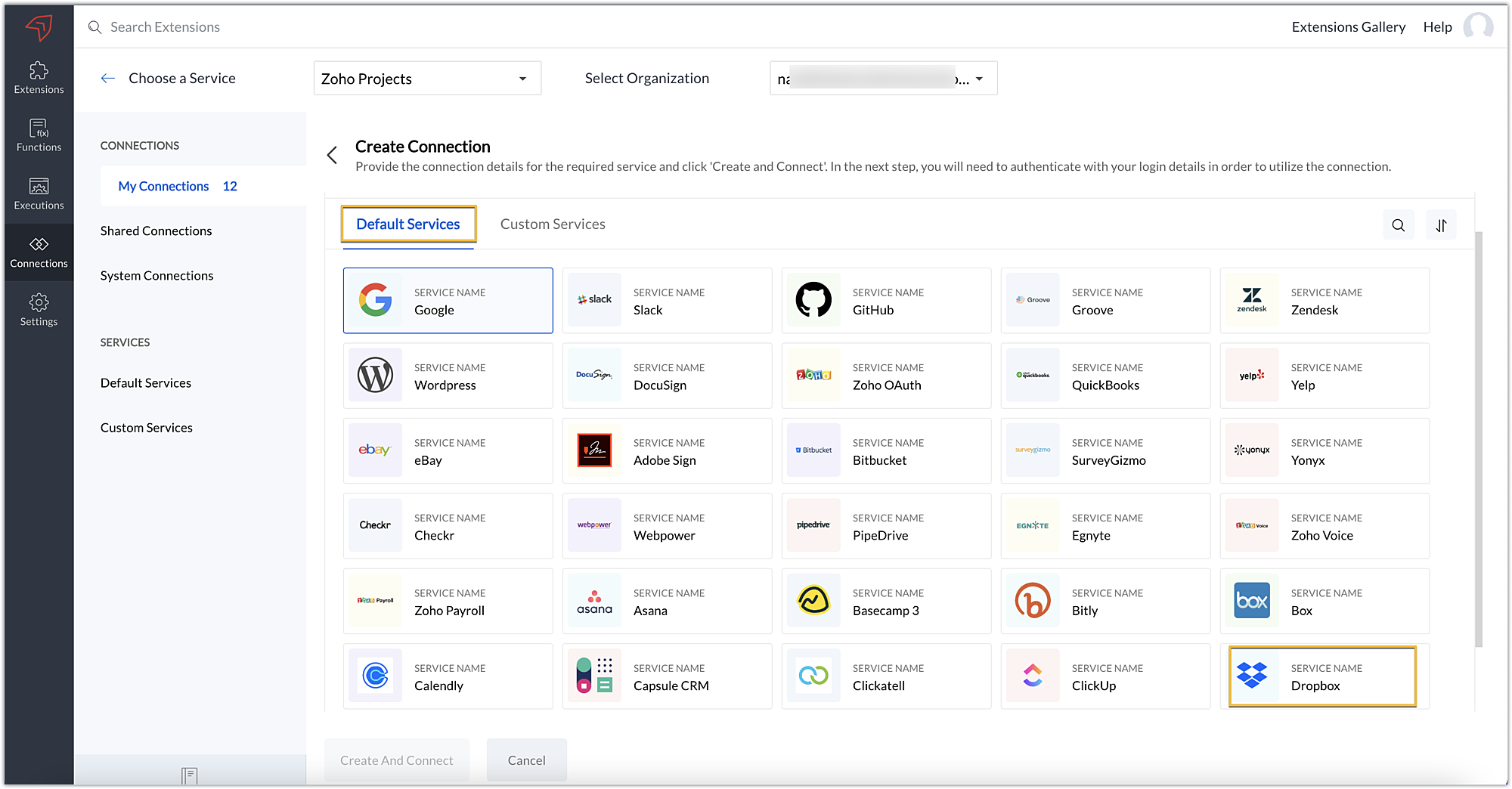
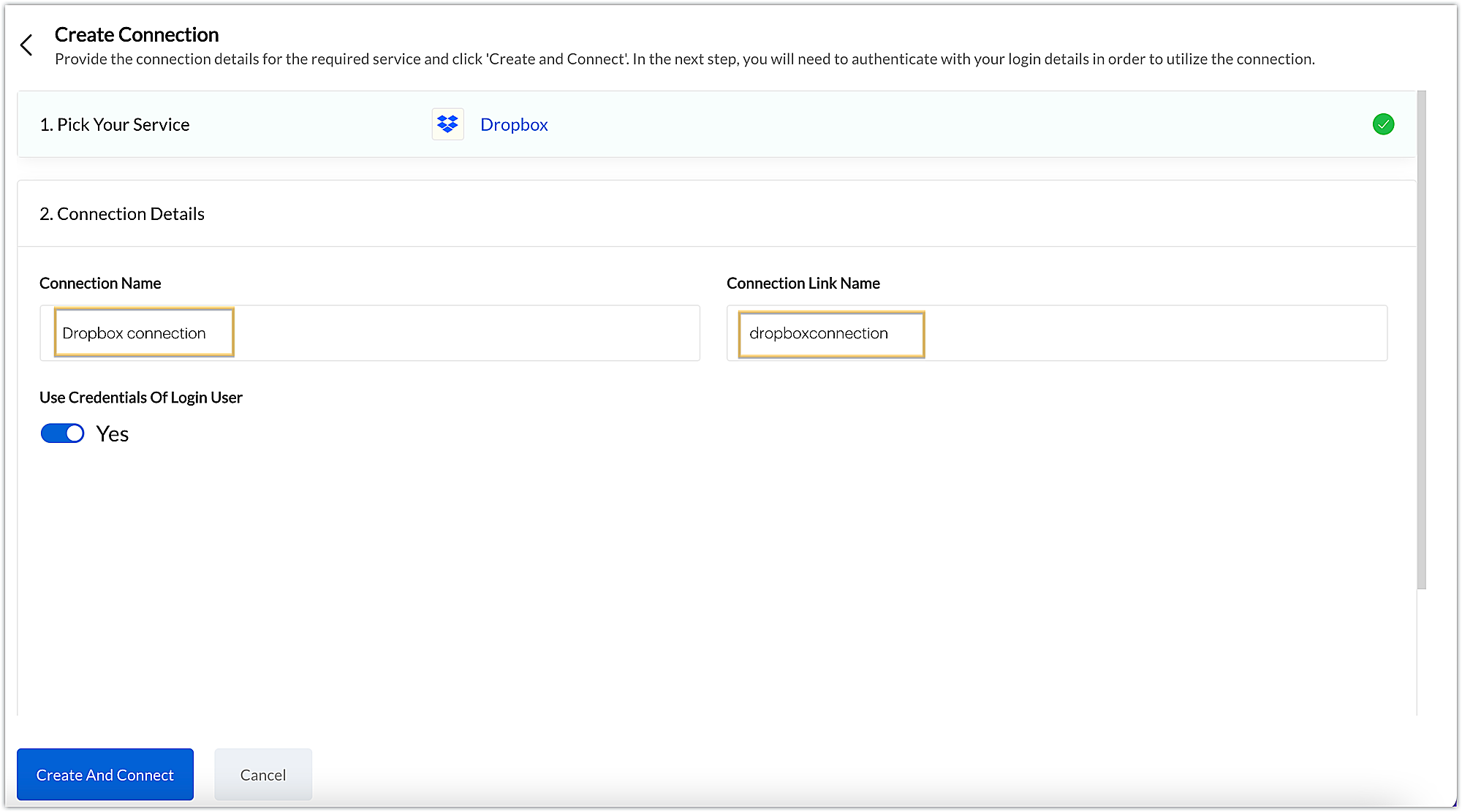
- After choosing the service, enter the connection name. A connection link name will be populated automatically.
- Toggle Use credentials of login user to Yes if you want every user installing the extension to access the connection using their own login credentials, or No if admin credentials are enough to access the connection.
- In our example, we'll proceed with the former. So toggle to Yes, and then click Create and connect.
Note: For services in which the option to choose the scopes is displayed, choose the necessary scopes, and then click Create and connect.
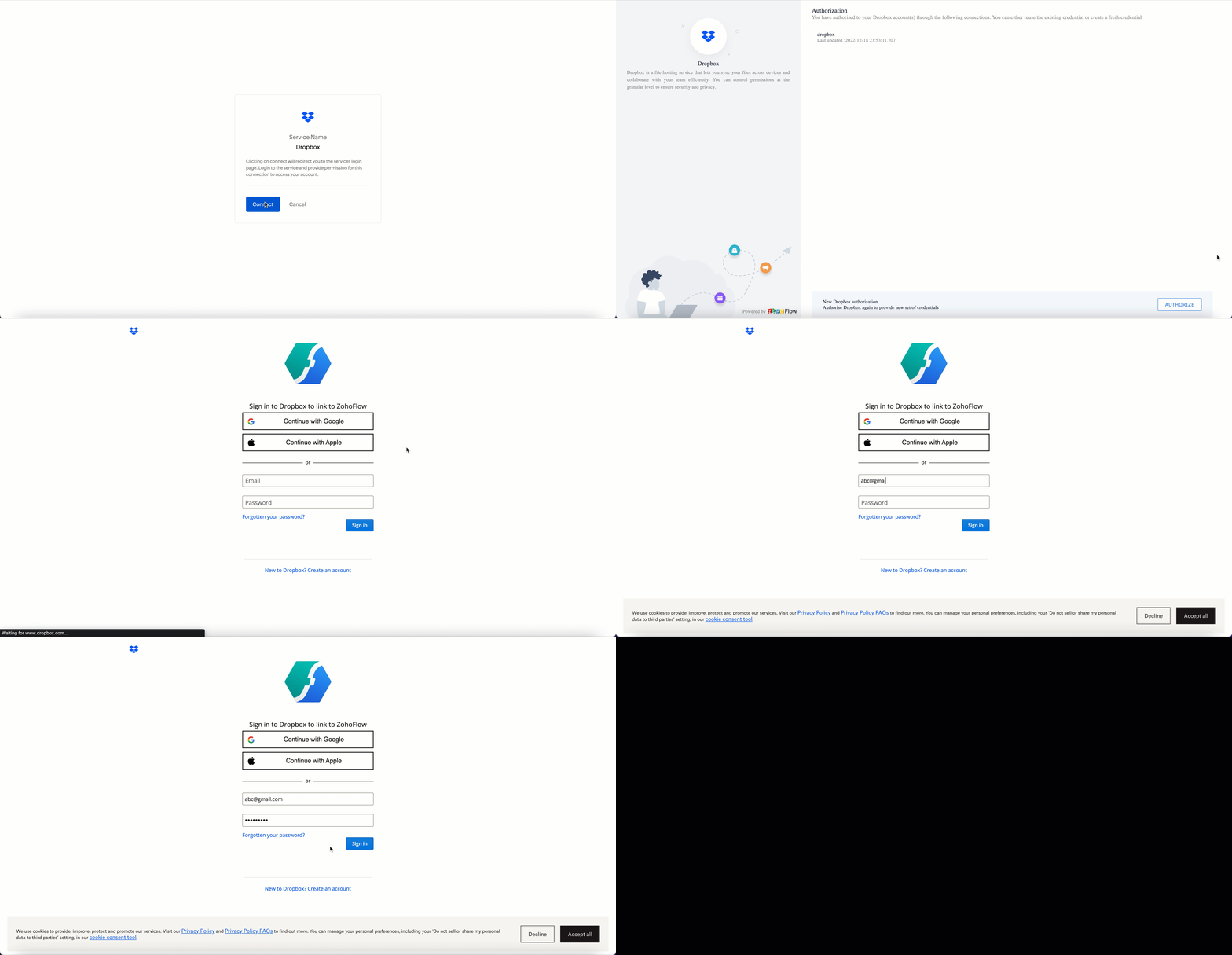
- You’ll be directed through a series of authorization steps before being prompted to connect with Dropbox by entering your login information.
- The connection will be established successfully once you sign in with Dropbox, and you will be redirected to the Connection Summary details page in Sigma.
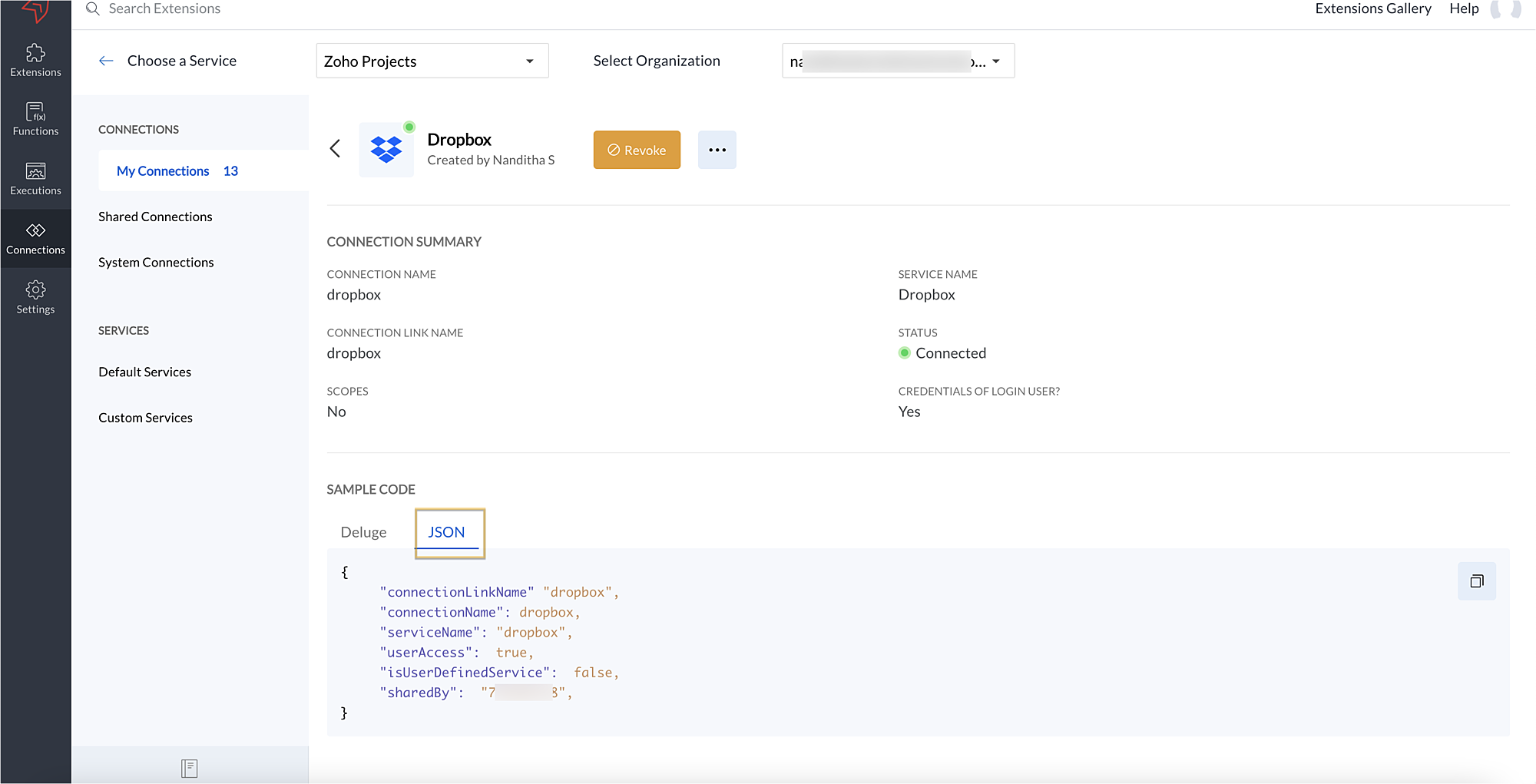
- To access this connection as part of an extension, you’ll need to configure the sample code provided under the JSON section in the plugin-manifest.json file. We’ll explore this in the next section.
2. Extension configuration
Now that we've successfully established our connection, let's look at how we can achieve our use case feature of displaying the Dropbox file request folder within the Zoho Projects task detail page. As mentioned earlier, to accomplish this, we’ll need to implement the following measures.
A. Create an extensionB. Configure the plugin-manifest.json fileC. Set up the widget code
Let's explore these steps in order.
A. Create an extension
- Create an extension for Zoho Projects using the Sigma cloud editor.
B. Configure the plugin-manifest.json file
- As previously stated, to access the connection established between Zoho Projects and Dropbox, the connection must first be configured in the plugin-manifest.json file.
- Copy the JSON sample code from the Connection Summary Details page and paste it into the plugin-manifest.jsonfile as the value for the connections key.
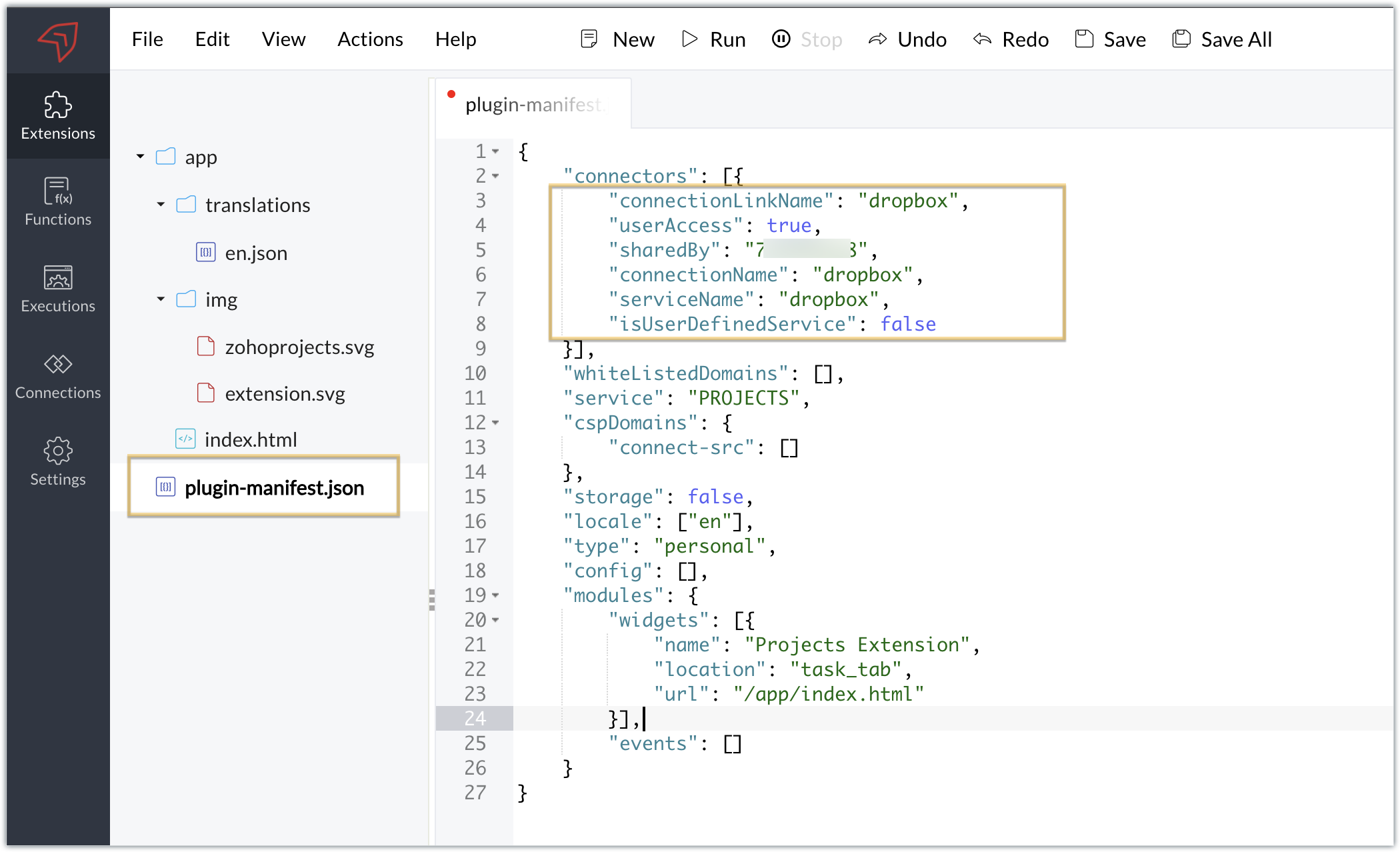
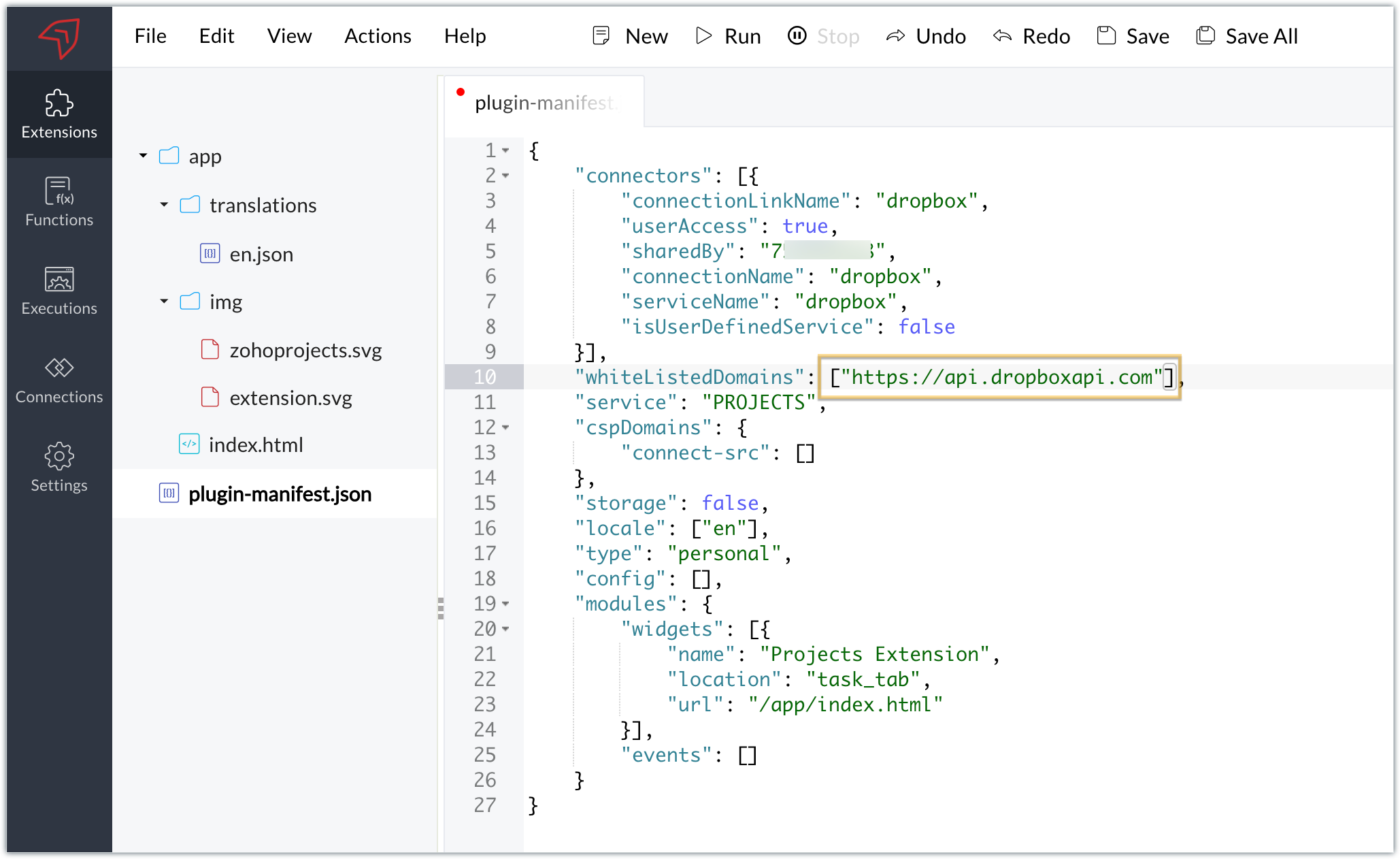
- You will also need to white list the Dropbox domain for Dropbox calls to be processed without being blocked.
- Include the domain in the plugin-mainfest.json file as the value for the whiteLitsedDomains key.
- As we saw in our earlier post, the plugin-manifest.json file includes a widget called Projects Extension by default. For our example, because we’re connecting with Dropbox and constructing a widget that will include Dropbox request folders to upload files, enter the widget name and location.
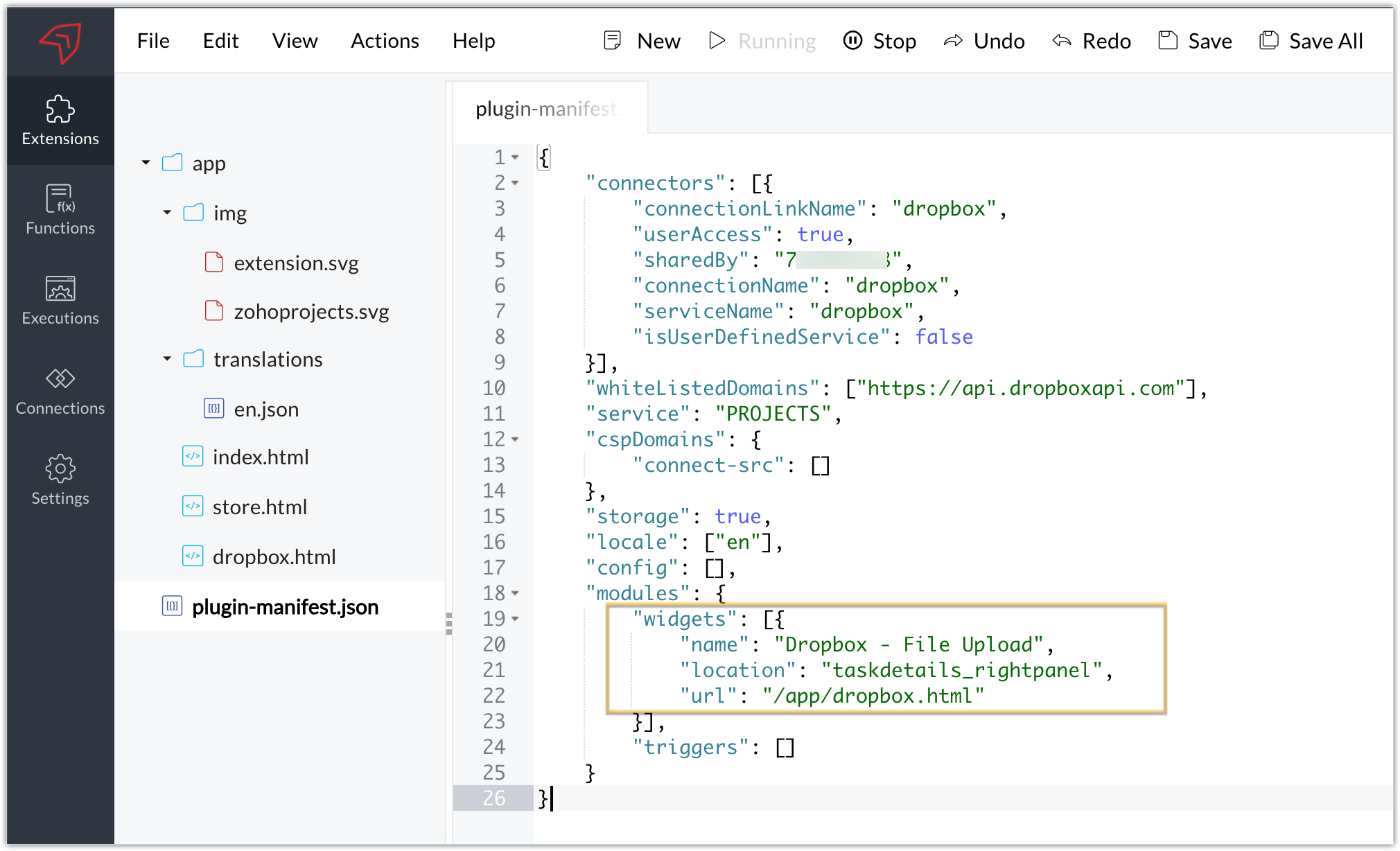
- The final configured plugin-manifest.json file for our example would be as follows:
- {
- "connectors": [{
- "connectionLinkName": "dropbox",
- "userAccess": true,
- "sharedBy": "xxxxxxx",
- "connectionName": "dropbox",
- "serviceName": "dropbox",
- "isUserDefinedService": false
- }],
- "whiteListedDomains": ["https://api.dropboxapi.com"],
- "service": "PROJECTS",
- "cspDomains": {
- "connect-src": []
- },
- "storage": true,
- "locale": ["en"],
- "config": [],
- "modules": {
- "widgets": [{
- "name": "Dropbox - File Upload",
- "location": "taskdetails_rightpanel",
- "url": "/app/dropbox.html"
- }],
- "triggers": []
- }
- }
C. Setting up the widget code
Now, that we’ve created an extension and configured the plugin manifest file, let's finally set up the widget code in order to display all Dropbox file request folders inside our task details right panel.
Dropbox.html widget code: Please find the widget code snippet as an attachment in this post.
- In this widget code, we’ve invoked the Dropbox API to list file request folders by constructing and passing the required data along with the connection we had established for Dropbox.
- The API will be invoked and return all of the file request folders in the task details right panel, from which users can click on the link and directly upload files to Dropbox from within a task in Zoho Projects itself.
Sample output
- Once the code is setup, publish and install the extension to check the functionality in the Zoho Projects portal.
- Enter a task and click the extensions icon in the right panel.
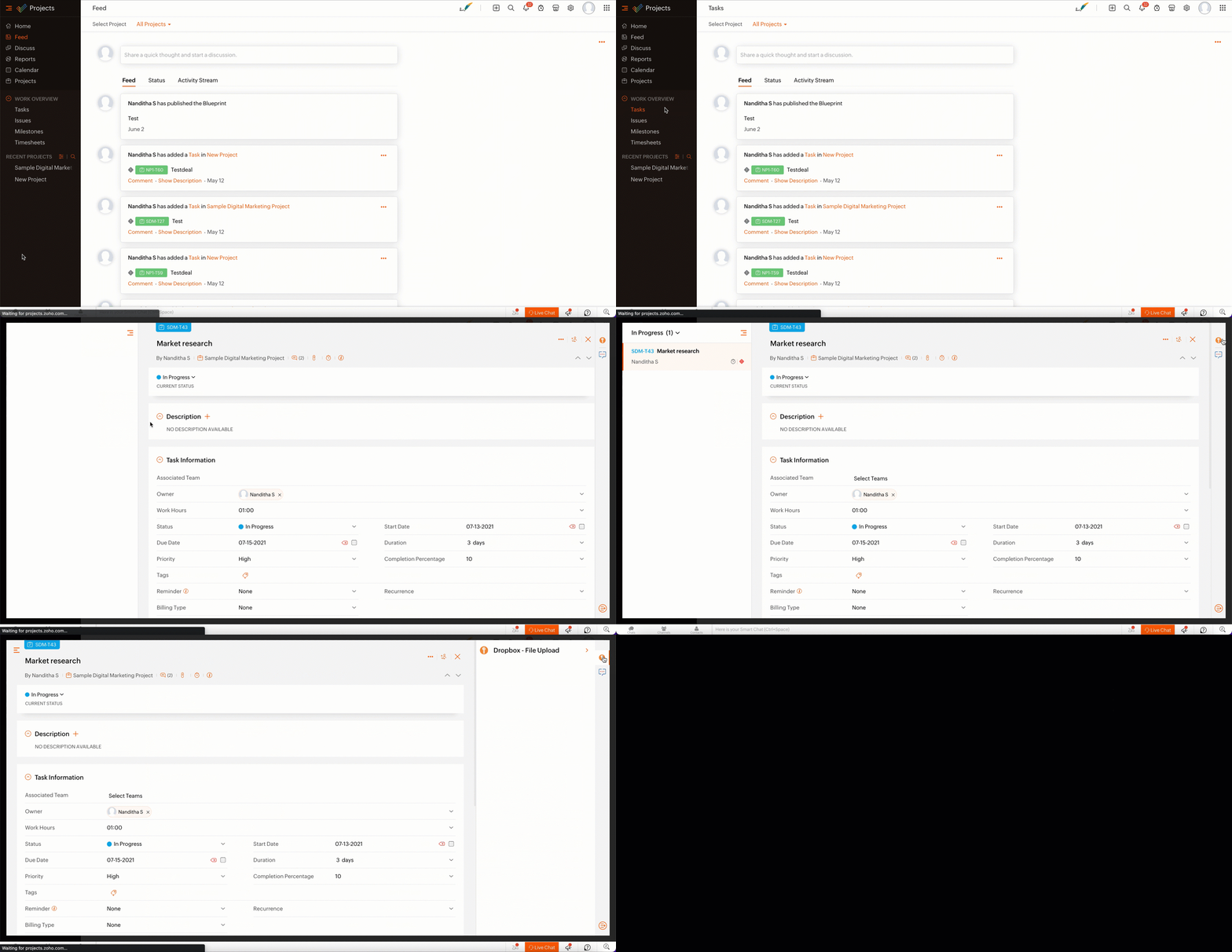
- From the lists of your Dropbox file requests, select the requests to which you wish to upload files.
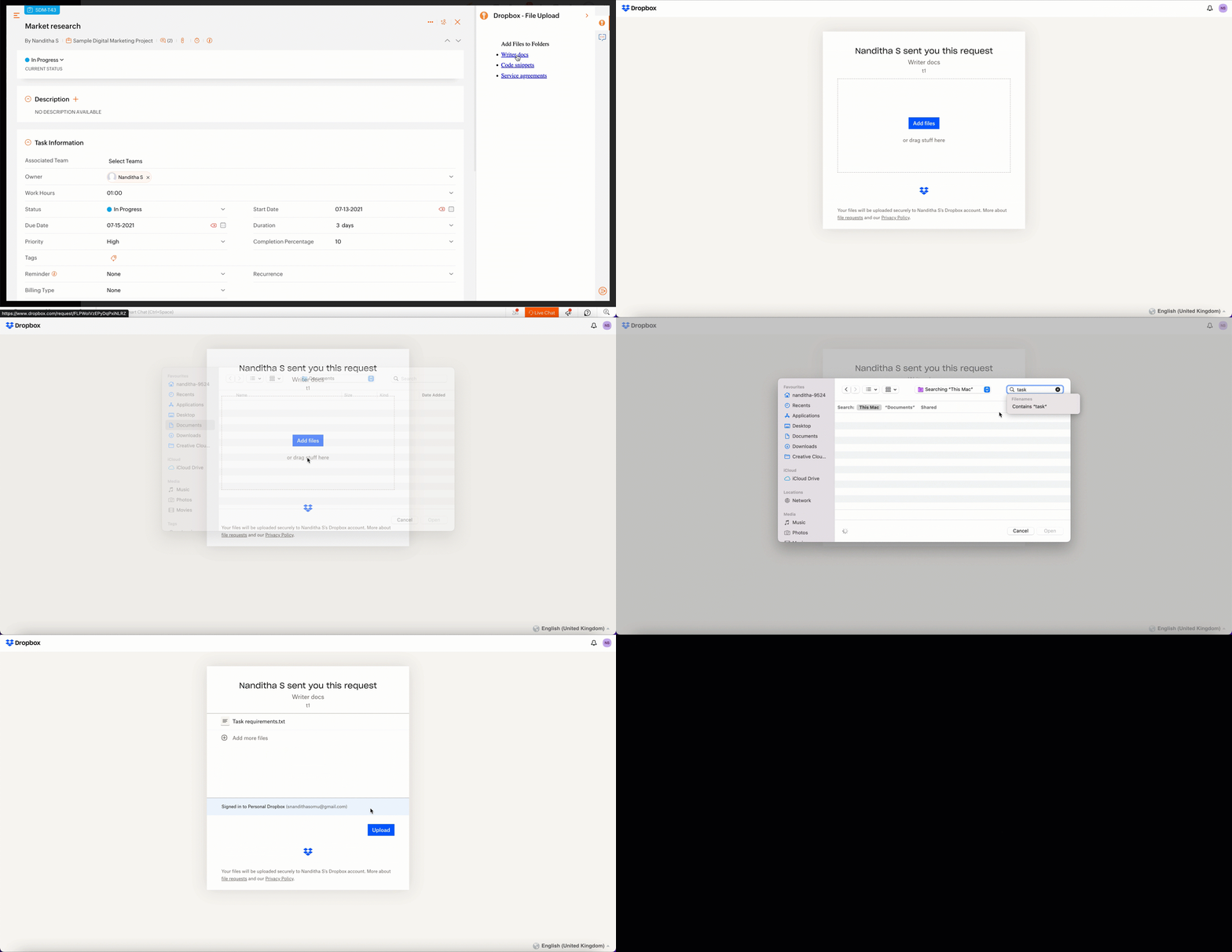
- The file will be successfully uploaded in the respective Dropbox file request.
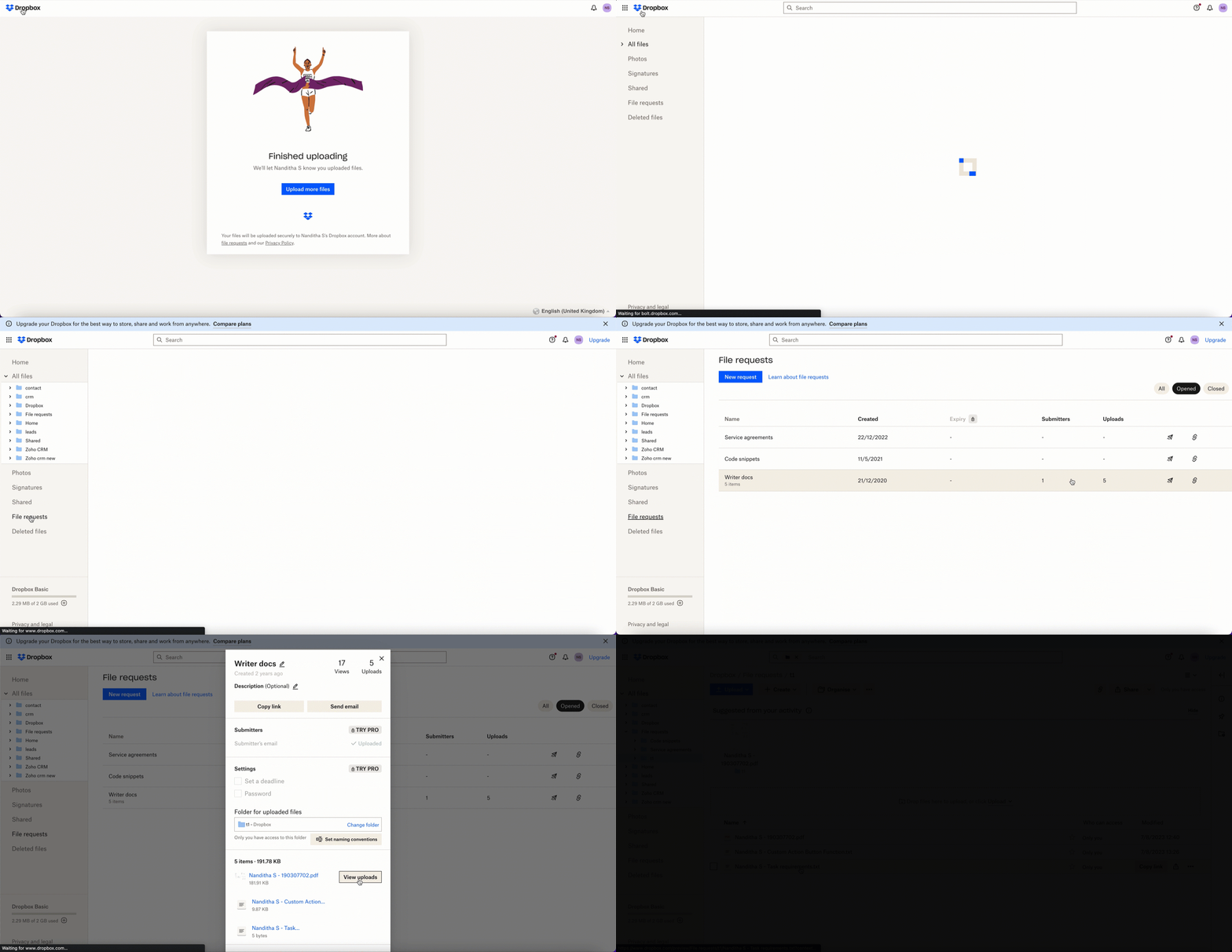
We’ve demonstrated how to upload files directly to Dropbox file request folders from within Zoho Projects in this example. As part of your extension, you can use the Connections feature to do a variety of tasks, some of which are highlighted below.
- View and update files associated with a certain request.
- Create Dropbox folders and share them with collaborators.
Connections, therefore serves as a powerful tool that assists you in establishing a connection with other apps and performing smooth data transactions across your applications, thereby improving business functions and optimizing your work.
We hope this information was useful to you. Continue to follow us for further updates!

Sign up for a Zoho Developer account and start developing extensions for Zoho products using Sigma.
SEE ALSO
Topic Participants
Nanditha Somasundaram Somasundaram
Sticky Posts
Building extensions #10: Fetch customized user inputs, store them globally at the app level, and access them across entities
This data storage concept enables you to store data related to your extension for both entity properties and extension properties. In our previous piece, we looked at how to store data for entities using entity properties. In this post, we'll look atBuilding extensions #9: Store, retrieve, and access entity-specific data in widgets using data storage
Data storage - Overview Storing data related to the extension you are working on is essential. It can be saved as key-value pairs for an entity or extension, known as entity and extension properties, respectively. Data can be saved for the following entitiesBuilding extensions #7: Create custom widgets for a simplified end-user experience
Discover the benefits of using widgets! We explored the significance of widgets, prerequisites, and the availability of JS SDK methods as part of our previous post. In this post, let's go over a detailed example of using widgets along with certain ZohoBuilding extensions #6: Custom user interfaces with Widgets
Welcome to our post on Widgets for Zoho Projects! In our last post, we explored the significance of the connections feature, showed how to use it, and provided an example use case. In this article, we'll look at the importance of widgets, another featureBuilding extensions #5: Integrating applications with Zoho Projects through Connections
In our last post, we discussed the essential features that a Zoho Projects extension can provide. Starting with this post andin every subsequent post going forward, we'll go through each of those features in depth, one by one, with an example use case.
Recent Topics
【参加無料】東京 Zoho ユーザ交流会 NEXUS ー CRMで始めるマーケティング事例 / AI活用法(Zia Agents)
ユーザーの皆さま、こんにちは。コミュニティチームの藤澤です。 3月27日(金)に東京、新橋で東京 Zoho ユーザー交流会 NEXUS を開催します! 昨年度までより、さらにパワーアップして戻ってきました! ユーザー活用事例は、2人のユーザーさんからお話しいただきます。Zoho サービスの活用の幅を広げたい方や、他のユーザーの利用法を気軽に知りたい方など、多くの方にとって学びのあるセッションになること間違いなしです✨ また今年は、これまで以上に、AI機能にも焦点を当てて行く予定です。 初回として、Zoho社員からZohoIssue Exporting Data – CSRF Token Invalid Error
Dear Zoho Team, We are experiencing an issue when exporting data from our Analytics workspace. Whenever we attempt to export data from our analytical pool, the system displays the following alert message: Alert Message: The CSRF token is invalid. It couldDeluge Learning Series – Client functions in Deluge | January 2026
We’re excited to kick-start the first session of the 2026 Deluge Learning Series (DLS) with Client functions in Deluge. For those who are new to DLS, here’s a quick overview of what the series is all about: The Deluge Learning Series takes place on theZoho Mail 505 error I can not send email
Hi, I’m having issues sending emails from my custom domain email address. When I send emails to Outlook addresses, I receive an “Undeliverable 505” error. However, emails send and receive correctly when I use Gmail. This is important for my business,Multiple MFA Methods
With SMS-based MFA methods being discontinued, there is now no way to have mutliple MFA methods. I'd like to add my zoho account on two seperate phones using the Google Authenticator app. In the https://accounts.zoho.com/home#multiTFA/modes you can onlyReuse Standalone Function
I noticed that there's a missing information in documentation to reuse a standalone function and it is because the parameters require an argument. Here is my code and it is working. response = invokeurl [ url: "https://people.zoho.com/api/v3/function/sample/execute"Domain renewals
Need to know how hoe to renew the domainMX shopify problem
hello, i added all MX values in my shopify DNS - it shows those values on the shopify panel + your toolkit. I tried to send some email and it works, however on my gmail it says they cant verify this email. When i try to answer into my domain's email -Best Way to Manage Email Notifications While Running a Strategy Website
I am currently managing a content-based website, and I use Zoho Mail for handling contact forms, user queries, and collaboration emails. One challenge I am facing is organizing incoming emails efficiently, especially when messages come from differentWhat is the maximum email domains ?
I help manage about 20 associations and I'm looking for a way to centralize them in one place. Does Zoho Mail pro or enterprise support 20-30 domains for 3-5 users each?Add to Workdrive filter
I'm trying to create a filter that will upload attachments in emails and the e-mail body to a folder in workdrive. I am able to do one or the other (attachment, or e-mail content), but not both. I first tried it using the "Email (EML) + attachment" option.Forgot my admin Panel Id and password
Sir, I have an account , where a domain mycityestate.in is added for Zoho email , now it is hard for me to manage email because i have forgotten the Email account and password registered with Admin Panel of Zoho. Just need email name which is registeredMCP no longer works with Claude
Anyone else notice Zoho MCP no longer works with Claude? I'm unable to turn this on in the claude chat. When I try to toggle it on, it just does nothing at all. I've tried in incognito, new browsers, etc. - nothing seems to work.Knowledgebase SEO
We have a custom-domain mapped help center that is not restricted via login. I have some questions: a) will a robots.txt file still allow us to control indexing? b) do we have the ability to edit the sitemap? c) do category URLs get indexed by searchProblem with CRM Connection not Refreshing Token
I've setup a connection with Zoom in the CRM. I'm using this connection to automate some registrations, so my team doesn't have to manually create them in both the CRM and Zoom. Connection works great in my function until the token expires. It does not refresh and I have to manually revoke the connection and connect it again. I've chatted with Zoho about this and after emailing me that it couldn't be done I asked for specifics on why and they responded. "The connection is CRM is not a feature toNew Features: Repeat Last Action, Insert Cut/Copied Rows/Columns and Hyperlink
You might have noticed the constant updates to Zoho Sheet of late. Here are 3 more features that have been added to Zoho Sheet recently: F4 - Repeat Last Action Insert Cut/Copied Rows and Columns Insert Hyperlink Here is a screen cast demonstrating each of these features. Read further below to learn more about these new features. F4 - Repeat Last Action: You can now repeat the last action you made on your spreadsheet by using the keyboard shortcut, F4. It is quite handy and helps you get your workNeed help getting my mail on iPhone and Tablet
I need to access my Zoho mail via the iPhone Mail app. I have entered the login name, password and the incoming and outgoing servers, which my Mail Settings page says are imappro.zoho.com and smtppro.zoho.com. The iPhone keeps saying it cannot authenticate.Add an background image to an email template in CRM
Hi all, We wants to put an background image behind all our email templates. Is there a way to import this thru html. If i put the option background image in <body style="background-image:...</body> and i look to the preview it shows our background, butIs there a way to show contact emails in the Account?
I know I can see the emails I have sent and received on a Contact detail view, but I want to be able to see all the emails that have been sent and received between all an Accounts Contacts on the Account Detail view. That way when I see the Account detailHow do I bulk archive my projects in ZOHO projects
Hi, I want to archive 50 Projects in one go. Can you please help me out , How can I do this? Thanks kapilCopy contents of File Upload Field into Workdrive
Hello, I have set up our CRM so that a Workdrive folder is automatically created for each Deal via workflow, this adds the id of the folder into a dedicated field. We also have a field on each Deal called 'Approved Layout', which is a file upload field.Deleting a memorized email address
How can I delete a memorized email address? Even though the address has been deleted from Contacts, Zoho mail still auto suggests the address when typing it into the TO field. Thanks!ZeptoMail API
Hello Since today, we experience issues with the ZeptoMail API. When trying to send e-mails using: https://api.zeptomail.eu/v1.1/email we receive the error: (503) Site unavailable due to a traffic surge. Please try again shortly. I kindly ask you to identify553 Relaying disallowed. Invalid Domain - gzkcompany.ro
Hi there, Can you please assist me in getting the right domain settings? I just renewed my domain subscription, after expired and i got error: 553 Relaying disallowed. Invalid Domain - gzkcompany.ro Zoho mail can receive emails, but its impossible toNot able to receive emails for a while
I am not able to receive emails for a while now.Confirmation requested: eligibility and process to downgrade to Forever Free — tenant bigbanghawking.com
Thank you for your reply. I am testing Zoho Mail from Brazil with the tenant bigbanghawking.com (endpoint: mail.zoho.com) and we are currently on the Premium trial that expires 21/01/2026. Before deciding whether to pay or cancel, I need written confirmationZoho API v2.0 - get ALL users from ALL projects
Hello, I've been trying to work on an automatization project lately and I find it difficult to work with this strict structure. To be more explicit, if i would like to get all users participating in a project i would need to get all projects first. Same thing with projects. If i want to get all projects, I would need to get all portals first. The problem with this aproach is that it consumes a lot of time and resources. I want to ask if there is another way of gettingالموقع لا يقوم بالسداد
السلام عليكم ورحمة الله وبركاته وبعد من أمس وانا احاول السداد للدومين YELLOWLIGHT ولا اتمكن من السداد اقوم بتعبئة جميع البيانات ولكن دون جدوى يطلع لى حدث خطأ ماNew in Office Integrator: Enhanced document navigation with captions and cross references
Hi users, We're pleased to introduce captions, table of tables and figures, and cross-references in the document editor in Zoho Office Integrator. This allows you to structure documents efficiently and simplify document navigation for your readers fromWhere Do I set 24h time format in Cliq?
Where Do I set 24h time format? Thanks🎉 ¡Seguimos trayendo novedades a Español Zoho Community! 🎉 Confirmada la agenda y ubicación para los Workshops Certificados
Si todavía no te has hecho con tu entrada para nuestros Workshops Certificados del próximo 26 y 27 de marzo o, por el contrario, estabas esperando que confirmáramos dónde los celebraremos, ¡este post es para ti! 📍¿Dónde nos vemos?📍 Nuestros WorkshopsUser is already present in another account error in assigning users to marketing automation
Hello everyone Greeting, I had a problem in assigning user in marketing automation, when I try to add it I see this error: (User is already present in another account error) what should I do?How do I get complete email addresses to show?
I opened a free personal Zoho email account and am concerned that when I enter an email address in the "To", "CC", fields, it changes to a simple first name. This might work well for most people however I do need to see the actual email addresses showingWhat's New in Zoho POS - January 2026
Hello everyone, Welcome to Zoho POS’s monthly updates, where we share our latest feature updates, enhancements, events, and more. Let’s take a look at how January went. Sort and resolve conflicts Conflicts are issues that may arise when registers andOutlook is blocking incoming mail
Outlook is blocking all emails sent from the Zoho server. ERROR CODE :550 - 5.7.1 Unfortunately, messages from [136.143.169.51] weren't sent. Please contact your Internet service provider since part of their network is on our block list (S3150). It looksNot receiving email from customers and suppliers
I am getting error . most of the customers tell me not able to send me email please check i have attached screenshotCreate user
Hello I want to create user, but i get this error Unusual activity detected from this IP. Please try again after some time.File emails in Shared email folder
Hi, I am unable to allow users to collaborate in Shared email folders: User 1 shares a folder let's say "SharedTopic" with full permissions Users 2 and 3 can see this folder but are unable to add emails to this folder or search in this folder. For example,Consolidated report for multi-organisation
I'm hoping to see this feature to be available but couldn't locate in anywhere in the trial version. Is this supported? The main aim to go to ERP is to have visibility of the multi-organisation in once place. I'm hopeful for this.How to Switch from Outlook for Mac to Outlook for Windows
The most often used file formats for users to manage crucial data are OLM and PST files. PST files keep a copy of data on the configured system from Outlook, while the OLM file contains the Mac Outlook data items, which are only accessible with OutlookNext Page