Kaizen #205 - Answering Your Questions | Managing Picklists and Enabling History Tracking via Zoho CRM APIs
Hello everyone!
Welcome back to another post in our Kaizen series.
In this post, we will look at how you can manage picklist fields in Zoho CRM using APIs. This topic was raised as feedback to Kaizen #200, so we are taking it up here with more details.

In this post, we will cover the following:
- What is a picklist field in Zoho CRM?
- Picklist vs Multi-select Picklist
- Working with picklist fields via APIs
- Creating a picklist field using the Create Custom Field Metadata API
- Updating a picklist field using the Update Custom Field Metadata API
- Assigning picklist values when creating records using the Insert Records API
- Updating picklist values in existing records using the Update Records API
- History tracking for picklists
- What is history tracking for picklists in Zoho CRM?
- Use case
- Enabling history tracking for a picklist using the Create Custom Fields API
What is a picklist field in Zoho CRM?
A Picklist field is a drop-down field in Zoho CRM that contains a predefined list of values. While creating or updating a record, you can select one value from this list instead of entering it manually. This helps you avoid typing errors.
Example :
A Region field with values East, West, North, and South.
If a lead is from the East, the user simply selects East from the picklist instead of typing it manually.
Picklist vs Multi-select Picklist
Picklist | Multi-select Picklist |
Users can select only one value from the list. | Users can select multiple values at once. |
A standard Region picklist works when a record belongs to only one region. Example : East | A Multi-select Region picklist works when a record spans multiple regions. Example : East, North |
Global picklist / Global set : User can create a picklist in common and associate the created picklist across the modules to maintain accuracy. Refer to Kaizen #161: Global Sets using Zoho CRM APIs for more details.
Working with picklist fields via APIs
Creating a picklist field using the Create Custom Field API
You can create a new Picklist field in a module by calling the Create Custom Field Metadata API. For example, you can create a picklist field named Region with the values: East, West, North, South.
Request URL : {{api-domain}}/crm/v8/settings/fields?module=Leads
Request Method : POST
Sample Input
When creating a picklist field, set its data type as picklist and provide the list of options, each with a mandatory display_value. You can also configure additional properties such as actual_value, lexical sorting, and color coding.
{ "fields": [ { "field_label": "Select Region", "data_type": "picklist", // Specify the data type as picklist "tooltip": { "name": "info_icon", "value": "Select your region here" }, "profiles": [ { "id": "5725767000000026011", "permission_type": "read_write" } ], "pick_list_values": [ { "display_value": "East", //The unique display value for the picklist, which will be displayed in the CRM UI. Use the display_value in API requests during create, update, and upsert operations. "actual_value": "IN_East" //The unique reference value associated with the particular option. }, { "display_value": "West", "actual_value": "IN_West" }, { "display_value": "North", "actual_value": "IN_North" }, { "display_value": "South", "actual_value": "IN_South" } ], "pick_list_values_sorted_lexically": true, //Sorts options alphabetically. Default value is false. "enable_colour_code": true //Allows color coding for picklist options. Default value is false. } ] } |
Note : To create a multi-select picklist field, set the data_type key to multiselectpicklist in the request body ("data_type": "multiselectpicklist").
Sample Response
{ "fields": [ { "code": "SUCCESS", "details": { "id": "5725767000007613005" }, "message": "field created", "status": "success" } ] } |
Updating a picklist field using the Update Custom Field API
The PATCH - Field Metadata API lets you modify an existing Picklist field. Use the Get Fields Metadata API to get your picklist field ID.
You can:
- Add new options
- Update the picklist
- Remove existing options using Update Custom Layout API
Here is a sample request that updates the Select Region dropdown field in the Leads module.
Request URL : {{api-domain}}/crm/v8/settings/fields/5725767000007613005?module=Leads
Request Method : PATCH
Adding a new option to the existing picklist field
Sample Input
{ "fields": [ { "pick_list_values": [ { "display_value": "Central", //adding a new option to the existing picklist field "actual_value": "IN_Central" } ], } ] } |
Updating picklist
{ "fields": [ { "profiles": [ { "id": "5725767000000026011", "permission_type": "read_only" //updating the permission_type } ], "pick_list_values": [ { "display_value": "South Region", //updating the display field's value "id": "5725767000007613010" //unique ID of the option } ], "enable_colour_code": false //disabling color code for the options } ] } |
Note : Use the actual_value or unique ID of a picklist option to update its display value. Use the Get Fields Metadata API or Get Layouts Metadata API to get the details.
Removing existing options using Update Custom Layout API
To remove picklist values, keep only the required options in your input. Any options not included in the request will automatically move to the unused section.
First, fetch the required layout, section, field, and option IDs using the Get Layouts Metadata API. Then, in your request body, specify only the picklist values you want to retain.
Request URL : {{api-domain}}/crm/v8/settings/layouts/5725767000000091055?module=Leads
Request Method : PATCH
Sample Input
{ "layouts": [ { "id": "5725767000000091055", //layout id "sections": [ { "id": "5725767000000209001", //section id "fields": [ { "id": "5725767000007613005", //field id "pick_list_values": [ { "display_value": "Central", "id": "5725767000007626001" }, { "display_value": "East", "id": "5725767000007613004" } ] } ] } ] } ] } |
Here, Central and East regions remain as active picklist options, and West, North, and South regions are moved to the unused section.
Updated response
Use the Get Fields Metadata API to check the updated response. The Central and East are still active options (type: used), and North, South, and West are inactive options (type: unused)
{ "fields": [ . . . { "field_label": "Select Region", "id": "5725767000007613005", "api_name": "Select_Region", "pick_list_values": [ { "display_value": "-None-", "sequence_number": 1, "reference_value": "-None-", "colour_code": null, "actual_value": "-None-", "id": "5725767000007613013", "type": "used" //default option }, { "display_value": "Central", "sequence_number": 6, "reference_value": "Central", "colour_code": null, "actual_value": "IN_Central", "id": "5725767000007626001", "type": "used" }, { "display_value": "East", "sequence_number": 2, "reference_value": "East", "colour_code": null, "actual_value": "IN_East", "id": "5725767000007613004", "type": "used" }, { "display_value": "North", "sequence_number": 4, "reference_value": "North", "colour_code": null, "actual_value": "IN_North", "id": "5725767000007613008", "type": "unused" }, { "display_value": "South", "sequence_number": 5, "reference_value": "South", "colour_code": null, "actual_value": "IN_South", "id": "5725767000007613010", "type": "unused" }, { "display_value": "West", "sequence_number": 3, "reference_value": "West", "colour_code": null, "actual_value": "IN_West", "id": "5725767000007613006", "type": "unused" } ], "data_type": "picklist" } ] } |
Assigning picklist values using the Insert Records API
When you insert a record, you can directly pass the picklist option’s display value (not the ID) in the request body.
Request URL : {api-domain}/crm/v8/{module_api_name}
Request Method : POST
Sample Input
{ "data": [ { "Company": "Zylker", "Last_Name": "David", "Select_Region": "Central" // Picklist value to assign } ] } |
Note:
- When creating, updating, or upserting records,
- You can either pass an existing picklist value or add a new one, through the API. Please note that the new value will only be stored in that record, and will not be added to the picklist field’s metadata.
- In the UI, you can only select from the available dropdown options.
- Always use the display_value of the picklist option, not the picklist option’s ID.
- You can also assign the default option (-None-). In this case, the picklist field’s value will be stored as null ("Select_Region": null)
Sample Response
{ "data": [ { "code": "SUCCESS", "details": { "Modified_Time": "2025-08-23T04:51:39-07:00", "Modified_By": { "name": "Patricia Boyle", "id": "5725767000000411001" }, "Created_Time": "2025-08-23T04:51:39-07:00", "id": "5725767000007623017", "Created_By": { "name": "Patricia Boyle", "id": "5725767000000411001" } }, "message": "record added", "status": "success" } ] } |
Updating picklist values in existing records using the Update Records API
When updating, you also use the picklist display value in the field.
Request URL : {api-domain}/crm/v8/Leads/5725767000007628002
Request Method : PUT
Sample Input
{ "data": [ { "Select_Region": "West" // New picklist value } ] } |
This will replace the existing picklist value with West.
History tracking for picklists
What is history tracking for picklists in Zoho CRM?
You can enable history tracking for a picklist field using the Create Custom Field API. Once enabled, Zoho CRM automatically creates a related list for the tracked picklist and a separate module.
Every time the picklist value changes, Zoho CRM creates a new entry in this related list. Each entry shows the old value, the new value, who made the change, and when it was made, and how long the record stayed in the previous value before moving to the next one.
Use case
Zylker's sales team tracks lead progress through the statuses such as New, Contacted, Qualified, and Converted. The team wants to know how long a lead remains in each status and identify if follow-ups are delayed or leads are not progressing.
You can achieve this by enabling history tracking on the Status picklist. You can also monitor every status change, who made it, and how long the lead stayed in the previous status. This helps the team monitor, identify delays, and improve the follow-up process.
The log stores:
- New Value - updated region in the Moved_To__s key.
- Changed By - user who made the update in the Modified_By key.
- Changed On - date and time when the region was changed in the Last_Activity_Time key.
- Duration - how long the record stayed in the previous value before the change in the Duration_Time and Duration_Days keys.
Enabling history tracking for a picklist using the Create Custom Fields API
Request URL : {{api-domain}}/crm/v8/settings/fields?module=Leads
Request Method : POST
Sample Input
{ "fields": [ { "field_label": "Status", "data_type": "picklist", "pick_list_values": [ { "display_value": "New", "actual_value": "New" }, { "display_value": "Contacted", "actual_value": "Contacted" }, { "display_value": "Qualified", "actual_value": "Qualified" }, { "display_value": "Converted", "actual_value": "Converted" } ], "history_tracking_enabled": true, //(mandatory) Enables history tracking for the picklist "history_tracking": { "related_list_name": "Status History", //Lets you give a custom name to the history related list that CRM creates. "duration_configuration": "time", //Decides how to track the timing of changes: days - History is tracked by days and time - History is tracked by time. Note : Before specifying the time value, enable the duration customization feature in your organization by contacting support@zohocrm.com. "followed_fields": [ // The followed_fields lets you retrieve additional field values whenever the picklist value changes. { "api_name": "Owner" } ] } } ] } |
Sample Response in UI
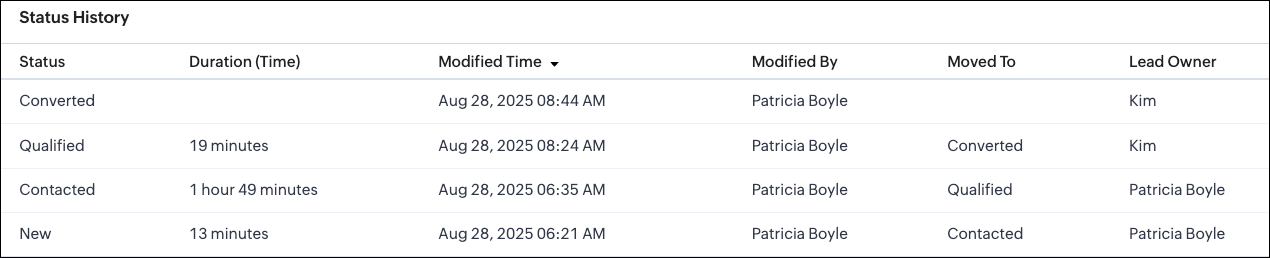
Sample Response via API
Whenever a picklist option changes, the system creates a new record in the related list module. In this example, Status History is the related list module. The sample response below shows how a particular change looks when retrieved using the Get Records API.
Request URL : {{api-domain}}/crm/v8/Status_History/5725767000007739323
Request Method : GET
Sample Response
{ "data": [ { "Status": "Contacted", "$approval": { "delegate": false, "takeover": false, "approve": false, "reject": false, "resubmit": false }, "Modified_Time": "2025-08-28T06:35:15-07:00", "$currency_symbol": "$", "$field_states": null, "$review_process": null, "$editable": true, "Duration_Time": "6568847", //The system stores the duration in milliseconds. "$sharing_permission": "full_access", "Lead_Owner": { "name": "Patricia Boyle", "id": "5725767000000411001" }, "Moved_To__s": "Qualified", "$orchestration": false, "Last_Activity_Time": "2025-08-28T08:24:44-07:00", "Full_Name": { "name": "Zylker", "id": "5725767000007735001" }, "Modified_By": { "name": "Patricia Boyle", "id": "5725767000000411001", }, "$review": null, "$process_flow": false, "$in_merge": false, "id": "5725767000007739350", "$approval_state": "approved", "$pathfinder": false, "$zia_visions": null } ] } |
Note :
- You can select up to 10 fields in total, with a maximum of 5 user fields for all modules except Deals.
- Encrypted fields cannot be specified.
- In the Deals module,
- History tracking is enabled by default for the Stage picklist field.
- You cannot enable history tracking for any other picklist field in the Deals module.
- You can only update the existing Stage picklist field using the Update Custom Field API.
- You can add up to 6 followed fields, with a maximum of 5 user fields.
We hope this post helps you confidently manage picklists and track their history in Zoho CRM. Try it out, and let us know your experience in the comment section or reach out to us at support@zohocrm.com
Stay tuned for more insights in our upcoming Kaizen posts!
Cheers!

Previous Kaizen : Kaizen# 204 - Answering Your Questions - Perform Field Updates before Blueprint transition via Client Script | Kaizen Directory : Home
Related Links :
Topic Participants
Subramanian K
Sticky Posts
Kaizen #198: Using Client Script for Custom Validation in Blueprint
Nearing 200th Kaizen Post – 1 More to the Big Two-Oh-Oh! Do you have any questions, suggestions, or topics you would like us to cover in future posts? Your insights and suggestions help us shape future content and make this series better for everyone.Kaizen #226: Using ZRC in Client Script
Hello everyone! Welcome to another week of Kaizen. In today's post, lets see what is ZRC (Zoho Request Client) and how we can use ZRC methods in Client Script to get inputs from a Salesperson and update the Lead status with a single button click. In thisKaizen #222 - Client Script Support for Notes Related List
Hello everyone! Welcome to another week of Kaizen. The final Kaizen post of the year 2025 is here! With the new Client Script support for the Notes Related List, you can validate, enrich, and manage notes across modules. In this post, we’ll explore howKaizen #217 - Actions APIs : Tasks
Welcome to another week of Kaizen! In last week's post we discussed Email Notifications APIs which act as the link between your Workflow automations and you. We have discussed how Zylker Cloud Services uses Email Notifications API in their custom dashboard.Kaizen #216 - Actions APIs : Email Notifications
Welcome to another week of Kaizen! For the last three weeks, we have been discussing Zylker's workflows. We successfully updated a dormant workflow, built a new one from the ground up and more. But our work is not finished—these automated processes are
Recent Topics
Tracking Snippet not working in Zoho Marketing Automation!
First off, the fact that you have to wait about 12-24 hours for every response is terrible. How are we supposed to conduct business? Second, we have been trying for several days to get the Tracking Code Snippet in marketing automation to work, to no avail.Is there any way to send an Excel received by email to Dataprep?
Every day I receive an email alert with an Excel file that I want to process through a Dataprep pipeline. To do this, I need to: -Save the file to disk -Open the pipeline -Run the pipeline -Update the source -Several clicks to select and open the savedRead webpage - MSXML2.ServerXMLHTTP
I have the following VBA script, put together from various sources (mainly zoho forum/help/support, so it once worked, I guess): private Sub GetListOfSheets() Dim url As String Dim xmlhttp As Object Dim parameters As String Dim html As String range("B1").valueZoho Creator Form Search
I'm new to Zoho Creator and so far i do like it but im shocked there seems to be no easy way to add a search function and/or navigation to there forms as this readily available in every platform i have used in the past. Anyway i have a form which i haveHow to setup DKIM / SPF in Zoho Mail
Hello there! I'm having a hard time understanding how to setup the TXT records for SPF and DKIM with Zoho Mail. I'm following the instructions here: https://www.zoho.com/campaigns/help/setup-spf-dkim.html Specifically, when it comes to the value for theMass update cant trigger a workflow?
Hello there, Is this a normal Creator behaviour? In a report, if I manually edit each data row, it will pass those changes to all other reports. However, if I perform a Mass Update on a few data rows at once, the new data is not pushed to other reports.search and Smart Bar both missing in Mail
One of the users on my account does not have the search bar at the top right or the Smart Bar at the bottom left of the desktop Mail app. Any ideas how to get those back?Let us add Lookup fields in the Blueprint Transitions
We are unable to add Lookup Fields in the blueprint transitions in Zoho Desk, we wanted to make it a requirement for our workflow but since it's not available in the transition we cannot. The lookup field exists in the Layout: But it cannot be added/selectedZoho Projects API Scope for Issue Attachments
I try to download issue attachments via the API, unfortunately I always get the following error code when trying to download the file from the supplied URL: {"ERROR_MESSAGE":"INVALID_OAUTHSCOPE","ERROR_CODE":401} indicating an auth scope error. I've triedHow to fetch custom fields for time entries in Zoho Project API v3
In the previous Zoho Projects REST API, we were able to retrieve custom field details for time entries, including picklist options, using the endpoint: GET /restapi/portal/[PORTAL_ID]/timesheetcustomfields In the new Zoho Projects API v3, we tried usingZoho Survey Enhancements
We love Survey. We use it a ton. It needs some enhancements. Maybe some of these are already on the roadmap? API - this is crucial. We have some complex surveys that take place and need to update records, trigger other functions/automations, etc. I wouldImages Don't Display on Blog
Hi, I've just posted a new blog entry, but regardless of format (png or jpeg) Images that display in Preview mode do not display on any browser in the published post. I've not done anything different with this post than others regarding images, please advice. Thanks! Edit: I've discovered that moving the image files from a my sub directory folder "Pics for Blog" to the top level of the "Files" folder on my site allows the images to display live. This, even though my other blog posts are correctlyCheckbox Field Mapping Zoho Forms to Zoho Sign
I have an application that will be filled out via Forms that I am mapping into a PDF Filler on Zoho Sign. I need to have a series of checkboxes mapped to the corresponding fields in Sign and I only see single checkboxes available via the mapping, thoughBooks P&L by Customer
Lately, we have found that the Customer field filter for the Profit & Loss report in Zoho Books is no longer available. We have several projects with the same customer and look at the P&Ls by project AND by Customer (overall). Can you please add back in this field selection alongside the Project field to the P&L report filter? Thanks! -GinaSent mail sort by date disappeared
Hello, We used to be able to sort the emails by date in the sent folder, but this feature has recently disappeared. Can we bring it back?I cannot check out to Zoho People.
When I tried to check out today, there's prompt that inhibits me to check out: To add entry in Attendance, log time for any of your jobsPricing Strategies: #2 Plan your Service Offerings using Plans
Meet Harvey & Mia, hailing from the same Tech school, carrying the dream of setting up their own IT maintenance firm in their location. They drew up a clear business plan and put their business in motion on New Year's Eve. They had great reception rightOpen a record to edit based on another form being edited
Hi all, I am trying to edit a record based on another record being edited. It works out like this: When I create a Monthly_Update and then submit I open the Monthly_Levels form and pass the ID from the Monthly_Update to a field called mu. I want it toProblem with signature on zoho survey
Hello, I'm trying to export individual responses with signatures on zoho survey. But the signatures on some of my surveys are not exported as the original image, but as a generic image, same for all (screen joins). Is there a solution to have the signaturesChange in Zoho CRM API?
Hello, I am using the Zoho API trough the PHP SDK v2.1 Since few days, I noticed that I have to change the way I pass the data to the API when I create, update, or upsert a record. Dates Before I was passing a PHP date object to "$record->addKeyValue(...)",MTA - BAD IP reputation by outlook/hotmail
Messages to Microsoft email servers are bouncing back due to poor reputation. Message: 4.7.650 The mail server [136.143.188.206] has been temporarily rate limited due to IP reputation. For e-mail delivery information see https://postmaster.live.com (S775)QuickBooks Extension for Zoho CRM - Advanced Features -2025
Hello Everyone, We’re happy to announce the latest version of our QuickBooks Extension for Zoho CRM, now officially live on the Zoho Marketplace! This release introduces one-click data sync, a user-friendly UI, enhanced performance, and a powerful setChanging Department often causes the Firefox tab to freeze
Title, it doesn't seem to happen with neither Opera nor Chrome. And even in Firefox, sometimes it just lets me change the department I'm in no problem, even to All Departments which is probably the most, like, resource heavy? But most of the time, theNeed to integrate Zoho Mail Mobile app with Zoho Meeting Mobile App for Android and Apple
Hello Zoho Team, Please bring integration of Zoho Mail Mobile app with Zoho Meeting for Android and Apple Thanks¡Muchas gracias por participar a los Meetups de Usuarios de Zoho! Y Novedades del ecosistema Zoho
¡Hola Comunidad de Zoho en Español! 👋 Después de un breve lapso de tiempo, volvemos con una nueva edición de nuestro Community Digest, donde te contamos las novedades de los productos de Zoho en los últimos meses. Estas mejoras se centran en nuestrosAnyway to move mail from one account to another yet?
Hello, Is there any way to move email from one mailbox account to another mailbox account in zoho yet? Thanks, Ryan.Using a CRM Client Script Button to create a Books Invoice
Hello, I need help handling error messages returned to my client script from a function. The scenario I have setup a client script button which is available from each Deal. This CS executes a crm function, which in turn creates an invoice based on theBuilding Toppings #2 - Learn how to use Bigin's Developer Console to build toppings
Hey Biginners, In our last post, we discussed what toppings are, why they're essential to extending Bigin's capabilities, and how the Bigin Developer Center serves as the starting point for building them. As a cloud platform, the Developer Center empowersLinks are incorrect when sent out
I'm adding in hyperlinks into my eDM. When I send a test email, it's all correct. However, when I send out the eDM, all the hyperlinks jump up one space so none of the links are opening to the correct page. Why is this happening and how can I fix it?Tip of the week #16 - Search and filter threads based on criteria
Zoho TeamInbox lets you search and filter threads with any information that you have about the thread. You just have to input the criteria and Zoho TeamInbox will list all the threads that match the condition. Firstly, there is a global search you canIntroducing recipient authentication via Stripe Identity in Zoho Sign
Hi everyone! It's important to authenticate your recipient's identity before they access and sign important documents to ensure the highest level of compliance. Zoho Sign already helps businesses do this with various authentication methods: SMS OTP EmailKeep Converted Leads
How do I keep the converted leads in the Leads Module after conversion (converting it to account, contact, deal). I want to add it in a converted stage in the leads module in order to get a report or dashboard and see all converted leads from my pipCustomizing Global Search Settings for All Users
Hi Our team use the brilliant global search functionality within CRM many many times daily. But, we struggle with the out-of-the box columns that CRM gives you. We are always telling users to customize this look to more suit our business, to show theIntroducing Formula Fields for performing dynamic calculations
Greetings, With the Formula Field, you can generate numerical calculations using provided functions and available fields, enabling you to derive dynamic data. You can utilize mathematical formulas to populate results based on the provided inputs. ThisTip of the Week #77– Stay informed of the activities happening in your organization
Whenever a message is handled in Zoho TeamInbox, every action is recorded in the Activity Log. This ensures you always know what’s happening across your teams and inboxes. To access it, simply click the Audits icon on the left pane’s top bar after loggingZoho Logs - Not seeing logs since 30 Nov
Hi, we have a few functions running, I am testing some new ones and noticed that although I can see executions, I cannot see any logs, even when the first line on the functions is a log. I reviewed some existing functions, one of which is invoked on aWorkdrive MS Office integration
Have installed subscribed version of Zoho WorkDrive VSTO runtime not found is the error when I try to install Zoho_WorkDrive_For_Office Unable to open work files in Excel and Word Urgent, since I have migrated all my OneDrive files to work drive alreadyHow to change Zoho Vault password
I am searching where I can change the Vault Password after having changed the Zoho account password. I don't see this option anywhere in my account. It should be simple and accessible! Please help. Thanks!Zoho Workdrive - Communication / Chat Bar
Hi Team, Please consider adding an option to allow admins to turn on or off the Zoho Communication Bar. Example of what I mean by Communication Bar: It's such a pain sometimes when I'm in WorkDrive and I want to share a link to a file with a colleagueWhen Marking a Multiple Choice Answer Exclusive - Not Following My Survey Disqualification Logic
Using a multiple choice (many answers) question and I created survey disqualification logic that was working as intended. My question: Disqualification page logic is: If (QUESTION) is "any one of the following" then (OPTIONS) - a custom message populatesNext Page