Kaizen #205 - Answering Your Questions | Managing Picklists and Enabling History Tracking via Zoho CRM APIs
Hello everyone!
Welcome back to another post in our Kaizen series.
In this post, we will look at how you can manage picklist fields in Zoho CRM using APIs. This topic was raised as feedback to Kaizen #200, so we are taking it up here with more details.

In this post, we will cover the following:
- What is a picklist field in Zoho CRM?
- Picklist vs Multi-select Picklist
- Working with picklist fields via APIs
- Creating a picklist field using the Create Custom Field Metadata API
- Updating a picklist field using the Update Custom Field Metadata API
- Assigning picklist values when creating records using the Insert Records API
- Updating picklist values in existing records using the Update Records API
- History tracking for picklists
- What is history tracking for picklists in Zoho CRM?
- Use case
- Enabling history tracking for a picklist using the Create Custom Fields API
What is a picklist field in Zoho CRM?
A Picklist field is a drop-down field in Zoho CRM that contains a predefined list of values. While creating or updating a record, you can select one value from this list instead of entering it manually. This helps you avoid typing errors.
Example :
A Region field with values East, West, North, and South.
If a lead is from the East, the user simply selects East from the picklist instead of typing it manually.
Picklist vs Multi-select Picklist
Picklist | Multi-select Picklist |
Users can select only one value from the list. | Users can select multiple values at once. |
A standard Region picklist works when a record belongs to only one region. Example : East | A Multi-select Region picklist works when a record spans multiple regions. Example : East, North |
Global picklist / Global set : User can create a picklist in common and associate the created picklist across the modules to maintain accuracy. Refer to Kaizen #161: Global Sets using Zoho CRM APIs for more details.
Working with picklist fields via APIs
Creating a picklist field using the Create Custom Field API
You can create a new Picklist field in a module by calling the Create Custom Field Metadata API. For example, you can create a picklist field named Region with the values: East, West, North, South.
Request URL : {{api-domain}}/crm/v8/settings/fields?module=Leads
Request Method : POST
Sample Input
When creating a picklist field, set its data type as picklist and provide the list of options, each with a mandatory display_value. You can also configure additional properties such as actual_value, lexical sorting, and color coding.
{ "fields": [ { "field_label": "Select Region", "data_type": "picklist", // Specify the data type as picklist "tooltip": { "name": "info_icon", "value": "Select your region here" }, "profiles": [ { "id": "5725767000000026011", "permission_type": "read_write" } ], "pick_list_values": [ { "display_value": "East", //The unique display value for the picklist, which will be displayed in the CRM UI. Use the display_value in API requests during create, update, and upsert operations. "actual_value": "IN_East" //The unique reference value associated with the particular option. }, { "display_value": "West", "actual_value": "IN_West" }, { "display_value": "North", "actual_value": "IN_North" }, { "display_value": "South", "actual_value": "IN_South" } ], "pick_list_values_sorted_lexically": true, //Sorts options alphabetically. Default value is false. "enable_colour_code": true //Allows color coding for picklist options. Default value is false. } ] } |
Note : To create a multi-select picklist field, set the data_type key to multiselectpicklist in the request body ("data_type": "multiselectpicklist").
Sample Response
{ "fields": [ { "code": "SUCCESS", "details": { "id": "5725767000007613005" }, "message": "field created", "status": "success" } ] } |
Updating a picklist field using the Update Custom Field API
The PATCH - Field Metadata API lets you modify an existing Picklist field. Use the Get Fields Metadata API to get your picklist field ID.
You can:
- Add new options
- Update the picklist
- Remove existing options using Update Custom Layout API
Here is a sample request that updates the Select Region dropdown field in the Leads module.
Request URL : {{api-domain}}/crm/v8/settings/fields/5725767000007613005?module=Leads
Request Method : PATCH
Adding a new option to the existing picklist field
Sample Input
{ "fields": [ { "pick_list_values": [ { "display_value": "Central", //adding a new option to the existing picklist field "actual_value": "IN_Central" } ], } ] } |
Updating picklist
{ "fields": [ { "profiles": [ { "id": "5725767000000026011", "permission_type": "read_only" //updating the permission_type } ], "pick_list_values": [ { "display_value": "South Region", //updating the display field's value "id": "5725767000007613010" //unique ID of the option } ], "enable_colour_code": false //disabling color code for the options } ] } |
Note : Use the actual_value or unique ID of a picklist option to update its display value. Use the Get Fields Metadata API or Get Layouts Metadata API to get the details.
Removing existing options using Update Custom Layout API
To remove picklist values, keep only the required options in your input. Any options not included in the request will automatically move to the unused section.
First, fetch the required layout, section, field, and option IDs using the Get Layouts Metadata API. Then, in your request body, specify only the picklist values you want to retain.
Request URL : {{api-domain}}/crm/v8/settings/layouts/5725767000000091055?module=Leads
Request Method : PATCH
Sample Input
{ "layouts": [ { "id": "5725767000000091055", //layout id "sections": [ { "id": "5725767000000209001", //section id "fields": [ { "id": "5725767000007613005", //field id "pick_list_values": [ { "display_value": "Central", "id": "5725767000007626001" }, { "display_value": "East", "id": "5725767000007613004" } ] } ] } ] } ] } |
Here, Central and East regions remain as active picklist options, and West, North, and South regions are moved to the unused section.
Updated response
Use the Get Fields Metadata API to check the updated response. The Central and East are still active options (type: used), and North, South, and West are inactive options (type: unused)
{ "fields": [ . . . { "field_label": "Select Region", "id": "5725767000007613005", "api_name": "Select_Region", "pick_list_values": [ { "display_value": "-None-", "sequence_number": 1, "reference_value": "-None-", "colour_code": null, "actual_value": "-None-", "id": "5725767000007613013", "type": "used" //default option }, { "display_value": "Central", "sequence_number": 6, "reference_value": "Central", "colour_code": null, "actual_value": "IN_Central", "id": "5725767000007626001", "type": "used" }, { "display_value": "East", "sequence_number": 2, "reference_value": "East", "colour_code": null, "actual_value": "IN_East", "id": "5725767000007613004", "type": "used" }, { "display_value": "North", "sequence_number": 4, "reference_value": "North", "colour_code": null, "actual_value": "IN_North", "id": "5725767000007613008", "type": "unused" }, { "display_value": "South", "sequence_number": 5, "reference_value": "South", "colour_code": null, "actual_value": "IN_South", "id": "5725767000007613010", "type": "unused" }, { "display_value": "West", "sequence_number": 3, "reference_value": "West", "colour_code": null, "actual_value": "IN_West", "id": "5725767000007613006", "type": "unused" } ], "data_type": "picklist" } ] } |
Assigning picklist values using the Insert Records API
When you insert a record, you can directly pass the picklist option’s display value (not the ID) in the request body.
Request URL : {api-domain}/crm/v8/{module_api_name}
Request Method : POST
Sample Input
{ "data": [ { "Company": "Zylker", "Last_Name": "David", "Select_Region": "Central" // Picklist value to assign } ] } |
Note:
- When creating, updating, or upserting records,
- You can either pass an existing picklist value or add a new one, through the API. Please note that the new value will only be stored in that record, and will not be added to the picklist field’s metadata.
- In the UI, you can only select from the available dropdown options.
- Always use the display_value of the picklist option, not the picklist option’s ID.
- You can also assign the default option (-None-). In this case, the picklist field’s value will be stored as null ("Select_Region": null)
Sample Response
{ "data": [ { "code": "SUCCESS", "details": { "Modified_Time": "2025-08-23T04:51:39-07:00", "Modified_By": { "name": "Patricia Boyle", "id": "5725767000000411001" }, "Created_Time": "2025-08-23T04:51:39-07:00", "id": "5725767000007623017", "Created_By": { "name": "Patricia Boyle", "id": "5725767000000411001" } }, "message": "record added", "status": "success" } ] } |
Updating picklist values in existing records using the Update Records API
When updating, you also use the picklist display value in the field.
Request URL : {api-domain}/crm/v8/Leads/5725767000007628002
Request Method : PUT
Sample Input
{ "data": [ { "Select_Region": "West" // New picklist value } ] } |
This will replace the existing picklist value with West.
History tracking for picklists
What is history tracking for picklists in Zoho CRM?
You can enable history tracking for a picklist field using the Create Custom Field API. Once enabled, Zoho CRM automatically creates a related list for the tracked picklist and a separate module.
Every time the picklist value changes, Zoho CRM creates a new entry in this related list. Each entry shows the old value, the new value, who made the change, and when it was made, and how long the record stayed in the previous value before moving to the next one.
Use case
Zylker's sales team tracks lead progress through the statuses such as New, Contacted, Qualified, and Converted. The team wants to know how long a lead remains in each status and identify if follow-ups are delayed or leads are not progressing.
You can achieve this by enabling history tracking on the Status picklist. You can also monitor every status change, who made it, and how long the lead stayed in the previous status. This helps the team monitor, identify delays, and improve the follow-up process.
The log stores:
- New Value - updated region in the Moved_To__s key.
- Changed By - user who made the update in the Modified_By key.
- Changed On - date and time when the region was changed in the Last_Activity_Time key.
- Duration - how long the record stayed in the previous value before the change in the Duration_Time and Duration_Days keys.
Enabling history tracking for a picklist using the Create Custom Fields API
Request URL : {{api-domain}}/crm/v8/settings/fields?module=Leads
Request Method : POST
Sample Input
{ "fields": [ { "field_label": "Status", "data_type": "picklist", "pick_list_values": [ { "display_value": "New", "actual_value": "New" }, { "display_value": "Contacted", "actual_value": "Contacted" }, { "display_value": "Qualified", "actual_value": "Qualified" }, { "display_value": "Converted", "actual_value": "Converted" } ], "history_tracking_enabled": true, //(mandatory) Enables history tracking for the picklist "history_tracking": { "related_list_name": "Status History", //Lets you give a custom name to the history related list that CRM creates. "duration_configuration": "time", //Decides how to track the timing of changes: days - History is tracked by days and time - History is tracked by time. Note : Before specifying the time value, enable the duration customization feature in your organization by contacting support@zohocrm.com. "followed_fields": [ // The followed_fields lets you retrieve additional field values whenever the picklist value changes. { "api_name": "Owner" } ] } } ] } |
Sample Response in UI
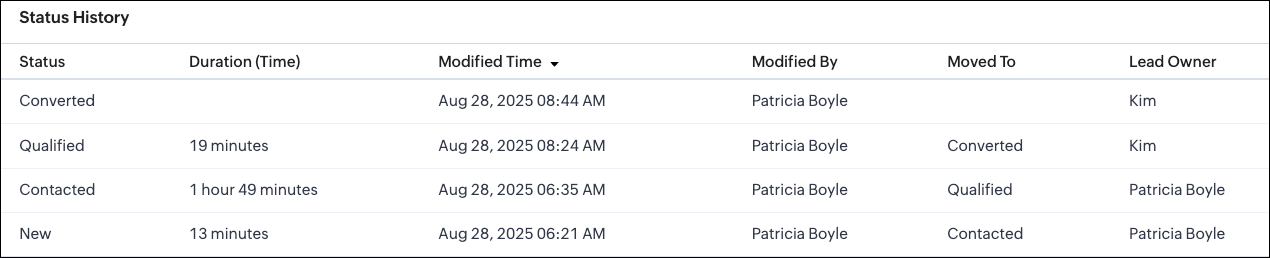
Sample Response via API
Whenever a picklist option changes, the system creates a new record in the related list module. In this example, Status History is the related list module. The sample response below shows how a particular change looks when retrieved using the Get Records API.
Request URL : {{api-domain}}/crm/v8/Status_History/5725767000007739323
Request Method : GET
Sample Response
{ "data": [ { "Status": "Contacted", "$approval": { "delegate": false, "takeover": false, "approve": false, "reject": false, "resubmit": false }, "Modified_Time": "2025-08-28T06:35:15-07:00", "$currency_symbol": "$", "$field_states": null, "$review_process": null, "$editable": true, "Duration_Time": "6568847", //The system stores the duration in milliseconds. "$sharing_permission": "full_access", "Lead_Owner": { "name": "Patricia Boyle", "id": "5725767000000411001" }, "Moved_To__s": "Qualified", "$orchestration": false, "Last_Activity_Time": "2025-08-28T08:24:44-07:00", "Full_Name": { "name": "Zylker", "id": "5725767000007735001" }, "Modified_By": { "name": "Patricia Boyle", "id": "5725767000000411001", }, "$review": null, "$process_flow": false, "$in_merge": false, "id": "5725767000007739350", "$approval_state": "approved", "$pathfinder": false, "$zia_visions": null } ] } |
Note :
- You can select up to 10 fields in total, with a maximum of 5 user fields for all modules except Deals.
- Encrypted fields cannot be specified.
- In the Deals module,
- History tracking is enabled by default for the Stage picklist field.
- You cannot enable history tracking for any other picklist field in the Deals module.
- You can only update the existing Stage picklist field using the Update Custom Field API.
- You can add up to 6 followed fields, with a maximum of 5 user fields.
We hope this post helps you confidently manage picklists and track their history in Zoho CRM. Try it out, and let us know your experience in the comment section or reach out to us at support@zohocrm.com
Stay tuned for more insights in our upcoming Kaizen posts!
Cheers!

Previous Kaizen : Kaizen# 204 - Answering Your Questions - Perform Field Updates before Blueprint transition via Client Script | Kaizen Directory : Home
Related Links :
Topic Participants
Subramanian K
Sticky Posts
Kaizen #198: Using Client Script for Custom Validation in Blueprint
Nearing 200th Kaizen Post – 1 More to the Big Two-Oh-Oh! Do you have any questions, suggestions, or topics you would like us to cover in future posts? Your insights and suggestions help us shape future content and make this series better for everyone.Kaizen #226: Using ZRC in Client Script
Hello everyone! Welcome to another week of Kaizen. In today's post, lets see what is ZRC (Zoho Request Client) and how we can use ZRC methods in Client Script to get inputs from a Salesperson and update the Lead status with a single button click. In thisKaizen #222 - Client Script Support for Notes Related List
Hello everyone! Welcome to another week of Kaizen. The final Kaizen post of the year 2025 is here! With the new Client Script support for the Notes Related List, you can validate, enrich, and manage notes across modules. In this post, we’ll explore howKaizen #217 - Actions APIs : Tasks
Welcome to another week of Kaizen! In last week's post we discussed Email Notifications APIs which act as the link between your Workflow automations and you. We have discussed how Zylker Cloud Services uses Email Notifications API in their custom dashboard.Kaizen #216 - Actions APIs : Email Notifications
Welcome to another week of Kaizen! For the last three weeks, we have been discussing Zylker's workflows. We successfully updated a dormant workflow, built a new one from the ground up and more. But our work is not finished—these automated processes are
Recent Topics
Customizing Global Search Settings for All Users
Hi Our team use the brilliant global search functionality within CRM many many times daily. But, we struggle with the out-of-the box columns that CRM gives you. We are always telling users to customize this look to more suit our business, to show theIntroducing Formula Fields for performing dynamic calculations
Greetings, With the Formula Field, you can generate numerical calculations using provided functions and available fields, enabling you to derive dynamic data. You can utilize mathematical formulas to populate results based on the provided inputs. ThisTip of the Week #77– Stay informed of the activities happening in your organization
Whenever a message is handled in Zoho TeamInbox, every action is recorded in the Activity Log. This ensures you always know what’s happening across your teams and inboxes. To access it, simply click the Audits icon on the left pane’s top bar after loggingZoho Logs - Not seeing logs since 30 Nov
Hi, we have a few functions running, I am testing some new ones and noticed that although I can see executions, I cannot see any logs, even when the first line on the functions is a log. I reviewed some existing functions, one of which is invoked on aWorkdrive MS Office integration
Have installed subscribed version of Zoho WorkDrive VSTO runtime not found is the error when I try to install Zoho_WorkDrive_For_Office Unable to open work files in Excel and Word Urgent, since I have migrated all my OneDrive files to work drive alreadyHow to change Zoho Vault password
I am searching where I can change the Vault Password after having changed the Zoho account password. I don't see this option anywhere in my account. It should be simple and accessible! Please help. Thanks!Zoho Workdrive - Communication / Chat Bar
Hi Team, Please consider adding an option to allow admins to turn on or off the Zoho Communication Bar. Example of what I mean by Communication Bar: It's such a pain sometimes when I'm in WorkDrive and I want to share a link to a file with a colleagueWhen Marking a Multiple Choice Answer Exclusive - Not Following My Survey Disqualification Logic
Using a multiple choice (many answers) question and I created survey disqualification logic that was working as intended. My question: Disqualification page logic is: If (QUESTION) is "any one of the following" then (OPTIONS) - a custom message populatesWhere to Add Machines as Products to Map with Assets in Zoho FSM?
implementing Zoho FSM for a clinical equipment supply company. The business sells and installs clinical machines in hospitals and clinics, and they also handle service requests, scheduled maintenance, calibration visits, and general machine upkeep. InShow Zoom Link in Recipient's Calendar
We set up meetings within a record, selecting the "Make this an online meeting". We use Zoom. Most of the recipients go to their calendar (usually Gmail or Outlook, corporate) to join the Zoom meeting, but there is no Zoom link in the calendar. Can thisZoho Bigin - should be able to link a "contact" to multiple "companies"
Hello Support, I called into telephone support and was told that a contact can only be linked to one company. We have situations were director are contacts of and directors of multiple companies so that seems a basic weakness in Bigin. When go to addDoes Thrive work with Zoho Billing (Subscriptions)?
I would like to use Thrive with Zoho Billing Subscriptions but don't see a way to do so. Can someone point me in the right direction? Thank youRadio button data won't update
Wondering if anyone is experiencing the same problem. I tried bulk updating our data on Zoho Creator using API and noticed that the radio button field wasn't updated. I have tried updating it manually, it didn't work. When I tried updating a text fieldIntroducing Global Sets for easy management of similar picklists in CRM
Latest update (December 2025): You can now apply color coding to the values inside a global set, the same way you color code values in regular picklist fields. Update (Sep 2024): We've increased the maximum count limit for global sets. These new limitsNo Ability to Rename Record Template PDFs in SendMail Task
As highlighted previously in this post, we still have to deal with the limitation of not being able to rename a record template when sent as a PDF using the SendMail Task. This creates unnecessary complexity for what should be a simple operation, andNew in CPQ: Smarter suggestions for Product Configurator by Zia, and additional criteria in Price Rules
Hello everyone! CPQ's Product Configurator in Zoho CRM allows sales teams to define structured product bundles through configuration rules, ensuring that the right product combinations are applied consistently in quotes. Admins set up these configurationsProcess between CRM and Campaigns to ensure double opt-in contacts?
I would like to ask for a few clarifications to ensure we fully comply with best practices and legal requirements: According to the documentation (Zoho Campaigns CRM sync – Default option), the best and recommended way to sync contacts is by using theZoho Books - New Interface keep details with PDF View
Hello, The Zoho Books Interface has changed for estimates etc... One thing is causing issues though. Before the change, in PDF view you could see the detail information including custom fields entered for the estimate. Now, you have to switch betweenTip #52- Zoho Assist Downloads: Everything You Need in One Place- 'Insider Insights'
Looking to start remote support sessions faster, manage unattended devices effortlessly, or join sessions without any hassle? The Zoho Assist Downloads Center has all the tools you need—across desktop, mobile, IoT, and browser environments. With our rangeCondition based aggregate fields in subforms
Hello everyone, We're excited to inform you about the latest enhancements made to our aggregate field capabilities in subforms; create aggregate fields based on conditions! An aggregate field is a column on which a mathematical function has been applied.SalesInbox
Sorry for saying this but SalesInbox is a really mess. BIG FAIL. Bad UX and VERY bad IMAP sync. I don't know how can someone use this to be more productive. It's just the oposite. I'm trying to use SalesInbox for a while but sales people do not have just sales activities so we still have to came back to the mail app anyway. Folders of SalesInbox are not in sync with folders of mail server (wich syncs Ok to mobile) and vice-versa wich leads to double work as now you have to cleanup 3 inboxes (MailPrint labels on selected view
How can I print labels for select view. Always defaults to ALL contacts when I select View = Mailing Labels. Thanks!!Update CRM Price Books to include volume discounts as per Zoho Books/Inventory
Once again, Zoho has 3 great products that all store information in different ways (which is not helpful when you attempt to integrate the 3 products - one of the best features of Zoho). Zoho CRM Price Books are basic at best. Zoho Books/Inventory PriceTip #40- Strengthen Remote Support with IP-based Restrictions in Zoho Assist– ‘Insider Insights’
Protecting sensitive data and preventing unauthorized access is a top priority for any organization. With IP-based restrictions in Zoho Assist, you can ensure that only users from trusted networks can initiate remote support sessions. Say your IT teamPrinting Client Lists
I was looking for a way to print out client lists based on the account. For example if I want all my contacts from company A on one sheet, how would I do this. Moderation Update (3rd December 2025): There are two challenges discussed in this thread. 1.Qwen to be the default open source Generative AI model in Zoho Desk
Hello everyone, At Zoho Desk, we will make the latest Qwen (30B parameters) the default LLM for our Generative AI features, including Answer Bot, Reply Assistant, and others. As a subsequent step, we will discontinue support for Llama (8B parameters).ZOHO Blueprint and Workflow
Hi, Correct me if i'm wrong, Blueprint triggers when a record that meets the criteria is created. It follows a specific transition that you will be setting up. Does blueprint work if the first state was triggered by a workflow? For example, In my custom module 1, I have a field named status. The statuses are 1, 2, 3 and 4. As soon as I create a new record, a workflow triggers that updates the status field to 1. Can a blueprint start from 2? My other concern is, can blueprint transitions work at theZoho CRM Participants Automatic - Invite Using Deluge
Hi Zoho! Is there a way to make the invitations automatic via API? I'm using this one but it doesn't work or reflect in the CRM: participantUser = Map(); participantUser.put("type","email"); participantUser.put("participant",email); participantUser.put("invited",Greek character in Deluxe script
Hi, We have been using a script since 2022 which replaces characters in Greek contact names using replaceAll. Since this morning, all the Greek characters used in the script have turned to question marks. I tried retyping the characters, copy-pastingWork Order Assignment for Engineers Handling Their Own Requests
I’m setting up FSM for a business where there are multiple engineers, but each engineer handles their own process end-to-end receiving the service request, creating the work order, and completing the field service job. I noticed that I must create anExperience Zoho Show on Mac now!
Work today isn’t tied to a single place, time, or routine. It happens in cafes between meetings, on flights, or late at night when ideas strike. And when ins, your tools need to be ready, wherever you are. That’s why we built the Zoho Show app for Mac.【開催報告】東京 ユーザー交流会 Vol.4 | Zoho CRM 自動化のコツ ・Bookings のビジネス活用シーンとおすすめ機能を紹介
ユーザーの皆さま、こんにちは。コミュニティチームの藤澤です。 11月28日(金)に新橋で「東京 ユーザー交流会 Vol.4」を開催しました。ご参加くださったユーザーの皆さま、ありがとうございました。ユーザー交流会の年内開催は、今回が最後でした。 この投稿では、当日のセッションの様子や使用した資料を紹介しています。残念ながら当日お越しいただけなかった方も、ぜひチェックしてみてください😊 ユーザー活用事例セッション:関数やクライアントスクリプトまで、CRMをもっと便利に Zoho CRM には、ワークフローやブループリントなど、さまざまな自動化に役立つ標準機能が備わっています。さらに、関数(Deluge)のようにスクリプトを記述して高度な自動化を実現することもできます。Kiosk Button Actions
I need to add an action to a Kiosk Button to loop me back to start the kiosk again and I am not sure what that looks like (function, etc.).Dependent drop-downs... how?
Good day. I have 2 different situations where I need a dependent drop-down field. First is for a subform, where I want to show related fields for a specific customer on the main form. In my case it is a parent whose children make use of our school transportReporting Limitation on Lead–Product Relation in Zoho CRM
I noticed that Zoho CRM has a default Products related list under Leads. However, when I try to create a report for Lead–Product association, I’m facing some limitations. To fix this, I’m considering adding a multi-lookup field along with a custom relatedSeries Label in the Legend
My legend reads 'Series 1' and 'Series 2'. From everything I read online, Zoho is supposed to change the data names if it's formatted correctly. I have the proper labels on the top of the columns and the right range selected. I assume it's something inDynamic Signature - Record owner
Hi everyone, I’m using Zoho Writer merge templates from Zoho CRM and have two questions: Owner signature: How can I automatically insert the CRM record owner’s signature in the merged document? I’m not sure where this signature is stored or how to referenceSet Warehouse based on Vendor
Greetings. I would like to set automaticaly the Warehouse based on the Vendor. Context: I am working on an adaptation of a Purchase Order to be used as a Quotation. I have defined that when a user has to raise a quote the Vendor will be "PROCUREMENT" I would like to set the Warehouse to a predefined value when "PROCUREMENT" is set as Vendor. I have tried to do with the Automation feature using the Field Update option, but Warehouse does not is listed as a field. Can you help? Thanks in advance.Printing from Zoho Creator hosted on my own server to printers hosted on my clients local network
Hello. Fairly new to Zoho Creator and looking for best options to be able to print from my application hosted on my own server to any printer hosted on my clients own local network. Any advice is welcome. Thank you.Add System Pre-Defined Lookup Field to Subform?
Hi there! New to using Zoho, so this may already exist, but I'm having trouble figuring it out. Is there a way to get the system pre-defined Account Lookup field (in our case, renamed to Company Name), as the starting point for a subform? In our company,Next Page