Kaizen #205 - Answering Your Questions | Managing Picklists and Enabling History Tracking via Zoho CRM APIs
Hello everyone!
Welcome back to another post in our Kaizen series.
In this post, we will look at how you can manage picklist fields in Zoho CRM using APIs. This topic was raised as feedback to Kaizen #200, so we are taking it up here with more details.

In this post, we will cover the following:
- What is a picklist field in Zoho CRM?
- Picklist vs Multi-select Picklist
- Working with picklist fields via APIs
- Creating a picklist field using the Create Custom Field Metadata API
- Updating a picklist field using the Update Custom Field Metadata API
- Assigning picklist values when creating records using the Insert Records API
- Updating picklist values in existing records using the Update Records API
- History tracking for picklists
- What is history tracking for picklists in Zoho CRM?
- Use case
- Enabling history tracking for a picklist using the Create Custom Fields API
What is a picklist field in Zoho CRM?
A Picklist field is a drop-down field in Zoho CRM that contains a predefined list of values. While creating or updating a record, you can select one value from this list instead of entering it manually. This helps you avoid typing errors.
Example :
A Region field with values East, West, North, and South.
If a lead is from the East, the user simply selects East from the picklist instead of typing it manually.
Picklist vs Multi-select Picklist
Picklist | Multi-select Picklist |
Users can select only one value from the list. | Users can select multiple values at once. |
A standard Region picklist works when a record belongs to only one region. Example : East | A Multi-select Region picklist works when a record spans multiple regions. Example : East, North |
Global picklist / Global set : User can create a picklist in common and associate the created picklist across the modules to maintain accuracy. Refer to Kaizen #161: Global Sets using Zoho CRM APIs for more details.
Working with picklist fields via APIs
Creating a picklist field using the Create Custom Field API
You can create a new Picklist field in a module by calling the Create Custom Field Metadata API. For example, you can create a picklist field named Region with the values: East, West, North, South.
Request URL : {{api-domain}}/crm/v8/settings/fields?module=Leads
Request Method : POST
Sample Input
When creating a picklist field, set its data type as picklist and provide the list of options, each with a mandatory display_value. You can also configure additional properties such as actual_value, lexical sorting, and color coding.
{ "fields": [ { "field_label": "Select Region", "data_type": "picklist", // Specify the data type as picklist "tooltip": { "name": "info_icon", "value": "Select your region here" }, "profiles": [ { "id": "5725767000000026011", "permission_type": "read_write" } ], "pick_list_values": [ { "display_value": "East", //The unique display value for the picklist, which will be displayed in the CRM UI. Use the display_value in API requests during create, update, and upsert operations. "actual_value": "IN_East" //The unique reference value associated with the particular option. }, { "display_value": "West", "actual_value": "IN_West" }, { "display_value": "North", "actual_value": "IN_North" }, { "display_value": "South", "actual_value": "IN_South" } ], "pick_list_values_sorted_lexically": true, //Sorts options alphabetically. Default value is false. "enable_colour_code": true //Allows color coding for picklist options. Default value is false. } ] } |
Note : To create a multi-select picklist field, set the data_type key to multiselectpicklist in the request body ("data_type": "multiselectpicklist").
Sample Response
{ "fields": [ { "code": "SUCCESS", "details": { "id": "5725767000007613005" }, "message": "field created", "status": "success" } ] } |
Updating a picklist field using the Update Custom Field API
The PATCH - Field Metadata API lets you modify an existing Picklist field. Use the Get Fields Metadata API to get your picklist field ID.
You can:
- Add new options
- Update the picklist
- Remove existing options using Update Custom Layout API
Here is a sample request that updates the Select Region dropdown field in the Leads module.
Request URL : {{api-domain}}/crm/v8/settings/fields/5725767000007613005?module=Leads
Request Method : PATCH
Adding a new option to the existing picklist field
Sample Input
{ "fields": [ { "pick_list_values": [ { "display_value": "Central", //adding a new option to the existing picklist field "actual_value": "IN_Central" } ], } ] } |
Updating picklist
{ "fields": [ { "profiles": [ { "id": "5725767000000026011", "permission_type": "read_only" //updating the permission_type } ], "pick_list_values": [ { "display_value": "South Region", //updating the display field's value "id": "5725767000007613010" //unique ID of the option } ], "enable_colour_code": false //disabling color code for the options } ] } |
Note : Use the actual_value or unique ID of a picklist option to update its display value. Use the Get Fields Metadata API or Get Layouts Metadata API to get the details.
Removing existing options using Update Custom Layout API
To remove picklist values, keep only the required options in your input. Any options not included in the request will automatically move to the unused section.
First, fetch the required layout, section, field, and option IDs using the Get Layouts Metadata API. Then, in your request body, specify only the picklist values you want to retain.
Request URL : {{api-domain}}/crm/v8/settings/layouts/5725767000000091055?module=Leads
Request Method : PATCH
Sample Input
{ "layouts": [ { "id": "5725767000000091055", //layout id "sections": [ { "id": "5725767000000209001", //section id "fields": [ { "id": "5725767000007613005", //field id "pick_list_values": [ { "display_value": "Central", "id": "5725767000007626001" }, { "display_value": "East", "id": "5725767000007613004" } ] } ] } ] } ] } |
Here, Central and East regions remain as active picklist options, and West, North, and South regions are moved to the unused section.
Updated response
Use the Get Fields Metadata API to check the updated response. The Central and East are still active options (type: used), and North, South, and West are inactive options (type: unused)
{ "fields": [ . . . { "field_label": "Select Region", "id": "5725767000007613005", "api_name": "Select_Region", "pick_list_values": [ { "display_value": "-None-", "sequence_number": 1, "reference_value": "-None-", "colour_code": null, "actual_value": "-None-", "id": "5725767000007613013", "type": "used" //default option }, { "display_value": "Central", "sequence_number": 6, "reference_value": "Central", "colour_code": null, "actual_value": "IN_Central", "id": "5725767000007626001", "type": "used" }, { "display_value": "East", "sequence_number": 2, "reference_value": "East", "colour_code": null, "actual_value": "IN_East", "id": "5725767000007613004", "type": "used" }, { "display_value": "North", "sequence_number": 4, "reference_value": "North", "colour_code": null, "actual_value": "IN_North", "id": "5725767000007613008", "type": "unused" }, { "display_value": "South", "sequence_number": 5, "reference_value": "South", "colour_code": null, "actual_value": "IN_South", "id": "5725767000007613010", "type": "unused" }, { "display_value": "West", "sequence_number": 3, "reference_value": "West", "colour_code": null, "actual_value": "IN_West", "id": "5725767000007613006", "type": "unused" } ], "data_type": "picklist" } ] } |
Assigning picklist values using the Insert Records API
When you insert a record, you can directly pass the picklist option’s display value (not the ID) in the request body.
Request URL : {api-domain}/crm/v8/{module_api_name}
Request Method : POST
Sample Input
{ "data": [ { "Company": "Zylker", "Last_Name": "David", "Select_Region": "Central" // Picklist value to assign } ] } |
Note:
- When creating, updating, or upserting records,
- You can either pass an existing picklist value or add a new one, through the API. Please note that the new value will only be stored in that record, and will not be added to the picklist field’s metadata.
- In the UI, you can only select from the available dropdown options.
- Always use the display_value of the picklist option, not the picklist option’s ID.
- You can also assign the default option (-None-). In this case, the picklist field’s value will be stored as null ("Select_Region": null)
Sample Response
{ "data": [ { "code": "SUCCESS", "details": { "Modified_Time": "2025-08-23T04:51:39-07:00", "Modified_By": { "name": "Patricia Boyle", "id": "5725767000000411001" }, "Created_Time": "2025-08-23T04:51:39-07:00", "id": "5725767000007623017", "Created_By": { "name": "Patricia Boyle", "id": "5725767000000411001" } }, "message": "record added", "status": "success" } ] } |
Updating picklist values in existing records using the Update Records API
When updating, you also use the picklist display value in the field.
Request URL : {api-domain}/crm/v8/Leads/5725767000007628002
Request Method : PUT
Sample Input
{ "data": [ { "Select_Region": "West" // New picklist value } ] } |
This will replace the existing picklist value with West.
History tracking for picklists
What is history tracking for picklists in Zoho CRM?
You can enable history tracking for a picklist field using the Create Custom Field API. Once enabled, Zoho CRM automatically creates a related list for the tracked picklist and a separate module.
Every time the picklist value changes, Zoho CRM creates a new entry in this related list. Each entry shows the old value, the new value, who made the change, and when it was made, and how long the record stayed in the previous value before moving to the next one.
Use case
Zylker's sales team tracks lead progress through the statuses such as New, Contacted, Qualified, and Converted. The team wants to know how long a lead remains in each status and identify if follow-ups are delayed or leads are not progressing.
You can achieve this by enabling history tracking on the Status picklist. You can also monitor every status change, who made it, and how long the lead stayed in the previous status. This helps the team monitor, identify delays, and improve the follow-up process.
The log stores:
- New Value - updated region in the Moved_To__s key.
- Changed By - user who made the update in the Modified_By key.
- Changed On - date and time when the region was changed in the Last_Activity_Time key.
- Duration - how long the record stayed in the previous value before the change in the Duration_Time and Duration_Days keys.
Enabling history tracking for a picklist using the Create Custom Fields API
Request URL : {{api-domain}}/crm/v8/settings/fields?module=Leads
Request Method : POST
Sample Input
{ "fields": [ { "field_label": "Status", "data_type": "picklist", "pick_list_values": [ { "display_value": "New", "actual_value": "New" }, { "display_value": "Contacted", "actual_value": "Contacted" }, { "display_value": "Qualified", "actual_value": "Qualified" }, { "display_value": "Converted", "actual_value": "Converted" } ], "history_tracking_enabled": true, //(mandatory) Enables history tracking for the picklist "history_tracking": { "related_list_name": "Status History", //Lets you give a custom name to the history related list that CRM creates. "duration_configuration": "time", //Decides how to track the timing of changes: days - History is tracked by days and time - History is tracked by time. Note : Before specifying the time value, enable the duration customization feature in your organization by contacting support@zohocrm.com. "followed_fields": [ // The followed_fields lets you retrieve additional field values whenever the picklist value changes. { "api_name": "Owner" } ] } } ] } |
Sample Response in UI
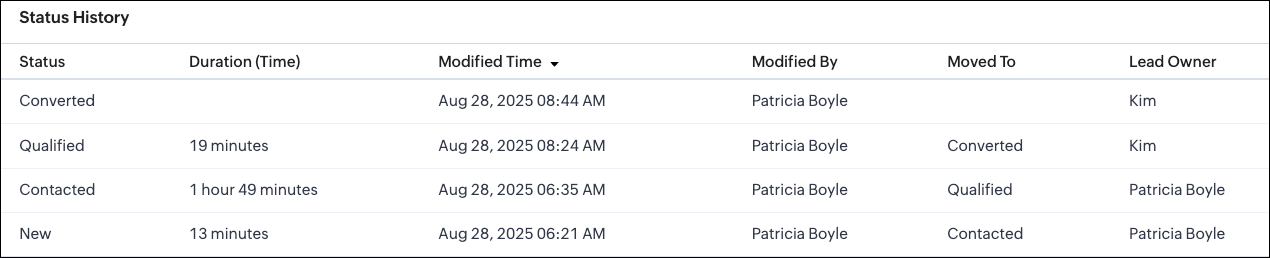
Sample Response via API
Whenever a picklist option changes, the system creates a new record in the related list module. In this example, Status History is the related list module. The sample response below shows how a particular change looks when retrieved using the Get Records API.
Request URL : {{api-domain}}/crm/v8/Status_History/5725767000007739323
Request Method : GET
Sample Response
{ "data": [ { "Status": "Contacted", "$approval": { "delegate": false, "takeover": false, "approve": false, "reject": false, "resubmit": false }, "Modified_Time": "2025-08-28T06:35:15-07:00", "$currency_symbol": "$", "$field_states": null, "$review_process": null, "$editable": true, "Duration_Time": "6568847", //The system stores the duration in milliseconds. "$sharing_permission": "full_access", "Lead_Owner": { "name": "Patricia Boyle", "id": "5725767000000411001" }, "Moved_To__s": "Qualified", "$orchestration": false, "Last_Activity_Time": "2025-08-28T08:24:44-07:00", "Full_Name": { "name": "Zylker", "id": "5725767000007735001" }, "Modified_By": { "name": "Patricia Boyle", "id": "5725767000000411001", }, "$review": null, "$process_flow": false, "$in_merge": false, "id": "5725767000007739350", "$approval_state": "approved", "$pathfinder": false, "$zia_visions": null } ] } |
Note :
- You can select up to 10 fields in total, with a maximum of 5 user fields for all modules except Deals.
- Encrypted fields cannot be specified.
- In the Deals module,
- History tracking is enabled by default for the Stage picklist field.
- You cannot enable history tracking for any other picklist field in the Deals module.
- You can only update the existing Stage picklist field using the Update Custom Field API.
- You can add up to 6 followed fields, with a maximum of 5 user fields.
We hope this post helps you confidently manage picklists and track their history in Zoho CRM. Try it out, and let us know your experience in the comment section or reach out to us at support@zohocrm.com
Stay tuned for more insights in our upcoming Kaizen posts!
Cheers!

Previous Kaizen : Kaizen# 204 - Answering Your Questions - Perform Field Updates before Blueprint transition via Client Script | Kaizen Directory : Home
Related Links :
Topic Participants
Subramanian K
Sticky Posts
Kaizen #198: Using Client Script for Custom Validation in Blueprint
Nearing 200th Kaizen Post – 1 More to the Big Two-Oh-Oh! Do you have any questions, suggestions, or topics you would like us to cover in future posts? Your insights and suggestions help us shape future content and make this series better for everyone.Kaizen #226: Using ZRC in Client Script
Hello everyone! Welcome to another week of Kaizen. In today's post, lets see what is ZRC (Zoho Request Client) and how we can use ZRC methods in Client Script to get inputs from a Salesperson and update the Lead status with a single button click. In thisKaizen #222 - Client Script Support for Notes Related List
Hello everyone! Welcome to another week of Kaizen. The final Kaizen post of the year 2025 is here! With the new Client Script support for the Notes Related List, you can validate, enrich, and manage notes across modules. In this post, we’ll explore howKaizen #217 - Actions APIs : Tasks
Welcome to another week of Kaizen! In last week's post we discussed Email Notifications APIs which act as the link between your Workflow automations and you. We have discussed how Zylker Cloud Services uses Email Notifications API in their custom dashboard.Kaizen #216 - Actions APIs : Email Notifications
Welcome to another week of Kaizen! For the last three weeks, we have been discussing Zylker's workflows. We successfully updated a dormant workflow, built a new one from the ground up and more. But our work is not finished—these automated processes are
Recent Topics
What is the difference between the free plan and the mail lite plan?
What is the difference between the free plan and the mail lite plan? How many emails can I send per day?Unblock email
Hi The outgoing mail from a client of me is blocked. I already made tickets and tickets are send to the EU desk but nobody is responding. The problem is already 4 days! There is absolutely no help from the support. I am really not satisfied at all! CanDomain verification failure
Hello Zoho Support, I purchased my domain directly through Zoho Mail, but the domain verification keeps failing with the message “TXT verification failed.” I’ve already waited and retried several times, but it still won’t verify. Could you please manuallyUnable to send message;Reason:554 5.1.8 Email Outgoing Blocked.
My email account is unable to send emails, and I urgently need to use it. How can I resolve this?If there is anything we have done wrong, please let us know in advance so we can actively cooperate to improve. User ID: 850482493URGENT: Email stopped workin - can't access admin panel
For some reason email sending stopped working. When I try to send an email it fails with "Unable to send message;Reason:451 4.7.1 Temporary system error" I can receive email just fine I see in my notifications some errors about the MX records, howeverCan I associate an invoice to a Project after the fact?
We have generated an invoice but would like to assoicate it to a Zoho Project after the fact. Is there any way to accomplish that? Thanks, ScottEmails I send as a cc or bcc NEVER GO THROUGH TO THA RECEIVER !!
every time i send a cc or bcc copy of an email to anyone when I’m using my zohomail.com email - no one ever gets the cc of bcc copy if the email: why???? And i triple check that the email addresses are correct; then i get back an email message (EVERYTIME)Add Support for Authenticator App MFA in Zoho Desk Help Center
Hello Zoho Desk Team, We hope you are doing well. We would like to request an enhancement related to security for the Zoho Desk Help Center (customer portal). Currently, the Help Center supports MFA for portal users via SAML, JWT, SMS authentication,Auto-fill Contacts in Zoho Mail not working for me
We just switched to Zoho Mail for our company, and I am noticing that the "auto fill" feature when composing an email -- where the "to" field is autofilled (like in the attachment) from Contatcts works for everyone except me. Any way I might have madeHow to unlink a SAML user from the existing Zoho Desk user (domain change case)
Hi everyone, I’m trying to understand how to handle a situation where a customer changes their company domain. In our setup, users authenticate via SAML, so when the domain changes, the SAML system treats them as a new user. However, in Zoho Desk, I’dRelated to zoho survey
Hi team. I want to know something regarding zoho survey question builder. I have two questions each of dropdown (One answer) - question type. In the first question, there are 16 answer choices and in the second question, there are 3 answer choices. ForText Message
When trying to sent a text message, it says its an error i should contact a zoho agentZoho POS is now available for Canadian retailers
Hey everyone, We're excited to introduce the all-new Canadian edition of Zoho POS, which helps retail businesses simplify and manage their end-to-end business operations. Start by signing up and exploring the 15-day free trial. Sign up now How does ZohoPayroll In Canada
Hi, When can we expect to have payroll in Canada with booksMass update to change or shift all project dates and keep project structure + shift all sub-tasks dates with main tasks
Most users would expect that if they change the start date of their project then that will be reflected inside the actual project and any project structure would be retained. Additionally if a task list with associated sub-tasks is moved, most users would expect that those sub-tasks would also be moved along with their parent task. This is not the case. For a total Project shift of dates: * the start and end date from > "Edit Project" page can have a radio button added to "shift all project tasksClosing Accounting Periods - Invoice/Posting dates
Hi, I have seen in another thread but I'm unsure on how the 'transaction locking' works with regards to new and old transactions. When producing monthly accounts if I close December 24 accounts on 8th Jan 25 will transaction locking prevent me from postingIn-person ZUG Meetups for Real Estate Professionals - US Q1 2026
The Real Estate Zoho User Group is going on a multi-city, in-person meetup tour across the US, and we’d love to see you there! These meetups are a great opportunity to: Connect with fellow real estate professionals using Zoho Share challenges and discoverZoho CRM custom fields not showing in zoho creator
Hi Team, I have created a Products form with Zoho CRM integration and connected it to Products module of CRM. But when I see the reports of Products in Zoho creator then I am not able to see custom fields of Products module. Only standard fields of ProductsSending email notifications based on language
Hello. I would like to know how we can bypass the default notifications (which are just in English) for when a ticket is created/replied to/closed, to be in other languages, based on the language field in the ticket? I can create other email templates,Zoho Error: This Operation has been restricted. Please contact support-as@zohocorp.com for further details
Hello There, l tried to verify my domain (florindagoreti.com.br) and its shows this error: This Operation has been restricted. Please contact support-as@zohocorp.com for further details. Screenshot Given Below - please check what went wrong. ThanksDownload a file from within a zoho creator widget
I have a widget running in Zoho Creator , it displays uploaded documents in a table file, and I have added a download link in the view. ( The widget is created with html, css and javascript). I do not succeed in getting the download working. Do I haveZoho / Outlook Calendar sync
The current Marketplace -> Microsoft -> Meetings integration needs 2 changes. 1. The current language for the Two-Way sync option should be changed. It currently states, "Sync both your Zoho CRM Calendar and Office 365 Calendar meetings with each other."Email content just contain 'OK' ,not what we expect
create campaign API URL: https://campaigns.zoho.com/api/v1.1/createCampaign req params: {'campaignname': 'General_Outreach_d0cfc415-43aa-4b96-bb09-558e76a3dda3_50_20251117_214806_660', 'from_email': 'admin@allinmedia.ai', 'subject': 'ALL IN MEDIA', 'list_details':Reopen ticket
Hello! Can I reopen a ticket just using the API ticket/sendReply ? What's the rules to do it? I'm trying but it doesn't reopen the ticket, it just send the replyAllow Admins to Transfer Ownership of Their Own Files & Folders
Hi Zoho WorkDrive Team, Hope you are doing well. We would like to request an important enhancement to the ownership-transfer functionality in Zoho WorkDrive, specifically regarding administrator capabilities. As administrators, we have the ability toTip#46: Capture accurate log hours
Hello everyone, Use the newly introduced timer settings that will streamline the usage of timers and help admins or workspace owners to manage the time entries of the workspace users better. Check out the below mentioned timer settings added to the TimesheetMoving to app-specific authentication for Google integrations
Hello everyone, We’re making an important change to how Google integrations work in our platform. Until now, we used a common Google project across Zoho to enable integrations like Google Drive, Calendar, and more. Going forward, we’ll be moving to anLost the ability to sort by ticket owner
Hi all, in the last week or so, we have lost the ability to sort tickets by Ticket Owner. Unlike the other columns which we can hover over and click on to sort, Ticket Owner is no longer clickable. Is it just us, or are other customers seeing this too?How Can i put a form in Zobot
Hi,how can i integrate a form which has a multiple options to choose from.the form should be opened or displayed by zobot after it meets a requirement in the conversation. Thanks in advance !Playback and Management Enhancements for Zoho Quartz Recordings
Hello Zoho Team, We hope you're all doing well. We would like to submit a feature request related to Zoho Quartz, the tool used to record and share browser sessions with Zoho Support. 🎯 Current Functionality As of now, Zoho Quartz allows users to recordZoho Analytics - Feature Request For Time Based Data Source Fetch
Hi Analytics Team, I have a client using Zoho CRM and they want a weekly report at 4:30pm every Friday, emailed to the sales team showing a pie chart of Closed Won Deals for that week. This is easy to achieve in Analytics but not so easy to ensure theWhich user's capacity is used for Shared Mailbox storage?
We use shared mailboxes at our company, and their size is increasing daily. Which user(s)'s total mailbox limit is being used up by this space?Inserting the current date / time
I'd like to use Zoho Notebook as a log - so it would be great to be able to insert the current date and time at the beginning (or end) of each my log/journal entries - or wherever I want. Something simple, like pressing a button/icon to insert it wherever my text cursor is. It could be formatted like "Mon Dec 11, 2017 - 11:43p".Campaign editor overrides href value
I've been trying to insert a deep link in an email campaign so recipients can directly open a native app on their device. My deep link looks something like "myapp://". The options to insert links in the campaign editor are limited to strict urls, emails,Bug Report and Suggestions for Improvement in Zoho Applications
Hi Zoho Team, I’d like to report a few bugs and improvement suggestions I’ve noticed while using Zoho products: Zoho Cliq Video Call: The camera sometimes turns off automatically during video calls. This seems to be a bug — please check and fix it. ZohoCanvas Flex Box containers should not require a width/height.
Flexbox containers are often used as organizational concepts, to ease re-flow on mobile etc. - I cannot use % for flexbox W or H - I cannot omit W or H This means that the content cannot dictate, and a Flexbox container cannot be used merely as an organizationalZoho Desk Android app update: Filter enhancement, Save Filters
Hello everyone! We have now enhanced the filter section on the ticket listing screen of Zoho Desk Android app as it is on the web(desk.zoho.com). Also, we have introduced an option to save filters for tickets on the mobile app. You can easily apply, rename,Very long loading times | bad performance [ZOHO DC: EU]
Hello there, we have recently noticed that the loading times have become extremely long when retrieving tickets and ticket details. For example, I open any ticket and get the following view. The subject and standard information (ticket owner, status etc.)Zia Profile Summary now supports six languages and responds faster
After numerous customer requests, we’ve expanded Zia Profile Summary to do more than just summarize resumes quickly. It can now summarize them in six different languages and deliver results even faster. What’s New 1. Extended language support Zia canIntroducing Zoho Show Android 3.0
Good ideas need the right space to grow. They deserve tools that move as fast as your thoughts and make creating feel effortless. And that is why we are bringing you Zoho Show Android 3.0! From a brand-new look and smoother navigation to improved collaborationNext Page