Visualize your data with a new set of charts: Treemap, Butterfly, Sankey, and Cluster charts in Zoho CRM
Dear customers,
When it comes to analytics, it's not just about the numbers; it's about understanding the story behind them.
With that philosophy in mind, we’re excited to introduce a line of representations to the existing array of chart types in Zoho CRM: Treemap, butterfly, sankey and cluster charts. Let's go!
Treemaps
Treemap charts are used to visually represent hierarchical datasets in a rectangular layout. It aligns its parent categories as larger tiles with their sub-categories nested within them. The size of each tile is proportional to its corresponding value, making it easy to compare different segments within the hierarchy.
This is how a treemap chart looks:

These structured data representations help you understand overall performance and contributions, as well as compare participating entities at a glance.
Unlike traditional bar charts or pie charts, treemaps can be used if your datasets are large and exhibit parent-child relationships.
Here are some examples to better understand their usage:
Comparing revenue distribution between functions
A company's revenue is distributed among its functions before it gets further disbursed to its employees. Treemap charts can be used to depict this distribution and compare it between functions. As you can see below, the hierarchy can be represented as a treemap to compare it directly with other functions:

The hierarchy at the top shows just the numbers and levels, but the treemap chart represents the numbers proportionally, allowing leaders to visualize the difference in distribution.
Interpretation: As you can easily see in the treemap, sales and marketing receive the same amount of revenue, while engineering is given significantly more than the other two.
Likewise, with treemap charts, you can:
- Compare popular lead sources with lead counts is the measure and lead source being the participating entity—a classic single-grouping configuration.
- View cost savings achieved across departments. With the departments as the grouping parameters and the cost saved as the measured amount, the chart lays out all the departments as tiles in proportion, based on money saved.
- Compare ad spends across channels, where channels are the parent grouping and ad spend is the measured unit.
Butterfly
Butterfly charts are used to compare two related datasets side-by-side, resulting in a representation that looks like a butterfly or tornado.
Now, how does it differ from bar charts?
The standard bar chart can compare two entities for a given measure. Say, you are comparing the performance of Mary and Charles. The two users' data is represented using bars, and the length will denote their performances. But, when it comes to comparing their performances over a period or their contribution across different stages, a bar chart is not sufficient.


With butterfly charts, you can:
- Compare revenue between two of your branches each month. With branches being compared for sum of sales revenue, grouped by closing date.
- Compare the performance of two reps in a given quarter. Compared between two users for average of amount of deals, grouped by closing date until today.
In addition to the user-based comparison above, butterfly charts are well-suited to visualizing other types of data comparisons, like:
- Picklist-based comparisons
- Duration-based comparisons
- Aggregate-based comparisons
Business scenario
Comparing the number of deals closed for each lead sources: Duration-based comparison
You can identify the productive lead source by comparing the number of deal closures for every lead source in your organization based on their closing week.

Analyzing effective sales methodology, inbound vs. outbound: Picklist-based comparison
Businesses use both inbound and outbound lead generation strategies, and each of these methods can reap different results based on the season and occasion. By comparing inbound versus outbound each month, you can identify which works best at what time.

Analyze the amount versus the expected revenue between accounts: Aggregate-based comparison
Expected revenue is a result of a deal's progression in the sales pipeline. Comparing the amount versus their expected revenue will not only help visualize the expected revenue of participating accounts but also indicate the accounts' stage in the sales pipeline.

Sankey
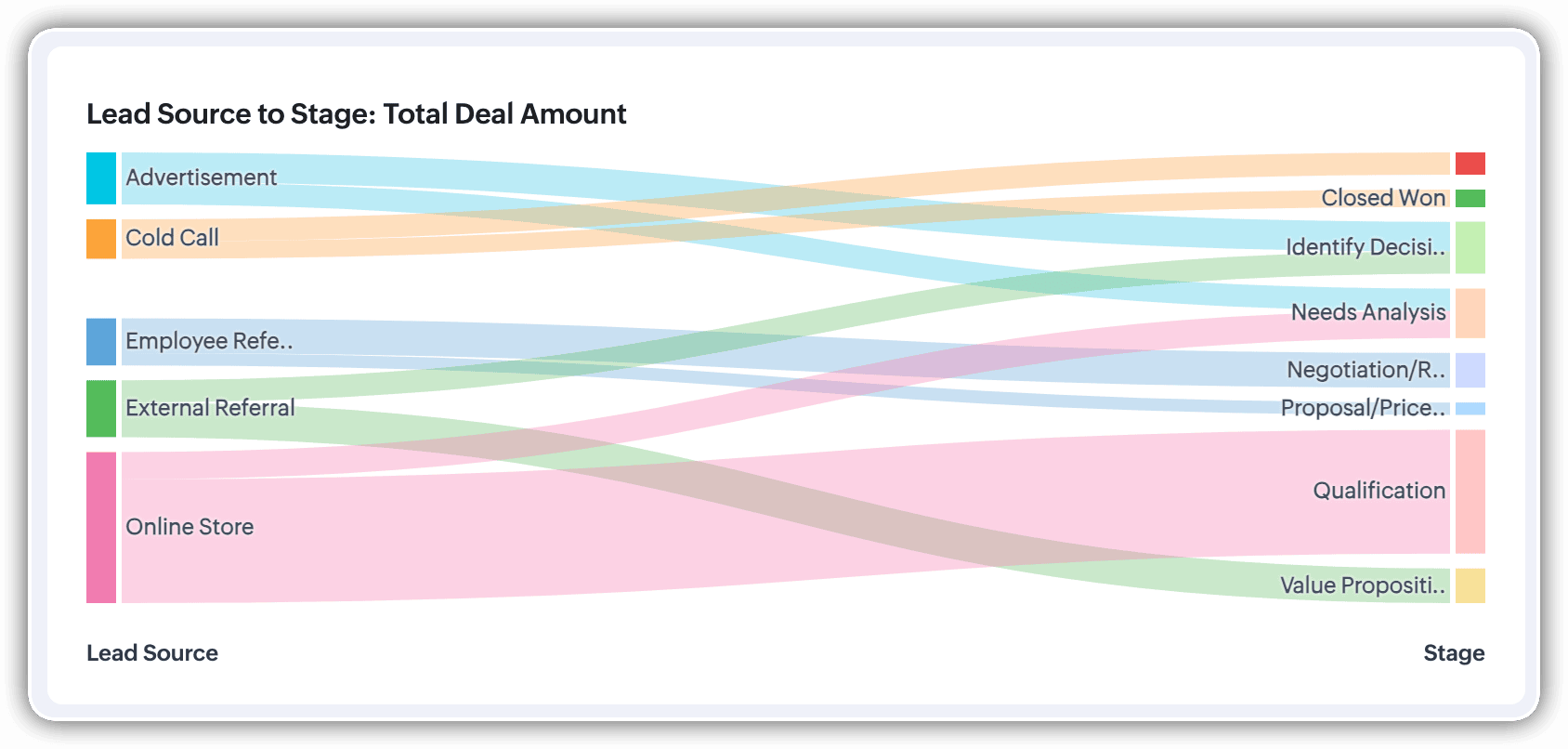
A Sankey Chart is designed to visualize the movement of data across different data groups. Unlike traditional charts—such as bar, column, pie, or donut—that mainly provide a static distribution of values, the Sankey Chart focuses on illustrating the flow between multiple segments or grouping fields. This makes it an ideal choice when you want to track how values (like lead counts, revenue, or deal statuses) move from one category to the next.

Key features
- Flow visualization: With the Sankey Chart, you can observe the movement of data between different groups.
- Multiple grouping fields: This chart works best when you have at least two grouping fields. You can go even further and add a third grouping to see an even more detailed mapping of your data flow.
- Simple configuration: The configuration for the Sankey Chart is as simple as any other chart type in Analytics.
Business scenarios:
Imagine you’re a sales manager trying to get a better handle on your team’s performance and your company’s pipeline. You want to understand not just how many deals are coming in, but also which sources are contributing the most value—and how those deals are progressing through different sales stages.
Let’s say you want to understand which lead sources are driving the most deal activity and how those deals progress through the pipeline. You can create a Sankey chart that maps the count of deals from Lead Source to Stage.

After analyzing the chart, you might notice that Online Store brings in a high volume of early-stage deals, while sources like External Referral contribute fewer deals that are more likely to reach advanced stages like Proposal or Negotiation.
This insight helps you prioritize nurturing the most profitable channels.
Sankey charts can also be helpful in other operational scenarios where understanding transitions across stages or teams is essential:
- Regional revenue distribution: Visualize how revenue flows across different regions, product categories, and their corresponding annual revenue. This helps you compare which regions contribute the most to each product line and where your high-value segments lie.
- Ticket handling flow: Visualize the flow of support tickets from their origin channel to internal departments and finally to resolution statuses. This can reveal workload imbalances or common points of delay in your support process.
Cluster
A cluster chart is similar to stacked column charts, but instead of stacking horizontally, the data is represented as vertical bars. As you create a column chart with multiple groupings, you can change the type of column chart to a cluster chart to achieve this representation.

In the above image, you can see the stacked column chart compares the number of lead conversions based on popular sources between countries. The stacks appearing on top of existing stacks ask you to calibrate the record count (y-axis) based on the previous stacks, which can lead to inaccurate interpretations. In this case, a cluster representation will paint a clearer picture of the analyses.
Other minor enhancements:
In addition to the three charts we mentioned above, we've also made the following minor changes:
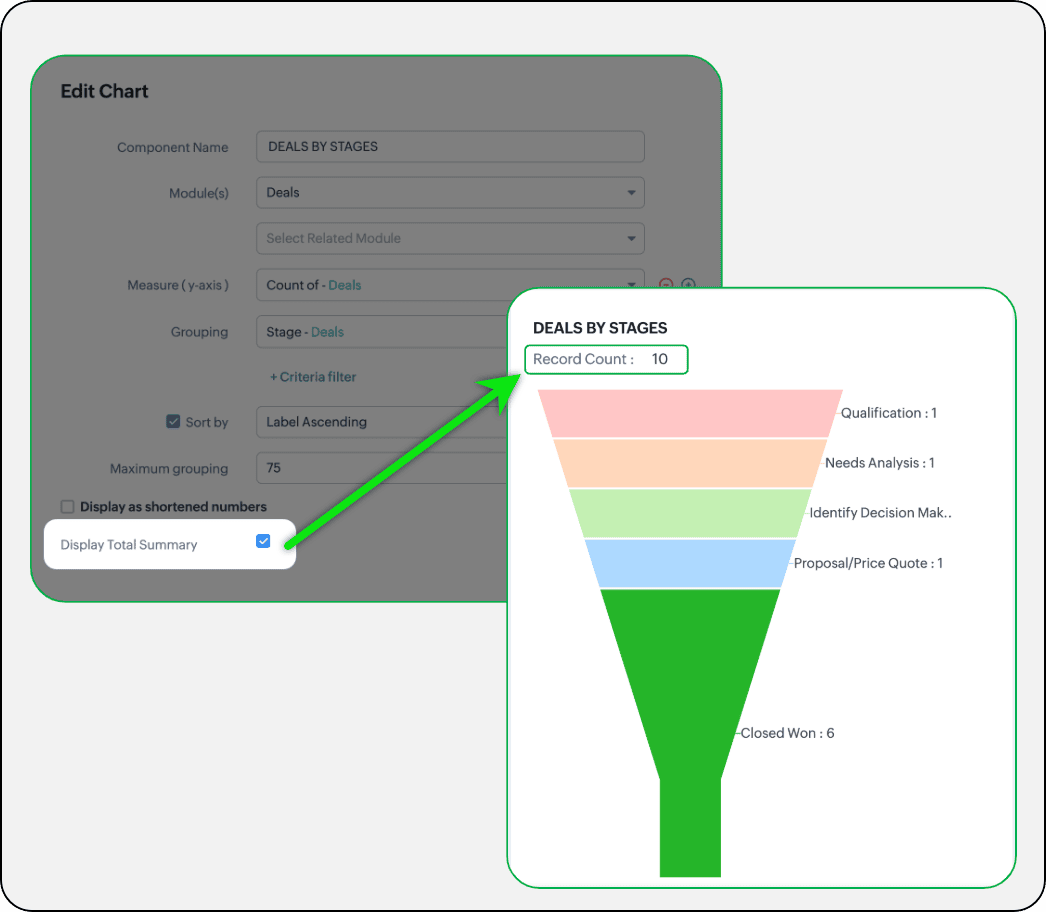
- Display total summary: Thus far, for all charts, each participating measure included labels. Now, to better understand overall contributions, a check box to display the total summary is provided under More options on the Chart Configuration page. Based on the configuration, the total revenue or the rolled-up quantities will be prominently displayed.
- Merge Y-axis: For charts that use two y-axis measurements, the intention is to view the progression of one entity against these two measures. Despite the scale, if the y-axis on the left is disproportionate to the values of the y-axis on the right, the plotted graph will result in a graphically and logically incorrect representation.
As you can see in the image below, the plot area of the sum of amount bar and the sum of expected revenue aligns close together, while, the difference between $700,000 and $40,500 is drastic, creating inaccurate interpretations.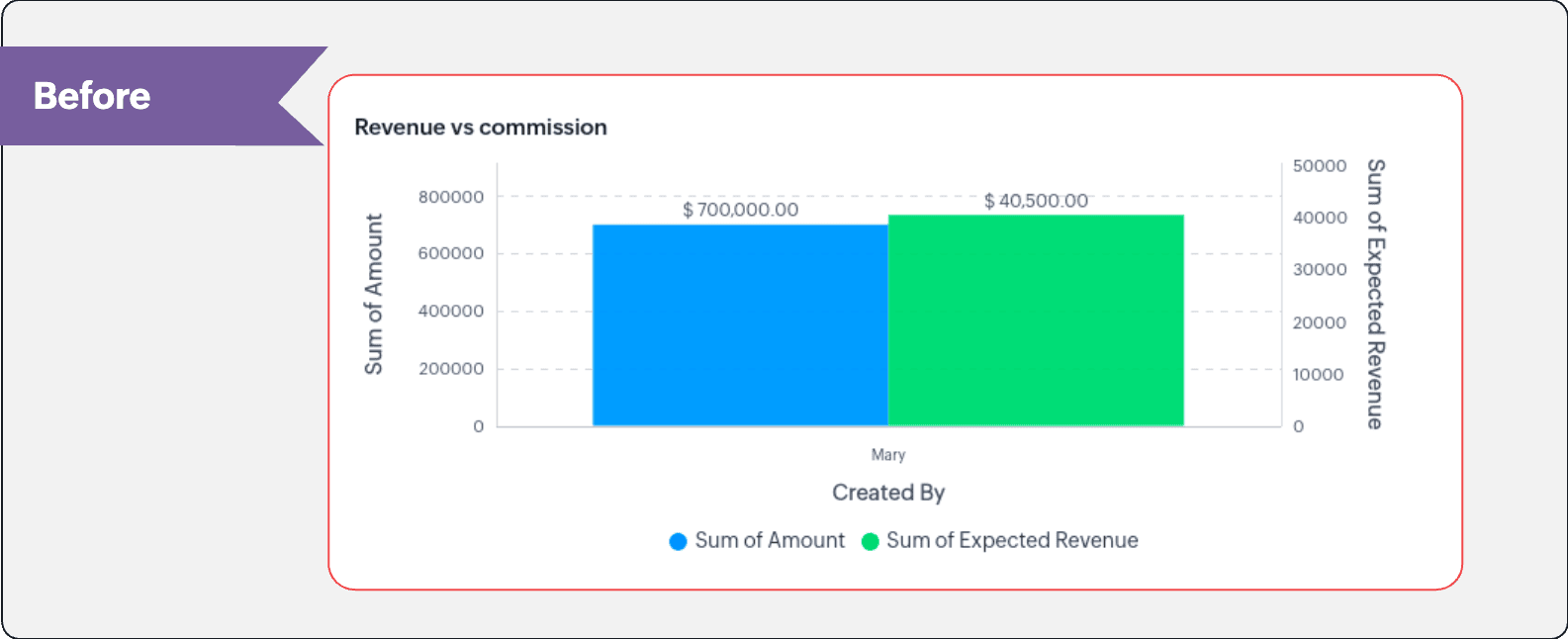
In this enhancement, we're allowing neighboring values of measures to merge so that the interpretation can be more visually accurate.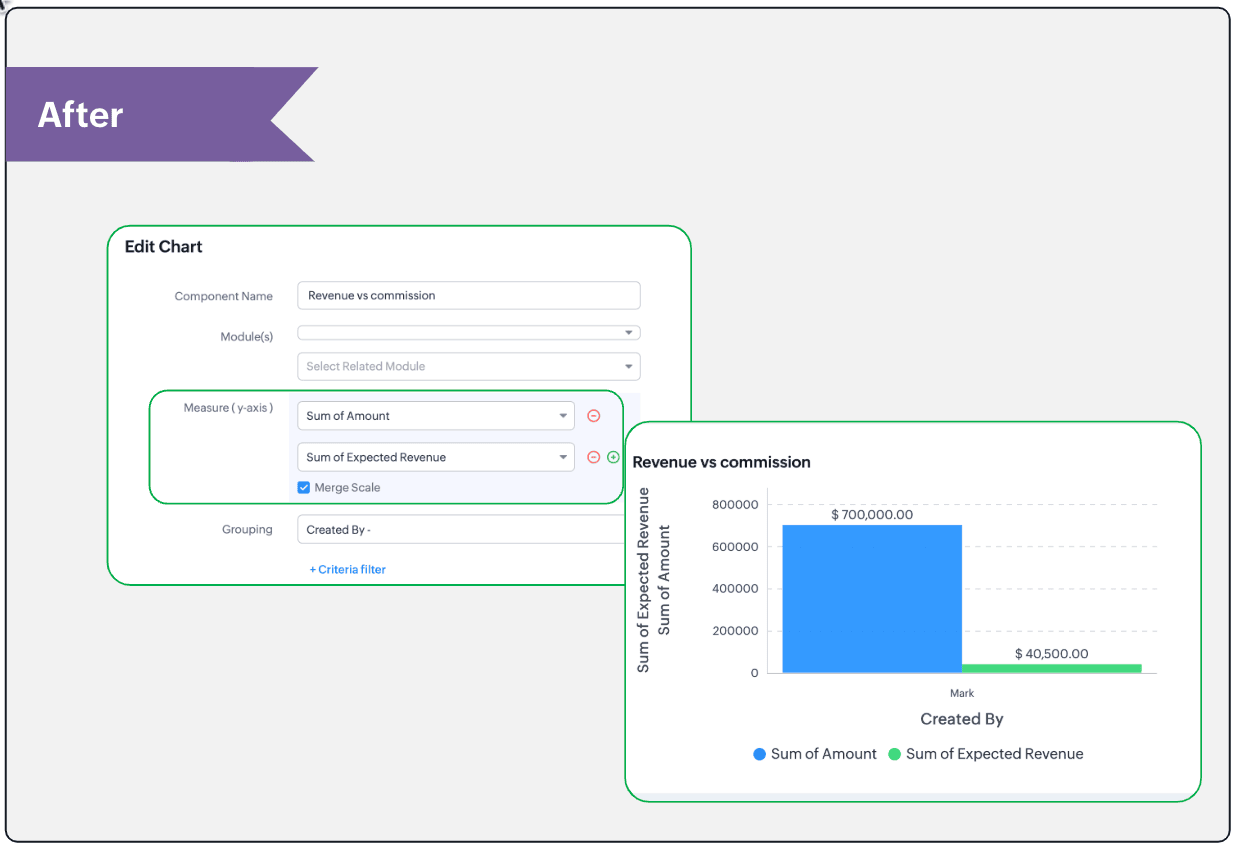
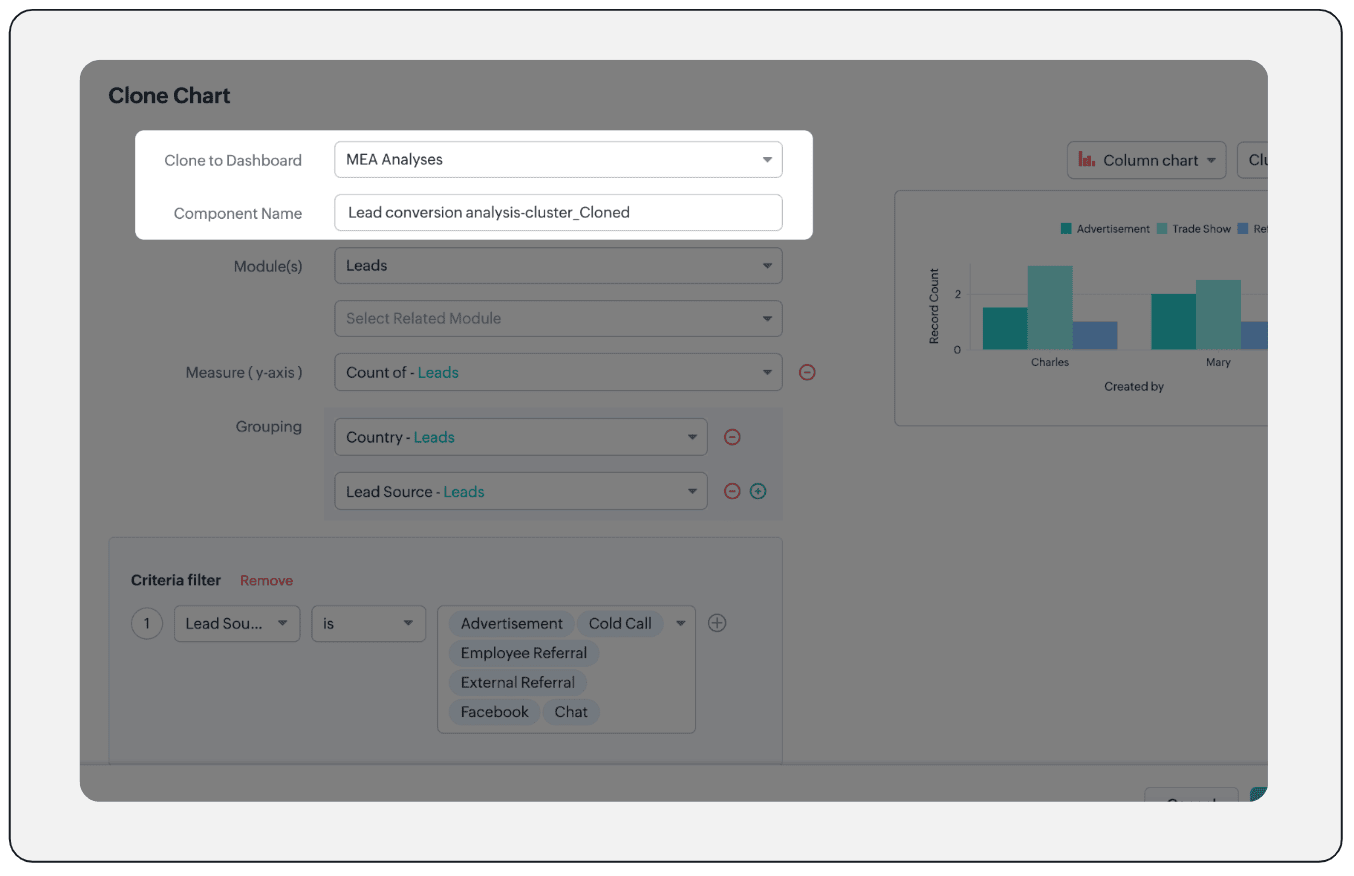
- Clone components to a different dashboard: Dashboards in Analytics serve in unique ways for various audiences—there can be separate dashboards for the sales team, marketing team, engineering team, and so on, and the chances of using the same measure for reference is common. Thus, when you clone a chart, you can now determine the target dashboard in which the cloned chart can be placed.
Resource: Help document
Thanks and have a good one!
Kind regards,
Saranya Balasubramanian
Saranya Balasubramanian
Topic Participants
Saranya Balasubramanian
Sticky Posts
Zoho CRM's sales trend and sales follow-up trend dashboards are now customizable
Dear Customers, We're here with good news! Sales trend and sales follow-up trend are two system-defined dashboards that help you understand trends and anomalies in your sales outreach and conversion efforts. They use Zia's intelligence to identify patternsIntroducing Multiple Sandbox Types and Support for Module's Data Population
Register here for the upcoming Focus Group webinar on Multiple Sandbox | Help documentation to learn more about the new enhancements Hello everyone, Sandbox in CRM is a testing environment for users to create and test new configurations like workflowGood news! Calendar in Zoho CRM gets a face lift
Dear Customers, We are delighted to unveil the revamped calendar UI in Zoho CRM. With a complete visual overhaul aligned with CRM for Everyone, the calendar now offers a more intuitive and flexible scheduling experience. What’s new? Distinguish activitiesVoC in Zoho CRM is now data savvy: Explore response drilldown, summary components and participation in CRM criteria
VoC has all the goods when it comes to customer intelligence—which is why we're constantly enhancing it. We recently added the following: A customer drilldown component that shows you the list of prospects and customers behind a chart's attribute ExpandedWrapping up 2025 on a high note: CRM Release Highlights of the year
Dear Customers, 2025 was an eventful year for us at Zoho CRM. We’ve had releases of all sizes and impact, and we are excited to look back, break it down, and rediscover them with you! Before we rewind—we’d like to take a minute and sincerely thank you
Recent Topics
CRM
Is anyone else experiencing this issue? Our company is not moving out of using Gmail's web app. It just has more features and is a better email program than Zoho Mail. Gmail has an extension (Zoho CRM for Gmail) that we're using but we've found some seriousSyncing with Google calendar, Tasks and Events
Is it possible to sync Zoho CRM calendar, task and events with Google Calendar's tasks and events. With the increasing adoption by many major tool suppliers to sync seamlessly with Google's offerings (for instance I use the excellent Any.do task planningHow can i view "Child" Accounts?
It can be very useful in our field of business to know the parent-child account relationship. However, there seems to be a shortcoming in the parent account view: no child account list. How can we view the child accounts per each account?Easily perform calculations using dates with the new DATEDIF function
Hey Zoho Writer users! We've enhanced Zoho Writer's formula capabilities with the new DATEDIF function. This allows you to calculate the difference between dates in days, months, and years. Function syntax: =DATEDIF(start_date, end_date, unit) Inputs:Adding Comments Using Workflows - How to Change User Attributed
We have worklflows in Desk where a comment is added to a ticket based on certain criteria. It seems that the comment added is always attributed to the user who last edited the workflow. This does not make sense for us because: - It's misleading to otherAdd Attachment Support to Zoho Flow Mailhook / Email Trigger Module
Dear Zoho Support Team, We hope you are well. We would like to kindly request a feature enhancement for the Mailhook module in Zoho Flow. Currently, the email trigger in Zoho Flow provides access to the message body, subject, from address, and to address,Conect chat of salesiq with zoho cliq
Is there any way to answer from zoho cliq the chat of salesiq initiated by customers?Les dernières avancées en saisie de données et collaboration
Après une année dédiée à la recherche et au développement, notre équipe est prête à dévoiler des améliorations majeures pour Zoho Sheet. Ces nouveautés seront lancées par étapes afin d’en assurer une prise en main optimale. Nous commençons avec des fonctionnalitésRich Text For Notes in Zoho CRM
Hello everyone, As you know, notes are essential for recording information and ensuring smooth communication across your records. With our latest update, you can now use Rich Text formatting to organize and structure your notes more efficiently. By usingImplement Meeting Polls in Zoho Bookings
Dear Zoho Bookings Support Team, We'd like to propose a feature enhancement related to appointment scheduling within Zoho Bookings. Current Functionality: Zoho Bookings excels at streamlining individual appointment scheduling. Users can set availabilityService Account Admin for API Calls and System Actions
Hello, I would like to request the addition of a Service Account Admin option in Zoho product. This feature would allow API calls and system actions to be performed on behalf of the system, rather than an active user. Current Issue: At present, API callsPlease can the open tasks be shown in each customer account at the top.
Hi there This has happened before, where the open tasks are no longer visible at the top of the page for each customer in the CRM. They have gone missing previously and were reinstated when I asked so I think it's just after an update that this featureHow to Customize Task Creation to Send a Custom Alert Using JavaScript in Zoho CRM?
Hello Zoho CRM Community, I’m looking to customize Zoho CRM to send a custom alert whenever a task is created. I understand that Zoho CRM supports client scripts using JavaScript, and I would like to leverage this feature to implement the alert functionality.Send Whatsapp with API including custom placeholders
Is is possible to initiate a session on whatsapp IM channel with a template that includes params (placeholders) that are passed on the API call? This is very usefull to send a Utility message for a transactional notification including an order numberAdd Israel & Jewish Holidays to Zoho People Holidays Gallery
Greetings, We hope you are doing well. We are writing to request an enhancement to the Holidays Gallery in Zoho People. Currently, there are several holidays available, but none for Israel and none for Jewish holidays (which are not necessarily the sameZO25: The refreshed, more unified, and intelligent OS for business
Hello all, Greetings from Zoho One! 2025 has been a remarkable year, packed with new features that will take your Zoho One experience to the next level! From sleek, customizable dashboards to an all-new action panel for instant task management, we’veIntroducing Multi-Asset Support in Work Orders, Estimates, and Service Appointments
We’re excited to announce a highly requested enhancement in Zoho FSM — you can now associate multiple assets with Work Orders, Estimates, and Service Appointments. This update brings more clarity, flexibility, and control to your field service operations,[Product Update] Locations module migration in Zoho Books integration with Zoho Analytics
Dear Customers, As Zoho Books are starting to support an advance version of the Branches/Warehouses module called the Locations module, users who choose to migrate to the Locations module in Zoho Books will also be migrated in Zoho Analytics-Zoho BooksIntroducing Schedules for smarter availability management
Greetings from the Zoho Bookings team! We’re excited to introduce Schedules, a powerful enhancement to manage availability across your workspace. Schedules are reusable working-hour templates that help you define and maintain consistent availability acrossWhy Zoho Contracts Prefers Structured Approvals Over Ad-hoc Approvals
Approvals are one of the most important stages in a contract’s lifecycle. They determine whether a contract moves forward, gets revised, or needs further discussion. The approval process also defines accountability within the organization. Zoho ContractsWhatsapp Connection Status still "Pending" after migration
Hello, I migrated my WhatsApp API to Zoho from another provider a day ago. So far the connection status is still “Pending”. There is a problem? How long does it usually take?Kaizen #226: Using ZRC in Client Script
Hello everyone! Welcome to another week of Kaizen. In today's post, lets see what is ZRC (Zoho Request Client) and how we can use ZRC methods in Client Script to get inputs from a Salesperson and update the Lead status with a single button click. In thisHow to Filter timewise question to check uploaded one month or two months before in these community question ?
i want to find the question that is asked some month or before any particular year, so how can i filter it ?Proposal for Creating a Unique "Address" Entity in Zoho FSM
The "Address" entity is one of the most critical components for a service-oriented company. While homeowners may change and servicing companies may vary, the address itself remains constant. This constancy is essential for subsequent services, as it providesWorkflow Down/Bug
We have a workflow that sends an email to one of our internal departments 10 minutes after a record is created in a custom module. The workflow actually works correctly. However, we have now noticed that on January 8, between 3:55 p.m. and 4:33 p.m.,Service Locations: Designed for Shared Sites and Changing Customers
Managing service addresses sounds simple—until it isn’t. Large facilities, shared sites, and frequently changing customers can quickly turn address management into an operational bottleneck. This is where Service Locations deliver clarity and control.Can I re-send the Customer Satisfaction Survey after a ticket closure?
Hello, Some customers does not answer the survey right after closure, is it possible to re-send after a few days or weeks? Best Regards!Filter contacts based on selected category in Zoho Desk ticket
Hello community, I’m setting up the Tickets module in Zoho Desk and I need help implementing the following: When a category is selected in a ticket, I want the Contact field to be filtered so that it only displays contacts that are related to that category.Profile Page View Customization
I need to change the fields, sections from the profile view of an emplyoyee.Zoho Desk Android app update: Filter, Sort and Saved filters Enhancements
Hello everyone! We are excited to introduce the below features on the Android version Zoho Desk mobile app: 1. Filter & Sort support has been introduced for the Contacts and Accounts modules. 2. Sort options is now available in Custom Modules as well.Accessing shared mailboxes through Trident (Windows)
Hi, I have a created a couple of shared mailboxes. The mailboxes are showing up on the browser based Zoho workplace, but I cannot seem to figure out how to access my shared inboxes through Trident (Windows). Am I missing something or is this feature notfiltering lookup field options based on information in another module.
In our CRM system. We have the standard Accounts and Deals modules. We would like to introduce the ability to classify Accounts by Sector. Our desired functionality is to have a global list of all sectors that an Account can select, with the ability toIntroducing Assemblies and Kits in Zoho Inventory
Hello customers, We’re excited to share a major revamp to Zoho Inventory that brings both clarity and flexibility to your inventory management experience! Presenting Assemblies and Kits We’re thrilled to introduce Assemblies and Kits, which replaces theDoes the ability exist to make tax on the customer profile mandatory?
I am reaching out to inquire about the possibility of making the "Customer Tax" field mandatory when creating a new customer in Zoho. We want to ensure that all customers have their tax information recorded to maintain compliance with our internal processes.email association with CRM
Why is it 2024 (almost 2025) and Zoho has not figured out how to integrate email with CRM? It is so inconsistent at associating emails within CRM. I am an attorney. I have clients and work with other attorneys. Attorney John Doe is associated with multipleCredit Note for Shipped and Fatoora pushed invoices
We have shipped a Sales Order and created an Invoice. The Invoice is also pushed to Fatoora Now we need to create a credit note for the invoice When we try it, it says we need to create a Sales Return in the Zoho Books, we have already created a SalesFSM - Timesheet entires for Internal Work
Hi FSM Team, Several of my clients have asked how they can manage internal timesheets within Zoho FSM. Since their technicians already spend most of their day working in FSM, it would be ideal if they could log all working hours directly in the FSM app.Add a way of clearing fields values in Flow actions
It would be great if there was an option to set a field as Null when creating flows. I had an instance today where I just wanted to clear a long integer field in the CRM based on an action in Projects but I had to write a custom function. It would beRole Management
I am creating an analytics dashboard for a company that will be utilized by its various departments such as Finance, Marketing, and HR. My goal is to design the dashboard with separate tabs for each department. Additionally, I plan to implement role-basedAnnouncing new features in Trident for Windows (v.1.37.5.0)
Hello Community! Trident for Windows just received a major update, with a range of capabilities that strengthen email security and enhance communication. This update focuses on making your mailbox safer and your overall email experience more reliable.Next Page