Weekly Tips : Customize your Zoho Mail Notifications
In a professional context, email communication remains one of the most crucial channels for staying connected and managing workflows. Keeping track of your emails, task updates, or important announcements can be overwhelming—especially if you are juggling multiple projects or clients. Constantly monitoring your inbox for new messages can become a hassle and distract you from your core work.
What if you could receive instant alerts that notify you immediately when an important email arrives or when a task is updated?
Zoho Mail’s Notification help you customize the notifications based on your preferences. By customizing your notifications, you can stay informed in real-time without the need to frequently check your inbox manually.
Zoho Mail Notifications
With Zoho Mail, you have the flexibility to tailor Notifications according to your preferences — whether it is a streams update, a new mail alert, or task notifications. You can customise for which emails the alerts should be triggered, such as those from specific contacts, emails marked as urgent, or task reminders.
Steps to enable notifications in Zoho Mail
- Log into your Zoho Mail account.
- Navigate to the Settings icon located in the right-side pane.
- Click on Notifications.
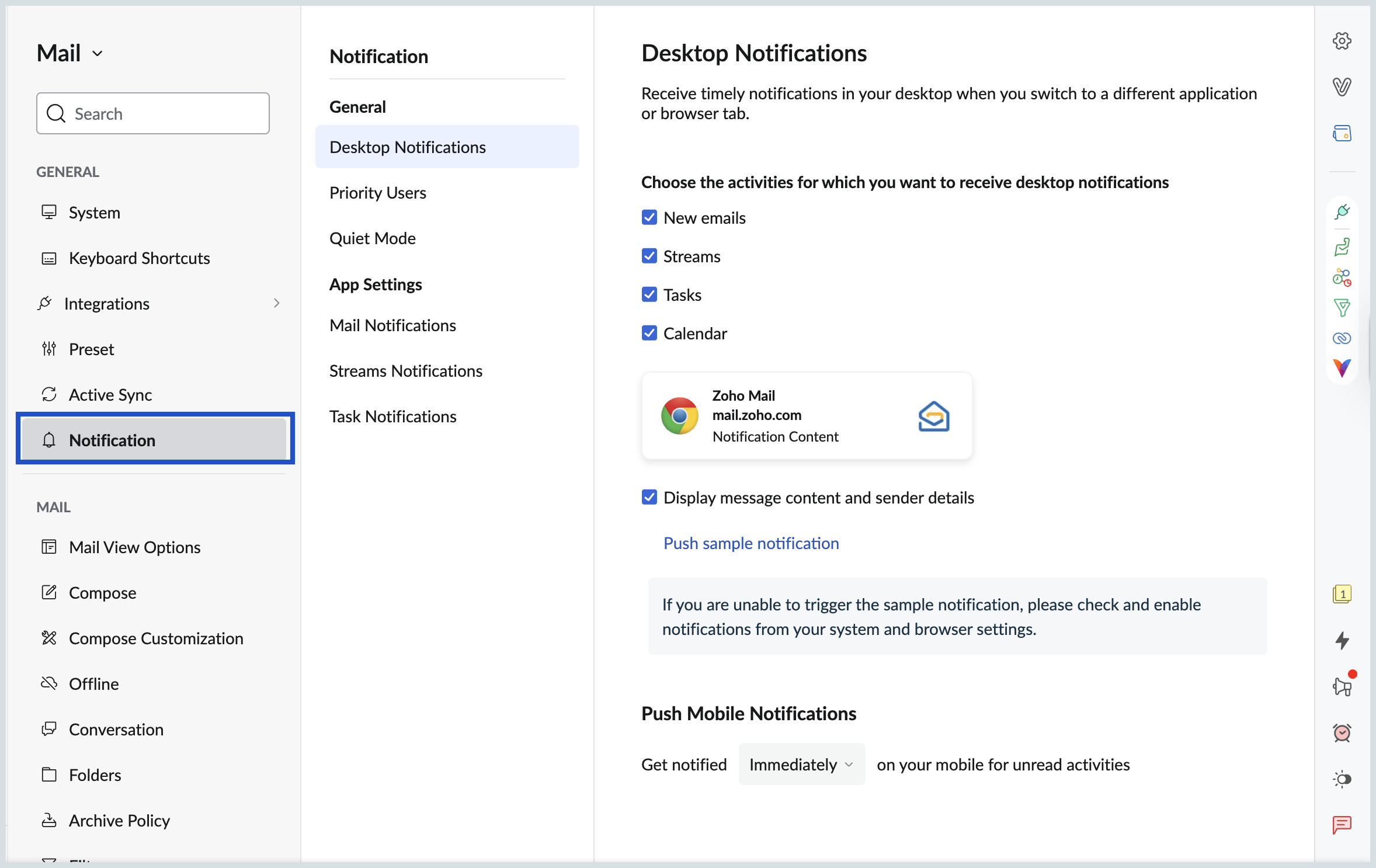
- You can view both the General and App-specific notifications settings.
- You can set notification tone, customize push notifications on webmail and also preset the time to push mobile notifications.
- In General Notifications, you can customize notifications for Desktop, Priority Users and Quiet Mode.
- In App Settings, you can customize notifications for Mail, Streams and Task.
Make the most out of Zoho Mail notifications to keep your workflow smooth and efficient.