Tip #47- Stay Ahead with Automated Scheduled Reports in Zoho Assist- 'Insider Insights'
We’ve made it easier for you to stay informed, even when you’re busy managing remote sessions! With Scheduled Reports in Zoho Assist, you can now automatically receive detailed insights about your remote support and unattended access activities directly in your inbox.
Scheduled Reports let you automatically receive remote support and unattended access reports at set intervals — daily, weekly, or monthly. Whether you’re managing multiple technicians or monitoring device activity, you can now keep everyone informed without lifting a finger.
How to Create a Scheduler
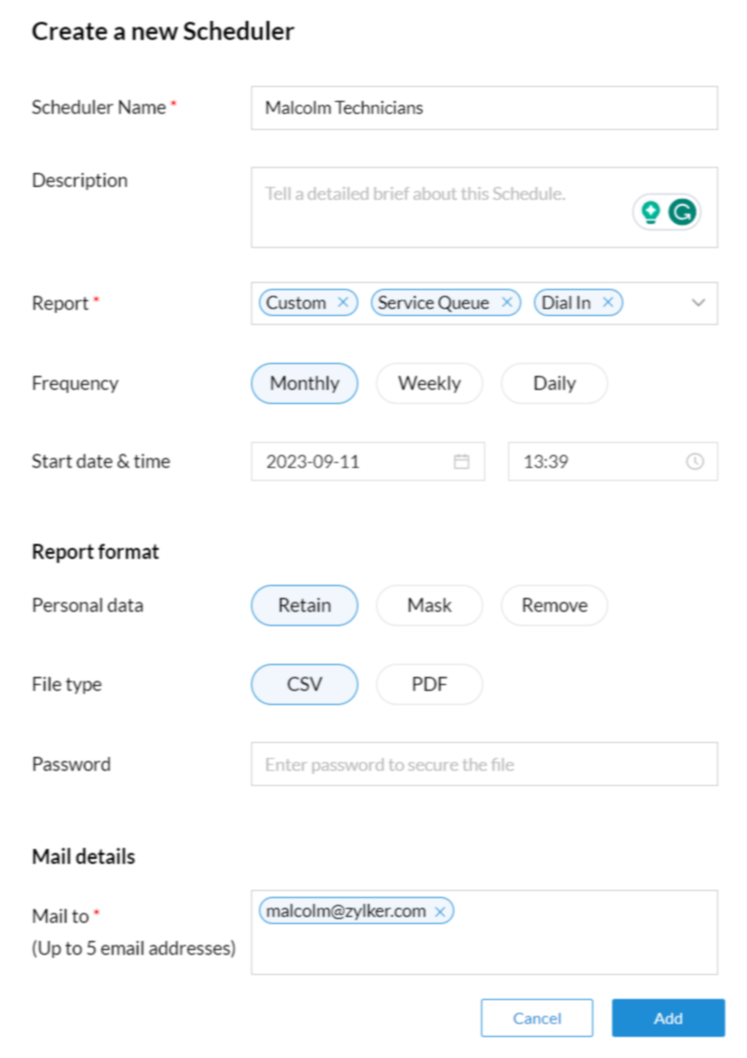
To create a scheduler in Zoho Assist, go to Reports → Scheduled Report and click Start a new Scheduler. Enter a suitable Scheduler Name and an optional Description, then select one or more Report Types you’d like to receive. Choose the delivery frequency—daily, weekly, or monthly—and set a Start Date and Time (it must be in the future). You can further customize the scheduler by configuring data privacy and email password protection options. Finally, add up to five recipients to share the reports automatically with your team.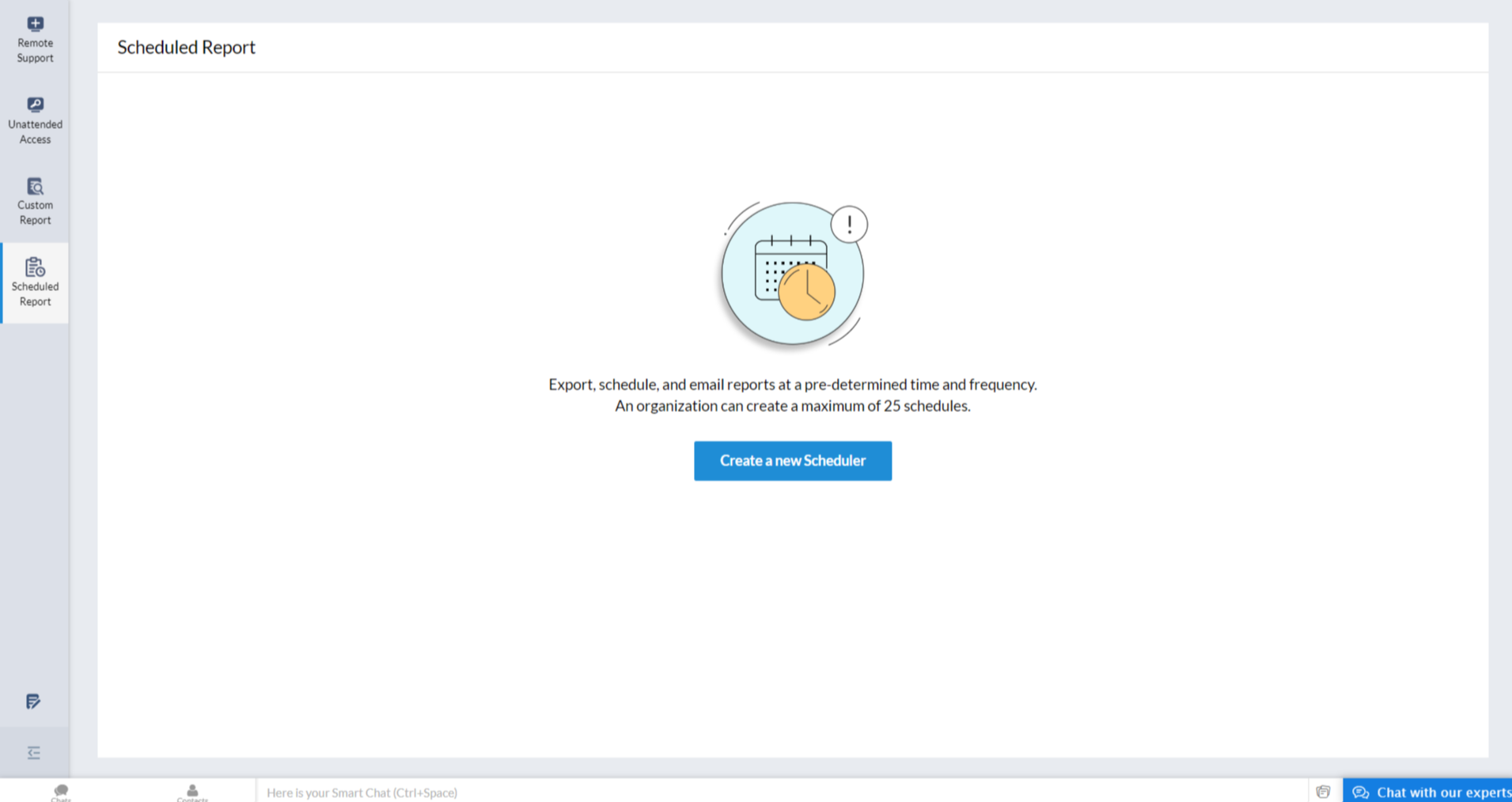
Modify or Delete a Scheduler
Want to make changes later? Easy!
- Click on the scheduler name to view its details.
- Use the three-dot menu (⋮) to modify or delete it.
(Note: Once deleted, you’ll stop receiving that report.)
Run a Report Instantly
Need a report before the next scheduled time? Just click the three-dot menu (⋮) and select Execute Now to send it immediately, without affecting future schedules.
Whether you’re tracking performance, monitoring usage, or preparing audit logs, Scheduled Reports ensures you never miss the data that matters most. If you need help setting up or have any questions, feel free to reach out to us at support@zohoassist.com — we’re here to help.