Automating appointment status and customer feedback collection
Hello community members,
In the spirit of elevating your scheduling game for 2024, we're bringing you a couple of useful workarounds that can enhance your overall Bookings experience.
We have divided the community post into two halves. In the first half, we will show how to automate the appointment status to Completed. This action ensures that emails are automatically triggered after the appointment is completed. In the second half, we will explore how to add and prefill the feedback form in your customer emails. This will allow you to efficiently gather feedback from customers.
In an effort to streamline the entire process, we're merging both topics into a single post. This aims to automate updating the appointment status to completed, triggering the completion email to customers, and seamlessly integrating our Zoho Survey form for actively collecting valuable feedback.
In an effort to streamline the entire process, we're merging both topics into a single post. This aims to automate updating the appointment status to completed, triggering the completion email to customers, and seamlessly integrating our Zoho Survey form for actively collecting valuable feedback.
Automating the appointment status
Currently, updating an appointment's status to Completed is a manual process in Zoho Bookings. However, with our new workaround, you can now streamline this task through automation. We've included steps below that will make it so that once an appointment has ended, its status will automatically switch to Completed.
Note that if you mark an appointment as No show, your selection will not be overwritten by this new workaround.
If you're still concerned about this, consider editing the content of the appointment completion trigger email, providing generic content suitable for both attendees and non-attendees. This guarantees that even if all appointments are marked as completed, a generic email with relevant information will be sent to all customers.
Prerequisites for automating the appointment status
1. Zoho Bookings basic or premium subscription.
2. Zoho Flow paid subscription
How to automate
A. First, we'll create a new flow in Zoho Flow:
1. Sign in to Zoho Flow.
2. Select the Create flow option.
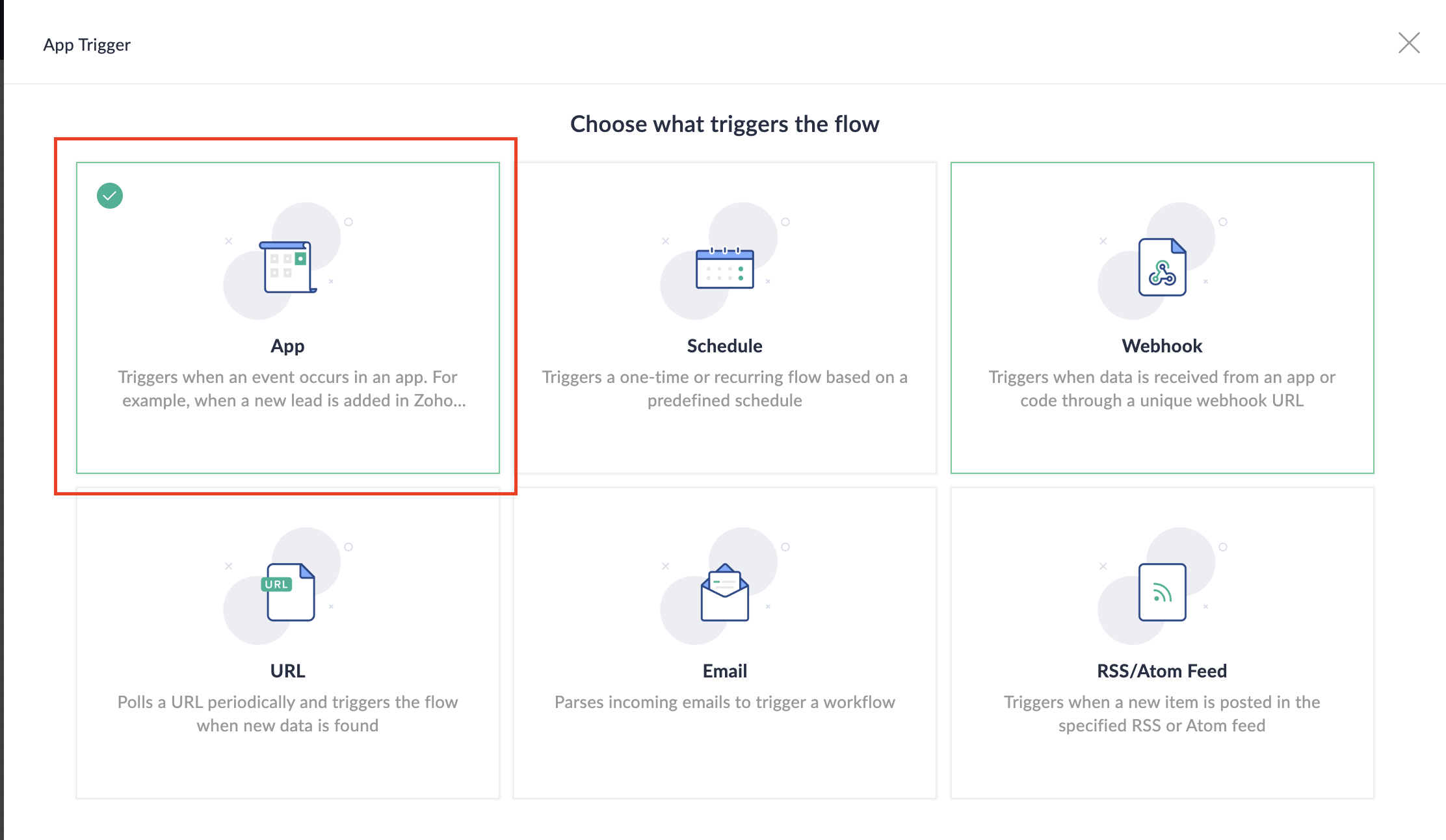
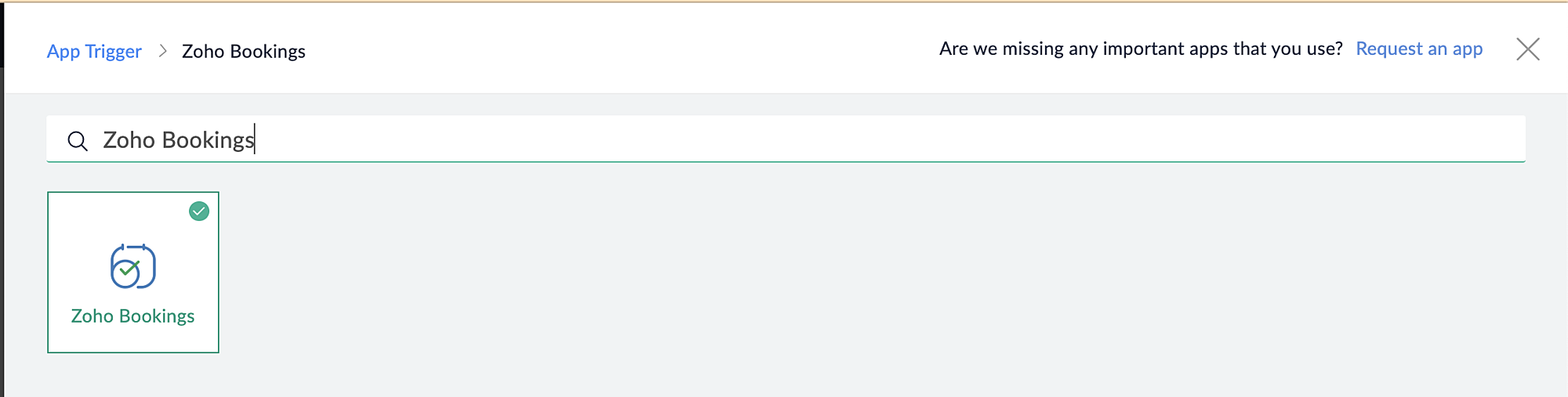
3. Select App and search for Zoho Bookings in the search bar.
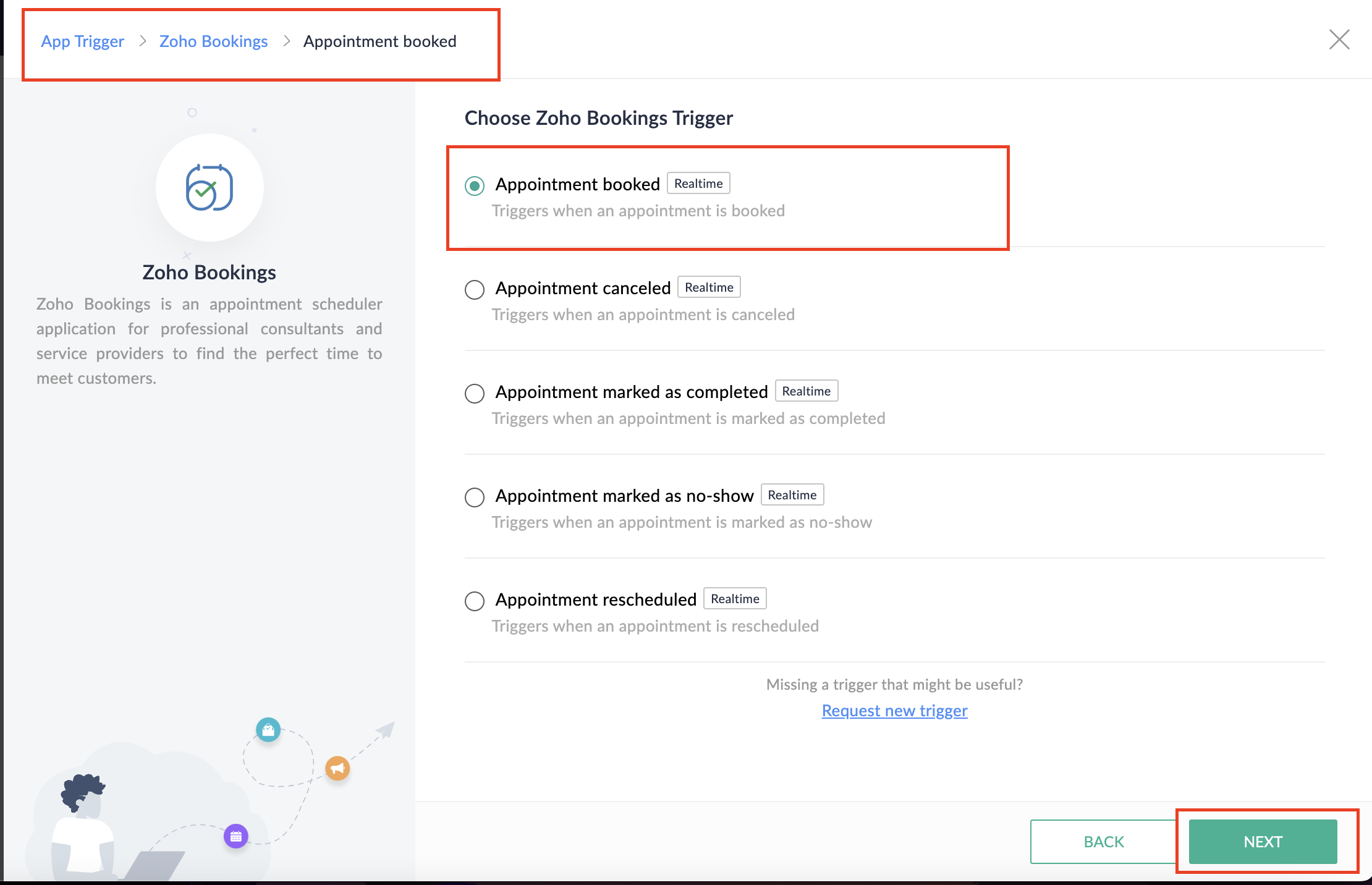
4. Select the Appointment booked trigger.
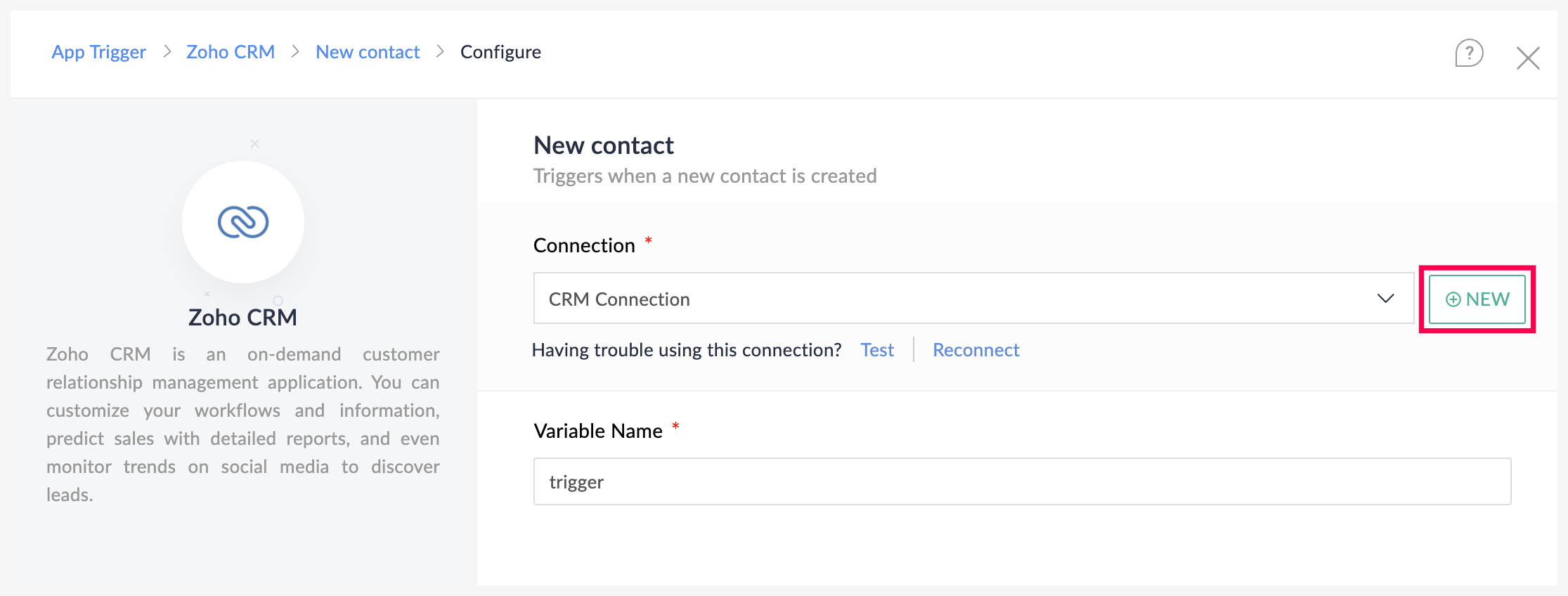
5. Select the Connection and Variable Name.
6. Click Done.
You have now created a new flow for Zoho Bookings.
Other helpful links for this process:
- How to create a flow in Zoho Flow: Create a flow from scratch
- How to create connection in Zoho Flow: Create a Connection
B. Next, let's configure the logic:
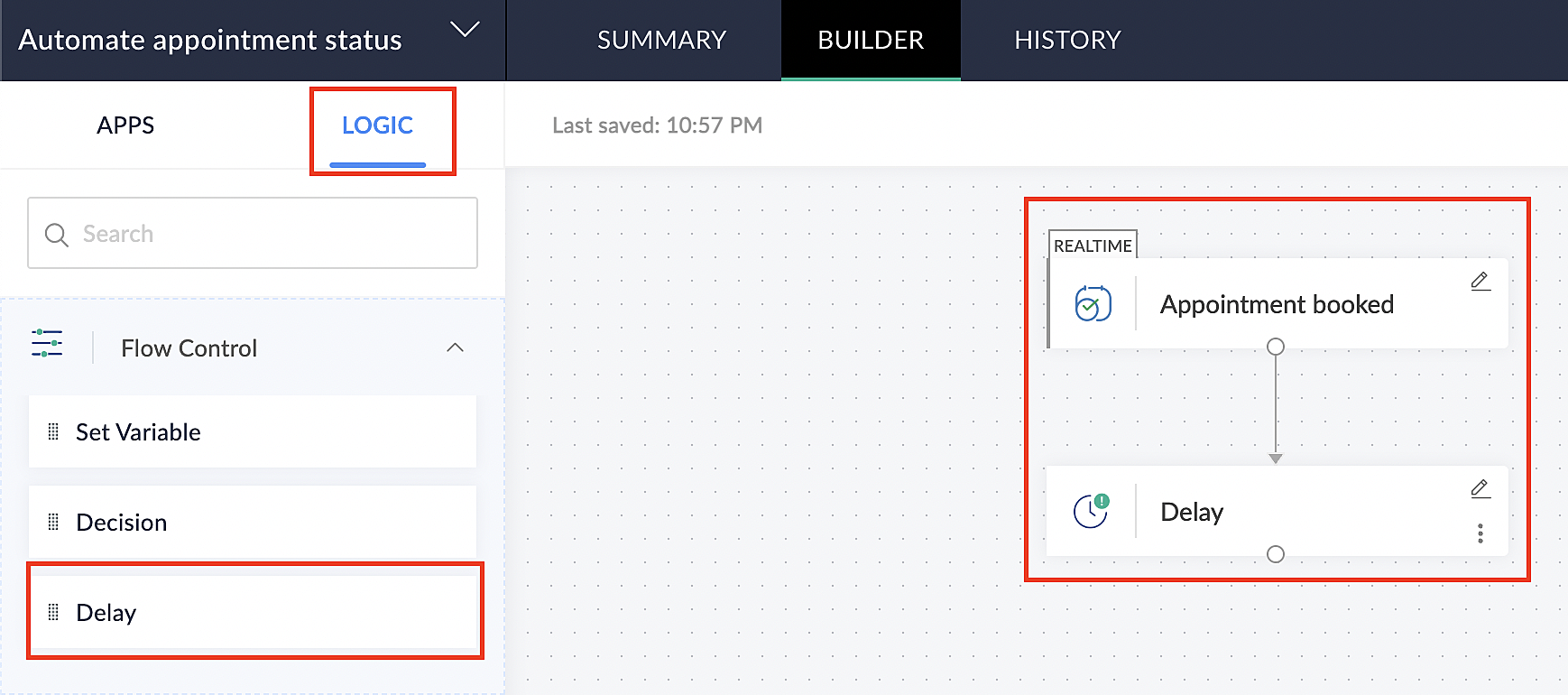
1. Navigate to the Logic tab in Zoho Flow.
2. Click the Flow Control dropdown and select Delay.
3. Drag and drop the Delay function to the bottom of the Appointment booked trigger.
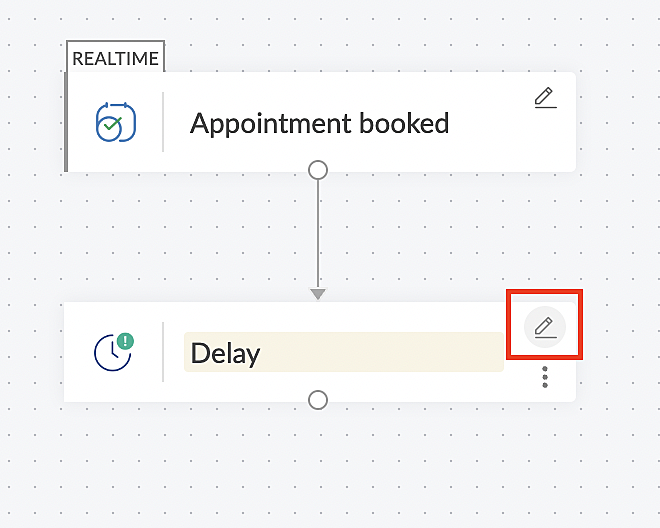
4. Click on the edit icon next to the Delay function.
5. In the Delay For the column, select the appointment end time variable from the available Zoho Bookings variables.
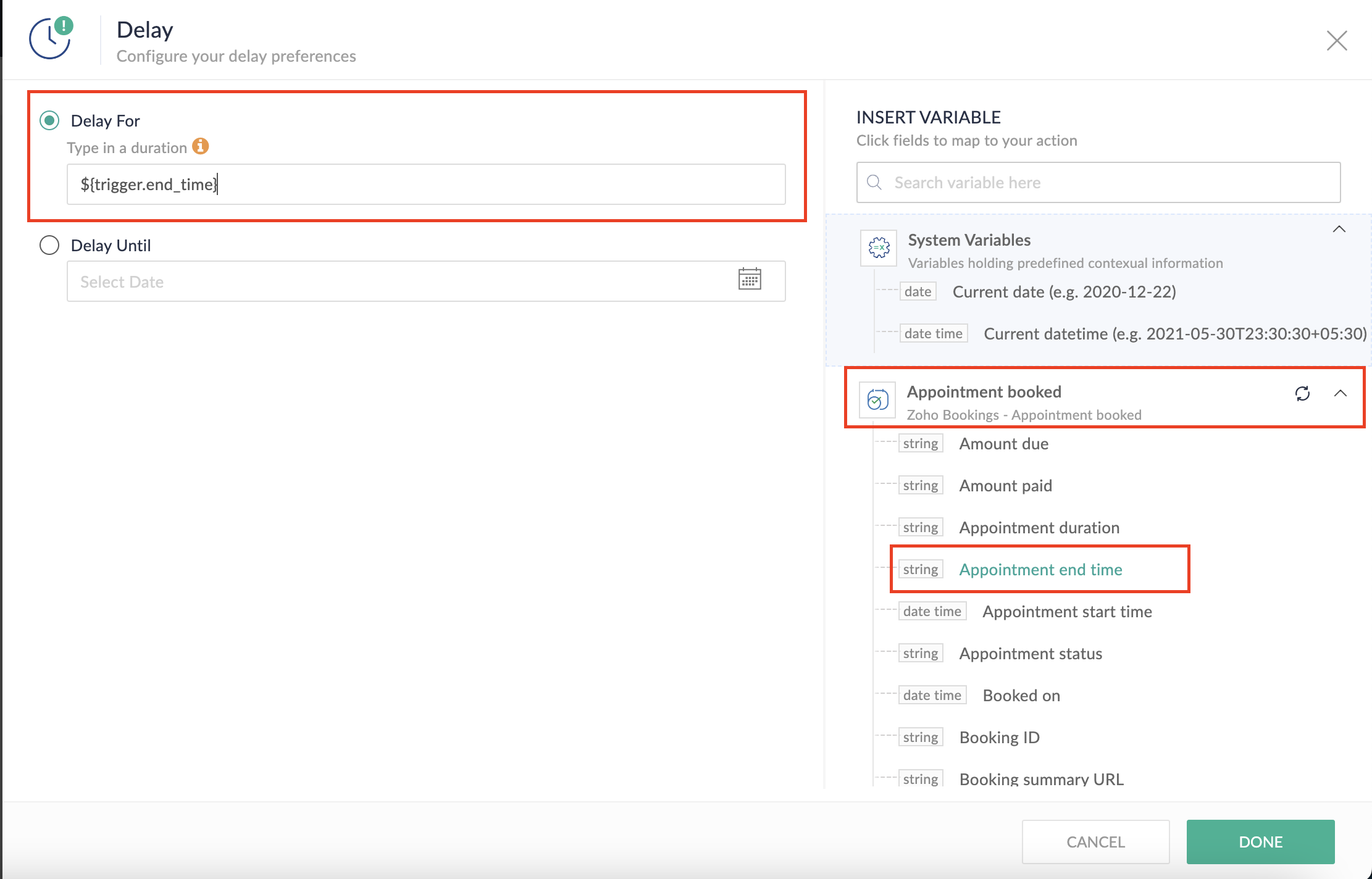
Completing this steps helps us ensure that this workflow executes exclusively at the end of each appointment.
C. We can now allocate additional time for any necessary actions:
For example, let's consider extending the remaining actions by an extra 5 minutes. This extension grants you additional time to update the appointment status.
1. From the Logic tab, drag and drop another Delay action to the bottom of the first Delay action.
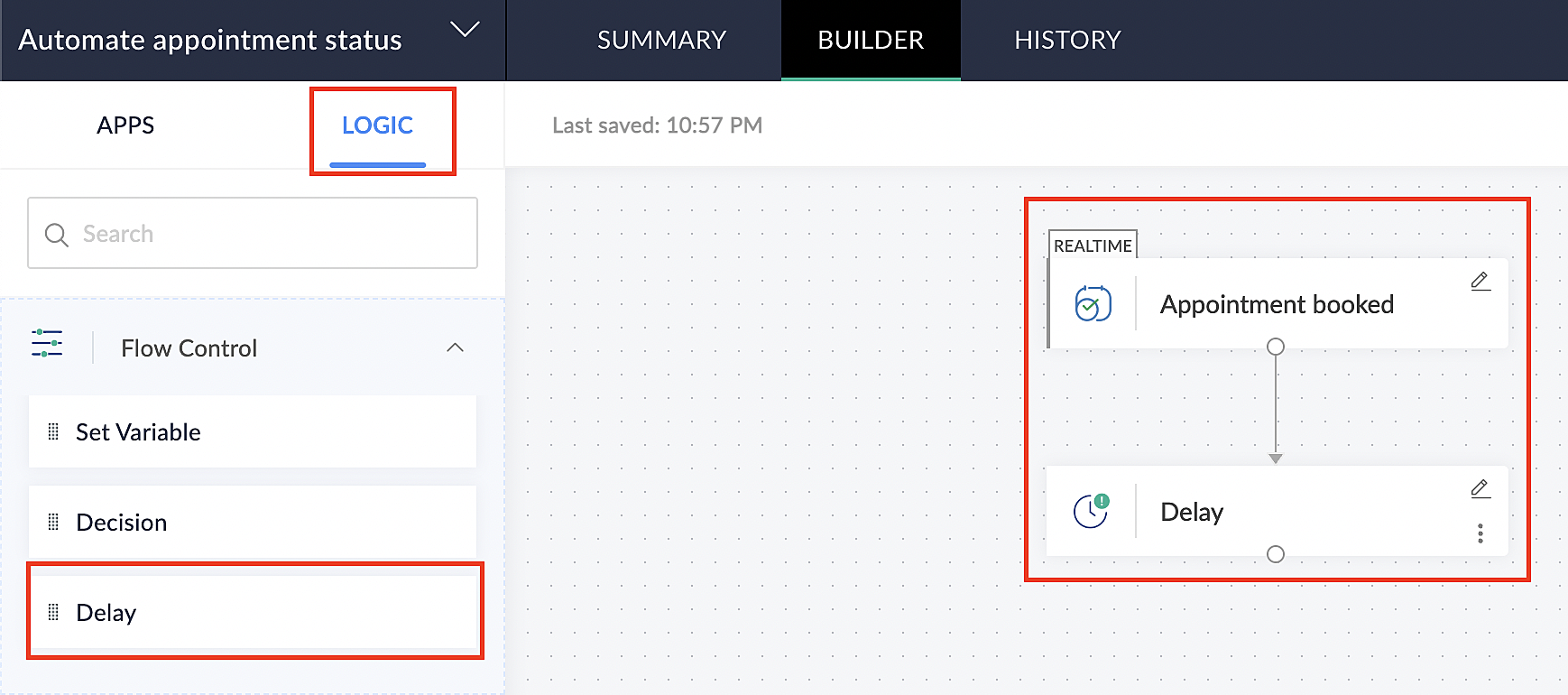
2. Click on the edit icon next to the Delay function.
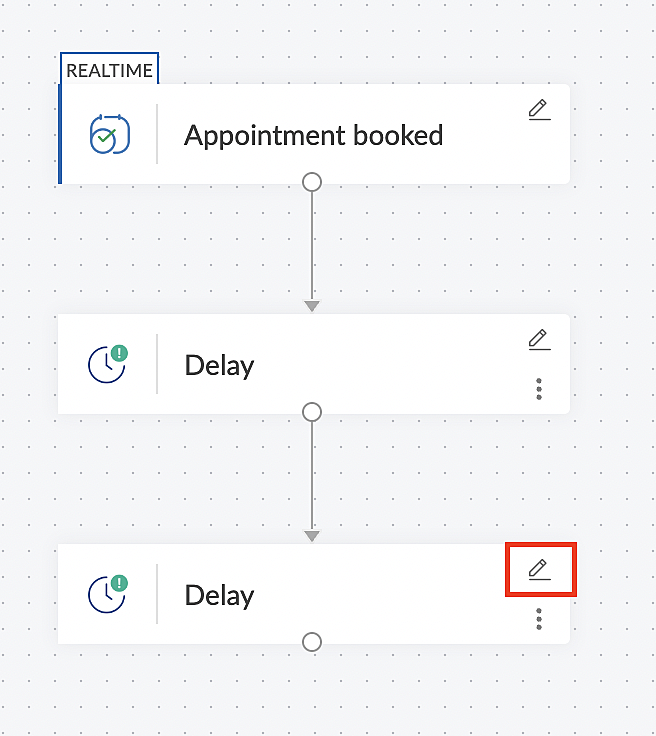
3. In the Delay For column, set the desired extra time based on your preference. If going by our proposed example, we'd configure an additional 5 minutes.
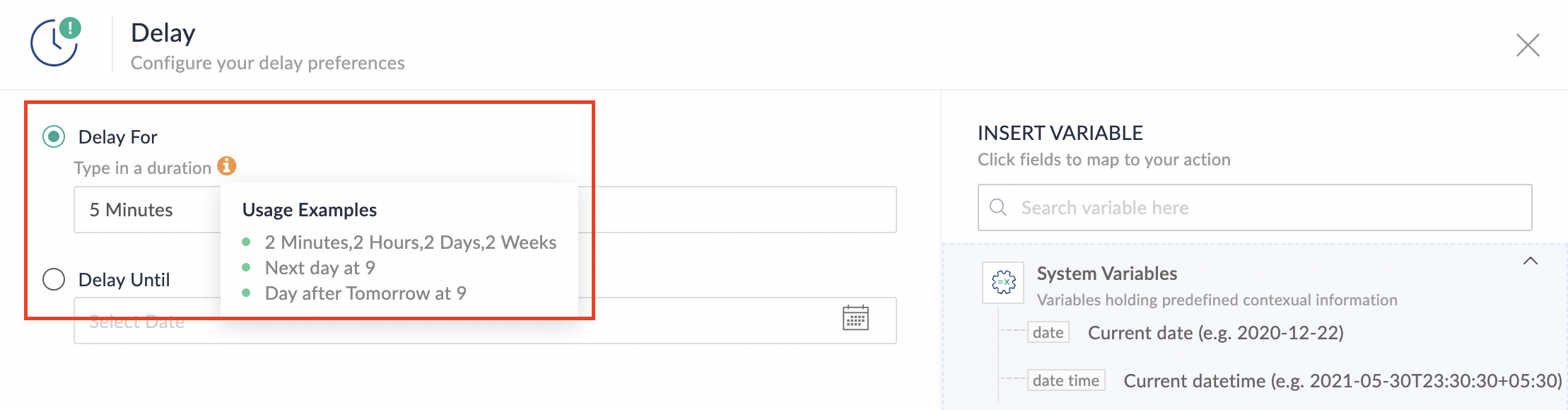
For more details: Delay
Note: If you decide not to include extra time and prefer to execute the flow precisely at the end of the appointment duration, you do not need to complete this section of steps.
D. Finally, let's configure a custom function
Through this step, we'll ensure our ended appointment's status updates to Completed (as long as no other status has been selected).
1. From the Logic tab, click the Custom Functions dropdown.
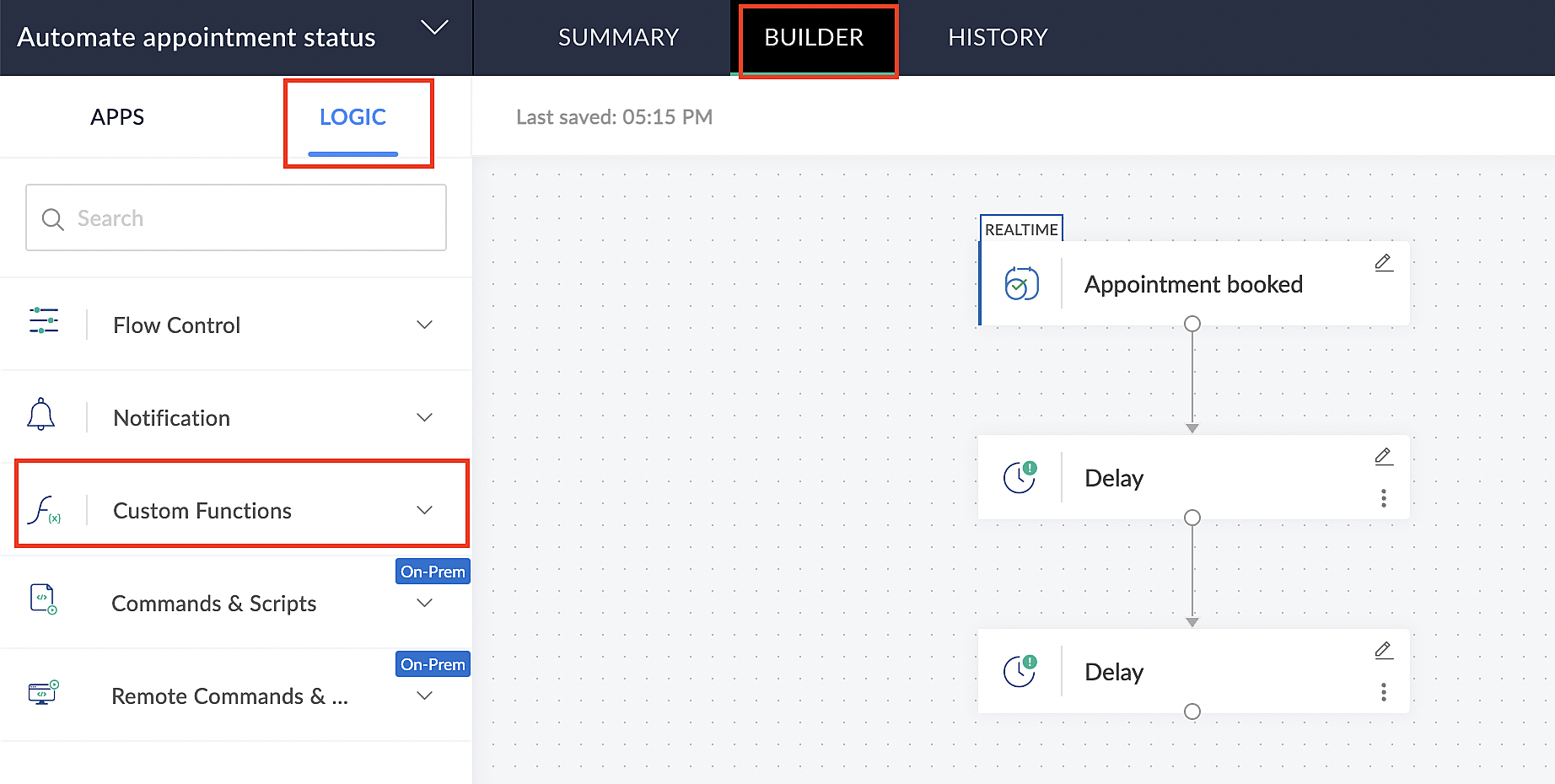
For more details: Custom Functions
2. Click +Custom Function.
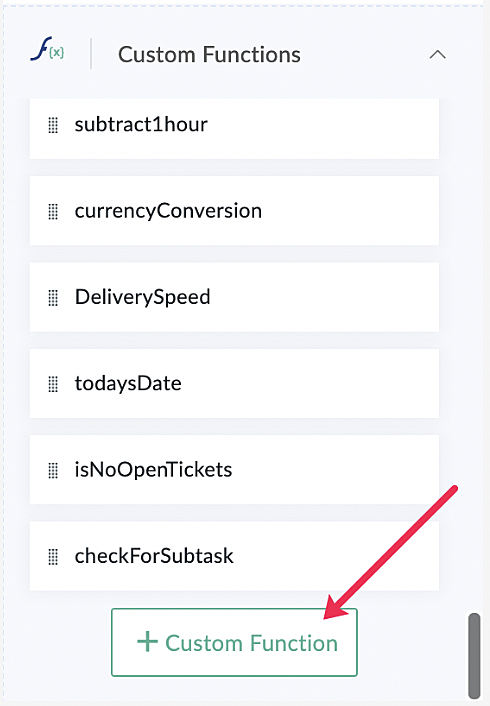
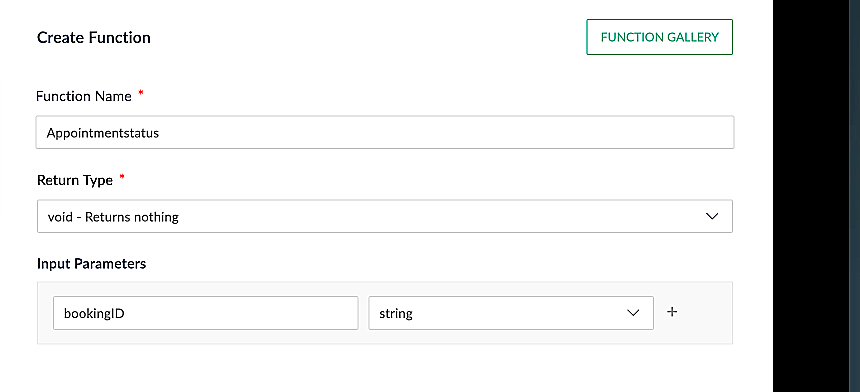
3. Add a relevant name for the function under Function Name, and set the Return Type as void - Returns nothing from the dropdown.
4. Under Input parameters, type bookingID and select string from the dropdown as shown in the screenshot below.
5. Click Create to open the Deluge script page, where we will enter our code for execution.
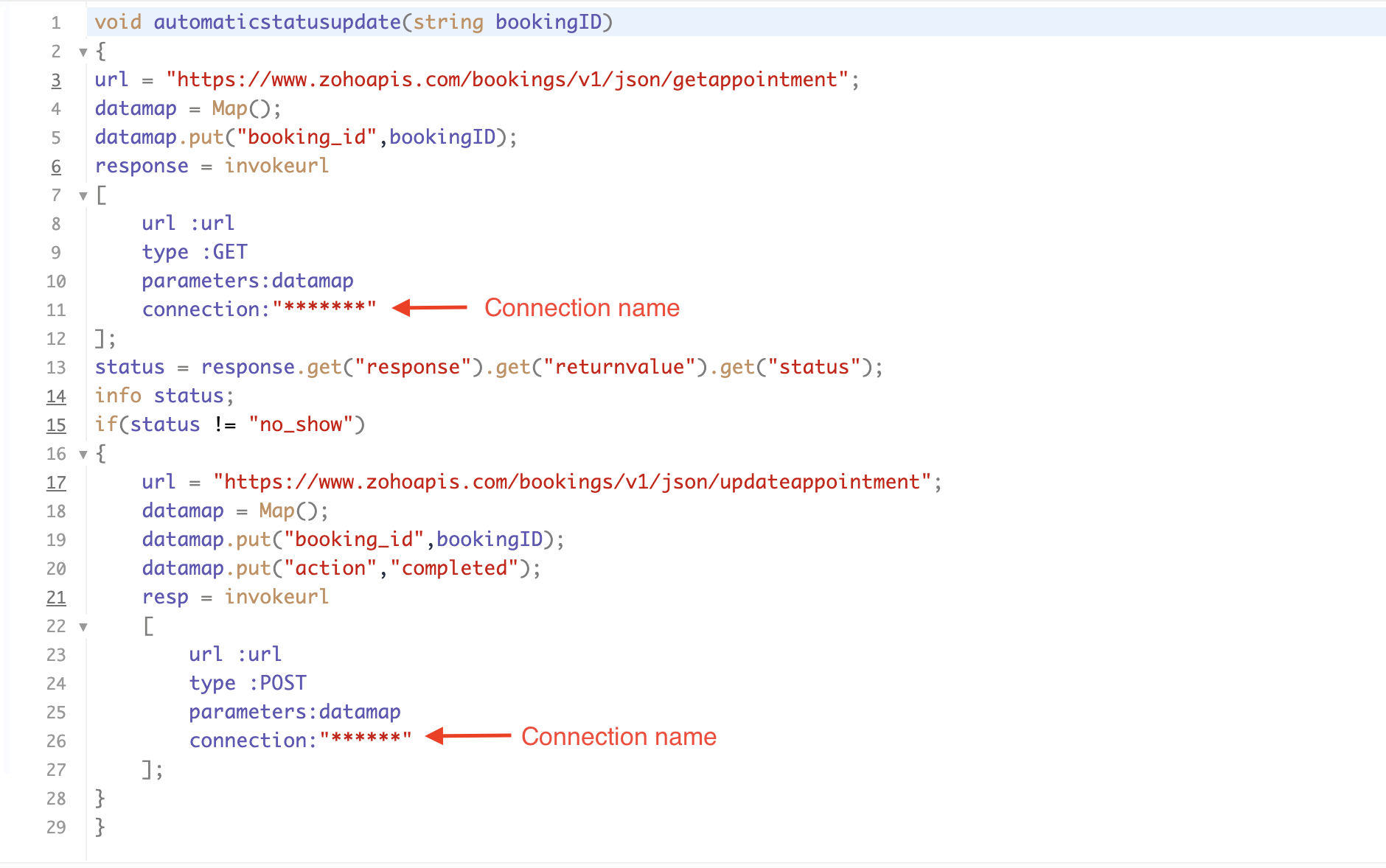
If you're interested, here is a brief explanation of the code:
Line 1: To pass the input data below to the code.
- Booking ID: Identifies the specific booking for fetching details and checking the status.
Line 3: Set up the API endpoint URL based on the Zoho Bookings account's data center.
- More details: Domain-specific API URLs
Line 3–12: We utilize the Get Appointment API' to retrieve the appointment details. For more details: Get Appointment API
Line 13: Here, we're fetching the status of the respective appointment from the response of the Get Appointment API.
Line 15: Implement an 'if' condition to execute the code only if the appointment status is not No show.
Line 16–27: In this step, we utilize the 'Update Appointment API to mark the appointment status as Completed' when the condition specified in line 15 of the code is met.
This is how the final flow will look:
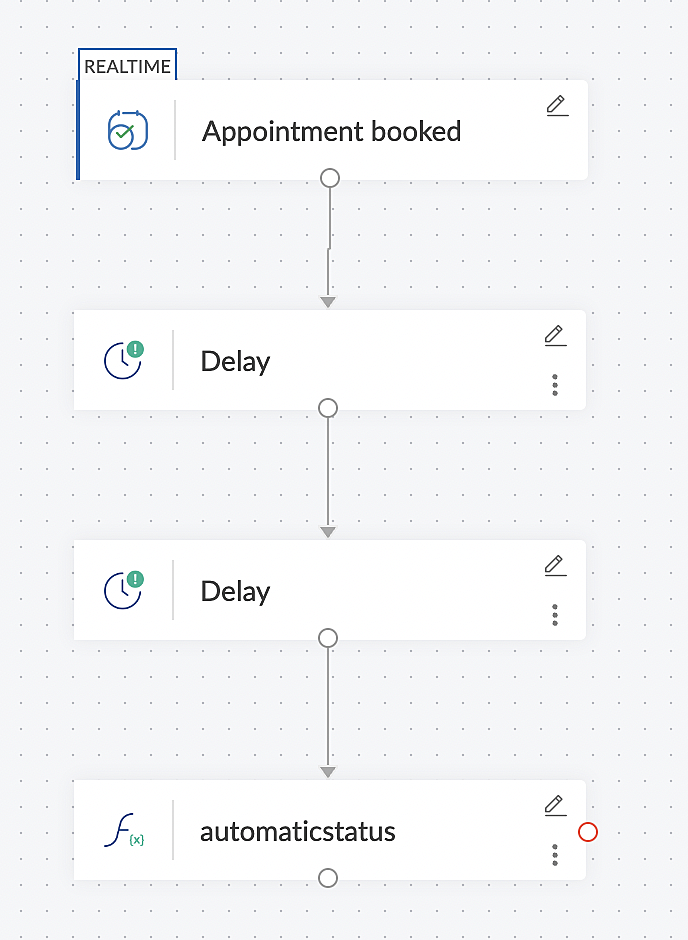
This is how the final flow will look:
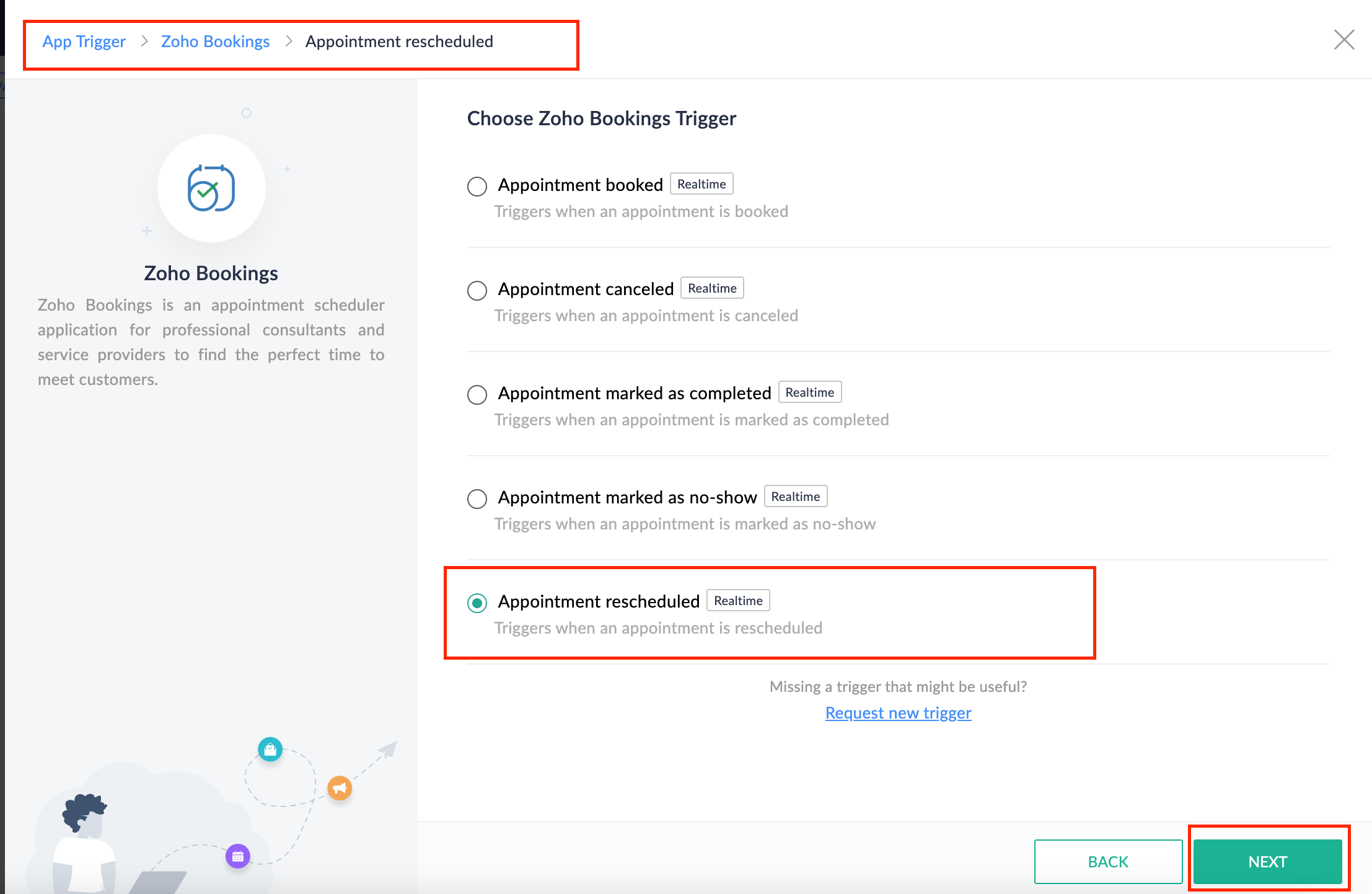
Note: The described flow is tailored for newly scheduled appointments. For cases where appointments are initially scheduled and later rescheduled, a separate flow must be created. The flow for rescheduled appointments follows the same steps outlined above, with the only modification being the initial trigger. Instead of the 'Appointment booked' trigger, please substitute it with the 'Appointment rescheduled' trigger in step A (steps B, C, and D remain the same).
Collecting feedback with surveys
Ensuring a seamless and positive customer experience is a top priority for every appointment. An integral part of this process involves gathering feedback from customers after the appointment's completion. This valuable feedback not only helps understand their sentiments but also provides insights for continuous improvement.
Let's explore how to leverage Zoho Survey to collect valuable feedback from customers. Additionally, we'll delve into the process of pre populating survey fields with the customer's name extracted from the appointment.
How to create a survey in Zoho survey:
You have the option to create a new survey from scratch or choose from templates or existing surveys.
For more details, refer to: Create a Survey.
As an example, let's use the Customer Feedback Survey from the templates.
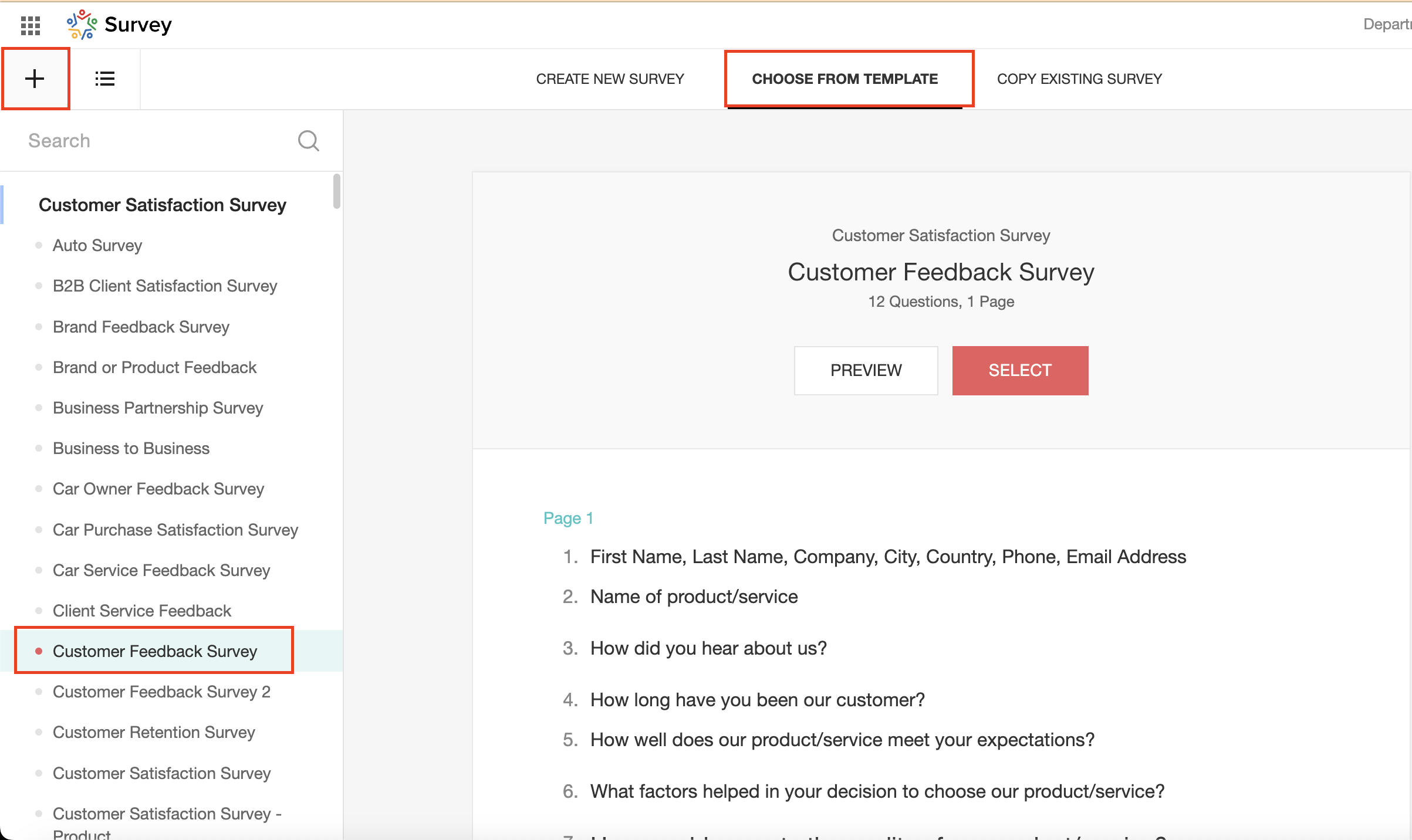
To enhance your survey experience, you have the flexibility to edit the survey form and select specific fields for inclusion.
Now, let's take a closer look at streamlining the customer experience by auto-populating the field inputs in Zoho survey with customer details. This additional step eliminates the need for customers to add their information manually, contributing to an enhanced overall experience.
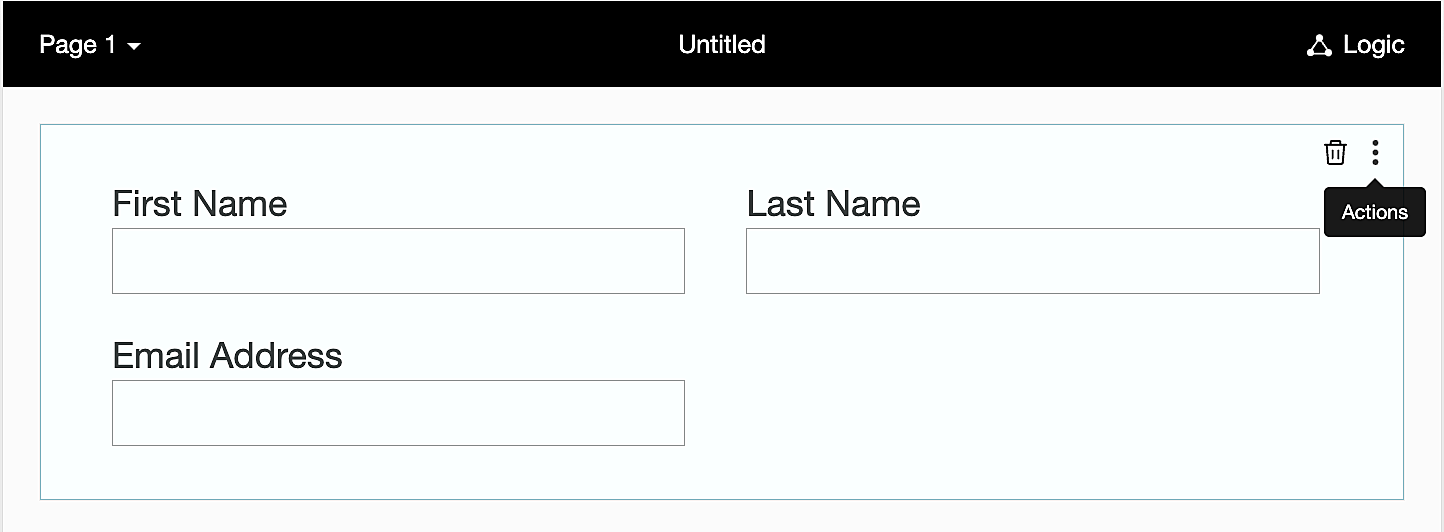
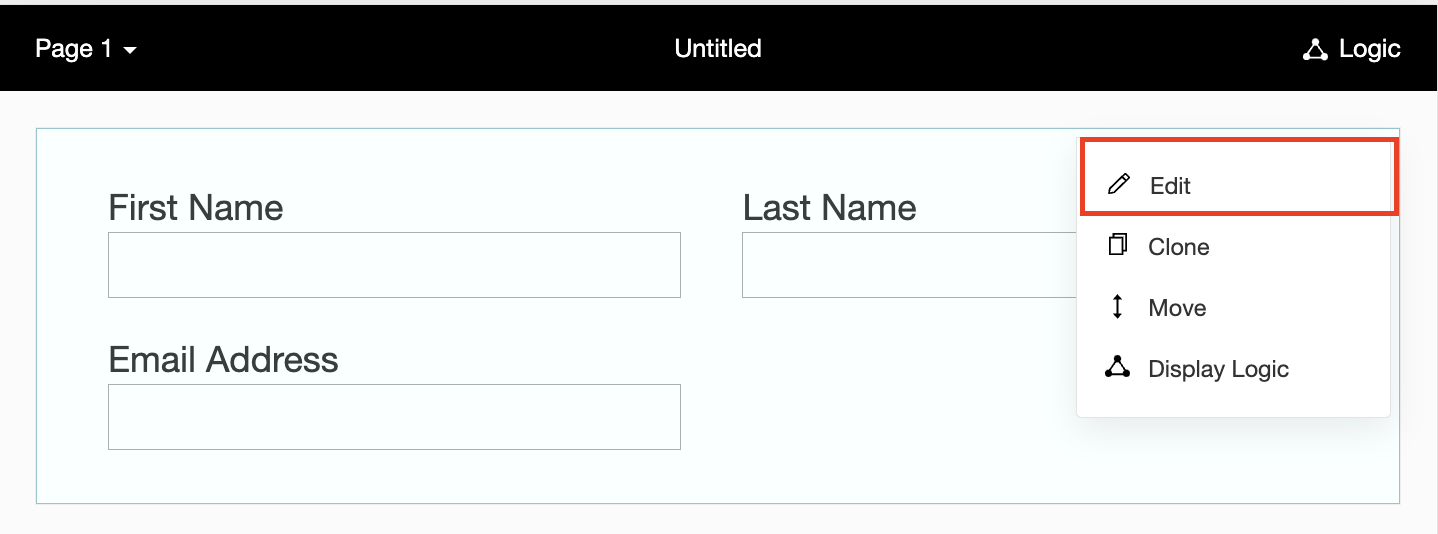
1. Click on the Actions button (three dots) next to the Last Name field, and choose Edit.
2. Click on Advanced options and check the box next to Prepopulate answer.
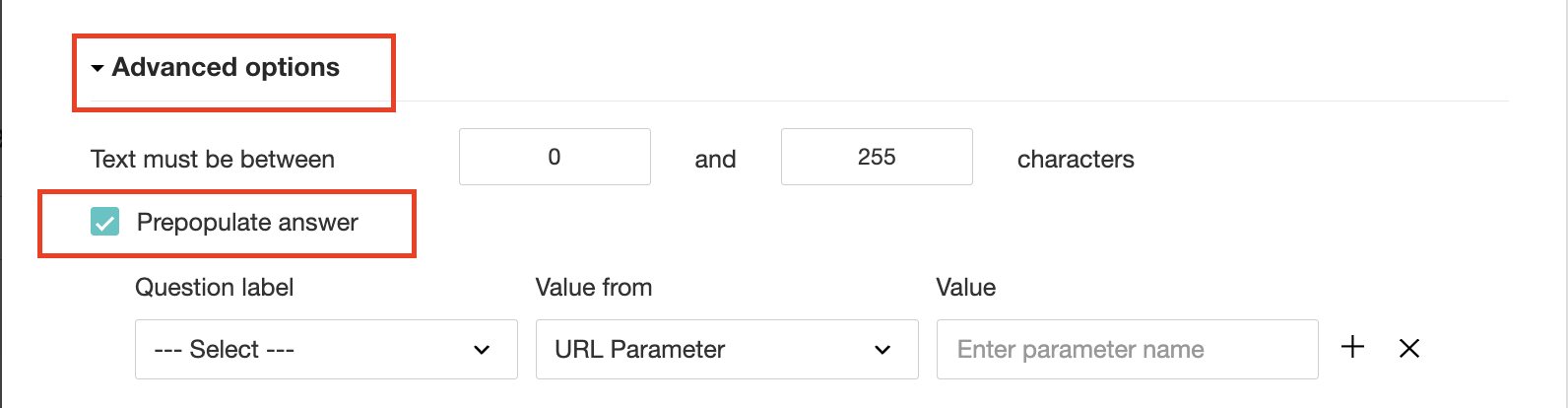
3. Select First Name, Last Name, and Email Address under Question label and URL parameter in each corresponding Value from field.
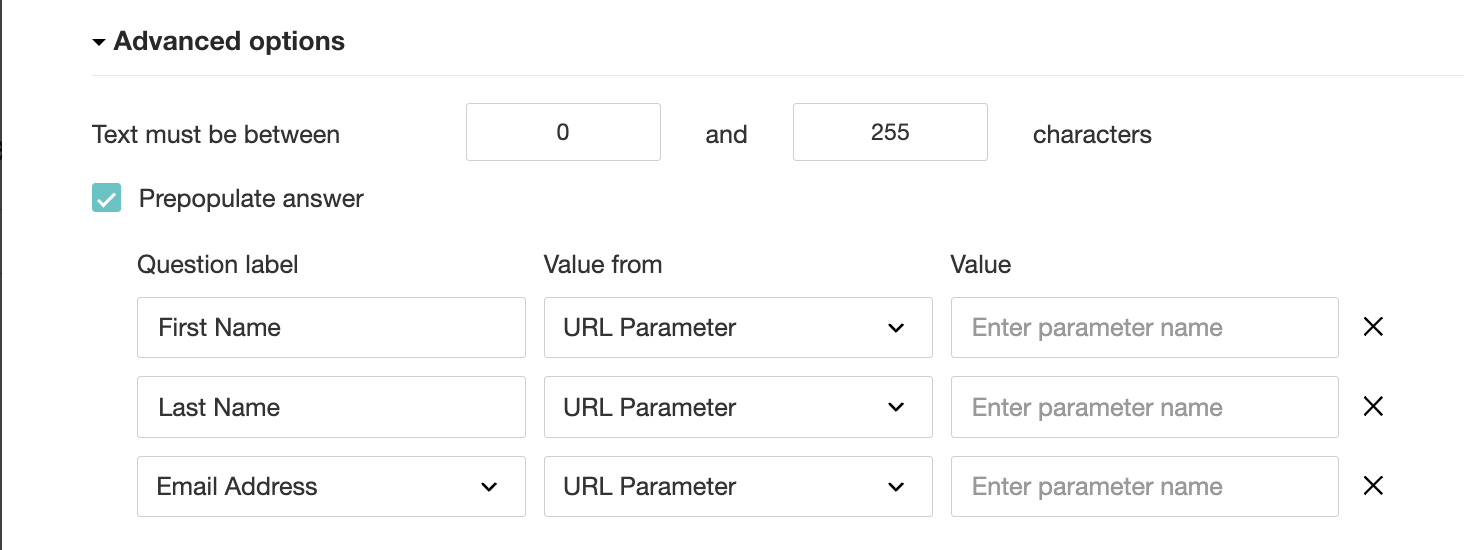
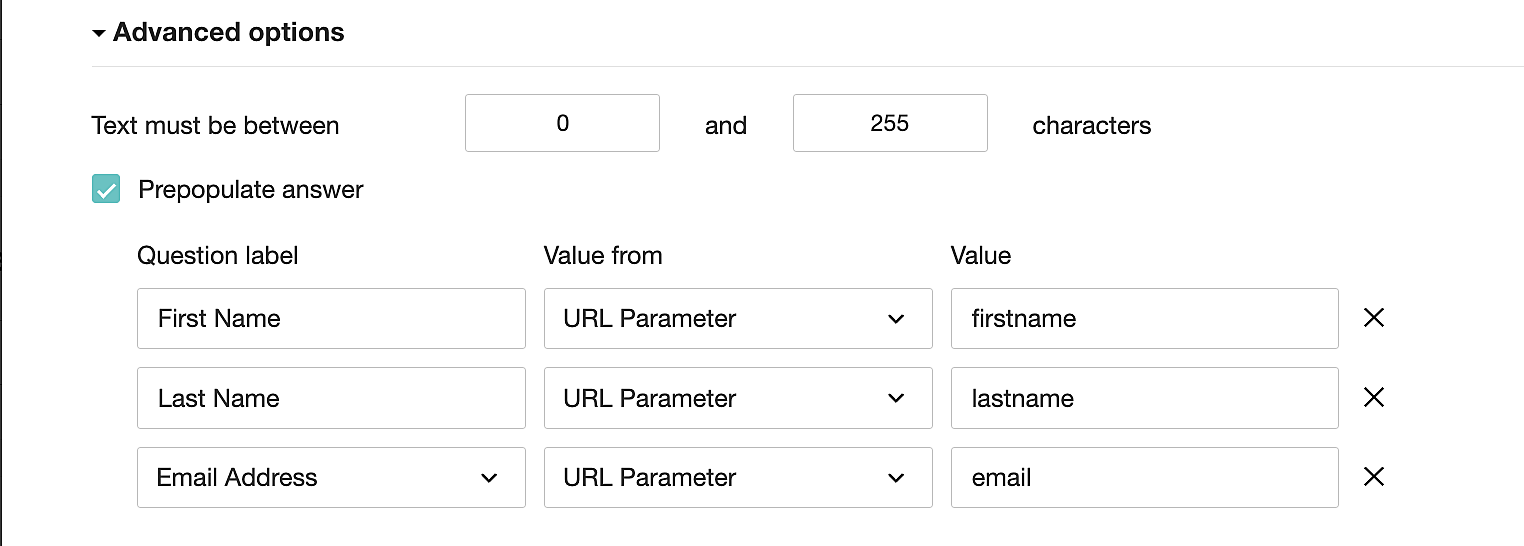
4. In the Value field, configure the parameter name (e.g., firstname, lastname, email). Once configured, this parameter name will be used in the survey link to prefill the fields in the survey form. Customize it as per your requirements, ensuring consistency with the term used in the survey URL.
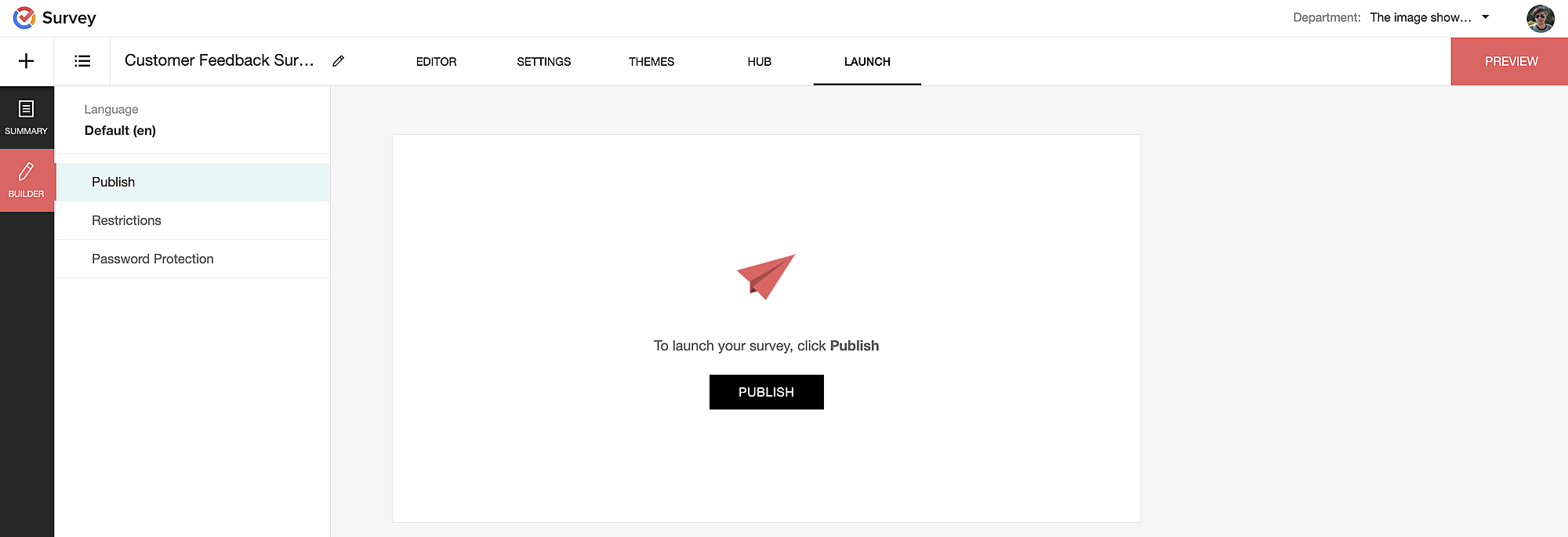
To publish the survey, go to the Launch tab and click on the Publish button to obtain the Zoho Survey URL.
Pre-populating fields in the Zoho Survey form
Once we have the Zoho Survey URL, we'll need to match the configured parameter name and variables from the Zoho Bookings email notifications. These variables play a crucial role in dynamically fetching customer information and populating it in the Zoho Survey form.
For details about variables in Zoho Bookings email notifications, refer to this link: Pre-defined variables
We'll now edit the survey URL to align the variables with the configured Value, or parameter name, from our prepopulated answer settings.
Let's say this is our survey URL:
https://survey.zohopublic.com/zs/E****h
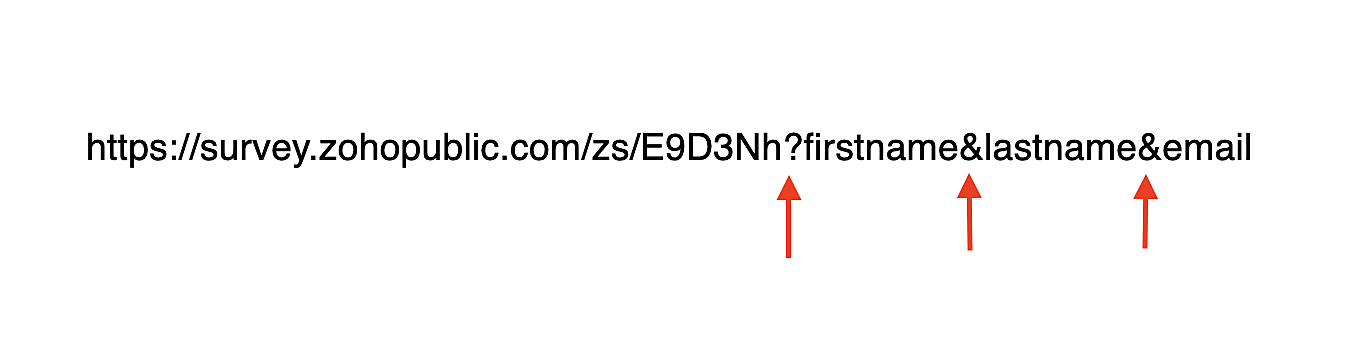
We'll want to use a question mark ("?") at the end of the survey URL and an ampersand ("&") to separate different parameter names.
Here's what that would look like using our example Value names from earlier:
Now, let's map the parameter names to the Zoho Bookings variables.
It would look like this:

For more details: Autofill
Where to use the Zoho Survey URL
To enable the automatic sending of the Zoho Survey URL to customers upon updating the appointment status to Completed, follow these steps in the Zoho Bookings application:
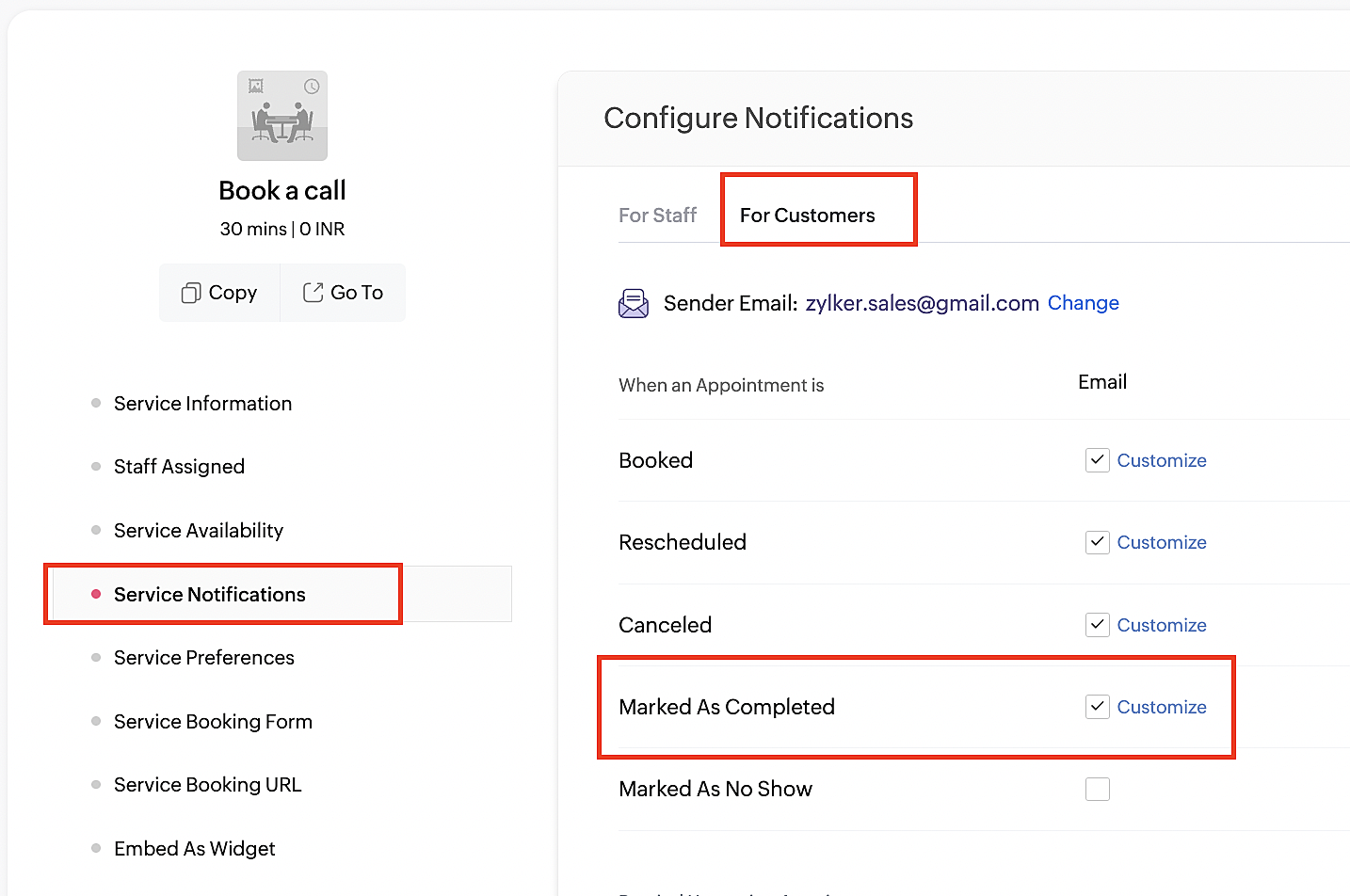
For one-on-one services:
1. Click on Service in the top left corner.
2. Select the desired one-on-one service.
3. Choose Service Notifications.
4. Navigate to the For Customers tab.
5. Click Customize next to the Mark As Completed' trigger to access the email content.
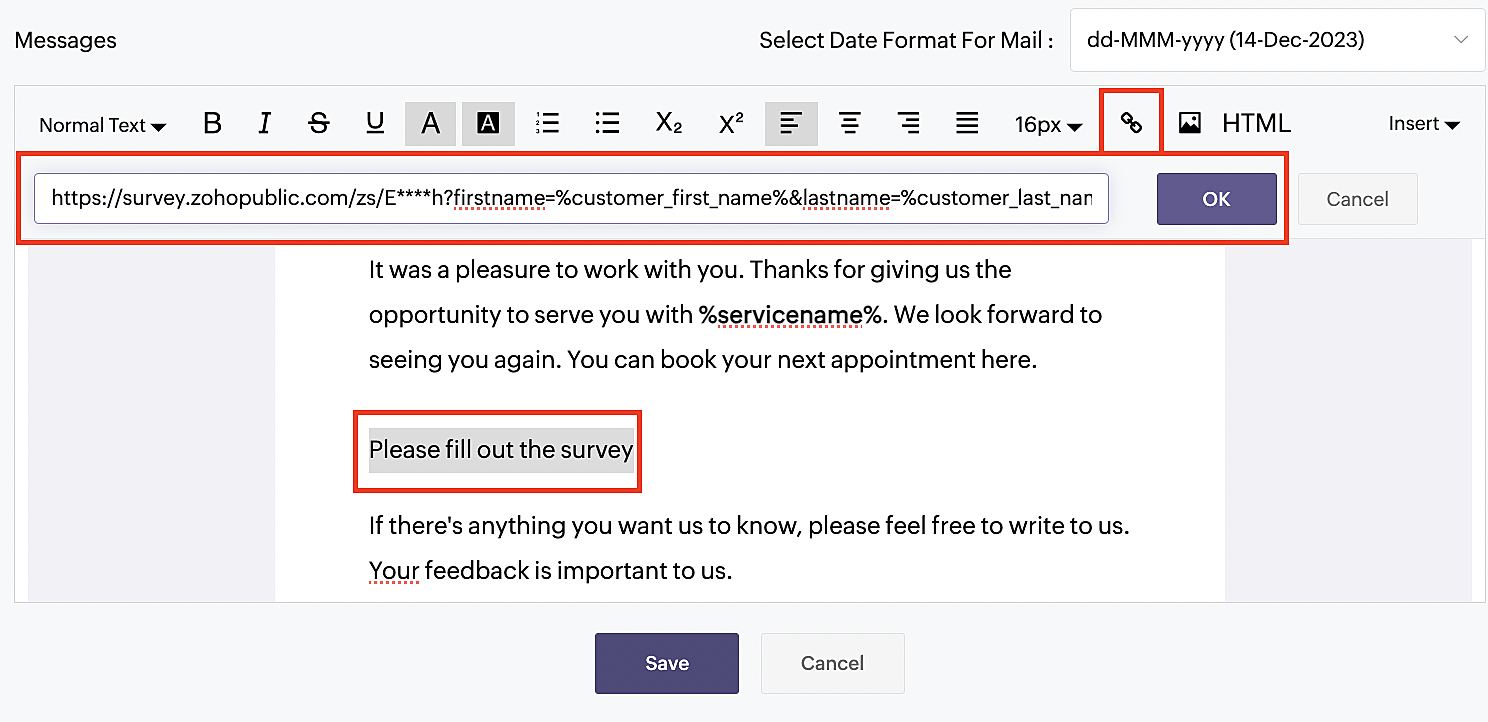
6. Enter your desired name for the button. For example, you might use something like 'Please fill out the survey'.
7. Select the entered text and click on the Add Link icon. Paste the configured Zoho Survey URL in the URL box. This will convert your text into a hyperlink that leads to the survey.
For group and resource booking services, please follow the same steps under Workspaces > Notifications.
For more details: Workspace Notifications
With the completion of this step, we have incorporated the Zoho Survey URL with dynamic variables, facilitating the dynamic autofill of customer data.
To wrap it up
With the successful implementation of the configuration described above, the entire process of automating status updates and collecting feedback is now seamlessly integrated, promising an elevated and enhanced product experience for all users.
If you have any questions or need assistance with your configuration, please email us at hello@zohobookings.com or support@zohobookings.com.
Topic Participants
Kaushik S
Sticky Posts
Approve or deny appointments based on criteria
Hey, community members! Have you ever wondered how to automatically approve or deny appointments? While we're still working on building that feature, we've got an alternative method to cancel appointments if they don't meet your specific criteria. Let
Recent Topics
Unlocking New Levels: Zoho Payroll's Journey in 2025
Every year brings its own set of challenges and opportunities to rethink how payroll works across regulations and teams. In 2025, Zoho Payroll continued to evolve with one clear focus: giving businesses more flexibility, clarity, and control as they grow.Can I export all attachments from Zoho CRM?
Can I export all attachments from Zoho CRM?Please can the open tasks be shown in each customer account at the top.
Hi there This has happened before, where the open tasks are no longer visible at the top of the page for each customer in the CRM. They have gone missing previously and were reinstated when I asked so I think it's just after an update that this featureWhat's new in Zoho Sheet: Simplify data entry and collaboration
Hello, Zoho Sheet community! Last year, our team was focused on research and development so we could deliver updates that enhance your spreadsheet experience. This year, we’re excited to deliver those enhancements—but we'll be rolling them out incrementallyCommunity Digest — Noviembre y Diciembre 2025
¡Hola, Comunidad de Zoho en Español! Cerramos el año de la mejor forma con nuestro último Community Digest de 2025, donde podrás encontrar las últimas novedades de nuestros productos. ¿Todo listo para empezar 2026 con el mejor pie? ¡Vamos a ello! ZohoZoho Projects Plus’ 2025- the year we launched
We’ve been building project management tools for the past 19 years, and a question we often hear is: Different teams in our organization prefer different project management methods; while the development team prefers agile, the marketing and sales teamsWhy can't we change the Account type from an Expense to an Asset?
Like the question. Why in QuickBooks for example if I mistakenly created an account as an expenses and I already captured information in those accounts, I can just change the account type from expense to assetMove email between inboxes?
Is it possible to move emails from one team inbox to another? We would like to be able to have a single "catch-all" inbox for incoming requests, and then move the email to the appropriate department inbox. I was hoping we would be able to accomplish thisZoho Books emails suddenly going to Spam since 11 Nov 2025 (Gmail + now Outlook) — anyone else?
Hi everyone, We migrated to Zoho Books in July 2025 and everything worked fine until 11 Nov 2025. Since then, Zoho Books system emails are landing in customers’ Spam (first Gmail, and now we’re seeing Outlook/Office 365 also starting to spam them). ImpactedHow do you print a refund check to customer?
Maybe this is a dumb question, but how does anyone print a refund check to a customer? We cant find anywhere to either just print a check and pick a customer, or where to do so from a credit note.Data Import | Zoho Analytics Custom Query Window Size
Please increase the window size for the Custom Query Data Import. It's impossible to work with such a small query window.Company Multiple Branch/ Location Accounting
Hi All, anyone know whether company can maintain their multiple Branch Accounting in Zoho Books. It will be chart of Accounts & Master Data will be same but different report available as per per Branch. Thanks & regards, Vivek +91 9766906737Zoho Books Invoices Templates
It would be really helpful to have more advanced features to customise the invoice templates in Zoho Books. Especially I´m thinking of the spacing of the different parts of the invoice (Address line etc.). If you have a sender and receiver address inSupport for Developing Zoho Recruit Extensions via Zoho Sigma
Hi, I’m interested in building an extension for Zoho Recruit using Zoho Sigma. However, when I navigate to Sigma and attempt to create a new extension (via the "New Extension" option), Zoho Recruit does not appear as a listed service—only options likeEmail Administrators! Join our tips & troubleshooting series
Greetings to all the admins out there! This announcement is exclusively for you. As we step into the New Year, we’re excited to start a dedicated series of admin-specific tips curated to support you. These posts will help you overcome everyday challengesNotes badge as a quick action in the list view
Hello all, We are introducing the Notes badge in the list view of all modules as a quick action you can perform for each record, in addition to the existing Activity badge. With this enhancement, users will have quick visibility into the notes associatedDeprecation of the Zoho OAuth connector
Hello everyone, At Zoho, we continuously evaluate our integrations to ensure they meet the highest standards of security, reliability, and compliance. As part of these ongoing efforts, we've made the decision to deprecate the Zoho OAuth default connectorPersonalize your booking pages with Custom CSS
Greetings from the Zoho Bookings team! We’re introducing Custom CSS for Zoho Bookings, designed to give you complete control over the look and feel of your booking pages. With this new feature, you can upload your own CSS file to customize colors, fonts,Free Webinar : Unlock AI driven business insights with Zoho Inventory + Zoho Analytics
Are you tired of switching between apps and exporting data to build customized reports? Say hello to smarter & streamlined insights! Join us for this exclusive webinar where we explore the power of the Zoho Inventory–Zoho Analytics integration. LearnNo OR Filter for Views with a Related Modules Criteria
We would like to create a Deal View where the User can see all their deals. For that, we would need an OR to connect the criteria. One of the Fields is a "multiselect User", these (Related Modules Criteria) can only be Filter with an AND. Even betweenImport Function: ONLY update empty fields
When setting up an import from a spreadsheet to CRM, there is a checkbox "Don't update empty values for existing contacts" (see screenshot below). While I see some limited benefit from this functionality, I think there should also be an "ONLY update emptySales IQ Chat Widget is Only Displaying Last Name
Can anyone suggest why the widget is only displaying "last name"?! We have the latest version of the wordpress plugin installed. Thanks Thanks!Free Webinar: Zoho Sign for Zoho Projects: Automate tasks and approvals with e-signatures
Hi there! Handling multiple projects at once? Zoho Projects is your solution for automated and streamlined project management, and with the Zoho Sign extension, you can sign, send, and manage digital paperwork directly from your project workspace. JoinBegin the year with best practices in the Zoho Desk mobile app : Part 2
In focus: Optimizing collaboration and supervision Let's begin 2026 with Part 2 of our tips series on driving your ticketing operations at your fingertips. In Part 1, we explored streamlining operations within tickets. This helped individuals at OmniserveProcess checklist in CRM
Hi We've created a new sales process that I'm mapping into the CRM - issue I have is that some of the tasks / milestones I would like to capture require very simple tick box responses but there are quite a few under a variety of sub categories so I don'tCan we disable add to cart in Zoho Commerce?
Hello, Our sales happen on the phone. During the call the customer is directed to our website to inspect the products together with the sales rep. So we need a way to present our inventory. I figured Zoho Commerce is a good fit for this use case. However we would have to disable the possibility to purchase products in the shop. Is that possible? Sunny regards, ArtjomHow to update "Lead Status" to more than 100 records
Hello Zoho CRM, How do I update "Lead Status" to more than 100 records at once? To give you a background, these leads were uploaded or Imported at once but the lead status record was incorrectly chosen. So since there was a way to quickly add records in the system no matter how many they are, we are also wondering if there is a quicker way to update these records to the correct "Lead Status". I hope our concern makes sense and that there will be a fix for it. All the best, JonathanZoho DataPrep and File Pattern configuration
I'm using Zoho data prep to ingest data from One Drive into Zoho Analytics... The pipeline is super simple but I can't any way to get all the files that I need. Basically I need to bring all the files with a certain pattern and for that I'm using a regexJWT Token authentication problem that sometimes generates infinite redirect loops
Description : Nous proposons un bouton sur notre plateforme permettant de rediriger l'utilisateur vers le portail ZohoDesk via un jeton JWT pour une authentification transparente. Cependant, il arrive que certains utilisateurs soient pris dans une boucleZoho desk desktop application
does zoho desk has a destop applicaion?How do I bulk archive my projects in ZOHO projects
Hi, I want to archive 50 Projects in one go. Can you please help me out , How can I do this? Thanks kapilZOHO Work Drive Back Up
I am looking for a ZOHO Work Drive backup solution. Something that is cloud based. There's lots of these kinds of options for Google Drive and other providers, but I have not seen anything for WorkDrive. Any suggestions?ZOHO Reports - Filter Logic?
Hi, I need a way to apply filter logics such as ((1 AND 2) OR 3). All I can see as of now is a way to enter different AND filters in the respective filter column. But how can I add an OR filter? Any advice would be highly appreciated. MarkScanned Doc - selecting Item overwrites Rate
I have a Vendor Invoice which was uploaded to Documents. I select Add To > New Bill. The OCR is actually quite good, but it is reading an Item Description instead of an Item Number. I remove the description and select the correct Item Number... and itRecruit API search
Hi all, Attempting to call the search api endpoint from Postman using the word element as mentioned in api docs Search Records - APIs | Online Help - Zoho Recruit When making the call to /v2/Candidates/search?word=Saudi receive response of { "code": "MANDATORY_NOT_FOUND",Manage control over Microsoft Office 365 integrations with profile-based sync permissions
Greetings all, Previously, all users in Zoho CRM had access to enable Microsoft integrations (Calendar, Contacts, and Tasks) in their accounts, regardless of their profile type. Users with administrator profiles can now manage profile-based permissionsSaving reading position + Keep screen on
While Zoho Notebook is excellent for saving and annotating articles, its utility is severely limited by the lack of reading progress synchronization. On the Android app, if a user exits a long note after reading 50%, the app fails to save the position.Multiple Vendor SKUs
One of the big concerns we have with ZOHO Inventory is lack of Vendor Skus like many other inventory software packages offer. Being able to have multiple vendor skus for the same product would be HUGE! It would populate the appropriate vendor Sku forZoho LandingPage is integrated with Zoho One!
Greetings to the Zoho One users out there! We're delighted to let you know that Zoho LandingPage is available in Zoho One too! With Zoho LandingPage, you can host custom-made landing pages, and persuade the visitors to dive deeper by making further clicks,Android app sync problem - multiple devices have same problem
Hello, I am having a problem with synchronization in the Android app. When I create a drawing, the data does not sync correctly—only a blank note is created without the drawing. I tested this on multiple devices, including phones and tablets, and theNext Page