Kaizen 215 - Workflow APIs - Part 3

Welcome back to another week of Kaizen!
Over the last couple of weeks, we’ve joined Zylker Cloud Services as they review and improve their workflows. In Part 1, we discovered and audited their sprawling workflow landscape. In Part 2, we learned how to use the Configuration API to understand valid triggers and actions, preventing errors before they happen.
Now, it is time to take action. Zylker has identified the "VP Alert - High Value Deal" workflow as a prime candidate for an update. It is old, has never run, and its logic might be too narrow. We will also explore how to create a new workflow from scratch to handle a new business requirement.
STEP 5: Update an Existing Workflow
From our audit in Step 2, we know that the existing ‘VP Alert - High Value Deal’ workflow (id: 4876876000016390024) hadn’t triggered even once. The original $50,000 threshold missed many valuable deals. Most winning opportunities actually land above $30,000. It has never executed, suggesting the criteria are too strict.
Let us use the Update Workflow Rule API to fix it. We'll change the criteria to trigger for deals greater than or equal to $30,000 and add an additional email notification.
What you can and cannot update
When working with the Update Workflow Rule API, not every field in a workflow is open for modification. Think of it like editing an existing automation blueprint. Some foundations are fixed, while others are flexible.
You can update:
Name and Description
Trigger : You can update triggers, but only within the same trigger type. For example, you can change a Record Action trigger from create to edit, but not from a Record Action trigger to a Score-based trigger. For more details on this, please refer to our detailed help documentation here.
Conditions and Criteria : add, remove, or refine them.
Actions : add new ones, remove existing ones, or update their configuration.
Status : activate or deactivate a workflow rule.
What cannot be updated
There are a few key restrictions to remember:
You cannot change the module associated with the workflow.
You cannot switch trigger categories (e.g., from Record Action to Email Trigger).
You cannot retain unsupported actions when changing to a trigger that doesn’t support them. For instance, if you change a trigger from Edit to Delete, but keep an Assign Owner action, the update will fail, because “Assign Owner” isn’t valid for Delete triggers.
Updating an existing workflow is not about replacing everything. it is about editing precisely what needs to change.
Here is how to do it:
Fetch the workflow details using the Get Workflow Rule API. This gives the full structure, including condition IDs, action IDs, and trigger details.
Identify what needs to change.
In this case, to fix the “VP Alert - High Value Deal” workflow, we can update the Workflow rule to:
lower the threshold to $300,000
change the comparator to greater_than.
To make the workflow more useful, Zylker has also decided to add a few new actions.
But before doing that, the developers needed to confirm which actions are supported for this workflow’s trigger type. That is where last week’s Configuration API comes in handy. Since we already know this is a Record Action trigger (create_or_edit), we can refer to the configuration response we explored in Part 2 to see which actions are valid.
{ "api_name": "create_or_edit", "deprecated": false, "name": "CreateorEdit", "scheduled_actions_supported": true, "actions": [ "field_updates", "assign_owner", "add_tags", "remove_tags", "email_notifications", "tasks", "create_record", "create_connected_record", "add_meeting", "webhooks", "functions", "circuits", "flow" ] }, |
The response clearly shows that email notifications, field updates, and tags are all supported for this trigger type. With that confidence, in addition to updating the condition, we can also add a 'Priority' tag to those records that trigger the Workflow. This makes the workflow more visible and actionable across the sales hierarchy.
Sample Request:
PUT {{api-domain}}/crm/v8/settings/automation/workflow_rules/4876876000016390024
{ "workflow_rules": [ { "description": "Notify sales leadership and track strategic opportunities", "name": "VP Alert - High Value Deal.", "conditions": [ { "sequence_number": 1, "criteria_details": { "criteria": { "group_operator": "AND", "group": [ { "comparator": "greater_than", // change in comparator operator "field": { "api_name": "Amount" }, "value": "300000" // Lowered threshold }, { "comparator": "equal", "field": { "api_name": "Stage" }, "value": "Negotiation/Review" } ] } }, "instant_actions": { "actions": [ { "type": "add_tags", "module": "Deals", "details": { "tags": [ { "name": "Priority" } ], "overwrite": true } } ] }, "id": "4876876000016390025" // id of the condition to be updated } ] } ] } |
After this update, the workflow now triggers for any deal worth more than $300,000 in the Negotiation/Review stage. Apart from sending the email notifications and adding the follow up task, it also tags these deals as Priority.
Edit vs Add:
To edit an existing condition or action, include its existing id in your update payload. Zoho CRM will recognize it as an update to that object.
To add a new condition or action, simply omit the id. CRM treats any object without an ID as a new addition.
STEP 6: Create a new Workflow Rule
With the “VP Alert - High Value Deal” workflow now fixed and performing as expected, Zylker’s sales team quickly began to see results.
But their sales team noticed that deals often stall after proposals are sent, with no systematic follow-up. Zylker has hence refined the requirements for a new Workflow.
They want to automatically trigger follow-up actions when a high-value deal (above ₹30,000) is marked “Closed Lost” due to pricing reasons. This workflow must ensure that every lost opportunity is reviewed, tagged, and re-engaged after a cooling-off period. To achieve this, they want to create a workflow to be triggered whenever a deal’s Stage is updated to Closed Lost. It must perform the following actions:
Add tags Lost due to Pricing and Re-engagement Pending.
Send an email alert to the Sales team, with the details of the failed Deal, so they can look into the reasons.
After 30 business days, automatically create another “Lost Deal - Feedback” task to remind the owner to re-contact the customer for feedback, and for future opportunities.
Before proceeding, Zylker makes an API call to the Workflow Configuration endpoint. This ensures that their chosen trigger type and actions are supported. From the response snippet below, it is clear that a field_update trigger supports scheduled actions and the required action types.
{ "api_name": "field_update", "deprecated": false, "name": "FieldUpdate", "scheduled_actions_supported": true, "actions": [ "field_updates", "assign_owner", "add_tags", "remove_tags", "email_notifications", "tasks", "create_record", "create_connected_record", "add_meeting", "webhooks", "functions", "circuits", "flow" ] } |
With these details validated, we can now move on to adding a new workflow for Zylker using the Create Workflow Rule API request.
Understanding the input JSON structure
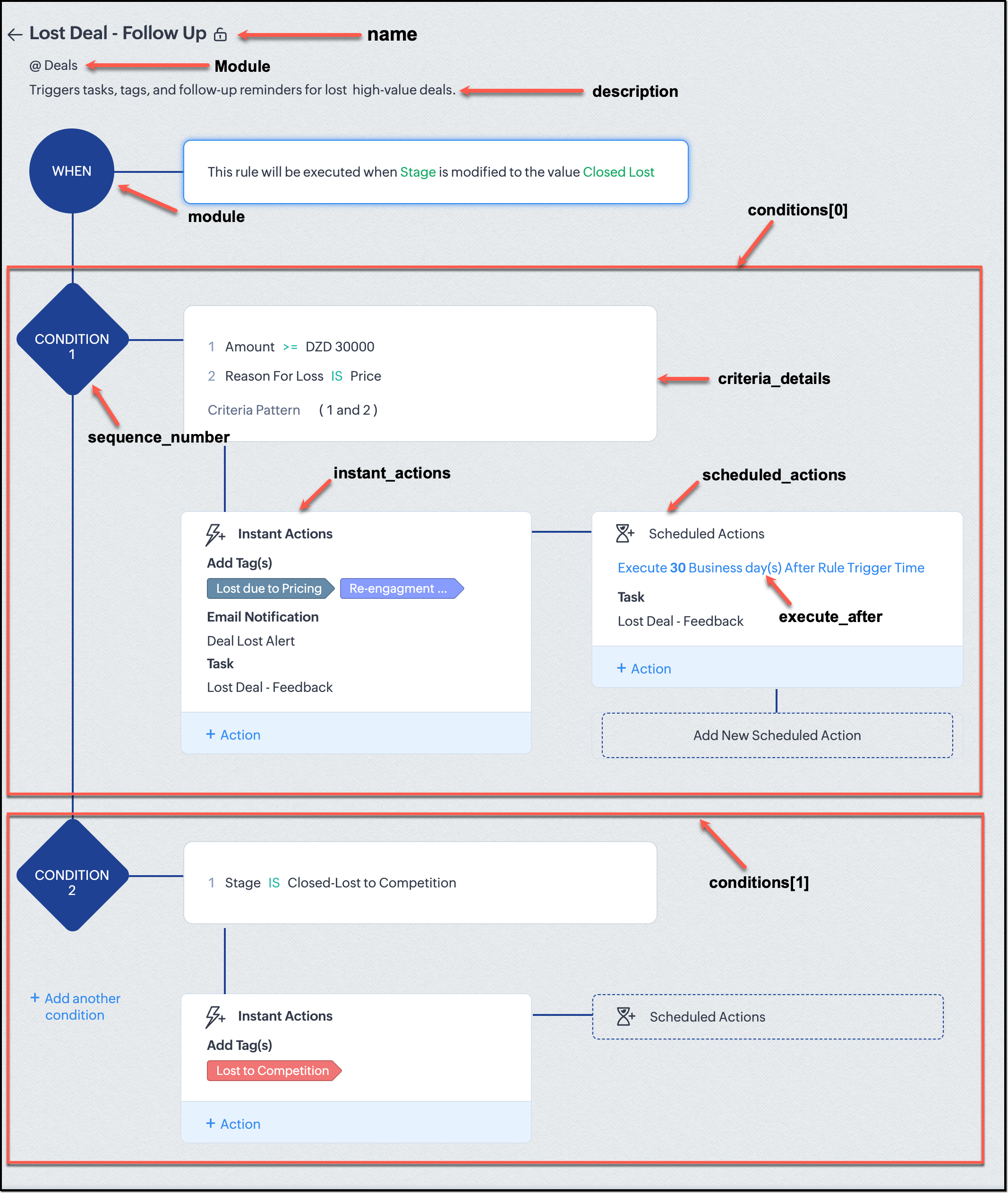
Every workflow definition follows the same hierarchy - defining when the rule runs, what conditions it checks, and which actions it performs.
The top-level input object contains a workflow_rules array. You must include just one workflow rule object per request. Each workflow rule defines its name, trigger type, and one or more condition blocks, each with its own criteria and actions.
Here is a breakdown of what is inside a single workflow rule:
{ "workflow_rules": [ { "name": "VP Alert - High Value Deal.", //name of the workflow rule "description": "Notify leadership when high-value deals are lost due to pricing.", "module": { "api_name": "Deals" }, //module to which the workflow applies "execute_when": { ... }, //trigger configuration (e.g., on record edit, field update, etc.) "conditions": [ { "sequence_number": 1, // order of execution. this is the first condition "criteria_details": { ... }, // condition logic (criteria group) "instant_actions": { "actions": [ ... ] }, //instant actions executed instantly cheduled_actions": [ // schedules actions executed after a delay { "execute_after": { ... }, // delay period for the scheduled action "actions": [ ... ] } ] }, { "sequence_number": 2, // second condition "criteria_details": { ... }, "instant_actions": { "actions": [ ... ] } } ] } ] } |
Associative vs. Non-Associative Actions
Every workflow rule performs one or more actions like sending an email, creating a task, or updating a field, etc. These actions fall into two broad categories: associative and non-associative.
Type | Description | Example Actions |
Non- Associative Actions | These are defined inside the workflow rule itself. They do not need to exist beforehand. You can configure their details directly within the workflow payload. | Create record, schedule a call, add a meeting, convert records, social actions, create record on email received, assign owner, |
Associative Actions | These are reusable actions created separately in CRM and referenced by their IDs. They can be used across multiple workflows and other automation tools. | Field updates, Email notifications, tasks, Webhooks, Add/Remove tags |
When you create or update a workflow via API, the associative actions require you to pass their existing action IDs. These IDs can be fetched using the corresponding Actions APIs : Field Updates, Email Notifications, Webhooks, and Tasks. In the coming weeks of Kaizen, we will take a closer look at each of these Actions APIs. We will see how to create, manage, and delete them within your workflow automation strategy.
Sample Request:
POST {{api-domain}}/crm/v8/settings/automation/workflow_rules
{ "workflow_rules": [ { "execute_when": { "details": { "trigger_module": { "api_name": "Deals", "id": "4876876000000002181" }, "criteria": { "comparator": "equal", "field": { "api_name": "Stage", "id": "4876876000000002565" }, "type": "value", "value": "Closed Lost" }, "repeat": false, "match_all": false }, "type": "field_update" }, "module": { "api_name": "Deals", "id": "4876876000000002181" }, "description": "Triggers tasks, tags, and follow-up reminders for high-value deals lost due to pricing", "name": "Lost Deal due to Pricing - Follow Up", "conditions": [ { "sequence_number": 1, "instant_actions": { "actions": [ { "name": "Lost Deal - Feedback", "id": "4876876000016794047", "type": "tasks" }, { "details": { "module": { "api_name": "Deals", "id": "4876876000000002181" }, "over_write": false, "tags": [ { "name": "Lost due to Pricing", "id": "4876876000016794071", "color_code": "#658BA8" }, { "name": "Re-engagement pending", "id": "4876876000016794075", "color_code": "#879BFC" } ] }, "type": "add_tags" }, { "name": "Deal Lost Alert", "id": "4876876000016794062", "type": "email_notifications" } ] }, "scheduled_actions": [ { "execute_after": { "period": "business_days", "unit": 30 }, "actions": [ { "name": "Lost Deal - Feedback", "id": "4876876000016794047", "type": "tasks" } ] } ], "criteria_details": { "criteria": { "group_operator": "AND", "group": [ { "comparator": "greater_equal", "field": { "api_name": "Amount", "id": "4876876000000002557" }, "type": "value", "value": "30000" }, { "comparator": "equal", "field": { "api_name": "Reason_For_Loss__s", "id": "4876876000002440001" }, "type": "value", "value": "Price" } ] } } } ] } ] } |
The execute_when defines when the workflow should fire.
type = field_update means this rule runs when a field’s value changes.
criteria : Stage = Closed Lost so the rule triggers whenever the Stage field is updated to Closed Lost.
repeat = false ensures it will not trigger multiple times for the same record.
In simple terms: “Whenever a deal is marked as Closed Lost, run this workflow.” The criteria_details section refines the trigger. The workflow only runs when the Amount ≥ ₹30,000 AND Reason for Loss = Price.
The instant_actions section inside the conditions array has the actions to be executed immediately when the criteria are met.
Add Tags : labels the record for easy filtering and reporting.
Send Email Alert : notifies the sales team instantly about the lost deal.
The scheduled_actions defines what happens after some time has passed. In this case, after 30 business days. Here, the workflow automatically creates a “Lost Deal - Feedback” task, reminding the deal owner to follow up with the customer to get feedback, and for future opportunities.
- The Amount is greater than or equal to ₹30,000, and
The Reason for Loss is “Price.”
By combining these elements, this workflow achieves a full closed-loop follow-up system.
Conclusion:
Zylker’s updated and new workflows make their automation smarter and more responsive. They are now able to spot key deals and ensure lost opportunities are revisited.
We hope you are now well on your way to mastering Workflow APIs. Share your thoughts in the comments or write to us at support@zohocrm.com.

Additional Reading:
- Workflow APIs - Part 1 - Auditing Workflows
- Workflow APIs - Part 2 - Find out what actions and triggers are supported for each module
Topic Participants
Anu Abraham
Sticky Posts
Kaizen #198: Using Client Script for Custom Validation in Blueprint
Nearing 200th Kaizen Post – 1 More to the Big Two-Oh-Oh! Do you have any questions, suggestions, or topics you would like us to cover in future posts? Your insights and suggestions help us shape future content and make this series better for everyone.Kaizen #226: Using ZRC in Client Script
Hello everyone! Welcome to another week of Kaizen. In today's post, lets see what is ZRC (Zoho Request Client) and how we can use ZRC methods in Client Script to get inputs from a Salesperson and update the Lead status with a single button click. In thisKaizen #222 - Client Script Support for Notes Related List
Hello everyone! Welcome to another week of Kaizen. The final Kaizen post of the year 2025 is here! With the new Client Script support for the Notes Related List, you can validate, enrich, and manage notes across modules. In this post, we’ll explore howKaizen #217 - Actions APIs : Tasks
Welcome to another week of Kaizen! In last week's post we discussed Email Notifications APIs which act as the link between your Workflow automations and you. We have discussed how Zylker Cloud Services uses Email Notifications API in their custom dashboard.Kaizen #216 - Actions APIs : Email Notifications
Welcome to another week of Kaizen! For the last three weeks, we have been discussing Zylker's workflows. We successfully updated a dormant workflow, built a new one from the ground up and more. But our work is not finished—these automated processes are
Recent Topics
Pricing calculator
Alright, so I'm trying to create a pricing calculator/pricing report generator to use in a cabinet shop. I did all the logic and such, and the calculator works. I have a few other things that I would need it to be able to do though, I'll do my best toBug Details
In the Bug detail the milestoneid is missingIs there a way to make a button scroll down?
Looking to have a button on a landing page scroll down to another section on the page. Any recomendations outside of coding?Stop completed task lists from disappearing?
Is there any way to stop projects from making tasks lists disappear when all the tasks in the list are completed? That's one of those little things where we're constantly fighting the product. For instance we have some projects which are ongoing - no start and end date. We use Kanban view to show the various task lists. We don't want the kanban list to disappear every time the items on it happen to be closed out. ThanksAllow customers to choose meeting venue and meeting duration on booking page
My business primarily involves one-to-one meetings with my clients. Given the hybrid-work world we now find ourselves in, these meetings can take several forms (which I think of as the meeting "venue"): In-person Zoom Phone call I currently handle theseBooking outside of scheduled availability
Is there a way for staff (such as the secretary) to book appointments outside of the scheduled availability? Right now to do this special hours must be set each time. There should be a quicker way. Am I missing something?Operation Questions.
Hello, I hope you are well. To explain a little, we are a company that sells services and products with a technical team responsible for installation and maintenance. Zoho FSM can be useful for the technical team, namely for the technical coordinatorDirect Access and Better Search for Zoho Quartz Recordings
Hi Zoho Team, We would like to request a few enhancements to improve how Zoho Quartz recordings are accessed and managed after being submitted to Zoho Support. Current Limitation: After submitting a Quartz recording, the related Zoho Support ticket displaysUpdate date & time when a cell is edited
Hi All, I am desiring to have a cell update with the current date and time when another cell is edited. Any ideas? Thank youAdd "Groups" to "Share With" on Reports & All Entries
Hi, On Forms we can share Publicly, with Specific Users And/Or Specific Groups or All Users. With Reports and All Entries we lack the "Groups" option, please add this as with many users this saves a lot of work. Thanks DanAdd Pause / Resume Option to Zoho Quartz Recordings
Hi Zoho Team, We would like to request an enhancement to Zoho Quartz recordings: the ability to pause and resume an ongoing recording. Current Limitation: At the moment, when recording an issue with Zoho Quartz, the recording continues even when we areCustom Fields Not Showing Up in Invoice PDF Template Document Information
I have added 2 custom fields under Sales > Invoices > Manage Custom Fields. They are set to show in all PDFs. However when I am editing my Invoice PDF template, i do not see the custom fields under Document Information.ZOHO Books
Hi there, Why after I upgrade my Zoho invoice > Books then i wanted to add plugin which i cannot do. Please advise.How is Your eCommerce Experience w/Zoho Inventory?
First off, I'm SUPER grateful for the advent of Zoho Inventory and now the Zoho Commerce Suite. Overall, Inventory is a great product, especially for customers without an eCommerce presence. For eCommerce companies (especially those shipping more than ~10 packages/day), however, there are certain drawbacks that keep my clients from moving over to Zoho Inventory: Cons: 1. Invoice + Package Creation from Shopify/Other eCommerce Integrations: Zoho Inventory makes the somewhat perplexing decision toSimplify Mass Replies with Predefined Templates and Snippets
Hello everyone, We are happy to introduce a new enhancement to Mass Reply that helps agents respond to customers quickly and consistently. With the addition of Email Templates and Snippets in the reply window, agents can use predefined messages whileMapping custom fields from one module to another
I have a custom field, "Subscription Period" that appears as a required field in every Opportunity (Potential). I want that field to appear on any Quotes derived from that Opportunity (and have created a custom field of the same name in Quotes for thatThe Social Wall: November 2025
We’re nearing the end of the year, and the holiday season is officially kicking in! It’s that time when sales peak and your social media game needs to be stronger than ever. We’re back with exciting new updates across AI, analytics, and the mobile appItem name special charaters <>
Im trying to input speical characters such as < and > into item name and item description but comes up with following error: Invalid value passed for Item Name and Invalid value passed for Item Description How do i allow speical characters?How to update Multi File upload field
Assume that i have a multi file upload field,how can i update the same field again?Customer Address Not on Standard Invoice when Address is on Contact Record
Hi, I entered the customer billing and shipping address in Zoho CRM. I created an invoice in Zoho Books with the same customer contact. The contact is correctly in Zoho Books with the billing and shipping address. The invoice for the customer does notApply partial payments to invoices from the Banking Module
We need this! Why is this not possible?Welcome to the Zoho Show Community Forums page!
Hello everyone, The Zoho Show community is a place for you to discuss and share anything and everything related to Zoho Show Presentations, our online presentation software. It includes users from all over the globe and all walks of life. Our community helps answer your Zoho Show questions with responses from other knowledgeable community members to give you the best experience creating and designing exciting presentations. Along the way, you'll meet recognized experts from our software team andHow can I convert an existing contact into a lead?
I imported many contacts into ZOHO CRM. In order to select a few of them as leads, I want to mark or convert a few hundred as Leads. Who can I do that?Price book functionality enhancement
A common use of price books is to create a price book for a given customer level or contract with a specific company. Given that this is done at a company/customer level it would be great to see a way to associate a price book to a given customer andCan we have 24x7 live support for Zohobooks ?
Can we have 24x7 live support for Zohobooks ?Important update about notification security in Business Messaging SDK
As part of our ongoing effort to strengthen the security of notification data, we have enhanced how notifications are processed and protected in our applications. These improvements ensure that all notification related data follows the most up-to-dateSync Zoho Marketing Automation with Zoho Forms
I can't find a section where the integration between Zoho Marketing Automation and Zoho form is explained. And how form subscription works with opt-in and consents.What is the difference between Zoho Campaigns and marketing hub?
Zoho Campaigns is a permission-based email marketing tool for sending marketing emails and mass emails. Marketing Automation is a multichannel marketing automation tool that caters to organizations looking for tools to engage their users across multipleWebhook not firing.
I created a webhook using the Web UI, it looks very nice and the testing worked without an issue, but when i save/ update a ticket, the webhook is not firing. Here are the details of the web-hook i get from using the API "modifiedTime": "2019-10-22T09:23:37.380Z",Duplicate customers being created in Desk
Hi I've trying to work out why I've getting duplicated customers being created in my desk. I have an external booking system that generates an email when I get a customer booking a job. A booking email gets sent to Desk where I manage the booking andCreating a custom CSV file using deluge script/
I have an application I have developed and the client wants us to place an export file in csv onto an ftp server daily. Now I don't see au options in creator to change the separator to anything else. The client wants the separator to be the pipe symbol "|" I think i would be able to create schedule with some code to create the appropriate data in a string using deluge script but I haven't seen any functionality that would allow me to deposit that data as a file anywhere or attach it to an emailCan we add custom fields to portal community profiles?
How do we add custom fields to our profile pages in our portal community? If we have the ability to add custom fields, will we be able to access those fields via API? We want to use our Desk community in our help portal as our primary community and wouldE-Invoicing in Belgium with Zoho Billing
Starting January 1, 2026, Belgium is introducing mandatory electronic invoices (e-invoicing) for all B2B transactions between VAT-registered businesses. Invoices and credits notes must be exchanged in a prescribed digital format. How E-Invoicing worksdelayed: host mx2.zoho.com (136.143.183.44): Network error: Unexpectedly disconnected (STARTTLS)
Hi Team, I'm not receiving any email. Seems to be an issue. Sender sent me the error message they received: "delayed: host mx2.zoho.com (136.143.183.44): Network error: Unexpectedly disconnected (STARTTLS)" Please advise.Additional Address - Company Name
It would be very helpful to have a "Company Name" field in the Additional Address shipping section. In a situation where you drop-ship orders to a different address or different company entirely, it may be necessary to list the company name of the receiver. I understand that the Attention field can be used for that purpose, but that's not really the intended purpose of that field.Incorrect Email Notifications for Product Reviews
Dear Zoho Commerce Support Team, I am writing to report a technical issue that occurs frequently on our platform. Problem Description: We regularly receive email notifications informing us of new product reviews awaiting approval. However, when we accessHow to Rank Tables by Row Count in Descending Order
I am trying to understand the consume of lines that grow up so fast in the last week. Is there any way to create a pivot table or query to get TABLE NAME LINES in descending order?Can we do Image swatches for color variants?
We want to do something like the attached screenshot on our new zoho store. We need image swatches instead of normal text selection. We want to user to select an image as color option. Is this doable? I don't see any option on zoho backend. Please hannualy customer report
we need a report per customer that looks like this invoic number cleaning laundry repair management 01 january xxx euro xx euro xx euro xxx euro 02 february xxx euro xxx euro x euro xxxx euro and so on the years 12 months is that possible to make andExport your notes from Notebook!
Dear users, The long awaited feature is now live. Yes, you can now export your notes from Notebook app in bulk. But the feature has just started with web app alone for now. You can try the export feature as mentioned below: Go to our web app, https://notebook.zoho.com Go to 'Settings' > 'Export' Now, select the format: You can select either ZNote or HTML Once done, you can use the same to import or can have this a local backup of your notes. Note: Export for other platforms are in development andNext Page