Automating appointment status and customer feedback collection
Hello community members,
In the spirit of elevating your scheduling game for 2024, we're bringing you a couple of useful workarounds that can enhance your overall Bookings experience.
We have divided the community post into two halves. In the first half, we will show how to automate the appointment status to Completed. This action ensures that emails are automatically triggered after the appointment is completed. In the second half, we will explore how to add and prefill the feedback form in your customer emails. This will allow you to efficiently gather feedback from customers.
In an effort to streamline the entire process, we're merging both topics into a single post. This aims to automate updating the appointment status to completed, triggering the completion email to customers, and seamlessly integrating our Zoho Survey form for actively collecting valuable feedback.
In an effort to streamline the entire process, we're merging both topics into a single post. This aims to automate updating the appointment status to completed, triggering the completion email to customers, and seamlessly integrating our Zoho Survey form for actively collecting valuable feedback.
Automating the appointment status
Currently, updating an appointment's status to Completed is a manual process in Zoho Bookings. However, with our new workaround, you can now streamline this task through automation. We've included steps below that will make it so that once an appointment has ended, its status will automatically switch to Completed.
Note that if you mark an appointment as No show, your selection will not be overwritten by this new workaround.
If you're still concerned about this, consider editing the content of the appointment completion trigger email, providing generic content suitable for both attendees and non-attendees. This guarantees that even if all appointments are marked as completed, a generic email with relevant information will be sent to all customers.
Prerequisites for automating the appointment status
1. Zoho Bookings basic or premium subscription.
2. Zoho Flow paid subscription
How to automate
A. First, we'll create a new flow in Zoho Flow:
1. Sign in to Zoho Flow.
2. Select the Create flow option.
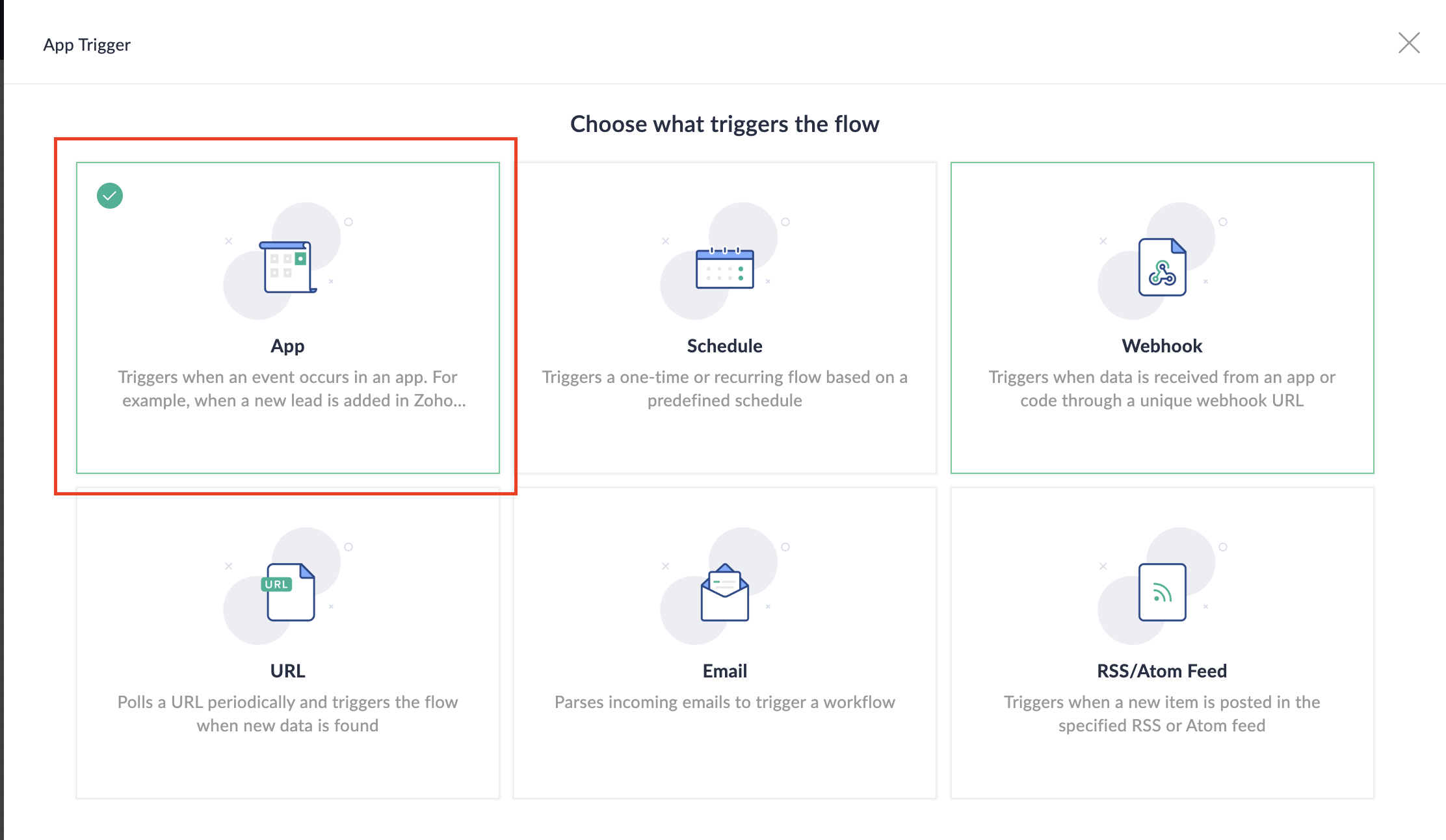
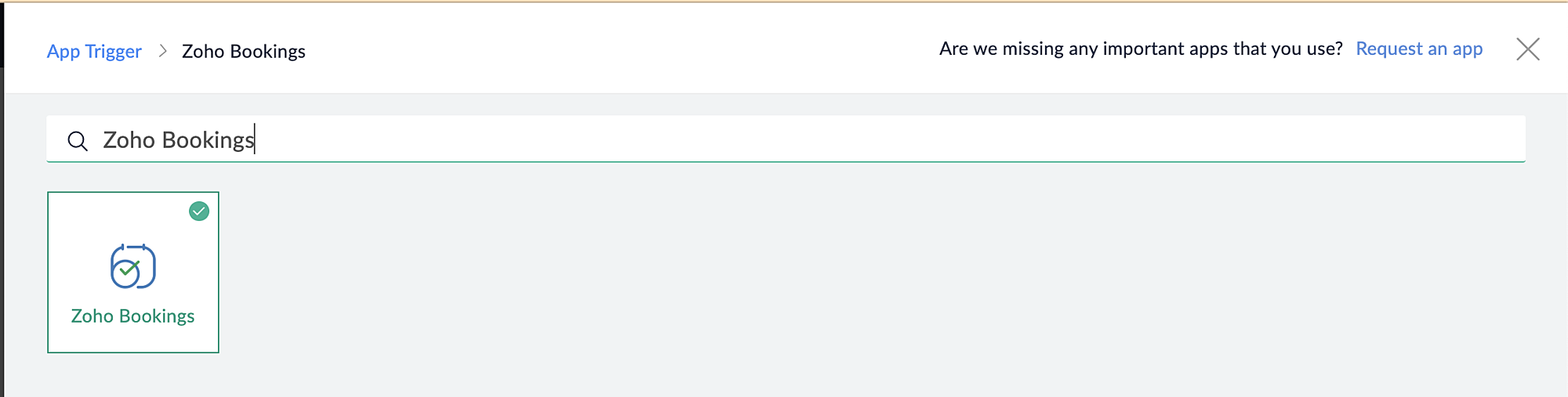
3. Select App and search for Zoho Bookings in the search bar.
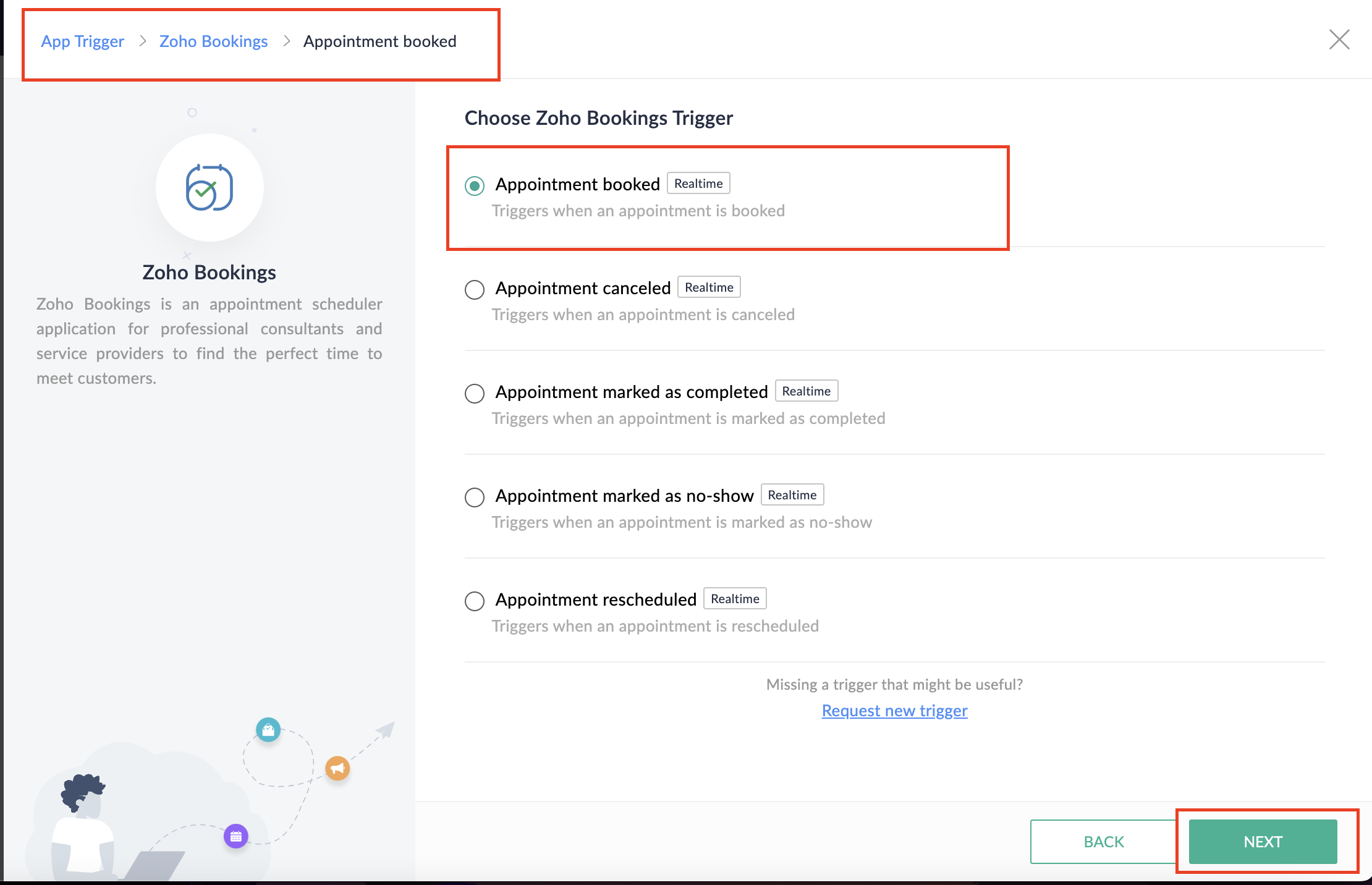
4. Select the Appointment booked trigger.
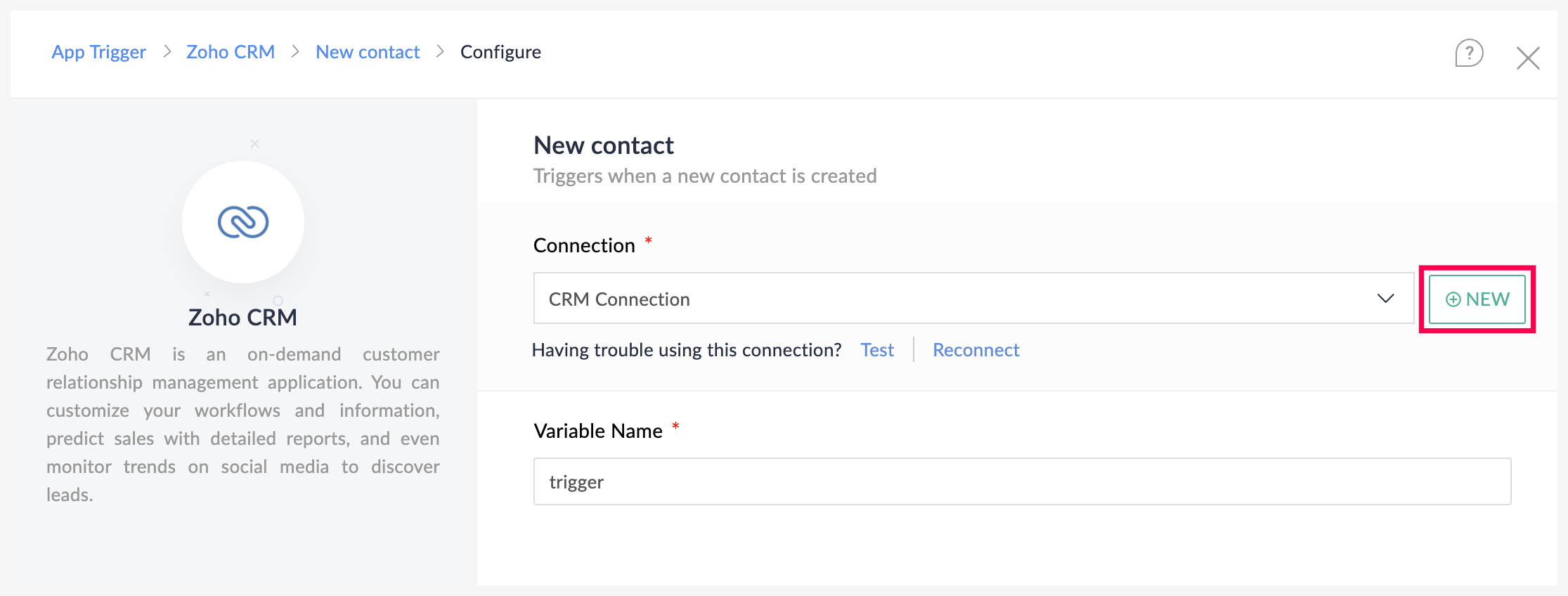
5. Select the Connection and Variable Name.
6. Click Done.
You have now created a new flow for Zoho Bookings.
Other helpful links for this process:
- How to create a flow in Zoho Flow: Create a flow from scratch
- How to create connection in Zoho Flow: Create a Connection
B. Next, let's configure the logic:
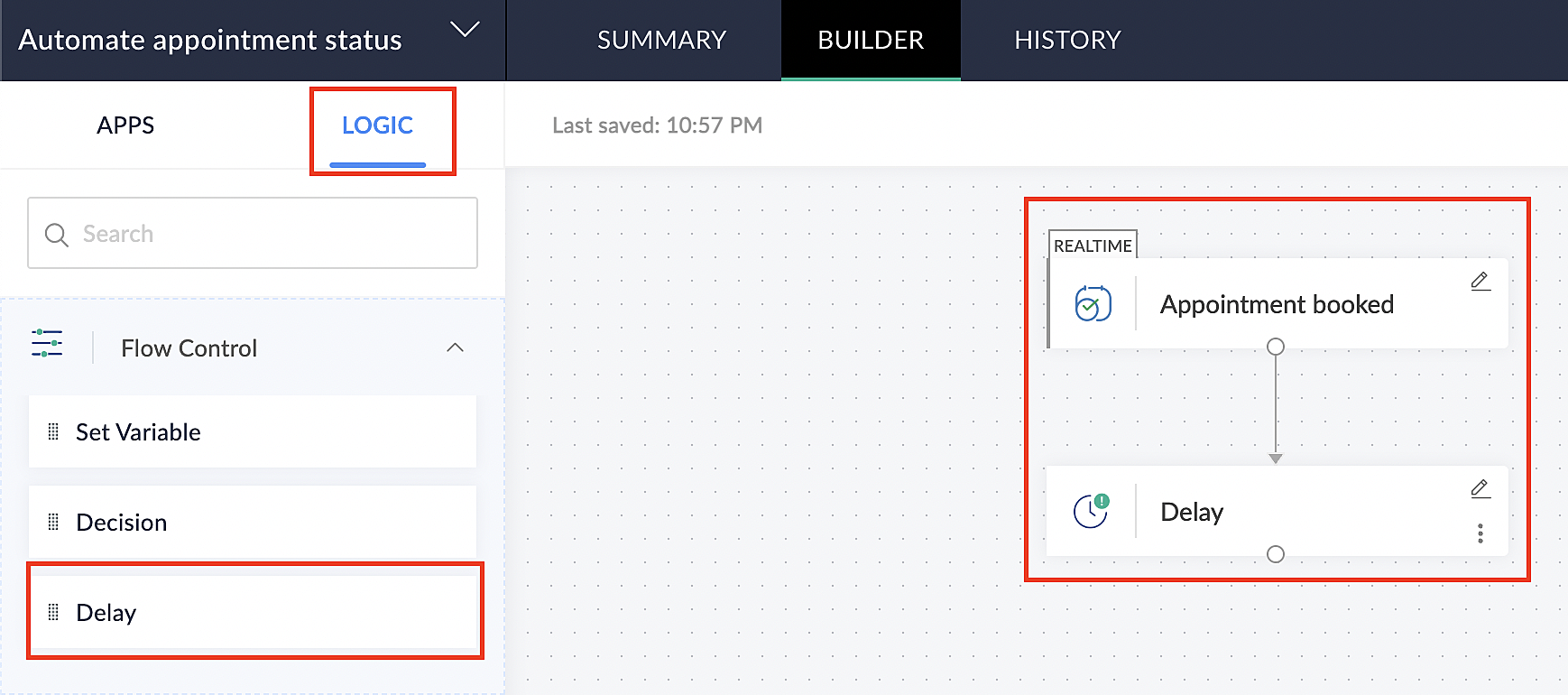
1. Navigate to the Logic tab in Zoho Flow.
2. Click the Flow Control dropdown and select Delay.
3. Drag and drop the Delay function to the bottom of the Appointment booked trigger.
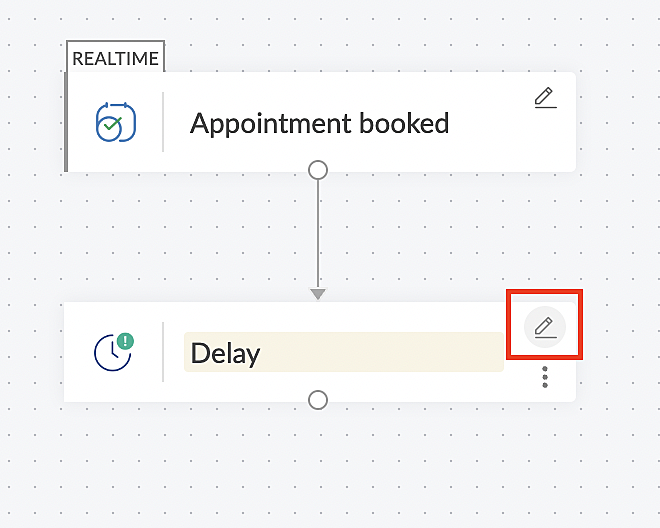
4. Click on the edit icon next to the Delay function.
5. In the Delay For the column, select the appointment end time variable from the available Zoho Bookings variables.
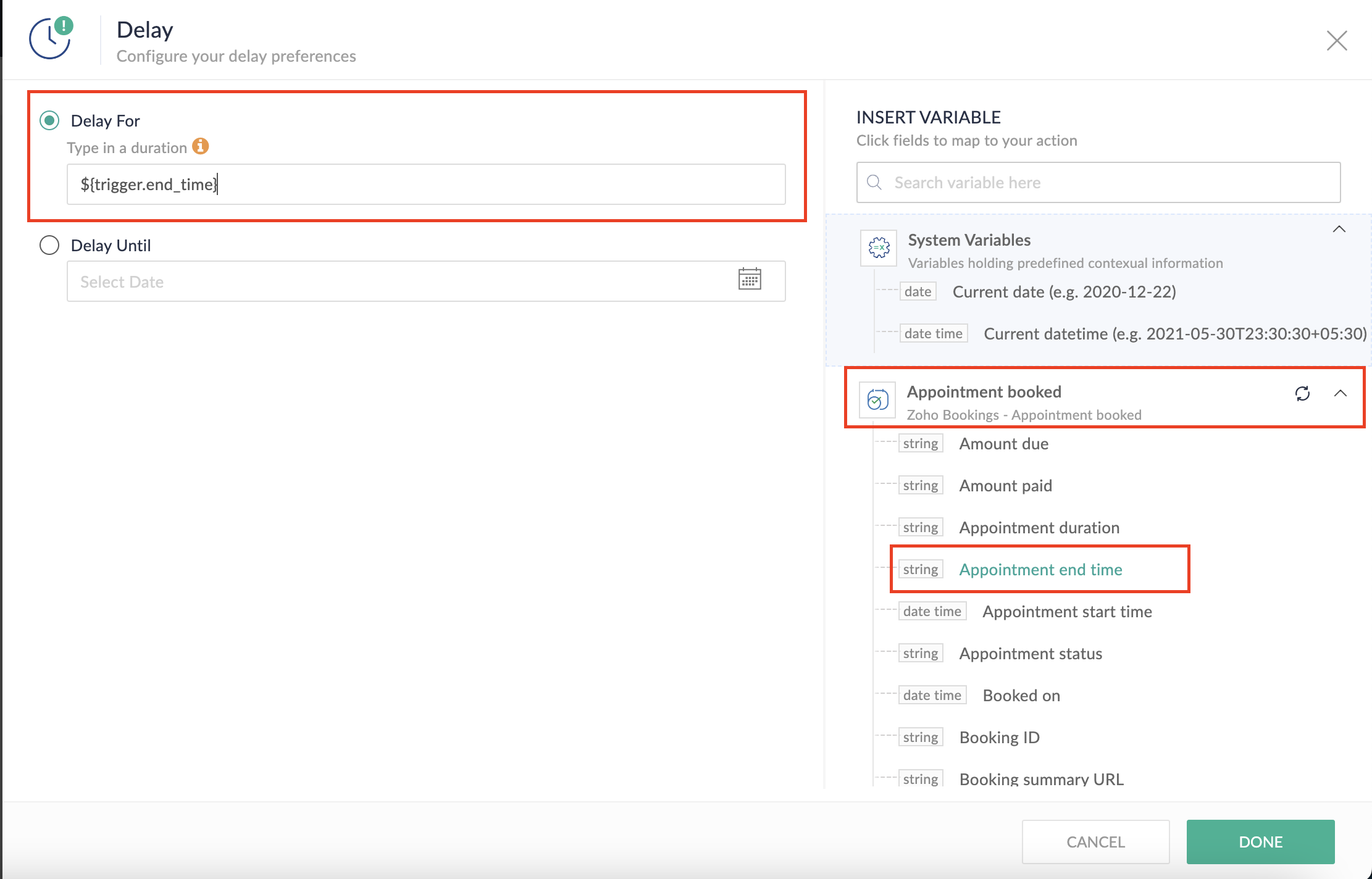
Completing this steps helps us ensure that this workflow executes exclusively at the end of each appointment.
C. We can now allocate additional time for any necessary actions:
For example, let's consider extending the remaining actions by an extra 5 minutes. This extension grants you additional time to update the appointment status.
1. From the Logic tab, drag and drop another Delay action to the bottom of the first Delay action.
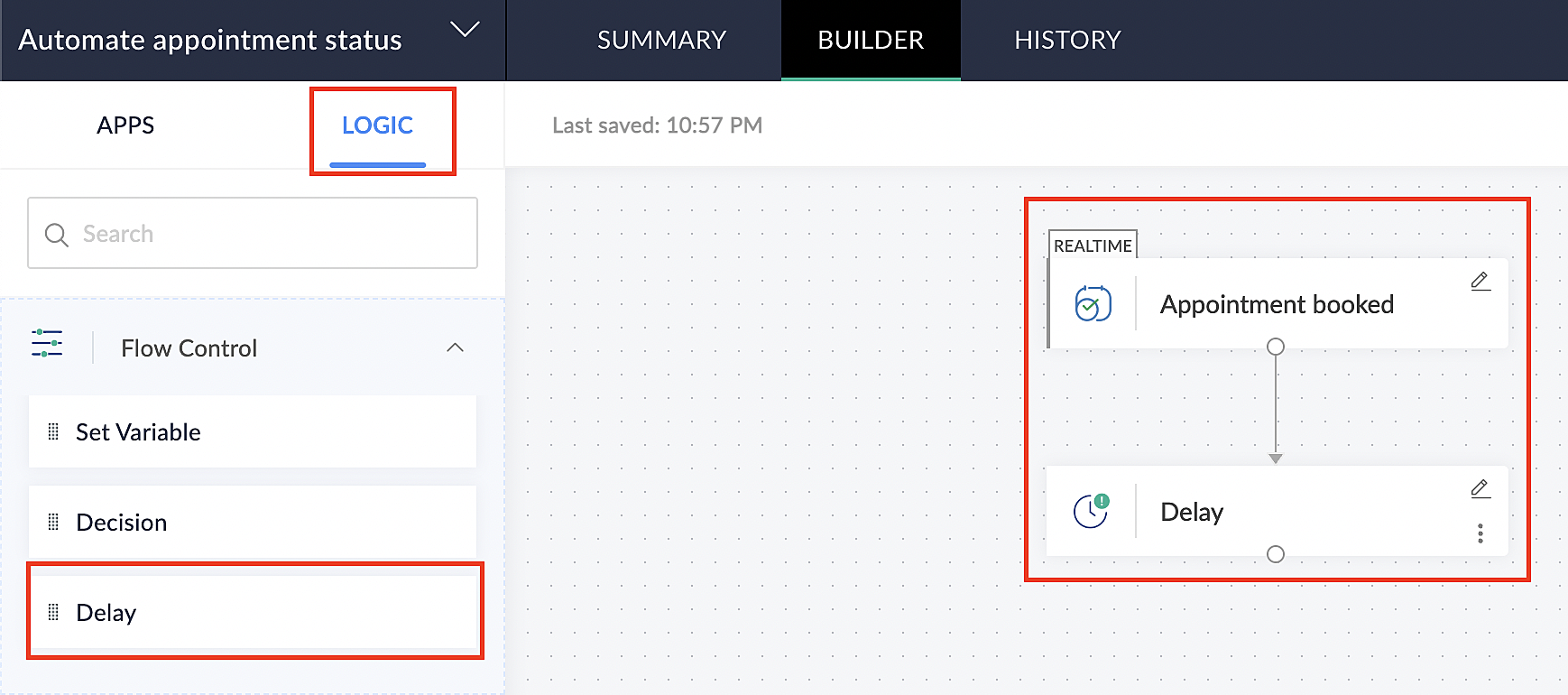
2. Click on the edit icon next to the Delay function.
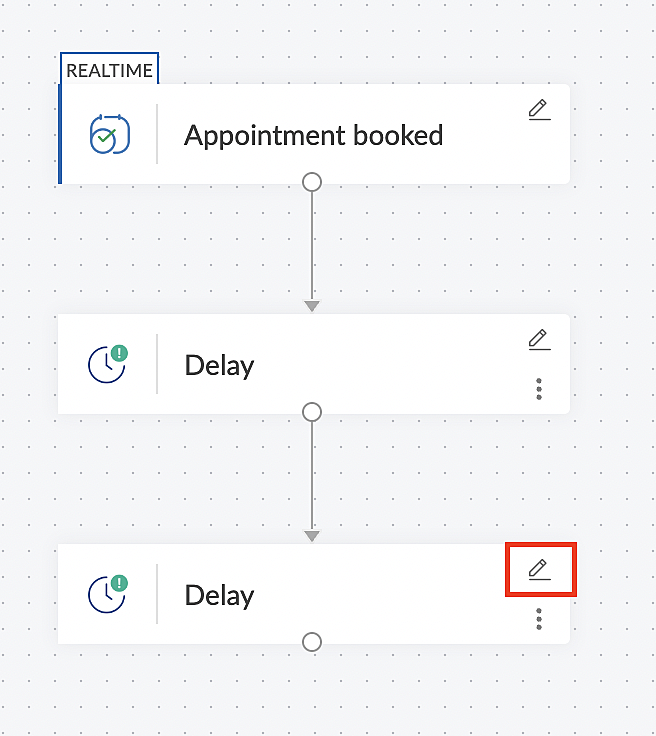
3. In the Delay For column, set the desired extra time based on your preference. If going by our proposed example, we'd configure an additional 5 minutes.
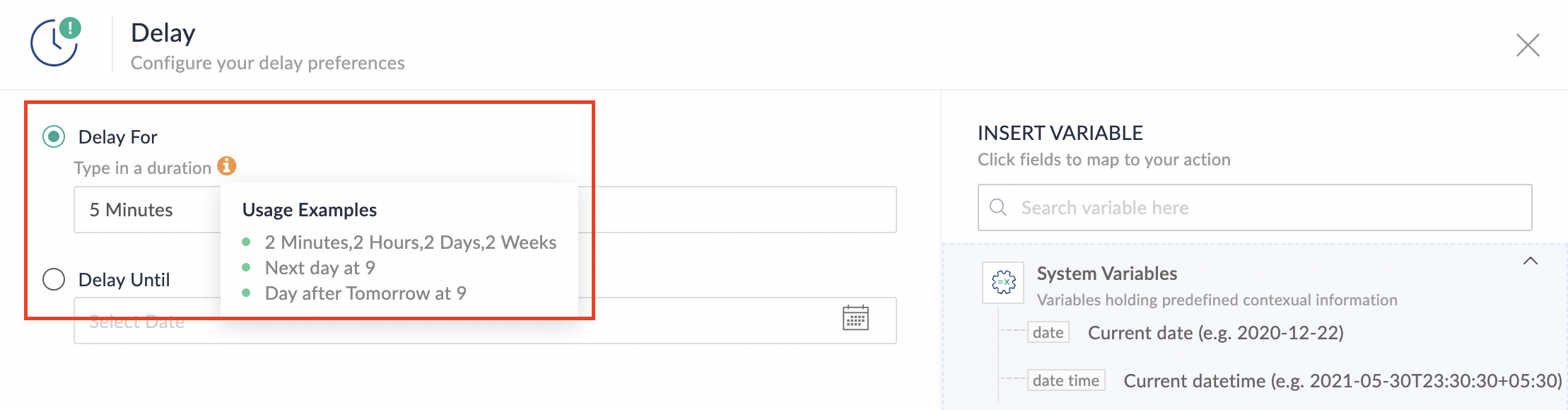
For more details: Delay
Note: If you decide not to include extra time and prefer to execute the flow precisely at the end of the appointment duration, you do not need to complete this section of steps.
D. Finally, let's configure a custom function
Through this step, we'll ensure our ended appointment's status updates to Completed (as long as no other status has been selected).
1. From the Logic tab, click the Custom Functions dropdown.
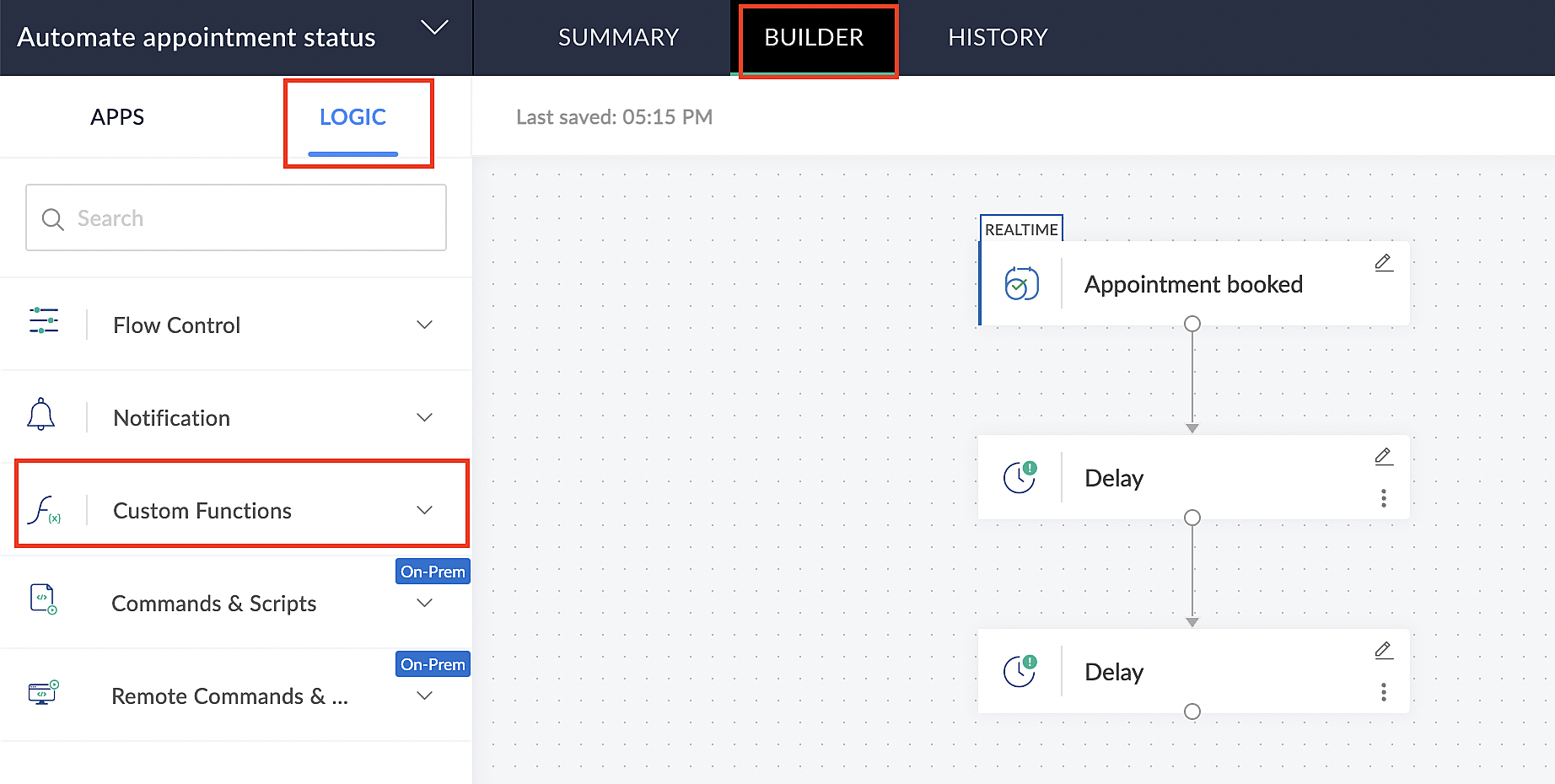
For more details: Custom Functions
2. Click +Custom Function.
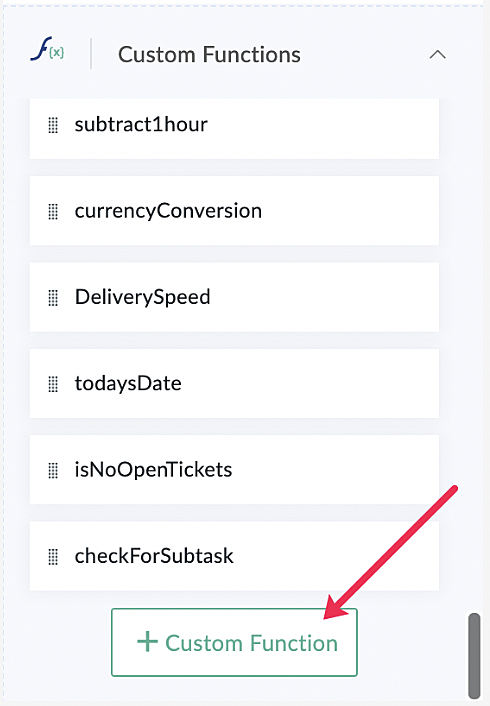
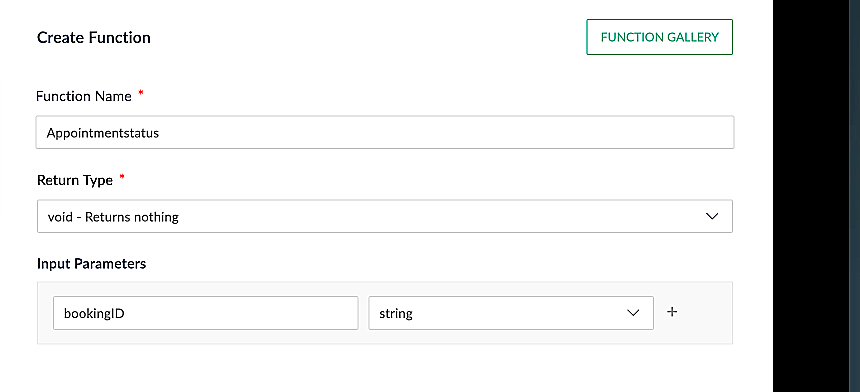
3. Add a relevant name for the function under Function Name, and set the Return Type as void - Returns nothing from the dropdown.
4. Under Input parameters, type bookingID and select string from the dropdown as shown in the screenshot below.
5. Click Create to open the Deluge script page, where we will enter our code for execution.
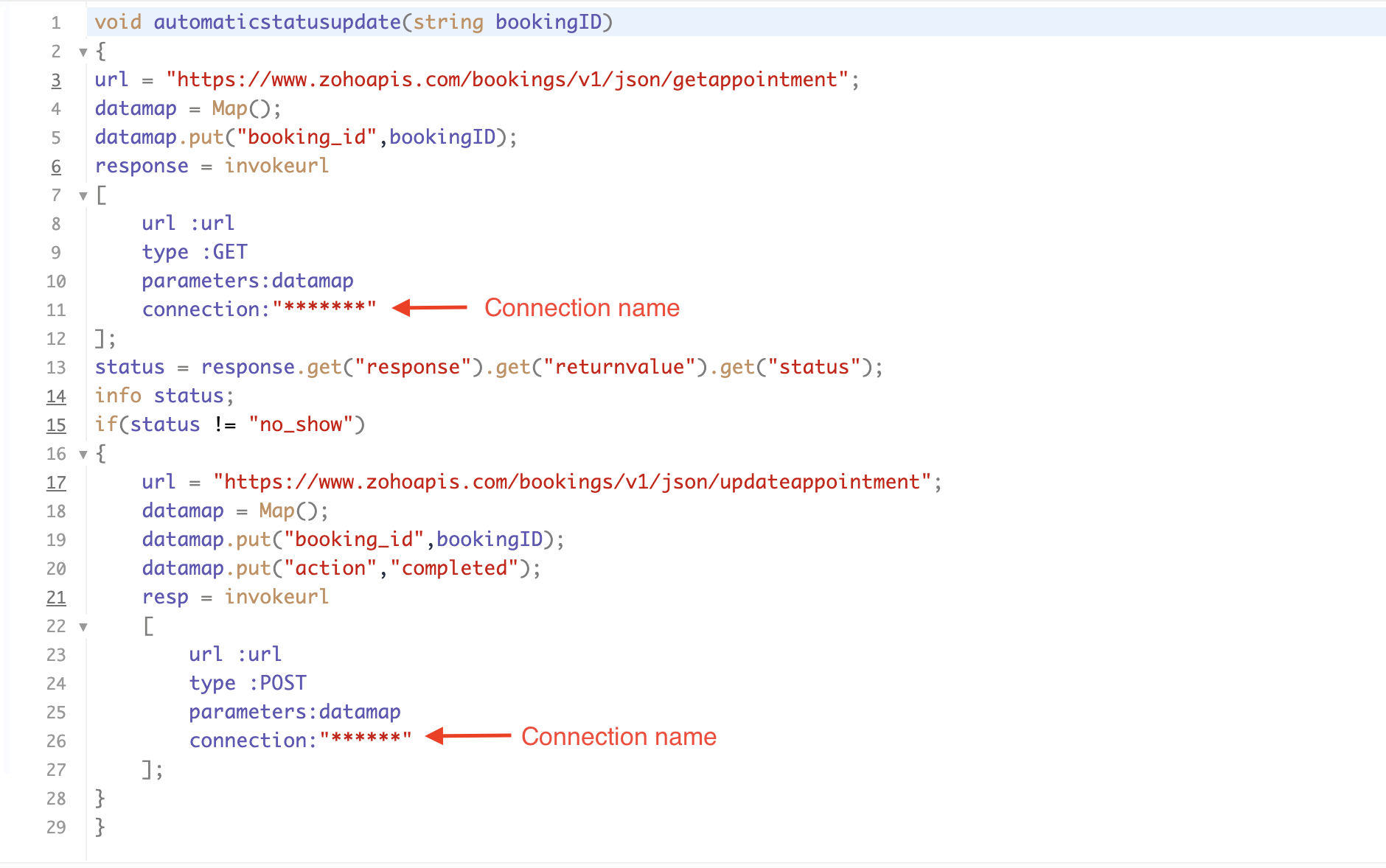
If you're interested, here is a brief explanation of the code:
Line 1: To pass the input data below to the code.
- Booking ID: Identifies the specific booking for fetching details and checking the status.
Line 3: Set up the API endpoint URL based on the Zoho Bookings account's data center.
- More details: Domain-specific API URLs
Line 3–12: We utilize the Get Appointment API' to retrieve the appointment details. For more details: Get Appointment API
Line 13: Here, we're fetching the status of the respective appointment from the response of the Get Appointment API.
Line 15: Implement an 'if' condition to execute the code only if the appointment status is not No show.
Line 16–27: In this step, we utilize the 'Update Appointment API to mark the appointment status as Completed' when the condition specified in line 15 of the code is met.
This is how the final flow will look:
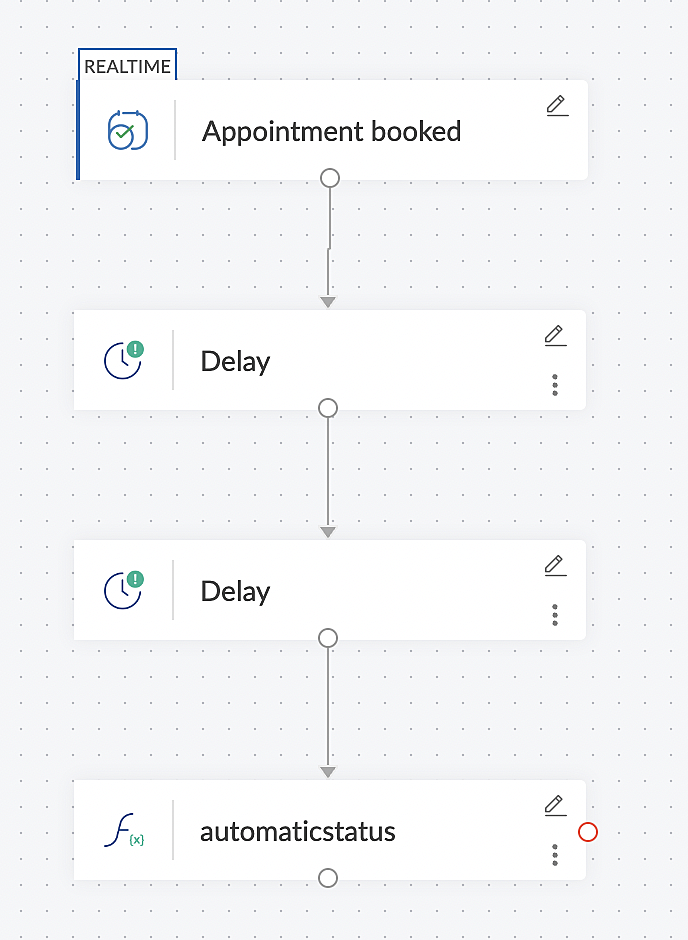
This is how the final flow will look:
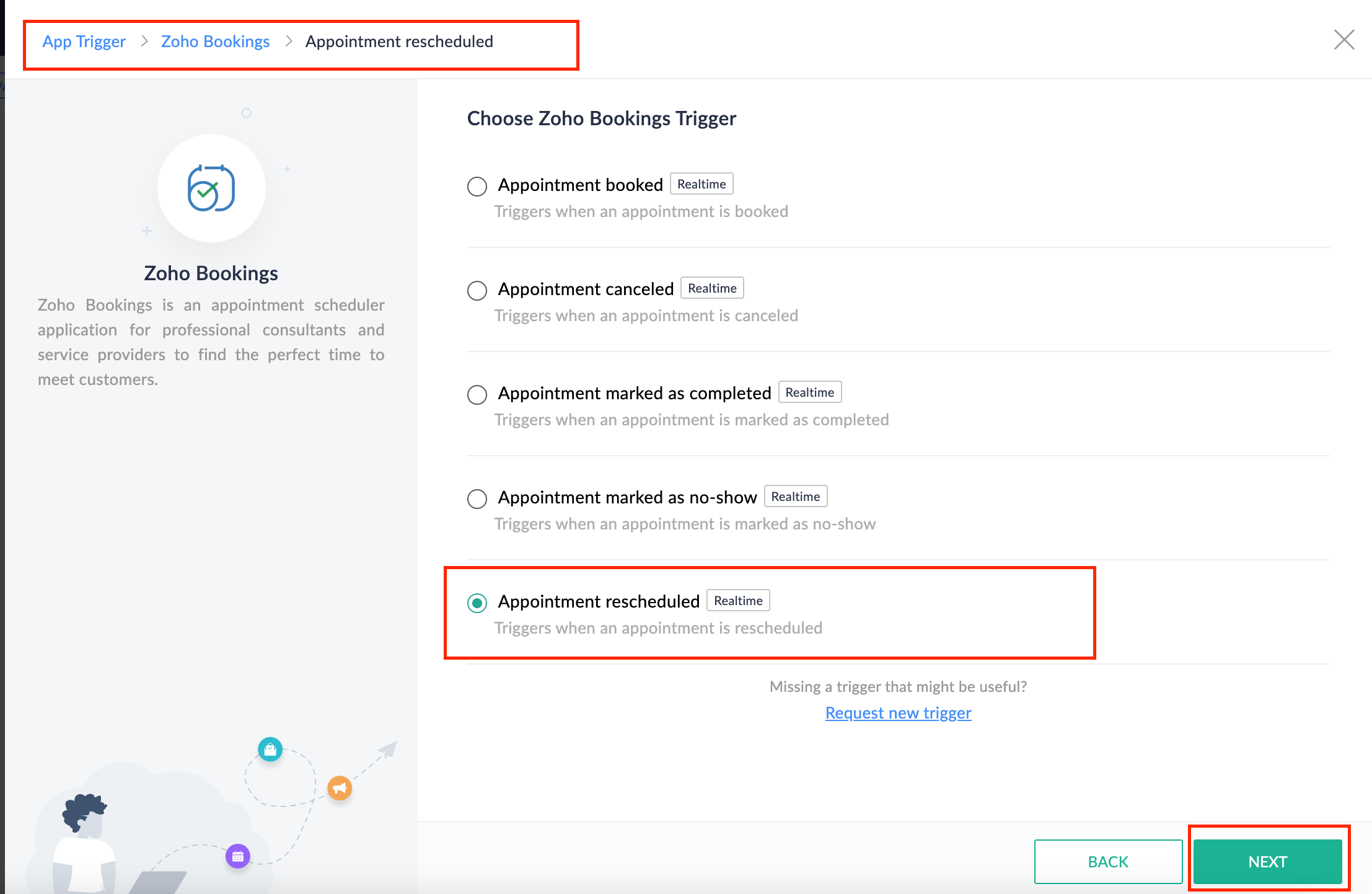
Note: The described flow is tailored for newly scheduled appointments. For cases where appointments are initially scheduled and later rescheduled, a separate flow must be created. The flow for rescheduled appointments follows the same steps outlined above, with the only modification being the initial trigger. Instead of the 'Appointment booked' trigger, please substitute it with the 'Appointment rescheduled' trigger in step A (steps B, C, and D remain the same).
Collecting feedback with surveys
Ensuring a seamless and positive customer experience is a top priority for every appointment. An integral part of this process involves gathering feedback from customers after the appointment's completion. This valuable feedback not only helps understand their sentiments but also provides insights for continuous improvement.
Let's explore how to leverage Zoho Survey to collect valuable feedback from customers. Additionally, we'll delve into the process of pre populating survey fields with the customer's name extracted from the appointment.
How to create a survey in Zoho survey:
You have the option to create a new survey from scratch or choose from templates or existing surveys.
For more details, refer to: Create a Survey.
As an example, let's use the Customer Feedback Survey from the templates.
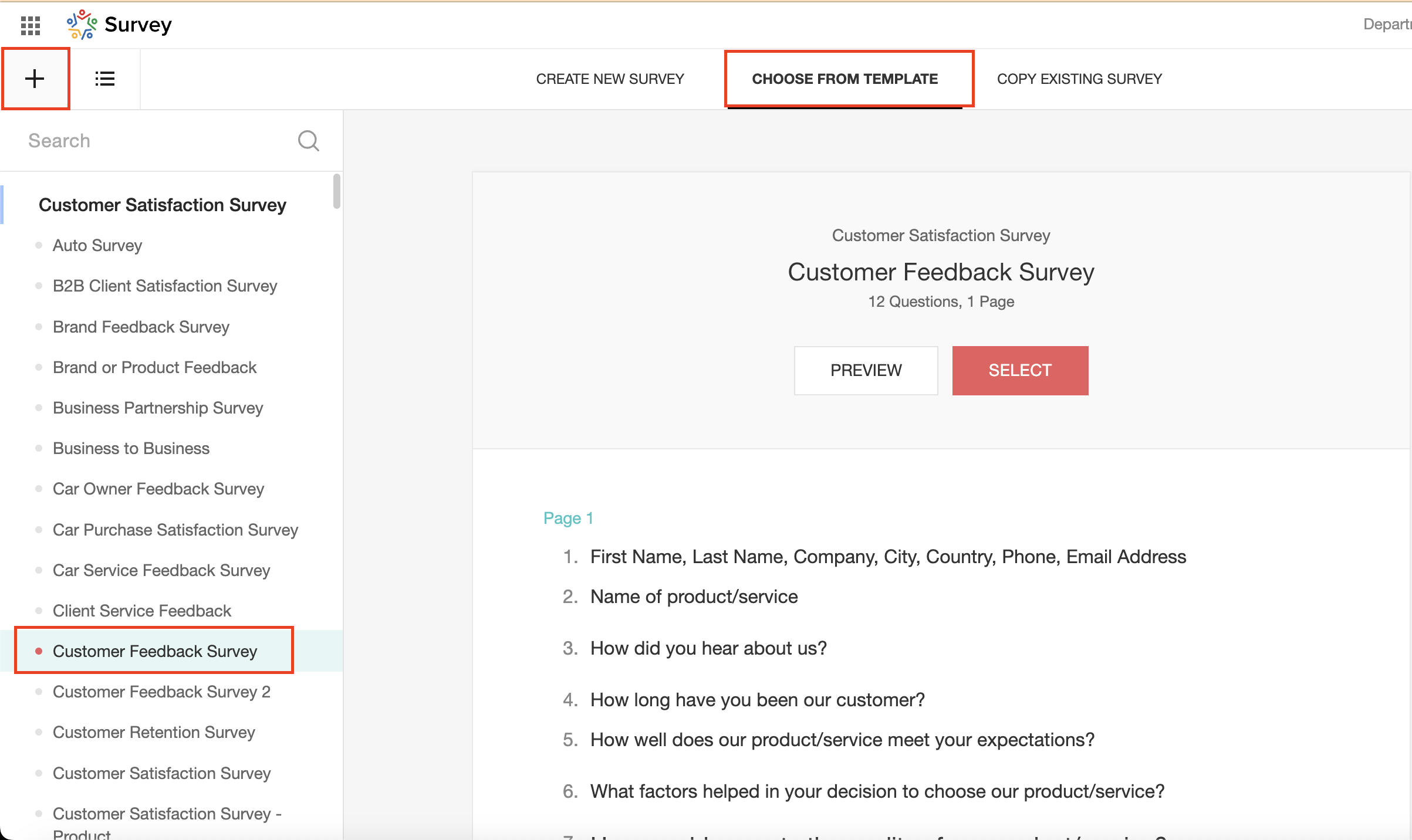
To enhance your survey experience, you have the flexibility to edit the survey form and select specific fields for inclusion.
Now, let's take a closer look at streamlining the customer experience by auto-populating the field inputs in Zoho survey with customer details. This additional step eliminates the need for customers to add their information manually, contributing to an enhanced overall experience.
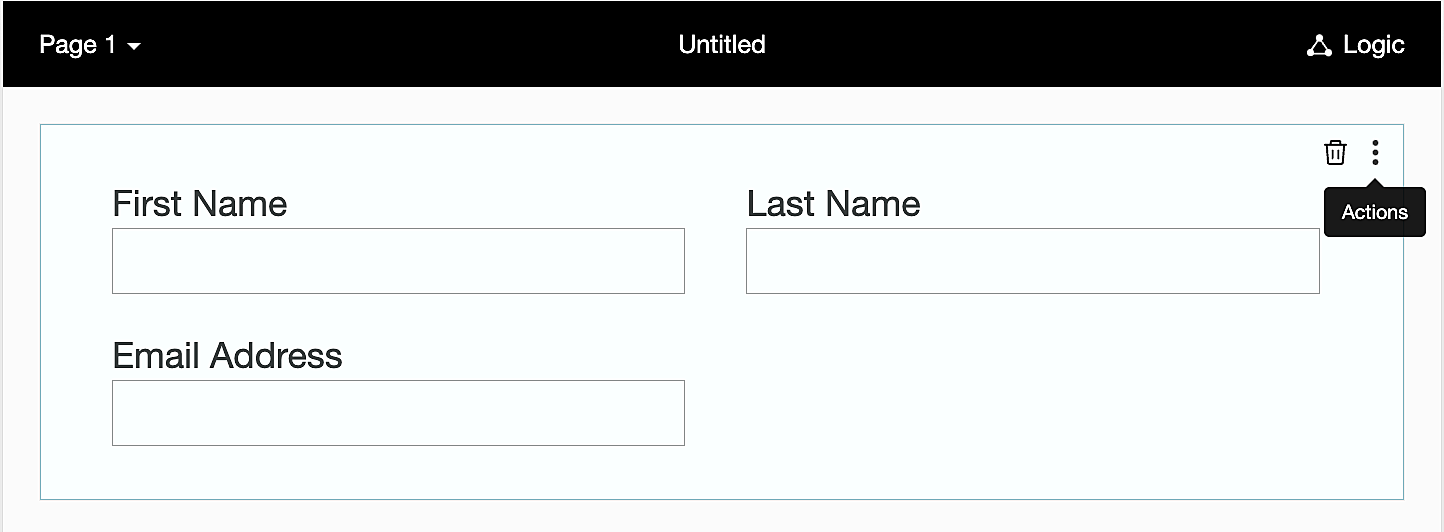
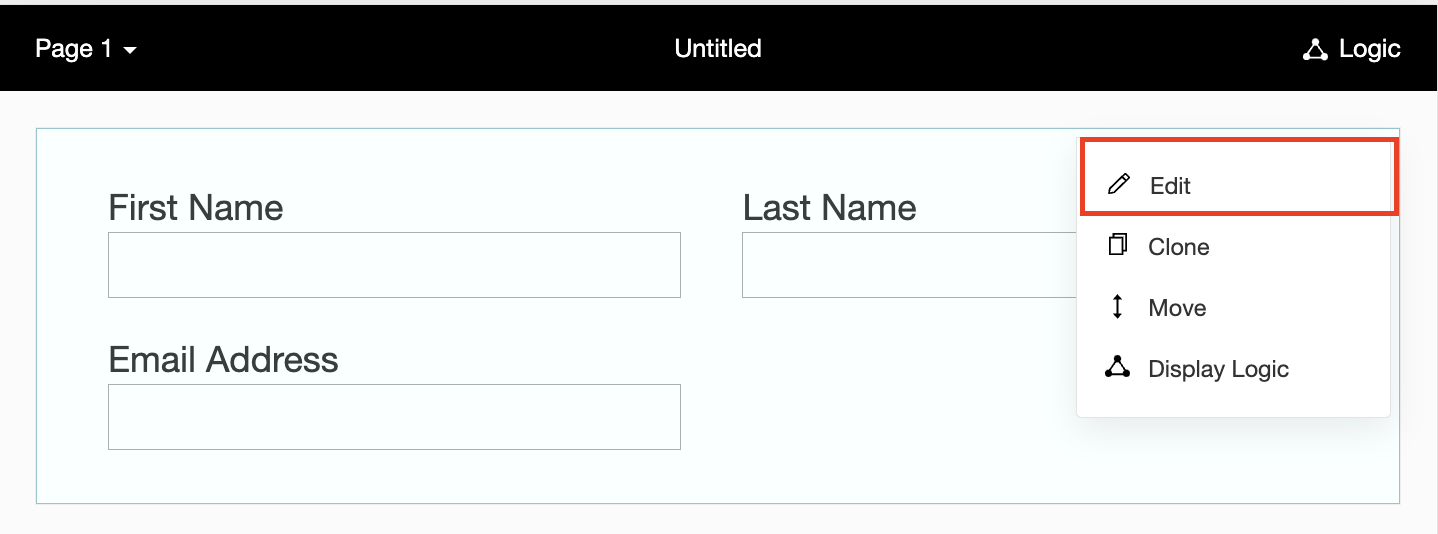
1. Click on the Actions button (three dots) next to the Last Name field, and choose Edit.
2. Click on Advanced options and check the box next to Prepopulate answer.
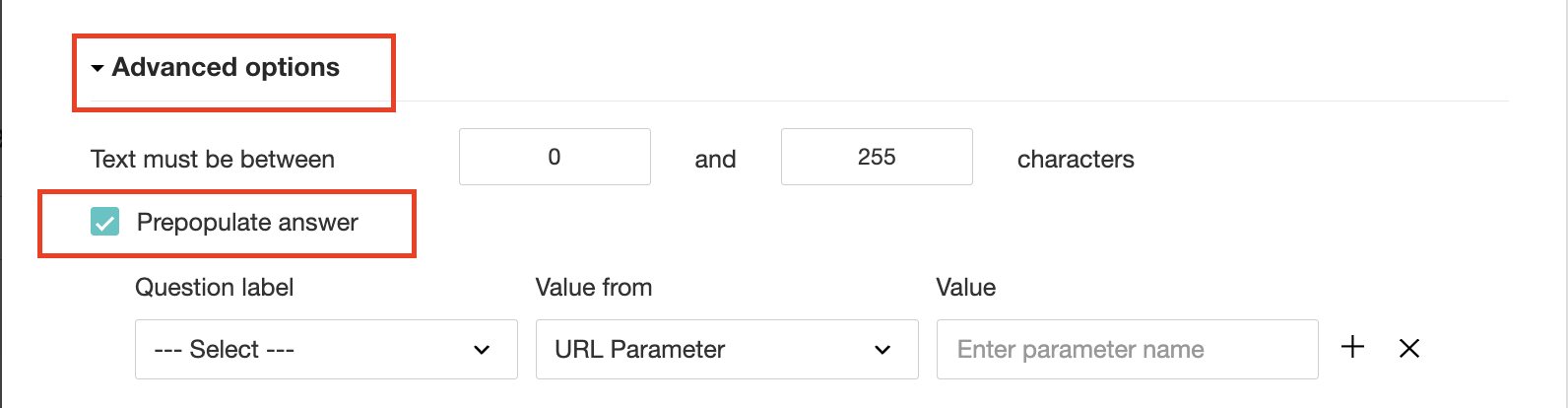
3. Select First Name, Last Name, and Email Address under Question label and URL parameter in each corresponding Value from field.
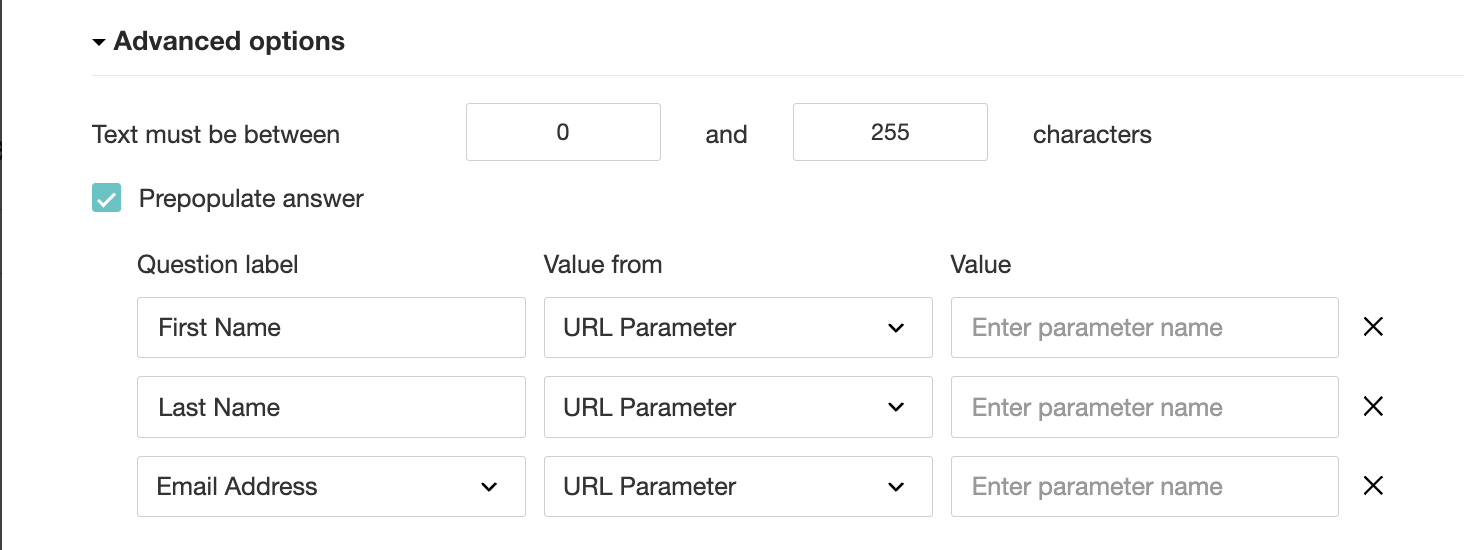
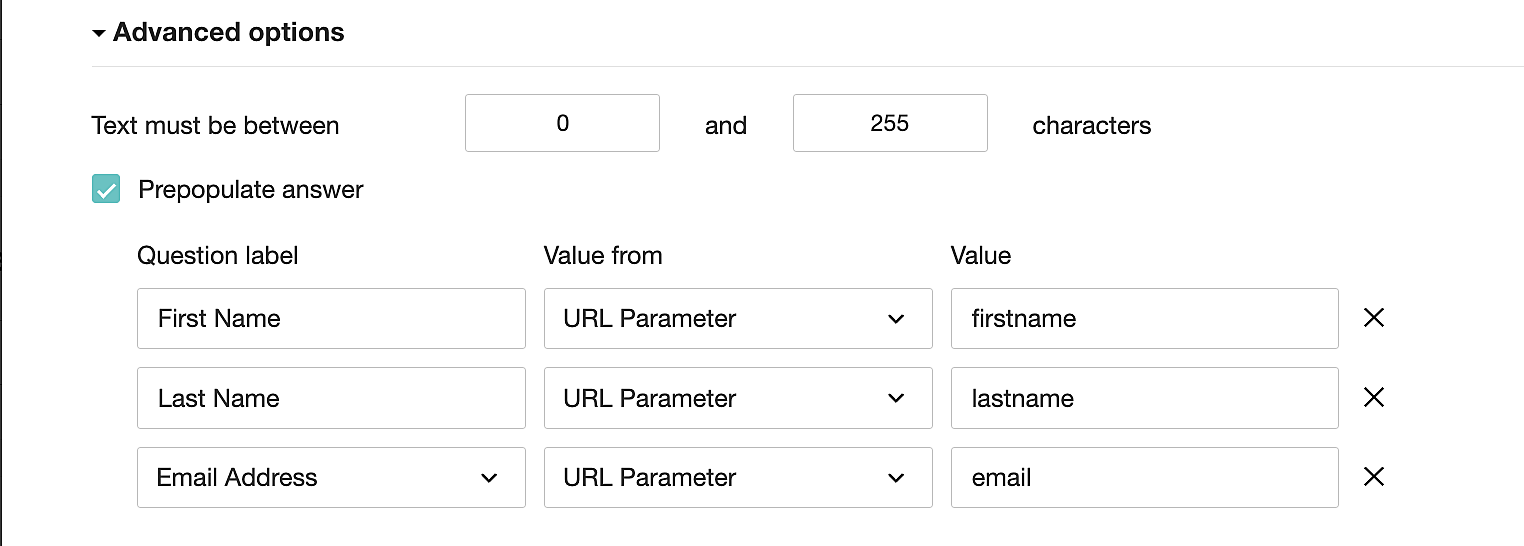
4. In the Value field, configure the parameter name (e.g., firstname, lastname, email). Once configured, this parameter name will be used in the survey link to prefill the fields in the survey form. Customize it as per your requirements, ensuring consistency with the term used in the survey URL.
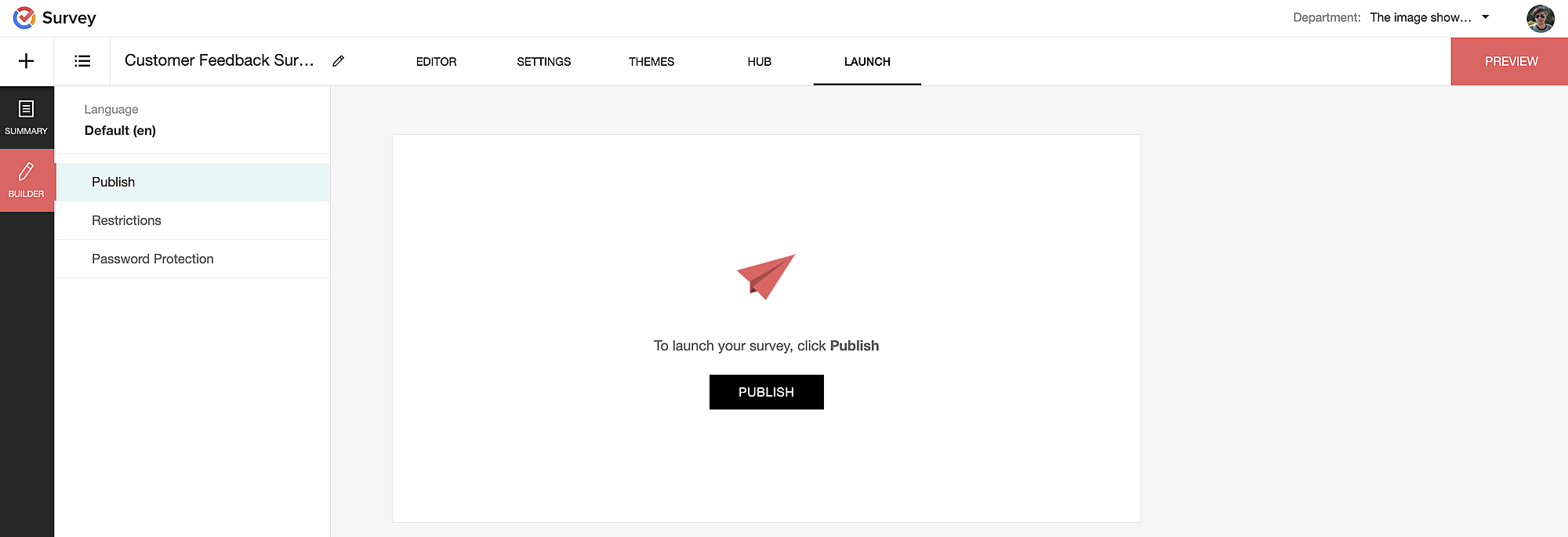
To publish the survey, go to the Launch tab and click on the Publish button to obtain the Zoho Survey URL.
Pre-populating fields in the Zoho Survey form
Once we have the Zoho Survey URL, we'll need to match the configured parameter name and variables from the Zoho Bookings email notifications. These variables play a crucial role in dynamically fetching customer information and populating it in the Zoho Survey form.
For details about variables in Zoho Bookings email notifications, refer to this link: Pre-defined variables
We'll now edit the survey URL to align the variables with the configured Value, or parameter name, from our prepopulated answer settings.
Let's say this is our survey URL:
https://survey.zohopublic.com/zs/E****h
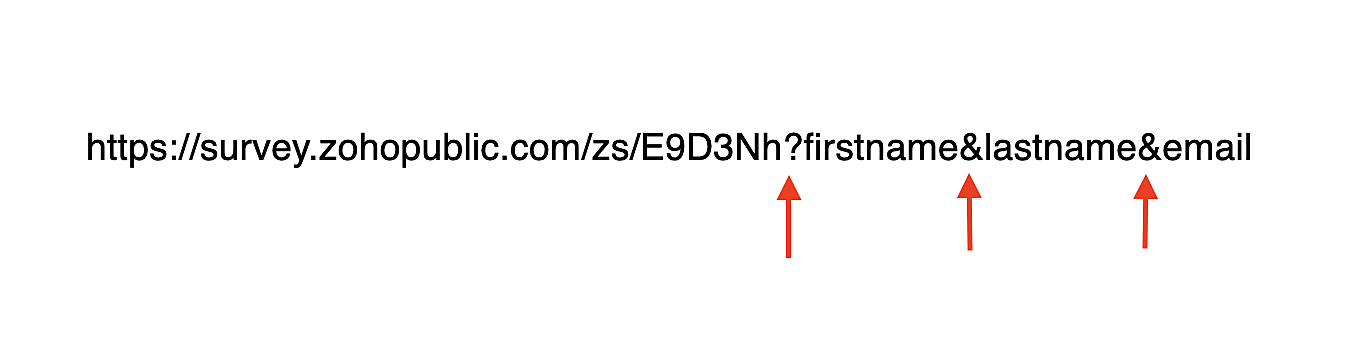
We'll want to use a question mark ("?") at the end of the survey URL and an ampersand ("&") to separate different parameter names.
Here's what that would look like using our example Value names from earlier:
Now, let's map the parameter names to the Zoho Bookings variables.
It would look like this:

For more details: Autofill
Where to use the Zoho Survey URL
To enable the automatic sending of the Zoho Survey URL to customers upon updating the appointment status to Completed, follow these steps in the Zoho Bookings application:
For one-on-one services:
1. Click on Service in the top left corner.
2. Select the desired one-on-one service.
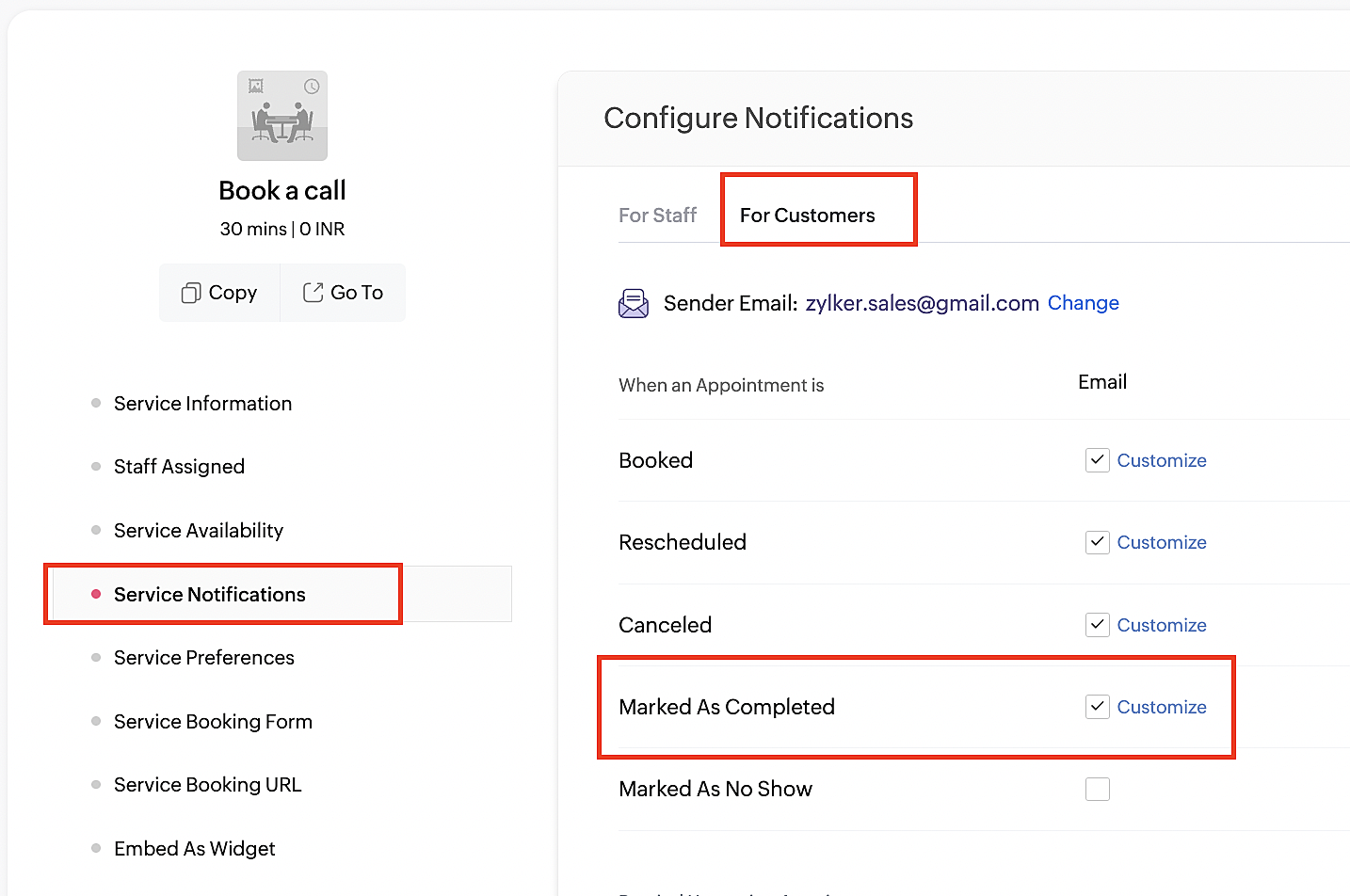
3. Choose Service Notifications.
4. Navigate to the For Customers tab.
5. Click Customize next to the Mark As Completed' trigger to access the email content.
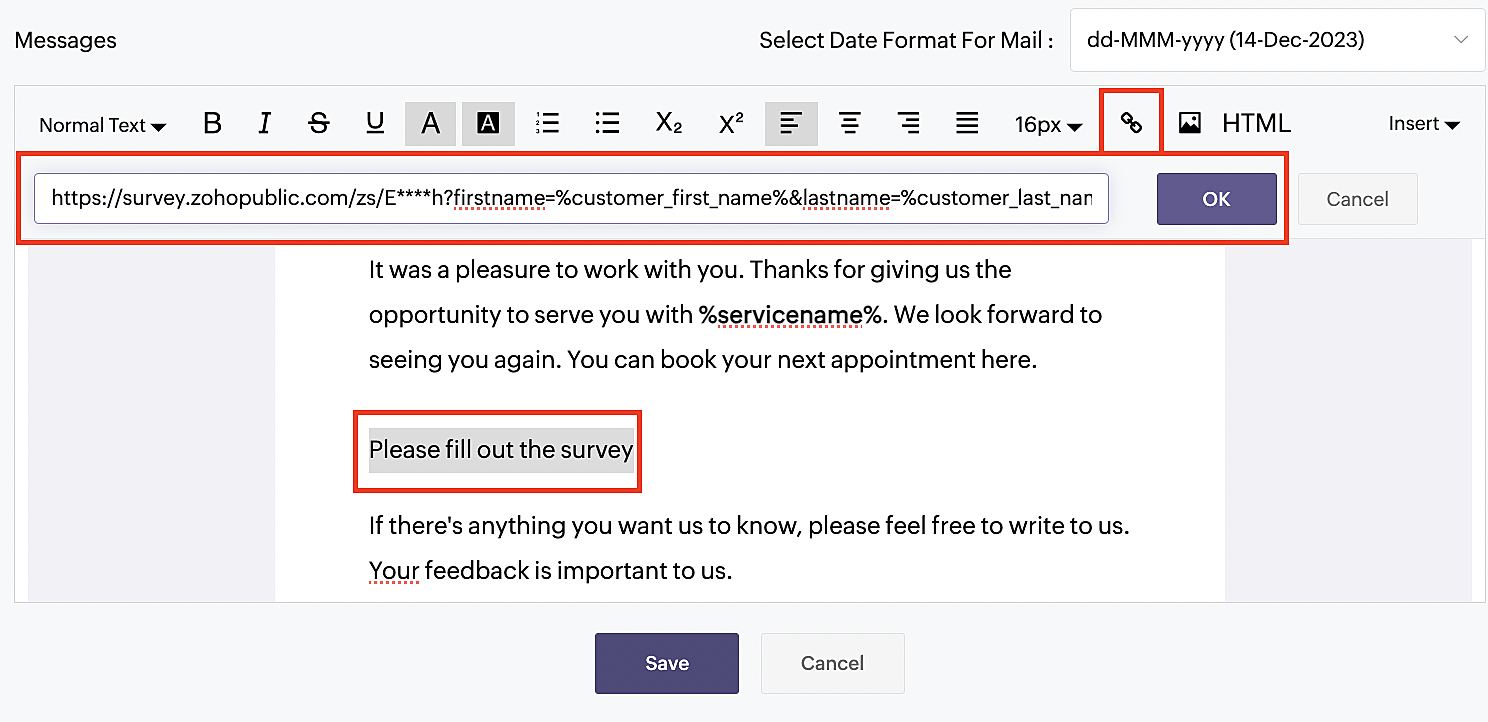
6. Enter your desired name for the button. For example, you might use something like 'Please fill out the survey'.
7. Select the entered text and click on the Add Link icon. Paste the configured Zoho Survey URL in the URL box. This will convert your text into a hyperlink that leads to the survey.
For group and resource booking services, please follow the same steps under Workspaces > Notifications.
For more details: Workspace Notifications
With the completion of this step, we have incorporated the Zoho Survey URL with dynamic variables, facilitating the dynamic autofill of customer data.
To wrap it up
With the successful implementation of the configuration described above, the entire process of automating status updates and collecting feedback is now seamlessly integrated, promising an elevated and enhanced product experience for all users.
If you have any questions or need assistance with your configuration, please email us at hello@zohobookings.com or support@zohobookings.com.
Topic Participants
Kaushik S
Sticky Posts
Approve or deny appointments based on criteria
Hey, community members! Have you ever wondered how to automatically approve or deny appointments? While we're still working on building that feature, we've got an alternative method to cancel appointments if they don't meet your specific criteria. Let
Recent Topics
Option in pipeline deal to select which hotel or branch or store if client has more than one local store
Hi, I would like to know if there is an option in the deal pipeline to select which hotel, branch, or store a deal is related to—if the company has more than one location. For example, I have a client that owns several hotels under the same company, andUndo article like/dislike
It seems to be not possible to undo your like/dislike for an article. Would be great if you can. Kind regards, HelenNested notebooks
Dear Sir/Madam, I would like to know if it is possible to nest notebooks. It would be very helpful when there are too many, as it would improve organization. Thank you for your response. Best regards.Tax in Quote
Each row item in a quote has a tax value. At the total numbers at the bottom, there is also a Tax entry. If you select tax in both of the (line item, and the total), the tax doubles. My assumption is that the Tax total should be totalling the tax fromDynamically Fetching Lookup Field Display Value
I have an audit trail form, Audit_Changes, that tracks old vs new values across different forms. For lookup fields, the old/new value is the ID, but I also need the display value. What's a best practice for dynamically fetching the display value of theStop Scrolling, Start Asking: Meet Zia for Your Files
Hey everyone 👋 The era of 'scrolling and searching' is officially over. Whether it's a dense legal contract or a long meeting recording, searching for specific details is a massive time-sink. We think you should be able to interact with your files, notHow to create a new Batch and update Stock via Inventory?
Hi everyone, We are building an automation where a user enters batch details (Batch Number, Mfg Date, Expiry, and Quantity) into a Custom Module. I need this to trigger an API call to Zoho Inventory to: Create the new batch for the item. Increase theHow do I open MSG files in Microsoft Word?
If you want to open MSG files in Microsoft Word is not natively supported, as MSG is an email file format created by Microsoft Outlook. However, there are professional approaches to access MSG content in Word. First, open the MSG file in Outlook and copyUnable to charge GST on shipping/packing & Forwarding charges in INDIA
Currently, tax rates only apply to items. It does not apply tax to any shipping or packing & forwarding charges that may be on the order as well. However, these charges are taxable under GST in India. Please add the ability to apply tax to these charges.How to add packing & forwarding charge in purchase order & quotation???
Hello Zoho Team I have just started using Zoho for my company and I wanted to make purchase order. My supplier charges fix 2% as packing & forwarding on Total amount of material and then they charge me tax. For example, Material 1 = 100 Rs Material 2How to create a boxplot chart in Zoho Analytics?
Hi, I'm looking forward to making a boxplot in Zoho Analytics, either with all my data or with a time segmentation. No documentation or YouTube video explaining that was found. I guess this is a feature gap. How feasible would it be to add this to Analytics?What are the create bill API line item requiered fields
While the following documentation says that the line items array is requiered it doesn't say what if any files are requiered in the array. Does anyone know? API documentation: https://www.zoho.com/inventory/api/v1/bills/#create-a-bill I'm trying to addWorkDrive issues with Windows Explorer Not Responding
We are using WorkDrive to collaborate on editing video content. We have a lot of files and quite a few are a few gigs. Recently anytime I try and work with the files Explorer freezes for a couple minutes whether it's dragging the files into Premiere orConnecting Zoho Inventory to ShipStation
we are looking for someone to help connect via API shipStation with Zoho inventory. Any ideas? Thanks. UriWhere is the settings option in zoho writer?
hi, my zoho writer on windows has menu fonts too large. where do i find the settings to change this option? my screen resolution is correct and other apps/softwares in windows have no issues. regardsUsing IMAP configuration for shared email inboxes
Our customer service team utilizes shared email boxes to allow multiple people to view and handle incoming customer requests. For example, the customer sends an email to info@xxxx.com and multiple people can view it and handle the request. How can I configureWhen Does WorkDrive integrate with Books?
When Does WorkDrive integrate with Books?POP mailbox limits
If I am accessing a remote POP mail server using Zoho Mail is there a mailbox quota for the account or is it all related to my mail account storage limits?Warranty Service and Repair in Zoho FSM
Hi There, We are a retail store that sells products and also performs installations and repairs. Our field technicians handle this work. Some repairs are covered by manufacturers, who reimburse us for both parts and labour. In these cases, we performZoho Sheet for Desktop
Does Zoho plans to develop a Desktop version of Sheet that installs on the computer like was done with Writer?WhatsApp phone number migration
Hi @Gowri V and @Pheranda Nongpiur, Thanks for implementing the promised enhancements to the integration between Zoho CRM and WhatsApp. The previous discussion has been locked, so I'm opening this new one. I am copying below a specificWebDAV support
I need WebDAV support so that I can upload/download (and modify) documents from my local file system. Is anything planned in his direction?SPF: HELO does not publish an SPF Record
I am using Zoho mail. Completed all of the required prerequisites from the dashboard to avoid any issues with mail delivery. But when checking on mail-tester.com getting the following error. Can anyone help me solve this?How do I create an update to the Cost Price from landed costs?
Hi fellow Zoho Inventory battlers, I am new to Zoho inventory and was completely baffled to find that the cost price of products does not update when a new purchase order is received. The cost price is just made up numbers I start with when the productPrice Managment
I have been in discussions with Zoho for some time and not getting what I need. Maybe someone can help explain the logic behind this for me as I fail to understand. When creating an item, you input a sales rate and purchase rate. These rates are justRegarding the integration of Apollo.io with Zoho crm.
I have been seeing for the last 3 months that your Apollo.io beta version is available in Zoho Flow, and this application has not gone live yet. We requested this 2 months ago, but you guys said that 'we are working on it,' and when we search on GoogleActual vs Minimum
Hi all, I am sure I am not the only one having this need. We are implementing billing on a 30-minute increment, with a minimum of 30 minutes per ticket. My question is, is there a way to create a formula or function to track both the minimum bill vs theGenerate leads from instagram
hello i have question. If connect instagram using zoho social, it is possible to get lead from instagram? example if someone send me direct message or comment on my post and then they generate to leadKaizen #234 - Automating Deal Handoff with Zia Assistant API, Workflow, Deluge, and Widget in Zoho CRM
Hello all! Welcome back to a fresh Kaizen week. In this post, we will explore how to automate the deal handoff process in Zoho CRM using Zia Assistant API + Workflow + Deluge + Widgets. Here’s how the final output looks when a deal is reassigned 1. DealHow do you print a refund check to customer?
Maybe this is a dumb question, but how does anyone print a refund check to a customer? We cant find anywhere to either just print a check and pick a customer, or where to do so from a credit note.Ability to assign Invoice Ownership through Deluge in FSM
Hi, As part of our process, when a service appointment is completed, we automated the creation of the invoice based on a specific business logic using Deluge. When we do that, the "Owner" of the invoice in Zoho FSM is defaulted to the SuperAdmin. ThisEnhancement to ICR’s field prompting: Preferred data extraction using advanced field prompting
Dear Customers, We hope you’re well A quick background Intelligent Character Recognition (ICR) comes as part of Zia’s optical recognition capability called Zia Vision. When we introduced it last April, the data extraction was training-based and was applicableSee a list of all records enrolled in a cadence?
I am looking for a way to see a list of all leads or contact currently enrolled in a cadence. I do not see any way to do this through the cadence UI.Limitation in chart of accounts
There is a limitation of 4000 accounts in chart of accounts Zoho needs to remove this limitHow do I change the account bank charges are charged to?
I want bank charges charged to my Credit Card Fees account. Is there a way to do this?Real signature in Zoho Expense PDF report ?
Hello ! Is there a way to put a real signature on the signature line when a PDF report is generated in Zoho Expense? Through Zoho Sign or another way? Can't seem to make it work.Copy paste settings
Hello all i have 2 organizations running in ZOHO books in one organization i have customised Tax rates, codes and customized templates instead of manually doing again in org 2 can i have some shortcut to copy paste or export and import??Custom TDS on Vendor Credits via API
Hi, We are using Zoho Books APIs for posting Bills and vendor credits. We are unable to post custom TDS amount posting vendor credits. Can you please share the API spec and Payload that need to be sent for Custom TDS for Vendor Credits."Unlink" Advance from Bill without Deleting the Payment Record
I am writing to highlight a significant workflow issue in Zoho Books (India Edition) regarding Vendor Advances and Bills. The Scenario: I recorded an Advance Payment to a vendor. I matched/reconciled this payment in the Banking module. I received a BillAdvance Payment Record Removed When Deleting Applied Credit from Bill
Hello, So while working with vendor advance payments, I noticed that removing the applied credit from a bill also removes the corresponding entry from the Payments Made section. What I did : Recorded an advance payment to a vendor through Payments Made.Next Page