Schedule- usecases and solutions



This guide helps you understand how schedules, event type availability, business hours and user availability work together in Zoho Bookings. It explains common availability scenarios and how to configure schedules, user-specific hours, and date overrides to ensure that the correct booking slots are shown to customers.
1. Possible scenarios and solutions
a. How can I make all workspaces and event types unavailable?
Action: Add unavailability under business hours.
Result: This blocks booking availability across the entire business, including all workspaces, users, and event types, for the selected period.
Steps: Admin Center -> Business Hours -> Date Overrides -> Add Unavailability
Action: Add unavailability under business hours.
Result: This blocks booking availability across the entire business, including all workspaces, users, and event types, for the selected period.
Steps: Admin Center
b. How can I make only one event type unavailable for today or a specific period when a schedule is assigned?
Action: Under User-specific hours for the event type, mark all assigned users as unavailable for the required period.
Action: Under User-specific hours for the event type, mark all assigned users as unavailable for the required period.
Result: This will make the users unavailable for that specific event type even though a schedule is assigned. The same users remain available for other event types that use the same schedule.
Steps: Choose Event Type -> Availability Dates and Times -> User-specific Hours -> Add Unavailability.
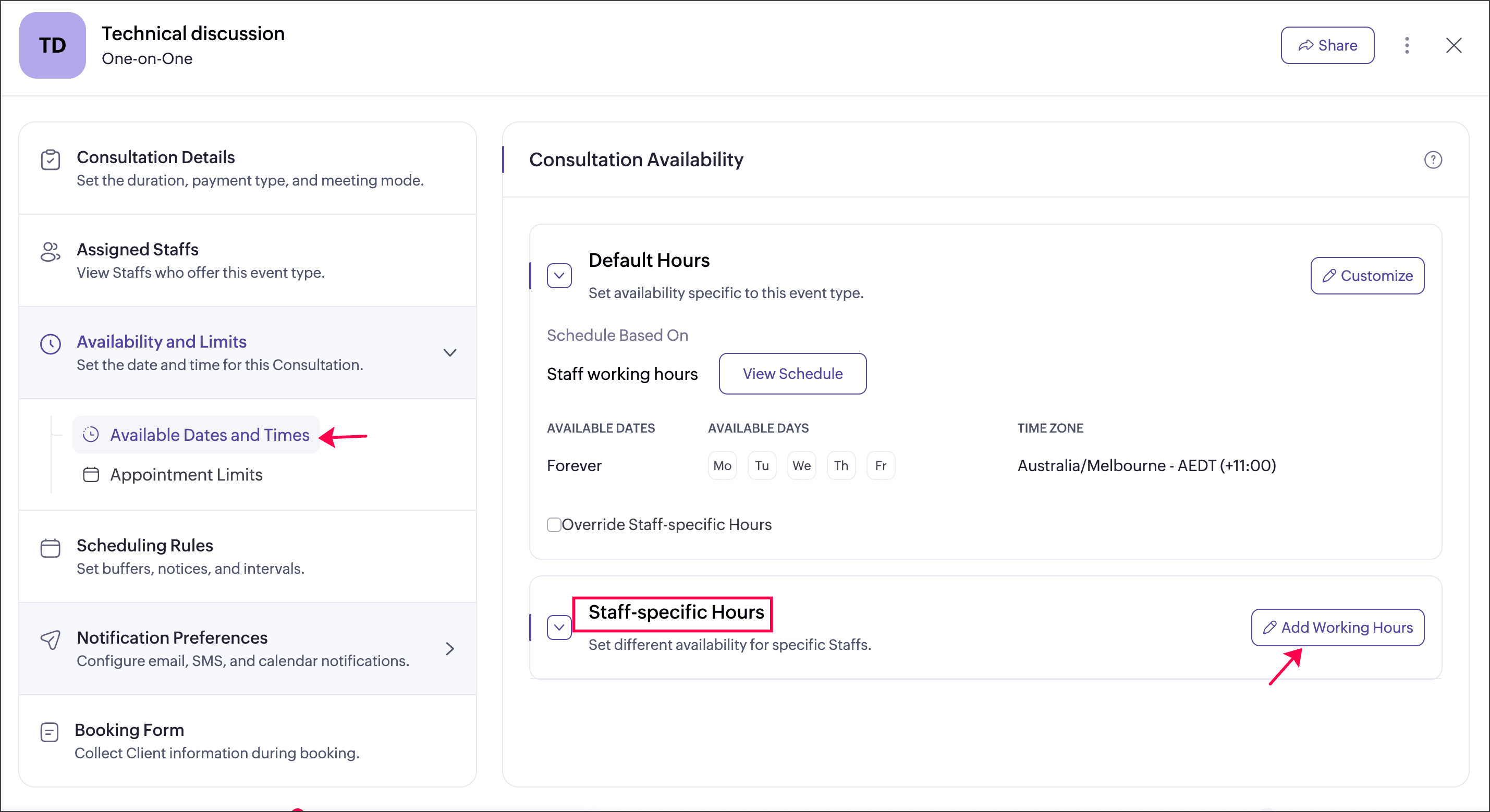
Steps: Choose Event Type -> Availability Dates and Times -> User-specific Hours -> Add Unavailability.
c. How can I set different daily availability for users under the same event type?
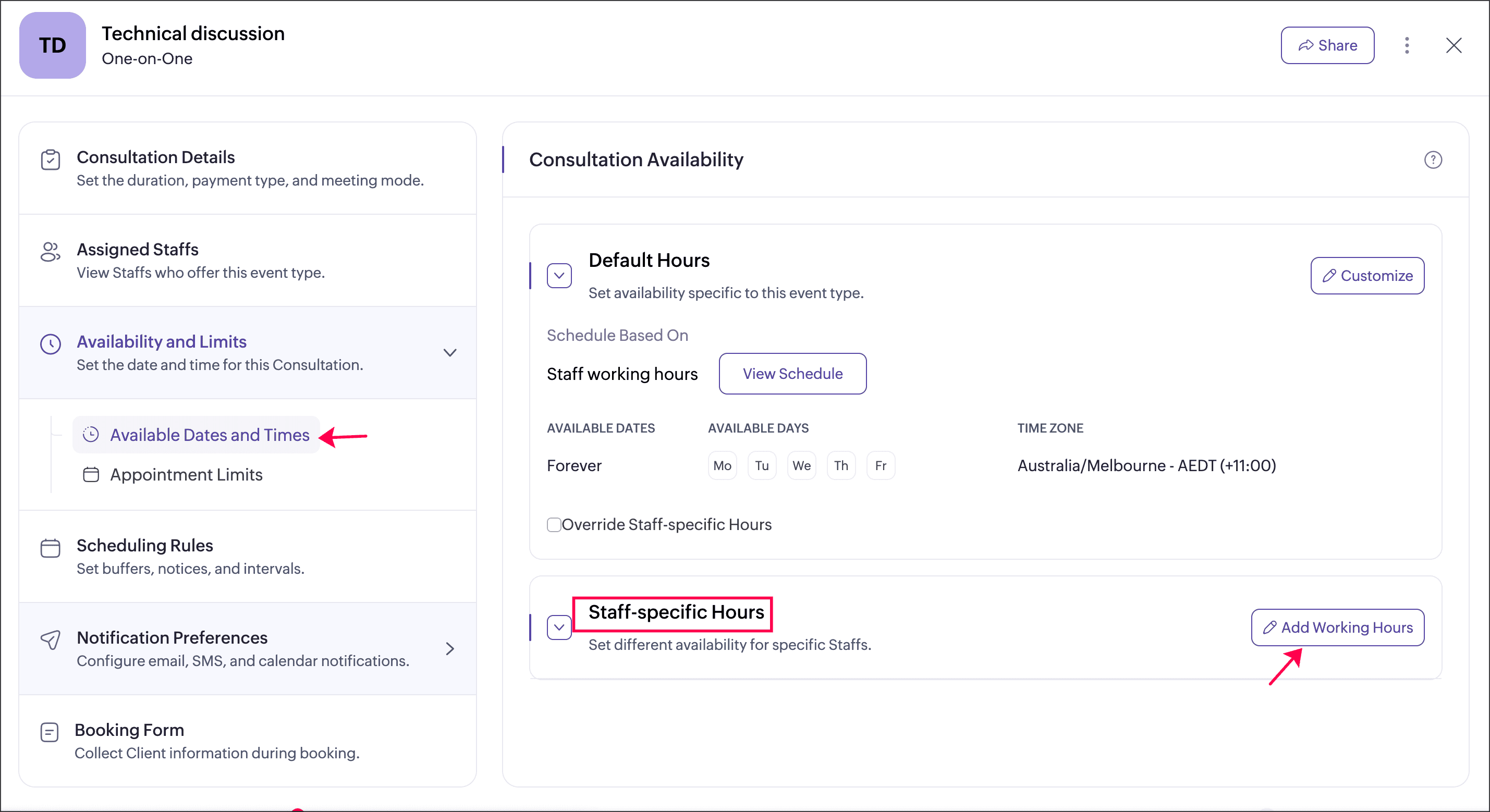
Action: Configure User-specific hours under that event type.
Result: This allows each assigned user to have different availability for an event type on any given day.
Steps: Choose Event Type -> Availability Dates and Times -> User-specific Hours -> Add Working Hours.
d. Why is a user available for an event type beyond their default working hours?
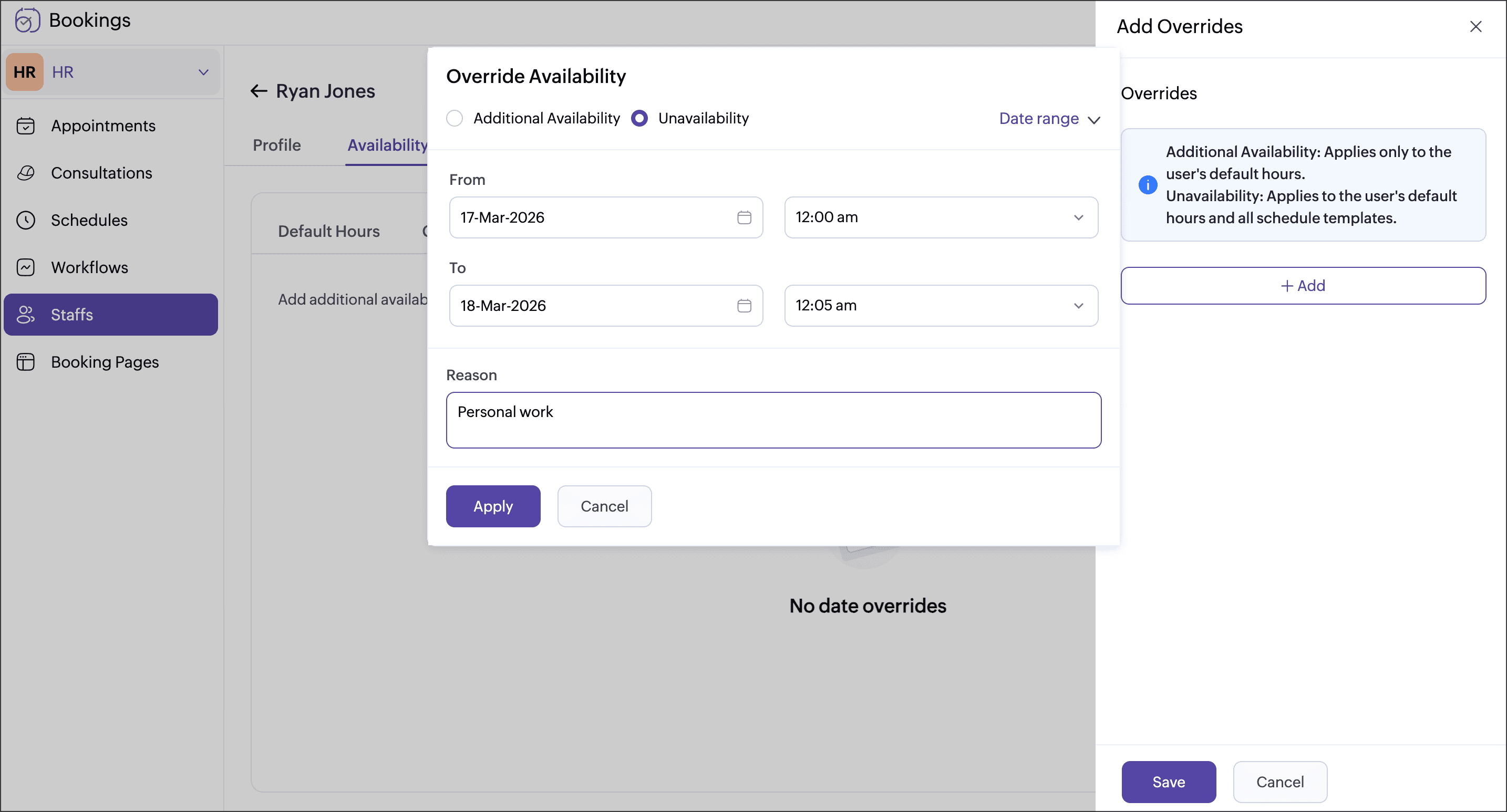
Reason: The user is assigned to an event type that has a schedule configured.
Result: The event type strictly follows the assigned schedule. If the schedule includes time slots beyond the user’s default working hours, the user will appear available for that event type during those times. To prevent this, add unavailability for the user during those extended periods.
Steps: Users → Availability → Date Overrides → Add Unavailability
Result: This allows each assigned user to have different availability for an event type on any given day.
Steps: Choose Event Type -> Availability Dates and Times -> User-specific Hours -> Add Working Hours.
d. Why is a user available for an event type beyond their default working hours?
Reason: The user is assigned to an event type that has a schedule configured.
Result: The event type strictly follows the assigned schedule. If the schedule includes time slots beyond the user’s default working hours, the user will appear available for that event type during those times. To prevent this, add unavailability for the user during those extended periods.
Steps: Users → Availability → Date Overrides → Add Unavailability
e. How can I make a user unavailable to all event types?
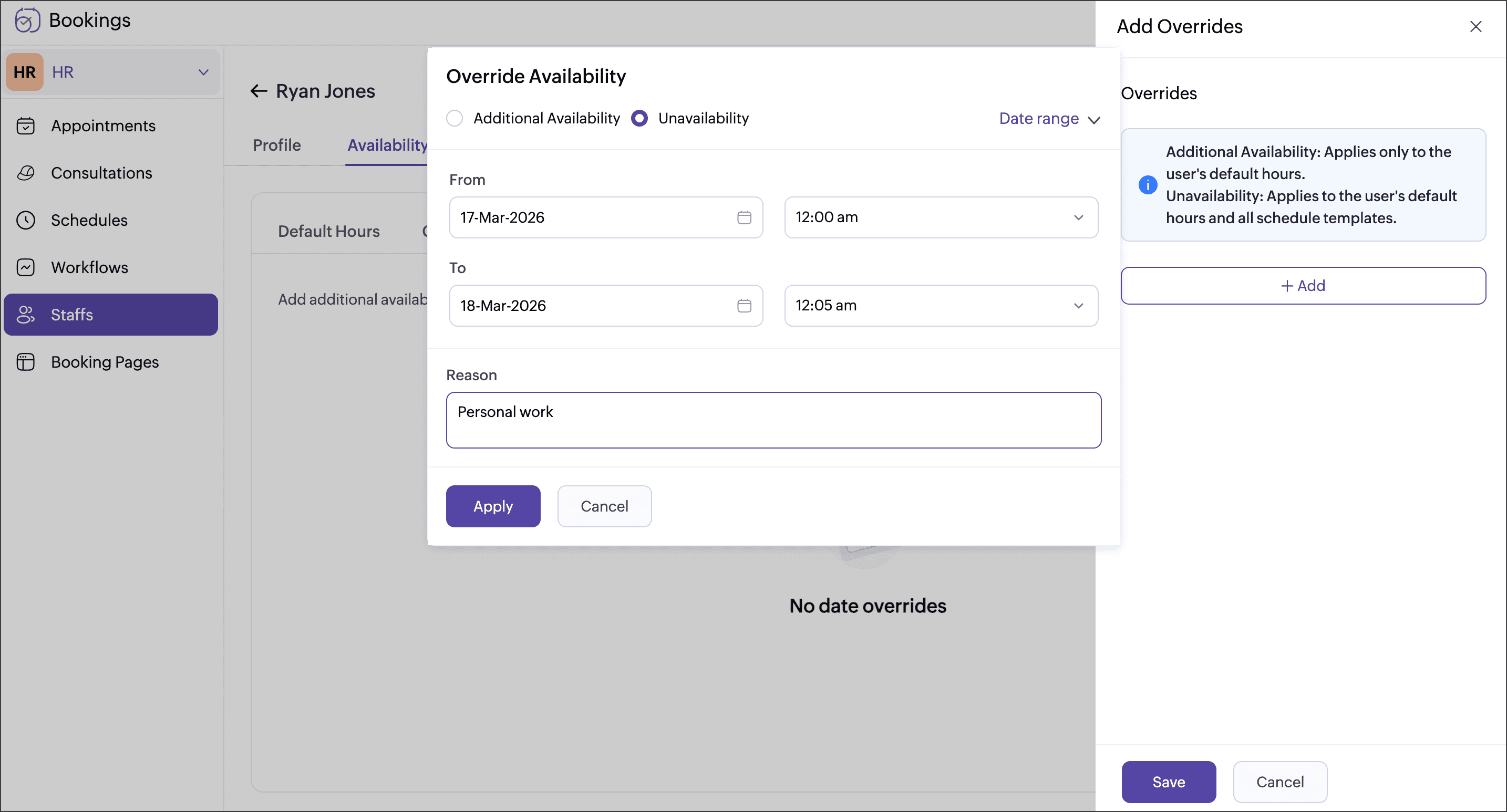
Action: Add unavailability for that user within their default hours
Result: User-level unavailability overrides schedule availability.
Steps: Users → Availability → Date overrides → Add Unavailability
f. How can I make a user unavailable for a specific event type?
Action: Add unavailability for that user within their default hours
Result: User-level unavailability overrides schedule availability.
Steps: Users → Availability → Date overrides → Add Unavailability
f. How can I make a user unavailable for a specific event type?
Action: Add unavailability for that user under User-specific hours of that event type.
Result: User-level unavailability overrides the schedule, making the user unavailable only for the selected event type.
Steps: Choose Event Type -> Availability Dates and Times -> User-specific Hours -> Add Unavailability
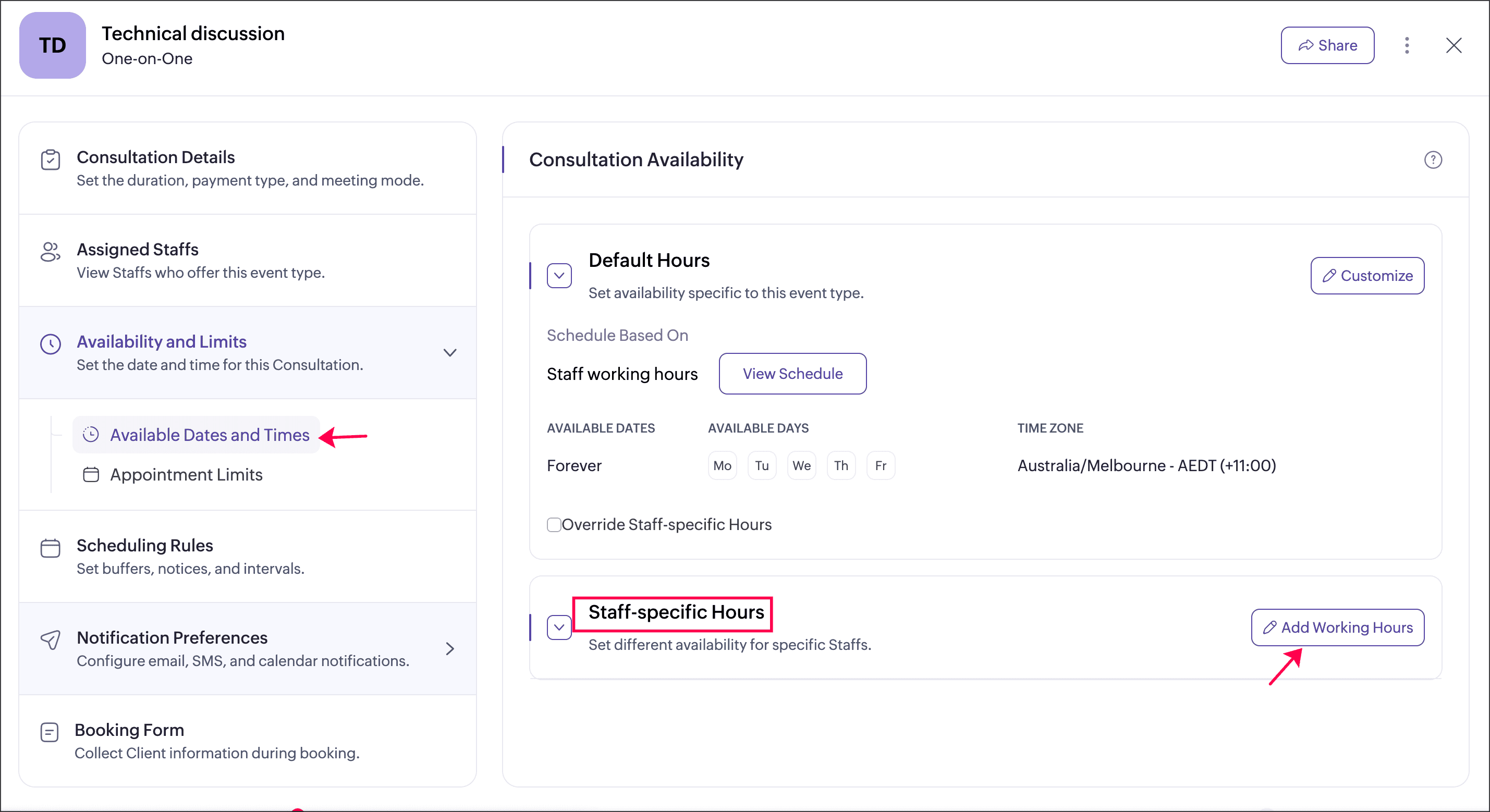
Result: User-level unavailability overrides the schedule, making the user unavailable only for the selected event type.
Steps: Choose Event Type -> Availability Dates and Times -> User-specific Hours -> Add Unavailability
g. How can I apply availability or unavailability to multiple event types that share the same schedule?
Action: Use Date overrides in the schedule that is assigned to those event types.
Result: Overrides apply to all event types linked to that schedule.
Steps: Schedules →Choose Schedule ->Edit -> Add Date Overrides
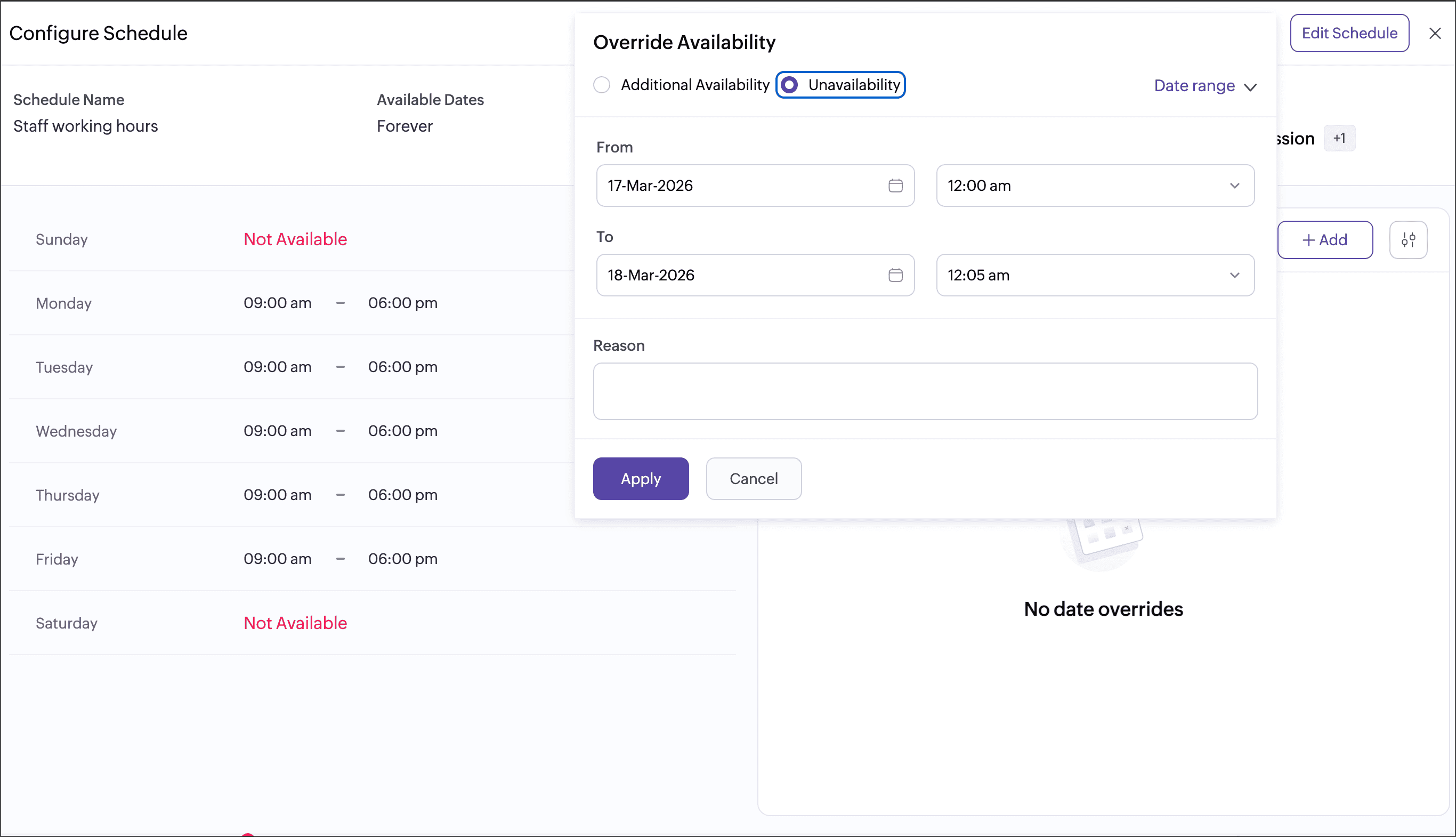
Action: Use Date overrides in the schedule that is assigned to those event types.
Result: Overrides apply to all event types linked to that schedule.
Steps: Schedules →Choose Schedule ->Edit -> Add Date Overrides
h. How can I ensure an event type strictly follows its assigned schedule?
Action: Enable Override user-specific hours in the event type settings.
Result: This forces the event type to follow only the schedule and ignore user-specific availability.
Steps: Choose event type -> Availability Dates and Times -> Enable Override User-specific Hours
i. Why is an event type unavailable even though assigned users are available?
Action: The event type may have a schedule assigned that does not include that time.
Result:An event type follows its assigned schedule and is available only during the defined time slots, even if the user’s default hours extend beyond them.
Steps: Schedules →Choose Schedule -> View schedule availability
j. Why does a user appear available even when they are not working at that time?
Action: The event type may have a schedule assigned that includes that time. You can check available time slots under the user’s Custom Schedules.
Result: Event type schedule availability can extend beyond a user’s default hours.
Steps: Users → Availability → Date overrides → Add Unavailability
2. Availability hierarchy
- Business hours take the highest priority and apply across all workspaces, users, and event types.
- Schedule availability overrides user’s default hours when a schedule is assigned to an event type.
- User unavailability overrides schedule availability, ensuring the user remains unavailable even if the schedule is available for bookings.
- User-specific hours (under an event type) override the user’s default hours only for that event type.
- Date overrides in schedules take precedence over the regular schedule configuration for the selected dates.
- Override user-specific hours (event type setting) forces the event type to strictly follow the assigned schedule, ignoring user-specific hours.
- If no schedule is assigned, the event type availability is determined by the assigned users’ default hours.
Level | Configuration | Effect |
1 | Business Hours | Applies to all workspaces, users, and event types (highest priority). |
2 | Schedule | Overrides users’ default working hours for assigned event types. |
3 | User unavailability | Overrides schedule and makes the user unavailable. |
4 | User-specific hours (Event Type) | Overrides default hours for that specific event type only. |
5 | Schedule date overrides | Overrides the regular schedule for selected dates. |
6 | Override user-specific Hours | Forces the event type to follow only the schedule. |
— | No Schedule Assigned | Uses assigned users’ default working hours. |
Related links