Configure Partner Commissions
Partner Commissions are configured through commission plans. A commission plan defines the rules that determine when partners become eligible for commissions, how earnings are calculated, who can receive payouts, and how commission approvals are managed.
When creating a commission plan, you configure:
- The type of commission plan
- The records and activities that qualify for commissions
- The commission structure used to calculate earnings
- The partner accounts eligible for rewards
- The approval process for commission payouts
- The rules used to handle discrepancies and clawbacks
Before you begin
Ensure the following:
- Partner Programs are already created
- Relevant sales modules (Quotes, Sales Orders, Purchase Orders, or Invoices) are available
- You have permission to create commission plans
Understanding the commission plan lifecycle
A commission plan serves as the framework for managing partner rewards. Once configured, it automatically evaluates eligible transactions, calculates commissions, routes them for approval, and supports adjustments when transaction data changes.
At a high level, the lifecycle progresses from plan configuration to commission calculation, approval, payout, and, when necessary, discrepancy handling and clawbacks.
This lifecycle helps ensure that partner commissions are calculated consistently, approved appropriately, and remain aligned with the latest transaction data.
Create a commission plan
- Go to Setup.
- Under PRM, click Partner Commissions.
- Click Create Plan.
Step 1: Plan details
The Plan Details step defines the foundation of the commission plan. Here, you decide how partner performance will be measured and rewarded.
Provide the core details that define the commission plan.
- Plan Name: Enter a name for the commission plan.
- Plan Code: Enter an alphanumeric code to uniquely identify the plan.
- Plan Type:
- Choose Transaction, if you want the Commissions to be calculated based on individual records, such as deals or invoices.
Transaction-based plans can be used when commissions should be tied directly to individual business transactions such as quotes, orders, or invoices.
For example, a partner earns a commission each time he submits 5 deals
or,
or,
- Choose Quota attainment, if you want the commissions to be calculated based on achieving defined performance targets.
Use quota-based plans when commissions should be tied to overall performance against a target rather than individual transactions.
For example, a partner earns commission after generating $100,000 in revenue during a quarter.
Learn more about Quota attainment-based commissions.
Learn more about Quota attainment-based commissions.
- Commission Based On:
- Choose Line item, if you want the Commissions to be calculated for individual item within a record. When selected, Commissions for field is displayed to specify applicable items, such as products.
or, - Choose Total amount, if you want the commissions are calculated on the overall value of the record.
For a detailed comparison, see Line item vs Total amount in Partner Commissions.
Based on your selection, the applicable modules are displayed in the next step.
- Program: Select the partner program this commission plan applies to. This is a lookup field populated with existing partner programs.
- Click Next.
Step 3: Event configuration
This step defines when and for which records commissions are calculated.
For a detailed understanding, refer to the documentation: Commission Triggers and Record Selection in Partner Commissions.
For a detailed understanding, refer to the documentation: Commission Triggers and Record Selection in Partner Commissions.
- Trigger configuration: Event Trigger Module
Choose one of the following modules:
- Quotes
- Sales Orders
- Purchase Orders
- Invoices
When to Trigger: Choose when commissions should be calculated:
- On create
- On edit
- On create or edit
- Record selection- Choose whether:
- All records in the selected module should be scanned, or
- Only records that match specific conditions
- If you choose to apply conditions, define the required criteria using available fields.
- Click Next.
Step 4: Discrepancy and clawback settings
Discrepancy handling defines how commission adjustments and clawbacks are managed.
Transaction values do not always remain unchanged after commissions are calculated. Orders may be canceled, invoices may be adjusted, or products may be returned. Discrepancy handling allows commission values to be adjusted when these changes occur.
Learn more about Discrepancy Handling and Clawbacks
Transaction values do not always remain unchanged after commissions are calculated. Orders may be canceled, invoices may be adjusted, or products may be returned. Discrepancy handling allows commission values to be adjusted when these changes occur.
Learn more about Discrepancy Handling and Clawbacks
- Enable the Discrepancy Handling toggle.
- Configure the Discrepancy Processing Window: Enter the number of days
Select the reference event from the available time-based fields. For example:
- Last activity time
- Created time
- Lead created time
- Modified time
- Set the Clawback Trigger Criteria using non-subform fields from the Deal or related modules.
Note:Clawback Method – Retroactive Amount OnlyIf a discrepancy occurs, the recipient’s attained quota is adjusted to reflect the modified transaction value.
- Click Next.
Step 5: Commission structure
Flat commission
- A flat commission structure applies a consistent commission rate to all eligible transactions.
Use this structure when partners should receive the same reward regardless of transaction volume or performance level. - Commission Value Type
- Percentage of total amount (default and only option)
- Commission Value
- Enter the commission percentage.
4. Click Next.
Tiered commission
A tiered commission structure applies different commission values based on performance thresholds.
Use this structure when higher-performing partners should receive higher rewards.
If you choose Tiered,
- Select the Calculation Method:
- Flat
- Differential
- Differential prorate
- Tier is Based On
- Total amount (default, based on earlier selection)
- Commission Value Type
- Flat amount, or
- Percentage of total amount
- Define the Tiered Formula: You can configure up to four tiers.
- Click Next.
Quota-based commission (if selected in Step 2)
If Quota Attainment was selected as the plan type:
- Quota Target Based On
- Total amount (only available option)
- Quota Target
- Enter the target amount.
- Select the Commission Structure Type:
- Flat
- Tiered
- Commission Value Type
- Percentage of quota accrued (default)
- Commission Value
- Enter the commission percentage.
Click Next.
Step 6: Recipients
Recipients determine who can participate in the commission plan. Adding a partner account makes that partner eligible for commission calculation when all plan conditions are satisfied.
- Click Add Recipients.
- Select the Partner Accounts you want to make eligible for this commission plan. The list displays partner accounts from the associated partner program.
- Click Save.
Step 7: Approval
Approval workflows help ensure that commissions are reviewed before payouts are finalized. Depending on your organization's governance requirements, you can configure one or more approvers.
To specify who must approve commission payouts:
To specify who must approve commission payouts:
- Add the required approvers.
- Click Save & Next to proceed.
Learn more about Reviewing and Approving Commissions in Partner Commissions.
Step 8: Plan schedule
Commission plans are typically aligned with partner programs, promotional campaigns, fiscal periods, or incentive cycles. Defining a schedule helps ensure commissions are calculated only during the intended period.
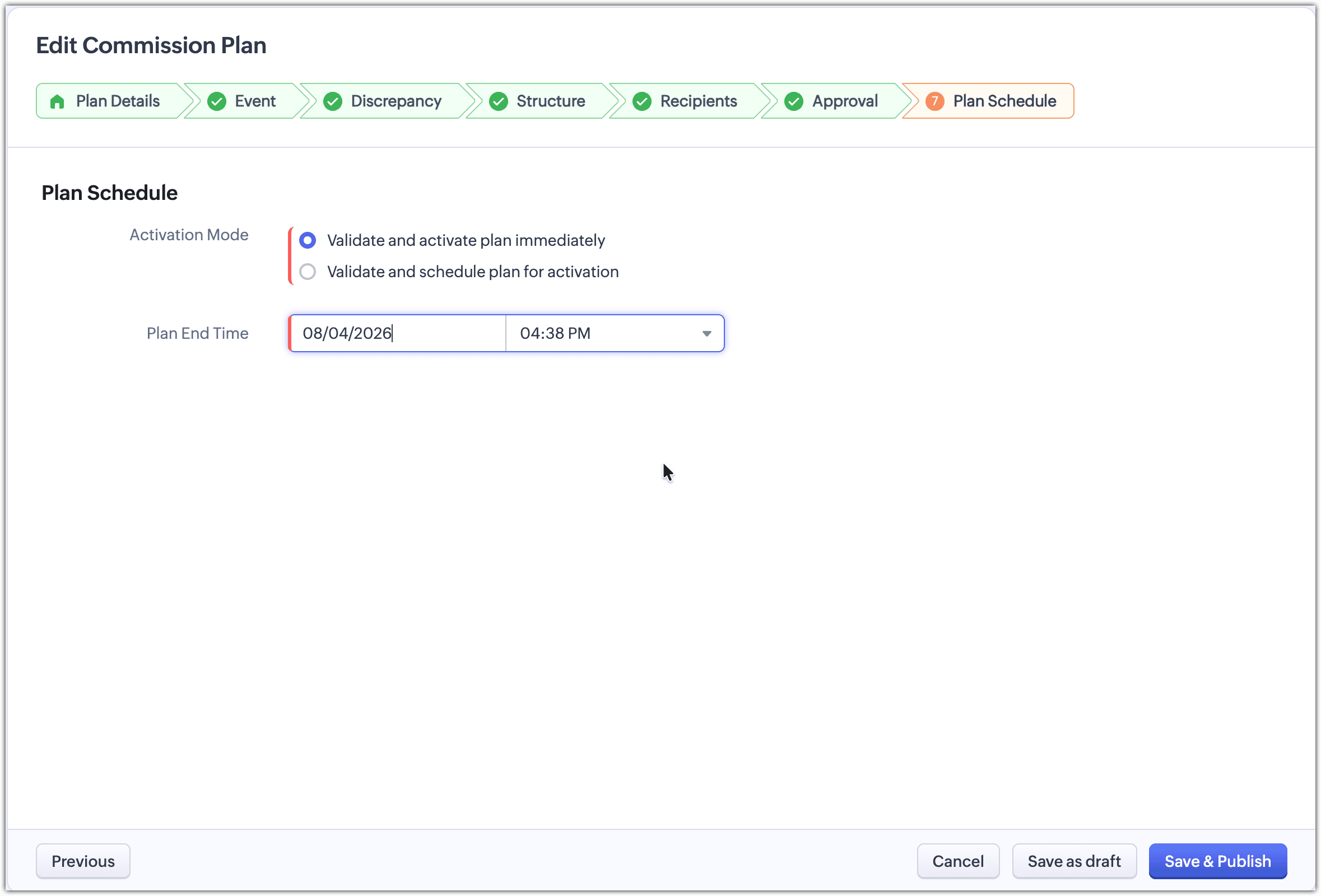
Activation mode:
Activation mode:
Choose how you want to activate the plan.
- Validate and activate immediately: The plan becomes active right away. You only need to specify the end date.
- Validate and schedule activation: Set both the start and end dates to control when the plan becomes active.
The plan schedule defines the period during which the commission plan is active. Only transactions within this timeframe are considered for commission calculation.
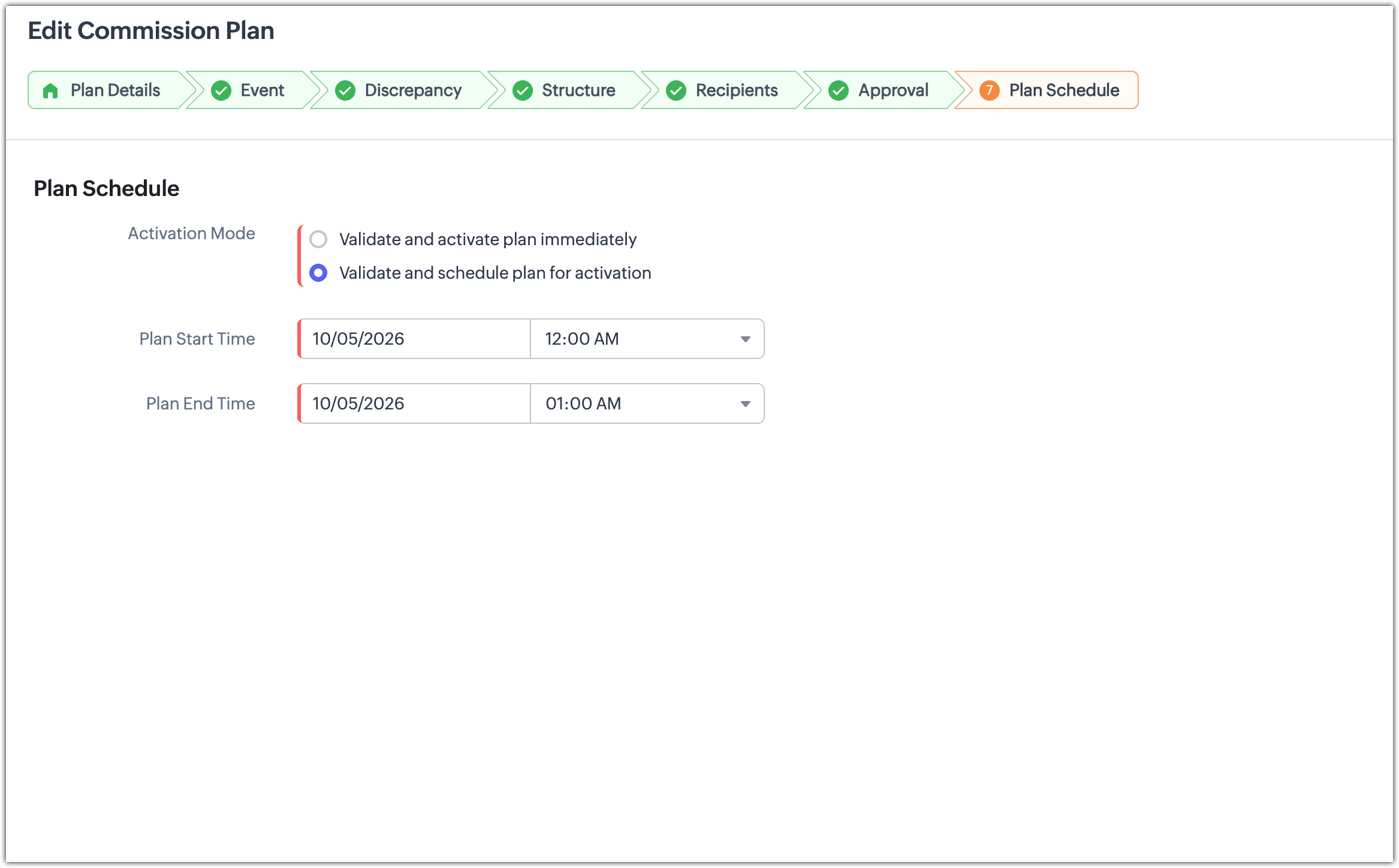
 Note: The end date can be set up to a maximum of one year from the start date.
Save the plan to complete the setup.
What happens next
Once the commission plan is active:
- Commissions are calculated based on configured events.
- Approved deal registrations and transactions are tracked.
- Discrepancies and clawbacks are handled automatically.
- Partner earnings are attributed accurately.