Zoho Catalyst Data Store connector for Zoho DataPrep [BETA]
You can export your data from Zoho DataPrep to Zoho Catalyst Data Store using the Zoho Catalyst Data Store connector. You can use Zoho DataPrep to perform data cleanup, data migration, and data backup in more than one way. With this connector, you can streamline your ETL workflows, enable smooth data movement, and simplify data integration between Zoho Catalyst Data Store and Zoho DataPrep.

Important: Importing data from Zoho Catalyst Data Store to DataPrep is not supported yet.
To export data to Zoho Catalyst Data Store
1. Open an existing pipeline or create a pipeline from the Home Page, Pipelines tab, or Workspaces tab. You can bring your data from 50+sources.
2. On the Pipeline Builder page, once you have completed creating your data flow and applying the necessary transforms in your stages, you can right-click a stage and select the Add Destination option.
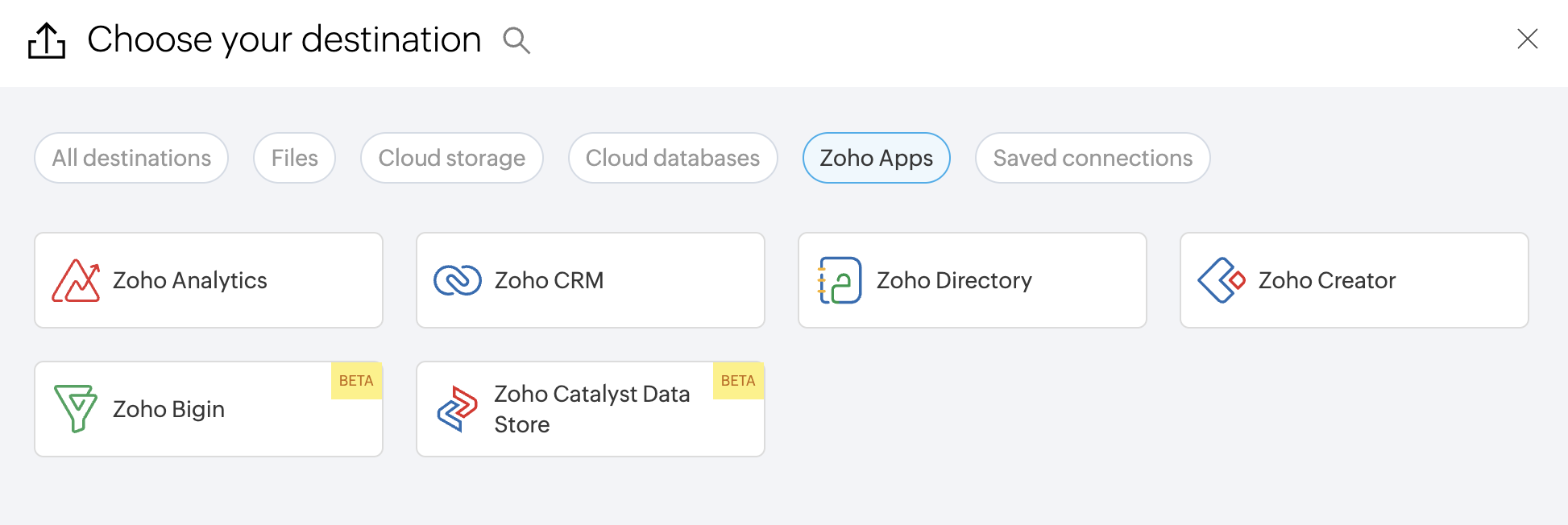
3. You can search for Zoho Catalyst Data Store under the All destinations tab or filter using the Zoho Apps category and click on it.
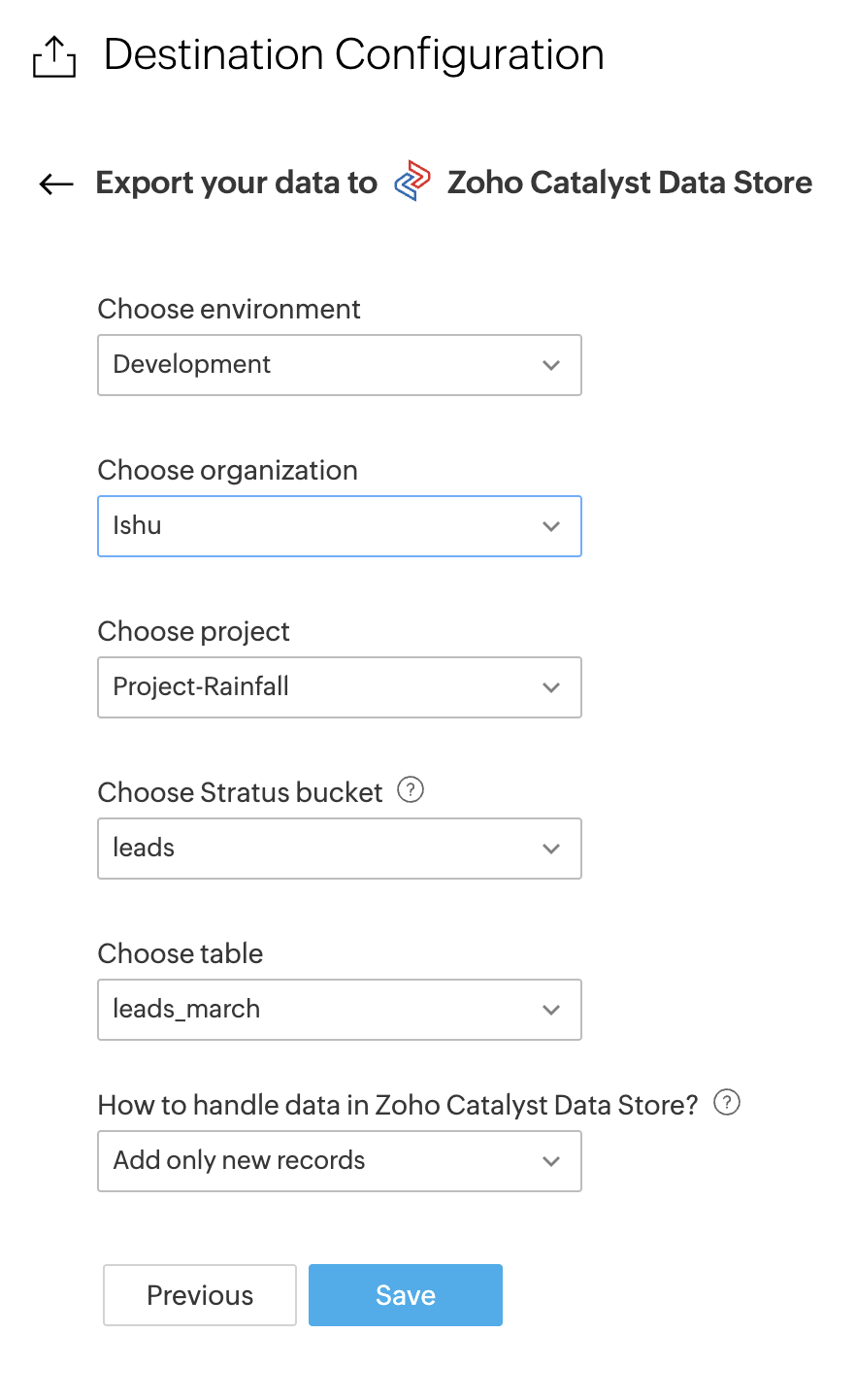
4. Choose the required environment where you would like to export your data from the Choose environment dropdown.
Below are the two environments:
Production - A production environment is the live mode in Zoho Catalyst that is accessible to the end users of your application. Once the development and testing phases are complete, you can deploy your application from the development environment to production through the web console. This environment hosts the finalized version of your application and supports real-time, user-facing operations.
Development - A development environment is an isolated sandbox in Zoho Catalyst that enables you to create, configure, test, and host Catalyst features and components. During the development phase of an application, this environment allows you to build and iteratively test your implementation in a controlled setup without affecting live operations. Once the changes are validated, they can be deployed to the production environment.
5. Choose the Organization, Project, and Table in Zoho Catalyst Data Store to which you want to export your data.
6. Choose the Stratus bucket in Zoho Catalyst Data Store to which you want to export your data. Stratus bucket is a robust, secure, and scalable cloud container designed to store data as objects of any format or size in Zoho Catalyst.
7. Choose one of the following options to determine how to handle the data being exported to Zoho Catalyst Data Store:
- Add only new records: Using this option, you can only add newly imported records in Zoho Catalyst Data Store.
- Only update existing records: Using this option, you can update the existing records in Zoho Catalyst Data Store that match the selected field (match based on field).
- Both add and update records: This option will update the records that match the selected field provided and insert those records that do not match the selected field value.
Note: The export could make changes to your Zoho Catalyst Data Store data. We recommend that you take a backup of your data in Zoho Catalyst Data Store.
- Delete existing records: This action tracks records marked for removal in DataPrep and deletes the corresponding records in the Zoho Catalyst Data Store to keep the platform up to date. This action cannot be undone.
Ensure that the stage configured with Zoho Catalyst Data Store as the destination includes a mandatory unique column, as records in Zoho Catalyst Data Store will be deleted when this column matches.
8. Choose the desired field from the Match based on field dropdown. Please ensure that the IsMandatory validator is enabled to make the field required, and the IsUnique constraint is enabled to prevent duplicate values in your Zoho Catalyst Data Store module. Click here to learn more.
9. Save the destination configuration.
Check Target matching before executing the pipeline
Make sure target matching is complete before executing the pipeline to avoid an export failure. Click here to know more about target matching.
1. Navigate to the DataPrep Studio page of the stage where Zoho Catalyst Data Store is set as the destination.
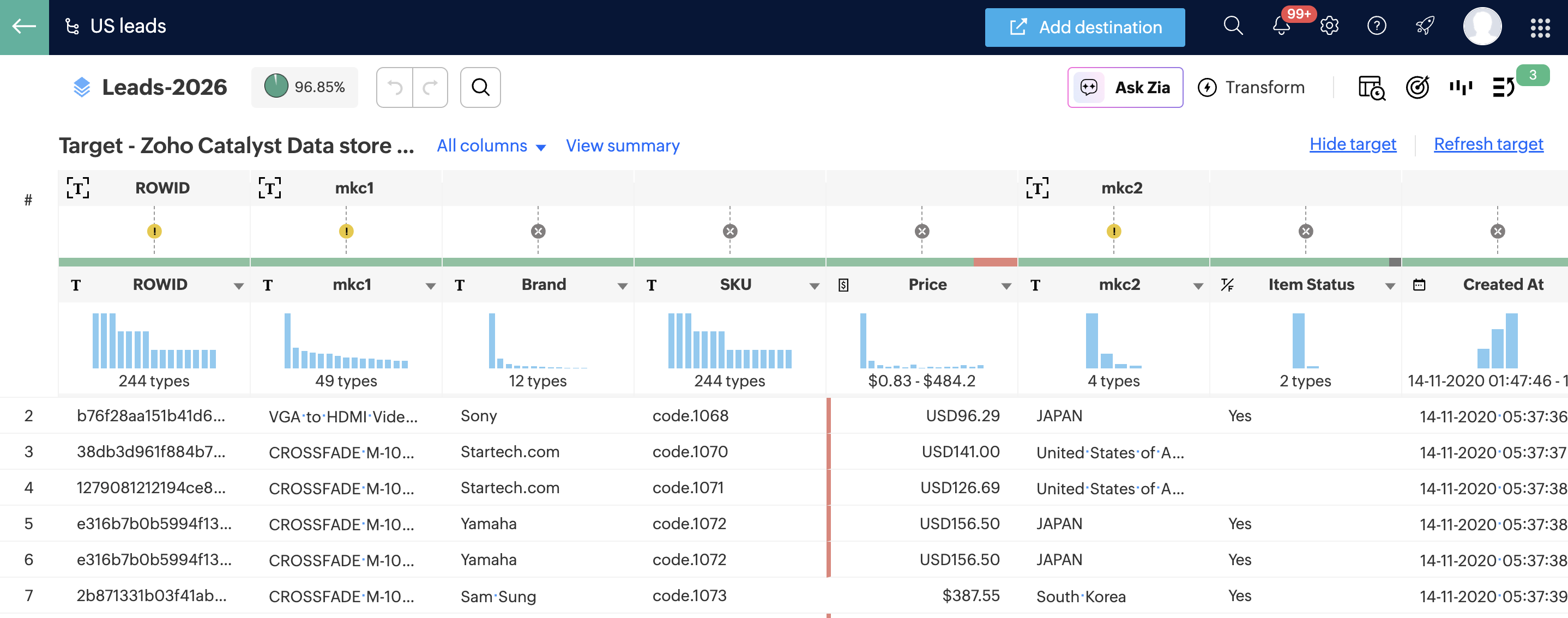
2. Click the target matching icon at the top right corner and choose the Show target option.
Now, after checking the target matching, you may want to try executing your pipeline using a manual run at first. Once you make sure the manual run works, you can then set up a schedule to automate the pipeline. Learn about the different types of runs here.

Info: Each run is saved as a job. When a pipeline run is executed, the data fetched from your data sources will be prepared using the series of transforms you have applied in each of the stages, and then the data will be exported to your destination. This complete process is captured in the Jobs page.
12. If the manual run succeeds without any errors, your data will be exported successfully. If the manual run fails, throwing the below target match error, you can fix it by completing the target matching steps.
Target matching is a useful feature in DataPrep that prevents export failures caused by errors from the data model mismatch.
Target matching during export to Zoho Catalyst Data Store
Target matching happens before the data is exported to the destination. Target matching is a useful feature in DataPrep that prevents export failures caused by errors from the data model mismatch. Using target matching, you can set the required Zoho Catalyst Data Store module as the target and align the source data columns to match your target. This ensures seamless export of high-quality data to Zoho Catalyst Data Store.
Note: Target matching failure is not an export failure. Target matching happens before the data is actually exported to the destination. This way, the schema or data model errors that could cause export to fail are caught beforehand, preventing export failures.
If the target match check fails
1. If the target match check fails during export, you can go to the DataPrep Studio page, click the target matching icon  at the top right corner, and choose the Show target option. The target's data model is displayed above the existing source data. The columns in the source are automatically aligned to match the columns in the target, if found.
Target matching displays the different icons and suggestions on the matched and unmatched columns. You can click on these suggestions to quickly make changes to match the existing column with the target column. To make it easier for you to fix the errors, the target module in your Zoho Catalyst Data Store is attached as a target to your data. You can view the mapping of your data with the table in the DataPrep Studio page, along with the errors wherever there is a mismatch. You can hover over the error icons to understand the issue and click on them to resolve each error.
Note: All columns are displayed in the grid by default. However, you can filter out the required option by clicking the All columns link.
2. Click the View summary link to view the summary of the target match errors. The summary shows the different model match errors and the number of columns associated with each error. You can click on the required error columns and click Apply to filter out specific error columns.
Target match error summary
- The Target match errors section shows the errors and the number of columns associated with each error.
- The section at the top lists the error categories along with the number of errors in each category.
- You can click them to filter errors related to each category in the panel.
- In the default view, all columns are displayed. However, you can click any error category and get a closer look at the columns or view the error columns alone by selecting the Show only errors checkbox.
- Your filter selection in the Target match error summary will also be applied to the grid in the DataPrep Studio page.
Target matching errors
The errors in target matching are explained below:
- Unmatched columns: This option shows all the unmatched columns in the source and target.Note:
- The non-mandatory columns in the target can either be matched with a source column if available or ignored.
- The additional columns present in the source will not be included during export by default. However, you can rename and match those columns if you want to include them.
When using the unmatched columns option, you can toggle the Show only mandatory columns option to see if there are any mandatory columns(set as mandatory in the target) and include them. You can also fix only the mandatory columns and proceed to exporting.
- Data type mismatch: This option displays the columns from the source having data types that do not match the columns in the target.
- Data format mismatch: This option displays columns from the source having date, datetime, and time formats that differ from those in the target.
- Constraint mismatch: This option displays the columns that do not match the data type constraints of the columns in the target. To know how to add constraints for a column, click here.
- Mandatory column mismatch: This option displays the columns that are set as mandatory in the target but not set as mandatory in your source.Note: The mandatory columns cannot be exported to the destination unless they are matched and set as mandatory. You can click the
icon above the column to set it as mandatory. You can also use the Set as mandatory (not null) check box under the Change data type transform to set a column as mandatory.
- Data size overflow warnings: This option filters the columns with data exceeding the maximum size allowed in the target.
3. After fixing the errors, you can go to the Pipeline builder page and run your pipeline to export your data. Once you make sure the manual run works, you can then set up a schedule to automate the pipeline. Learn about the different types of runs here
Limitations
1. Only the Super Admin can export data from DataPrep to Catalyst. Other users (including Admin roles in Catalyst) do not have permission to perform export operations, and attempts will result in an access error.
FAQs
1. What should I do when the target match fails while exporting to Zoho Catalyst Data Store?
When your pipeline run fails due to target match errors, please do the following steps to fix them:
- In the Job summary page, click the Edit pipeline option on the top right corner. This will take you to the Pipeline builder page.
Note: Zoho CRM is shown in the screenshot for illustration purposes. The same will apply to all connectors.
b. Right-click the last stage (to which you’ve added Zoho Catalyst Data Store as a destination) and choose the Prepare Data option. This opens the DataPrep Studio page.
c. Click the Target matching icon  at the top right corner, just above the data grid.
d. Choose the Show target option. This shows the Zoho Catalyst Data Store table as the target and lets you align source columns to match it. Errors and warnings are highlighted with red and yellow icons.
e. Click the All columns drop-down and choose the Error columns option. Then click the red or yellow icons to match your stage columns with the Zoho Catalyst Data Store table fields.
This adds the required data types and constraints to your stage columns so they match your target columns in Zoho Catalyst Data Store.
Note: The target columns from Zoho Catalyst Data Store are named as per the API names. So please make sure to name your stage columns the same way. This is required for the system to detect and rightly map the columns to your Catalyst fields as per API standards.
Once the target is successfully mapped with no more error columns, you’re good to proceed with running the pipeline.
SEE ALSO