Kaizen 215 - Workflow APIs - Part 3

Welcome back to another week of Kaizen!
Over the last couple of weeks, we’ve joined Zylker Cloud Services as they review and improve their workflows. In Part 1, we discovered and audited their sprawling workflow landscape. In Part 2, we learned how to use the Configuration API to understand valid triggers and actions, preventing errors before they happen.
Now, it is time to take action. Zylker has identified the "VP Alert - High Value Deal" workflow as a prime candidate for an update. It is old, has never run, and its logic might be too narrow. We will also explore how to create a new workflow from scratch to handle a new business requirement.
STEP 5: Update an Existing Workflow
From our audit in Step 2, we know that the existing ‘VP Alert - High Value Deal’ workflow (id: 4876876000016390024) hadn’t triggered even once. The original $50,000 threshold missed many valuable deals. Most winning opportunities actually land above $30,000. It has never executed, suggesting the criteria are too strict.
Let us use the Update Workflow Rule API to fix it. We'll change the criteria to trigger for deals greater than or equal to $30,000 and add an additional email notification.
What you can and cannot update
When working with the Update Workflow Rule API, not every field in a workflow is open for modification. Think of it like editing an existing automation blueprint. Some foundations are fixed, while others are flexible.
You can update:
Name and Description
Trigger : You can update triggers, but only within the same trigger type. For example, you can change a Record Action trigger from create to edit, but not from a Record Action trigger to a Score-based trigger. For more details on this, please refer to our detailed help documentation here.
Conditions and Criteria : add, remove, or refine them.
Actions : add new ones, remove existing ones, or update their configuration.
Status : activate or deactivate a workflow rule.
What cannot be updated
There are a few key restrictions to remember:
You cannot change the module associated with the workflow.
You cannot switch trigger categories (e.g., from Record Action to Email Trigger).
You cannot retain unsupported actions when changing to a trigger that doesn’t support them. For instance, if you change a trigger from Edit to Delete, but keep an Assign Owner action, the update will fail, because “Assign Owner” isn’t valid for Delete triggers.
Updating an existing workflow is not about replacing everything. it is about editing precisely what needs to change.
Here is how to do it:
Fetch the workflow details using the Get Workflow Rule API. This gives the full structure, including condition IDs, action IDs, and trigger details.
Identify what needs to change.
In this case, to fix the “VP Alert - High Value Deal” workflow, we can update the Workflow rule to:
lower the threshold to $300,000
change the comparator to greater_than.
To make the workflow more useful, Zylker has also decided to add a few new actions.
But before doing that, the developers needed to confirm which actions are supported for this workflow’s trigger type. That is where last week’s Configuration API comes in handy. Since we already know this is a Record Action trigger (create_or_edit), we can refer to the configuration response we explored in Part 2 to see which actions are valid.
{ "api_name": "create_or_edit", "deprecated": false, "name": "CreateorEdit", "scheduled_actions_supported": true, "actions": [ "field_updates", "assign_owner", "add_tags", "remove_tags", "email_notifications", "tasks", "create_record", "create_connected_record", "add_meeting", "webhooks", "functions", "circuits", "flow" ] }, |
The response clearly shows that email notifications, field updates, and tags are all supported for this trigger type. With that confidence, in addition to updating the condition, we can also add a 'Priority' tag to those records that trigger the Workflow. This makes the workflow more visible and actionable across the sales hierarchy.
Sample Request:
PUT {{api-domain}}/crm/v8/settings/automation/workflow_rules/4876876000016390024
{ "workflow_rules": [ { "description": "Notify sales leadership and track strategic opportunities", "name": "VP Alert - High Value Deal.", "conditions": [ { "sequence_number": 1, "criteria_details": { "criteria": { "group_operator": "AND", "group": [ { "comparator": "greater_than", // change in comparator operator "field": { "api_name": "Amount" }, "value": "300000" // Lowered threshold }, { "comparator": "equal", "field": { "api_name": "Stage" }, "value": "Negotiation/Review" } ] } }, "instant_actions": { "actions": [ { "type": "add_tags", "module": "Deals", "details": { "tags": [ { "name": "Priority" } ], "overwrite": true } } ] }, "id": "4876876000016390025" // id of the condition to be updated } ] } ] } |
After this update, the workflow now triggers for any deal worth more than $300,000 in the Negotiation/Review stage. Apart from sending the email notifications and adding the follow up task, it also tags these deals as Priority.
Edit vs Add:
To edit an existing condition or action, include its existing id in your update payload. Zoho CRM will recognize it as an update to that object.
To add a new condition or action, simply omit the id. CRM treats any object without an ID as a new addition.
STEP 6: Create a new Workflow Rule
With the “VP Alert - High Value Deal” workflow now fixed and performing as expected, Zylker’s sales team quickly began to see results.
But their sales team noticed that deals often stall after proposals are sent, with no systematic follow-up. Zylker has hence refined the requirements for a new Workflow.
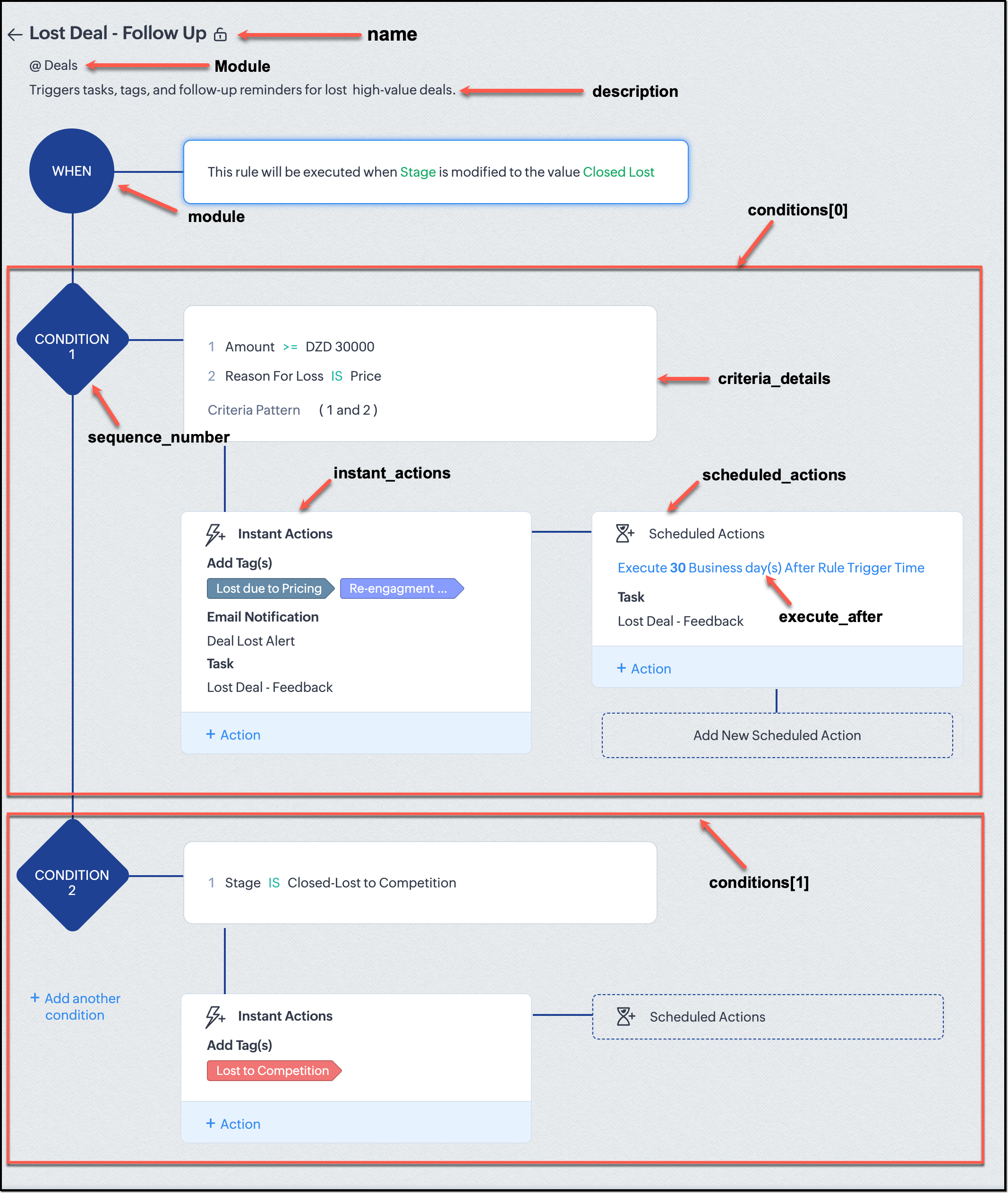
They want to automatically trigger follow-up actions when a high-value deal (above ₹30,000) is marked “Closed Lost” due to pricing reasons. This workflow must ensure that every lost opportunity is reviewed, tagged, and re-engaged after a cooling-off period. To achieve this, they want to create a workflow to be triggered whenever a deal’s Stage is updated to Closed Lost. It must perform the following actions:
Add tags Lost due to Pricing and Re-engagement Pending.
Send an email alert to the Sales team, with the details of the failed Deal, so they can look into the reasons.
After 30 business days, automatically create another “Lost Deal - Feedback” task to remind the owner to re-contact the customer for feedback, and for future opportunities.
Before proceeding, Zylker makes an API call to the Workflow Configuration endpoint. This ensures that their chosen trigger type and actions are supported. From the response snippet below, it is clear that a field_update trigger supports scheduled actions and the required action types.
{ "api_name": "field_update", "deprecated": false, "name": "FieldUpdate", "scheduled_actions_supported": true, "actions": [ "field_updates", "assign_owner", "add_tags", "remove_tags", "email_notifications", "tasks", "create_record", "create_connected_record", "add_meeting", "webhooks", "functions", "circuits", "flow" ] } |
With these details validated, we can now move on to adding a new workflow for Zylker using the Create Workflow Rule API request.
Understanding the input JSON structure
Every workflow definition follows the same hierarchy - defining when the rule runs, what conditions it checks, and which actions it performs.
The top-level input object contains a workflow_rules array. You must include just one workflow rule object per request. Each workflow rule defines its name, trigger type, and one or more condition blocks, each with its own criteria and actions.
Here is a breakdown of what is inside a single workflow rule:
{ "workflow_rules": [ { "name": "VP Alert - High Value Deal.", //name of the workflow rule "description": "Notify leadership when high-value deals are lost due to pricing.", "module": { "api_name": "Deals" }, //module to which the workflow applies "execute_when": { ... }, //trigger configuration (e.g., on record edit, field update, etc.) "conditions": [ { "sequence_number": 1, // order of execution. this is the first condition "criteria_details": { ... }, // condition logic (criteria group) "instant_actions": { "actions": [ ... ] }, //instant actions executed instantly cheduled_actions": [ // schedules actions executed after a delay { "execute_after": { ... }, // delay period for the scheduled action "actions": [ ... ] } ] }, { "sequence_number": 2, // second condition "criteria_details": { ... }, "instant_actions": { "actions": [ ... ] } } ] } ] } |
Associative vs. Non-Associative Actions
Every workflow rule performs one or more actions like sending an email, creating a task, or updating a field, etc. These actions fall into two broad categories: associative and non-associative.
Type | Description | Example Actions |
Non- Associative Actions | These are defined inside the workflow rule itself. They do not need to exist beforehand. You can configure their details directly within the workflow payload. | Create record, schedule a call, add a meeting, convert records, social actions, create record on email received, assign owner, |
Associative Actions | These are reusable actions created separately in CRM and referenced by their IDs. They can be used across multiple workflows and other automation tools. | Field updates, Email notifications, tasks, Webhooks, Add/Remove tags |
When you create or update a workflow via API, the associative actions require you to pass their existing action IDs. These IDs can be fetched using the corresponding Actions APIs : Field Updates, Email Notifications, Webhooks, and Tasks. In the coming weeks of Kaizen, we will take a closer look at each of these Actions APIs. We will see how to create, manage, and delete them within your workflow automation strategy.
Sample Request:
POST {{api-domain}}/crm/v8/settings/automation/workflow_rules
{ "workflow_rules": [ { "execute_when": { "details": { "trigger_module": { "api_name": "Deals", "id": "4876876000000002181" }, "criteria": { "comparator": "equal", "field": { "api_name": "Stage", "id": "4876876000000002565" }, "type": "value", "value": "Closed Lost" }, "repeat": false, "match_all": false }, "type": "field_update" }, "module": { "api_name": "Deals", "id": "4876876000000002181" }, "description": "Triggers tasks, tags, and follow-up reminders for high-value deals lost due to pricing", "name": "Lost Deal due to Pricing - Follow Up", "conditions": [ { "sequence_number": 1, "instant_actions": { "actions": [ { "name": "Lost Deal - Feedback", "id": "4876876000016794047", "type": "tasks" }, { "details": { "module": { "api_name": "Deals", "id": "4876876000000002181" }, "over_write": false, "tags": [ { "name": "Lost due to Pricing", "id": "4876876000016794071", "color_code": "#658BA8" }, { "name": "Re-engagement pending", "id": "4876876000016794075", "color_code": "#879BFC" } ] }, "type": "add_tags" }, { "name": "Deal Lost Alert", "id": "4876876000016794062", "type": "email_notifications" } ] }, "scheduled_actions": [ { "execute_after": { "period": "business_days", "unit": 30 }, "actions": [ { "name": "Lost Deal - Feedback", "id": "4876876000016794047", "type": "tasks" } ] } ], "criteria_details": { "criteria": { "group_operator": "AND", "group": [ { "comparator": "greater_equal", "field": { "api_name": "Amount", "id": "4876876000000002557" }, "type": "value", "value": "30000" }, { "comparator": "equal", "field": { "api_name": "Reason_For_Loss__s", "id": "4876876000002440001" }, "type": "value", "value": "Price" } ] } } } ] } ] } |
The execute_when defines when the workflow should fire.
type = field_update means this rule runs when a field’s value changes.
criteria : Stage = Closed Lost so the rule triggers whenever the Stage field is updated to Closed Lost.
repeat = false ensures it will not trigger multiple times for the same record.
In simple terms: “Whenever a deal is marked as Closed Lost, run this workflow.” The criteria_details section refines the trigger. The workflow only runs when the Amount ≥ ₹30,000 AND Reason for Loss = Price.
The instant_actions section inside the conditions array has the actions to be executed immediately when the criteria are met.
Add Tags : labels the record for easy filtering and reporting.
Send Email Alert : notifies the sales team instantly about the lost deal.
The scheduled_actions defines what happens after some time has passed. In this case, after 30 business days. Here, the workflow automatically creates a “Lost Deal - Feedback” task, reminding the deal owner to follow up with the customer to get feedback, and for future opportunities.
- The Amount is greater than or equal to ₹30,000, and
The Reason for Loss is “Price.”
By combining these elements, this workflow achieves a full closed-loop follow-up system.
Conclusion:
Zylker’s updated and new workflows make their automation smarter and more responsive. They are now able to spot key deals and ensure lost opportunities are revisited.
We hope you are now well on your way to mastering Workflow APIs. Share your thoughts in the comments or write to us at support@zohocrm.com.

Additional Reading:
- Workflow APIs - Part 1 - Auditing Workflows
- Workflow APIs - Part 2 - Find out what actions and triggers are supported for each module
Topic Participants
Anu Abraham
Sticky Posts
Kaizen #198: Using Client Script for Custom Validation in Blueprint
Nearing 200th Kaizen Post – 1 More to the Big Two-Oh-Oh! Do you have any questions, suggestions, or topics you would like us to cover in future posts? Your insights and suggestions help us shape future content and make this series better for everyone.Kaizen #226: Using ZRC in Client Script
Hello everyone! Welcome to another week of Kaizen. In today's post, lets see what is ZRC (Zoho Request Client) and how we can use ZRC methods in Client Script to get inputs from a Salesperson and update the Lead status with a single button click. In thisKaizen #222 - Client Script Support for Notes Related List
Hello everyone! Welcome to another week of Kaizen. The final Kaizen post of the year 2025 is here! With the new Client Script support for the Notes Related List, you can validate, enrich, and manage notes across modules. In this post, we’ll explore howKaizen #217 - Actions APIs : Tasks
Welcome to another week of Kaizen! In last week's post we discussed Email Notifications APIs which act as the link between your Workflow automations and you. We have discussed how Zylker Cloud Services uses Email Notifications API in their custom dashboard.Kaizen #216 - Actions APIs : Email Notifications
Welcome to another week of Kaizen! For the last three weeks, we have been discussing Zylker's workflows. We successfully updated a dormant workflow, built a new one from the ground up and more. But our work is not finished—these automated processes are
Recent Topics
Zoho Notebook Sync problem
I'm facing a problem with syncing of notebook on android app. It's not syncing. Sometimes it syncs after a day or two. I created some notes on web notebook but it's not syncing on mobile app. Please help!!!!Cant Save Gauge on Creator Page
How to Save Gauge on Creator Page see movie https://vimeo.com/1116410860?share=copy#t=0Apply Advance option not shown in report
We are facing an issue in Zoho Expenses. While approving an Expense Report, the "Apply Advance" option is not appearing under the three dots (More Options). Details: Module: Expense Reports Issue: "Apply Advance" option not visible Status of Report: AwaitingAuto Capitalize First Letter of Words
Hi I am completely new to ZOHO and am trying to build a database. How can i make it when a address is entered into a form field like this: main st it automatically changes is to show: Main St Thank YouFollow-up emails via Workflow Automation not staying in the same thread
Dear Zoho Support Team, I am currently using Workflow Automation in Zoho Campaigns to send follow-up emails. In my test case, I noticed the following behavior: All emails in the automation have the same subject line. If the follow-up email is sent withinClient Script refuses to set an initial value in Subform field
I tried a very simple, 1 line client script to set a default value in a custom subform field when the "Add Row" button is clicked and the user is entering data. It does not work - can someone tell me why? ZDK documentation suggests this should be doable.Help Center IFrame Issue
I have had a working Help Center on my website using an iframe for a while. But now for some reason the sign in page gets a refused to connect error. Can someone please help. If I go to the url manually it works correcltyComment Templates
Is it possible to add a template option for comments? We have some agents in the process who's responses require a pre-formatted layout. It would be incredibly handy to have a template for them where they can insert the template and then add their responsesShared values: From classroom lessons to teaching moments in customer service
While the world observes Teachers’ Day on October 5, in India, we celebrate a month earlier, on September 5, to mark the birth anniversary of Dr. Sarvepalli Radhakrishnan, a great teacher, renowned scholar, educationist, and advocate for empowerment.Create a list of customers who participated in specific Zoho Backstage events and send them an email via Zoho CRM
How to create a list of customers who participated in specific Zoho Backstage events and send them an email via Zoho CRM? I was able to do a view in CRM based on customer that registered to an event, but I don't seems to be able to include the filterZoho Desk blank page
1. Click Access zoho desk on https://www.zoho.com/desk/ 2. It redirects to https://desk.zoho.com/agent?action=CreatePortal and the page is blank. Edge browser Version 131.0.2903.112 (Official build) (arm64) on MacOSI hate the new user UI with the bar on the left
How can I reverse this?Question regarding import of previous deals...
Good afternoon, I'm working on importing some older deal records from an external sheet into the CRM; however, when I manually click "Add New Deal" and enter the pertinent information, the deal isn't appearing when I look at the "Deals" bar on the account'sClient Script also planned for Zoho Desk?
Hello there, I modified something in Zoho CRM the other day and was amazed at the possibilities offered by the "Client Script" feature in conjunction with the ZDK. You can lock any fields on the screen, edit them, you can react to various events (fieldOne person/cell phone to manage multiple accounts
Hi. I have a personal Free account to keep my own domain/emails. Now I need to create a Business account to my company's own domain, but I have only one mobile phone number I use to everything. How do I do to manage this? Can I manage a Free domain andTracking KPIs, Goals etc in People
How are Zoho People users tracking employee targets in People? For example, my marketing assistant has a target of "Collect 10 new customer testimonials every month". I want to record attainment for this target on a monthly basis, then add it to theirZoho Desk: Ticket Owner Agents vs Teams
Hi Zoho, We would like to explore the possibility of hiding the ‘Agents’ section within the Ticket Owner dropdown, so that we can fully utilise the ‘Teams’ dropdown when assigning tickets. This request comes from the fact that only certain agents andCan not Use Attachment Button on Android Widget
this always pops up when I touch the attach button on android widget. going to settings, there is no storage permission to be enabled. if I open the app, and access the attach feature there, I can access my storage and upload normally.Announcing new features in Trident for Mac (1.24.0)
Hello everyone! Trident for macOS (v.1.24.0) is here with interesting features and thoughtful enhancements to redefine the way you plan and manage your calendar events. Here's a quick look at what's new. Create calendar events from emails. In additionMass Mail Statistics - Number of unsent emails
How do I find out which emails were not sent?Est-il possible d'annuler l'envoi d'un mail automatique ?
Bonjour, Lorsque je refuse un candidat, il reçois un mail dans les 24h pour l'informer que sa candidature n'est pas retenue. J'ai rejeté un candidat par erreur. Savez-vous s'il possible d'annuler l'envoi de ce mail ? Merci d'avance pour votre aide.embed a form in an email
Hello, how to embed a form in an email that populates Zoho CRM cases? I would like to send emails to a selected audience offering something. In the same email the recipients - if interested - instead of replying to can fill in a Zoho CRM form that createsHow to add Zoho demo site page designs to my Zoho Sites website
Hi, I would like to add the design from the following demo URLs into my current Zoho website. I have already created two new pages on my site, named “Menu2” and “Menu3.” For the “Menu2” page, I want to use the design from this demo: https://naturestjuice-demo.zohosites.com/menuDigest Août - Un résumé de ce qui s'est passé le mois dernier sur Community
Bonjour chère communauté ! Voici le résumé tant attendu de tout ce qui a marqué Zoho le mois dernier : contenus utiles, échanges inspirants et moments forts. 🎉 Découvrez Zoho Backstage 3.0 : une version repensée pour offrir encore plus de flexibilité,Kaizen #206 - Answering your Questions | Displaying Related Purchase Orders from Zoho Books in CRM Deals using Queries
Hello everyone! We're back with another post in the Kaizen series. We're grateful for the feedback we received from all of you! One of the questions we received was "I would like to see the list of Purchase Orders in Zoho Books for a Deal in CRM." WeAdd Analytics function for Title case (capitalising each word in a string)
At present, you can only capitalise each word in a string in Analytics during data import. It would be really useful to be able to do this with a formula column, but there is no Title Case function.How to conditionally embed an own internal widget with parameters in an html snippet?
Hello everyone, I'm trying to create a dynamic view in a page using an HTML snippet. The goal is to display different content based on a URL parameter (input.step). I have successfully managed to conditionally display different forms using the followingSync more than one Workdrive
Hello Please I'm facing some difficulties since some days. In my company we have many zoho accounts in different organisations. And I have to find a way to sync all these Workdrives. I spend many hours to search it on zoho Workdrive but no solution. Could someone help me ? Any idea how I can achieve it ? Thanks in advance. RegardsZoho Flow Customer Support
Zoho Flow is refusing to even respond to my support requests. Is there anyone on this forum who knows how to solve Zoho Flow issues? I have a simple problem and need help. Thanks.Base Currency Adjustment Reversal
Two questions surrounding the base currency adjustments (BCA). I recently ported over from QB so I need to enter the base currency adjustments. In QB, it will calculate the BCA for you at the end of the year and then reverse it at the top of the following year. Makes sense. Does Zohobooks not do this as well? I created a BCA for Dec 31, 2016 but no reversing entry was made Jan 1, 2017. Am I supposed to manually do a reversal? I'm not even allowed to post journals directly to the 'exchange gain loss'Please implement UAE Central Bank FX rates
Hello, as I understand from your knowledge base, any UAE business account created from September 15, 2018 does not have foreign exchange rates fetched automatically. This is a serious inconvenience and I am not sure why ZOHO has not looked into the waysSearch Records returning different values than actually present
Hey! I have this following line in my deluge script: accountSearch = zoho.crm.searchRecords("Accounts","(RS_Enroll_ID:equals:" + rsid + ")",1,200,{"cvid":864868001088693817}); info "Account search size: " + accountSearch.size(); listOfAccounts = zoho.crm.searchRecords("Accounts","(RS_Enroll_ID:equals:"Super Admin Access to All Courses and Spaces in Zoho Learn
Dear Zoho Learn Team, We hope this message finds you well. We are using Zoho Learn extensively for internal and agent training. While managing our courses and spaces, we encountered a significant limitation regarding admin access and course management.Print checks for owner's draw
Hi. Can I use Zoho check printing for draws to Owner's Equity? This may be a specific case of the missing Pay expenses via Check feature. If it's not available, are there plans to add this feature?[New Release 2024] Create and embed custom capabilities across CRM with Kiosk Studio, our latest no-code tool
[Update | New series] We've started publishing a series of posts on Kiosk Studio. It's called Kiosk Studio Sessions and you can check out the first one here! [Update | 15 Oct} Session #2 is live! This one will look at how to create a kiosk for your callRevenue Management: #10 Common Mistakes while Recognizing Revenue
We are at the end of the series on Revenue Management, covering how different businesses recognise revenue. Even with clear standards like ASC 606 and IFRS 15 in practice, businesses often struggle with the nuances of revenue recognition. Especially growingintegarting attachments from crm to creator
when i tried to integrate pdf attachments from crm to creator via deluge i am getting this error {"code":2945,"description":"UPLOAD_RULE_NOT_CONFIGURED"} the code i used is attachments = zoho.crm.getRelatedRecords("Attachments","Sales_Orders",203489100020279XXX8);Search Option
🚫 Current Limitation: As of now (September 2025), Zoho FSM lacks a global search functionality, which makes it difficult to quickly: Find specific Work Orders by number or keyword Search for customer records or contact info Locate assets, jobs, or serviceMobile Chat Window - Full Screen
Hello, The mobile chat window takes up the full screen, which is highly confusing for most customers! Using a desktop machine, I see the same happens when reducing the browser width to 800px or below. This suggests that it responsive web design, causing the switch to full screen. Can we fix this very annoying behaviour ourselves using a custom css file? If so, can you please let me know how? ThanksIs it possible to customize ZC Themes?
I understand you can choose a layout and customize Brand Color, App Header, Menu, and Sub-Menu components, but can you override some of the default theme settings with CSS or a config file? For example, - Table highlight color - Listview auto filter highlightNext Page