Kaizen 215 - Workflow APIs - Part 3

Welcome back to another week of Kaizen!
Over the last couple of weeks, we’ve joined Zylker Cloud Services as they review and improve their workflows. In Part 1, we discovered and audited their sprawling workflow landscape. In Part 2, we learned how to use the Configuration API to understand valid triggers and actions, preventing errors before they happen.
Now, it is time to take action. Zylker has identified the "VP Alert - High Value Deal" workflow as a prime candidate for an update. It is old, has never run, and its logic might be too narrow. We will also explore how to create a new workflow from scratch to handle a new business requirement.
STEP 5: Update an Existing Workflow
From our audit in Step 2, we know that the existing ‘VP Alert - High Value Deal’ workflow (id: 4876876000016390024) hadn’t triggered even once. The original $50,000 threshold missed many valuable deals. Most winning opportunities actually land above $30,000. It has never executed, suggesting the criteria are too strict.
Let us use the Update Workflow Rule API to fix it. We'll change the criteria to trigger for deals greater than or equal to $30,000 and add an additional email notification.
What you can and cannot update
When working with the Update Workflow Rule API, not every field in a workflow is open for modification. Think of it like editing an existing automation blueprint. Some foundations are fixed, while others are flexible.
You can update:
Name and Description
Trigger : You can update triggers, but only within the same trigger type. For example, you can change a Record Action trigger from create to edit, but not from a Record Action trigger to a Score-based trigger. For more details on this, please refer to our detailed help documentation here.
Conditions and Criteria : add, remove, or refine them.
Actions : add new ones, remove existing ones, or update their configuration.
Status : activate or deactivate a workflow rule.
What cannot be updated
There are a few key restrictions to remember:
You cannot change the module associated with the workflow.
You cannot switch trigger categories (e.g., from Record Action to Email Trigger).
You cannot retain unsupported actions when changing to a trigger that doesn’t support them. For instance, if you change a trigger from Edit to Delete, but keep an Assign Owner action, the update will fail, because “Assign Owner” isn’t valid for Delete triggers.
Updating an existing workflow is not about replacing everything. it is about editing precisely what needs to change.
Here is how to do it:
Fetch the workflow details using the Get Workflow Rule API. This gives the full structure, including condition IDs, action IDs, and trigger details.
Identify what needs to change.
In this case, to fix the “VP Alert - High Value Deal” workflow, we can update the Workflow rule to:
lower the threshold to $300,000
change the comparator to greater_than.
To make the workflow more useful, Zylker has also decided to add a few new actions.
But before doing that, the developers needed to confirm which actions are supported for this workflow’s trigger type. That is where last week’s Configuration API comes in handy. Since we already know this is a Record Action trigger (create_or_edit), we can refer to the configuration response we explored in Part 2 to see which actions are valid.
{ "api_name": "create_or_edit", "deprecated": false, "name": "CreateorEdit", "scheduled_actions_supported": true, "actions": [ "field_updates", "assign_owner", "add_tags", "remove_tags", "email_notifications", "tasks", "create_record", "create_connected_record", "add_meeting", "webhooks", "functions", "circuits", "flow" ] }, |
The response clearly shows that email notifications, field updates, and tags are all supported for this trigger type. With that confidence, in addition to updating the condition, we can also add a 'Priority' tag to those records that trigger the Workflow. This makes the workflow more visible and actionable across the sales hierarchy.
Sample Request:
PUT {{api-domain}}/crm/v8/settings/automation/workflow_rules/4876876000016390024
{ "workflow_rules": [ { "description": "Notify sales leadership and track strategic opportunities", "name": "VP Alert - High Value Deal.", "conditions": [ { "sequence_number": 1, "criteria_details": { "criteria": { "group_operator": "AND", "group": [ { "comparator": "greater_than", // change in comparator operator "field": { "api_name": "Amount" }, "value": "300000" // Lowered threshold }, { "comparator": "equal", "field": { "api_name": "Stage" }, "value": "Negotiation/Review" } ] } }, "instant_actions": { "actions": [ { "type": "add_tags", "module": "Deals", "details": { "tags": [ { "name": "Priority" } ], "overwrite": true } } ] }, "id": "4876876000016390025" // id of the condition to be updated } ] } ] } |
After this update, the workflow now triggers for any deal worth more than $300,000 in the Negotiation/Review stage. Apart from sending the email notifications and adding the follow up task, it also tags these deals as Priority.
Edit vs Add:
To edit an existing condition or action, include its existing id in your update payload. Zoho CRM will recognize it as an update to that object.
To add a new condition or action, simply omit the id. CRM treats any object without an ID as a new addition.
STEP 6: Create a new Workflow Rule
With the “VP Alert - High Value Deal” workflow now fixed and performing as expected, Zylker’s sales team quickly began to see results.
But their sales team noticed that deals often stall after proposals are sent, with no systematic follow-up. Zylker has hence refined the requirements for a new Workflow.
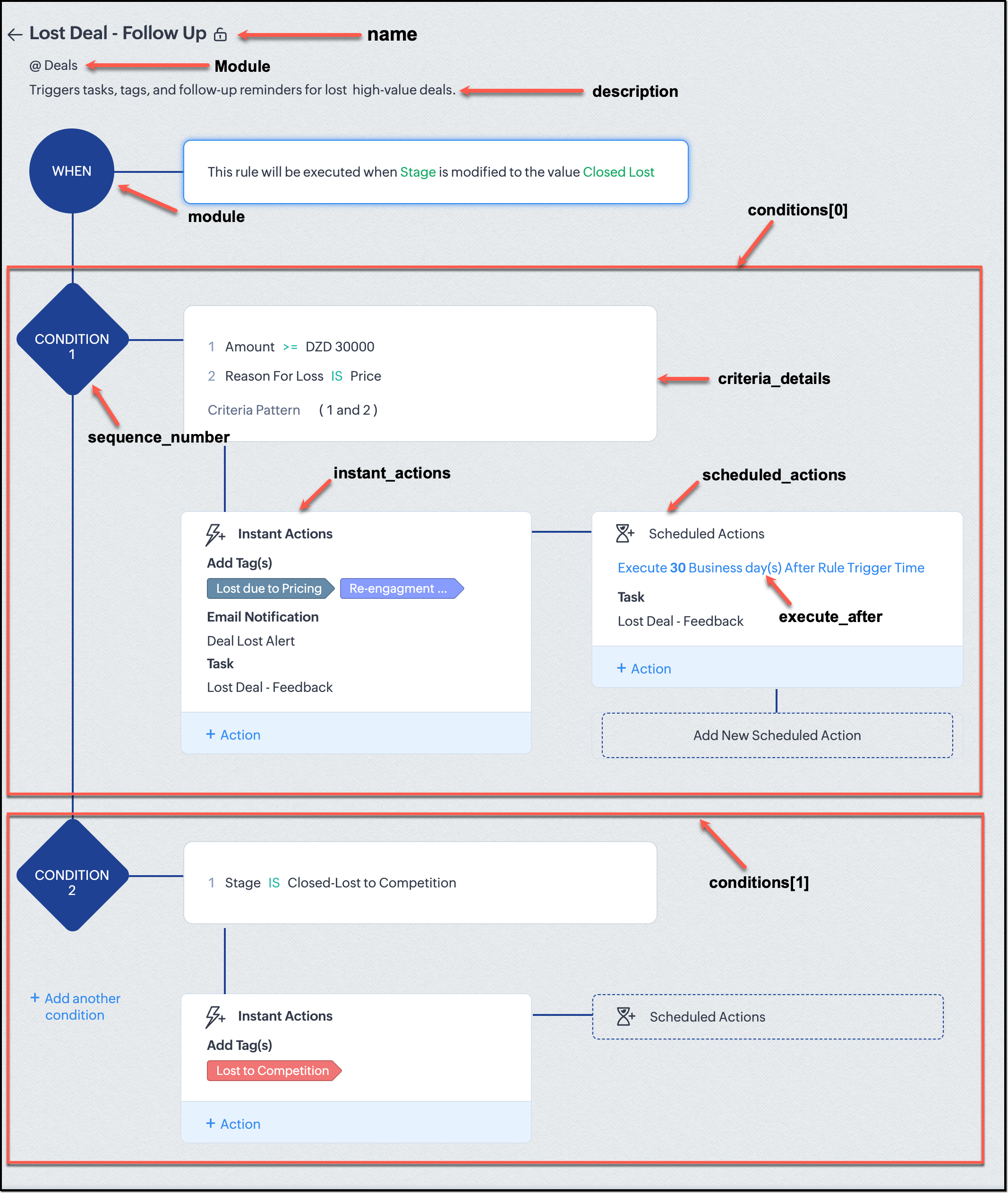
They want to automatically trigger follow-up actions when a high-value deal (above ₹30,000) is marked “Closed Lost” due to pricing reasons. This workflow must ensure that every lost opportunity is reviewed, tagged, and re-engaged after a cooling-off period. To achieve this, they want to create a workflow to be triggered whenever a deal’s Stage is updated to Closed Lost. It must perform the following actions:
Add tags Lost due to Pricing and Re-engagement Pending.
Send an email alert to the Sales team, with the details of the failed Deal, so they can look into the reasons.
After 30 business days, automatically create another “Lost Deal - Feedback” task to remind the owner to re-contact the customer for feedback, and for future opportunities.
Before proceeding, Zylker makes an API call to the Workflow Configuration endpoint. This ensures that their chosen trigger type and actions are supported. From the response snippet below, it is clear that a field_update trigger supports scheduled actions and the required action types.
{ "api_name": "field_update", "deprecated": false, "name": "FieldUpdate", "scheduled_actions_supported": true, "actions": [ "field_updates", "assign_owner", "add_tags", "remove_tags", "email_notifications", "tasks", "create_record", "create_connected_record", "add_meeting", "webhooks", "functions", "circuits", "flow" ] } |
With these details validated, we can now move on to adding a new workflow for Zylker using the Create Workflow Rule API request.
Understanding the input JSON structure
Every workflow definition follows the same hierarchy - defining when the rule runs, what conditions it checks, and which actions it performs.
The top-level input object contains a workflow_rules array. You must include just one workflow rule object per request. Each workflow rule defines its name, trigger type, and one or more condition blocks, each with its own criteria and actions.
Here is a breakdown of what is inside a single workflow rule:
{ "workflow_rules": [ { "name": "VP Alert - High Value Deal.", //name of the workflow rule "description": "Notify leadership when high-value deals are lost due to pricing.", "module": { "api_name": "Deals" }, //module to which the workflow applies "execute_when": { ... }, //trigger configuration (e.g., on record edit, field update, etc.) "conditions": [ { "sequence_number": 1, // order of execution. this is the first condition "criteria_details": { ... }, // condition logic (criteria group) "instant_actions": { "actions": [ ... ] }, //instant actions executed instantly cheduled_actions": [ // schedules actions executed after a delay { "execute_after": { ... }, // delay period for the scheduled action "actions": [ ... ] } ] }, { "sequence_number": 2, // second condition "criteria_details": { ... }, "instant_actions": { "actions": [ ... ] } } ] } ] } |
Associative vs. Non-Associative Actions
Every workflow rule performs one or more actions like sending an email, creating a task, or updating a field, etc. These actions fall into two broad categories: associative and non-associative.
Type | Description | Example Actions |
Non- Associative Actions | These are defined inside the workflow rule itself. They do not need to exist beforehand. You can configure their details directly within the workflow payload. | Create record, schedule a call, add a meeting, convert records, social actions, create record on email received, assign owner, |
Associative Actions | These are reusable actions created separately in CRM and referenced by their IDs. They can be used across multiple workflows and other automation tools. | Field updates, Email notifications, tasks, Webhooks, Add/Remove tags |
When you create or update a workflow via API, the associative actions require you to pass their existing action IDs. These IDs can be fetched using the corresponding Actions APIs : Field Updates, Email Notifications, Webhooks, and Tasks. In the coming weeks of Kaizen, we will take a closer look at each of these Actions APIs. We will see how to create, manage, and delete them within your workflow automation strategy.
Sample Request:
POST {{api-domain}}/crm/v8/settings/automation/workflow_rules
{ "workflow_rules": [ { "execute_when": { "details": { "trigger_module": { "api_name": "Deals", "id": "4876876000000002181" }, "criteria": { "comparator": "equal", "field": { "api_name": "Stage", "id": "4876876000000002565" }, "type": "value", "value": "Closed Lost" }, "repeat": false, "match_all": false }, "type": "field_update" }, "module": { "api_name": "Deals", "id": "4876876000000002181" }, "description": "Triggers tasks, tags, and follow-up reminders for high-value deals lost due to pricing", "name": "Lost Deal due to Pricing - Follow Up", "conditions": [ { "sequence_number": 1, "instant_actions": { "actions": [ { "name": "Lost Deal - Feedback", "id": "4876876000016794047", "type": "tasks" }, { "details": { "module": { "api_name": "Deals", "id": "4876876000000002181" }, "over_write": false, "tags": [ { "name": "Lost due to Pricing", "id": "4876876000016794071", "color_code": "#658BA8" }, { "name": "Re-engagement pending", "id": "4876876000016794075", "color_code": "#879BFC" } ] }, "type": "add_tags" }, { "name": "Deal Lost Alert", "id": "4876876000016794062", "type": "email_notifications" } ] }, "scheduled_actions": [ { "execute_after": { "period": "business_days", "unit": 30 }, "actions": [ { "name": "Lost Deal - Feedback", "id": "4876876000016794047", "type": "tasks" } ] } ], "criteria_details": { "criteria": { "group_operator": "AND", "group": [ { "comparator": "greater_equal", "field": { "api_name": "Amount", "id": "4876876000000002557" }, "type": "value", "value": "30000" }, { "comparator": "equal", "field": { "api_name": "Reason_For_Loss__s", "id": "4876876000002440001" }, "type": "value", "value": "Price" } ] } } } ] } ] } |
The execute_when defines when the workflow should fire.
type = field_update means this rule runs when a field’s value changes.
criteria : Stage = Closed Lost so the rule triggers whenever the Stage field is updated to Closed Lost.
repeat = false ensures it will not trigger multiple times for the same record.
In simple terms: “Whenever a deal is marked as Closed Lost, run this workflow.” The criteria_details section refines the trigger. The workflow only runs when the Amount ≥ ₹30,000 AND Reason for Loss = Price.
The instant_actions section inside the conditions array has the actions to be executed immediately when the criteria are met.
Add Tags : labels the record for easy filtering and reporting.
Send Email Alert : notifies the sales team instantly about the lost deal.
The scheduled_actions defines what happens after some time has passed. In this case, after 30 business days. Here, the workflow automatically creates a “Lost Deal - Feedback” task, reminding the deal owner to follow up with the customer to get feedback, and for future opportunities.
- The Amount is greater than or equal to ₹30,000, and
The Reason for Loss is “Price.”
By combining these elements, this workflow achieves a full closed-loop follow-up system.
Conclusion:
Zylker’s updated and new workflows make their automation smarter and more responsive. They are now able to spot key deals and ensure lost opportunities are revisited.
We hope you are now well on your way to mastering Workflow APIs. Share your thoughts in the comments or write to us at support@zohocrm.com.

Additional Reading:
- Workflow APIs - Part 1 - Auditing Workflows
- Workflow APIs - Part 2 - Find out what actions and triggers are supported for each module
Topic Participants
Anu Abraham
Sticky Posts
Kaizen #198: Using Client Script for Custom Validation in Blueprint
Nearing 200th Kaizen Post – 1 More to the Big Two-Oh-Oh! Do you have any questions, suggestions, or topics you would like us to cover in future posts? Your insights and suggestions help us shape future content and make this series better for everyone.Kaizen #226: Using ZRC in Client Script
Hello everyone! Welcome to another week of Kaizen. In today's post, lets see what is ZRC (Zoho Request Client) and how we can use ZRC methods in Client Script to get inputs from a Salesperson and update the Lead status with a single button click. In thisKaizen #222 - Client Script Support for Notes Related List
Hello everyone! Welcome to another week of Kaizen. The final Kaizen post of the year 2025 is here! With the new Client Script support for the Notes Related List, you can validate, enrich, and manage notes across modules. In this post, we’ll explore howKaizen #217 - Actions APIs : Tasks
Welcome to another week of Kaizen! In last week's post we discussed Email Notifications APIs which act as the link between your Workflow automations and you. We have discussed how Zylker Cloud Services uses Email Notifications API in their custom dashboard.Kaizen #216 - Actions APIs : Email Notifications
Welcome to another week of Kaizen! For the last three weeks, we have been discussing Zylker's workflows. We successfully updated a dormant workflow, built a new one from the ground up and more. But our work is not finished—these automated processes are
Recent Topics
'Pin' notes, so that specific ones are always visible at the top of the 'notes' tab.
It doesn't appear Bigin has the functionality to 'pin' a note to then have it always show at the top of the notes tab section of a record. Often times we have a large number of records, but key information we may want to have easily visible to all atRequest for Subform Support in Zoho CRM Webforms
Hi Team, I hope you're doing well. I would like to bring to your attention that currently, Zoho CRM Webforms do not support Subforms, which limits our ability to send forms that mirror the actual structure used within Zoho CRM. This feature is extremelyMaxima Address on FSM Customer
Im trying to add probably 50 customers from one company but couldn't make it since it has limit..how do i add the limit?How to Track Inventory Usage from Zoho FSM to Zoho Inventory?
Hi everyone, We’re currently working on integrating Zoho FSM with Zoho Inventory, and we’ve encountered a challenge we’re hoping the community can help us understand better. Here’s the context: When we create a Work Order in Zoho FSM that involves partsView subform entries without viewing a record in Zoho CRM | Kiosk Studio Session #8
In a nutshell Have you ever wanted to take a quick peek at a record's subform? Examples might be invoiced items in an invoice, ordered items in a sales order, or purchased items in a purchase order. Let's say you're viewing your list of invoices in ZohoTransforma tu Inventario: Control Inteligente y Funciones Clave en Zoho Inventory (Spanish Webinar)
¿Tu empresa necesita mayor trazabilidad y control en almacenes? Conoce cómo gestionar tu inventario con eficiencia y automatización... ¡y descubre las sorpresas que trae Zoho Analytics! Participa en nuestro webinar gratuito en español, este 19 de agostoMails are not being sent from custom Deluge function
We are having troubles to implement sending Invoices / Sales_Orders etc. automatically using following deluge script: attachment_template_id = "aaaa"; record_id = "bbbb"; mail_template_id = "cccc"; //NEW aproach fileUrl = "https://www.zohoapis.com/crm/v8/settings/inventory_templates/"Currency transition
We are using Zoho CRM in Curacao, Dutch Caribbean. Our currency is currently the ANG. Curacao will be transition ing from using the ANG (Antillean Guilder) to using the XCG currency (Caribbean Guilder) on March 31st 2025, see: https://www.mcb-bank.com/caribbean-guilder.Notes and Attachments visibility can now be restricted based on profiles
Dear All, We hope you're well! We are here with a quick update about Notes and Attachments profile permissions. In the past, a record's Notes and Attachments were visible by default to all users with record access. However, as notes and attachments canZoho webinar--hard for agencies
So, this is just a dive into our use case, and why we've been disappointed in Zoho webinar. We are a small marketing agency, and we wanted to add webinars to the services we provide, as many of our clients want to learn to use them as part of their contentCelebrating Raksha Bandhan with Zoho Desk: A Bond of Trust, Protection, and Service
Raksha Bandhan, celebrated across India, symbolizes the sacred bond of protection and affection between siblings. “Raksha” means protection, “Bandhan” means bond or knot: together, it represents a knot of care and security. On this occasion, we'd likeBanking > Import statements with a csv file
Good morning, I am regularly using the "import statement" option to match my transactions. I've been using csv files produced by my bank online and was able to import my transactions. Until now. Thank you for your help for fixing this ! Alex.Has anyone successfully added Microsoft Graph API Oauth2 as a connection?
I'm having trouble getting Microsoft Graph API created as a connection in zoho crm. Has anyone successfully added Microsoft Graph API Oauth2 as a connection? My issue is not necessarily on the Zoho side, but understanding how to set up the Microsoft sideSyncing Timesheets between Projects and Desk
All users able to see their own timelog entries from all apps in one place, synced immediately. All managers able to view total/all time entries from one place. This is something that has come up for us and multiple clients. Example: we have a clientSpell Check default language
Hello All, Is it possible to set the Spell Check default language? I can't find it in the settings. Thanks a lot! LeventeZoho Backstage 3.0 - Boostez vos événements avec des outils malins
Zoho Backstage vous accompagne dans l’organisation d’événements réussis, avec des outils qui simplifient la planification, optimisent l’exécution et renforcent la connexion avec votre public. La version 2.0 a apporté une nouvelle interface, plus de flexibilitéPortal user activity reporting
Aside from the metrics section in the admin dashboard, is there a way to view/create reports for portal user activity? Im looking for a more granular option to see exactly what users are utilizing the portal. Thanks!Admins to set Agents Picture
Admins should not have to rely on agents to set a nice profile picture for them. Admins get the headshot pictures from HR and should be able to upload and set their picture, not rely on them to: 1) upload a picture at all 2) upload a good picture 3) uploadTime Tracking Reporting and Billing
I wish for the time tracking module to be enhanced further. Currently it is independent of Support Plans and Contracts. Support Plans and Contracts are also mostly separate. We need a better dashboard of this with the ability to natively mark billed orEnhanced Email Signature Folding
We have departmental signatures setup which are great, however, when viewing ticket details, it gets very overwhelming when scrolling though threads and conversations where you scroll past ten different signatures of your own team, then ten signaturesHow to add formatting in zoho.cliq.postToUser(...) message?
In a CRM Deluge function, I'm trying to use the message formatting guidelines given here: https://www.zoho.com/deluge/help/cliq/posting-to-zoho-cliq.html#message-formats My message is: message: #Title text. The result in Cliq is: #Title text. (no largeHow to add line breaks in zoho.cliq.postToUser(...) message?
In a CRM function using Deluge I'm sending this message and attempting to add some line breaks but they are ignored. Is there another way to add these breaks? My message: message: New urgent task\nDescription \nThis is a fake description.\n A new line?Zia Agents/End of Day Reports
As a manager or owner it would be nice if Zia analyzed today's (or this week's tickets) and gave an end of the day report to management team. - what important tickets were worked on or submitted today? - what agents were unproductive today and answeredProject Cost Tracking
I see there are questions/concerns that Zoho doesn't track costs to a tasks in a project. We are a manufacturer and are in the early stages of tracking costs to project. I would like to expand out the COGS Chart of accounts in Books and record costs viaHow to record if the payment made is return due to transaction failed.
So there is Bill of $2000, and a payments made transaction to clear the bill. The amount is actually deducted from bank account. However, a few days later, I found the bank returned only $1750 cause there are $250 bank service charge for this failed transaction.Help Center Customization UI
The customization screens for the help center needs the UI improved. It looks straight out of 2004. The Zoho Desk normal UI is great. All it takes is uniform fonts and colors across all parts of the tool... I compare this to Zendesk Guide.Este domínio já está associado a esta conta
Fui fazer meu cadastro na zoho e quando digitei meu domínio recebi essa mensagem que meu domínio estava associado a uma conta que eu nem faço idéia de quem seja. Como que faço pra resolver isso? Atenciosamente, Anderson Souza.I need some help in Expenses Per Diem Policy
this is my script written for restricting the PerDiem Components. Say if Lodging and Per Day Allowance both is selected from Per Diem Page then the report should gets auto rejected. When Im trying to executing it says the following error {"code":11,"message":"TheAdding Photos to Dashboards on Zoho Analytics
I am creating a dashboard to showcase data from survey results from focus groups. I am creating a focus group participant profile tab where it is filtered by the name of the participant and showcases information about them using KPI widgets. I am runningWhat is the difference between Retainer invoice and Advance Payments?
Retainer invoice seem like they are just advance payments with extra details. Instead of creating a Sales Order with order details, a retainer is created. It feels like they are a workaround to link advance payments with sales orders. Is there any advantageExporting record notes in bulk
Hi team, Is it possible to bulk export the notes attached to a record? i.e to a CSV file or otherwise. Our use case is exporting all notes for our lead/account/Deal records. We have another system we'd like to import these notes to but I can't seem toField customization
Hi Team Good day! I am a commission agent who sell and purchase goods from vendors, while in purchasing invoices I am not able to deduct the expenses such as commission and other expenses on actual amount. Kindly help me to customize the invoice basedError: Invalid Element gst_no, Invalid Element gst_treatment, Invalid Element place_of_contact
so i am creating a new contact post request and i want add gst infomation when amount is above 50000 and if pass gst info in request body then i get this errors > Error: Invalid Element gst_no, Invalid Element gst_treatment, Invalid Element place_of_contactAdd multiple Billing Addresses under one GST number
My client owns multiple businesses in various locations but they all come under one GST. Is there a way to add multiple billing addresses for the same GST? Managing this by adding multiple Shipping addresses is not an option. The client wants the GSTZoho Mail API - Upload Attachment
https://www.zoho.com/mail/help/api/post-upload-attachments.html I followed the steps from the API documentation and wrote a backend in JavaScript to send emails. Normal emails are sent without any problems. However, I can’t send emails with attachments.Unable to create custom fields for shipment order
I'm unable to create custom fields for shipment orders, even though the custom fields are set up correctly. A request to the following endpoint: https://www.zohoapis.com/inventory/v1/settings/preferences/customfields?organization_id=${ZOHO_ORGANIZATION_ID}&entity=shipment_orderKaizen #202 - Answering Your Questions | Testing and Using REST APIs in Widgets
Hello Developers! Welcome back to a fresh week of Kaizen! Thank you for your active participation in sharing feedback and queries for the 200th milestone. This week, we will look at the following queries related to widget: Widget Testing Using REST APIIntroducing the 'Send as Email' option on the Zoho Desk iOS mobile app
Hello everyone! In the latest version(v2.10.2) of the Zoho Desk iOS app, we have brought in support for the 'Send as Email' option while creating a ticket. This feature enables you to reach out to the customers by sending outbound emails. The emails areZoho Forms Not Loading on Website – DNS Resolution Error
Dear Zoho Support Team, User ID : 20069458731 We are experiencing an issue with the Zoho Form embedded on our website (https://vitel.com.tr/satis-destek-formu/). The form is not loading, and the following error message appears in the browser: “forms.zohopublic.euData backup retention question/
My zohocrm subscription gives me 2 full data backups per month. I have a scheduled backup configured to run twice a month. I just went to download my backup and i can't find it, it ran about 9 days ago... From what i can tell with google zoho only keepsNext Page