Kaizen 215 - Workflow APIs - Part 3

Welcome back to another week of Kaizen!
Over the last couple of weeks, we’ve joined Zylker Cloud Services as they review and improve their workflows. In Part 1, we discovered and audited their sprawling workflow landscape. In Part 2, we learned how to use the Configuration API to understand valid triggers and actions, preventing errors before they happen.
Now, it is time to take action. Zylker has identified the "VP Alert - High Value Deal" workflow as a prime candidate for an update. It is old, has never run, and its logic might be too narrow. We will also explore how to create a new workflow from scratch to handle a new business requirement.
STEP 5: Update an Existing Workflow
From our audit in Step 2, we know that the existing ‘VP Alert - High Value Deal’ workflow (id: 4876876000016390024) hadn’t triggered even once. The original $50,000 threshold missed many valuable deals. Most winning opportunities actually land above $30,000. It has never executed, suggesting the criteria are too strict.
Let us use the Update Workflow Rule API to fix it. We'll change the criteria to trigger for deals greater than or equal to $30,000 and add an additional email notification.
What you can and cannot update
When working with the Update Workflow Rule API, not every field in a workflow is open for modification. Think of it like editing an existing automation blueprint. Some foundations are fixed, while others are flexible.
You can update:
Name and Description
Trigger : You can update triggers, but only within the same trigger type. For example, you can change a Record Action trigger from create to edit, but not from a Record Action trigger to a Score-based trigger. For more details on this, please refer to our detailed help documentation here.
Conditions and Criteria : add, remove, or refine them.
Actions : add new ones, remove existing ones, or update their configuration.
Status : activate or deactivate a workflow rule.
What cannot be updated
There are a few key restrictions to remember:
You cannot change the module associated with the workflow.
You cannot switch trigger categories (e.g., from Record Action to Email Trigger).
You cannot retain unsupported actions when changing to a trigger that doesn’t support them. For instance, if you change a trigger from Edit to Delete, but keep an Assign Owner action, the update will fail, because “Assign Owner” isn’t valid for Delete triggers.
Updating an existing workflow is not about replacing everything. it is about editing precisely what needs to change.
Here is how to do it:
Fetch the workflow details using the Get Workflow Rule API. This gives the full structure, including condition IDs, action IDs, and trigger details.
Identify what needs to change.
In this case, to fix the “VP Alert - High Value Deal” workflow, we can update the Workflow rule to:
lower the threshold to $300,000
change the comparator to greater_than.
To make the workflow more useful, Zylker has also decided to add a few new actions.
But before doing that, the developers needed to confirm which actions are supported for this workflow’s trigger type. That is where last week’s Configuration API comes in handy. Since we already know this is a Record Action trigger (create_or_edit), we can refer to the configuration response we explored in Part 2 to see which actions are valid.
{ "api_name": "create_or_edit", "deprecated": false, "name": "CreateorEdit", "scheduled_actions_supported": true, "actions": [ "field_updates", "assign_owner", "add_tags", "remove_tags", "email_notifications", "tasks", "create_record", "create_connected_record", "add_meeting", "webhooks", "functions", "circuits", "flow" ] }, |
The response clearly shows that email notifications, field updates, and tags are all supported for this trigger type. With that confidence, in addition to updating the condition, we can also add a 'Priority' tag to those records that trigger the Workflow. This makes the workflow more visible and actionable across the sales hierarchy.
Sample Request:
PUT {{api-domain}}/crm/v8/settings/automation/workflow_rules/4876876000016390024
{ "workflow_rules": [ { "description": "Notify sales leadership and track strategic opportunities", "name": "VP Alert - High Value Deal.", "conditions": [ { "sequence_number": 1, "criteria_details": { "criteria": { "group_operator": "AND", "group": [ { "comparator": "greater_than", // change in comparator operator "field": { "api_name": "Amount" }, "value": "300000" // Lowered threshold }, { "comparator": "equal", "field": { "api_name": "Stage" }, "value": "Negotiation/Review" } ] } }, "instant_actions": { "actions": [ { "type": "add_tags", "module": "Deals", "details": { "tags": [ { "name": "Priority" } ], "overwrite": true } } ] }, "id": "4876876000016390025" // id of the condition to be updated } ] } ] } |
After this update, the workflow now triggers for any deal worth more than $300,000 in the Negotiation/Review stage. Apart from sending the email notifications and adding the follow up task, it also tags these deals as Priority.
Edit vs Add:
To edit an existing condition or action, include its existing id in your update payload. Zoho CRM will recognize it as an update to that object.
To add a new condition or action, simply omit the id. CRM treats any object without an ID as a new addition.
STEP 6: Create a new Workflow Rule
With the “VP Alert - High Value Deal” workflow now fixed and performing as expected, Zylker’s sales team quickly began to see results.
But their sales team noticed that deals often stall after proposals are sent, with no systematic follow-up. Zylker has hence refined the requirements for a new Workflow.
They want to automatically trigger follow-up actions when a high-value deal (above ₹30,000) is marked “Closed Lost” due to pricing reasons. This workflow must ensure that every lost opportunity is reviewed, tagged, and re-engaged after a cooling-off period. To achieve this, they want to create a workflow to be triggered whenever a deal’s Stage is updated to Closed Lost. It must perform the following actions:
Add tags Lost due to Pricing and Re-engagement Pending.
Send an email alert to the Sales team, with the details of the failed Deal, so they can look into the reasons.
After 30 business days, automatically create another “Lost Deal - Feedback” task to remind the owner to re-contact the customer for feedback, and for future opportunities.
Before proceeding, Zylker makes an API call to the Workflow Configuration endpoint. This ensures that their chosen trigger type and actions are supported. From the response snippet below, it is clear that a field_update trigger supports scheduled actions and the required action types.
{ "api_name": "field_update", "deprecated": false, "name": "FieldUpdate", "scheduled_actions_supported": true, "actions": [ "field_updates", "assign_owner", "add_tags", "remove_tags", "email_notifications", "tasks", "create_record", "create_connected_record", "add_meeting", "webhooks", "functions", "circuits", "flow" ] } |
With these details validated, we can now move on to adding a new workflow for Zylker using the Create Workflow Rule API request.
Understanding the input JSON structure
Every workflow definition follows the same hierarchy - defining when the rule runs, what conditions it checks, and which actions it performs.
The top-level input object contains a workflow_rules array. You must include just one workflow rule object per request. Each workflow rule defines its name, trigger type, and one or more condition blocks, each with its own criteria and actions.
Here is a breakdown of what is inside a single workflow rule:
{ "workflow_rules": [ { "name": "VP Alert - High Value Deal.", //name of the workflow rule "description": "Notify leadership when high-value deals are lost due to pricing.", "module": { "api_name": "Deals" }, //module to which the workflow applies "execute_when": { ... }, //trigger configuration (e.g., on record edit, field update, etc.) "conditions": [ { "sequence_number": 1, // order of execution. this is the first condition "criteria_details": { ... }, // condition logic (criteria group) "instant_actions": { "actions": [ ... ] }, //instant actions executed instantly cheduled_actions": [ // schedules actions executed after a delay { "execute_after": { ... }, // delay period for the scheduled action "actions": [ ... ] } ] }, { "sequence_number": 2, // second condition "criteria_details": { ... }, "instant_actions": { "actions": [ ... ] } } ] } ] } |
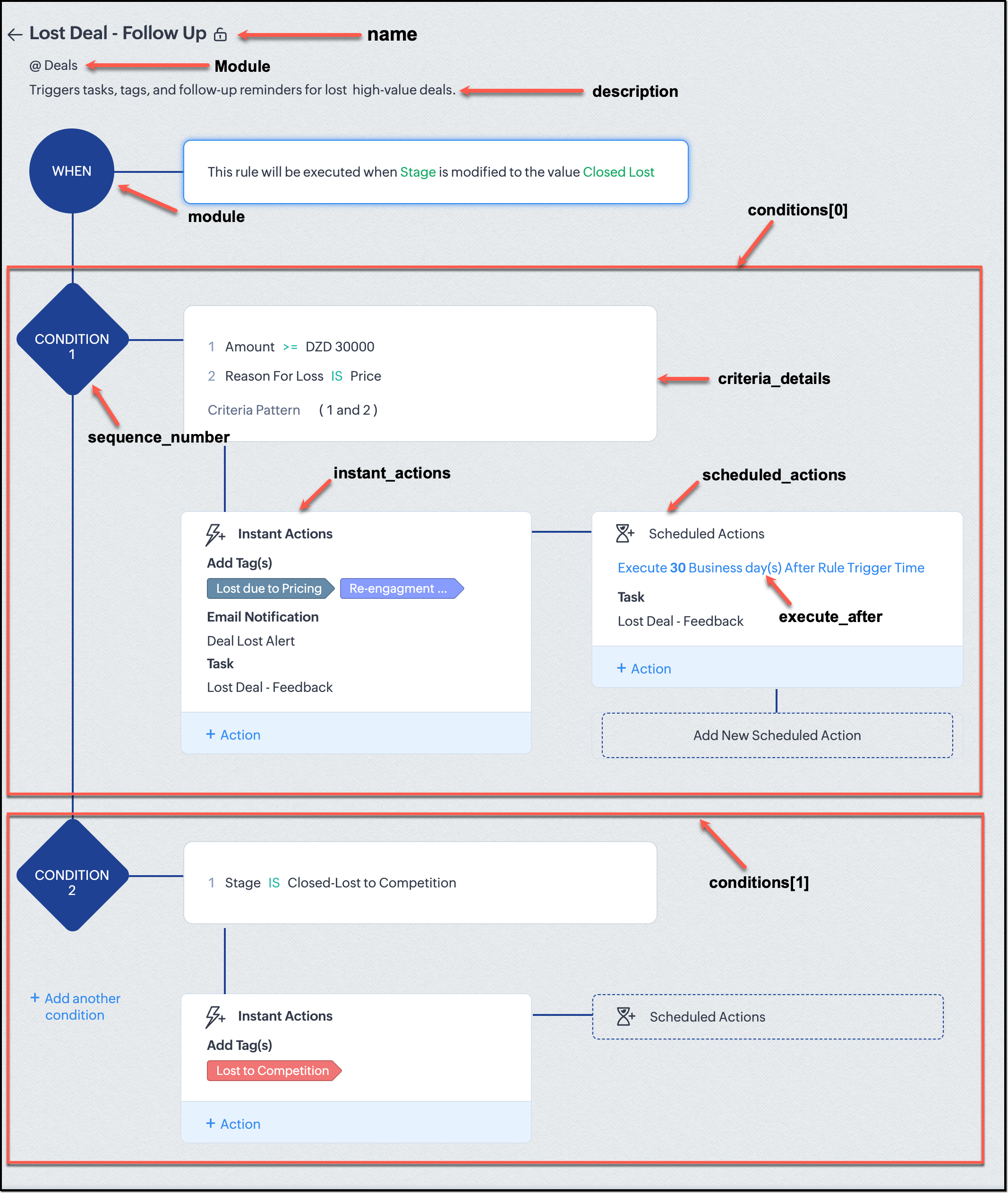
Associative vs. Non-Associative Actions
Every workflow rule performs one or more actions like sending an email, creating a task, or updating a field, etc. These actions fall into two broad categories: associative and non-associative.
Type | Description | Example Actions |
Non- Associative Actions | These are defined inside the workflow rule itself. They do not need to exist beforehand. You can configure their details directly within the workflow payload. | Create record, schedule a call, add a meeting, convert records, social actions, create record on email received, assign owner, |
Associative Actions | These are reusable actions created separately in CRM and referenced by their IDs. They can be used across multiple workflows and other automation tools. | Field updates, Email notifications, tasks, Webhooks, Add/Remove tags |
When you create or update a workflow via API, the associative actions require you to pass their existing action IDs. These IDs can be fetched using the corresponding Actions APIs : Field Updates, Email Notifications, Webhooks, and Tasks. In the coming weeks of Kaizen, we will take a closer look at each of these Actions APIs. We will see how to create, manage, and delete them within your workflow automation strategy.
Sample Request:
POST {{api-domain}}/crm/v8/settings/automation/workflow_rules
{ "workflow_rules": [ { "execute_when": { "details": { "trigger_module": { "api_name": "Deals", "id": "4876876000000002181" }, "criteria": { "comparator": "equal", "field": { "api_name": "Stage", "id": "4876876000000002565" }, "type": "value", "value": "Closed Lost" }, "repeat": false, "match_all": false }, "type": "field_update" }, "module": { "api_name": "Deals", "id": "4876876000000002181" }, "description": "Triggers tasks, tags, and follow-up reminders for high-value deals lost due to pricing", "name": "Lost Deal due to Pricing - Follow Up", "conditions": [ { "sequence_number": 1, "instant_actions": { "actions": [ { "name": "Lost Deal - Feedback", "id": "4876876000016794047", "type": "tasks" }, { "details": { "module": { "api_name": "Deals", "id": "4876876000000002181" }, "over_write": false, "tags": [ { "name": "Lost due to Pricing", "id": "4876876000016794071", "color_code": "#658BA8" }, { "name": "Re-engagement pending", "id": "4876876000016794075", "color_code": "#879BFC" } ] }, "type": "add_tags" }, { "name": "Deal Lost Alert", "id": "4876876000016794062", "type": "email_notifications" } ] }, "scheduled_actions": [ { "execute_after": { "period": "business_days", "unit": 30 }, "actions": [ { "name": "Lost Deal - Feedback", "id": "4876876000016794047", "type": "tasks" } ] } ], "criteria_details": { "criteria": { "group_operator": "AND", "group": [ { "comparator": "greater_equal", "field": { "api_name": "Amount", "id": "4876876000000002557" }, "type": "value", "value": "30000" }, { "comparator": "equal", "field": { "api_name": "Reason_For_Loss__s", "id": "4876876000002440001" }, "type": "value", "value": "Price" } ] } } } ] } ] } |
The execute_when defines when the workflow should fire.
type = field_update means this rule runs when a field’s value changes.
criteria : Stage = Closed Lost so the rule triggers whenever the Stage field is updated to Closed Lost.
repeat = false ensures it will not trigger multiple times for the same record.
In simple terms: “Whenever a deal is marked as Closed Lost, run this workflow.” The criteria_details section refines the trigger. The workflow only runs when the Amount ≥ ₹30,000 AND Reason for Loss = Price.
The instant_actions section inside the conditions array has the actions to be executed immediately when the criteria are met.
Add Tags : labels the record for easy filtering and reporting.
Send Email Alert : notifies the sales team instantly about the lost deal.
The scheduled_actions defines what happens after some time has passed. In this case, after 30 business days. Here, the workflow automatically creates a “Lost Deal - Feedback” task, reminding the deal owner to follow up with the customer to get feedback, and for future opportunities.
- The Amount is greater than or equal to ₹30,000, and
The Reason for Loss is “Price.”
By combining these elements, this workflow achieves a full closed-loop follow-up system.
Conclusion:
Zylker’s updated and new workflows make their automation smarter and more responsive. They are now able to spot key deals and ensure lost opportunities are revisited.
We hope you are now well on your way to mastering Workflow APIs. Share your thoughts in the comments or write to us at support@zohocrm.com.

Additional Reading:
- Workflow APIs - Part 1 - Auditing Workflows
- Workflow APIs - Part 2 - Find out what actions and triggers are supported for each module
Topic Participants
Anu Abraham
Sticky Posts
Kaizen #198: Using Client Script for Custom Validation in Blueprint
Nearing 200th Kaizen Post – 1 More to the Big Two-Oh-Oh! Do you have any questions, suggestions, or topics you would like us to cover in future posts? Your insights and suggestions help us shape future content and make this series better for everyone.Kaizen #226: Using ZRC in Client Script
Hello everyone! Welcome to another week of Kaizen. In today's post, lets see what is ZRC (Zoho Request Client) and how we can use ZRC methods in Client Script to get inputs from a Salesperson and update the Lead status with a single button click. In thisKaizen #222 - Client Script Support for Notes Related List
Hello everyone! Welcome to another week of Kaizen. The final Kaizen post of the year 2025 is here! With the new Client Script support for the Notes Related List, you can validate, enrich, and manage notes across modules. In this post, we’ll explore howKaizen #217 - Actions APIs : Tasks
Welcome to another week of Kaizen! In last week's post we discussed Email Notifications APIs which act as the link between your Workflow automations and you. We have discussed how Zylker Cloud Services uses Email Notifications API in their custom dashboard.Kaizen #216 - Actions APIs : Email Notifications
Welcome to another week of Kaizen! For the last three weeks, we have been discussing Zylker's workflows. We successfully updated a dormant workflow, built a new one from the ground up and more. But our work is not finished—these automated processes are
Recent Topics
Update a field in ALL all calls under a contact
HI guys! I have written some deluge code to update a field in my calls after i have comepleted the call, i need this field to update in all my scheduled calls as well that are comeing up. I just cant seem to get it to work, i have put teh code below,Verifying Zoho Mail Functionality After Switching DNS from Cloudflare to Hosting Provider
I initially configured my domain's (https://roblaxmod.com/) email with Zoho Mail while using Cloudflare to manage my DNS records (MX, SPF, etc.). All services were working correctly. Recently, I have removed my site from Cloudflare and switched my domain'sFat Download of Ulaa Browser
I just observed that Ulaa Browser is offering an one-capsule big download. These days it is a custom to offer a small bootstrap downloader and based on user customization options an appropriate download completes. And this is particularly common withBilling Management: #8 Usage Billing in Logistics & Delivery Services
The logistics and delivery industry thrives on movement and precision. Every delivery completed, every kilometre driven, and every ton transported is a measurable activity. However, billing often lags behind. Many logistics companies still rely on fixed-rateTags for New Tickets
Hi there, When creating a new ticket, there is currently no way to choose a tag you would like to associate with the new ticket. Being able to associate a tag while creating a new ticket will be very beneficial as it will save time and flow well withZoho Desk: No Incoming email
Is Zoho Desk services down? No incoming email reflect to desk tickets.Zoho CRM - Widgets | Update #3 : Introducing SDK V1.5 along with new ZDK Methods and ZRC Support
Hello everyone! Widgets in Zoho CRM just got a big upgrade! With the release of SDK v1.5, developers can now create more immersive widget experiences. This update elevates Widget development with new ZDK methods for easier interactivity and ZRC supportUnusual activity detected, account blocked
I am unable to send emails and am getting the error "Outgoing blocked: Unusual activity detected. To unblock your account, please and submit a request. Learn more.". I am unsure as to why this is happening since all my activity is legitimate, mainly confirmationUnable to Send Emails – Outgoing Mail Blocked (Error 554 5.1.8)
Description: Hello Zoho Support Team, I am facing an issue with my Zoho Mail account ( admin@osamarahmani.tech ). Whenever I try to send an email, I get the following error: 554 5.1.8 Email Outgoing Blocked I would like to clarify that I have not doneIssue connecting Zoho Mail to Thunderbird (IMAP/SMTP authentication error)
Dear Zoho Support, I am trying to configure my Zoho Mail account on Thunderbird, but I keep getting authentication errors. Account: info@baktradingtn.com Domain: baktradingtn.com Settings used: IMAP: imap.zoho.com, Port 993, SSL/TLS, Normal Password SMTP:Payment issue with Mail Lite plan – personal NIF not accepted as payment info
Hello, I have already contacted Zoho Support by email regarding this, but since I haven’t received any reply yet, I’m sharing it here as well to see if the community can help. I’m facing a payment issue for my Mail Lite plan. I have a personal accountCustomer payment alerts in Zoho Cliq
For businesses that depend on cash flow, payment updates are essential for operational decision-making and go beyond simple accounting entries. The sales team needs to be notified when invoices are cleared so that upcoming orders can be released. In contrast,Figma in Zoho Creator
Hi Team, I’m creating a form using Figma and would like to know how to add workflows like scheduling, custom validation, and other logic to it. Can anyone help me understand how to set this up for a Figma-based Creator UI form?Not receiving Gmail confirmation email to send emails as Zoho account from Gmail
Hello! I'm having an issue with the "Send mail as" option on Gmail. I am not receiving the confirmation email on my Zoho Mail account. A few days ago, it worked, then it stopped, and now when I try to fix it, I simply don't receive the confirmation emailRestore lost Invoice!
Some time ago I tried to Upgrade from Invoice to Books. I not upgraded and staid n Invoice. Now i tried again and first i deleted the old trial of books. But now all is gone, PLEASE HELP!! i have no backup and i have to have at least 7 years data retention by law.Zoho Desk Down
Not loadinglookup and integrated forms
I might be misunderstanding things but I wanted to integrate our zoho crm contacts into creator. I imagined that when I used the integration it would mirror into creator. It did brilliant. BUT We have a ticket form in creator that we want to use a lookupPartially receive PO without partial Bill?
Most of our inventory is pre-paid. Let's say we purchase 30 pieces of 3 different items for a total of 90 pieces. It is common for our supplier to send us the items as they are ready. So we will receive 30 pieces at a time. How can I partially receive2 users editing the same record - loose changes
Hello, I'm very new to Zoho so apology if this has been addressed somewhere i can't find. I have noticed the following: If we have 2 users put an inventory item in edit mode at the same time: say user1 click on edit and user2 while user1 is still in edit,How to get the Dashboard page to be the first page when you open the app
So when it opens on a tablet or phone it opens on the welcome page, thanks.How I set default email addresses for Sales Orders and Invoices
I have customers that have different departments that handle Sales Orders and Invoices. How can i set a default email for Sales Orders that's different than the default email for Invoices? Is there a way I can automate this using the Contact Persons DepartmentsFormula fields not refreshing until page is reloaded
I need help/advice about the formula fields and how I can refresh the information in real-time. We have two formula fields on our deals page which show calculated prices: One formula is in a subform which calculates the subform total + 1 other field amountHow can I setup Zoho MCP with Chat GPT
I can set up custom connections with Chat GPT but I cat an error when I try to set it up. The error is: "This MCP server can't be used by ChatGPT to search information because it doesn't implement our specification: search action not found" Thoughts?API ZOHO CRM Picket list with wrong values
I am using Zoho API v.8. with python to create records in a custom module named "Veranstaltung" in this custom module I've got a picket list called "Email_Template" with 28 Values. I've added 8 new values yesterday, but if I try to use on of those valuesGroup Emails
I have synced Zoho CRM to Campaigns but there are certain email not synced. showing it is Group Emails, but this email ids belongs to different individuals. please provide a solution as i nedd to sync the same.Enable Password Import option in ulaa browser
Dear Ulaa Team, I noticed that the Ulaa Password Manager currently offers an option to export passwords, but not to import them. This limitation poses a challenge for users like me who have stored numerous credentials in browsers like Chrome. Manually"Is Zoho CRM customer" vs "Is linked with Zoho CRM"
Recently while building a Flow, I was setting up a Decision action following a Zoho Invoice Fetch record action. There were 2 choices that I had not seen as something I could manually action in Zoho Invoice: "Is Zoho CRM customer" and "Is linked withClient Script | Update - Introducing ZRC: Simplified HTTP request library
Hello Developers! Are you tired of juggling different methods to make API calls? Are you confused with multiple syntaxes and version restrictions? Have you ever wished for one simple way to make all API calls in CRM? We heard you :) Here comes ZRC (ZohoSelection Filed for Data Export section
Hi FSM Team, I hope you are all doing well. I would like to share an idea for future development based on my experience. Currently, in FSM, we can only download up to 5,000 records at a time. If the development team could add a selection option to chooseWhat if I dont see contacts on the left side list
My CRM does not show the contacts tab. In order to create list this is needed and I cant find it.Comments Vs. Replies
I'm curious as to the difference between a "Reply" and a "Comment" on a ticket. It appears that "Replies" are what's used to determine response time SLA's and there are also used to automatically re-open tickets. I'm just trying to understand the key differences so I can educate both our clientele and our back-end users on which function/feature to use to better improve the ticket lifecycle. If anyone has any insight it would be appreciated. Thanks!Transitioning to API Credits in Zoho Desk
At Zoho Desk, we’re always looking for ways to help keep your business operations running smoothly. This includes empowering teams that rely on APIs for essential integrations, functions and extensions. We’ve reimagined how API usage is measured to giveCan you prevent closing Ulaa window when the last tab is closed (inadvertently)?
Most browsers have started to bring this feature in to prevent closing their windows when the last tab is closed (inadvertently). I hope Ulaa should get this in too.Microsoft Phone Link
Does anyone know if you can use Microsoft Phone Link to make calls through Zoho?Voip Phone system that integrates with Zoho
Just checking to see if anyone could tell me what phone system they are using with Zoho that is on the list of systems that integrate with Zoho. I use Vonage and have been with them for quite a few years but their service has really gone down hill andRemoving Related Modules Lookup Fields Assignment / Relationship
Issue: When creating a related list, I accidently selected module itself creating a circle reference. See attached. Situation: I wish to relating a custom module called "Phone Calls" to Leads and Contacts. Outcome: 1) I either want to remove the thisMultiple email accounts, one phone
Hi, I have my own businesses that use Zoho mail, now I would like to use zoho mail also for a local charity. But I noticed adding a phone number is compulsory for registering an account, and I only have one phone. This means I can not open an account because my phone number is already in use for another account. Can this be fixed? Thanks VincentKaizen #210 - Answering your Questions | Event Management System using ZDK CLI
Hello Everyone, Welcome back to yet another post in the Kaizen Series! As you already may know, for the Kaizen #200 milestone, we asked for your feedback and many of you suggested topics for us to discuss. We have been writing on these topics over theSeriously - Create multiple contacts for leads, (With Company as lead) Zoho CRM
In Zoho CRM, considering a comapny as a lead, you need us to allow addition of more than one contact. Currently the Lead Section is missing "Add contact" feature which is available in "Accounts". When you know that a particular lead can have multiplecan I link a contacts to multiple accounts
can I link a contacts to multiple accountsNext Page